

How are automated improvements generated?
A guide to enabling automated answer improvements in LearnWise so unanswered or escalated questions become tracked “To‑Do” tasks that help teams close knowledge gaps and keep content up to date.
2 min readUpdated
How to Enable Automated Answer Improvements in LearnWise #
Automated Answer Improvements in LearnWise are a valuable feature for continuously enhancing the AI assistant’s responses. By enabling this feature, the system can create suggested improvements for review whenever the assistant encounters an unsupported question. Here’s a step-by-step guide on how to enable and manage automated improvements in LearnWise.
Functionality of Automated Improvements:
- When users ask a question that the AI cannot answer, they are prompted to contact support.
- Both an unanswered question and an escalation will prompt an automated improvement to be created, and logged as a "To-Do" item in the Improvements tab.
- Duplications are aggregated and ‘’nonsense questions’’ are ignored when auto-improvements is enabled to ensure improvements stay manageable and relevant
Steps to Enable Automated Improvements
-
Access the Help Desk Settings:
- Log into your LearnWise admin account at admin.learnwise.ai.
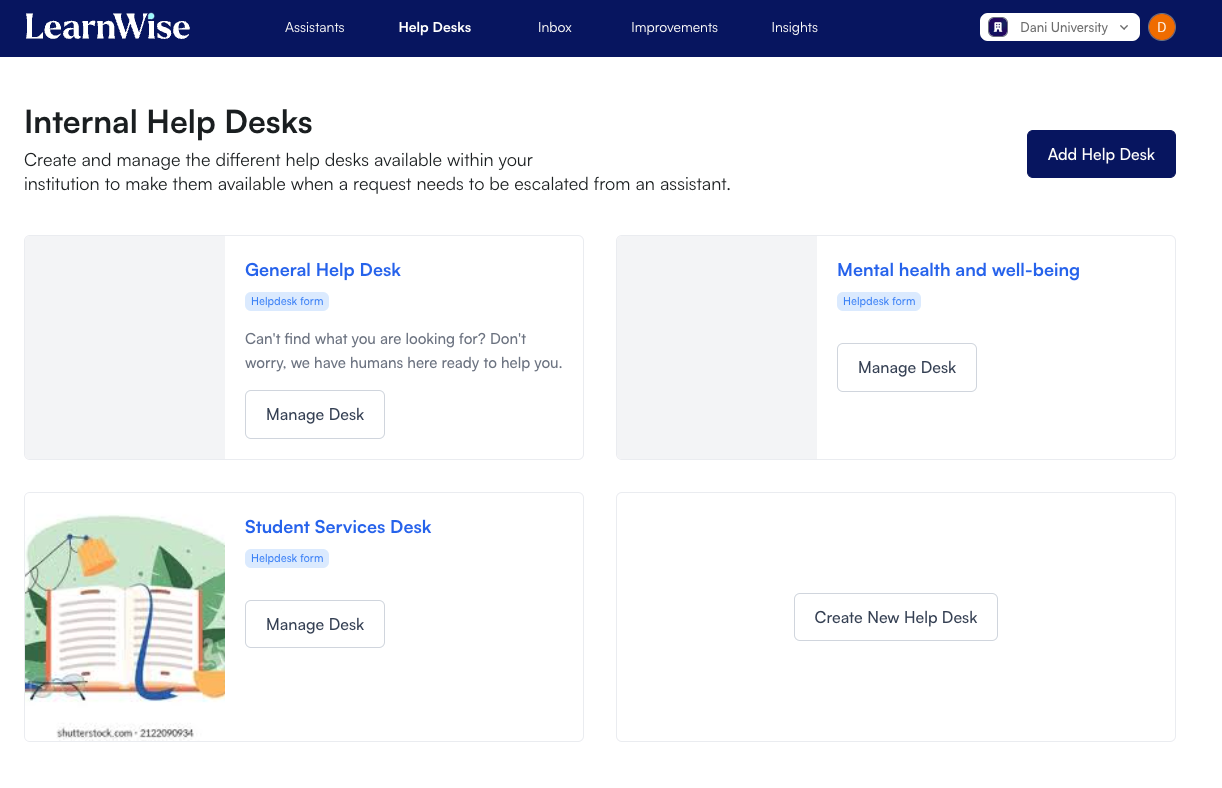
- From the dashboard, navigate to the Help Desk tab and choose the assistant that you would like to enable automatic improvements for.
Note: Automated improvements can be managed per individual help desk
Enable Automatic Improvements:
- Scroll down until you reach the Answer Improvements option .
- Look for the option labeled Automatically Create Answer Improvements and select the checkbox.
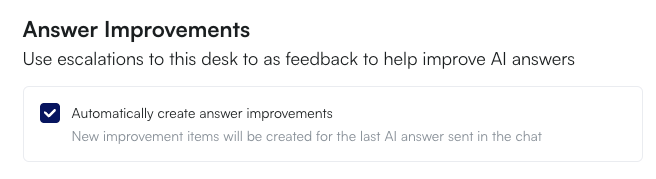
- Enabling this will allow the system to track unsupported queries escalated to human support and log them as improvements under the "Improvements" tab.
Once the improvement task has been created, you can manually manage the workflow to ensure the task is handled as efficiently and effectively as possible.
Best Practices
- Regular Reviews: Frequently check the Improvements tab to stay on top of newly suggested enhancements. This ensures the AI assistant stays up-to-date and can handle more diverse queries.
- Assigning Responsibilities: Define roles for team members to manage, review, and implement improvements based on priority.
- Tracking Progress: Use the priority and due date features to monitor the development of improvements and ensure high-priority issues are resolved swiftly.
Enabling and managing Automated Answer Improvements allows LearnWise administrators to build a more responsive and accurate AI assistant, improving the user experience by expanding the assistant’s knowledge base over time.
Still stuck?
Ask the LearnWise assistant. It answers from these guides.
Related guides
- How can I link/unlink improvements?Knowledge Management: Improvements
- How can I manually generate an improvement?Knowledge Management: Improvements
- What are improvements?Knowledge Management: Improvements
- What is the workflow to manage an improvement once it has been created?Knowledge Management: Improvements
- How do I attach a file to my LearnWise chat?Knowledge Management: Improvements