

How do I publish AI Student Tutor into Moodle via a plug-in?
A step‑by‑step guide to installing LearnWise AI Student Tutor in Moodle via the plugin, with options for a floating support button or LTI course assistant plus optional course-content ingestion and live API features.
4 min readUpdated
On this page
LearnWise supports Moodle versions 3.9 and later. If you're using Moodle 3.4–3.8, please contact our support team at help@learnwise.ai to request a plugin version compatible with your Moodle installation.
LearnWise offers a quick, flexible plug-in method to integrate an AI assistant into Moodle. You can choose between two primary configurations:
- Floating Support Button – Ideal for general support and visible across the Moodle interface.
- AI Student Tutor (LTI) – Embedded at the course level, capable of interacting with course content and (optionally) pulling live data from Moodle via APIs.
✅ Prerequisites #
- Access to the LearnWise Admin Panel
- Site administrator privileges in your Moodle environment
- Moodle version 3.9 or higher
1. Download the Moodle Plugin from LearnWise #
- Go to https://admin.learnwise.ai and log in.
- In the Admin Panel, navigate to the “Publish” tab.
- Click on “LTI Connection” and select Moodle.
- Download the latest version of our plug-in from: https://moodle.org/plugins/local_learnwise (you will be redirected here from the Learnwise wizard)
2. Upload and Install the Plugin in Moodle #
- Log in to your Moodle site as an administrator.
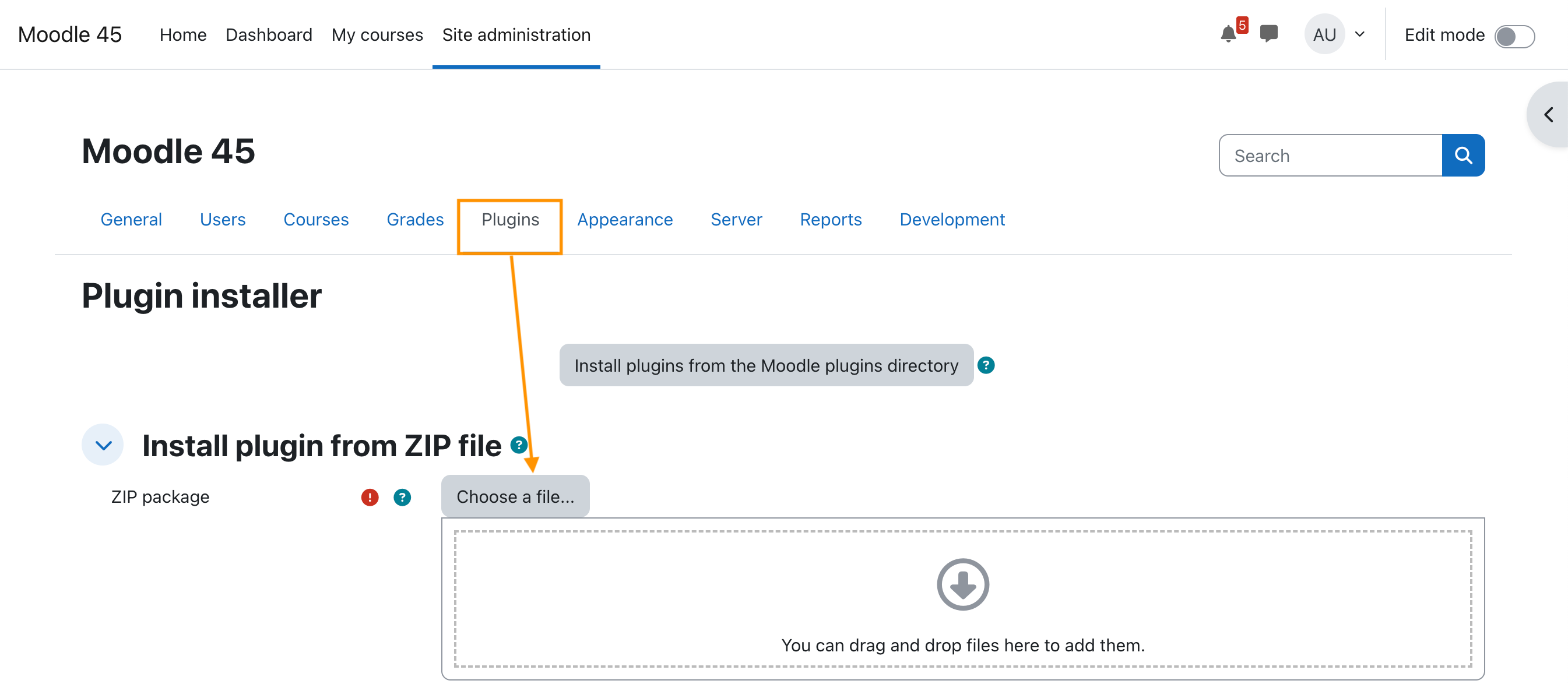
- Navigate to Site Administration > Plugins > Install Plugins.
- Upload the LearnWise
.zipfile and follow the on-screen prompts. - When asked for a plugin name, provide a recognizable title like
LearnWise Assistant.
3. Configure the Plugin in Moodle #
After installation:
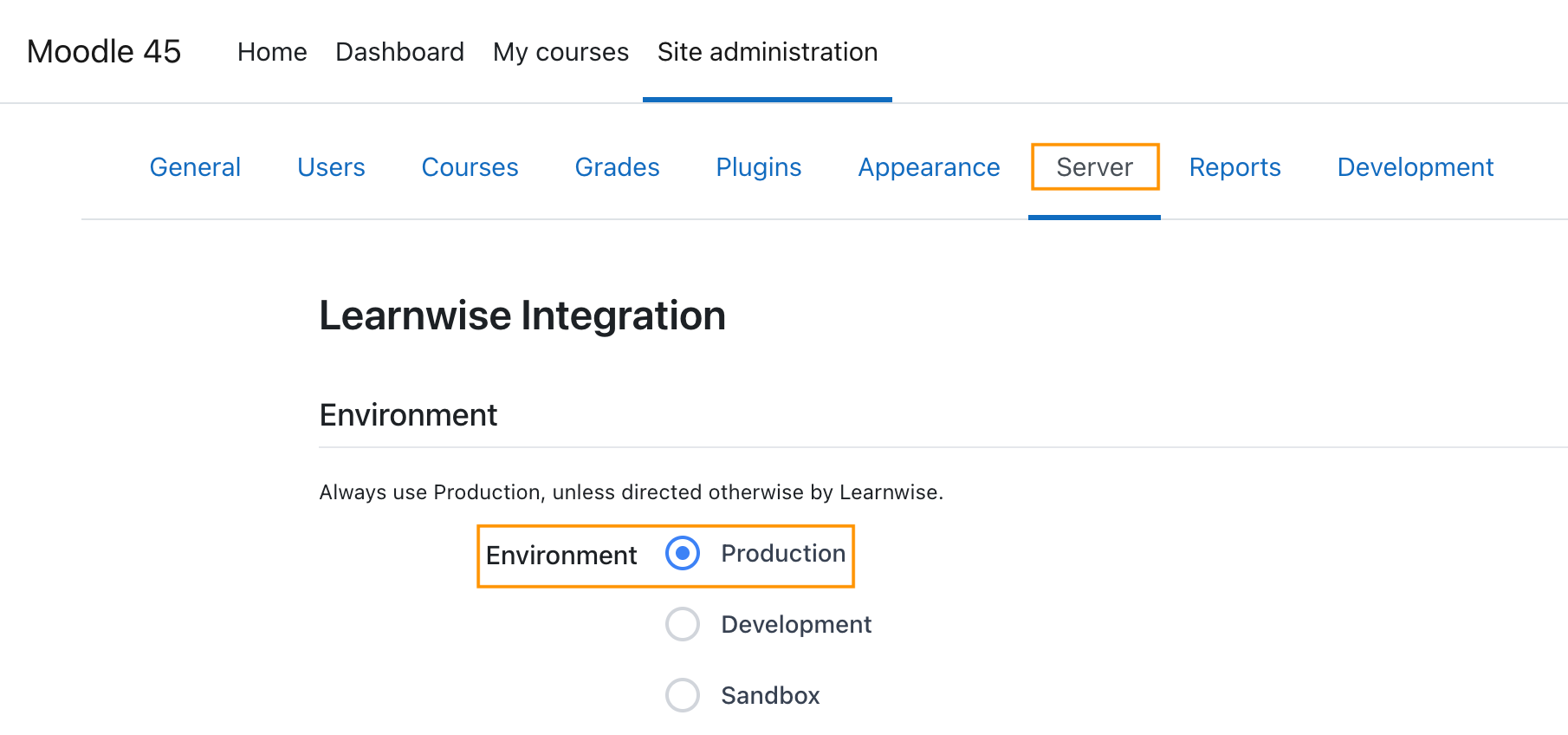
- Go to Site Administration > Server > LearnWise Integration.
- Select “Production” as your environment.
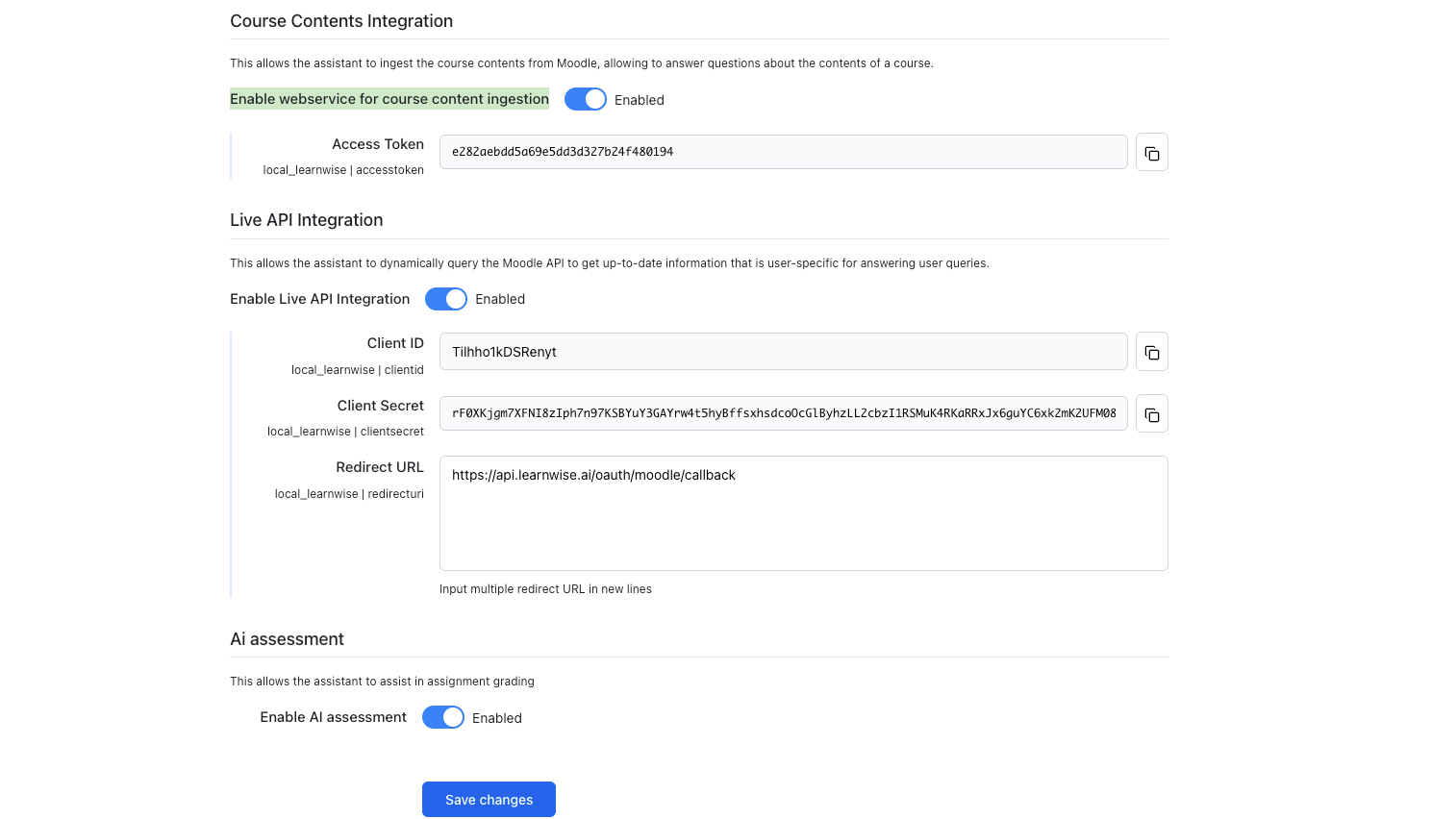
- Select “Enable webservice for course content ingestion”
-
Save Changes
🎯 Option A: Floating Support Button Integration #
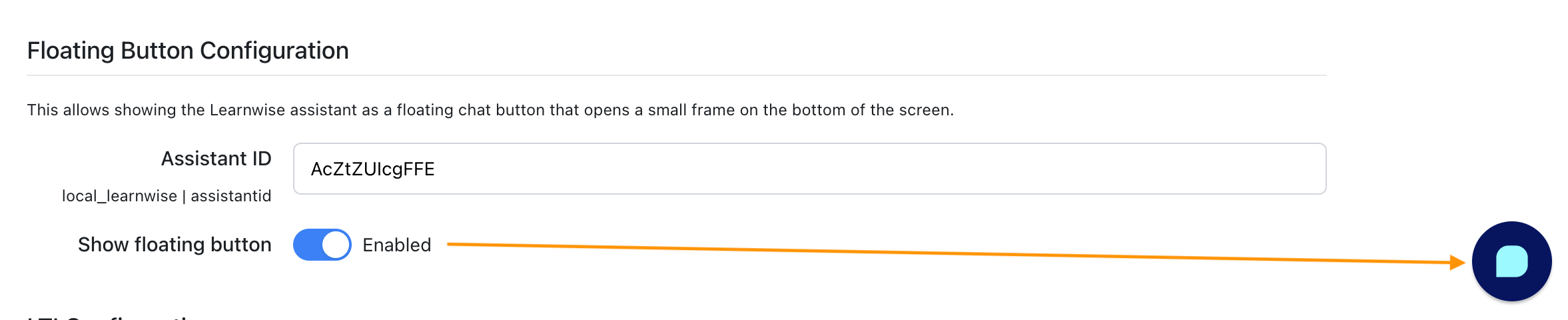
- Locate your Assistant ID in the Publish > Configure LTI> Moodle window
- Paste the Assistant ID into the corresponding field in Moodle.
- Select the region.
- Enter the Course IDs comma separated (optional) to load the chat on specific courses.
- Click Save.
- The floating LearnWise button will now appear on the bottom-right corner of your Moodle interface.
🎯 Option B: AI Student Tutor (LTI) Integration #
-
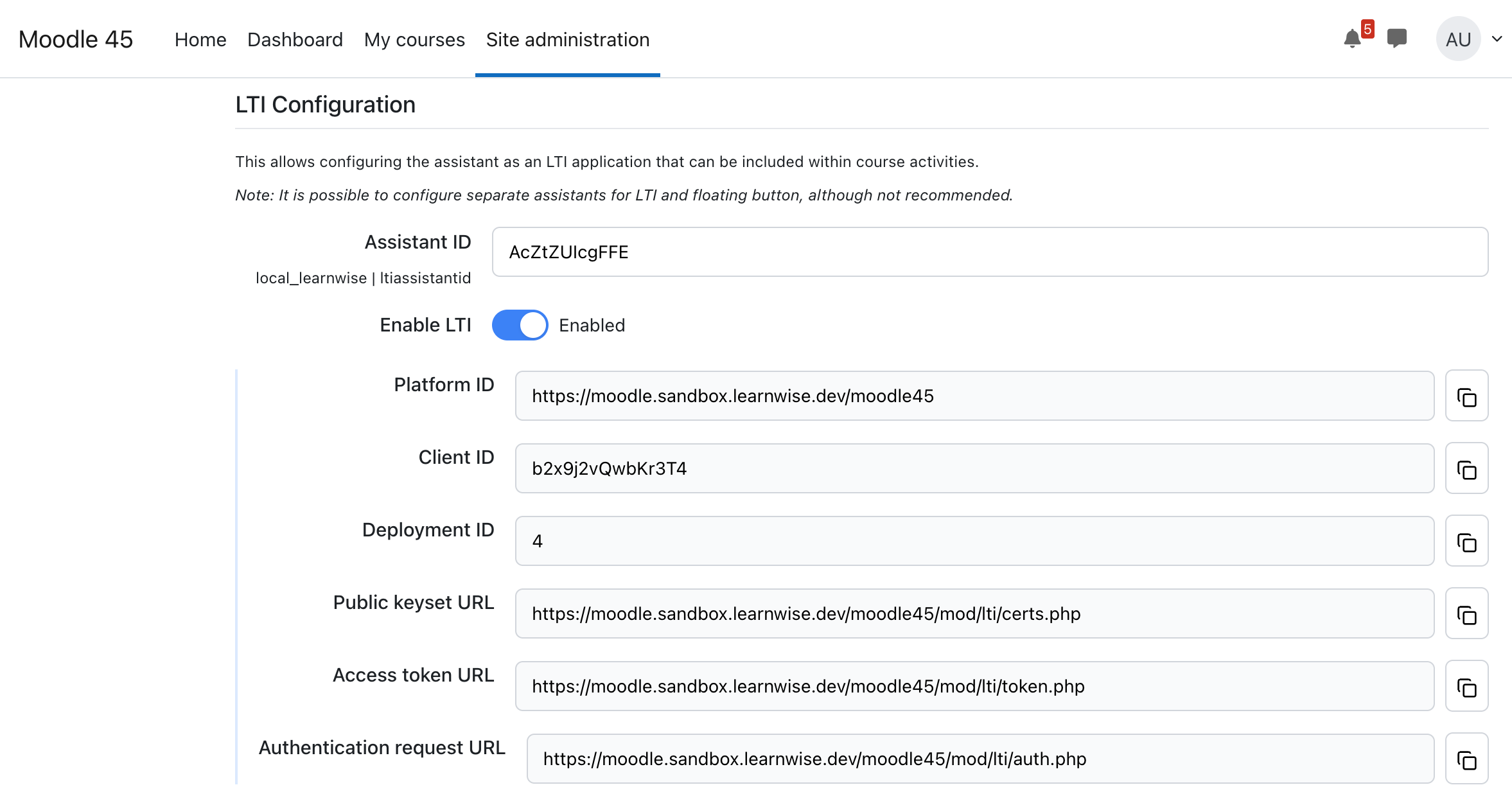
Enable LTI toggle in Moodle
-
From the Moodle LTI setup screen, copy the following:
- Platform ID
- Client ID
- Deployment ID
-
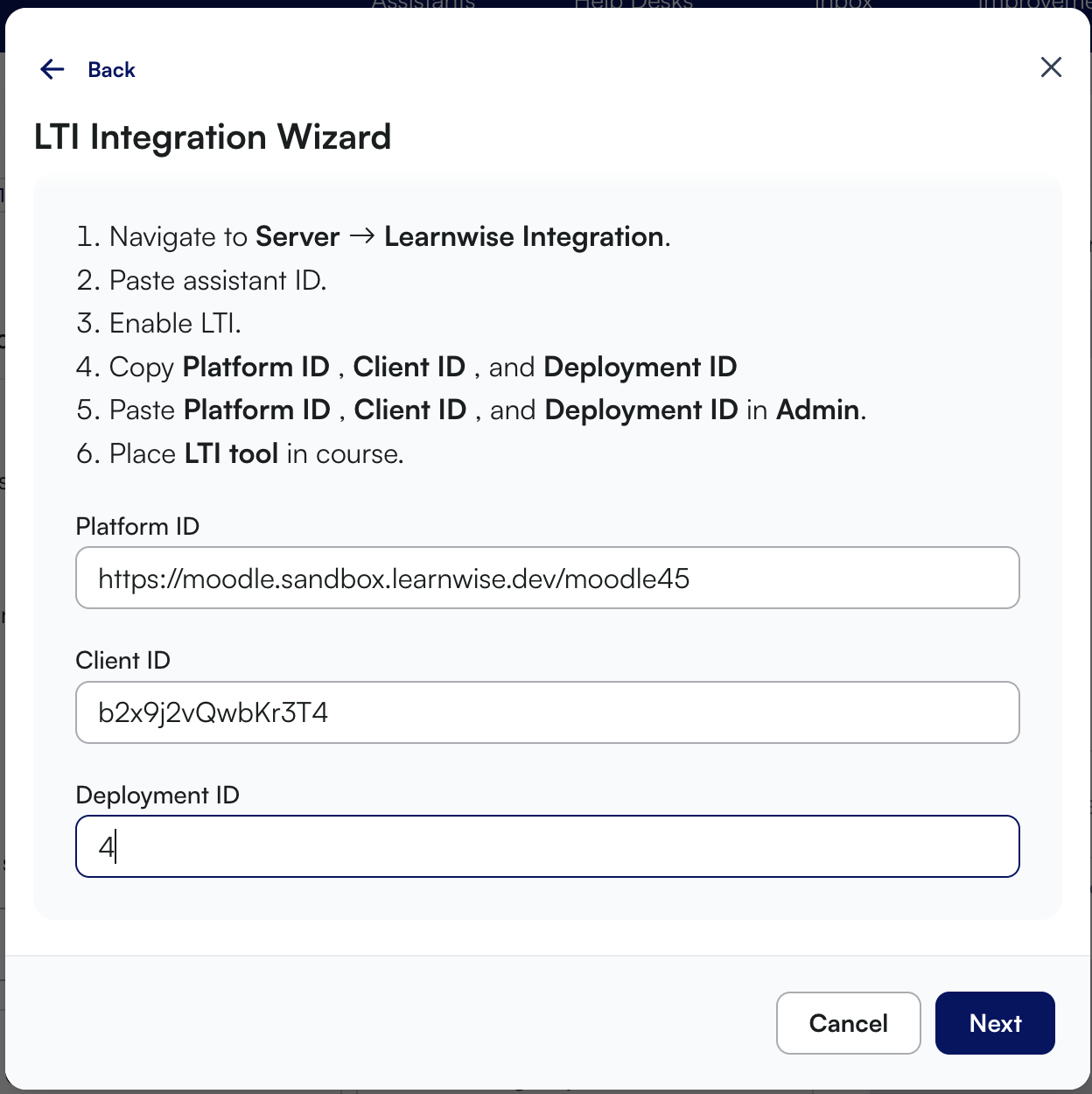
Paste these into the appropriate fields in the LearnWise wizard located on the Publish > LTI Connection > Moodle channel
-
Click Next, then Submit to create the LTI connection.
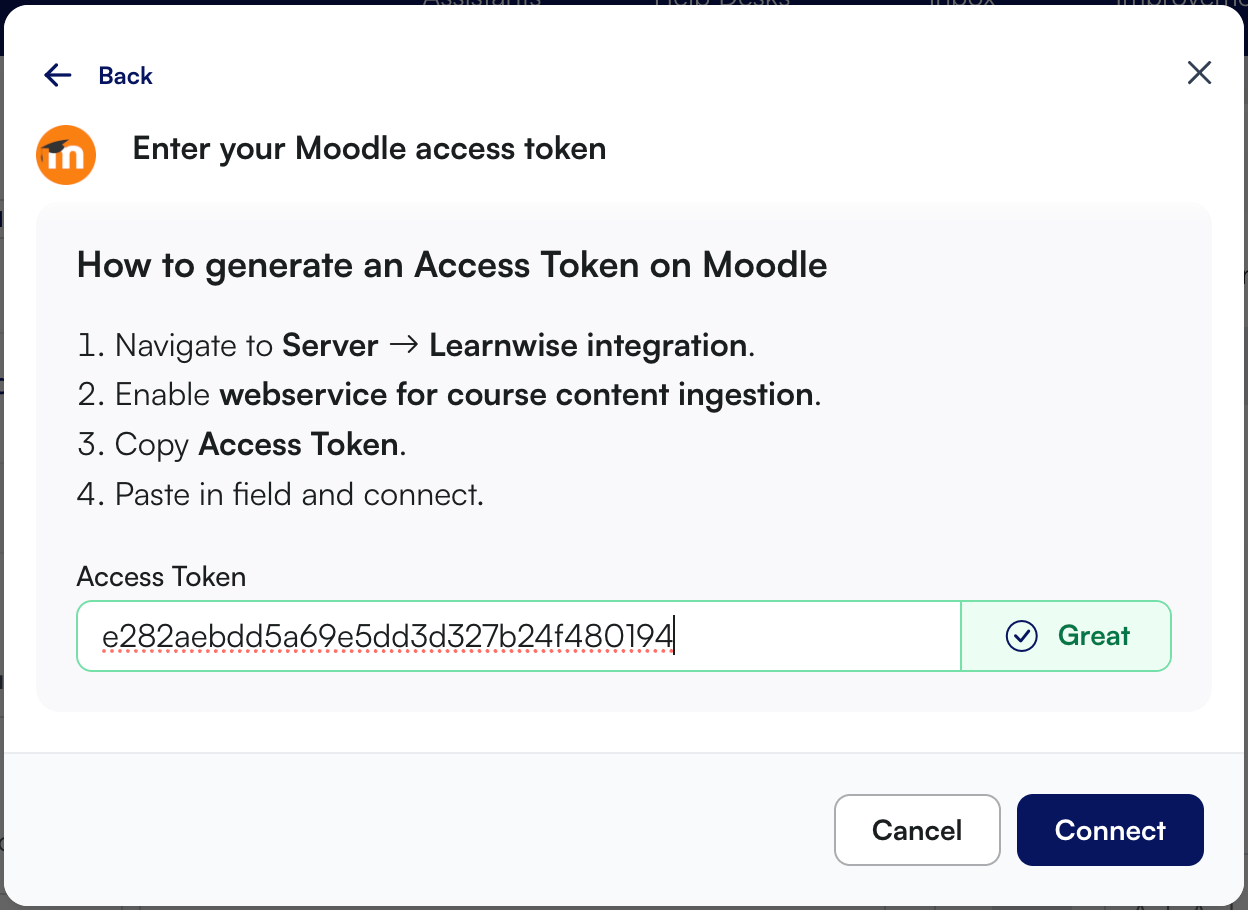
4. Ingest Moodle Course Content (Optional) #
To enable the assistant to interact with course-specific material:
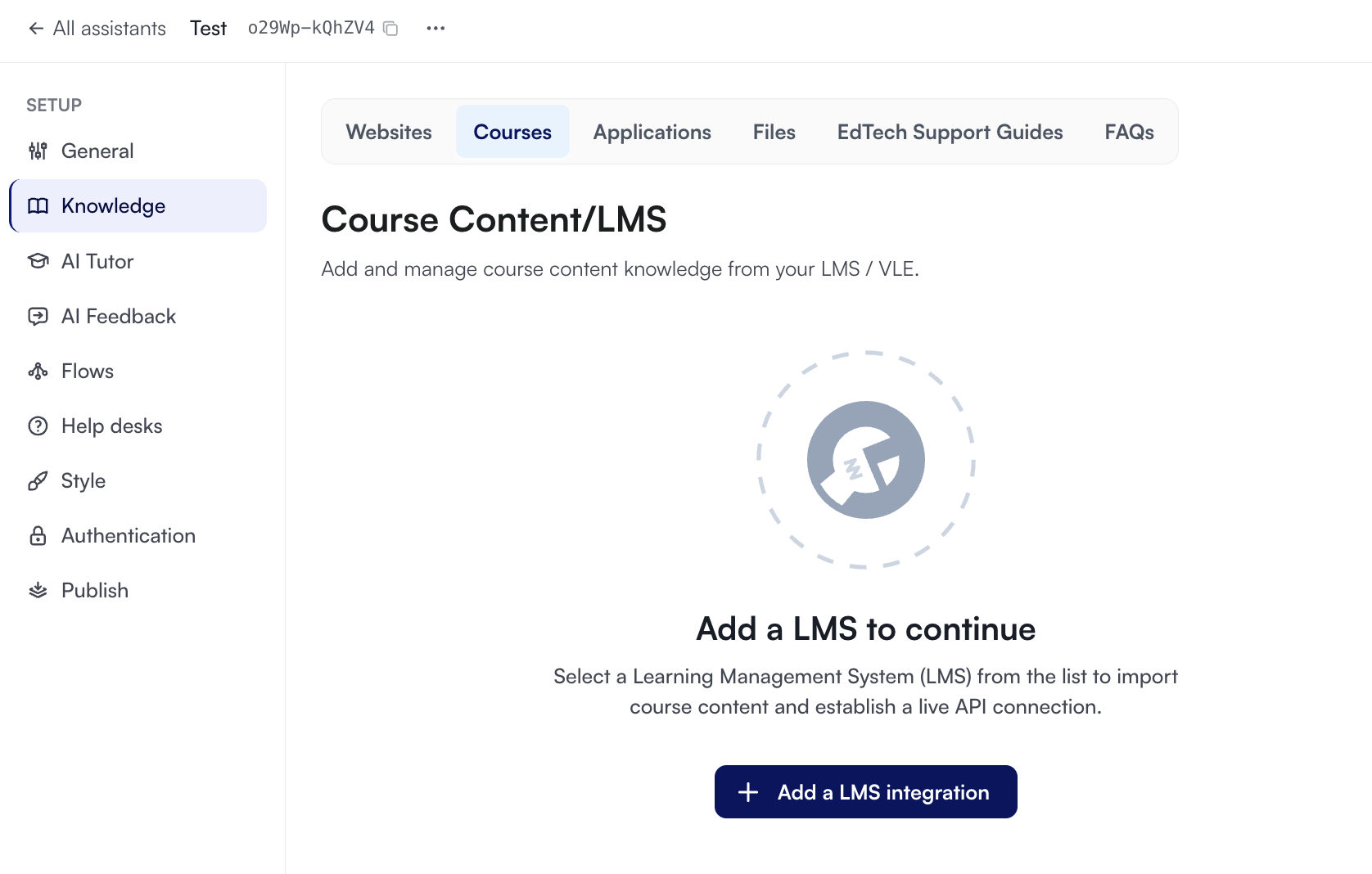
- In the LearnWise Admin Panel, go to the Knowledge > Courses.
- Click "Add a LMS integration" and select Moodle.
- From Moodle, Copy your Platform ID and Access Token.
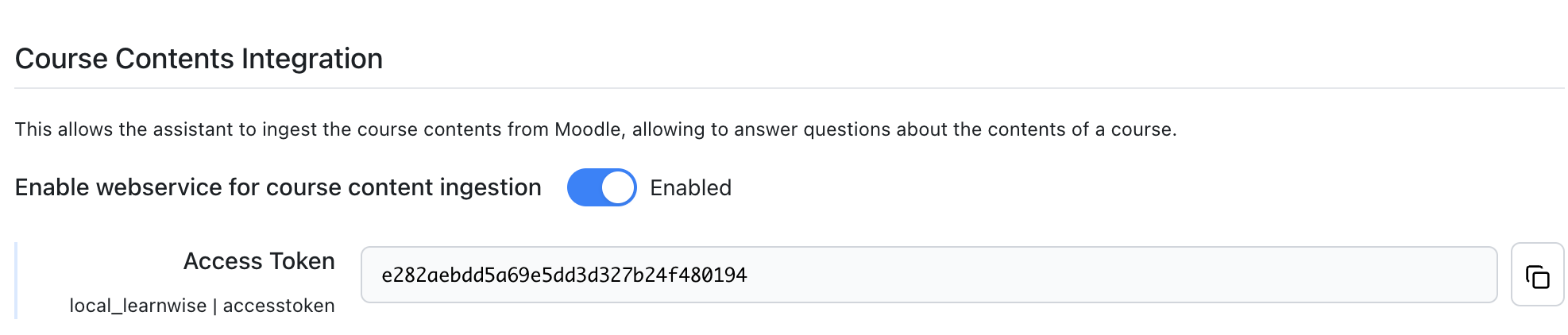
- Paste them into the connection window in LearnWise & select which course content you would like to ingest form the list of content types
- Your assistant is now ready to ingest course content
5. Enable Live API Integration (Optional) #
To pull live Moodle data (user role, assignments, etc.):
-
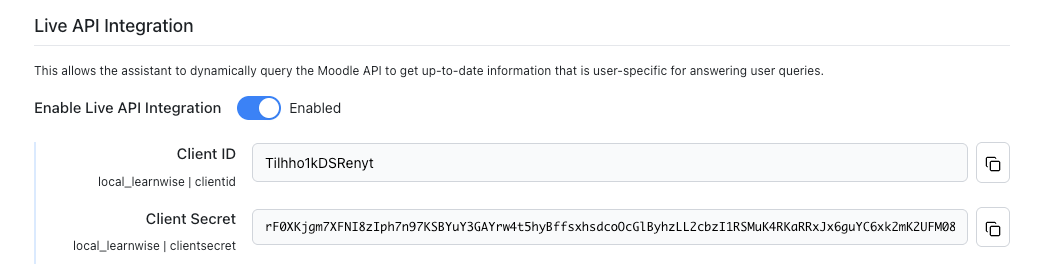
Enable the Live API Integration toggle in Moodle
-
Copy the Client ID and Secret from your Moodle
-
Copy the Redirect URI into Moodle

-
Paste them into your LearnWise dashboard and click Verify.
-
If successful, you’ll be redirected to Moodle to confirm authorization.
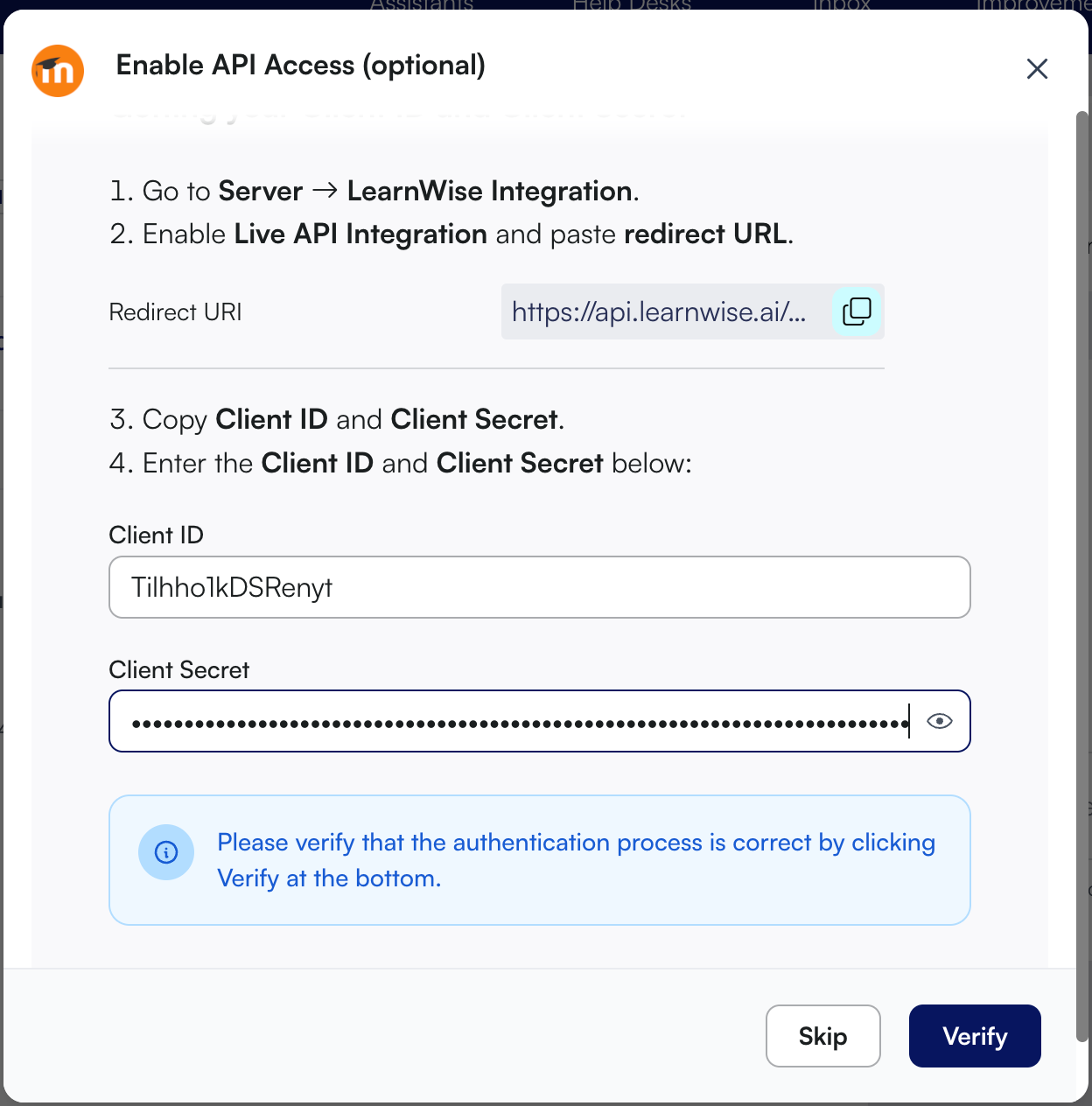
- After verification, click Connect.
AI Tutor
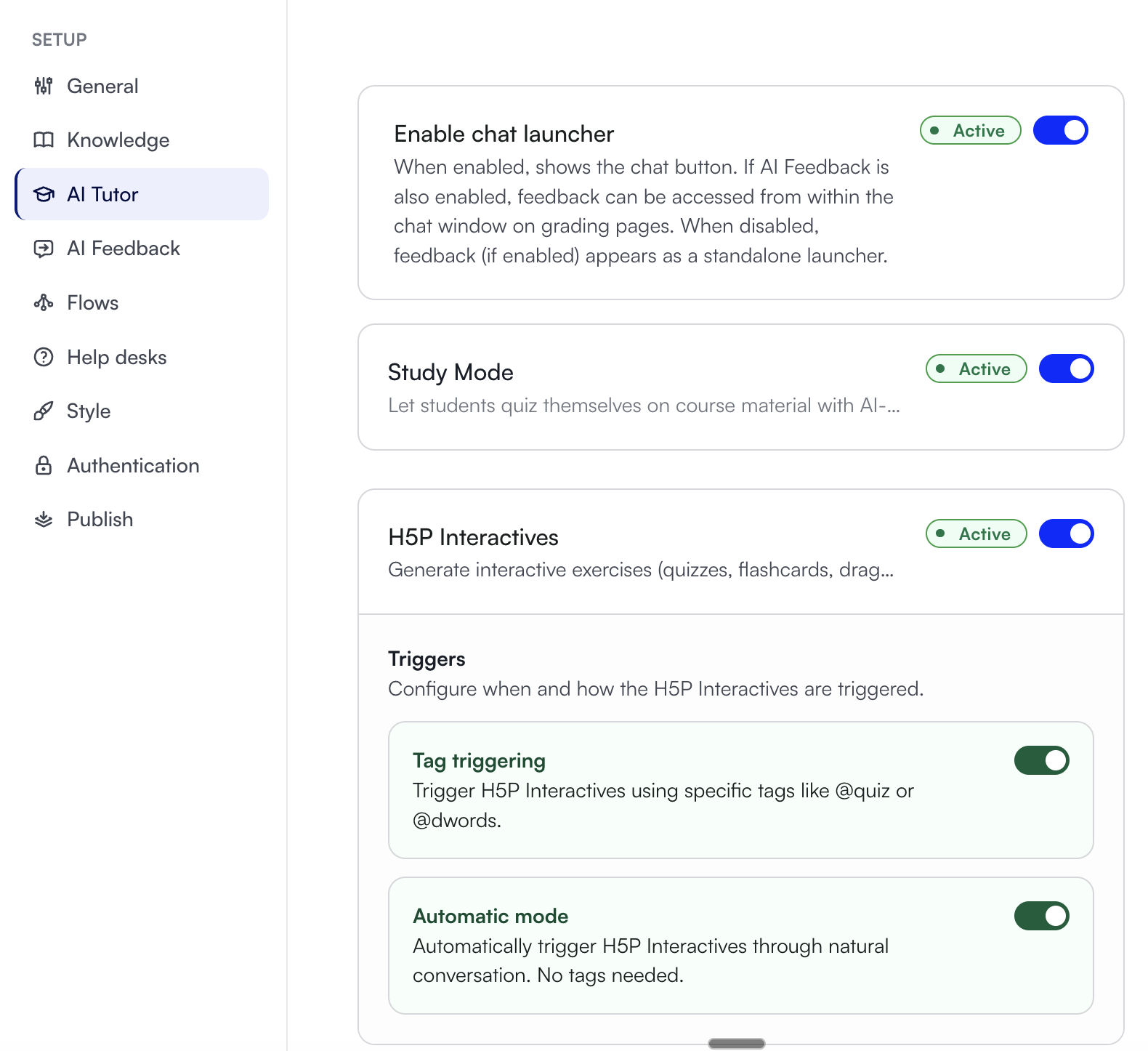
Navigate to Assistant > AI Tutor in your LearnWise admin and enable Study Mode and/or H5P Interactives to allow students to fully engage with their course content. This allows the assistant to create different types of quiz questions and help students practice their understanding on the course content .
Cross-Course
If you'd like to give students to ask questions about multiple courses they are enrolled in at once (for example, "what assignments do I have this week?"), you can do so by navigating to Knowledge > Courses > Cross Course and enabling this feature via the toggle. 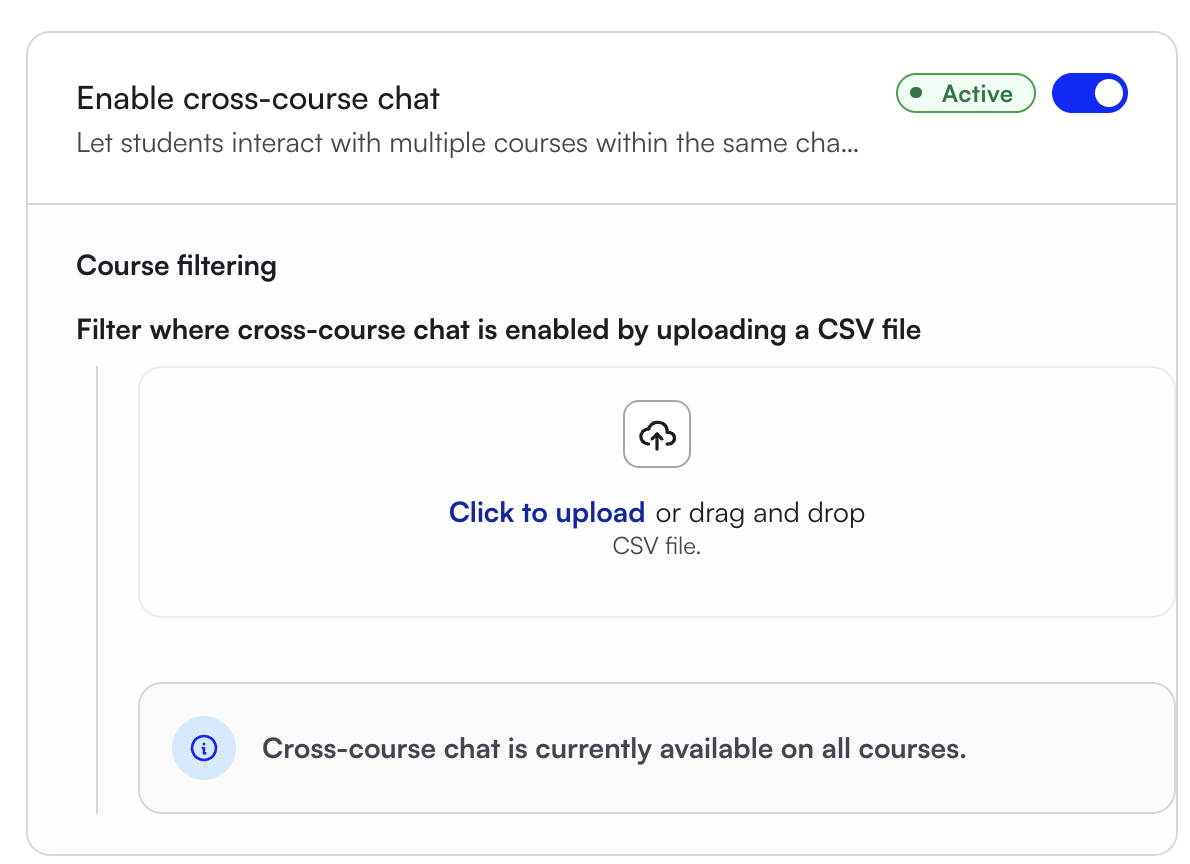
6. Launch the Assistant in Moodle Courses #
- In Moodle, navigate to any course where you want to add the assistant.
- Choose Add an activity or resource
- Select LearnWise from the list of external tools. (If it is not listed, ensure it is toggled on as an option under LTI external tools)
- Save and return to course.
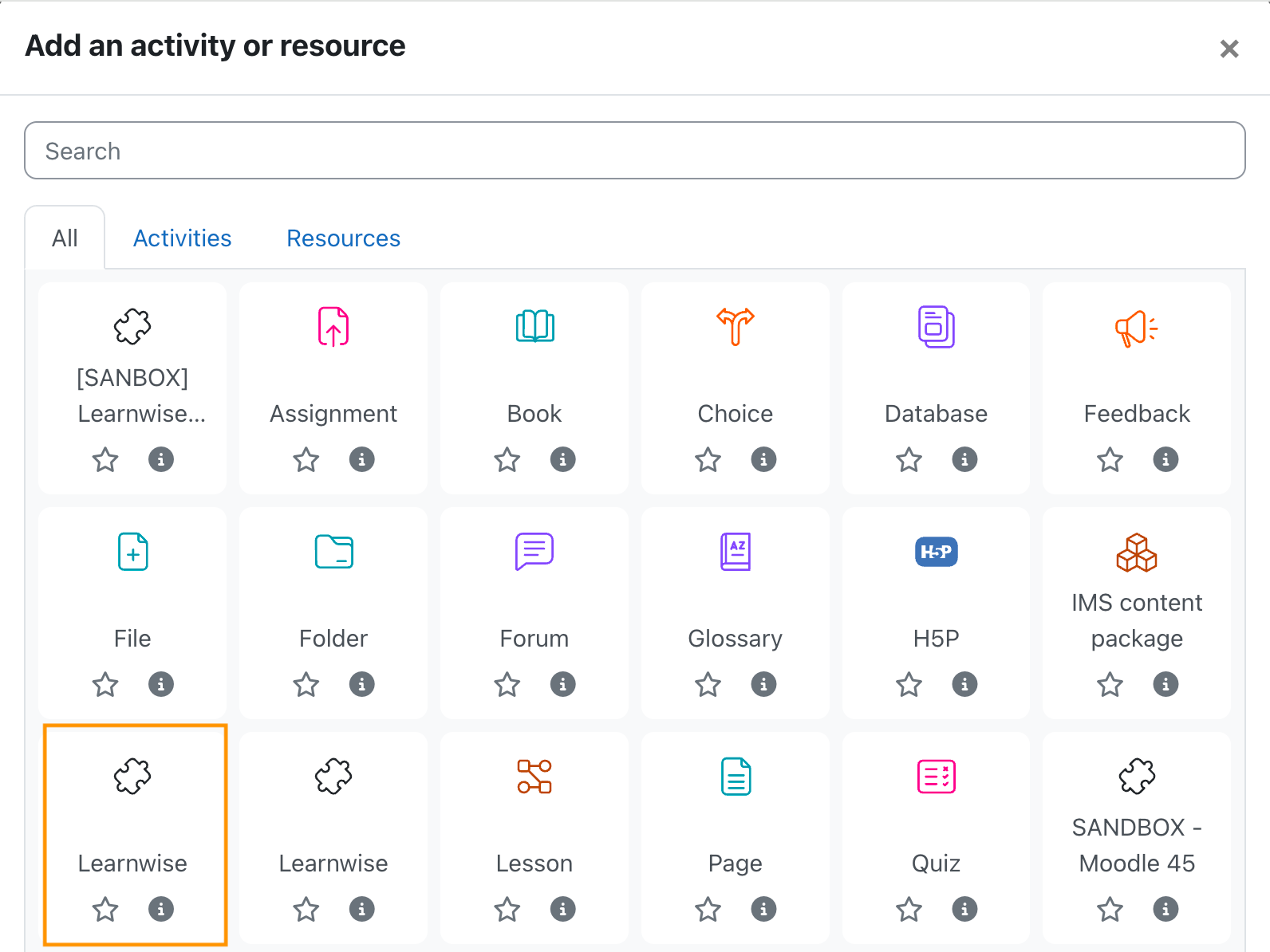
The assistant will dynamically scrape content the first time it is launched in a course by any user
7. Monitor Content Scraping Status #
- Return to the LearnWise dashboard.
- Go to Knowledge > Courses.
- View the real-time status of the content scrape for each Moodle course.
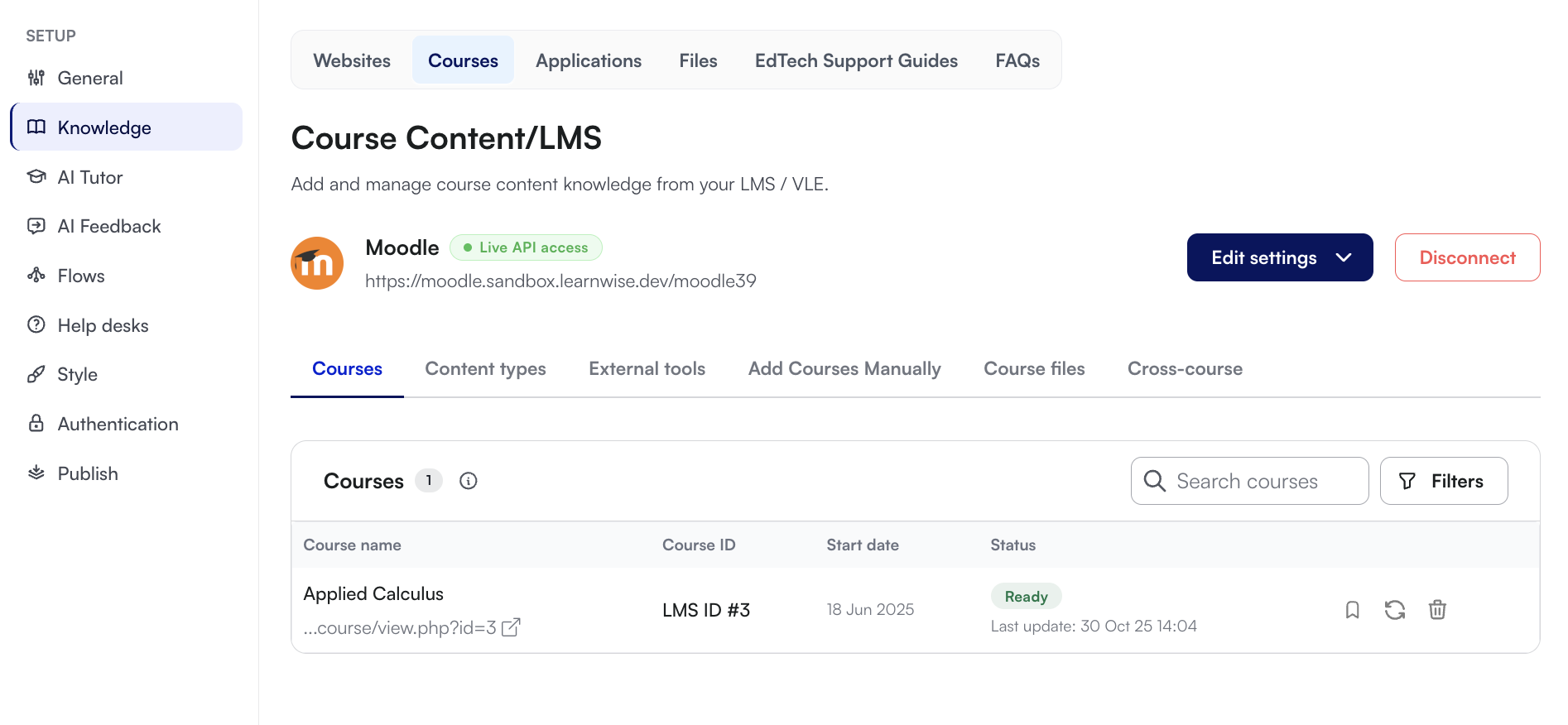
- Once scraping is complete, the assistant is ready to respond to course-specific queries.
8. AI Feedback & Grader #
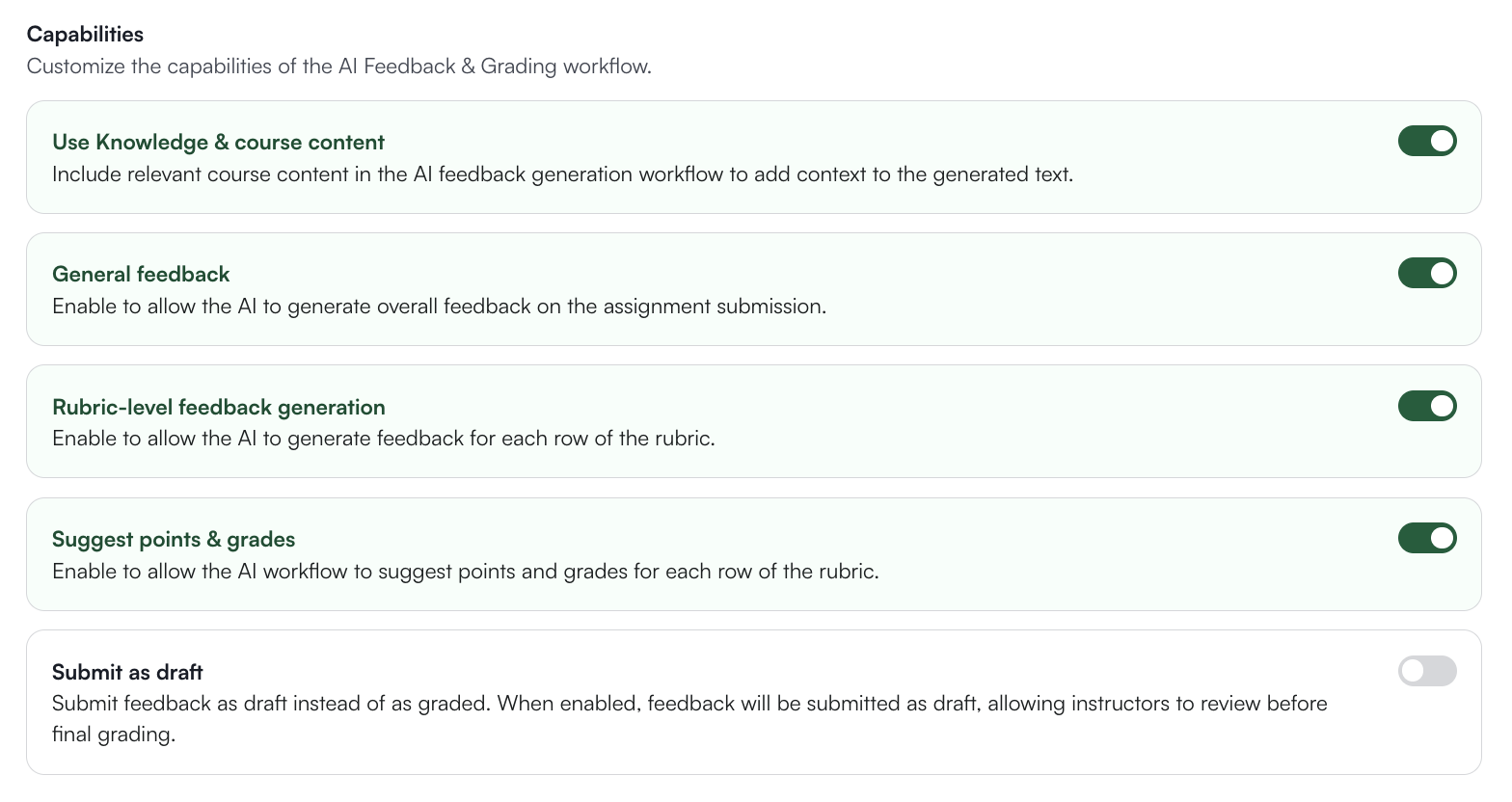
This allows the assistant to assist teachers in assignment feedback and grading. To enable this feature, navigate to Assistant > AI Feedback and turn the toggle to on.

Then use the toggles below to further customize the AI Feedback settings at the admin level.
💡 Tips and Recommendations #
- Data privacy: Ensure that all API and integration permissions follow your institution’s data governance policies.
- Training timeline: After ingesting content, the assistant typically requires up to 30 minutes (depending on the size of the course) to train and activate fully.
Still stuck?
Ask the LearnWise assistant. It answers from these guides.
Related guides
- How can courses be structured in Moodle to maximize LearnWise?AI Student Tutor
- How can courses be structured in Canvas to maximize LearnWise?AI Student Tutor
- How can I add AI Student Tutor to Brightspace?AI Student Tutor
- How can I add AI Student Tutor within Canvas?AI Student Tutor
- How can I add Kaltura video transcripts as a knowledge source in AI Student Tutor?AI Student Tutor