

How do I create and export a report of Inbox conversations?
Export conversation data securely for deeper analysis, clearer reporting, and stronger governance over assistant activity.
2 min readUpdated
On this page
Why Exporting Inbox Data Matters #
The Inbox in LearnWise captures every assistant conversation, feedback entry, and escalation—making it a valuable tool for insights, accountability, and improvement. Exporting this data enables your institution to:
- Audit assistant performance
- Track escalation volumes over time.
- Identify user engagement patterns and surface recurring needs.
- Integrate with other tools for deeper analysis or custom reporting.
- Support data governance with an auditable download trail.
Whether you're reviewing user satisfaction or reporting up to leadership, the Inbox export feature ensures you have structured access to the data you need.
🛠️ How to Export Inbox Data #
1. Go to the Inbox #
Log in to your LearnWise admin account at https://admin.learnwise.ai and select the Inbox tab from the navigation menu.
2. Adjust the Filters (Optional) #
Before exporting, you can refine the data set using filters.
Default filters are set at all assistants, all feedback and all escalations over the past 30 days
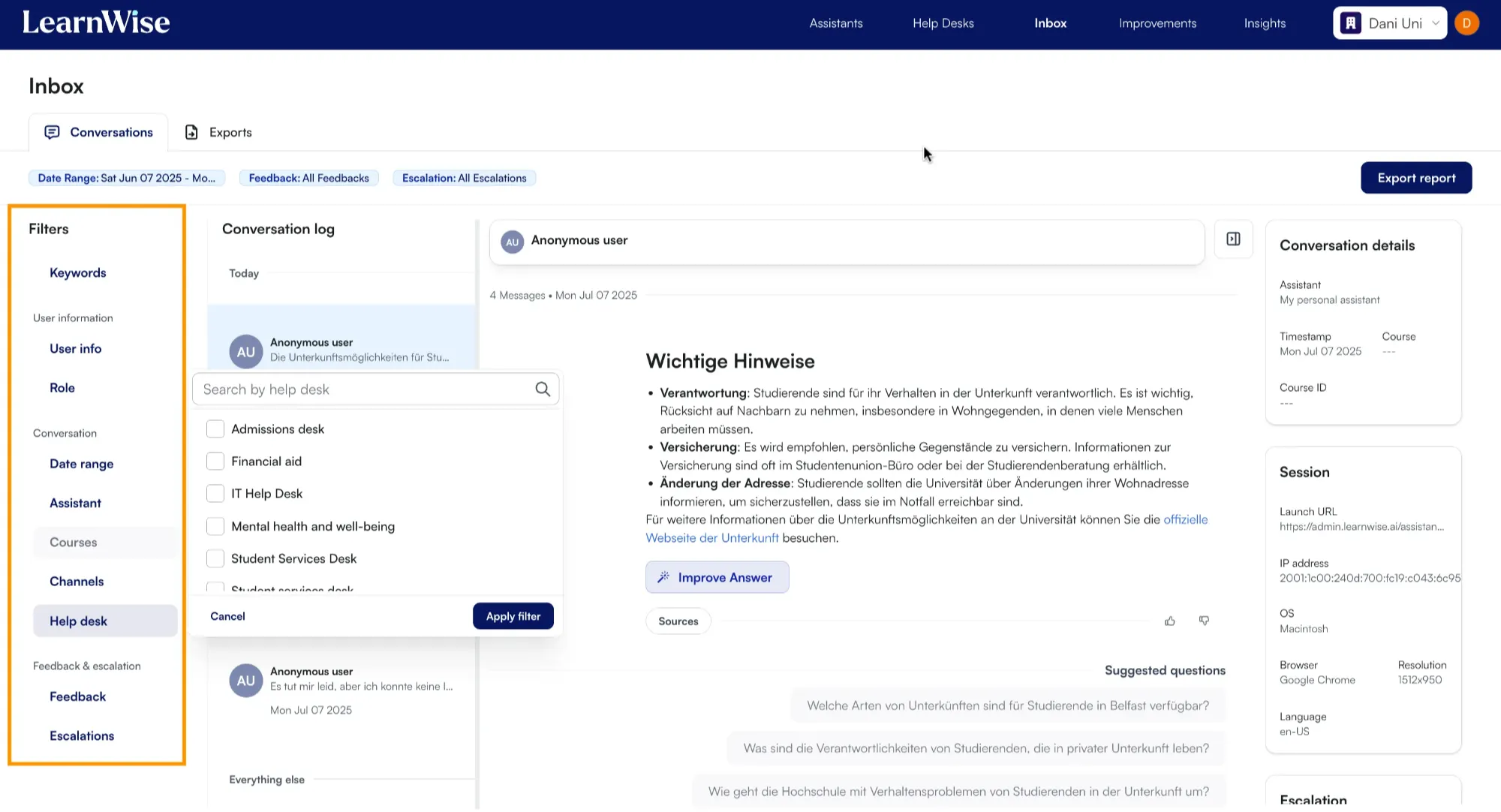
🏷️ Tip: The active filters are shown as labels below the Conversations tab. These labels reflect exactly what will be included in your export.
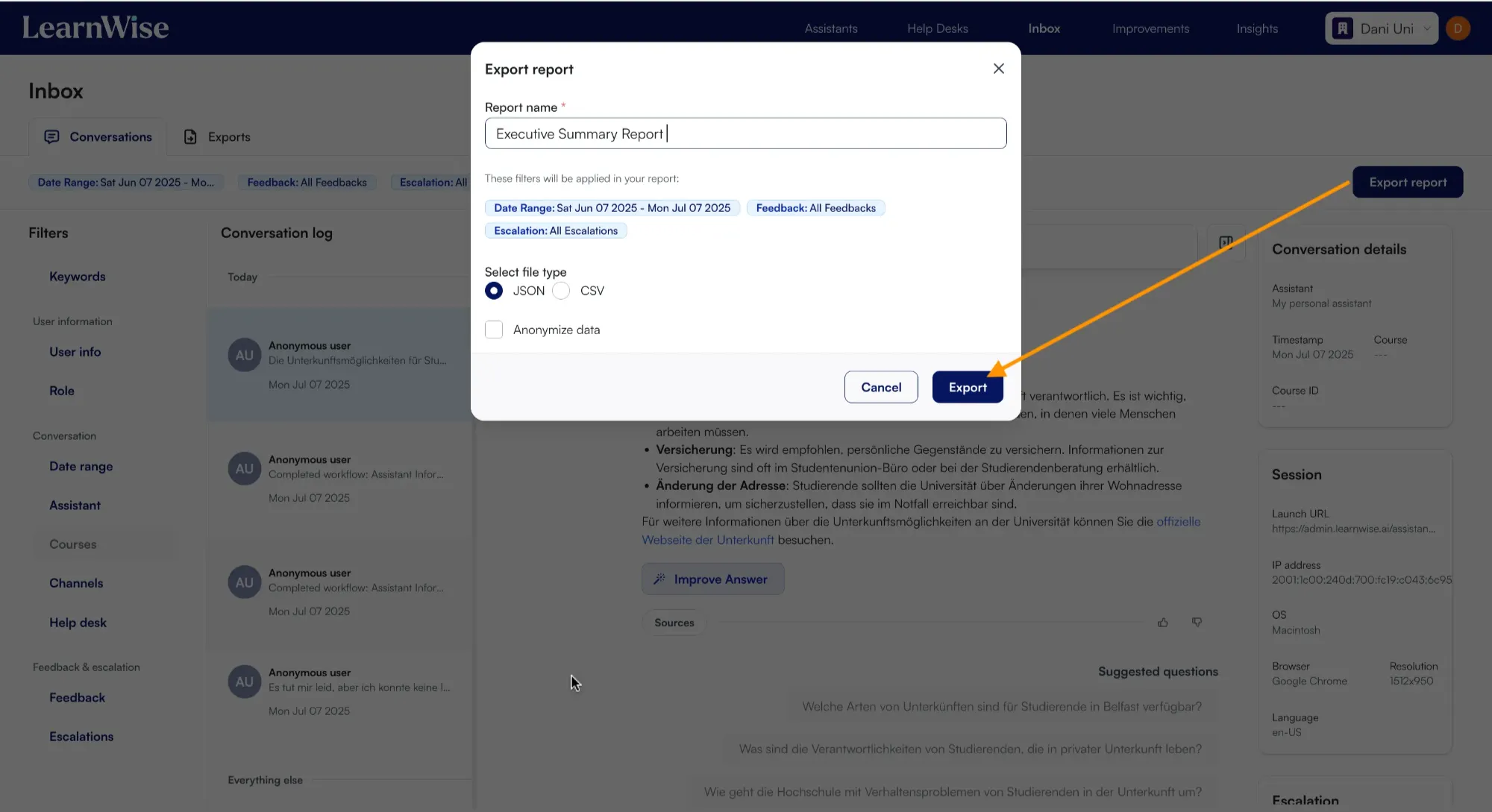
3. Click "Export Report" #
Once your filters are set:
- Click on the Export report button.
- Enter a name for your report.
- Select a file type:
- CSV — Ideal for reviewing and editing in spreadsheets.
- JSON — Useful for integrating into analytics platforms or external tools.
🔐 Privacy Tip: You can choose to anonymize user data. This is especially important if the report will be shared with third parties or used in broader data analysis.
4. Wait for the Report to Process #
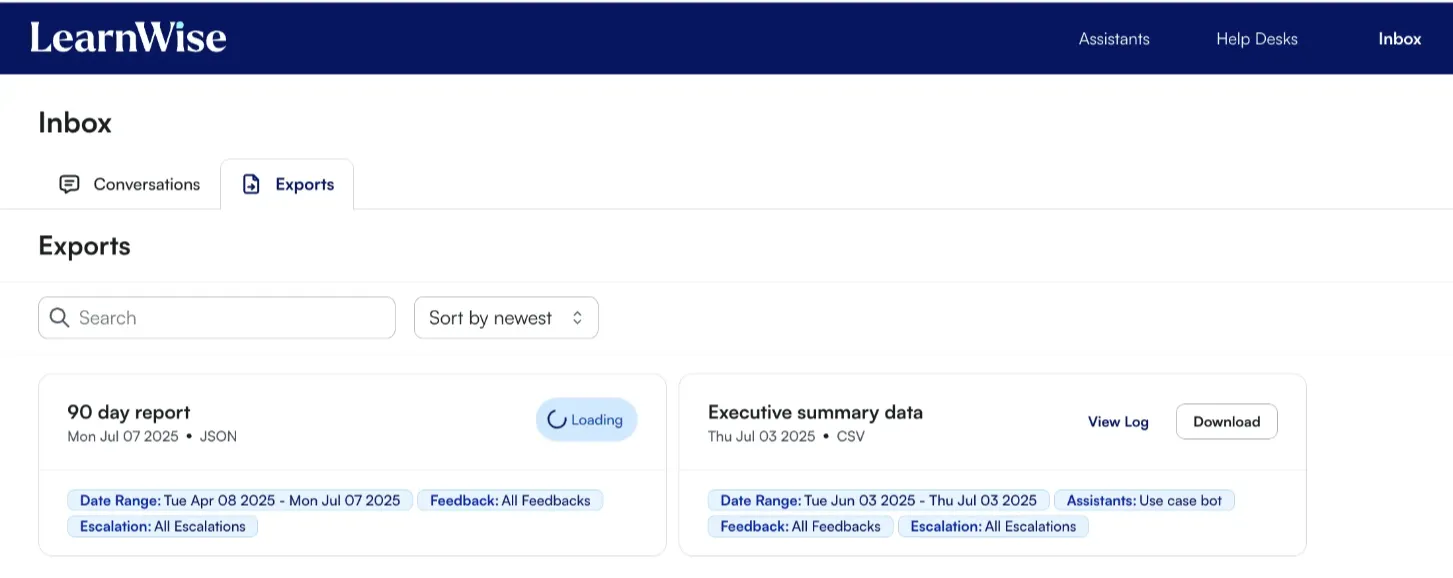
After submitting your export:
- The report status will initially show as Loading.
- Once complete, you can click Download to retrieve the file.
5. Track Report Access with View Log #
For transparency and compliance, LearnWise provides a full download history:
- Click View log next to the report name.
- You'll see a list of users who have downloaded the report, along with the exact dates and times of access.
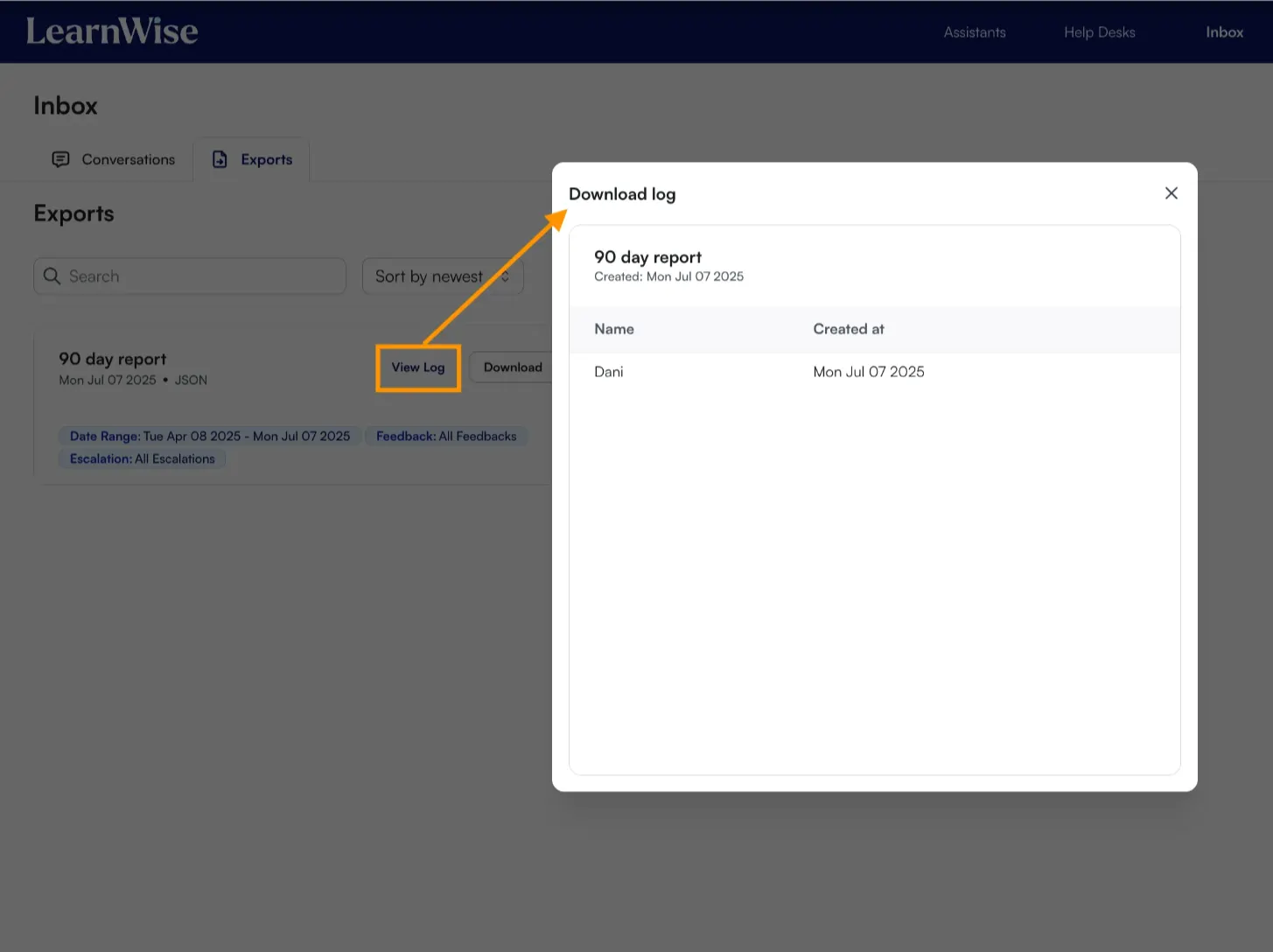
📒 This is essential for data governance—especially if the report contains sensitive or anonymized information.
✅ Summary #
The Inbox export feature helps institutions analyze assistant interactions efficiently and securely. With customizable filters, file format options, anonymization controls, and download logs, LearnWise ensures your exported data is both insightful and well-governed.
Still stuck?
Ask the LearnWise assistant. It answers from these guides.
Related guides
- What insights are available to instructors?Insights & Reports
- What is the Inbox and how can it be used?Insights & Reports
- Benchmarking: How much usage should we be expecting and what are the average AI resolution rates?Insights & Reports
- How can I view and understand assistant usage insights?Insights & Reports
- How to create a new trends report?Insights & Reports