

How do I create a custom role?
Custom roles let you give team members exactly the access they need. You can start from an existing role, such as Admin, or from a blank role, then choose the capabilities to include.
4 min readUpdated
On this page
Before You Start #
- Check your role: By default, only Super Admins can create, edit and delete roles.
- Built-in roles can't be edited: Super Admin, Admin, Collaborator, Data Viewer, Support Agent and Client Admin stay as they are. Your organization's existing roles were carried over as built-in roles, so everyone keeps the access they already had. To change what a role can do, create a custom role instead.
Where Do I Find Roles? #
In your own organization:
- Open the organization switcher. (The organization currently in, shown on the left panel.)
- Select Manage.
- Select the Roles tab.
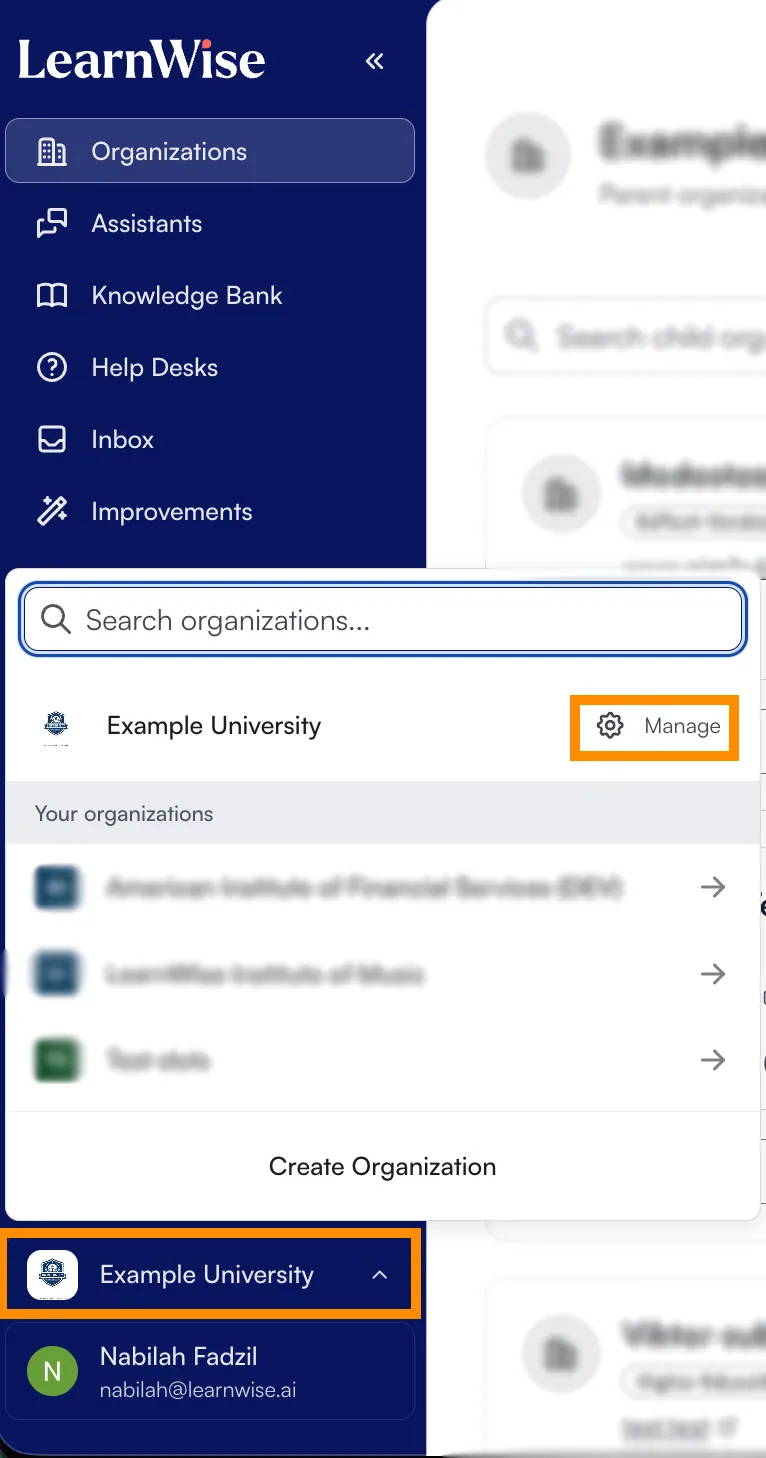
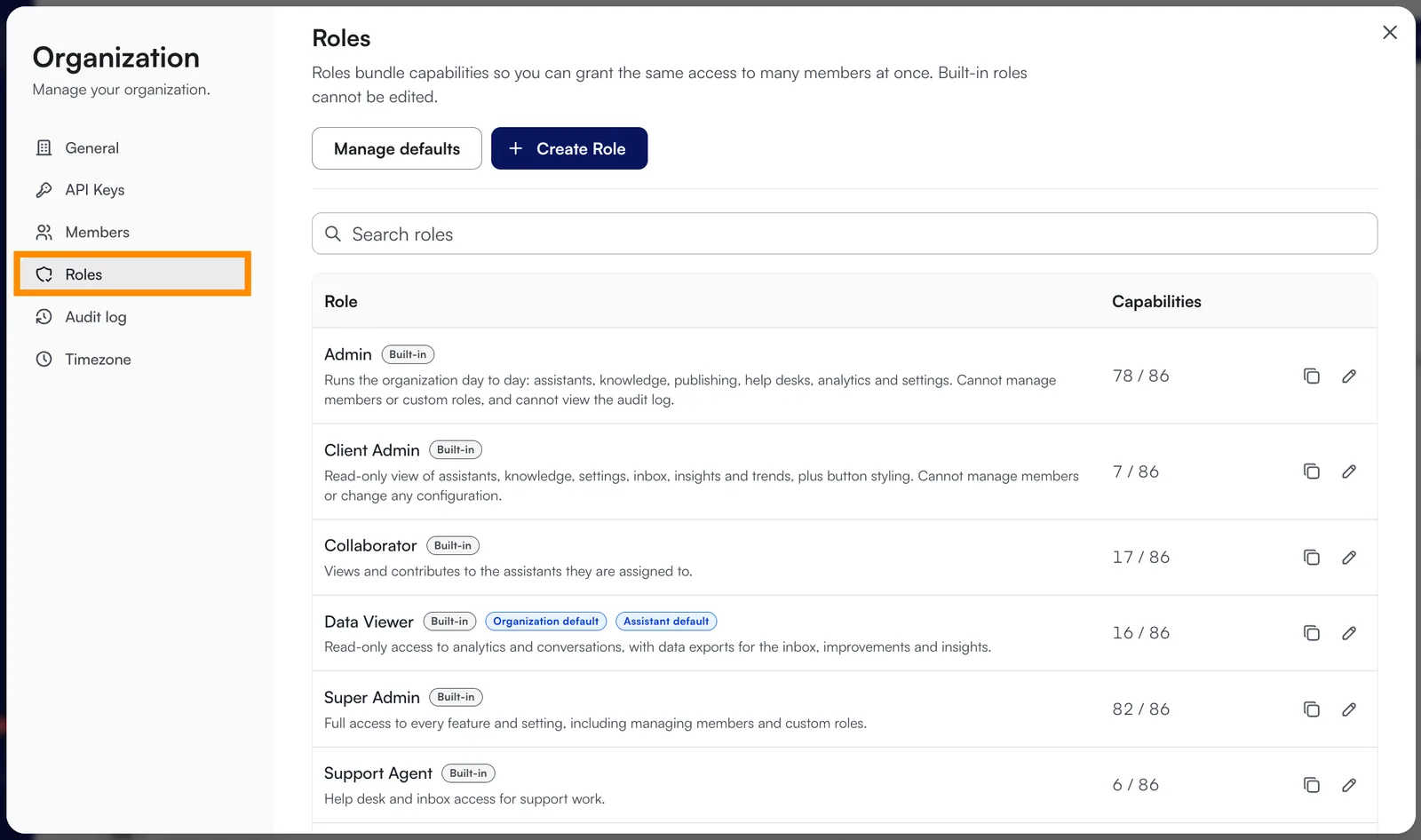
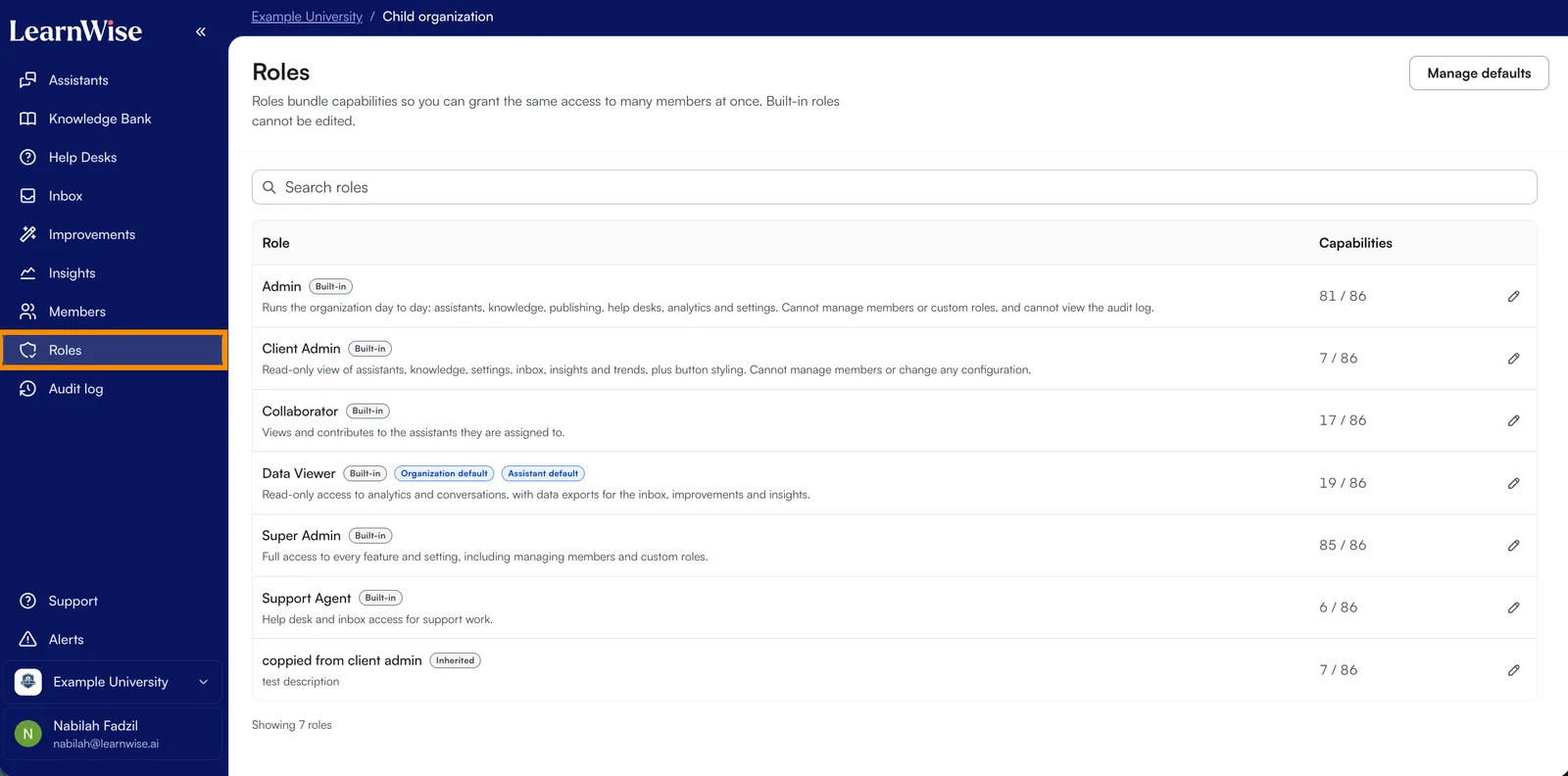
In a child organization:
- Move into the child organization. For steps, see How do I manage child organizations from a parent organization?
- In the left navigation, select Roles.
Roles are listed in three groups: System, Custom and Inherited.
How Do I Create a Custom Role? #
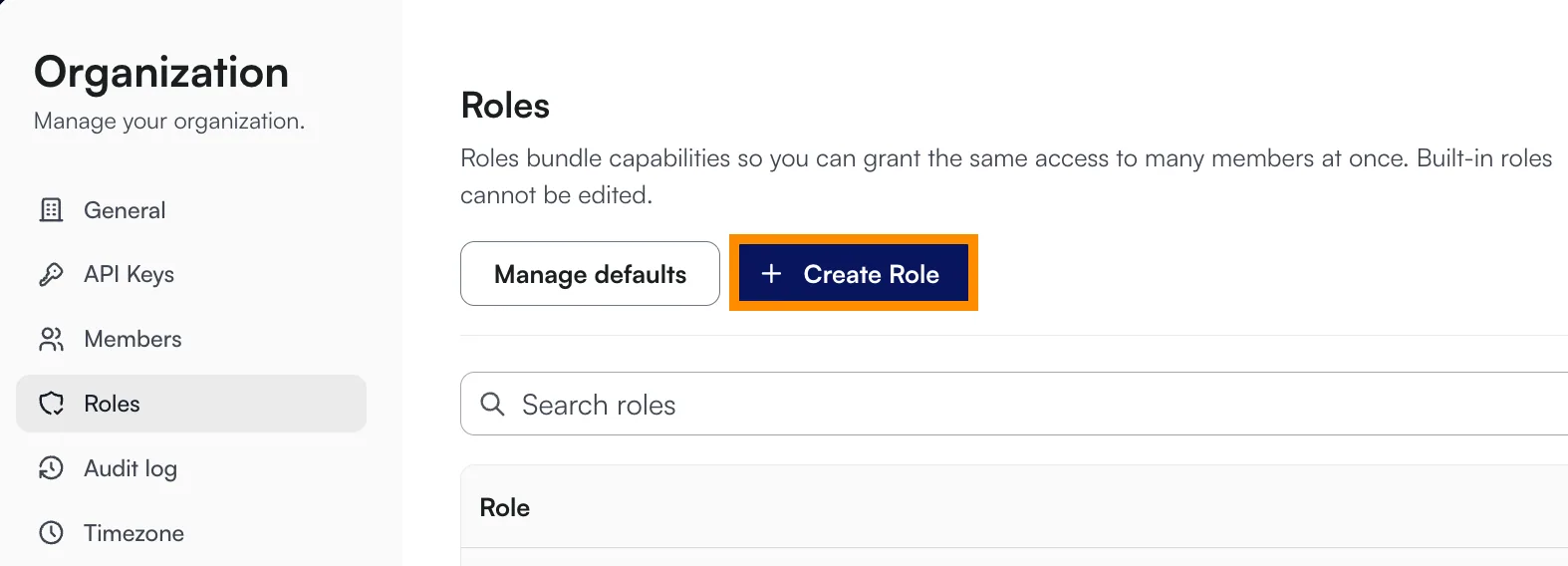
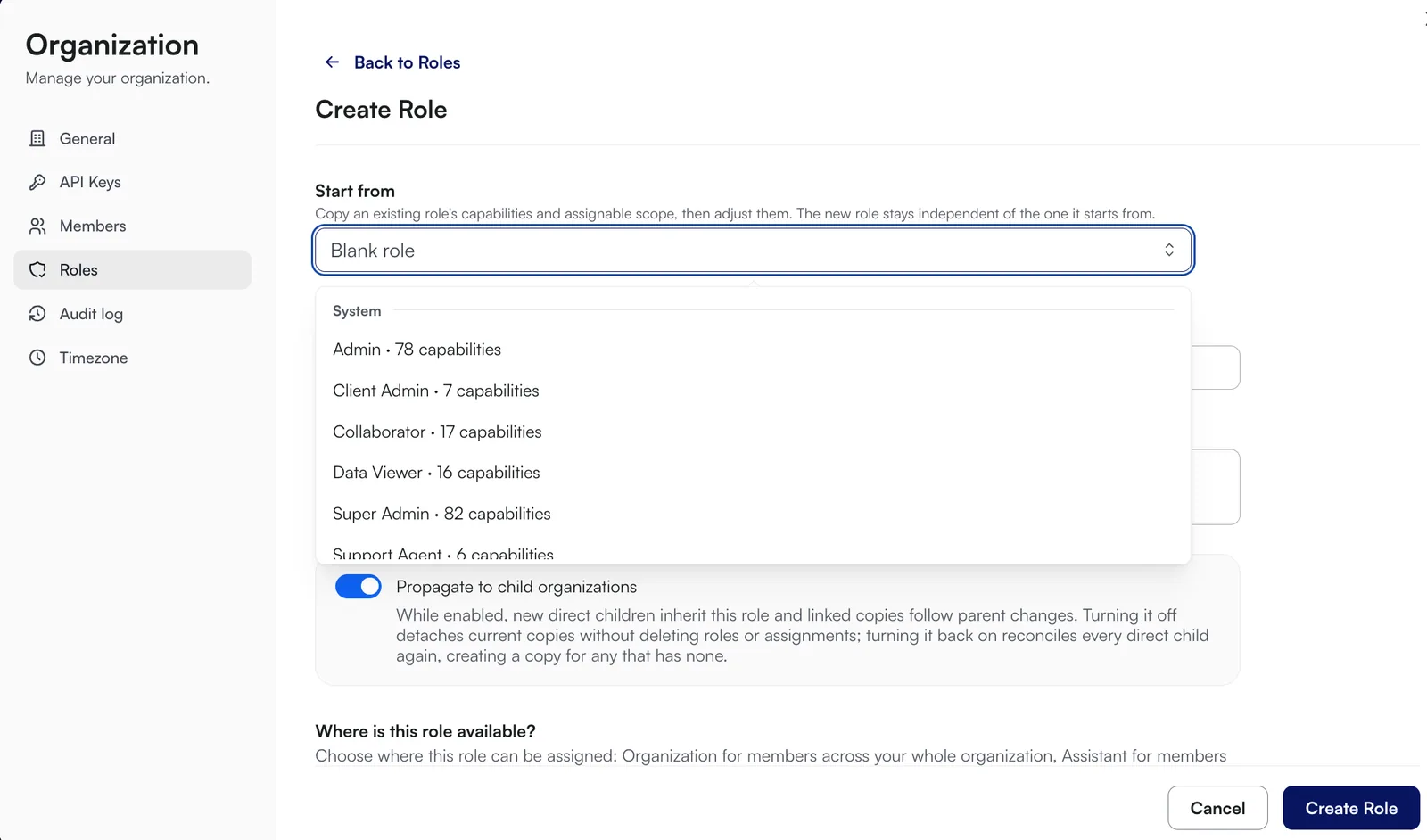
- On the Roles tab, select Create Role.
- Under Start from, choose an existing role, such as Admin, or leave Blank role selected. The chosen role's capabilities and availability are copied into your new role.
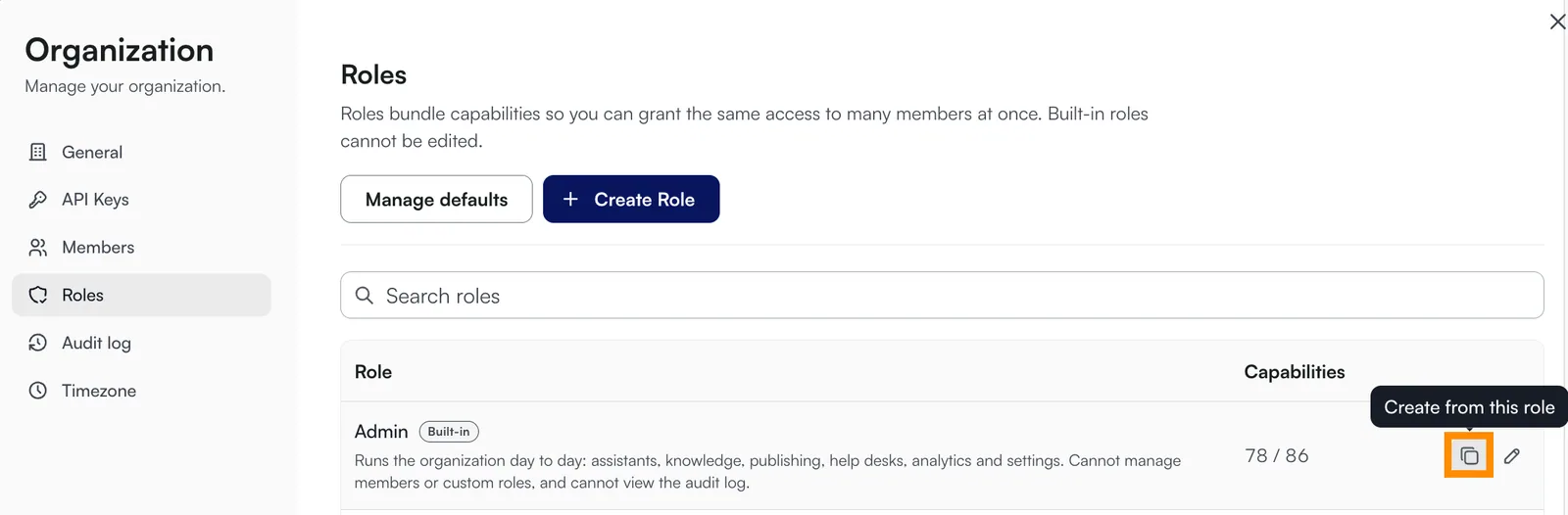
- Tip: You can also select Create from this role on any role in the list.
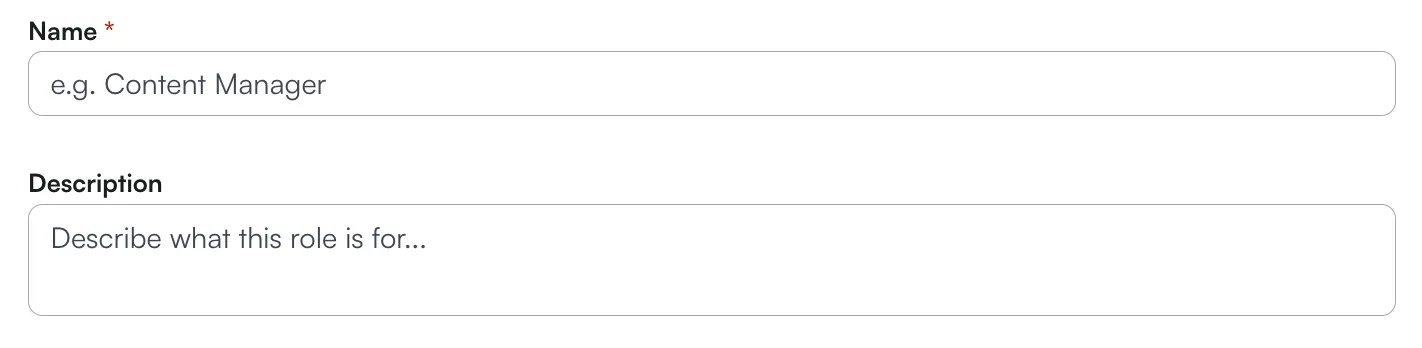
3. Enter a Name, for example "Content Manager", and an optional Description.
-
- Organization: The role applies across all assistants in the organization.
- Assistant: The role can be given to someone on individual assistants.

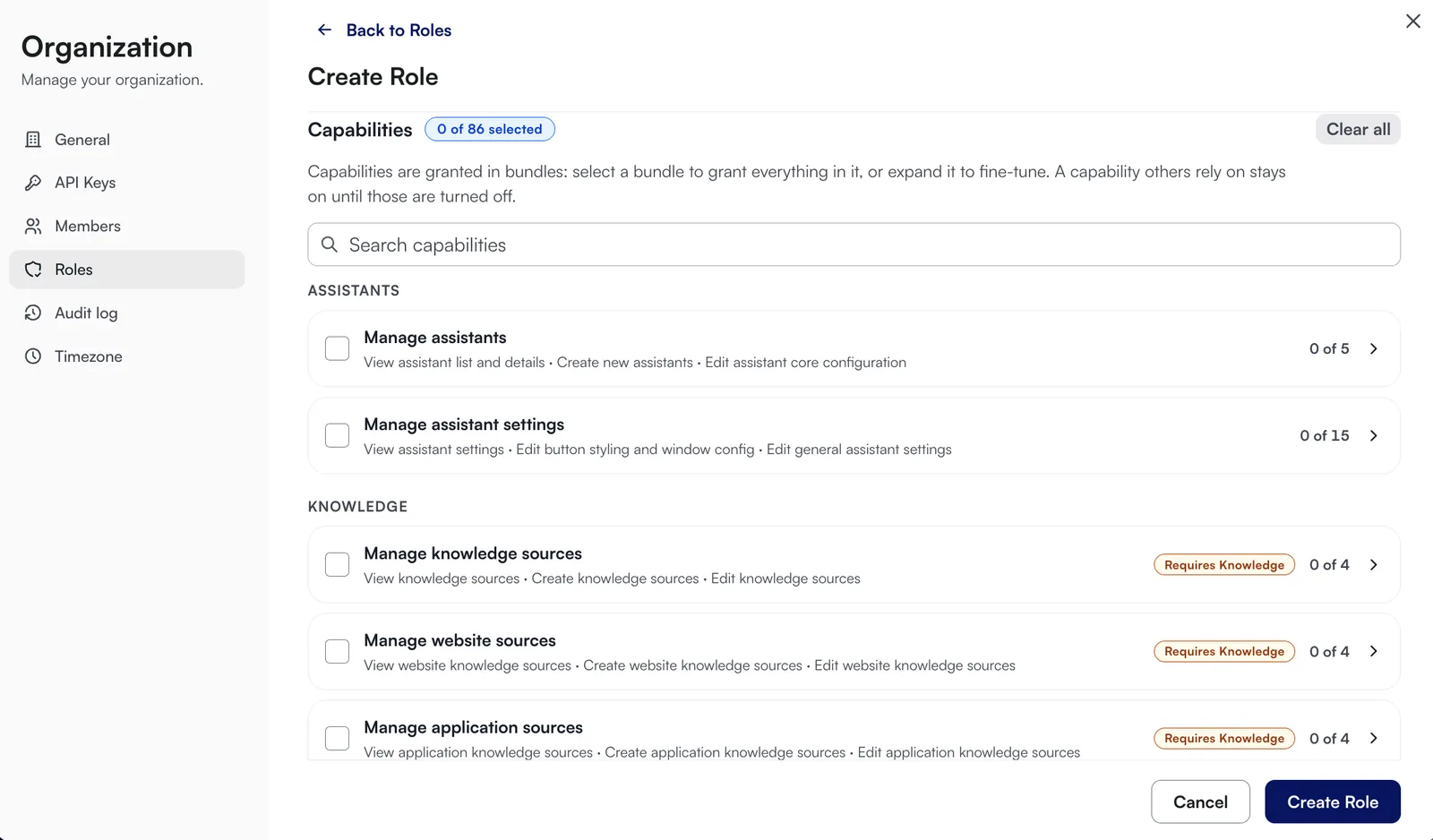
5. See How Do Capability Categories Work? below.
-
Optional: To share the role with your child organizations, turn on Propagate to child organizations. The role appears there as Inherited.

6. Select Create Role.
Note: If the role you started from has capabilities your plan doesn't include, you'll see Some capabilities were left out. Only the capabilities available on your plan are copied.
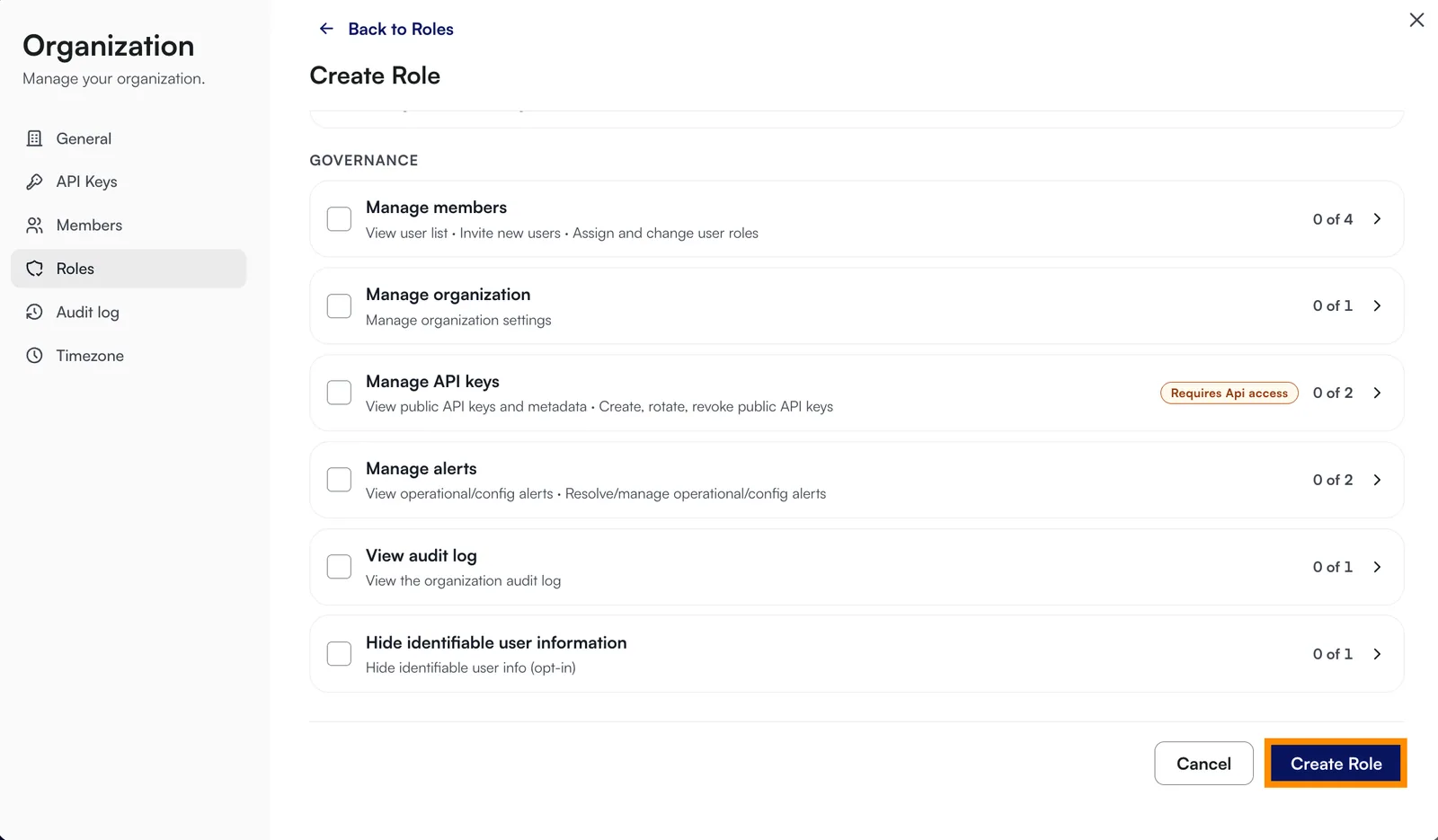
How Do Capability Categories Work? #
Capabilities are grouped into capability categories, each covering a set of related tasks, such as managing assistants or accessing the Inbox. Select a category to grant every capability in it, or expand it to pick individual capabilities.
|
Section |
Capability categories |
|---|---|
|
Assistants |
Manage assistants, Manage assistant settings |
|
Knowledge |
Manage knowledge sources, Manage website sources, Manage application sources, Manage file sources, Manage FAQ sources, Manage course knowledge, Link knowledge to assistants |
|
Publishing and integrations |
Manage publishing, Manage channels, Manage integrations |
|
Support |
Manage help desks, Access inbox, Manage improvements |
|
Analytics |
View insights, Manage trends |
|
Automation |
Manage workflows, Manage feedback settings |
|
Governance |
Manage members, Manage organization, Manage API keys, Manage alerts, View audit log, Hide identifiable user information |
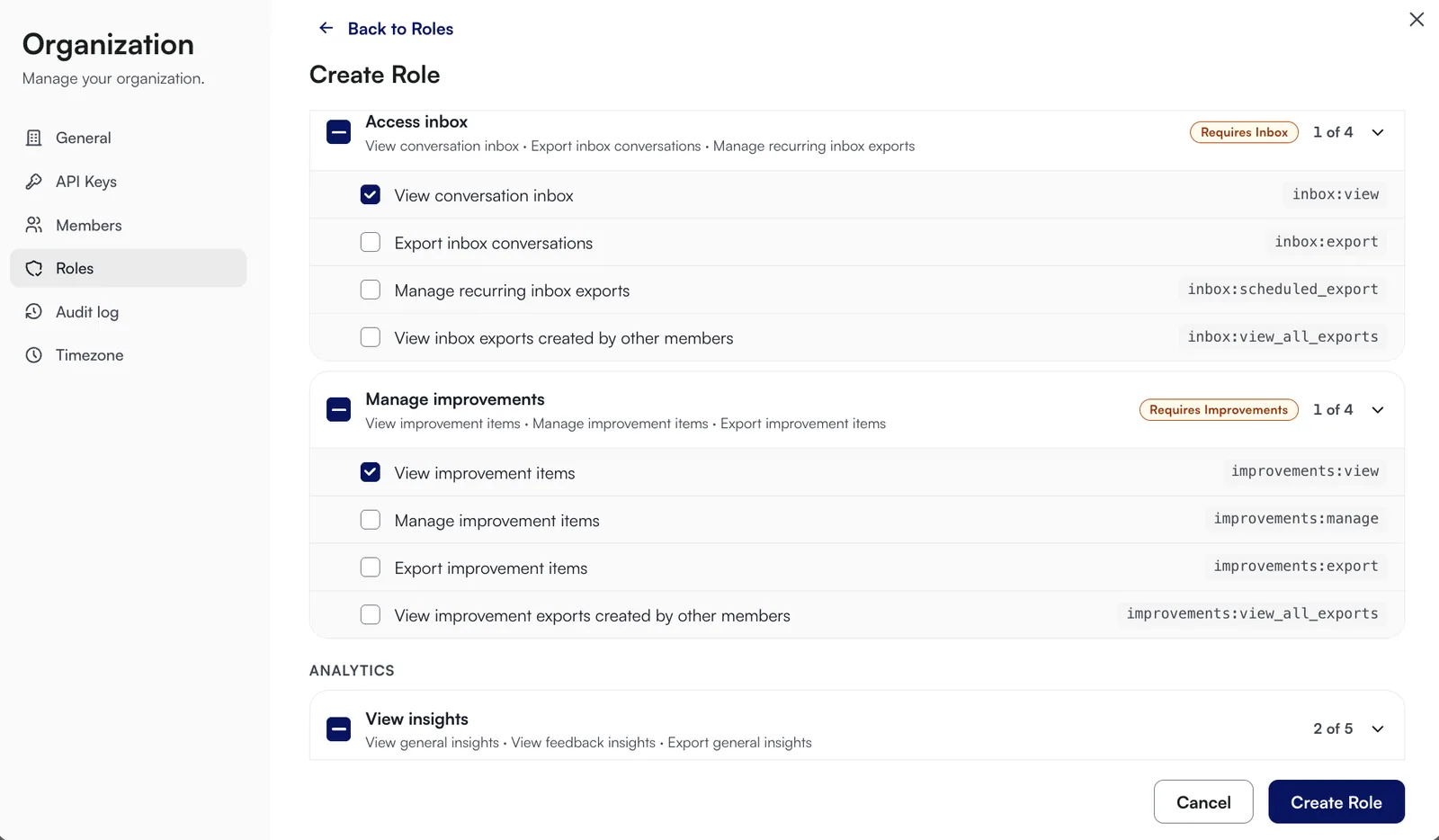
Creating a view-only role: Each capability category separates capabilities that let someone view from those that let them make changes. For example, to let someone view the Inbox, Improvements and Insights without editing anything, grant only the view capabilities in the Access inbox, Manage improvements and View insights categories.
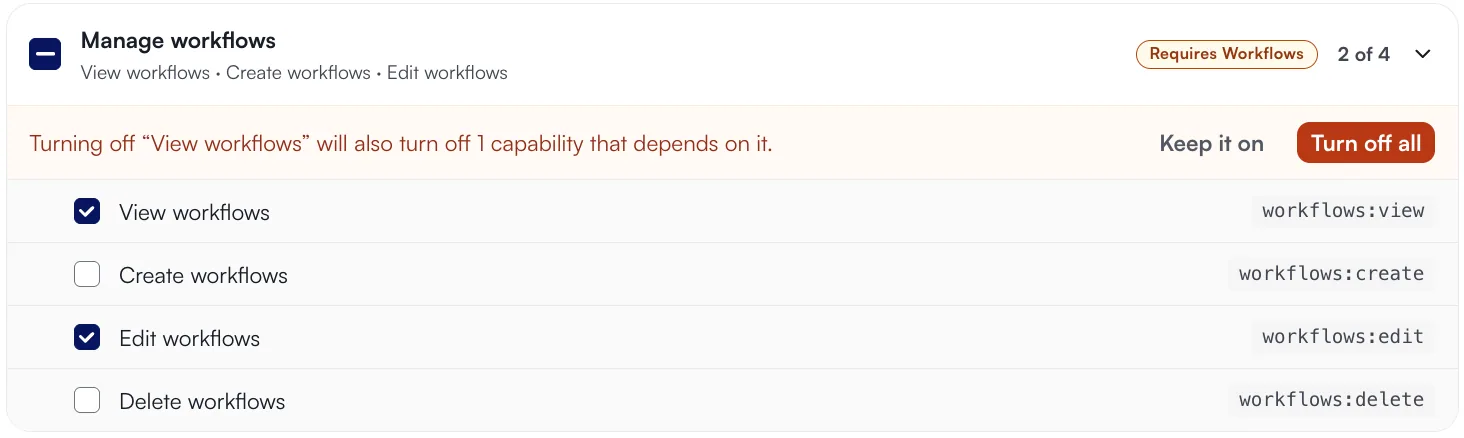
Capabilities that depend on each other: If you turn off a capability that others rely on, you're asked whether to Keep it on or Turn off all.
Capabilities that need a feature: Some capabilities only work with a specific feature. If your organization doesn't have that feature, you can't select the capability.
Hiding personal information: People with a role that includes Hide identifiable user information see content with personal information removed.

Note: Only Super Admins can invite members, manage roles or remove members. A custom role can't include these capabilities.
How Do I Edit or Delete a Custom Role? #
To edit a role:
- On the Roles tab, open the role.
- Make your changes.
- Select Save Changes.
To delete a role:
- Make sure nobody holds the role. This includes pending invitations and anyone holding an inherited copy in a child organization.
- On the Roles tab, open the role and select Delete.
If the role is still assigned, you'll see This role can't be deleted yet, with a list of the members and pending invitations to reassign. Nothing is deleted until the role is no longer assigned to anyone.
Things to Keep in Mind #
- Role names must be unique: Each name can only be used once in your organization, regardless of capital letters. If a child organization already has a role with the same name, the role isn't copied to that child organization, and you're told which ones were skipped.
- Custom roles are independent: Changes to the role you started from never affect your custom role, and changes to your custom role never affect the role you started from.
- Default roles can't be deleted: If a role is your organization's default invitation role or default assistant role, choose a different default before deleting it.
- Deleting removes inherited copies: Deleting a role also removes its inherited copies in child organizations.
- Deletions are recorded: Every deleted role is recorded in the audit log. See How do I view the audit log?
- Assistant-level roles: When you give someone access to a single assistant, only roles available at assistant level appear in the list.
Still stuck?
Ask the LearnWise assistant. It answers from these guides.