

How do I integrate with TeamDynamix ticketing system?
A guide to integrating TeamDynamix with LearnWise help desks so chat escalations can create TeamDynamix tickets with mapped form fields.
3 min readUpdated
On this page
A guide to integrating TeamDynamix with LearnWise help desks so chat escalations can create TeamDynamix tickets with mapped form fields. #
LearnWise integrates with TeamDynamix to let support cases escalated from a LearnWise assistant land directly in your TeamDynamix ticketing application. Form fields collected during the escalation can be mapped to TeamDynamix ticket properties so tickets arrive with the right context for your support team.
⚠️ The TeamDynamix integration is currently in its first version. Some TeamDynamix field types are not yet supported for direct mapping. Support for additional field types will be extended over time. If you need a field that isn't yet supported, contact the LearnWise team — your use case helps prioritize what gets added next.
Prerequisites #
Before you begin, make sure you have:
- Admin access in TeamDynamix sufficient to create a service account or generate Web Services credentials
- Admin access in LearnWise (admin.learnwise.ai)
- The App ID of the TeamDynamix Ticketing Application that should receive escalated tickets (visible in TDAdmin under Applications)
1. Create credentials in TeamDynamix #
LearnWise authenticates against the TeamDynamix Web API. We recommend creating a dedicated service account so that tickets created by LearnWise are clearly attributable to the integration rather than to a personal user.
- Log in to your TeamDynamix instance as an administrator.
- Navigate to TDAdmin → Users & Roles → Users.
- Create a new service account user (for example,
LearnWise Integration). Assign it only the permissions required to create tickets in the relevant Ticketing Application. - Generate Web Services credentials for this user:
- In TDAdmin, go to System Settings → Web Services.
- Create a new set of Web Services credentials and copy the BEID and Web Services Key. You'll need both in the next section.
- Note your TeamDynamix base URL (e.g.
https://yourorg.teamdynamix.com).
⚠️ Store credentials securely. The Web Services Key cannot be retrieved again after creation.
2. Configure the connection in LearnWise #
- Log in to admin.learnwise.ai and go to the Help Desks tab.
- Open the help desk you want to connect to TeamDynamix, or create a new one — see How do I create a new Help Desk?.
- In the Integrate ticketing system section, click View all ticketing integrations.
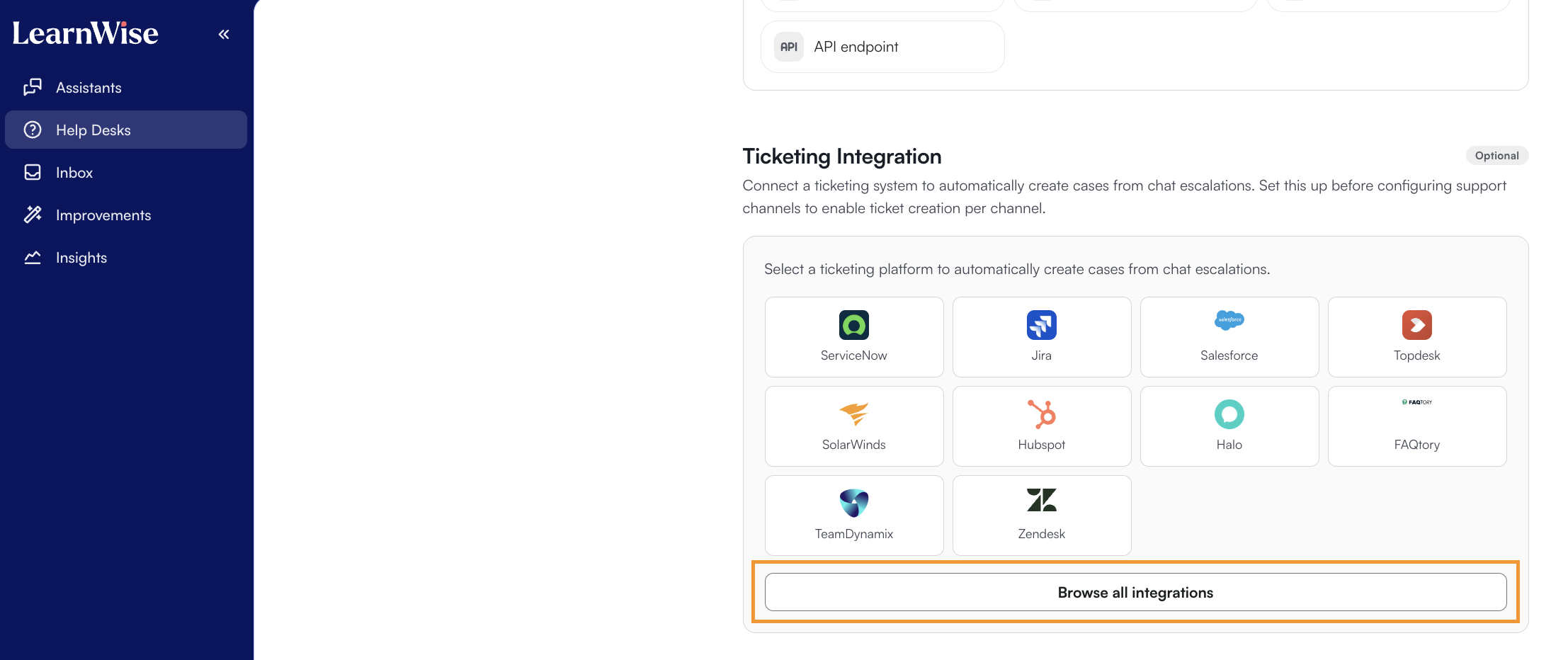
- Find TeamDynamix in the list and click Connect.
- In the connection panel, enter:
- Integration name (e.g. TeamDynamix Production)
- Base URL (e.g.
https://yourorg.teamdynamix.com) - Username of the Service Account
- Password of the Service Account
- App ID for ticket creation
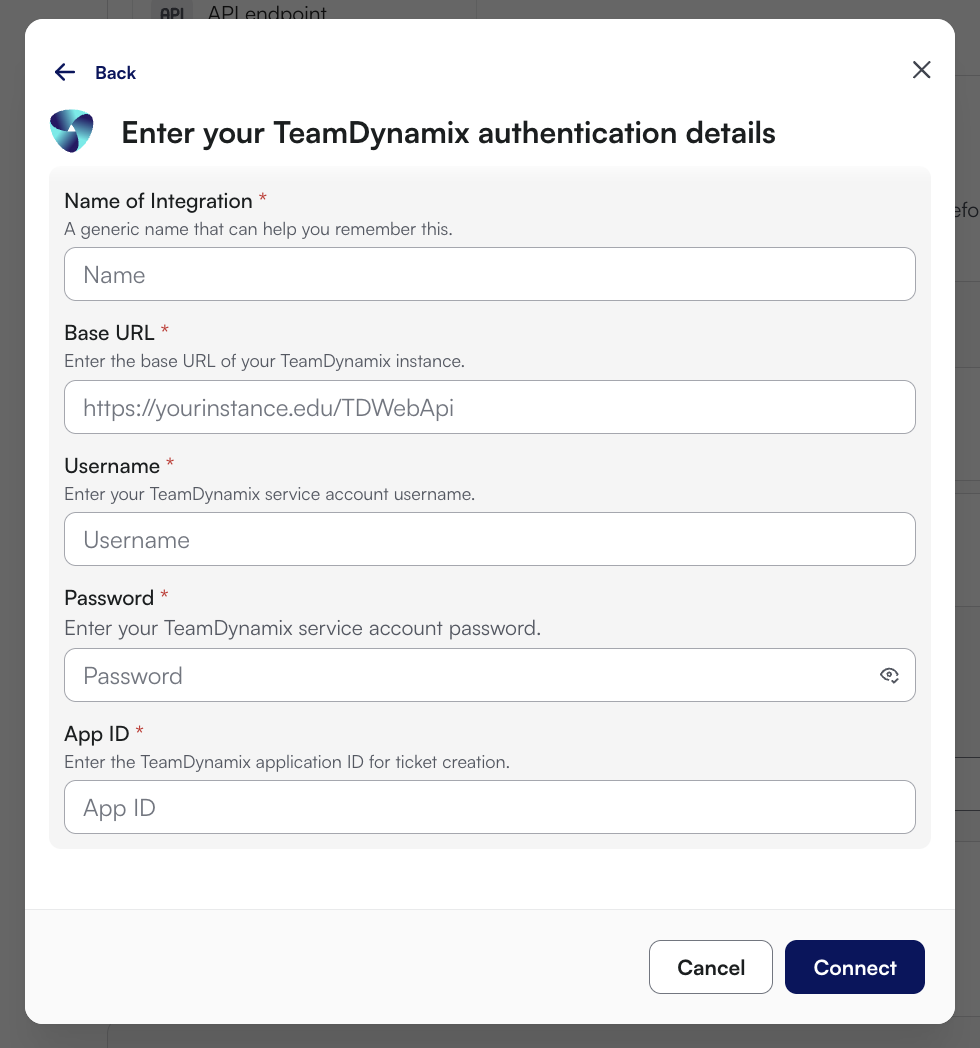
- Click Connect.
If the connection succeeds, TeamDynamix appears in the Integrate ticketing system section of the help desk. Existing connections can be reused across multiple help desks.
3. Add an escalation option and map fields #
Once the connection is active:
- Scroll to Support Channels in the help desk settings.
- Click + Add channel.
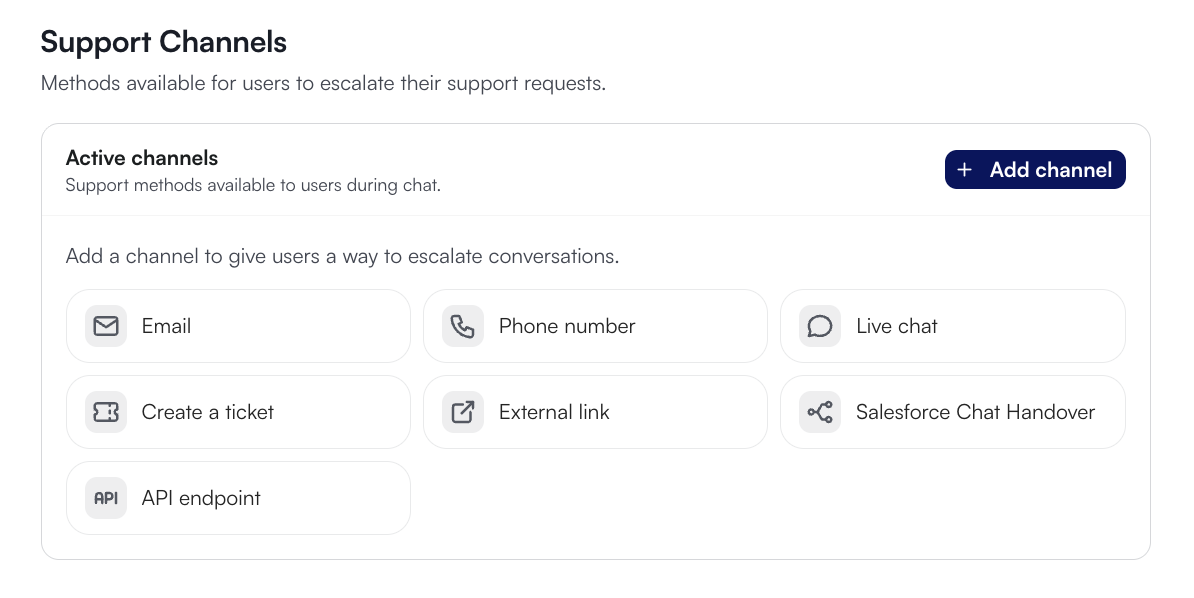
- Set the escalation type to Create a ticket.
- Locate Connect to Ticketing Integration and toggle TeamDynamix on.
- In Escalation form fields, click + Add form field and map each field to a TeamDynamix ticket property. If TeamDynamix requires fields that aren't yet mapped, an alert at the top of the form field configuration will list them. Resolve those before saving to avoid submission errors at runtime.
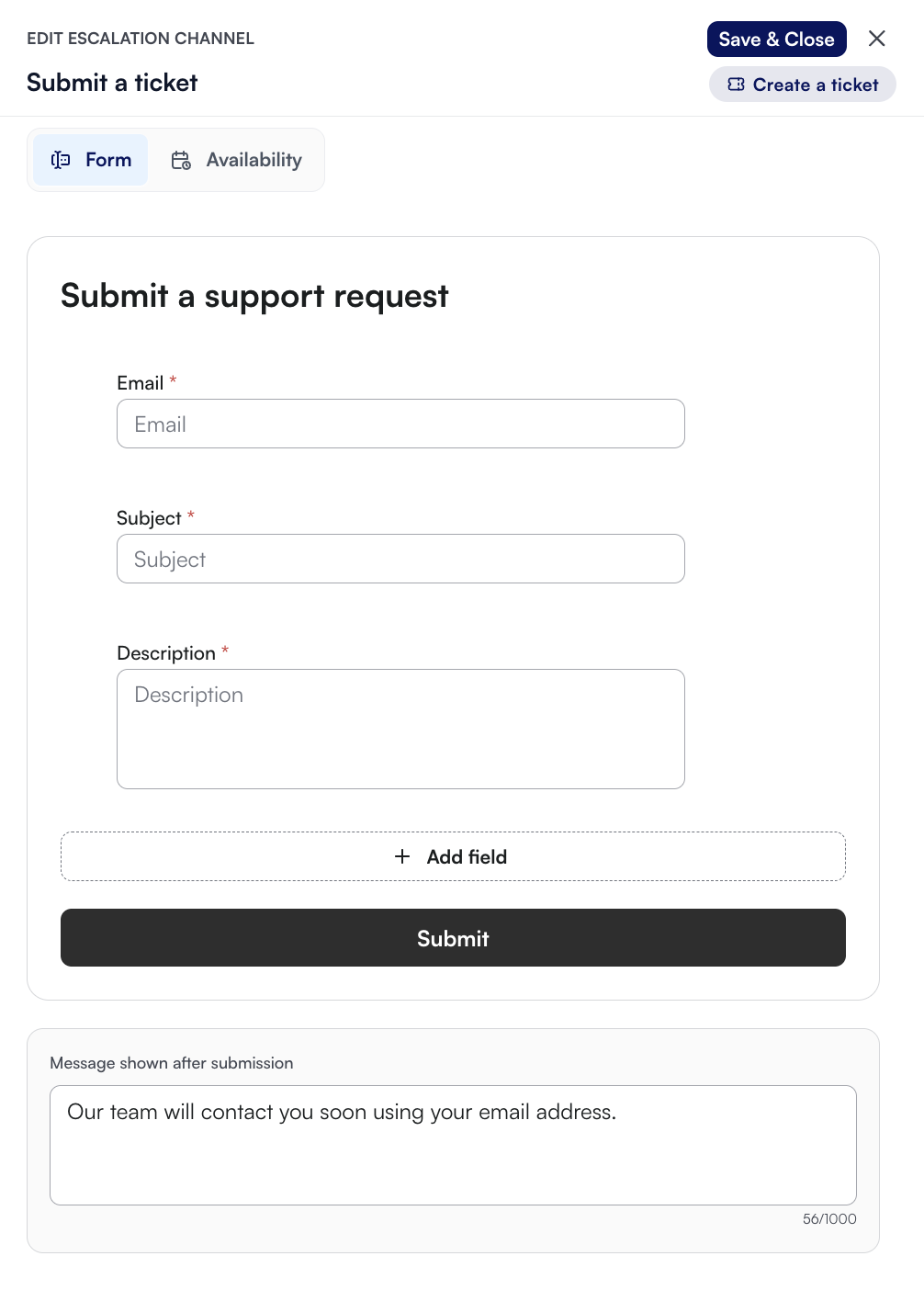
- Save the help desk.
You can also choose to include full chat history or a chat summary in the ticket description, the same way as other LearnWise ticketing integrations.
4. Test the setup #
Before going live, send a test escalation:
- Open your LearnWise assistant in preview or in a published location.
- Trigger an escalation through this help desk.
- Complete the form and submit.
- Confirm the ticket appears in the correct TeamDynamix Ticketing Application with the expected fields populated.
Still stuck?
Ask the LearnWise assistant. It answers from these guides.
Related guides
- Developer Guide: Signed Context InjectionIntegrations
- How do I enable Context Injection in LearnWise?Integrations
- How do I enable SCORM content ingestion in Brightspace?Integrations
- How do I Install Google Analytics 4 Event Tracking?Integrations
- How do I integrate LearnWise with Freshdesk (Native)?Integrations