

How can I add AI Student Tutor within Blackboard?
The LearnWise AI Student Tutor offers interactive tools for students, including study plans, quizzes, flashcards, and more. Below are detailed steps for integrating this assistant into Blackboard via LTI 1.3.
3 min readUpdated
On this page
Create a new assistant
- Create a new assistant inside your LearnWise Dashboard
- Adding knowledge sources to the course assistant isn’t necessary
Configure new LTI integration
- Inside your new assistant, navigate to the the publish tab and click on the ‘Configure New LTI configuration’ button
- Select Blackboard from the menu. This will launch a window with all of the information you require to set up the LTI connection inside Blackboard
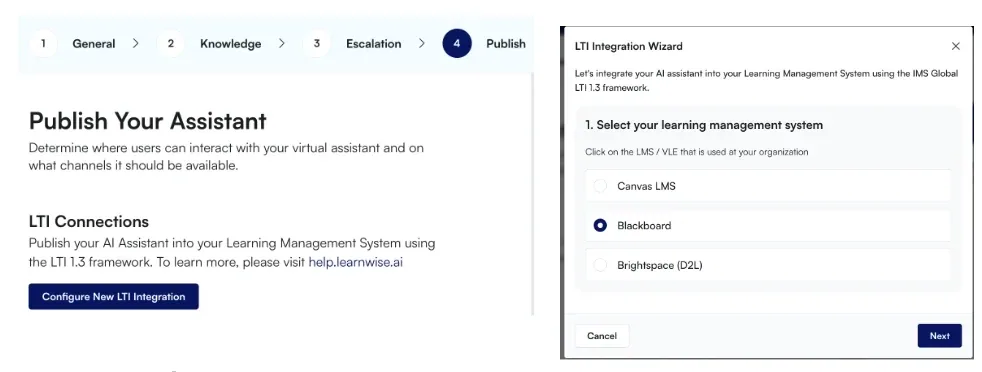
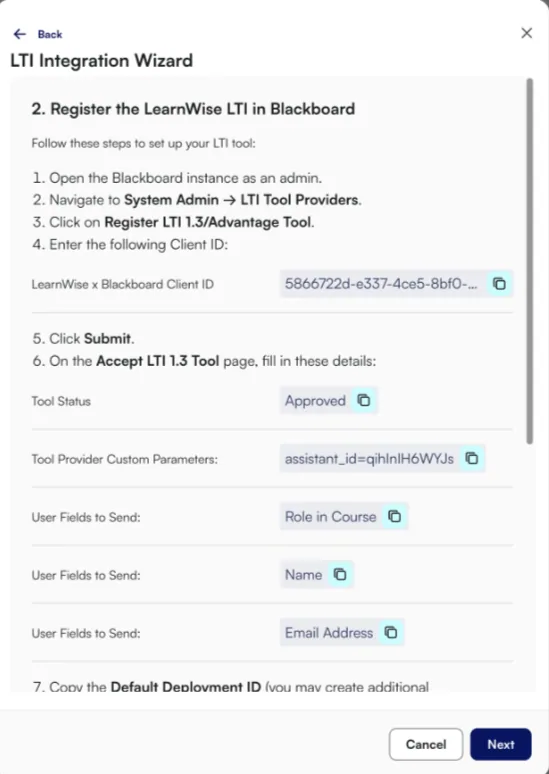
Register LearnWise in Blackboard
Open your Blackboard Administrator panel and navigate to LTI tool providers
- Select ‘Register LTI Tool 1.3’ and copy the Client ID from the LTI integration window you launched within your LearnWise dashboard and click submit
- Fill in all the necessary details as provided in the LTI Integration Wizard and click submit
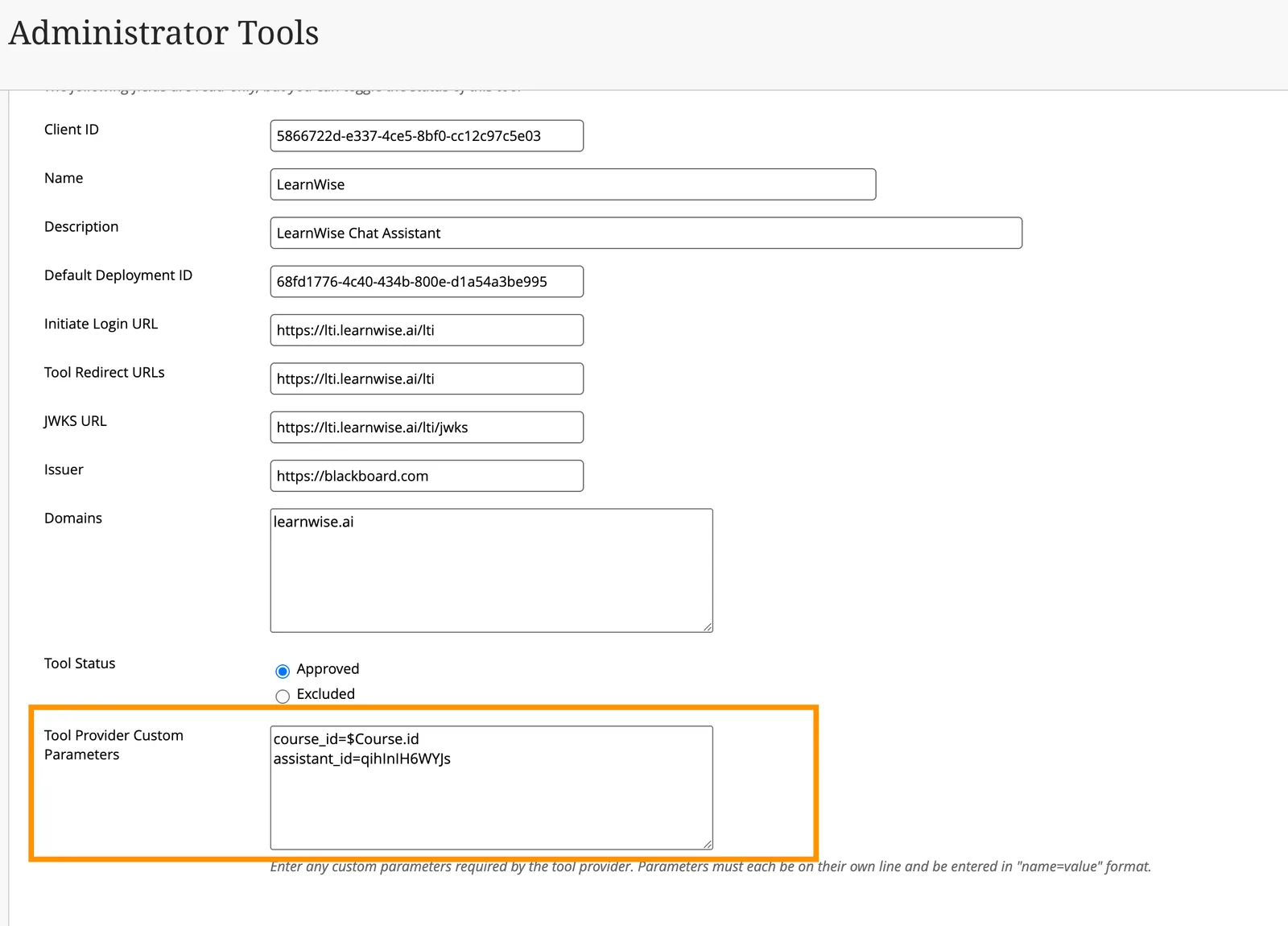
- Under Tool Provider Custom Parameters, enter both of the following lines exactly as shown in the LTI Integration Wizard:
course_id=$Course.id
assistant_id=...
Note: Both lines are required. `course_id=$Course.id` lets LearnWise identify which Blackboard course a conversation is happening in, and `assistant_id=...` (copy the value shown in your wizard) tells Blackboard which assistant to launch.
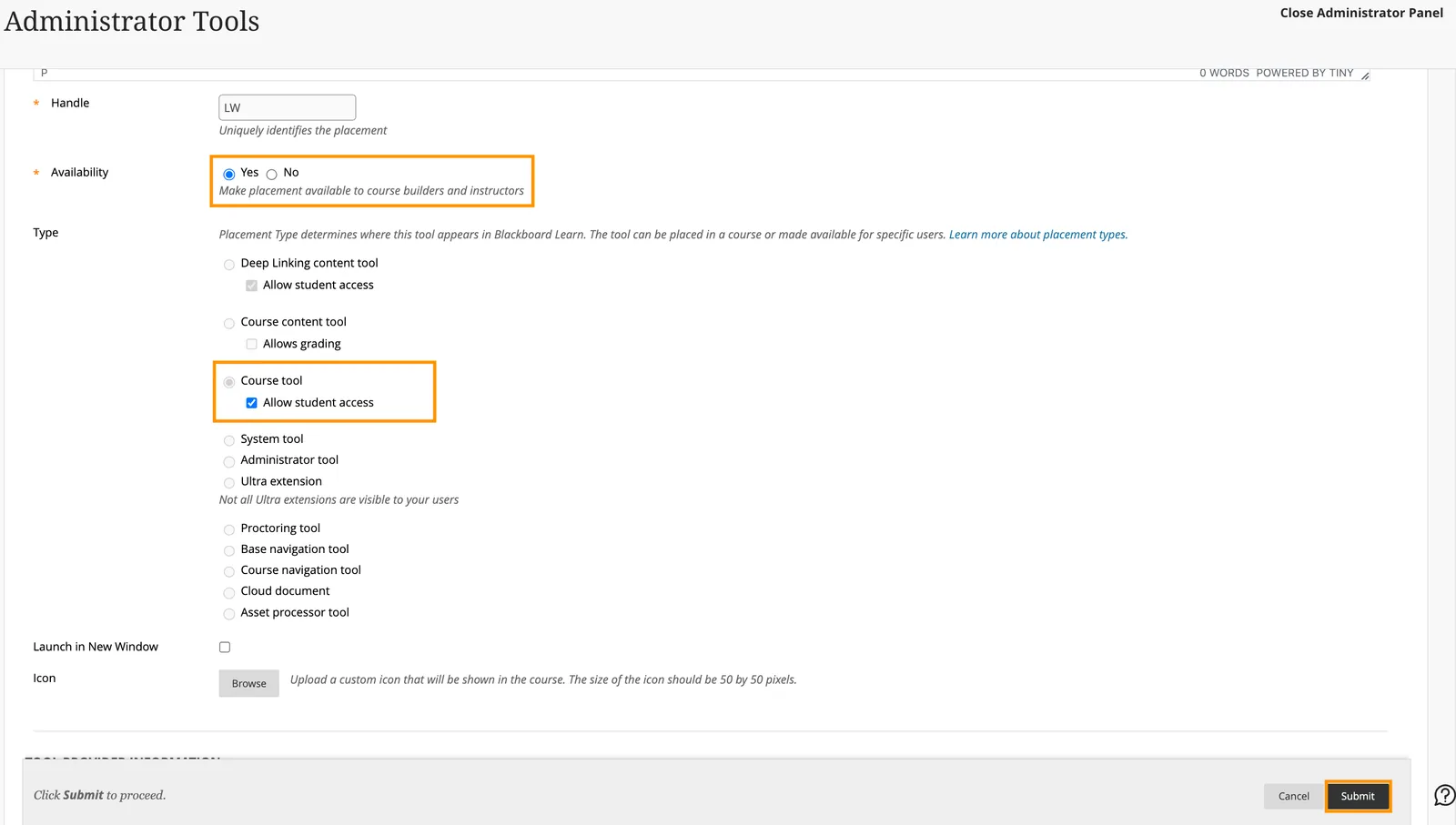
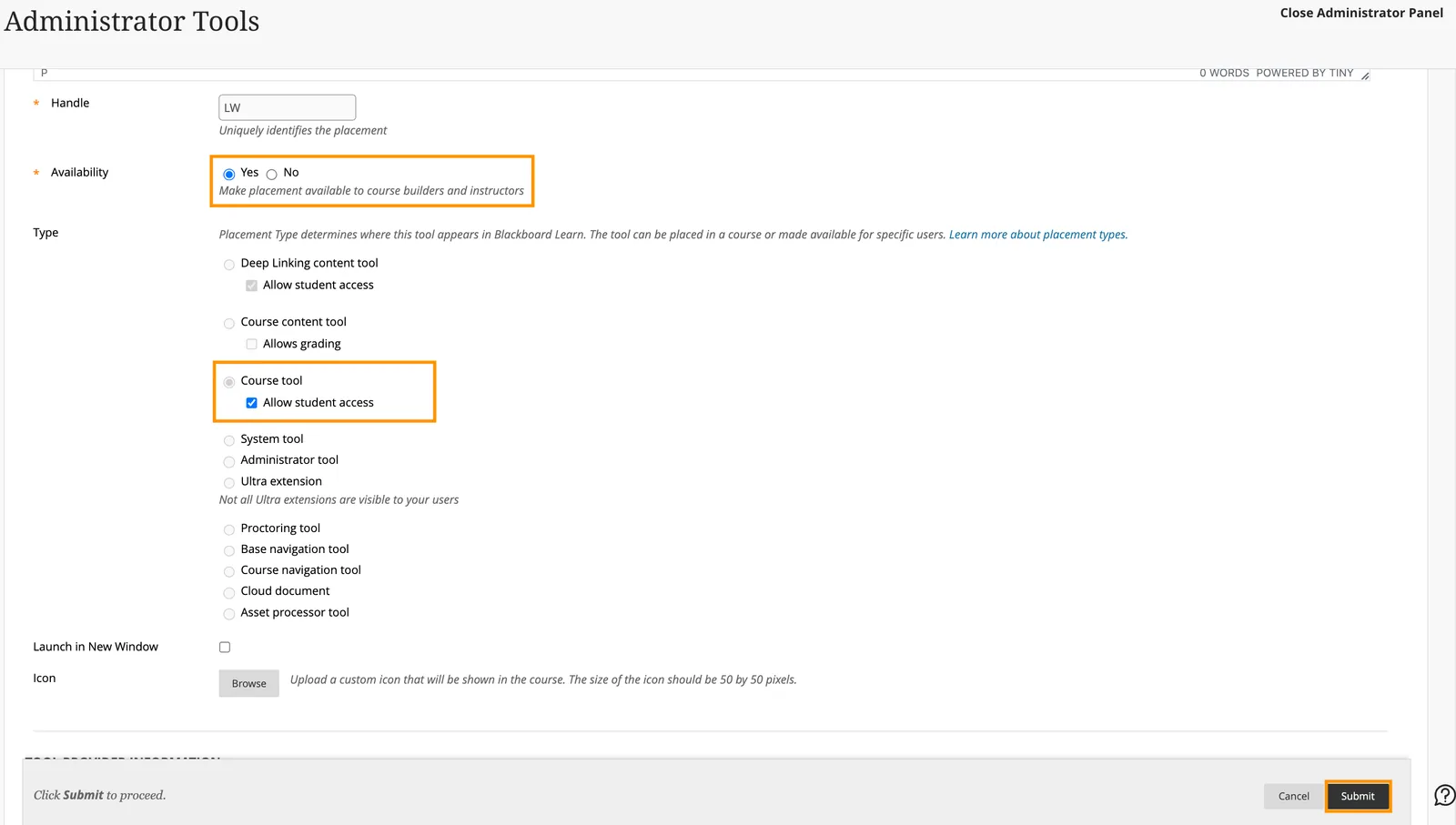
- Again, follow the instructions on the LTI Integration Wizard to manage the placement of LearnWise. Ensure LearnWise is both available and to allow student access
- Click ‘next’ inside the LTI Integration Wizard window that is open in your LearnWise admin panel and proceed to the next window
Create a REST API
-
Navigate to the REST API and create an integration
-
Add the following Application ID: c479442c-f928-47ea-be40-f437498041e4
-
Assign the user(s) who will manage this integration (ideally with admin level rights)
Enabling Course Ingestion from Blackboard #
- Open the LearnWise admin panel and navigate to the Knowledge tab.
- Click on Courses in the sub navigation, and then the 'Add a LMS Integration' button.
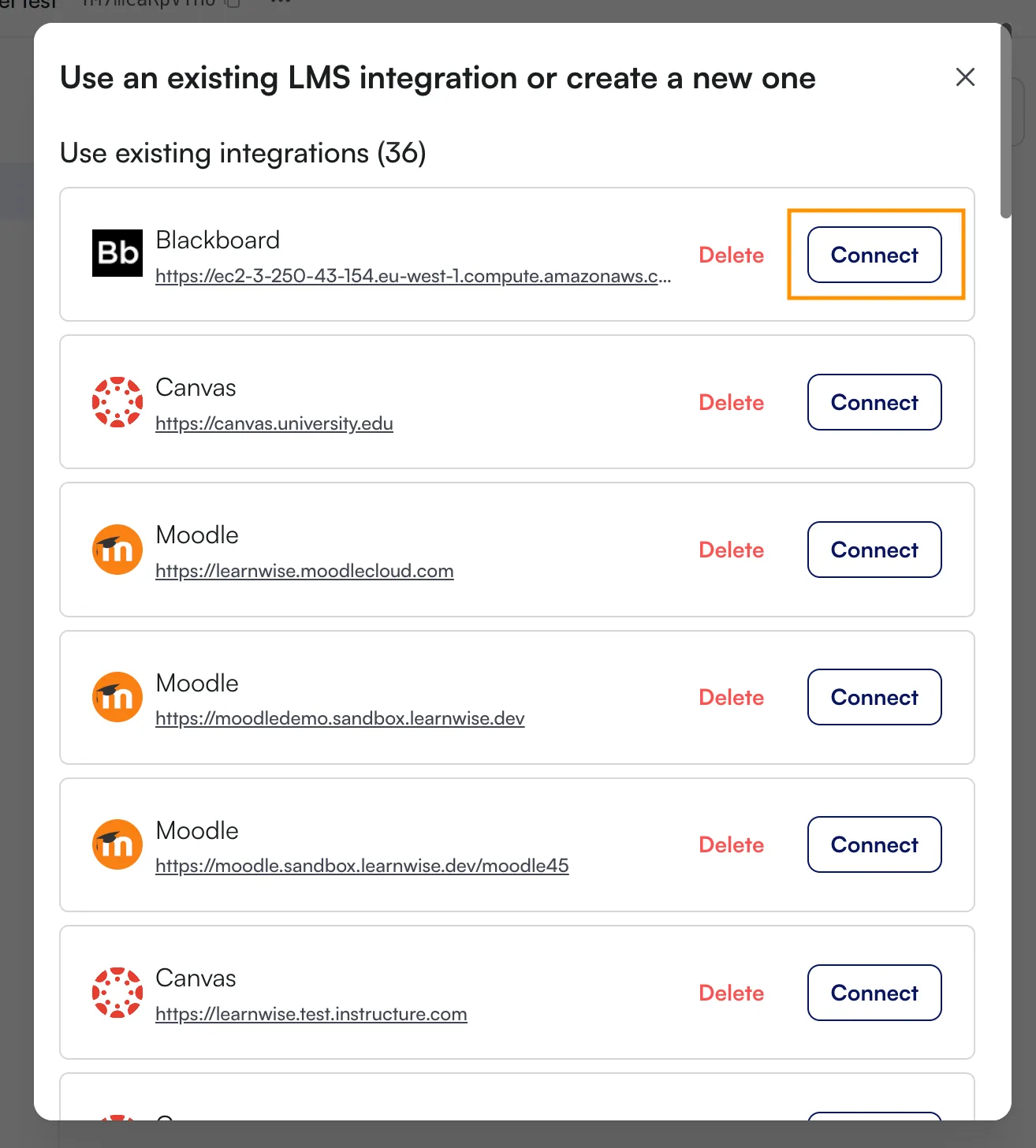
- Find the Blackboard widget and click Connect: This will launch the integration workflow.
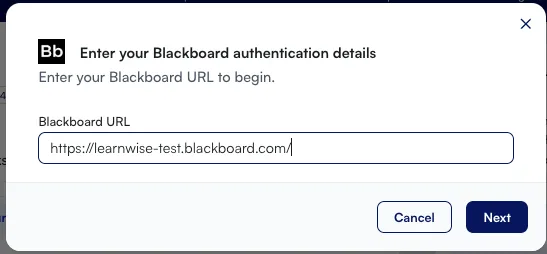
- Enter your Blackboard URL
-
Follow the instructions in the pop-up window to create the Blackboard integration:
-
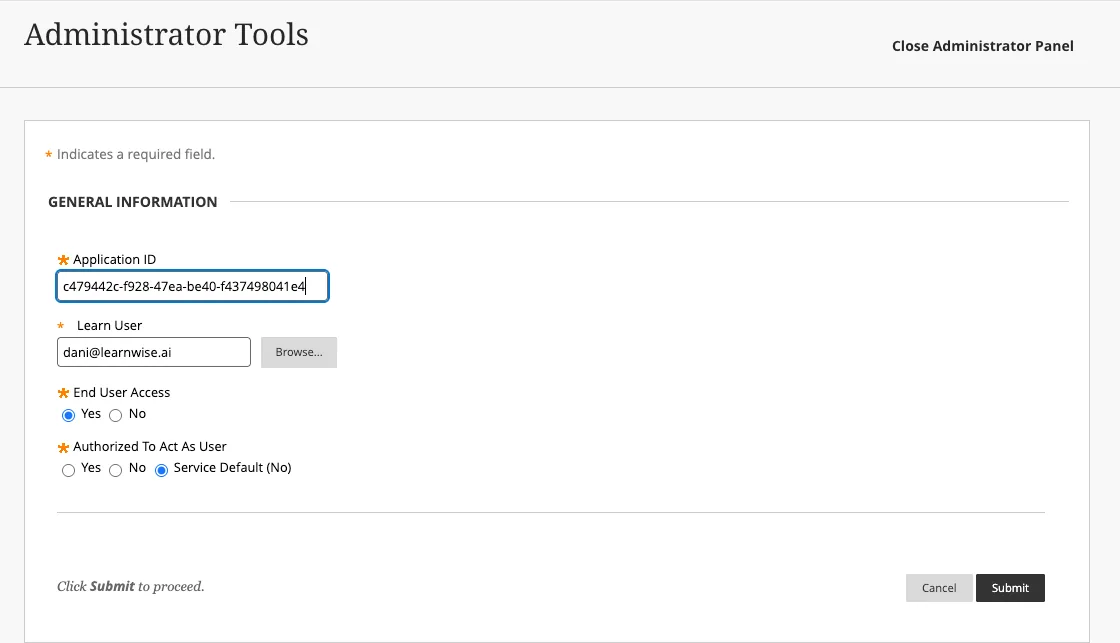
Navigate to the REST API section in Blackboard and create a new integration.
-
Add the following Application ID:
c479442c-f928-47ea-be40-f437498041e4 -
Assign a user with admin rights to manage the integration & click submit
-
-
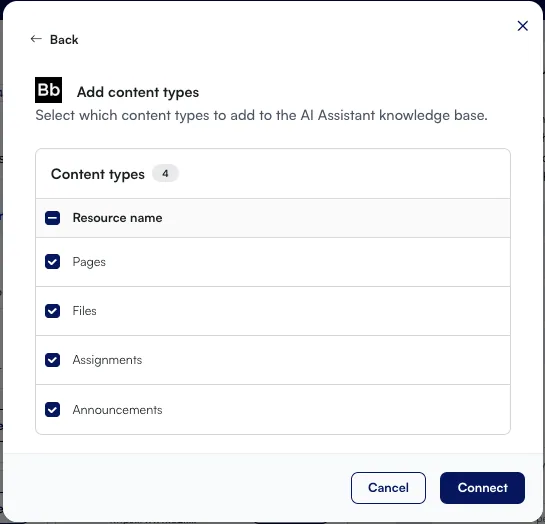
Select the content you'd like LearnWise to scrape from your Blackboard courses in your LearnWise dashboard & click Connect
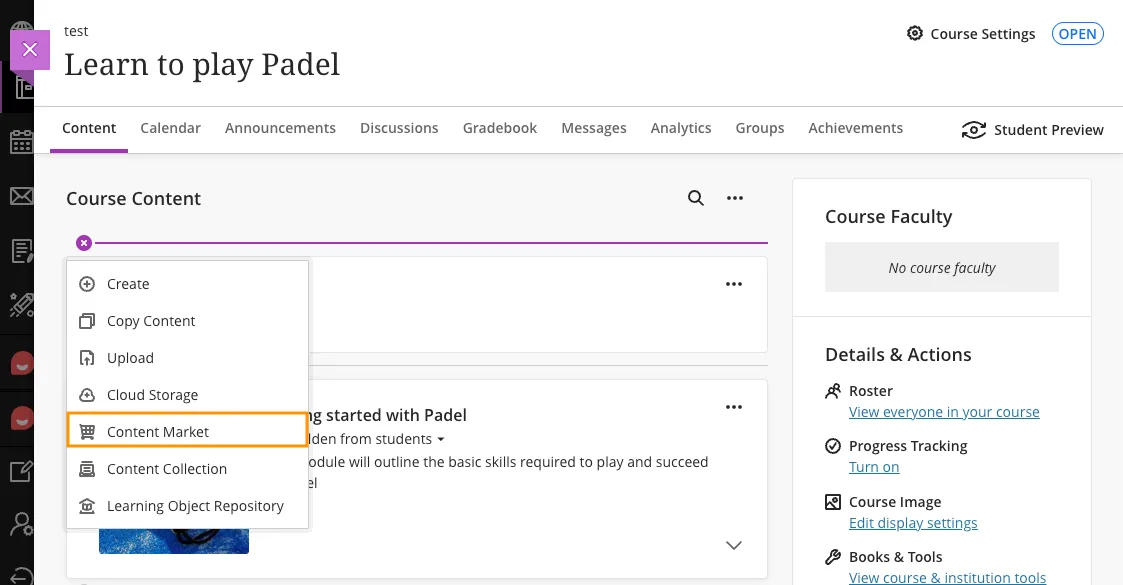
- Navigate to a course inside your Blackboard instance.
- Click the "+" icon and select Content Market from the dropdown.
- Find the LearnWise Institution tool and click the "+" button to add it to your course.
- Open the LearnWise assistant within the course.
- This will initiate the content scrape process for the course.
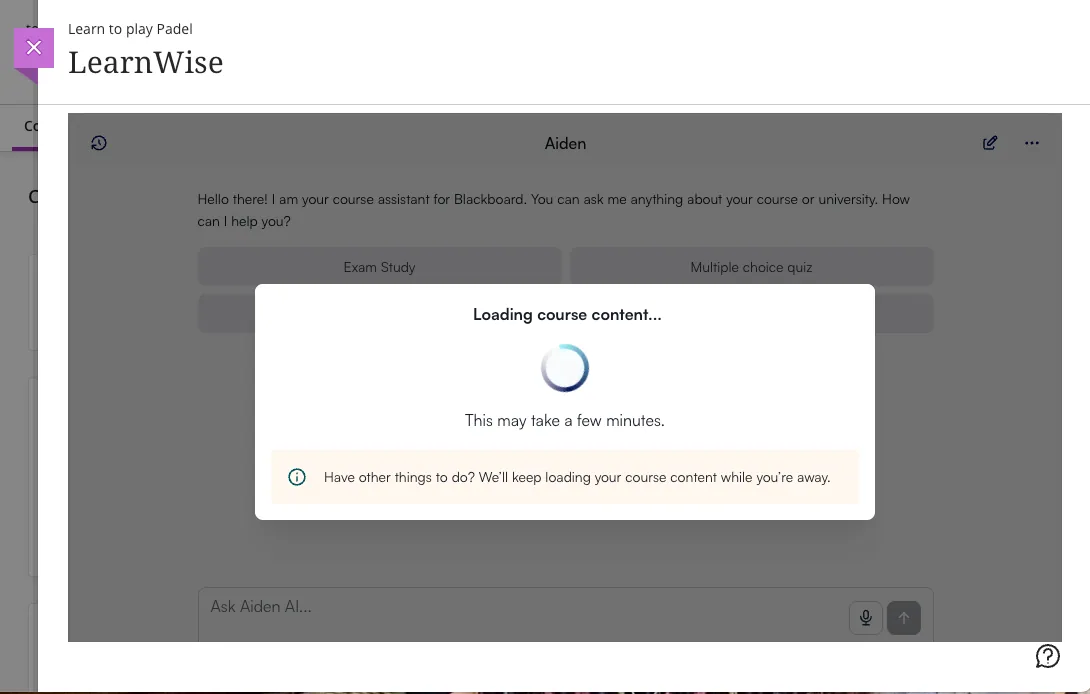
- Once the content is ready, you’ll be able to start interacting with the course assistant in LearnWise.
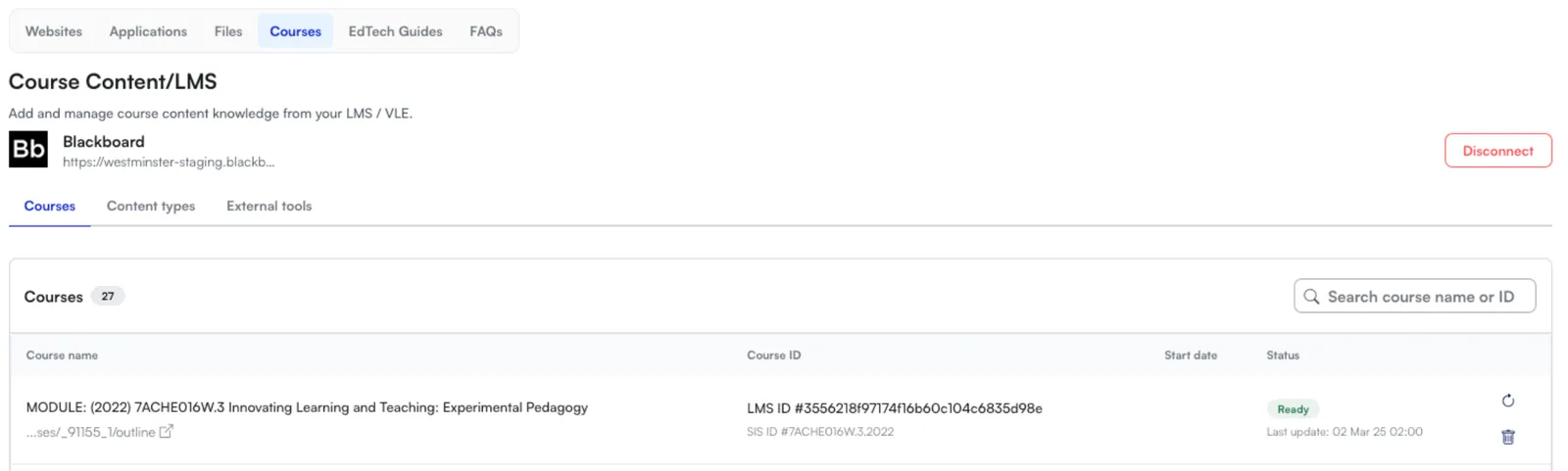
- Return to your LearnWise dashboard to confirm the course now appears under your connected courses list. The status of courses should be Ready.
Enable Live API Integration (optional) #
To pull live Blackboard data (user role, assignments, etc.):
- In the Enable Live API integration step, click Verify.
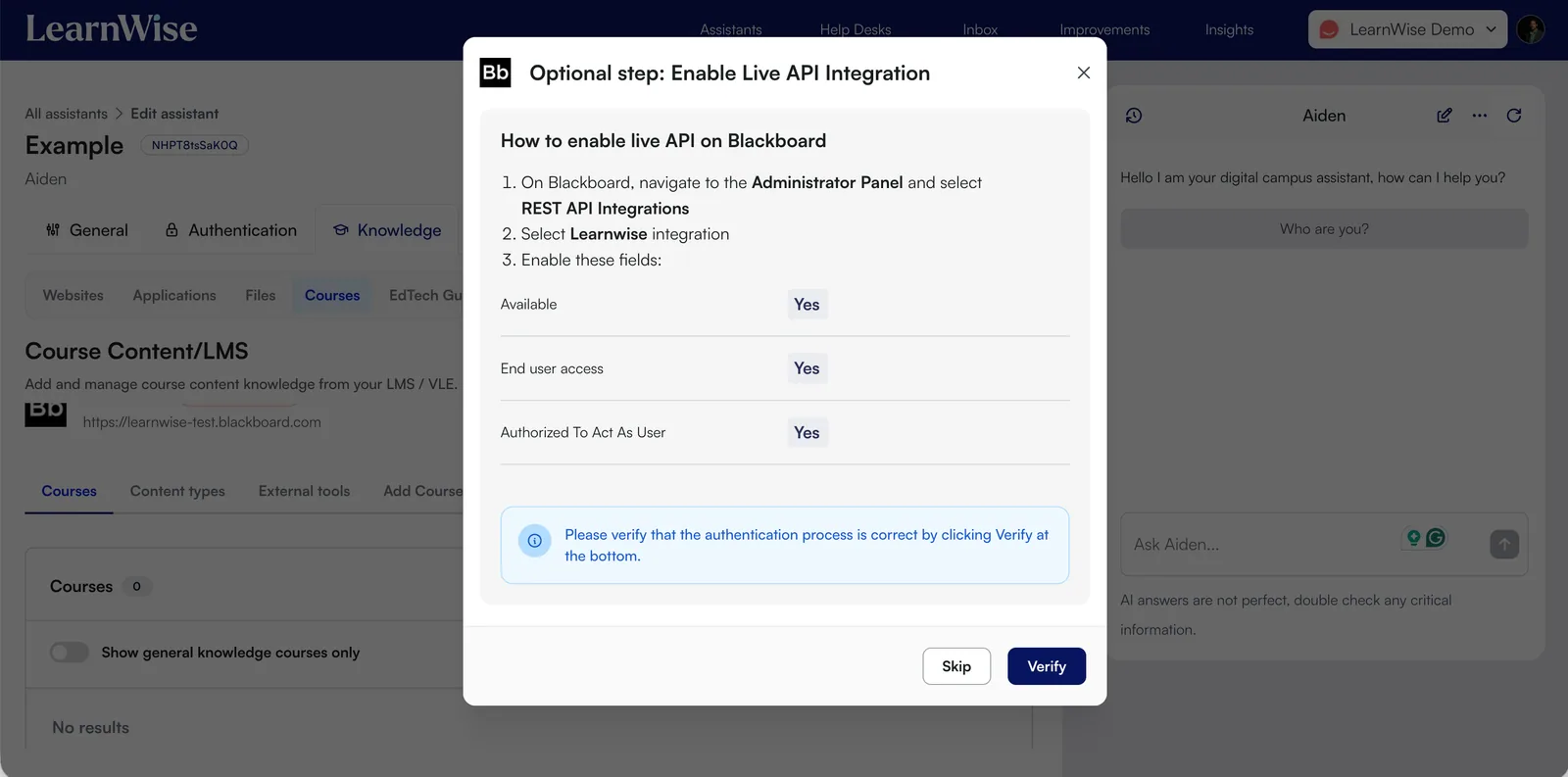
- You will be redirected to the Blackboard environment configured in the first step and asked to log in if not yet logged in.
- Once the authorization has been completed you will navigate back to the LearnWise admin dashboard.
- Click Connect.
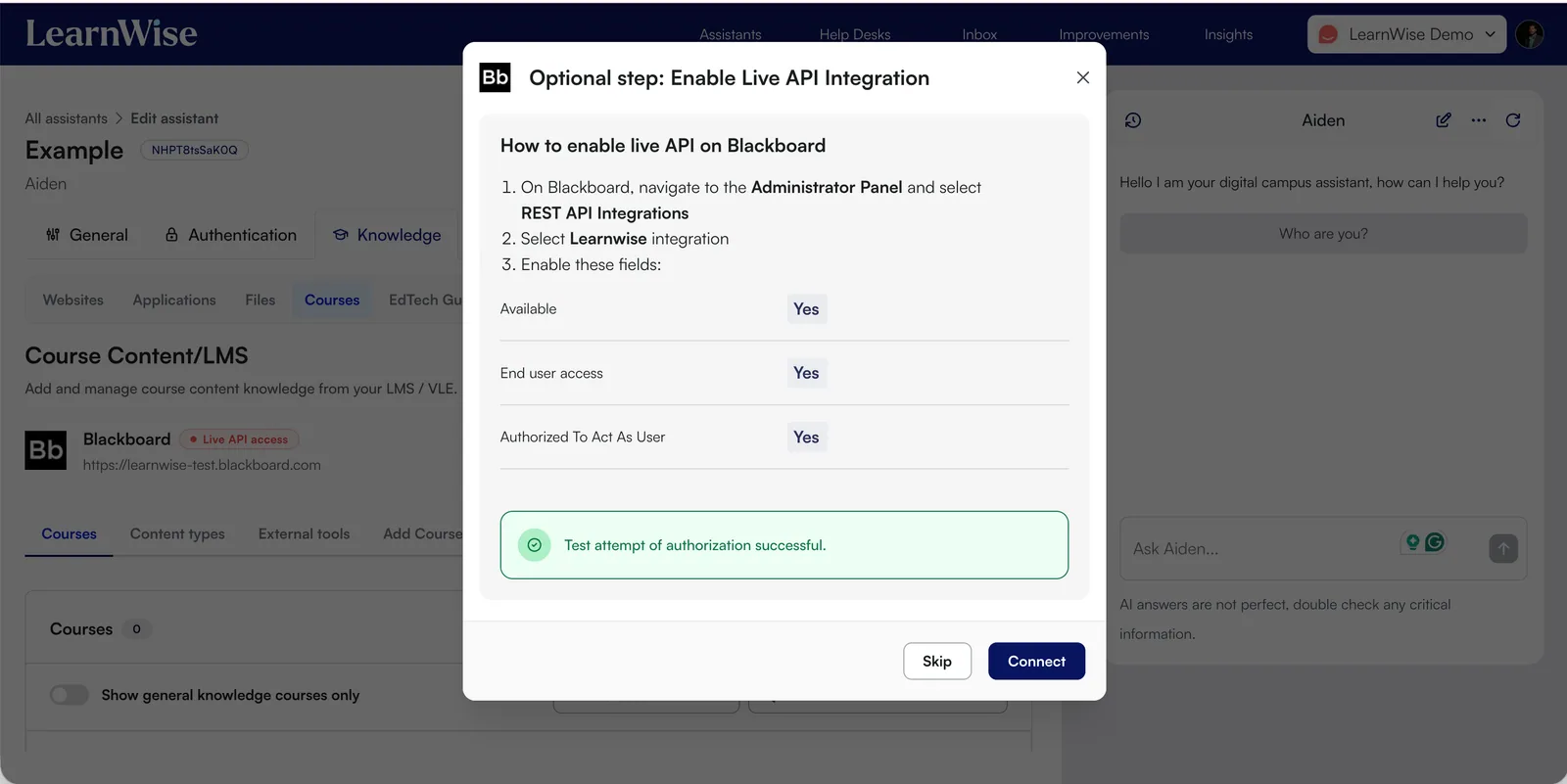
- Your dashboard will display an active Live API access status

Final Setup Checklist #
-
Make the assistant visible to students
Go back into your Blackboard course settings and ensure the LearnWise assistant is set to visible.
Study Mode #
Navigate to Assistant > AI Tutor in your LearnWise admin and enable study mode and H5P interactives to allow students to fully engage with their course content. This allows the assistant to create quiz questions and help students practice their understanding on the course content.
Still stuck?
Ask the LearnWise assistant. It answers from these guides.
Related guides
- How do I publish an assistant in Blackboard via the Ultra Extension Framework (UEF)?Build your assistant
- How do I install AI Campus Support on the Brightspace Login Page?Build your assistant
- How do I publish an assistant into Microsoft Sharepoint?Build your assistant
- How do I publish an assistant into Microsoft Teams?Build your assistant
- How do I publish an assistant into Shopify?Build your assistant