

What is AI Feedback & Grader?
AI Feedback & Grader is LearnWise's built-in tool that helps instructors generate, review, and send feedback and grades for student submissions. Rather than writing feedback from scratch for every student, the AI produces a high-quality draft based on the assignment rubric and your personal grading preferences. You stay in control: review, adjust, and send when you're ready.
5 min readUpdated
On this page
For more detailed information on how to install AI Feedback & Grader, please refer to our Brightspace, Canvas, and Moodle installation guides.
How it works – overview #
When you open a student submission, here's what happens:
- The AI reads the assignment rubric and creates a shared evaluation blueprint for the cohort
- The student's submission is broken into sections and analyzed in parallel
- A grading plan is built for each rubric criterion
- A complete feedback and grade draft is prepared in your preferred tone and style
- You review, refine using chat, and send when ready
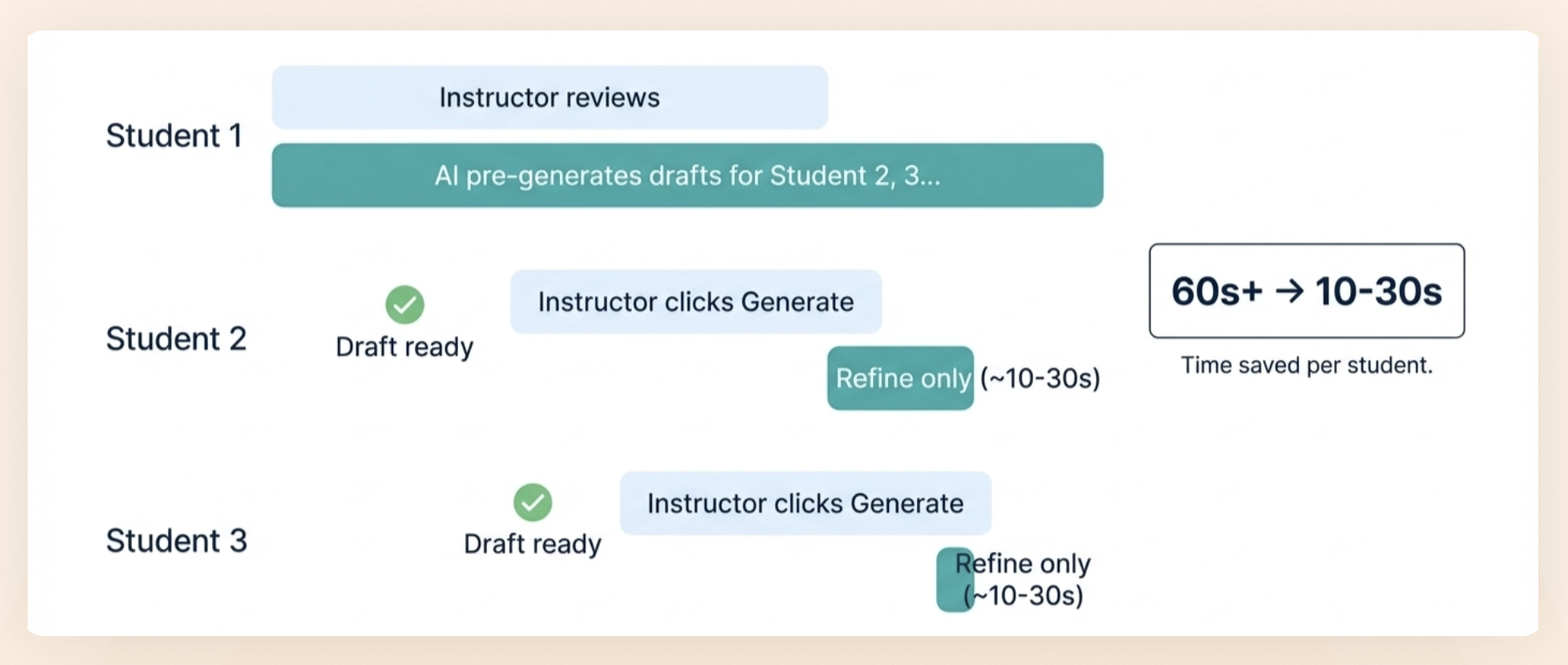
Most of this happens in the background while you are reviewing the previous student, so the experience feels fast and uninterrupted. The sections below explain each part of this process in more detail.
Predictive Feedback Generation #
LearnWise begins preparing AI feedback in the background while you are still reviewing the current student's submission, so by the time you move to the next student, a draft is already ready or nearly complete. When you click Generate, the system refines that pre-built draft using any notes or adjustments you have made, rather than starting from scratch.
This means:
- Wait times are short, roughly 10-30 seconds in most cases
- The AI has more time to reason in the background, producing more thorough and accurate feedback
- You stay in a natural grading rhythm without pausing between students
Teacher Feedback Profile Builder #
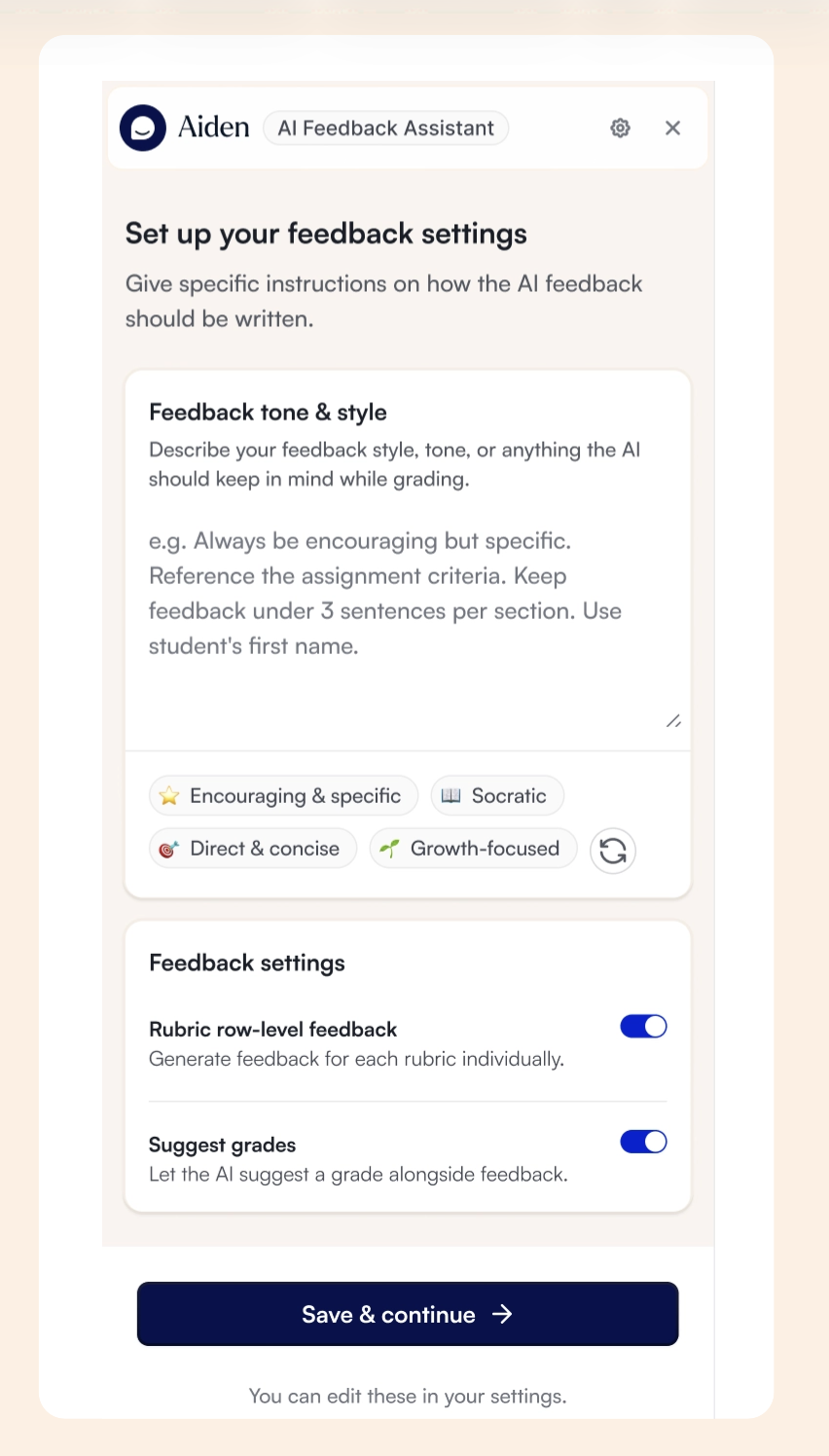
Before you start grading, you can set up a Feedback Profile to define exactly how you want the AI to write and grade. The AI uses these preferences from your very first click, so there is no need to adjust it each session.
What you can set up:
- Tone of voice – formal, friendly, encouraging, direct, or a custom blend
- Grading preferences – whether to include point suggestions, rubric-level scores, or qualitative-only feedback
- Style templates – reusable profiles for different assignment types, courses, or departments
Why it matters:
- Eliminates repetitive adjustments session after session
- Feedback reads more like you wrote it, not a generic AI
- New instructors can get started faster with pre-built templates
Smart Scoring – Advanced Grading Engine #
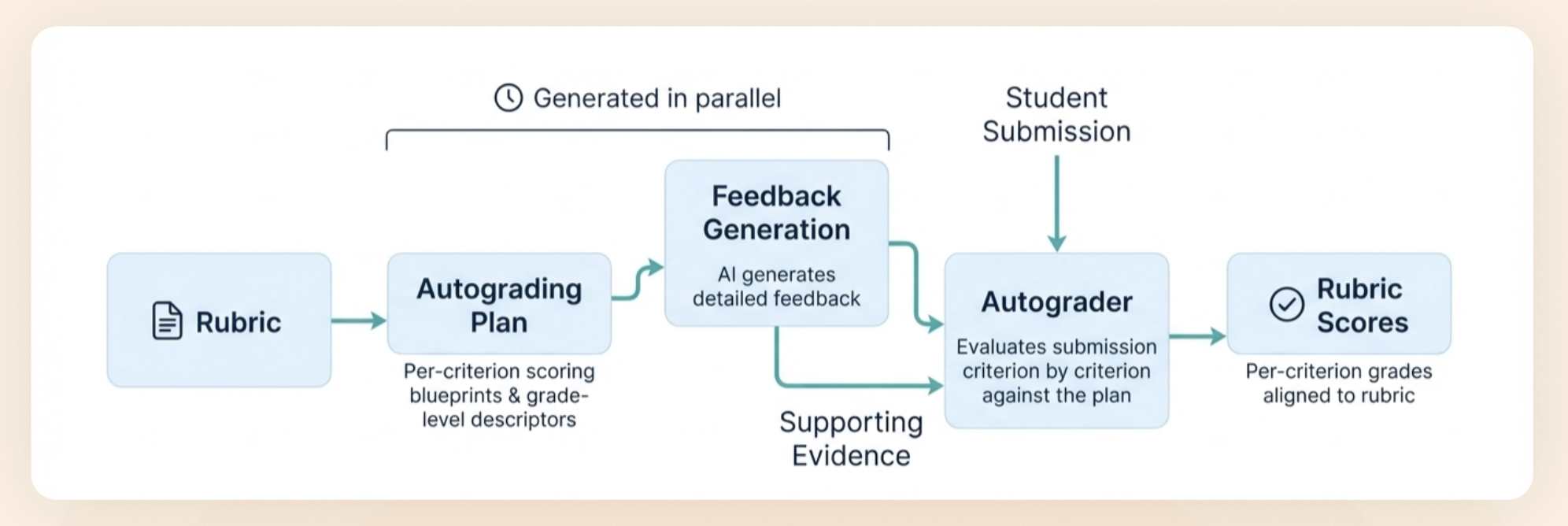
LearnWise uses a two-phase AI grading process that evaluates each rubric criterion independently, rather than deriving grades from how positive or negative the feedback sounds.
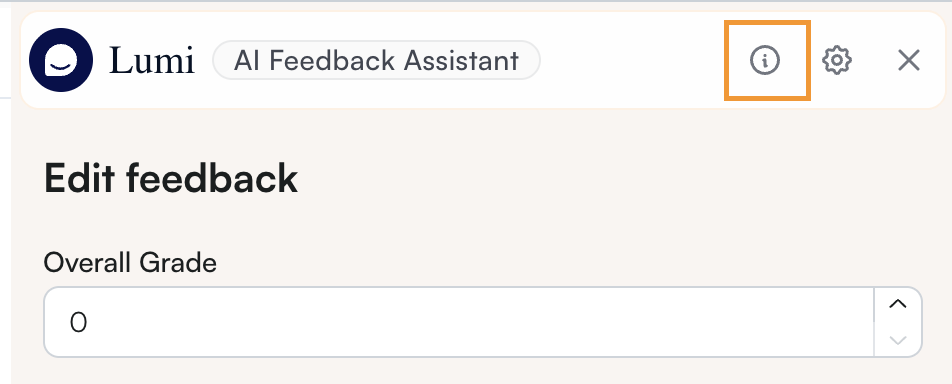
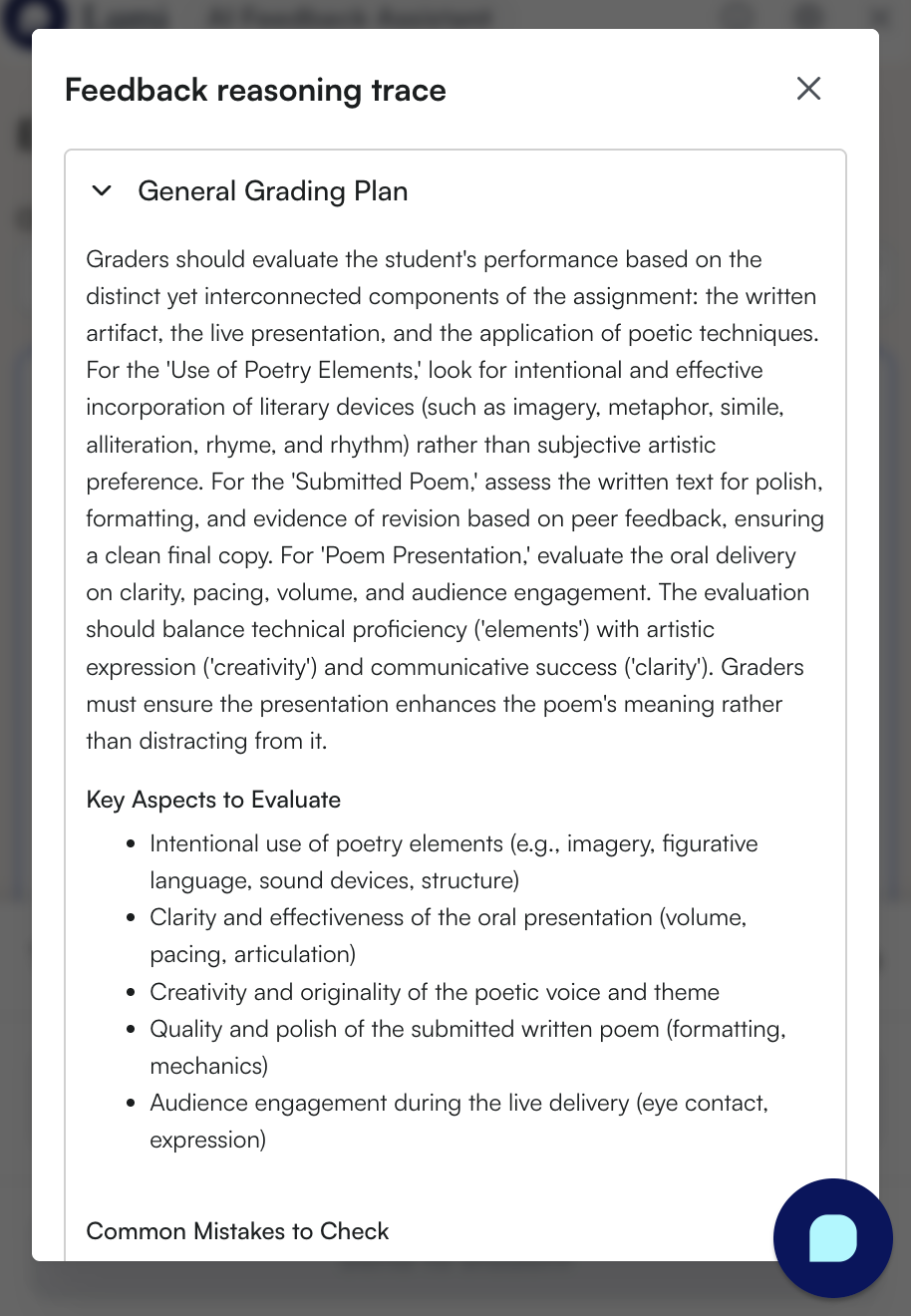
Phase 1 – Grading Planner: For each rubric criterion, the system builds a scoring blueprint: a step-by-step grading algorithm that describes how to evaluate the work, plus grade-level descriptors that define exactly what quality of work earns each score. This runs in parallel with feedback generation, so it adds no extra wait time. Instructors can see this scoring blueprint in the AI Feedback panel by clicking the info button in the panel header.
Phase 2 – Grading Agent: The AI walks through each criterion using the plan, evaluates the student's submission against each grade level, and selects the best-fit score. It cross-checks its reasoning against the actual submission. When a submission falls between two levels, the system conservatively picks the lower one to avoid over-grading.
The grading engine has been benchmarked against real instructor-graded submissions across a range of rubric types.
Multi-Stage Feedback Engine #
Feedback is generated through a structured pipeline, not in a single pass. This produces more consistent, precise, and thorough results across every student.
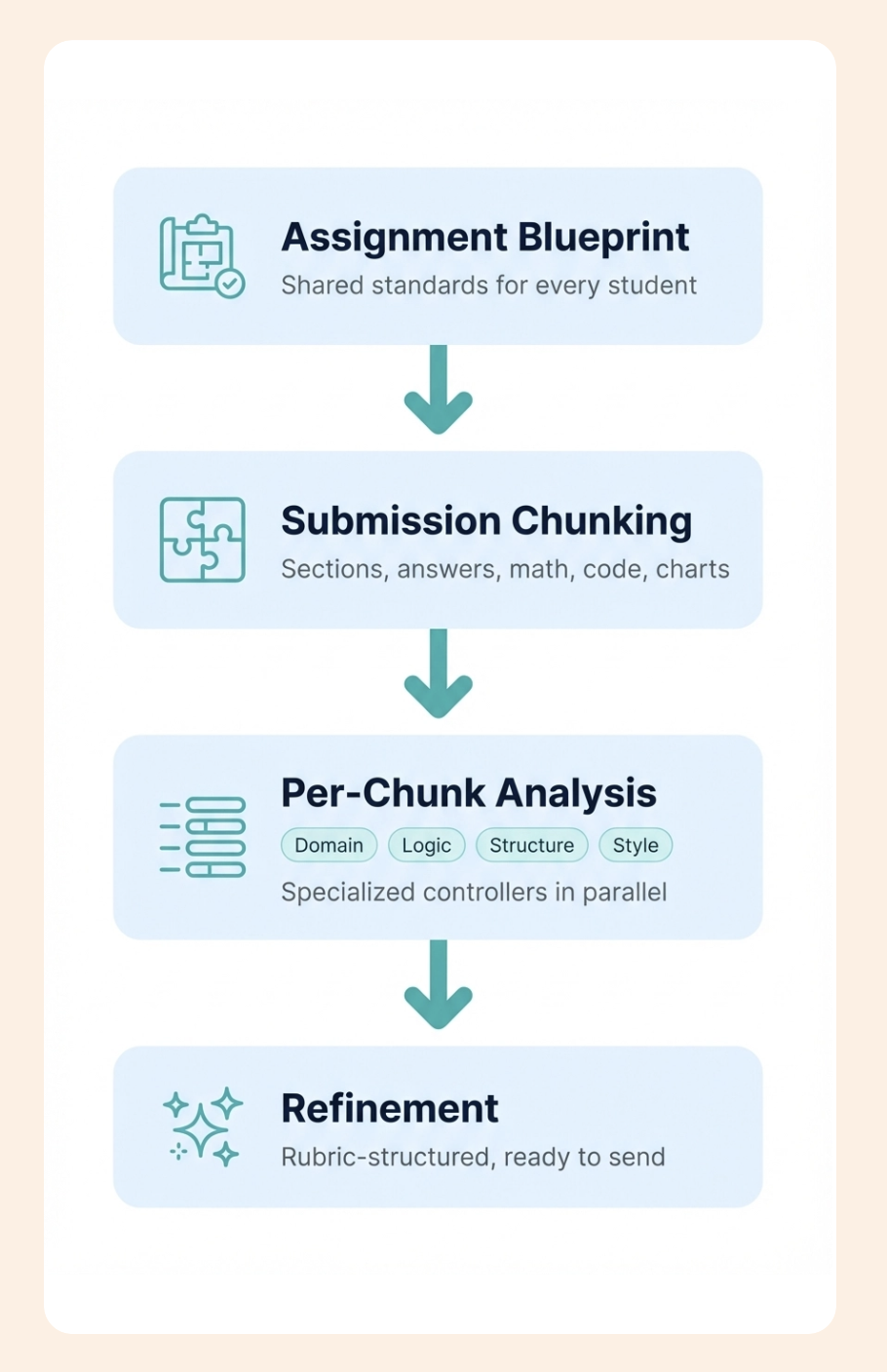
The pipeline runs in four stages:
- Assignment Blueprint – A reusable plan is created once per assignment, covering evaluation criteria, common mistakes, and feedback rules. This ensures consistent standards for every student in the cohort.
- Submission Chunking – Each submission is broken into focused sections (e.g. introduction, methodology, conclusion, individual answers, charts, or code) so the AI can provide precise, location-specific feedback.
- Per-Chunk Analysis – Specialized controllers analyze each section in parallel across domain knowledge, logical reasoning, structure, and writing style.
- Refinement – Feedback is structured by rubric criterion with your preferred tone applied, ready to review and send.
What this means for you:
- Consistent feedback across cohorts – the shared blueprint ensures the same standards for every student
- Precise, location-aware comments – the AI points to exact parts of the submission
- Deeper analysis – specialized controllers catch issues a single-pass model would miss
- Multi-format support – charts, spreadsheets, maths, code, and multi-file submissions are all handled natively
Chat-Based Feedback Refinement #
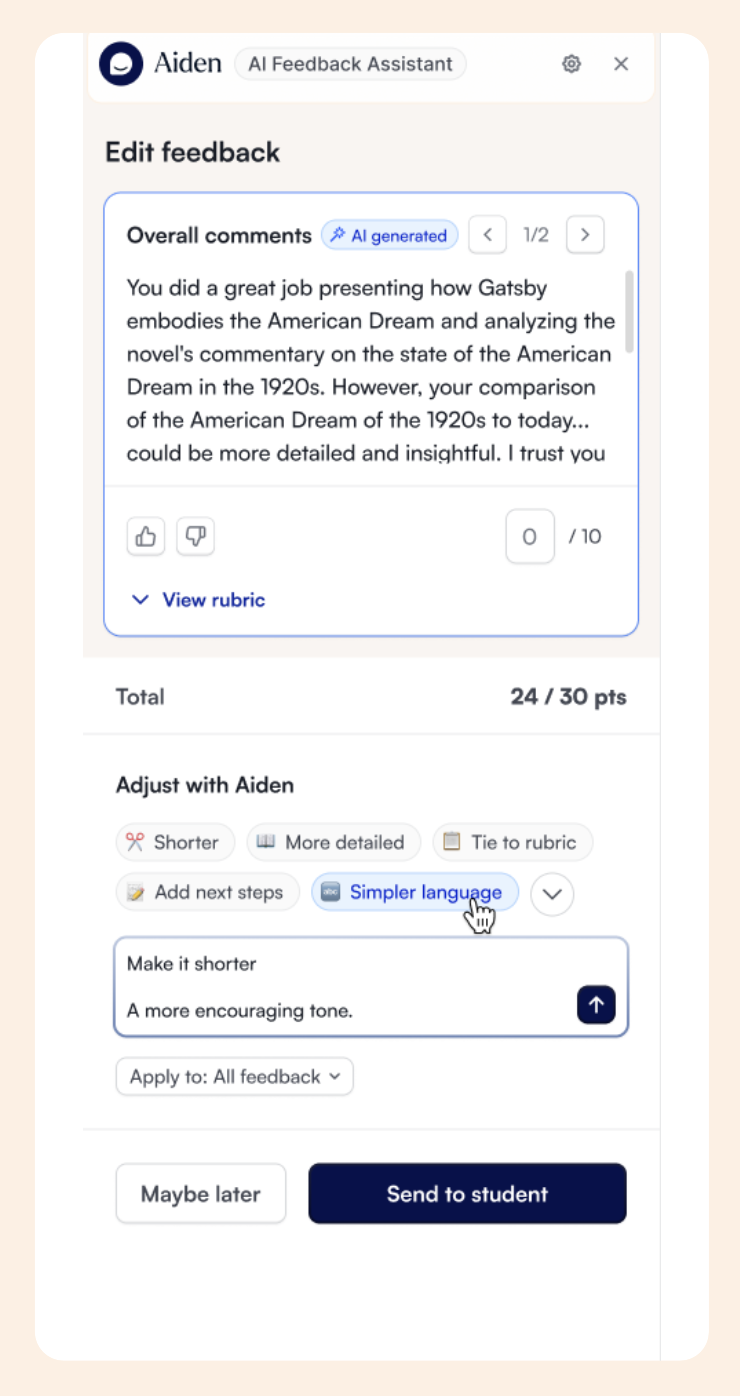
Once a feedback draft is generated, you can adjust it in plain language directly from the feedback view, with no need to navigate to a separate page.
Examples of what you can type:
- "Make the tone more encouraging."
- "Add a specific reference to the student's introduction."
- "Shorten this section and focus on the methodology gaps."
The AI applies your adjustment instantly, keeping you in flow and making refinement feel natural and conversational.
Transparent Thinking Steps #
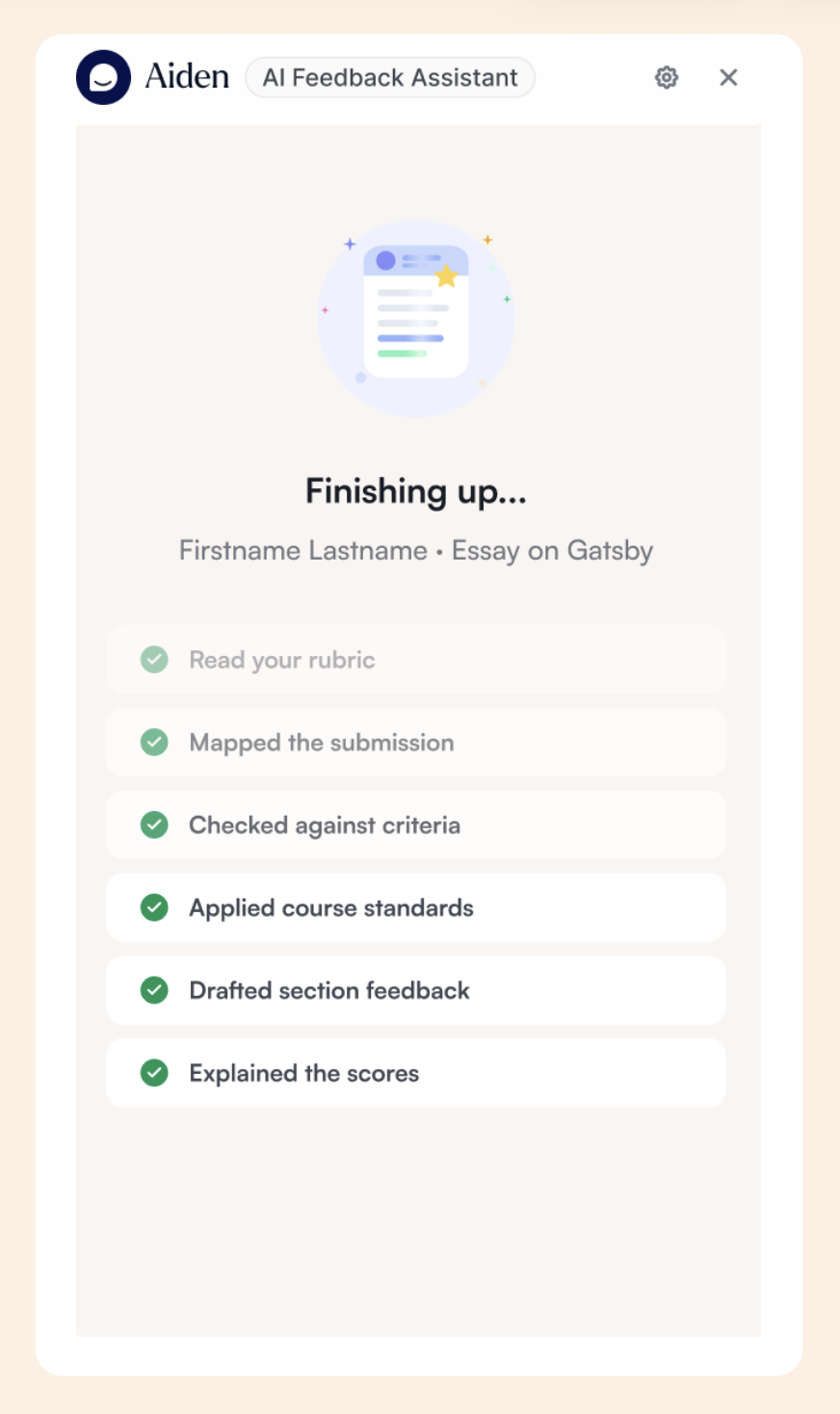
You can see exactly how the AI arrived at its feedback and grades. The tool surfaces the AI's reasoning process, including which parts of the submission it focused on, what rubric criteria it weighted, and why it chose a particular score.
This gives you:
- Full visibility into the AI's decision-making
- Greater trust in the output – no more black-box grading
- Faster review – you can quickly validate or adjust based on the reasoning shown
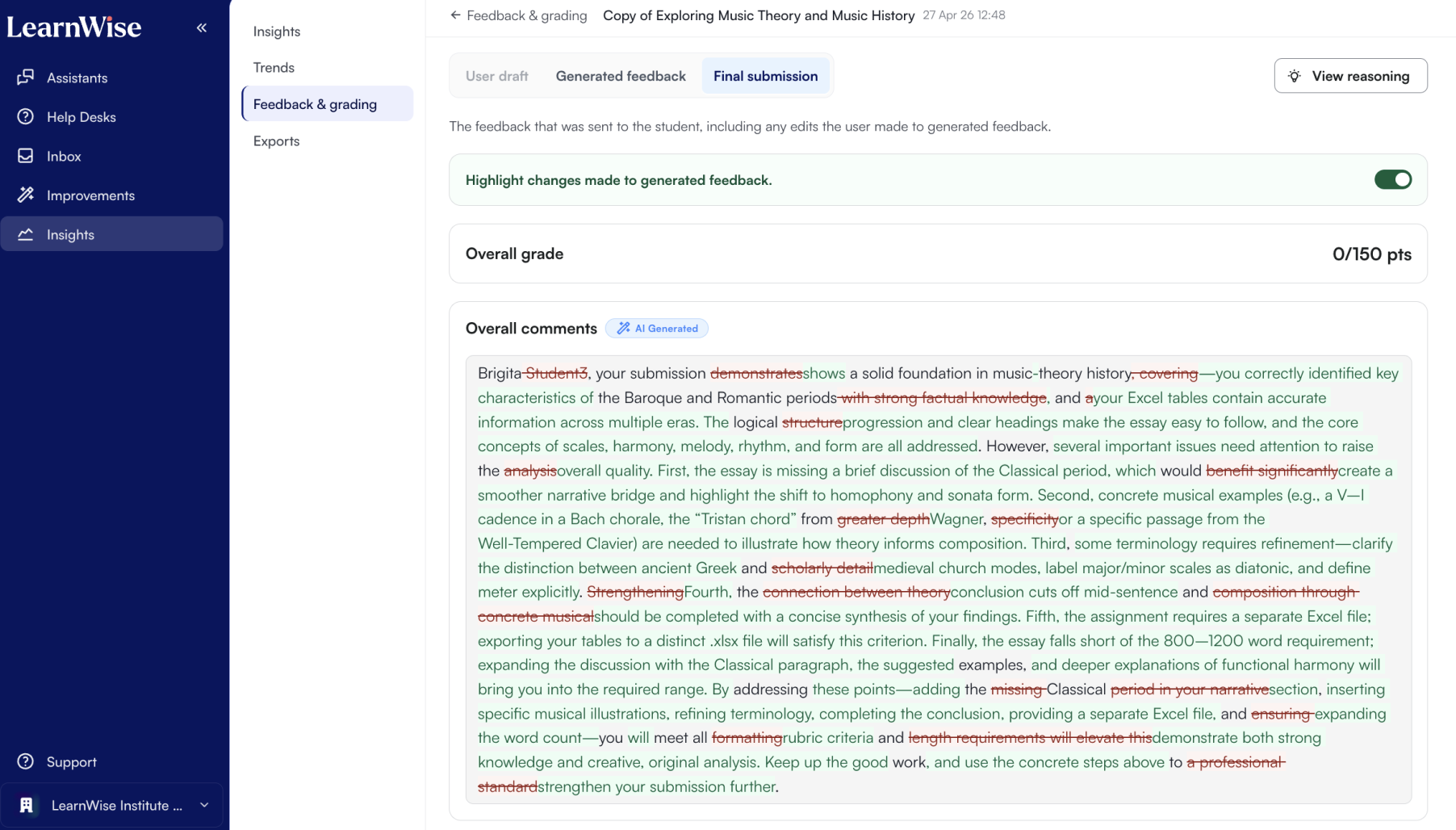
Feedback Lifecycle View #
The Feedback Dashboard now shows the full lifecycle of every submission in three distinct states, so instructors and admins can review exactly what changed at each step:
- Original — the student's draft as submitted, before any AI involvement
- Generated — the AI's initial feedback draft, before instructor review
- Final — the feedback that was actually published to the student, after the instructor's edits and approval
All three states are kept side by side for each submission. This is useful for:
- Quality assurance — checking how much the AI's draft needed to be edited before sending, across instructors or assignments
- Calibration — comparing how different instructors adjusted the same kind of AI draft
- Audit and review — having a clear record of who decided what, separate from the AI's suggestion
Supported file types #
The AI feedback and grader supports the following file types as submissions:
-
Documents: PDF, DOC, DOCX, PPTX, XLSX, CSV, HTML, TXT, TEX
-
Images: JPEG, PNG, TIFF
-
Audio: MP3, MPEG, MP4 (audio), M4A, WAV
-
Video: MP4, WebM, MOV, AVI (max 30 minutes)
Getting started #
For more information on how to install and begin using AI Feedback & Grader, please refer to our installation guides:
Still stuck?
Ask the LearnWise assistant. It answers from these guides.
Related guides
- Best Practices for Building Rubrics in BrightspaceAI Feedback & Grader
- Best Practices: Writing Rubrics and Instructions for AI Feedback & GraderAI Feedback & Grader
- How can I add AI Feedback & Grader within Brightspace?AI Feedback & Grader
- How can I add the AI Feedback tool within Canvas?AI Feedback & Grader
- How can I add the AI feedback tool within Moodle?AI Feedback & Grader