

How to create a new trends report?
Quickly create clear, well-named support trends reports. Use them to follow changing support patterns and see the impact of your actions over time.
1 min readUpdated
On this page
Creating a Support Trends Report is a straightforward process that can yield valuable insights into the patterns and frequencies of support queries. Here's a step-by-step guide to generating a new report:
Step 1: Access the Insights Dashboard #
Log in to your LearnWise account and navigate to the Insights Dashboard at https://admin.learnwise.ai/insights.
Step 2: Start a New Report #
Click on the "New Report" button, which opens the "Create New Report" dialogue box.
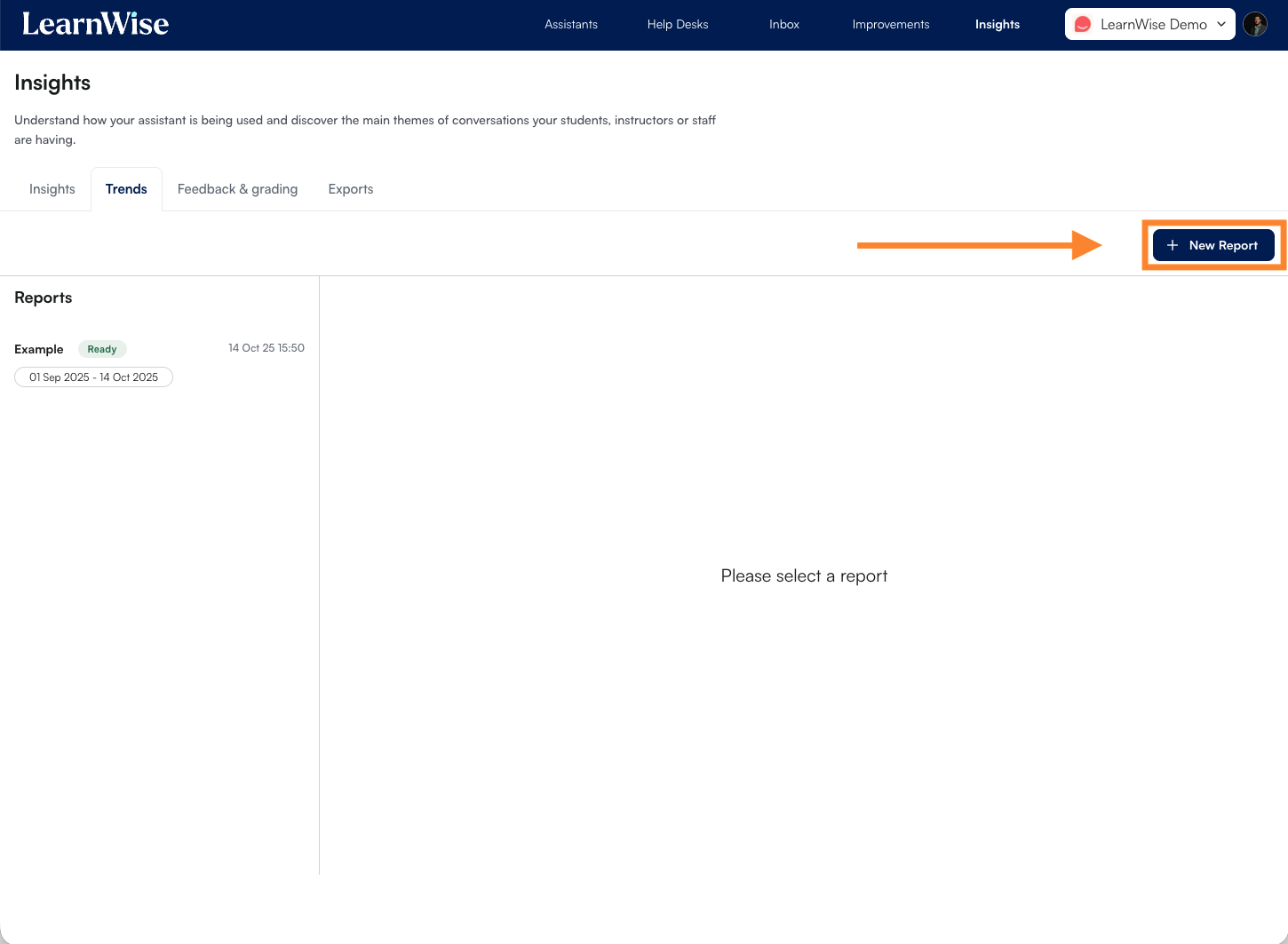
Step 3: Name Your Report #
In the "Report Name" field, enter a descriptive name that reflects the content and purpose of the report. For example, "End-of-Semester Trends" or "November Support Summary".
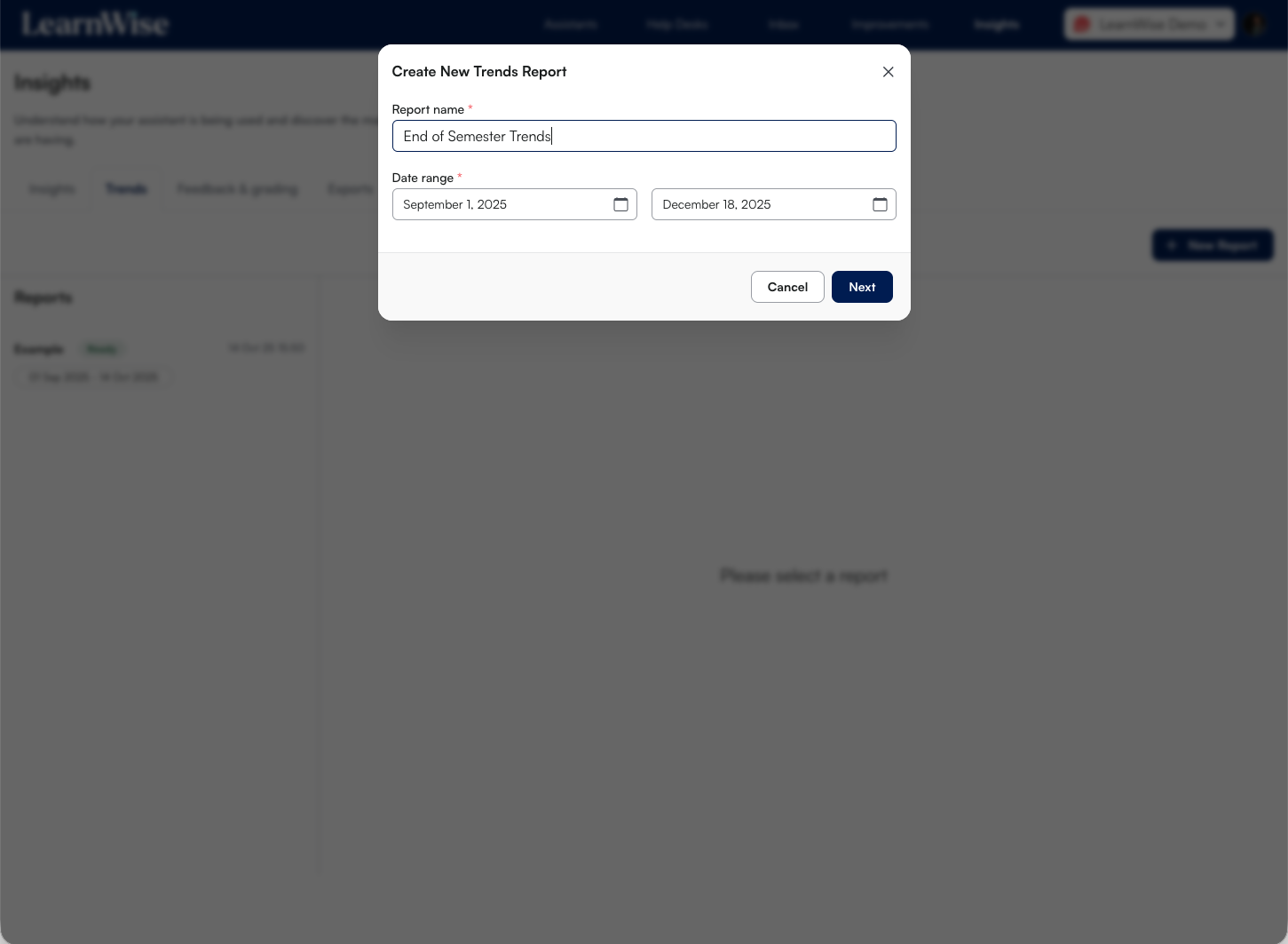
Step 4: Select a Date Range #
Choose a date range that targets a specific period you want to analyze. For instance:
- Semester Review: If you’re looking at semester trends, select the start and end dates of the academic semester.
- Monthly Analysis: To monitor monthly progress, choose the first and last days of the month.
Step 5: Generate the Report #
After setting the name and date range, click "Generate Report" to create your new Support Trends Report.
Recommendations for Effective Reports #
- Date Ranges: Selecting the right date range is crucial. Align the report with academic calendars or specific events (like registration periods) for targeted insights.
- Report Naming: Use clear and consistent naming conventions that make it easy to identify and compare reports over time, such as "Fall Semester 2023" or "May 2023 Monthly Report".
- Regular Reporting: Regularly create reports to keep up with evolving trends and to measure the impact of any changes or interventions you have implemented.
By following these steps, you can efficiently generate detailed reports to understand support trends, ultimately enhancing the support experience for your institution's community.
Still stuck?
Ask the LearnWise assistant. It answers from these guides.
Related guides
- How to delete a Trends report?Insights & Reports
- What are Trend Insights?Insights & Reports
- What insights are available to instructors?Insights & Reports
- Benchmarking: How much usage should we be expecting and what are the average AI resolution rates?Insights & Reports
- How can I view and understand assistant usage insights?Insights & Reports