

How do I view the audit log?
The audit log records administrative and access changes in your organization: who made each change, what changed, who or what it affected, and when.
2 min readUpdated
On this page
Who Can View the Audit Log? #
Only roles with the View audit log capability can see the audit log. By default, this is Super Admins only. Admins can't view it.
Note: The capability must be given at organization level. Giving it on a single assistant isn't enough. To create a role with this capability, see How do I create a custom role?
How Do I Open the Audit Log? #
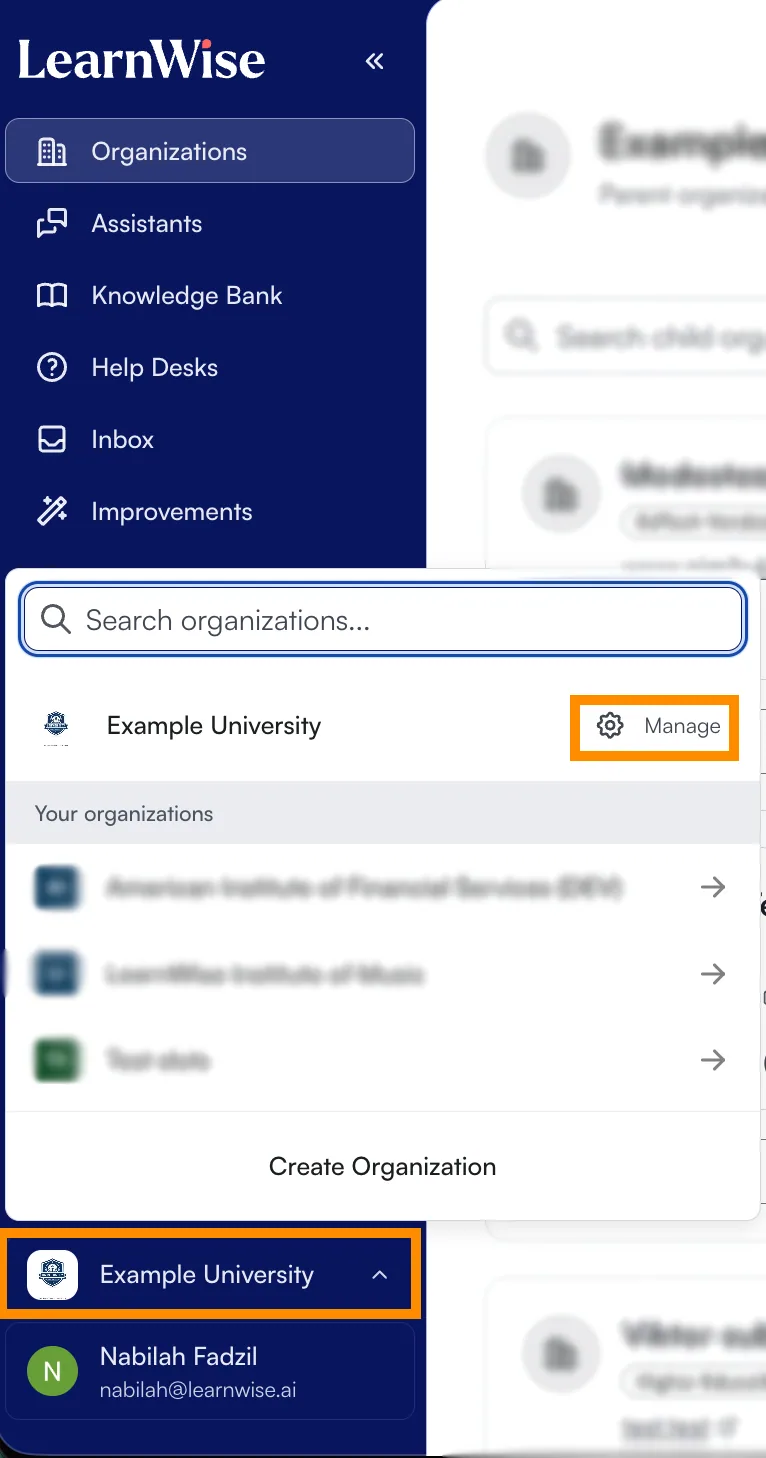
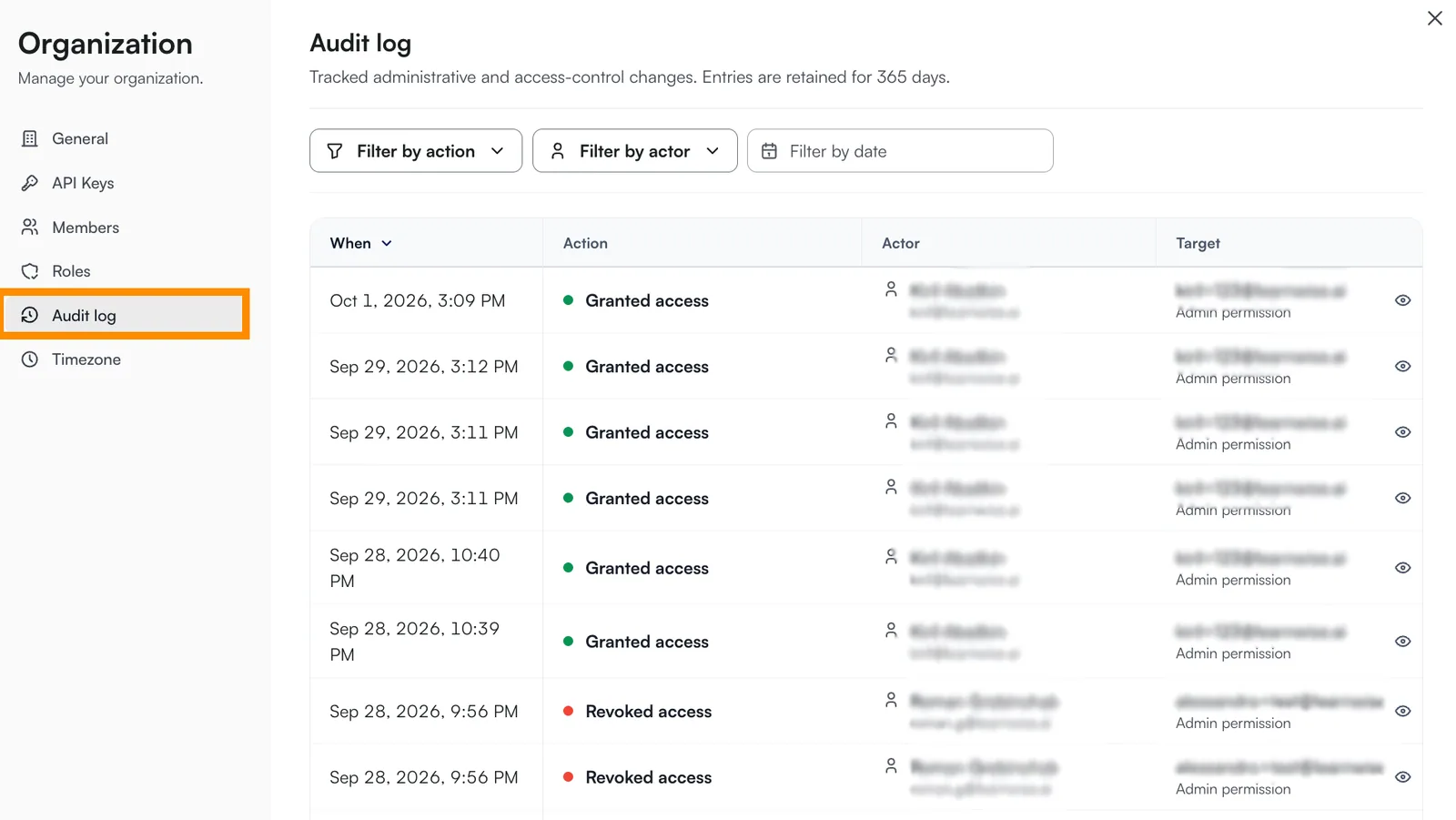
In your own organization:
- Open the organization switcher.
- Select Manage.
- Select the Audit log tab.
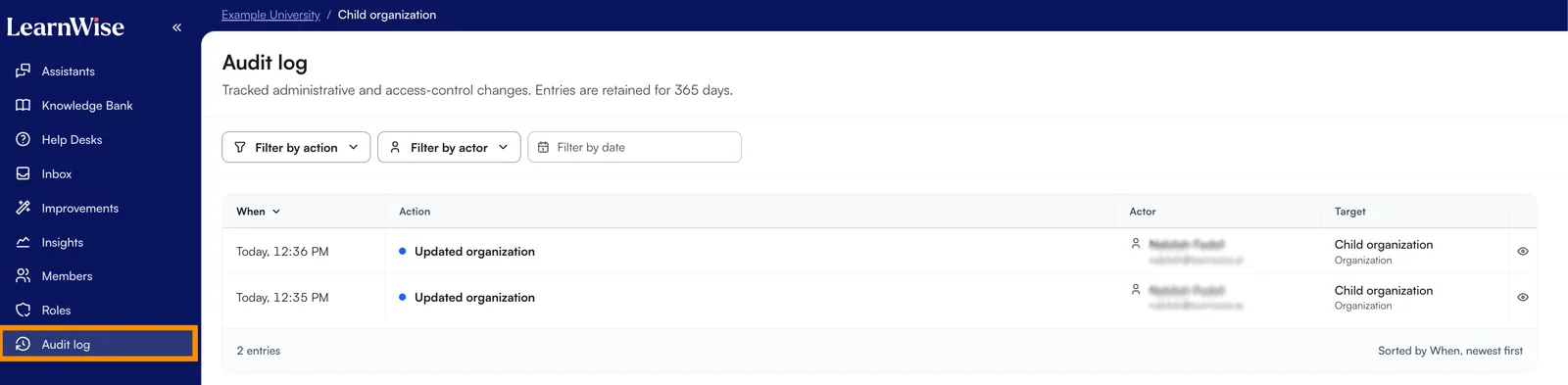
In a child organization:
- Move into the child organization.
For steps, see How do I manage child organizations from a parent organization? - In the left navigation, select Audit log.
What Does the Audit Log Show? #
Each entry shows When, Action, Actor, Target, Changes and Details. To see more about an entry, select the view icon to open Entry details.

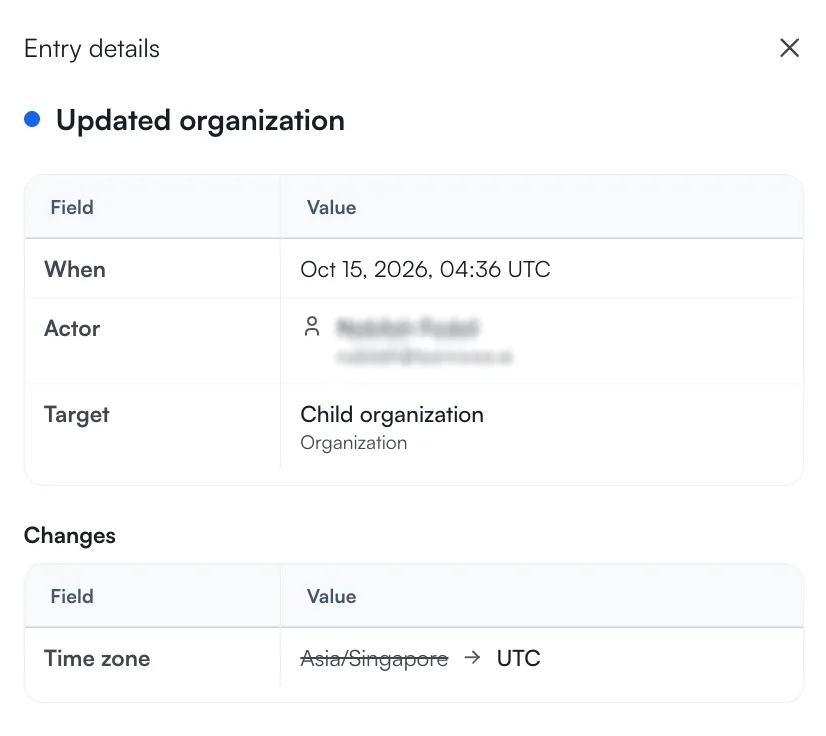
The Actor is the person or source that made the change. It can be one of:
- A user in your organization.
- LearnWise Staff: Changes made by LearnWise on your behalf.
- System
What's recorded:
|
Area |
Actions |
|---|---|
|
Roles |
Created role, Updated role, Deleted role, Propagated role to sub-organization |
|
Access and members |
Granted access (including when an invitation is sent), Revoked access, Changed member role, Revoked invitation, Accepted invitation |
|
Organization |
Updated organization, Changed default invitation role, Changed default assistant role |
|
Plan and features |
Assigned tier, Assigned products, Set entitlement override, Removed entitlement override |
|
LearnWise staff |
Plan, product and feature changes made by LearnWise, Changed sub-organization access |
How Do I Filter the Audit Log? #
- Open the Audit log tab.
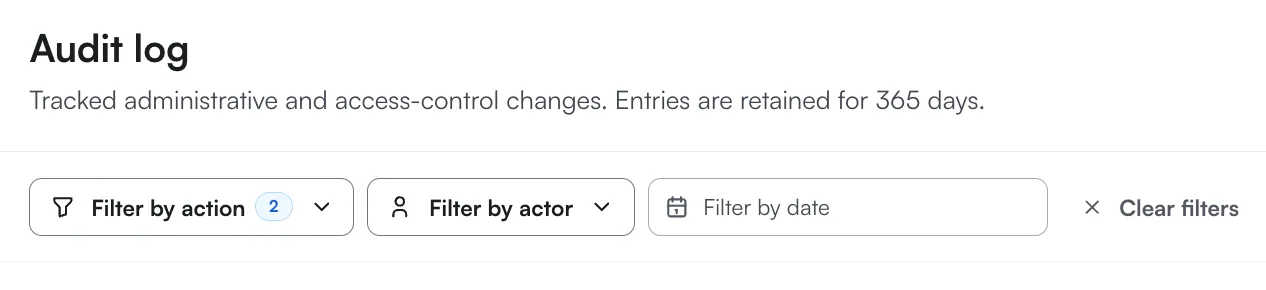
- Use any of these filters to narrow the list:
- Filter by action
- Filter by actor
- Filter by date
- To reset the list, select Clear filters.
Entries load 50 at a time. To see older entries, select Load more.
Things to Keep in Mind #
- Entries are kept for 365 days: Older entries are no longer available.
- No export or search yet: You can't export the audit log or search it by text. Use the filters to find specific entries.
Still stuck?
Ask the LearnWise assistant. It answers from these guides.