

How do I manage child organizations from a parent organization?
If your institution is set up as a parent organization, you can manage each of its child organizations from your own admin panel, without signing in separately. Changes you make inside a child organization apply to that organization only.
3 min readUpdated
On this page
Who can manage child organizations? #
To manage child organizations, you need:
- An organization that is set up as a parent organization.
- A role that can manage the organization. Super Admins and Admins can do this by default.
Inside a child organization, each page still follows your role. For example, you only see Members if your role allows you to view members.
How do I find my child organizations? #
- Log in to your LearnWise admin account at admin.learnwise.ai.
- In the left navigation, select Organizations. Your organization's name appears at the top, along with how many child organizations it has.
- To find a specific organization, type its name in Search child organizations.
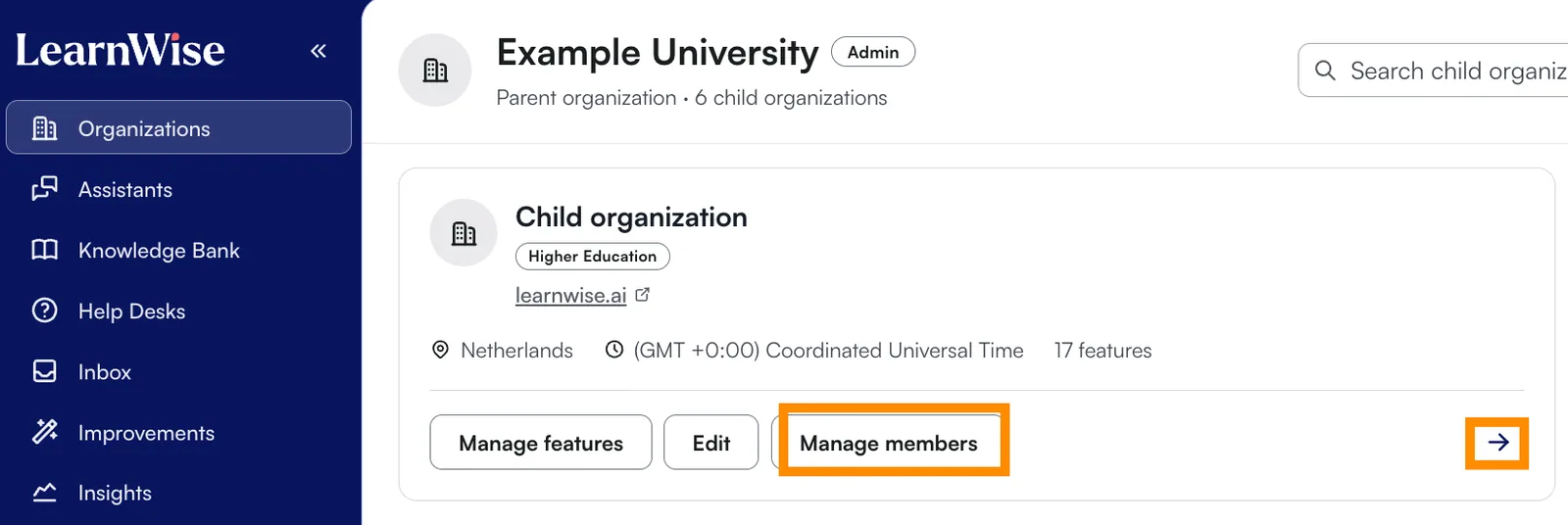
Each child organization appears as a card showing its type, location, timezone and enabled features. Each card has these actions:
|
Action |
What it does |
|---|---|
|
Manage features |
Turn the child organization's features on or off. |
|
Edit |
Change its name and details. |
|
Manage members |
Open its member list. |
|
Open (arrow icon) |
Move into the child organization. |
Note: The Create child organization button only appears if LearnWise has enabled it for your organization. If you would like to learn more about child organizations, please reach out to your LearnWise contact.

How do I move into and out of a child organization? #
To move into a child organization:
- Go to Organizations.
- On the child organization's card, select the arrow icon or Manage members.
To return to your own organization:
-
At the top of the page, you'll see your organization's name followed by the child organization's name.
- Select your organization's name. You return to Organizations.
You can also switch between organizations with the organization switcher. Child organizations are marked Sub-org. 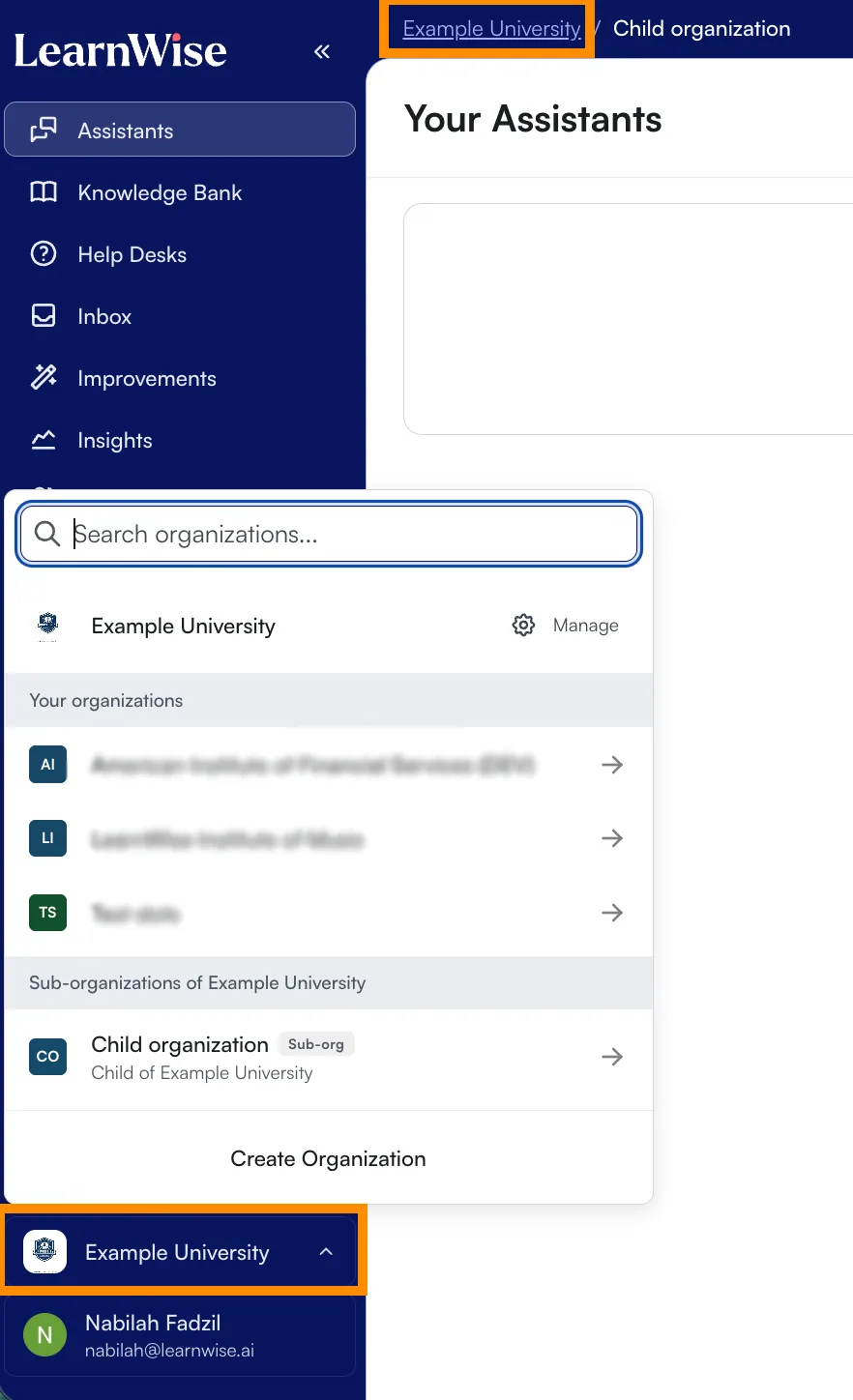
What can I manage inside a child organization? #
Once you're inside a child organization, you can work with it as if it were your own. Depending on your role, you'll see:
- Assistants, Inbox, Help desks, Insights, Improvements and Alerts.
- Members: Invite people, remove them and change their roles.
- Roles: View and manage the child organization's custom roles. Roles shared from your parent organization are marked Inherited and can only be changed in the parent organization. For more information, see How do I create a custom role?
- Audit log: See who changed roles and access in the child organization. For more information, see How do I view the audit log?
Viewing all child organizations together: In your parent organization, reports, Insights and Inbox combine information from all your child organizations, so you can see everything in one place. To work with a single child organization, move into it.
How do I turn a child organization's features on or off? #
- Go to Organizations.
- On the child organization's card, select Manage features.
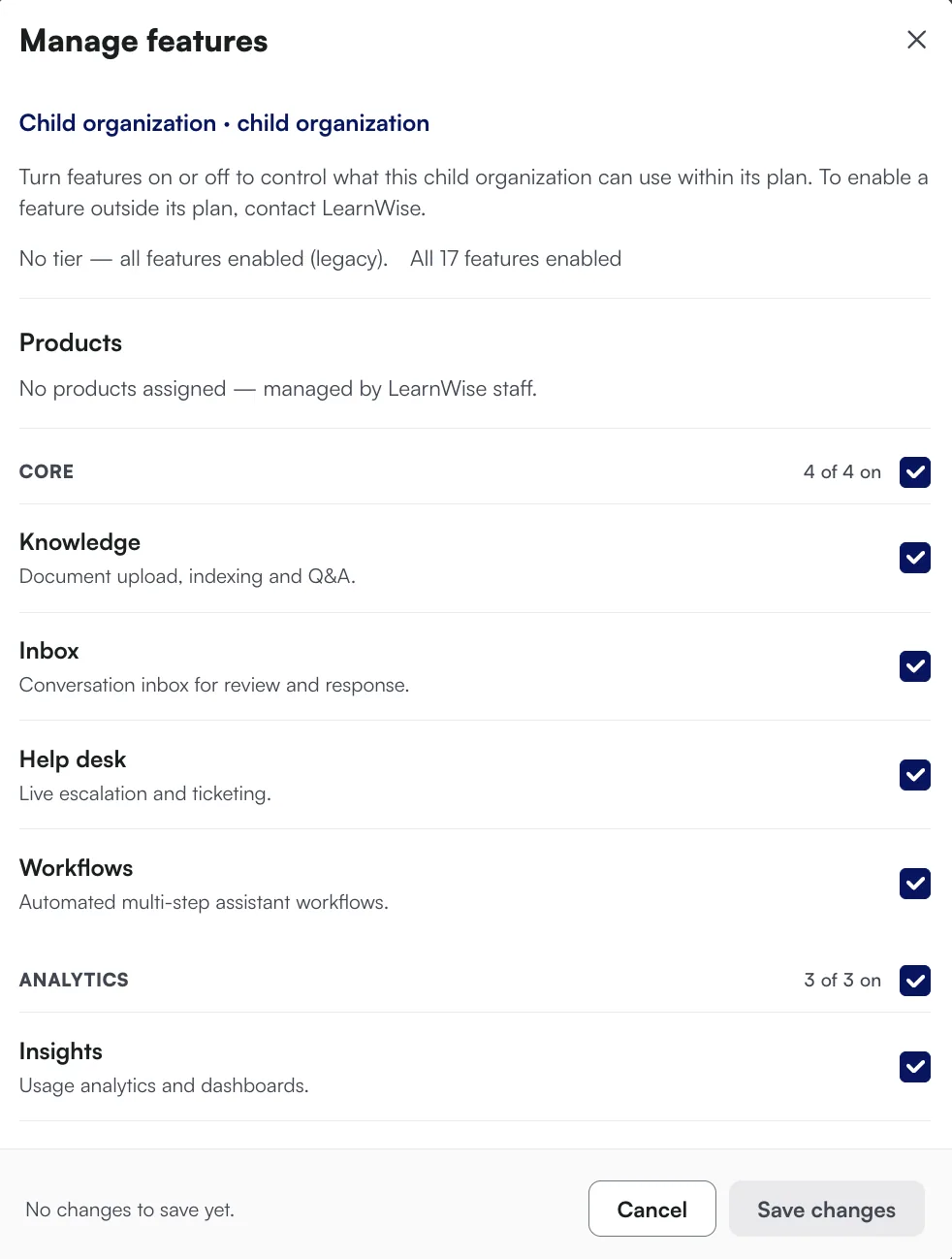
- Find the feature you want to change. Features are grouped as follows:
|
Group |
Features |
|---|---|
|
Core |
Knowledge, Inbox, Help desk, Workflows |
|
Analytics |
Insights, Trends, Improvements |
|
Publishing |
Publishing, Website publishing, LTI publishing, Channel publishing |
|
Learning |
AI Tutor, Feedback, Cross-course |
|
Administration |
Authentication, Custom roles, API access |
- Switch individual features on or off. To change a whole group at once, use that group's All features toggle (for example, All Core features).
- Select Save changes. A confirmation shows which features were added and which were removed.
Things to Keep in Mind #
- Changes apply to one organization only: Turning features on or off for a child organization doesn't affect your own organization or any other child organization.
- Some features depend on others: Website publishing, LTI publishing and Channel publishing all require Publishing to be on. If a change depends on another feature, the window tells you what to turn on or off first.
-
Only one level of child organizations: A child organization can't have child organizations of its own.
Still stuck?
Ask the LearnWise assistant. It answers from these guides.