

How can I add AI Student Tutor within Canvas?
A step‑by‑step guide to adding the LearnWise AI Student Tutor to Canvas via LTI 1.3, including Canvas key setup, content syncing, API access, and enabling study modes like quizzes and cross‑course chat.
4 min readUpdated
On this page
The LearnWise AI Student Tutor offers interactive tools for students, including study plans, quizzes, flashcards, and more. Below are detailed steps for integrating this assistant into Canvas via LTI 1.3.
Prerequisites
Admin access to:
- LearnWise dashboard (admin.learnwise.ai).
- Canvas LMS environment.
Setting Up the LTI Key in Canvas #
-
Log In to Canvas:
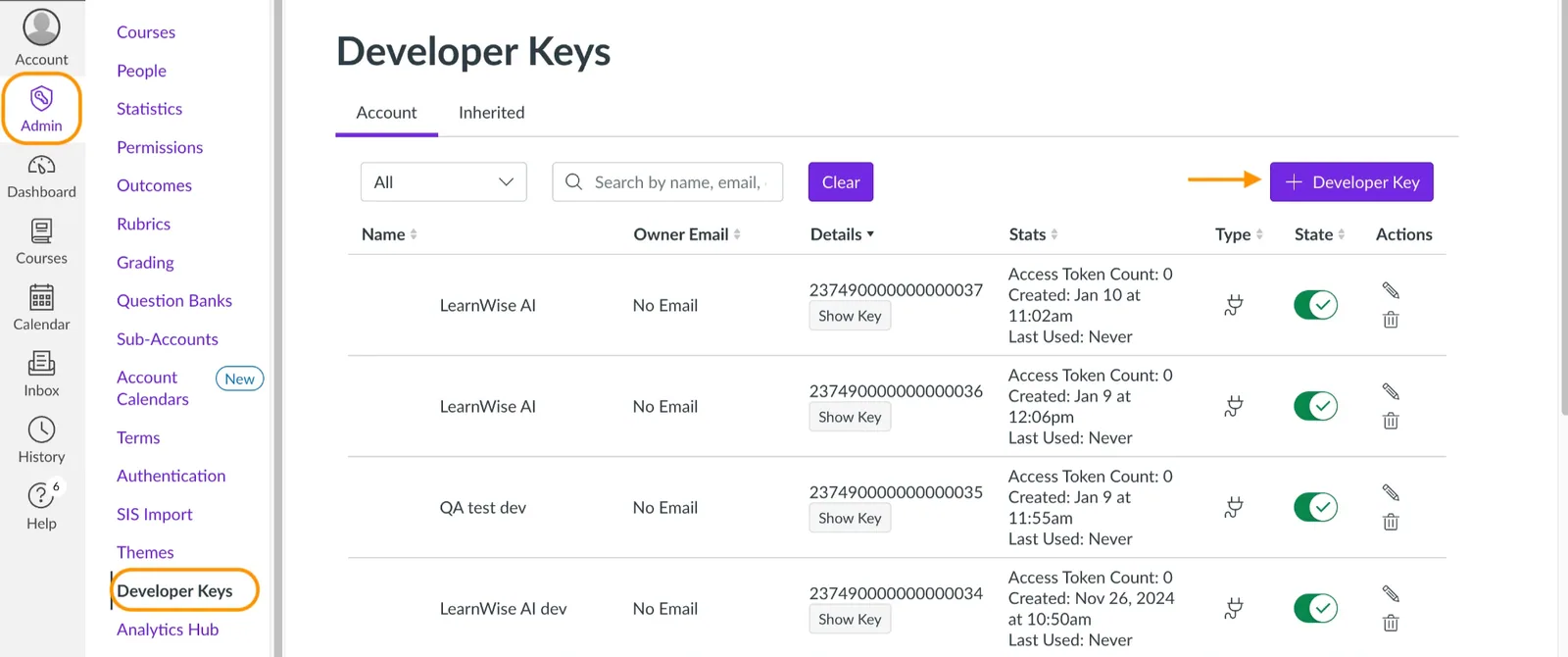
- Navigate to your Canvas admin panel.
- Go to Developer Keys under the admin settings.
-
Create a New Developer Key:
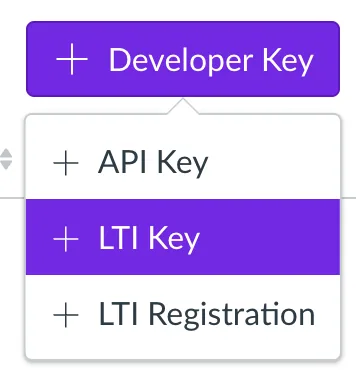
- Click + Developer Key and select + LTI Key.
- A configuration window will appear.
-
Gather LTI Details from LearnWise:
- Open the LearnWise dashboard and go to the Assistants tab.
- Navigate to the Publish section and select Connect LMS.
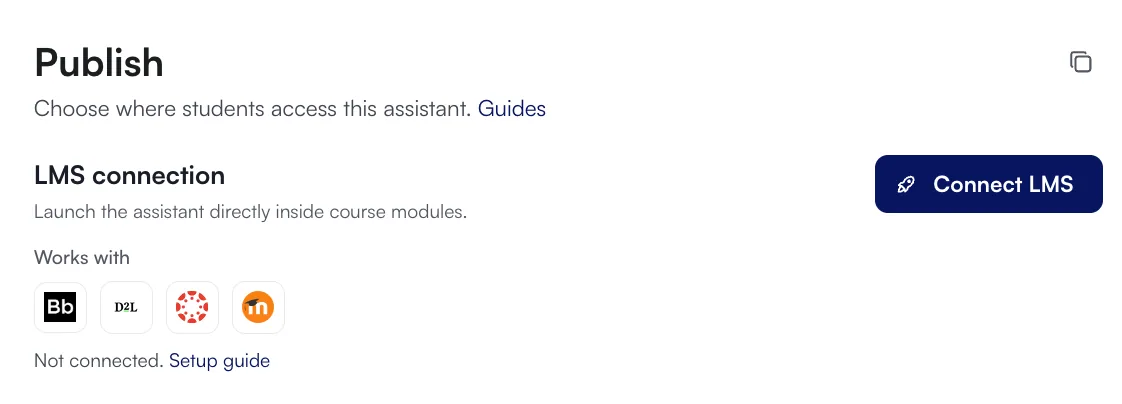
- Choose Canvas LMS from the list.
- Copy the provided LTI details, including the Client ID, Redirect URIs, and other fields.
-
Enter Details into Canvas:
- Paste the copied details into the respective fields in Canvas.
- Under Placements, ensure you select Course Navigation to make the assistant visible in courses.
- Configure Additional Settings:
- Expand the Additional Settings section
- In the Custom Fields box, enter the following (each on a new line):
course_id=$Canvas.course.idassistant_id={assistant_id_here}lms_user_id=$Canvas.user.globalId - Ensure Privacy Level is set to Public
- Under Placements, ensure you select Course Navigation to make the assistant visible in courses.
-
Enable the Developer Key:
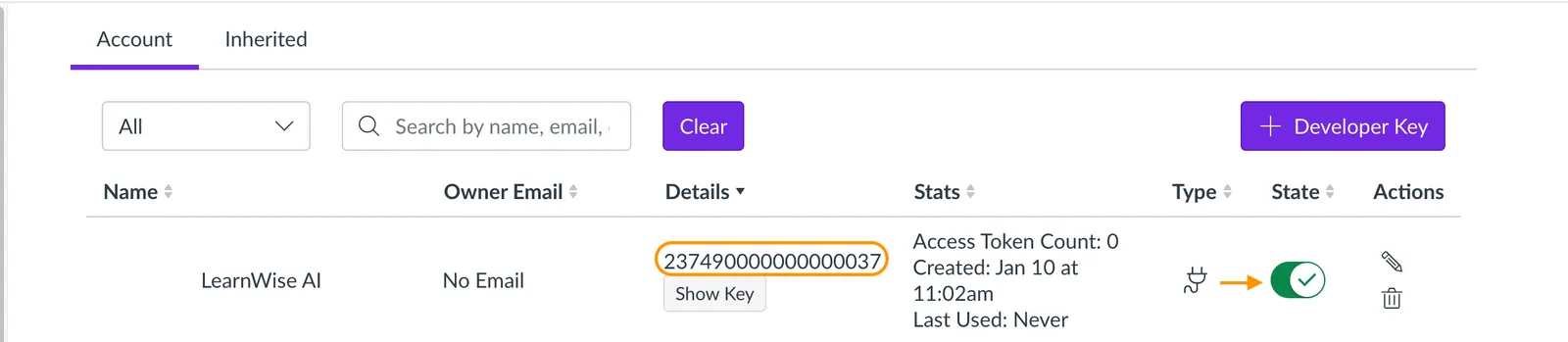
- After saving, toggle the state of the Developer Key to ON.
- Copy the Client ID displayed under the Developer Key details (do not click "Show Key" as it displays the wrong number).
Configuring LearnWise with Canvas #
-
Link the Client ID in LearnWise:
- Return to the LearnWise dashboard.
- Paste the copied Client ID into the appropriate field in the pop-up window.
- Leave the window open and click Next.
-
Deploy the Integration in Canvas:
-
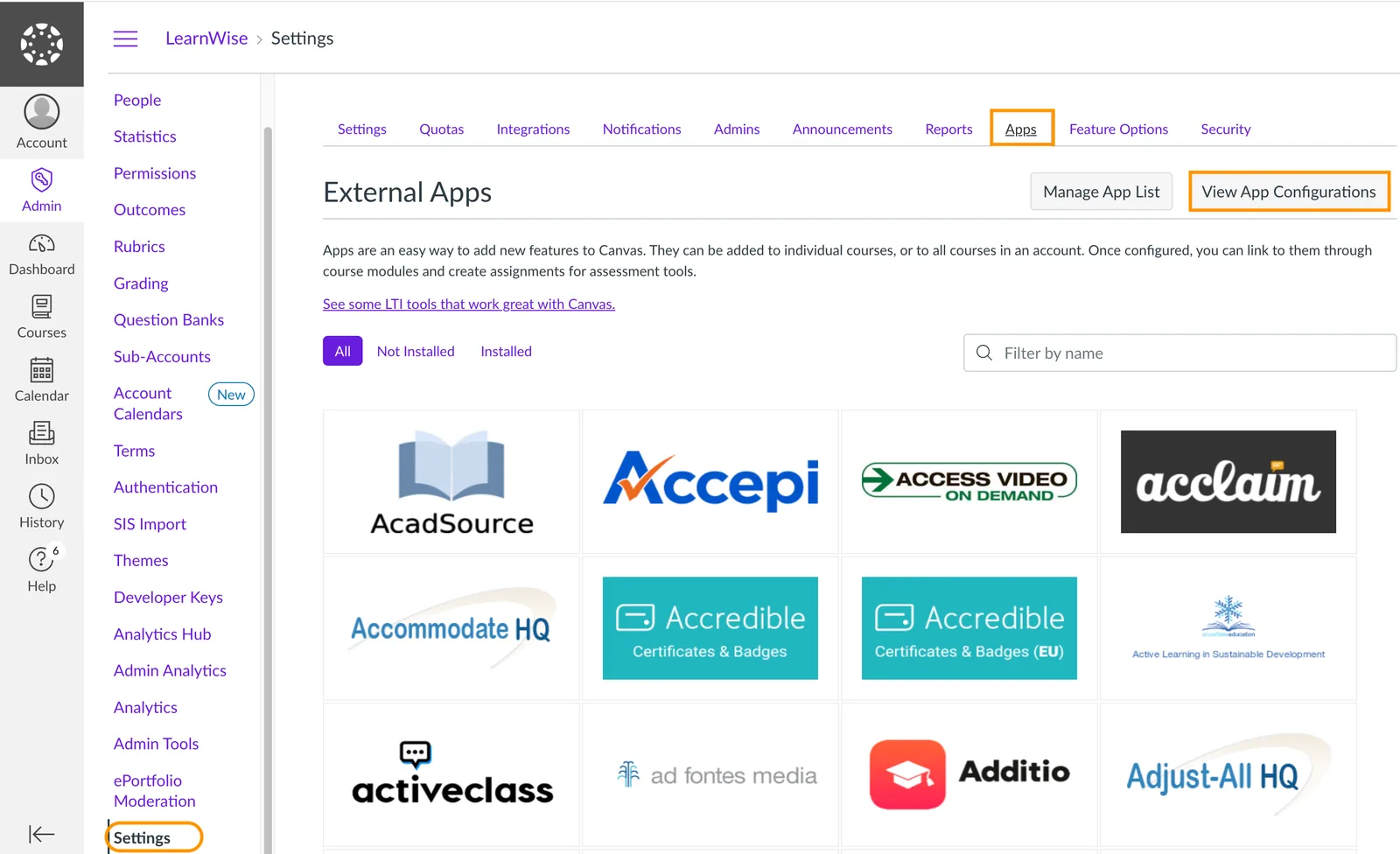
In Canvas, navigate to:
- Admin > Settings > Apps > View App Configurations > + App to add LearnWise globally; in all courses
- Enter a course Settings > Apps > View App Configurations > + App to add LearnWise to an individual course
-
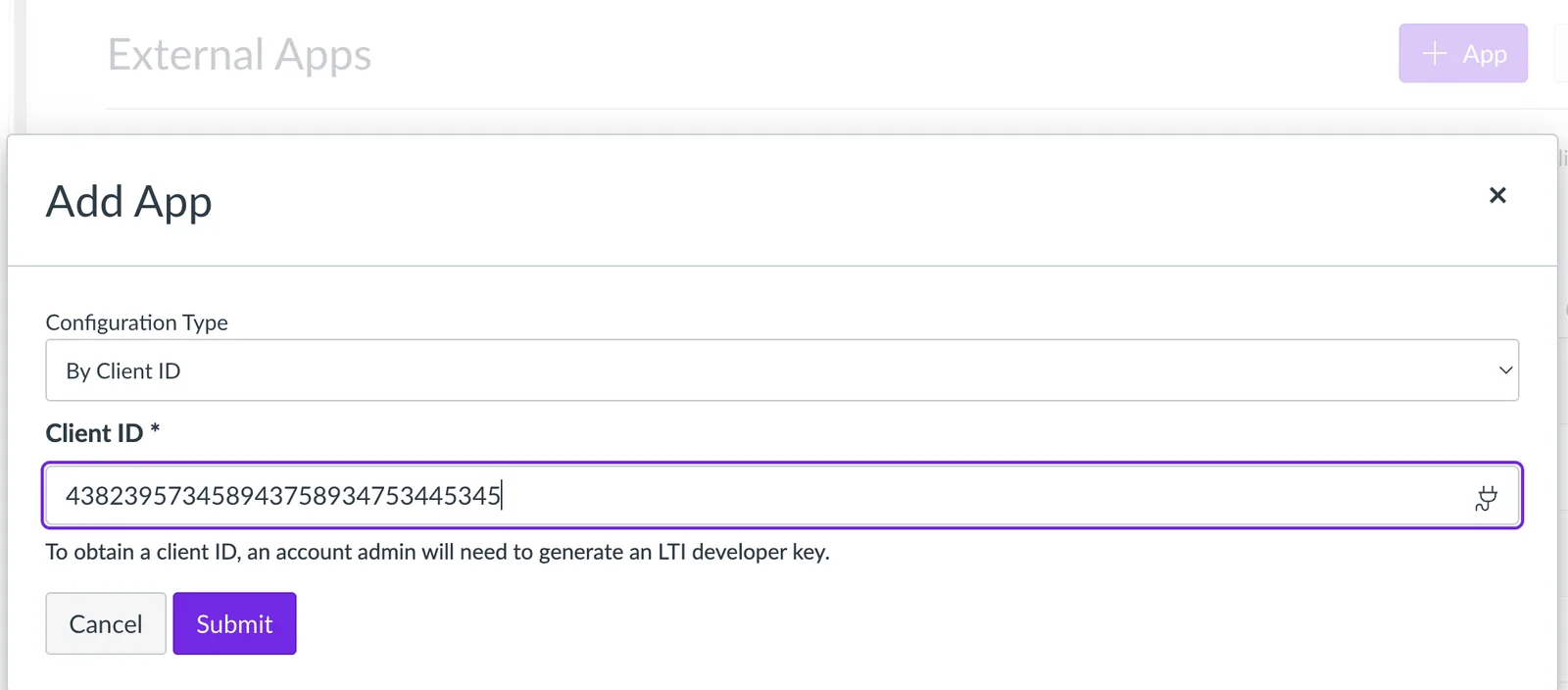
Choose Client ID as the configuration type.
-
Paste the previously copied Client ID and click Submit.
-
-
Obtain Deployment ID(s):
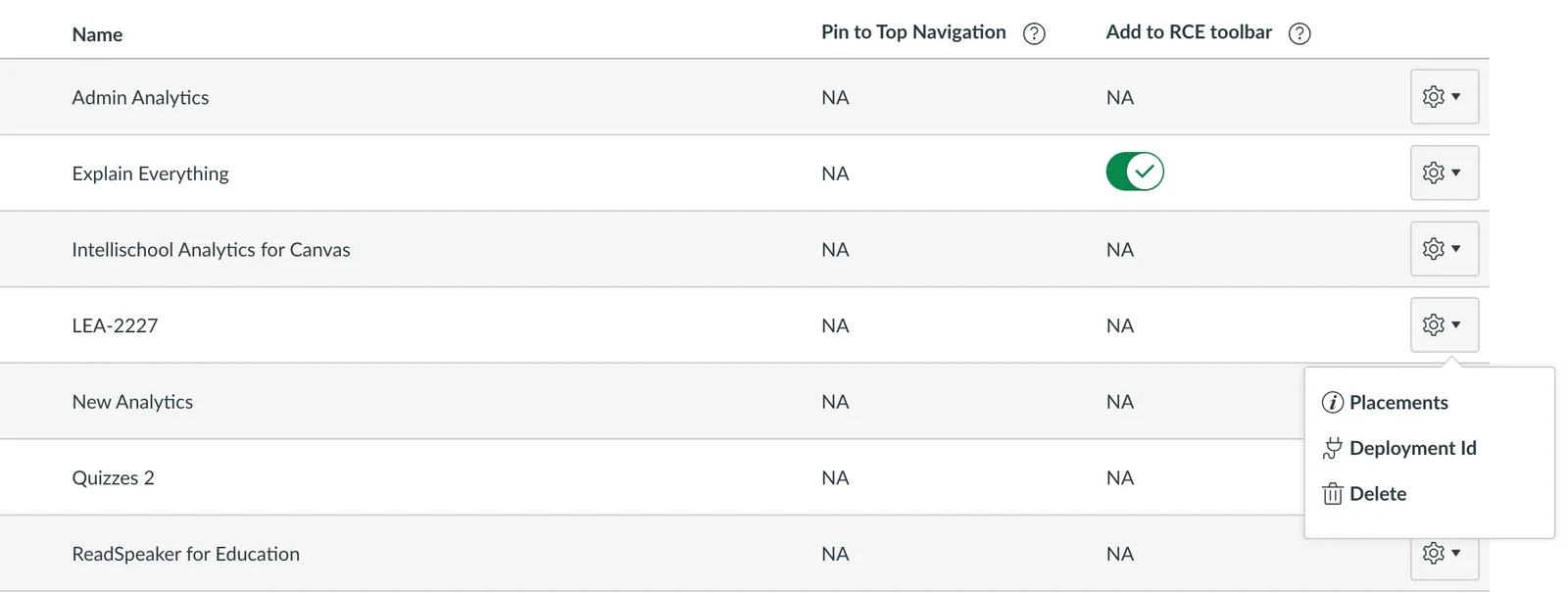
- Locate the newly added LTI in the App Configurations section.
- Click the settings cog and copy the Deployment ID.
-
Return to LearnWise to Finalize:
- Paste the Deployment ID into the LearnWise configuration window.
- If configuring at the course level, repeat the above steps for each course and copy all Deployment IDs.
-
Complete the Integration:
- Click Next in LearnWise.
-
Generate an Access Token:
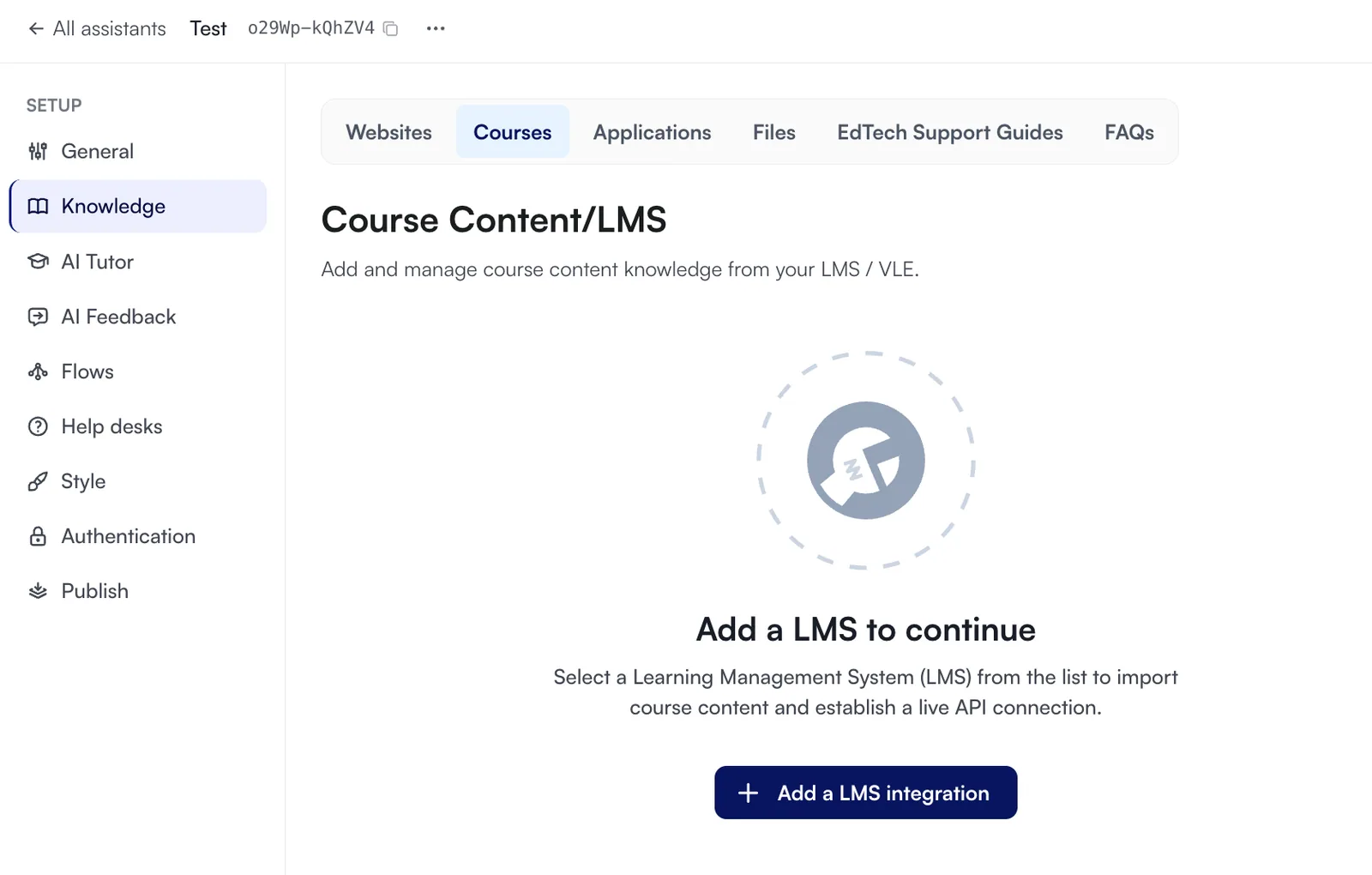
- Navigate to Knowledge > Courses in your LearnWise Admin dashboard
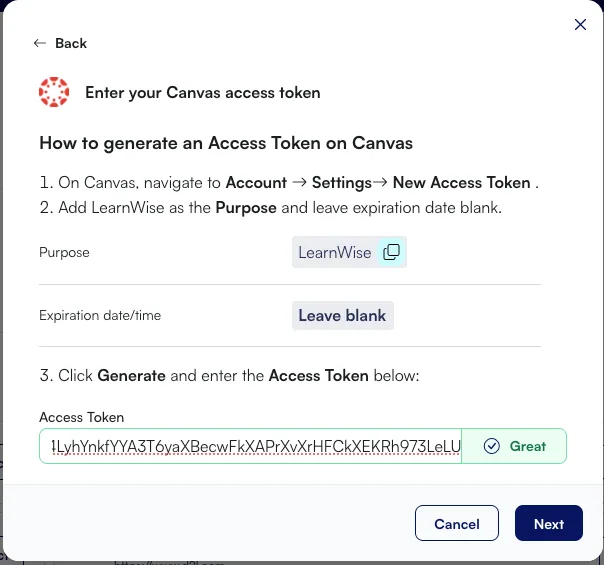
- Click on "Add a LMS integration" and select Canvas. Then follow the instructions on the pop-up window to create an access token.
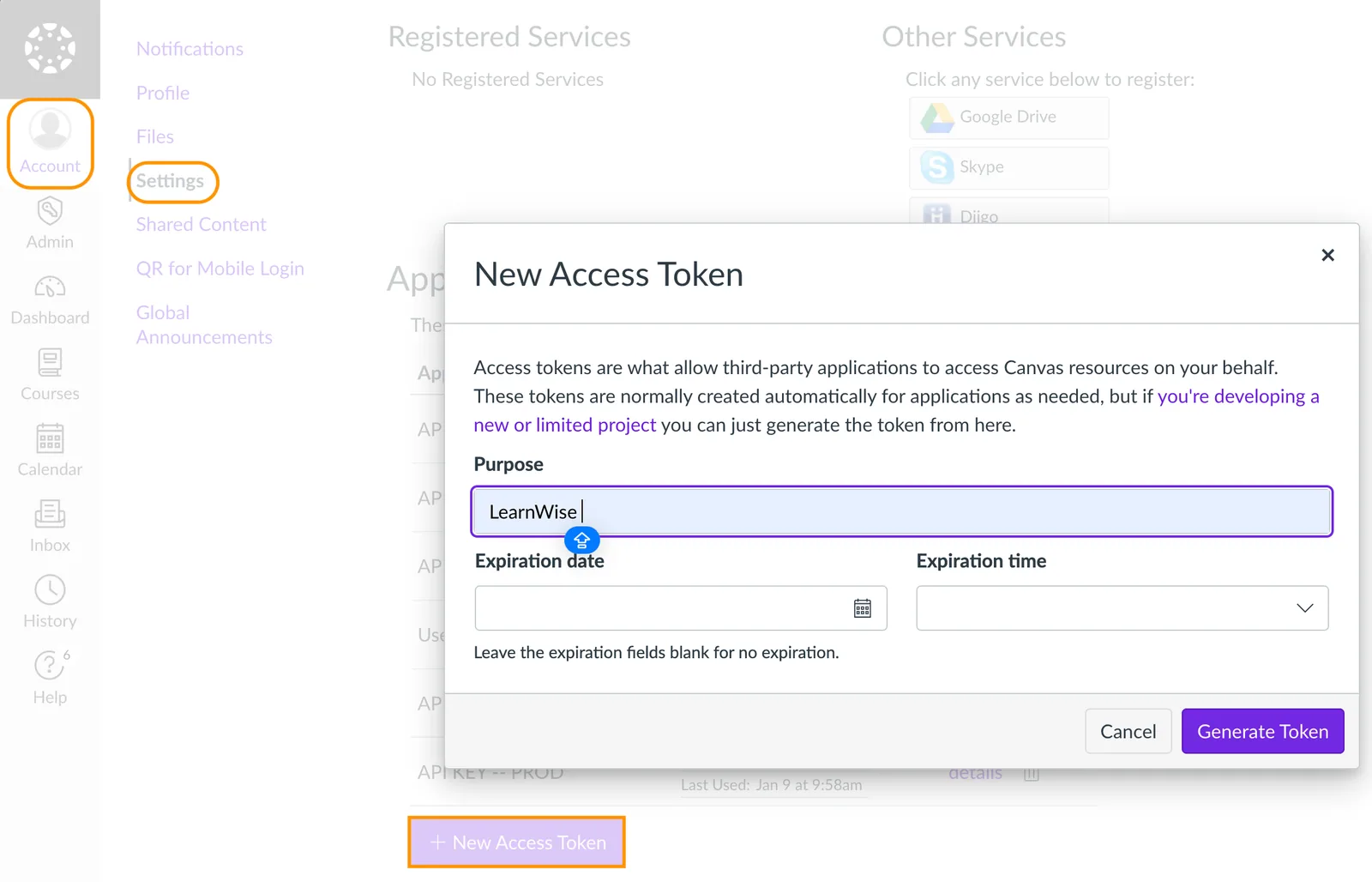
- Navigate to Account > Settings > New Access Token inside your Canvas environment
- Add LearnWise as the purpose and leave expiration date blank.
- Generate and securely save the token.
- Paste the access token into the pop-up window in your LearnWise dashboard to complete the
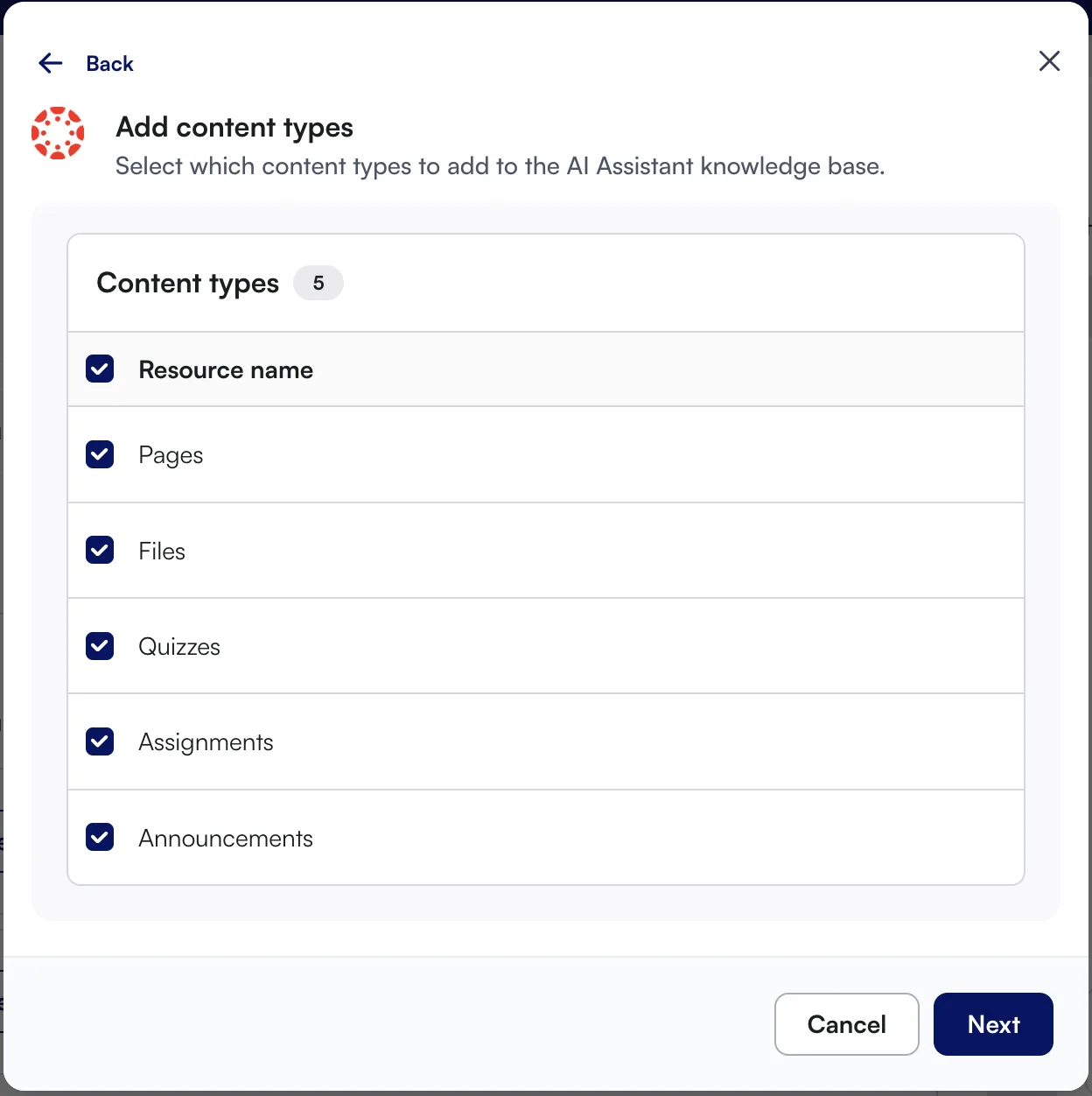
- Decide which course content items you would like the course assistant to pull from
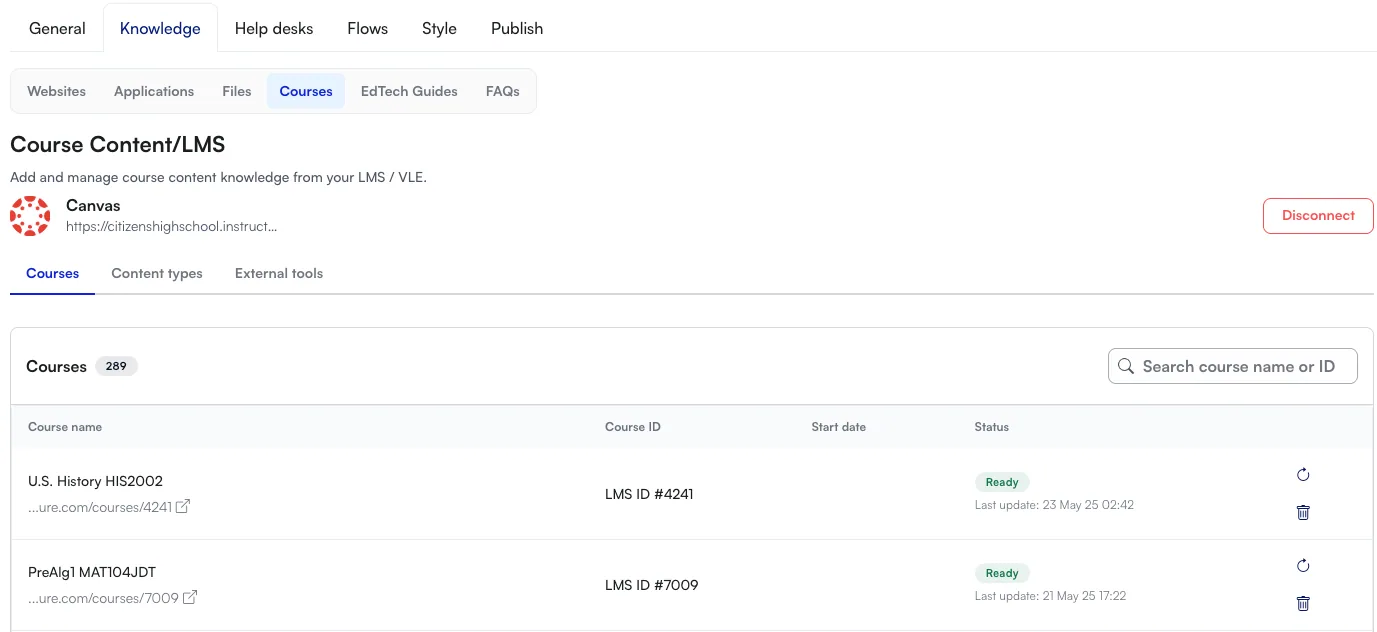
- In order to initiate the course content scrape, navigate to a course in Canvas that has the assistant integrated
- Launch the assistant in the course, this will initiate the content scrape and that course will be added to your LearnWise dashboard where you can monitor updates, run manual updates or delete courses
Enabling API Access #
Adding this feature to your Canvas integration allows LearnWise to interact with live Canvas data, providing. more personalized answers to your students
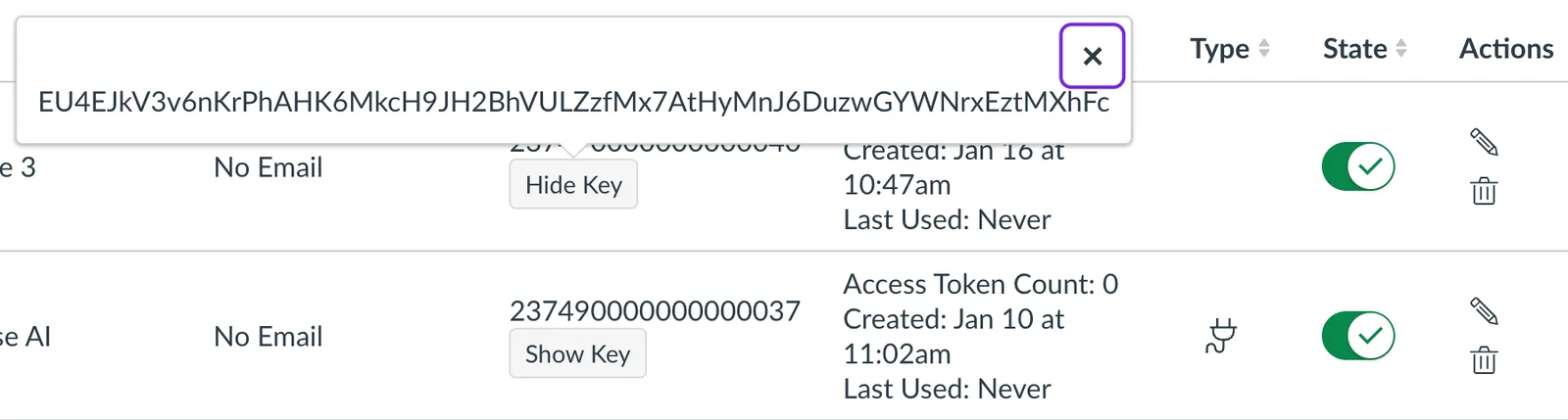
- Create an API Key in Canvas:
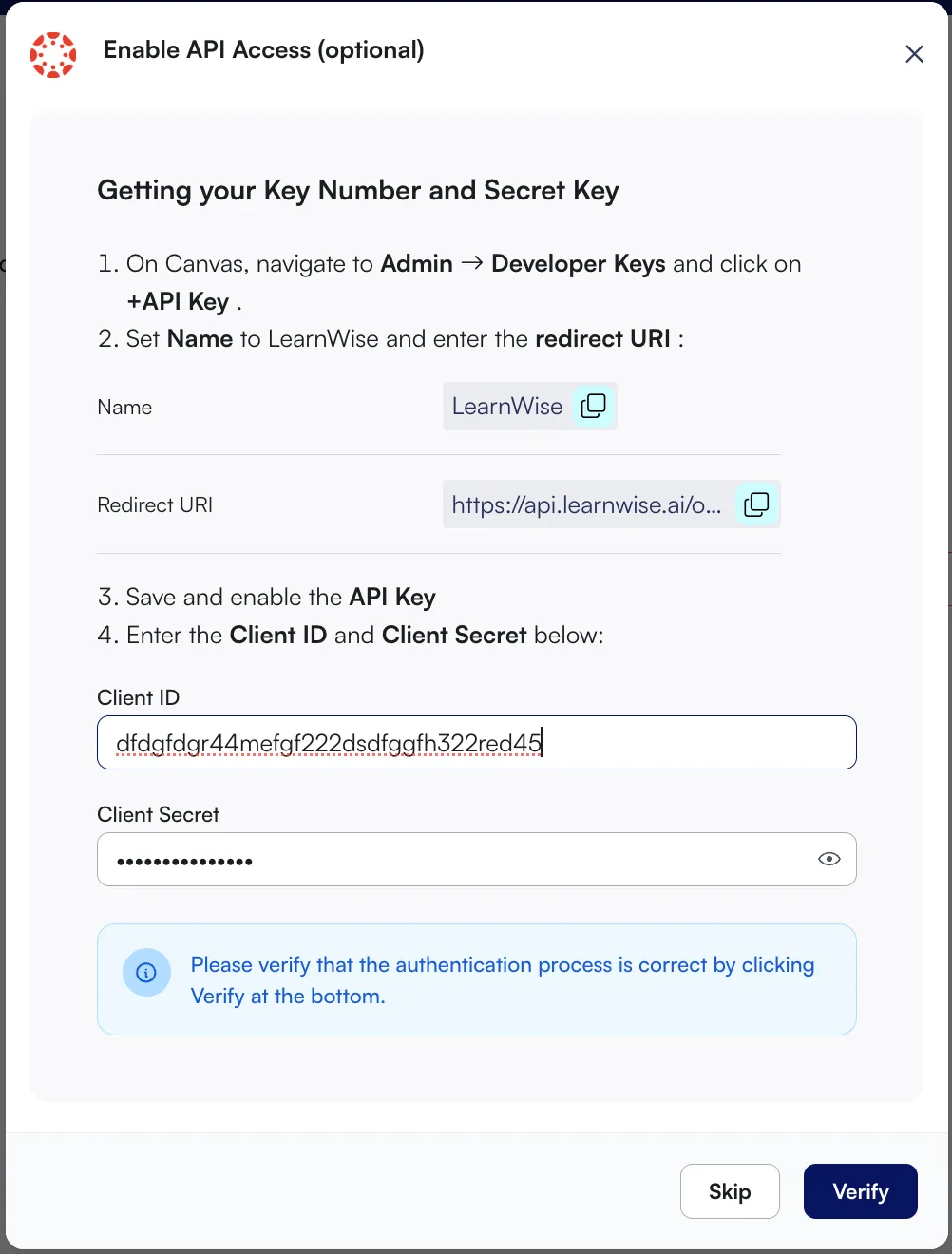
Add API details into LearnWise: #
- Paste the following information into the window
- API Key & Secret
Verification #
Click on verify and you will be redirected to your Canvas instance.
Study Mode
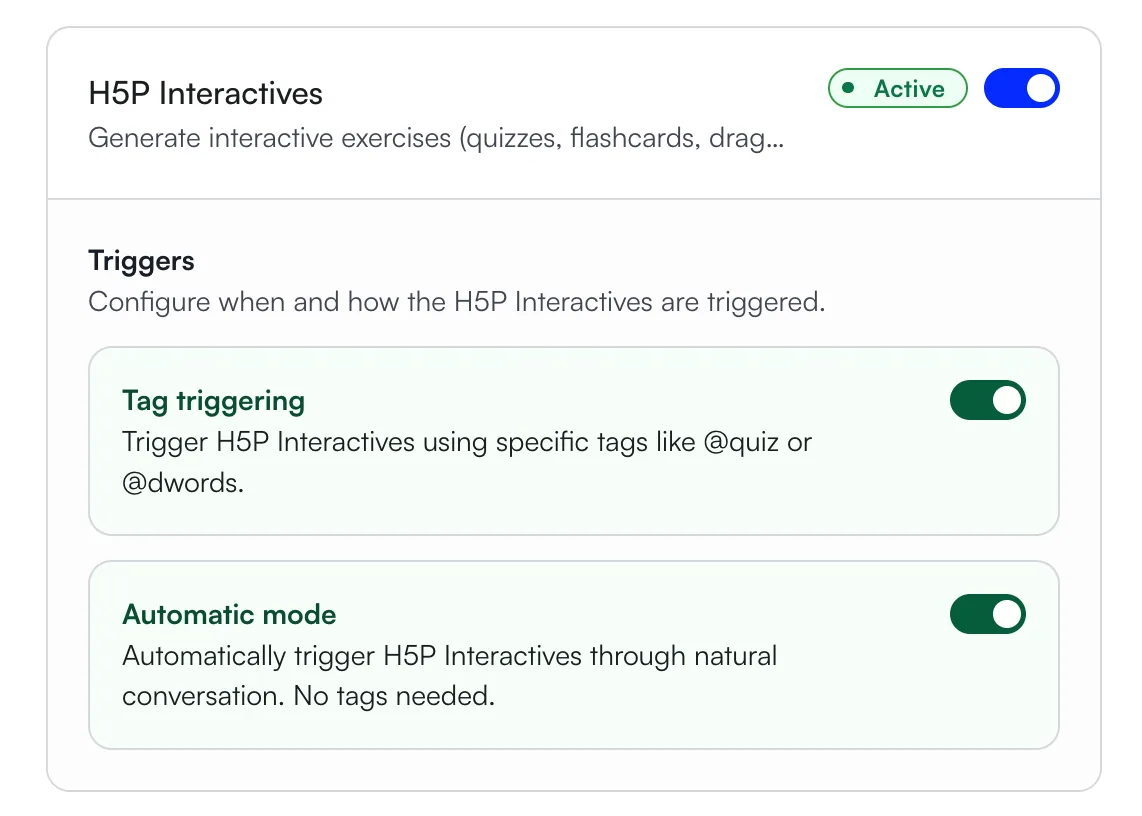
Navigate to Assistant > AI Tutor in your LearnWise admin and enable Study Mode and H5P Interactives to allow students to fully engage with their course content. This allows the assistant to create quiz questions and help students practice their understanding on the course content.

Cross Course #
If you'd like to give students to ask questions about multiple courses they are enrolled in at once (for example, "what assignments do I have this week?"), you can do so by navigating to Knowledge > Courses > Cross Course and enabling this feature via the toggle.
Note: only courses where LearnWise is installed AND the student is enrolled in will show up
When Canvas is connected, you can also filter cross-course chat by sub-account: select one or more sub-accounts and choose whether to include their nested sub-accounts. If you also upload a CSV of course IDs, only courses that satisfy both the sub-account and CSV filters are included.

Once this is completed, your Canvas course assistant is ready to use. You can check by:
- Opening any course where LearnWise is integrated.
- Check the course navigation bar for the LearnWise assistant.
- Click the LTI link to ensure the assistant loads correctly as a full-screen interface.
- Ask it some questions!
Still stuck?
Ask the LearnWise assistant. It answers from these guides.
Related guides
- How can courses be structured in Canvas to maximize LearnWise?AI Student Tutor
- How can courses be structured in Moodle to maximize LearnWise?AI Student Tutor
- How can I add AI Student Tutor to Brightspace?AI Student Tutor
- How can I add Kaltura video transcripts as a knowledge source in AI Student Tutor?AI Student Tutor
- How can I control which course content LearnWise ingests, including external integrations?AI Student Tutor