

How can I publish AI Student Tutor within Microsoft Teams?
AI Student Tutor for Microsoft Teams lets students actively interact with their course content, including summarizing key concepts, quizzing themselves, creating a study plan, and asking when assignments are due.
2 min readUpdated
On this page
Pre‑requisites #
- Admin access to Microsoft Teams to install and manage apps
- Admin access to LearnWise
Deploying AI Student Tutor #
Follow these steps to add LearnWise AI Student Tutor to your Microsoft Teams.
- Open Microsoft Teams as an Admin
- Navigate to the channel where you would like to add the course assistant
- Click the + sign in the channel header and select Apps
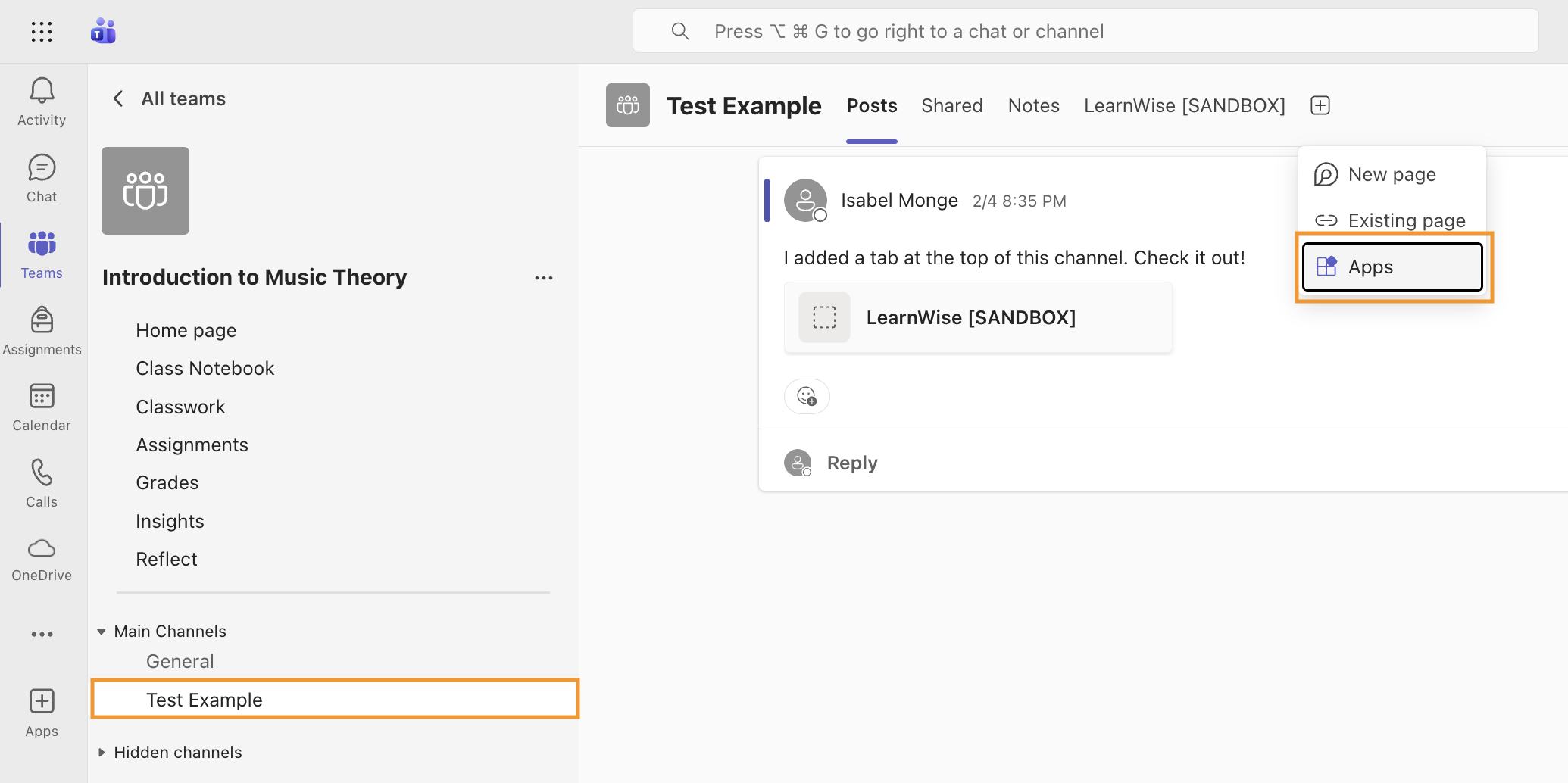
- Search for LearnWise in the marketplace search bar
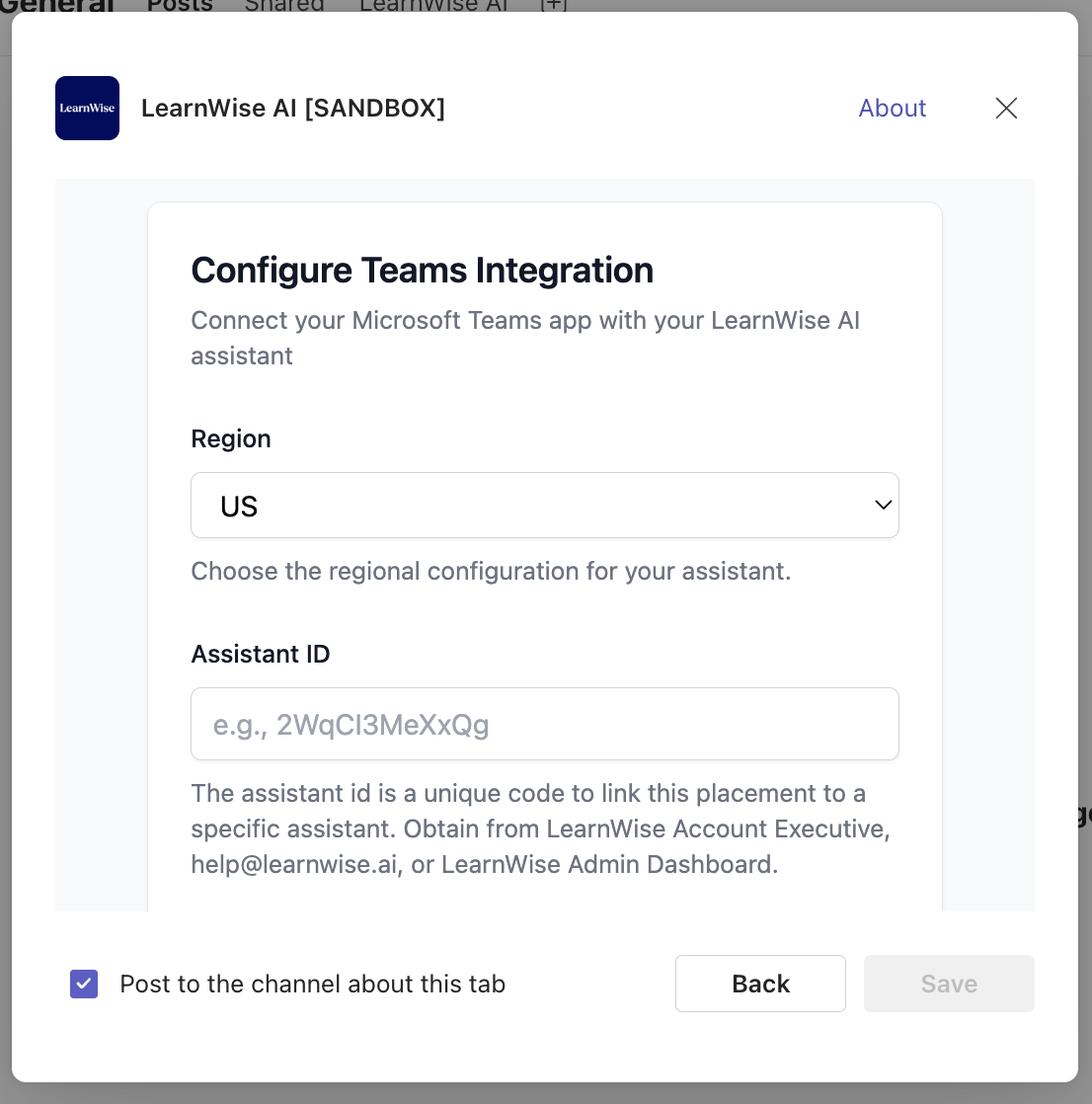
- Add your Region and Assistant ID. The Assistant ID can be found in the LearnWise dashboard next to the name of your assistant.

- Click Save Configuration and Save again to install the app
Connect Microsoft Teams courses to LearnWise #
This enables LearnWise to ingest MS content for the assistant.
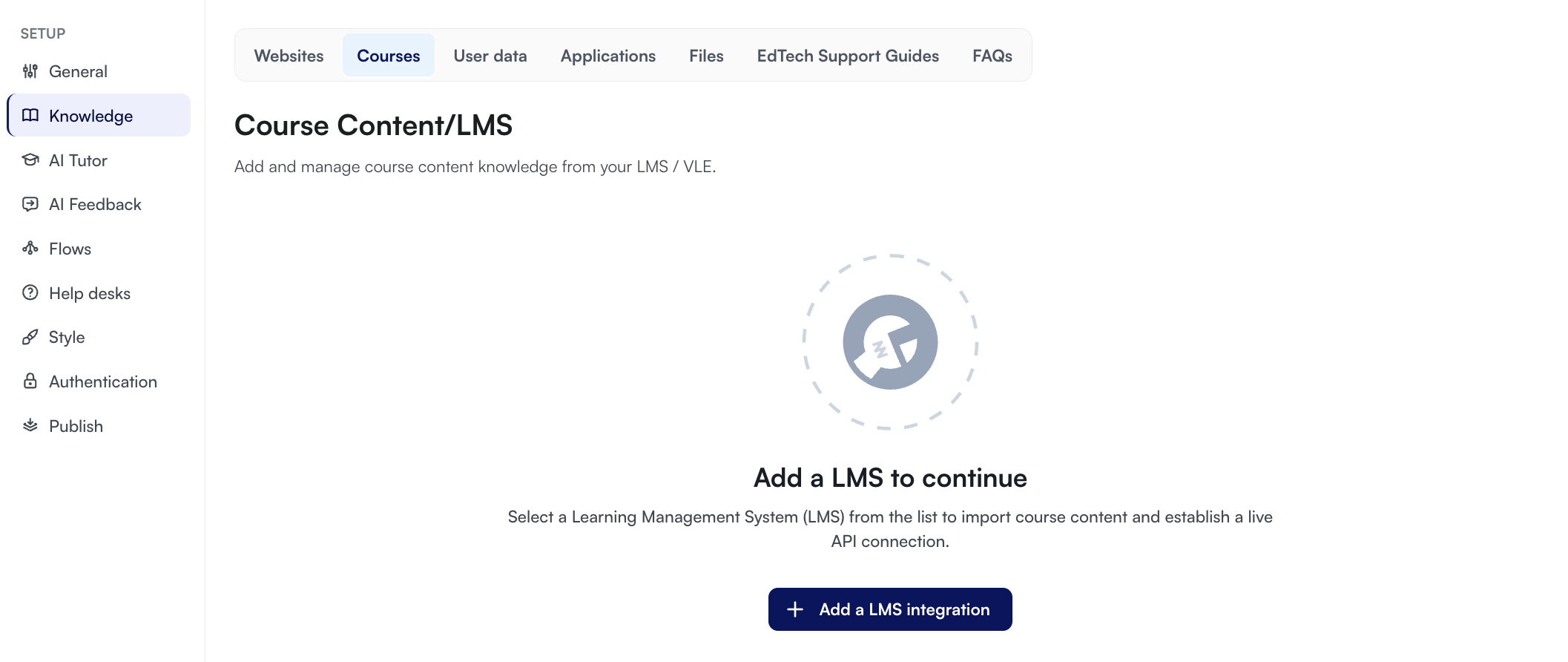
- In LearnWise admin, go to Knowledge → Courses and click Add a LMS integration and Connect next to Microsoft Teams
- Enter your Microsoft Teams Tenant ID. You can find this at https://entra.microsoft.com → Overview → copy Tenant ID
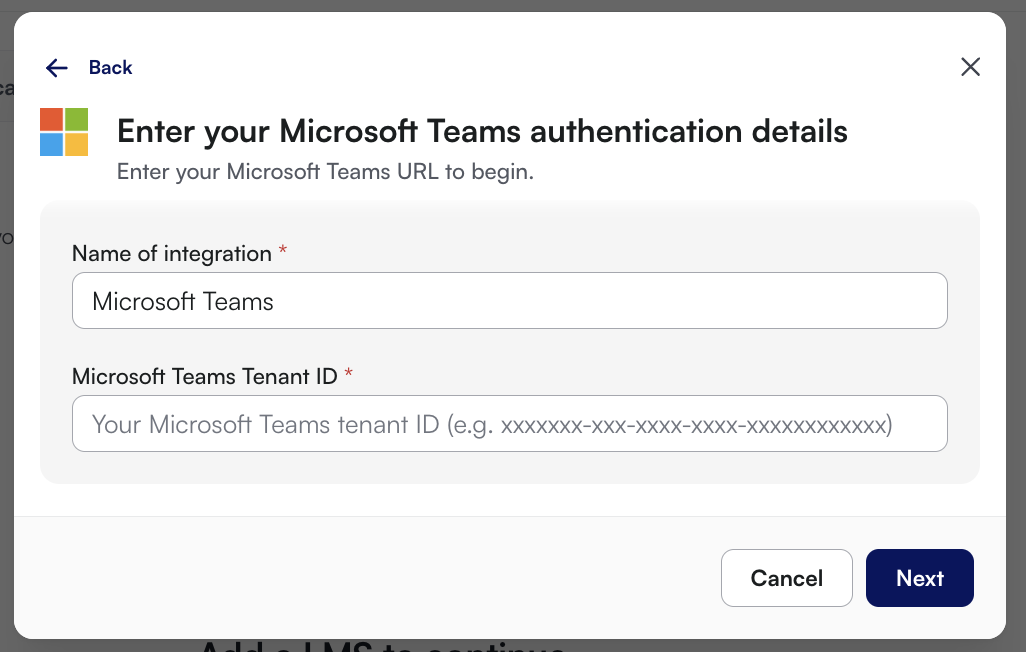
- Click Next
- On the pop‑up, copy the URL, open in a new tab & sign in with your Microsoft account to Accept the listed permissions
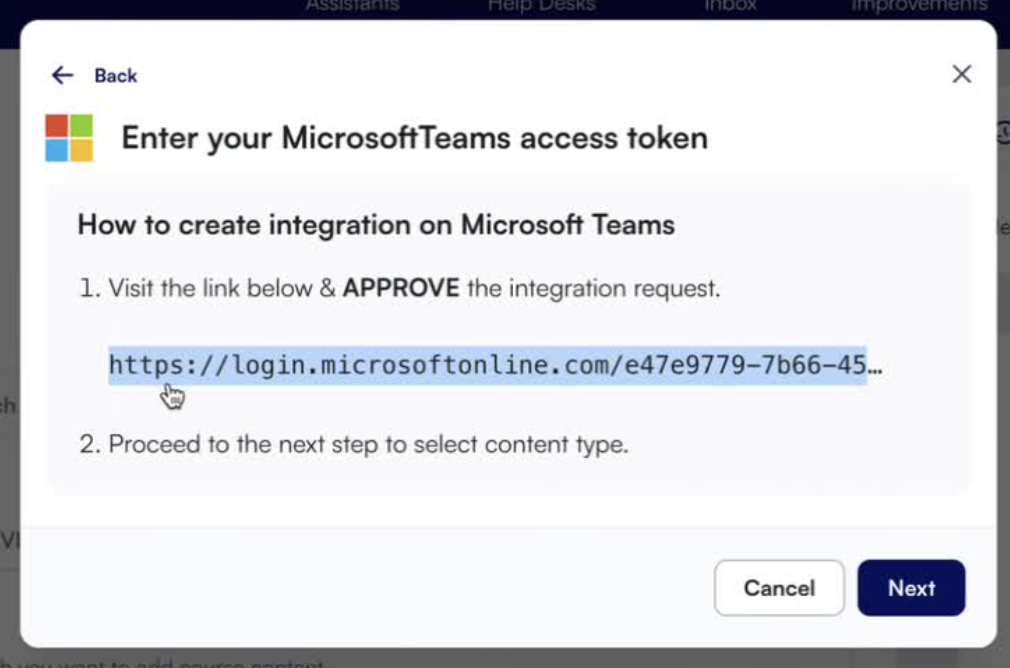
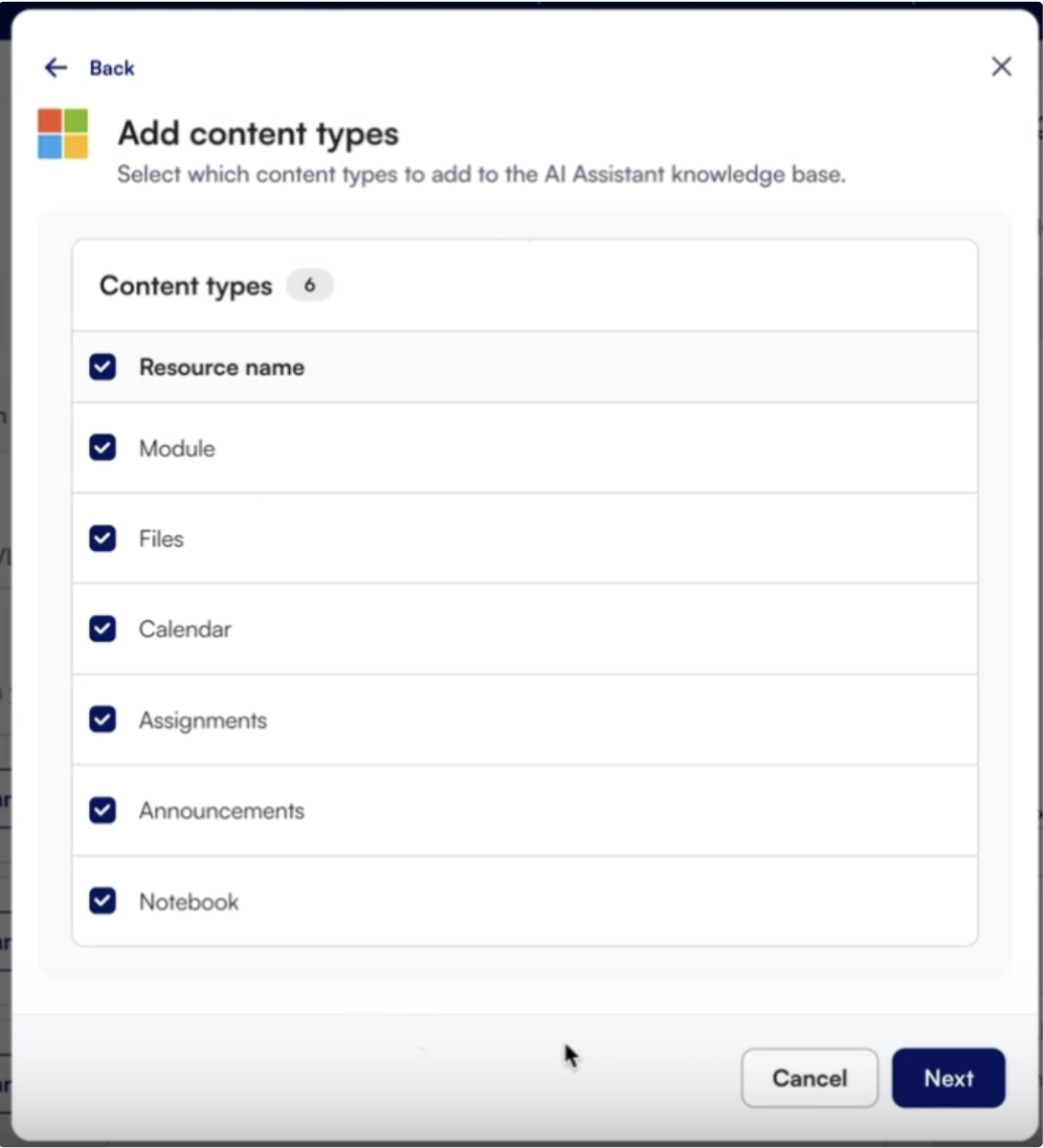
- Click Next, then choose the resources LearnWise can pull from. It is recommended to select all available resources for best coverage.
Verify ingestion #
- Return to the Teams course and launch the assistant tab
- LearnWise will begin ingesting course content
- In LearnWise admin, check Knowledge → Courses for the course entry
- Processing can take up to 15 minutes for the initial sync
Enable Study Mode and Cross Course #
Study Mode #
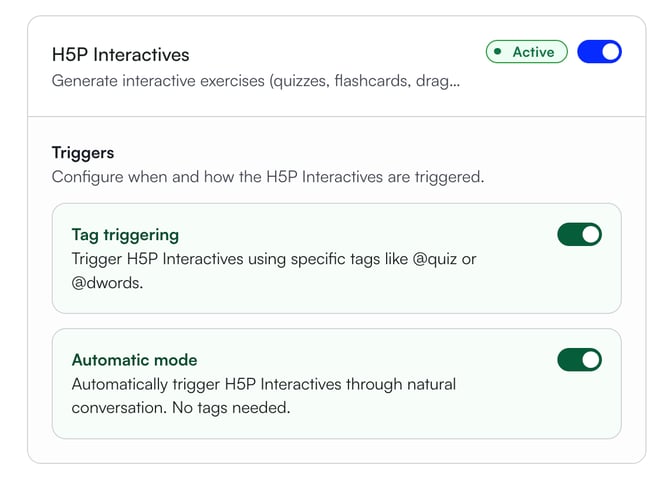
Study Mode Allows students to create a study plan, summarize and review relevant concepts, and ask questions about upcoming assignments. To activate study mode:
- Navigate to the LearnWise dashboard
- Navigate to Assistant > AI Tutor in your LearnWise admin and enable Study Mode and H5P Interactives

Cross Course #
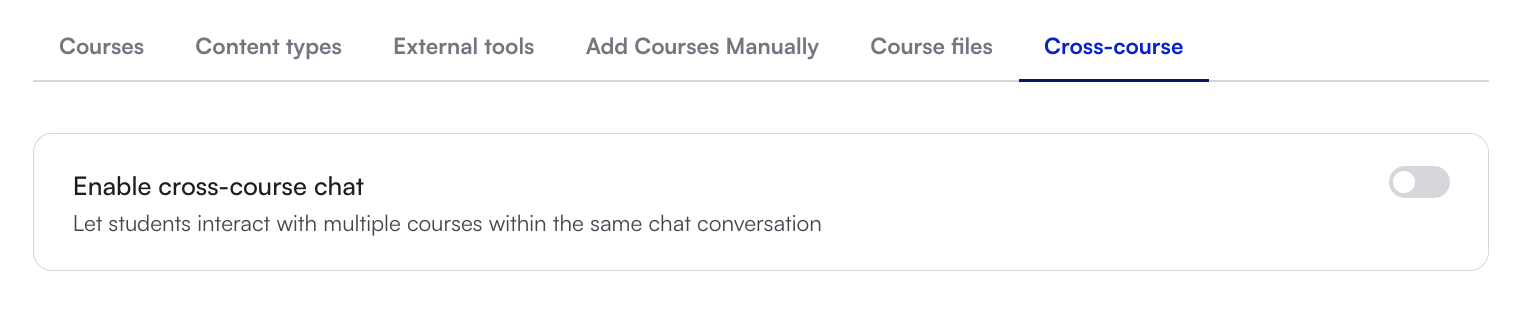
If you'd like to give students the option to ask questions about multiple courses they are enrolled in at once (for example, "what assignments do I have this week?"), you can do so by completing the following steps:
- Navigate to Knowledge > Courses > Cross Course
- Enabling cross course chat via the toggle
Note: only courses where LearnWise is installed AND the student is enrolled in will show up
Once these steps are completed, your Microsoft Teams course assistant is ready to use!
Still stuck?
Ask the LearnWise assistant. It answers from these guides.
Related guides
- How can courses be structured in Canvas to maximize LearnWise?AI Student Tutor
- How can courses be structured in Moodle to maximize LearnWise?AI Student Tutor
- How can I add AI Student Tutor to Brightspace?AI Student Tutor
- How can I add AI Student Tutor within Canvas?AI Student Tutor
- How can I add Kaltura video transcripts as a knowledge source in AI Student Tutor?AI Student Tutor