

What insights are available to instructors?
LearnWise offers robust, course-level insights to instructors to enable data-informed teaching strategies, deeper understanding of student needs, and enhanced engagement monitoring. When enabled via the admin dashboard, this feature provides instructors with access to detailed assistant usage analytics within their courses.
3 min readUpdated
On this page
What Insights Are Available? #
Once activated by an administrator, instructors can access a dedicated course dashboard that includes the following insights:
1. General Usage Metrics #
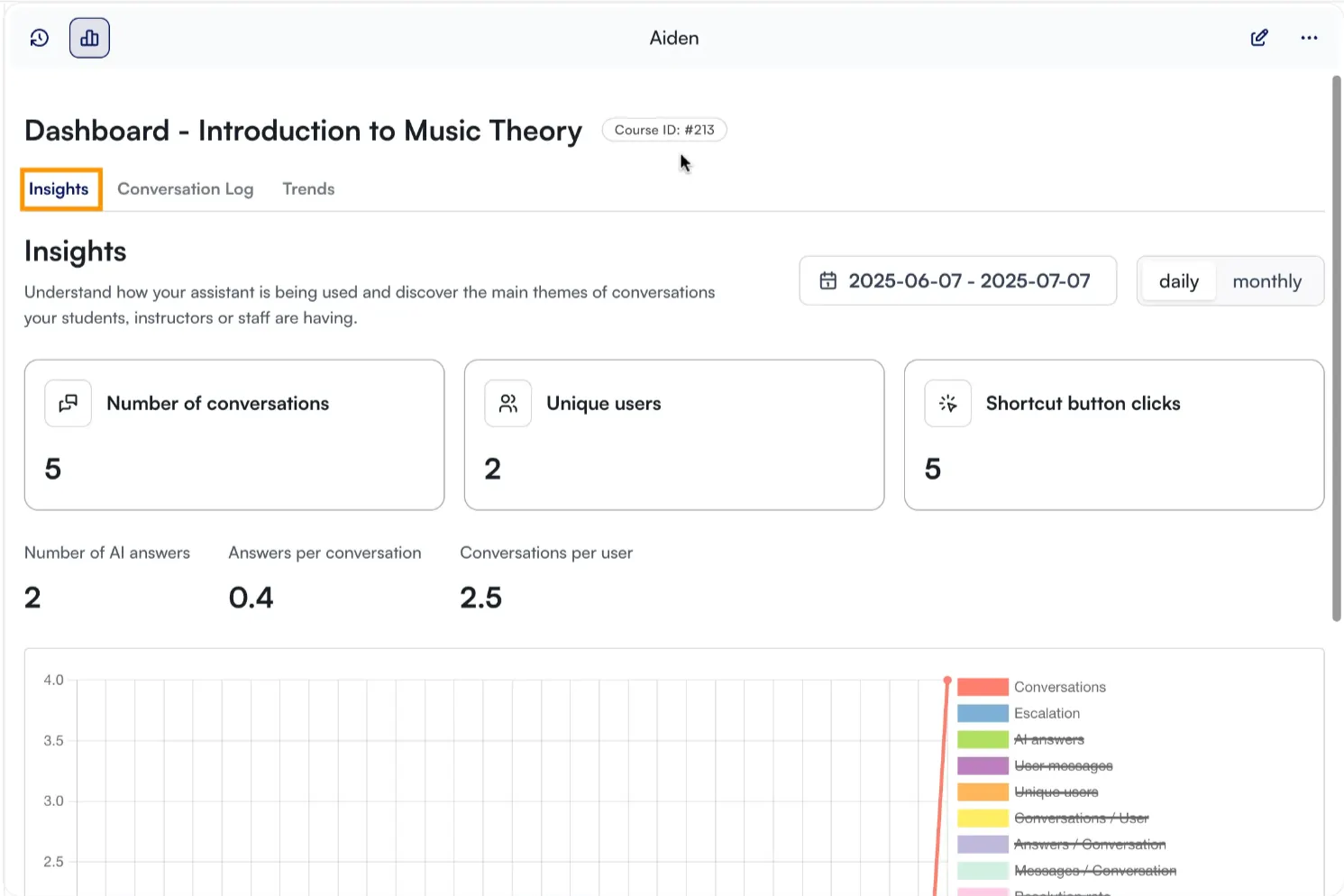
High-level engagement data, including:
- Unique student users: Number of distinct students from this course who had at least one conversation with the assistant. A student who chats multiple times is counted once.
- Conversations: Total number of chat threads started by students in this course. One conversation can contain multiple messages, and ends after 1 hour of inactivity or when escalated.
- Shortcut button clicks: Number of conversations started by a student clicking a pre-set shortcut button instead of typing a question.
Instructors can toggle between daily, monthly, or custom date ranges to observe usage trends over time. They can also break down activity by user role — for example, viewing student usage separately from instructor usage in courses where both groups have access.
2. Conversation Logs (Optional) #
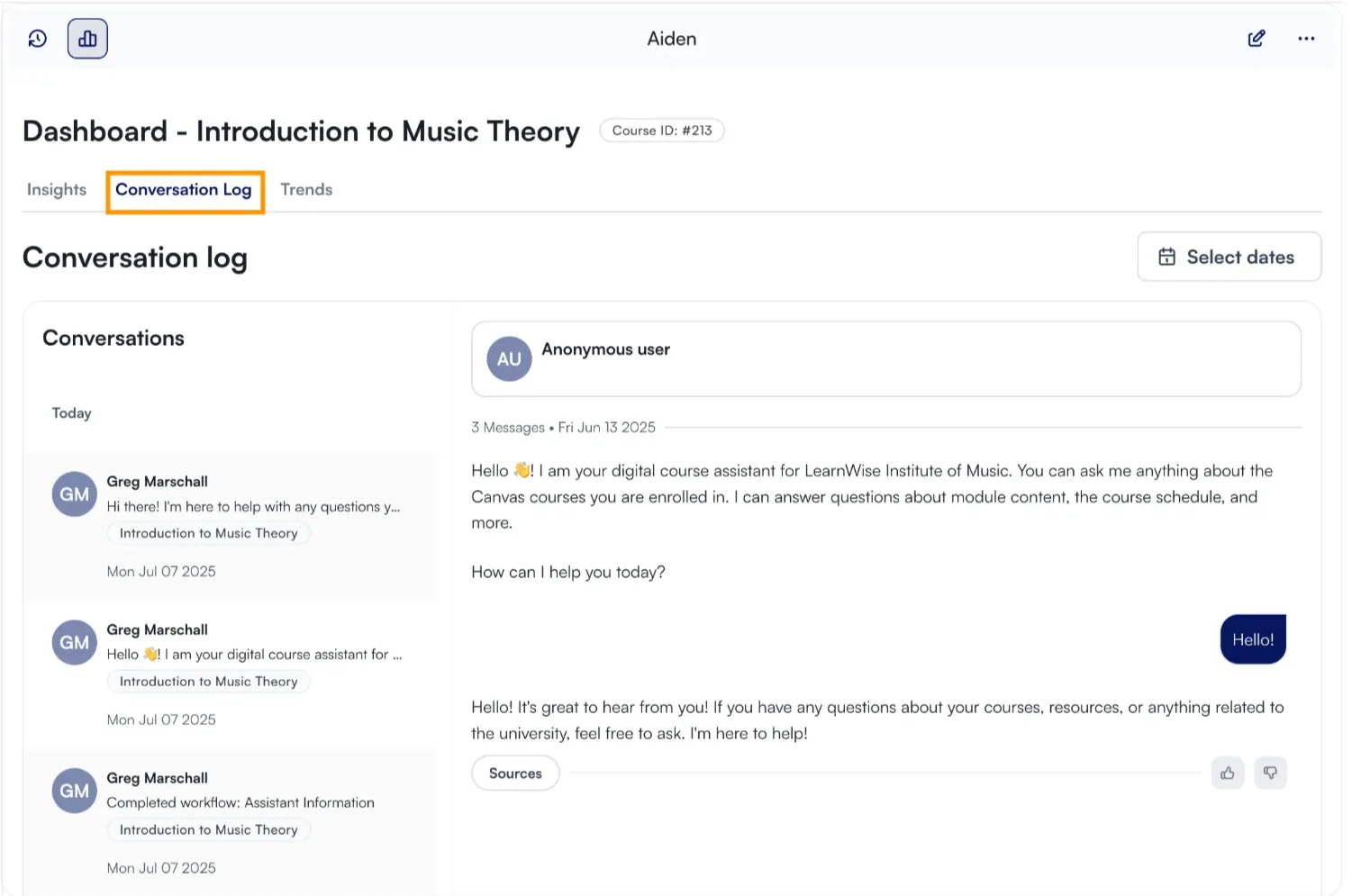
If enabled, instructors can review:
- Individual conversation transcripts: the full back-and-forth text exchange between a student and the assistant
- Student metadata: e.g., timestamp of the conversation and how often that student has used the assistant
These logs offer visibility into how students interact with the assistant in real-time, providing qualitative data to complement quantitative insights.
3. Trend Reports (Optional) #
An AI-generated summary of what students in your course have been asking about most often in the selected period. It surfaces the most frequently asked questions and common interaction patterns related to course content.
These trends can help instructors:
- Spot content gaps and misunderstood concepts
- Gauge how responsive students are to specific course materials
- Monitor overall student engagement
- Investigate potential correlations between assistant usage and academic performance
📈 This data isn't just informative – it's actionable. Instructors can iterate on their teaching strategies, clarify content that students consistently struggle with, and even explore whether frequent assistant users perform better academically.
How to Enable Course-Level Insights #
Enabling these insights requires admin access to the LearnWise AI assistant:
-
Log in to the Admin Dashboard
Go to admin.learnwise.ai and sign in with an administrator account.
-
Navigate to the Assistant Settings
- Select the assistant you want to configure.
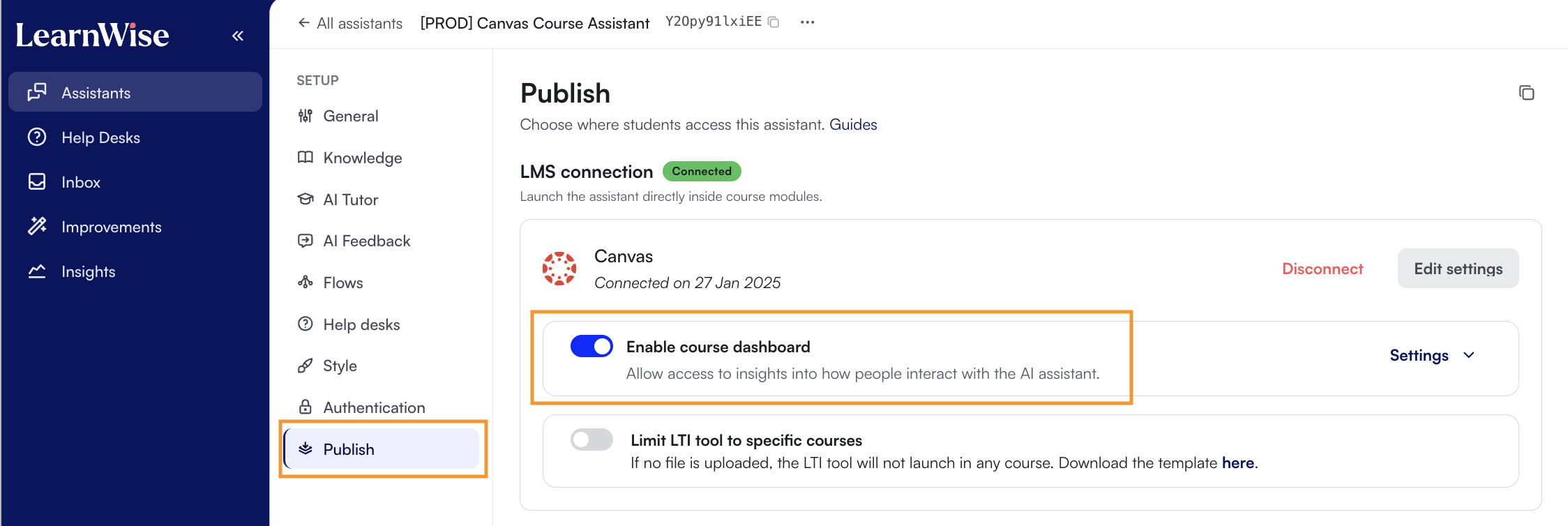
- Go to the "Publish" tab.
-
Enable the Course Dashboard
- Scroll to the LTI Connection section.
- Toggle on “Enable course dashboard.”
- Set Visibility by Role
- Use the settings dropdown to assign visibility to selected LTI roles (e.g., Instructor, Teaching Assistant).
- Select Which Data to Share
-
Tick the checkboxes for the data you'd like to make visible:
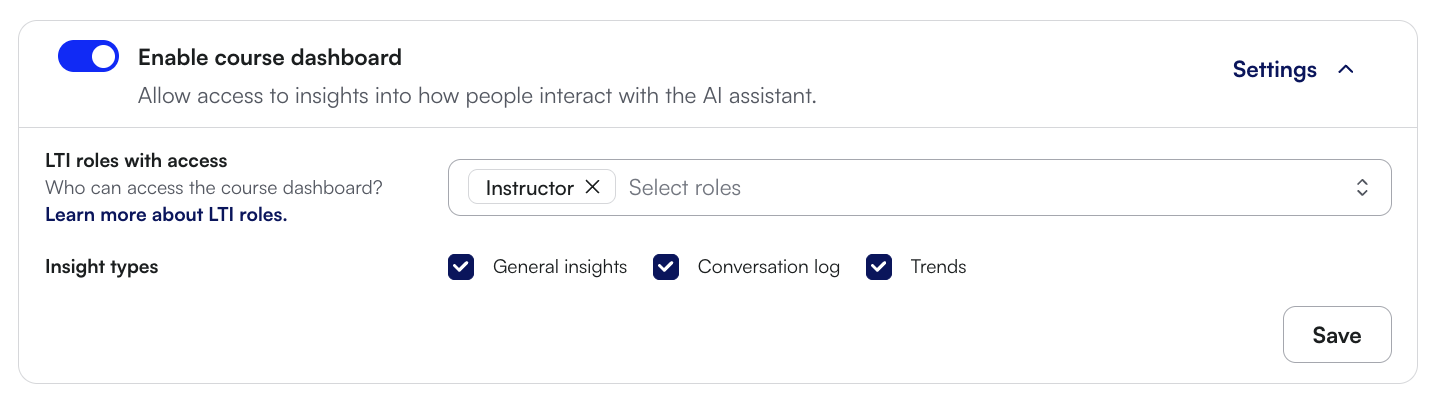
- General Insights: High-level metrics like number of users, conversations, and shortcut usage
- Conversation Log: Detailed logs of assistant interactions (optional)
- Trend Reports: Analysis of frequently asked questions and common assistant usage types
Why This Matters for Instructors #
Enabling course-level insights empowers educators to:
- Make data-informed decisions about content delivery
- Understand student challenges before assessments surface them
- Proactively engage students who may be struggling or underutilizing the assistant
- Reflect on whether the assistant is positively impacting academic outcomes
These insights bridge the gap between student interaction data and teaching strategy, creating a more adaptive, responsive, and effective learning environment.
Still stuck?
Ask the LearnWise assistant. It answers from these guides.
Related guides
- How do I create and export a report of Inbox conversations?Insights & Reports
- What is the Inbox and how can it be used?Insights & Reports
- Benchmarking: How much usage should we be expecting and what are the average AI resolution rates?Insights & Reports
- How can I view and understand assistant usage insights?Insights & Reports
- How to create a new trends report?Insights & Reports