

How do I fix the "can't read release conditions" warning in Brightspace?
A quick guide to enabling the Brightspace permissions that LearnWise needs to read release conditions.
1 min readUpdated
On this page
LearnWise reads release conditions in Brightspace to help your AI assistant understand how and when content is made available to learners. However, D2L currently requires write-level permissions on release conditions in order for any third-party app to read them. A read-only option is not yet available.
D2L is actively working on adding a dedicated read-only endpoint. Until that is available, LearnWise relies on these write permissions to access release condition data.
Note: LearnWise uses these permissions to read release condition data only. No release conditions are created or modified by LearnWise.
When this applies #
If you see a warning that LearnWise "can't read release conditions," the Brightspace user who authorized the LearnWise app likely does not have the required permissions enabled for their role.
How to enable the required permissions #
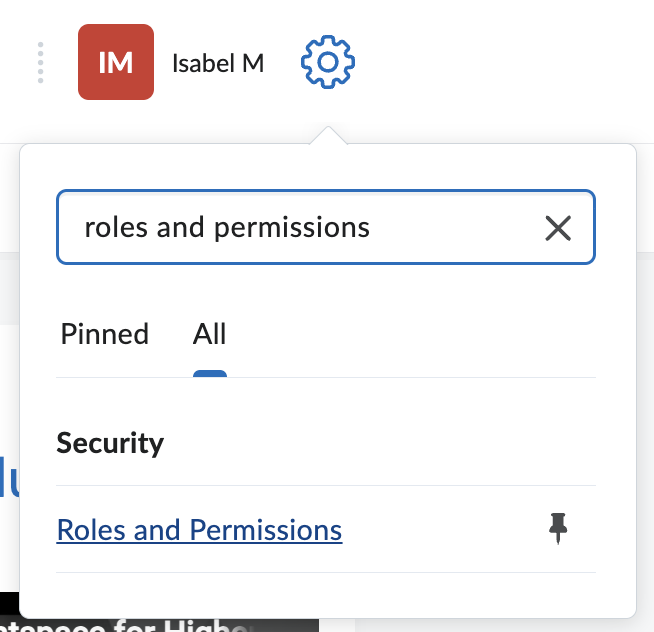
- In Brightspace, open Admin Tools and go to Roles and Permissions.
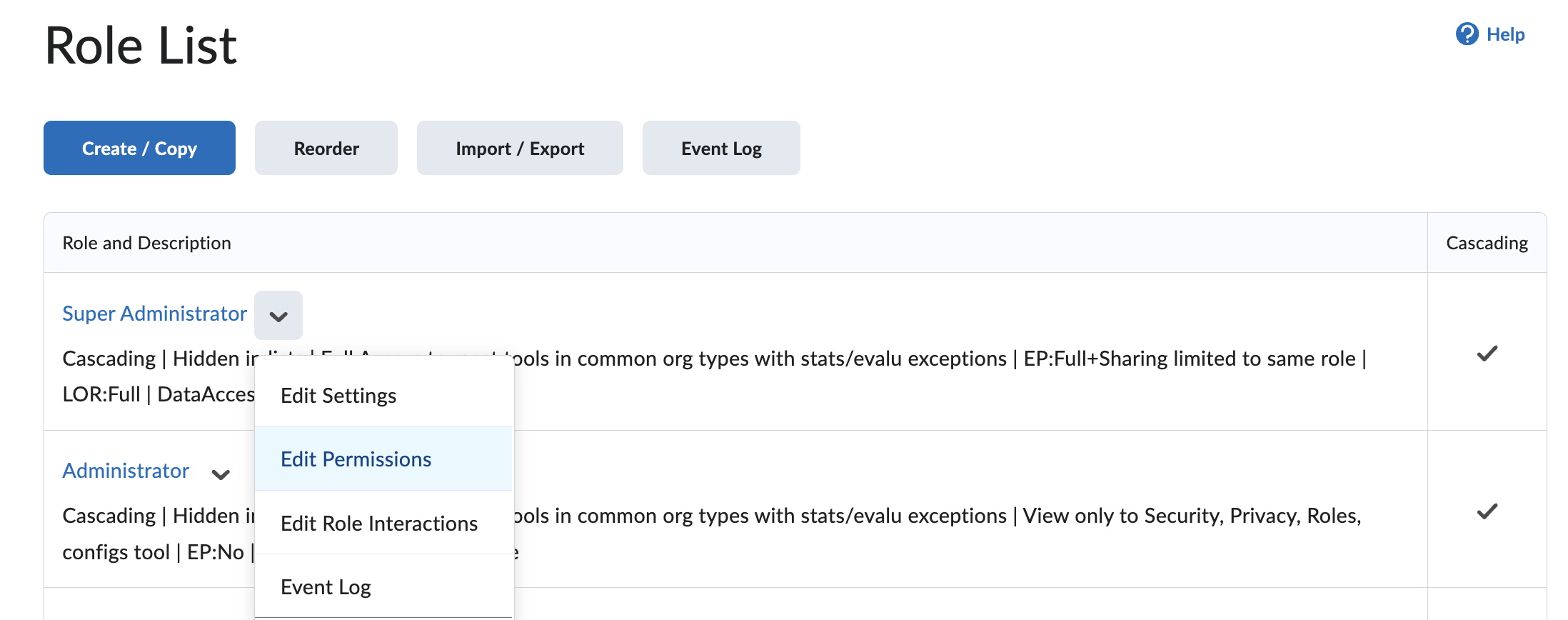
- Find the role assigned to the user who authorized the LearnWise app and click Edit for that role.
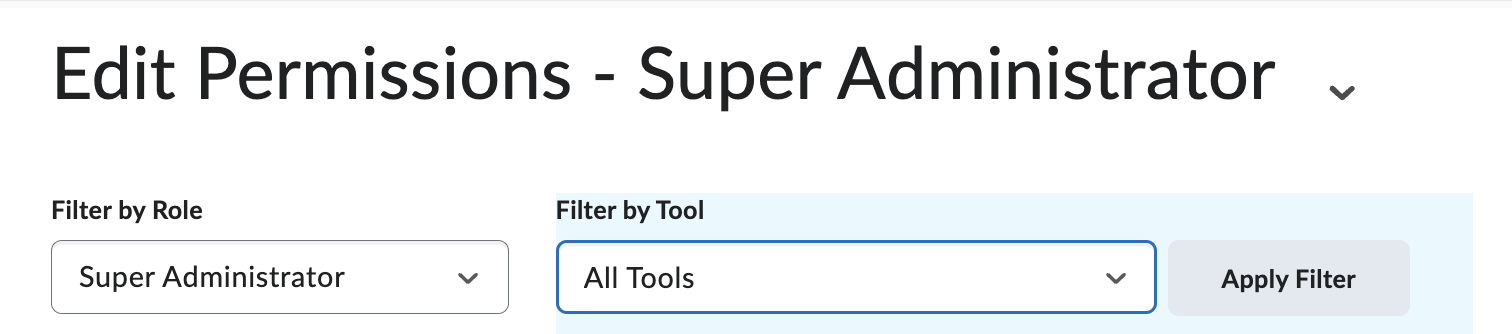
- In the Filter by Tool dropdown at the top of the page, select All Tools.
- Use the All Permissions view, then press Ctrl + F and search for:
Attach/Remove Release Conditions- Press Enter to cycle through all matching results.
- Enable all four of the following permissions:
- Attach/Remove Release Conditions on Announcements
- Attach/Remove Release Conditions on Modules and Topics
- Attach/Remove Release Conditions on Surveys
- Attach/Remove Release Conditions on Quizzes
- Save the permission changes.
Once saved, the warning in LearnWise should disappear automatically.
Still stuck?
Ask the LearnWise assistant. It answers from these guides.