

How to open the AI assistant
Access your role-aware AI assistant directly inside your LMS to get instant, personalized support whenever you need it.
1 min readUpdated
The LearnWise AI Assistant is seamlessly integrated within educational platforms and designed to assist students, faculty, and administrators. The assistant is a user-friendly point of contact, providing personalized responses based on user roles. Below is a step-by-step guide on how to activate the LearnWise AI Assistant. Although we’ll use Canvas for demonstration purposes, please note the AI assistant works the same way across different platforms.
Step-by-Step Guide to Accessing the LearnWise Assistant #
1. Log in to Your Dashboard:
Access your LMS/VLE, student portal, or website where the LearnWise assistant is integrated.
2. Locate the Assistant Icon or Widget:
The assistant icon or widget is typically located at the bottom right corner of the page for easy access. It may appear as a chat bubble, or an icon matching your institution’s branding.
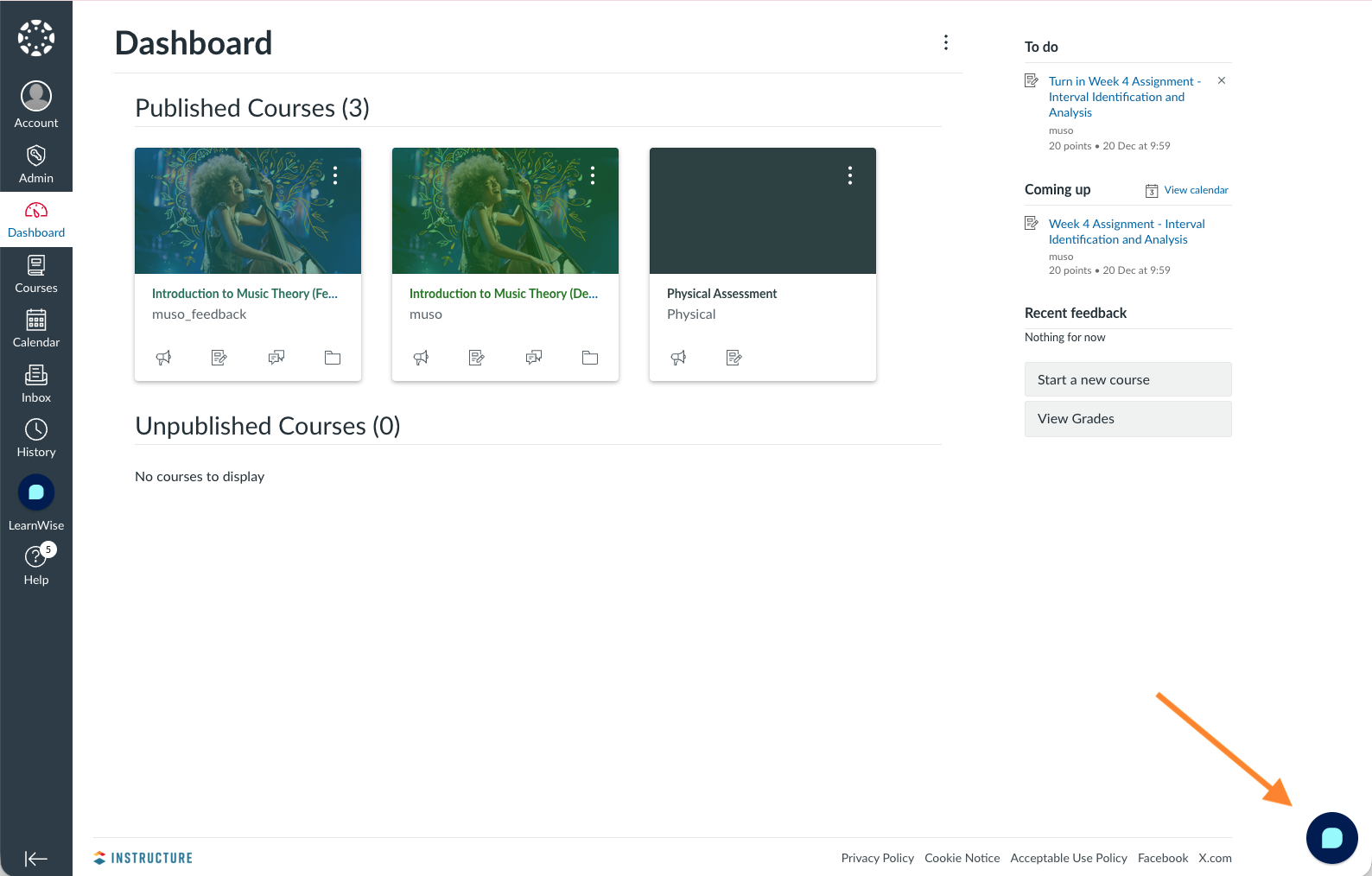
3. Activate the Assistant:
Click the AI assistant icon or widget to open a chat window. The assistant will greet you with a customizable welcome message and present you with shortcut options, guiding you through available resources and immediate actions.
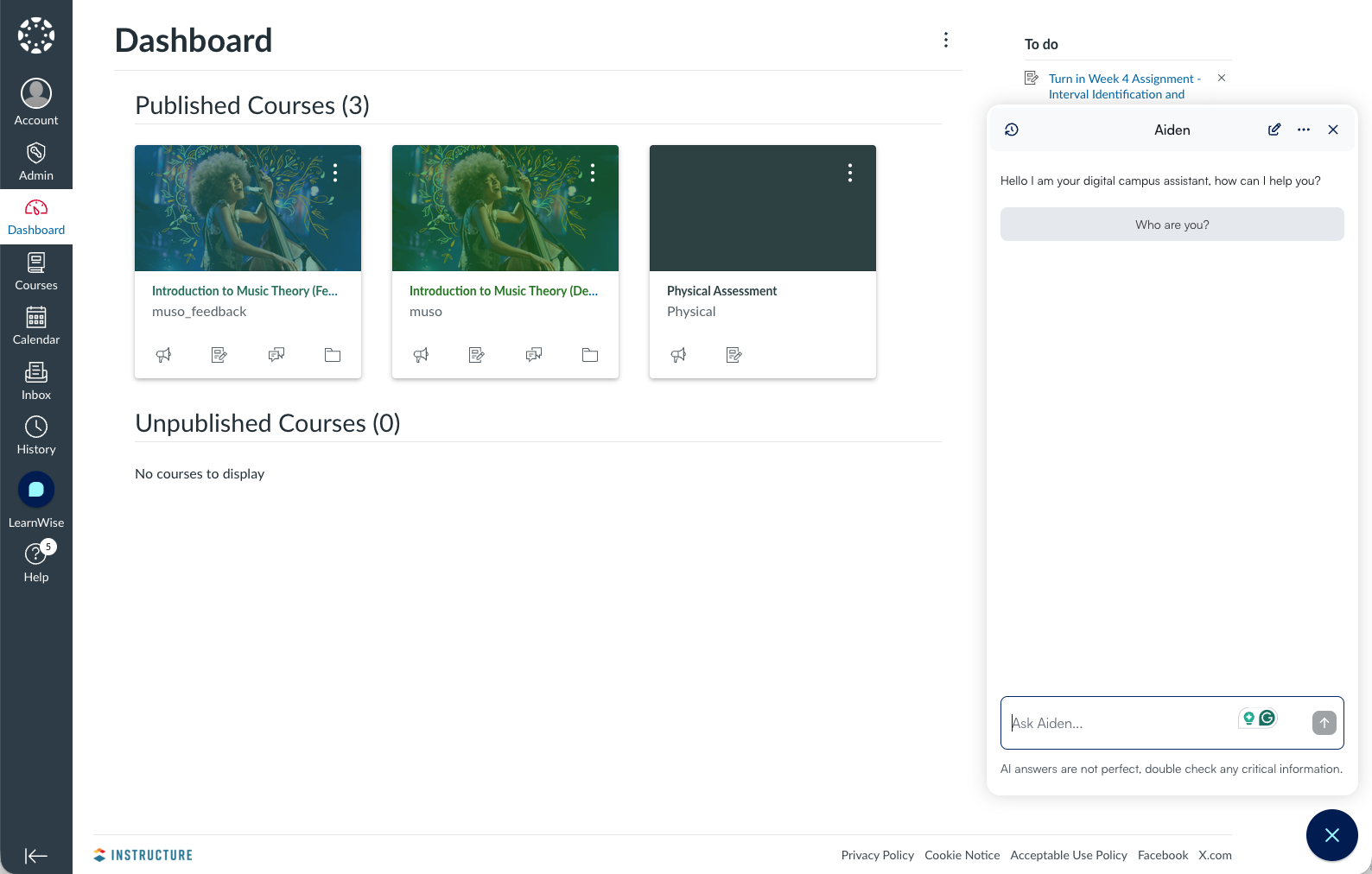
4. Resize or Expand the Chat Window:
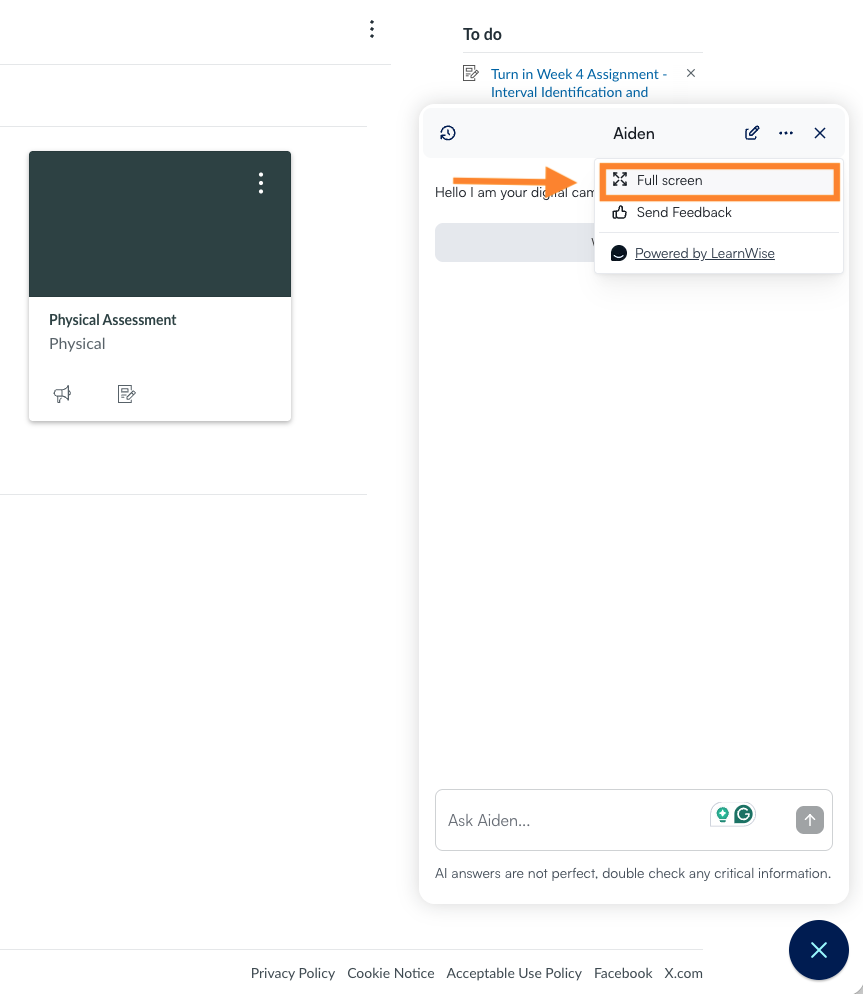
You can adjust the width of the chat window by hovering over the edge until you see a resize cursor, then click and drag to your preferred size. For a more immersive experience, you can also expand the assistant to full-screen mode, which provides a comprehensive view of the interaction and displays longer responses.
Still stuck?
Ask the LearnWise assistant. It answers from these guides.