

What is the Knowledge Bank and how does it work?
A guide to creating knowledge sources once at the organization level and reusing them across any number of assistants, all managed from a single place: the Knowledge Bank.
4 min readUpdated
On this page
Overview #
Knowledge, including websites, files, and FAQs, can now be managed at the organization level in the Knowledge Bank. You create a source once for your organization, then link it to as many assistants as you like. The new top-level Knowledge Bank page gives admins one place to manage every source, see which assistants use each one, and control access.
Note: You don't have to manage everything centrally. You can still add knowledge directly to an individual assistant from within that assistant. For more information on how to manage knowledge at the assistant level, click here.
Who can access the Knowledge Bank #
- Super Admins and Admins can both view and manage knowledge sources.
- Collaborators and Data Viewers can view knowledge sources.
The Knowledge Bank and its tabs #
The Knowledge Bank (book icon) appears in the left navigation. It opens an organization-wide workspace with a secondary sidebar of three tabs:
- Websites for entire websites, specific web pages, and pages imported from JSON.
- Files for PDFs, Word documents, and web PDFs.
- FAQs for question and answer pairs used to fine-tune responses.
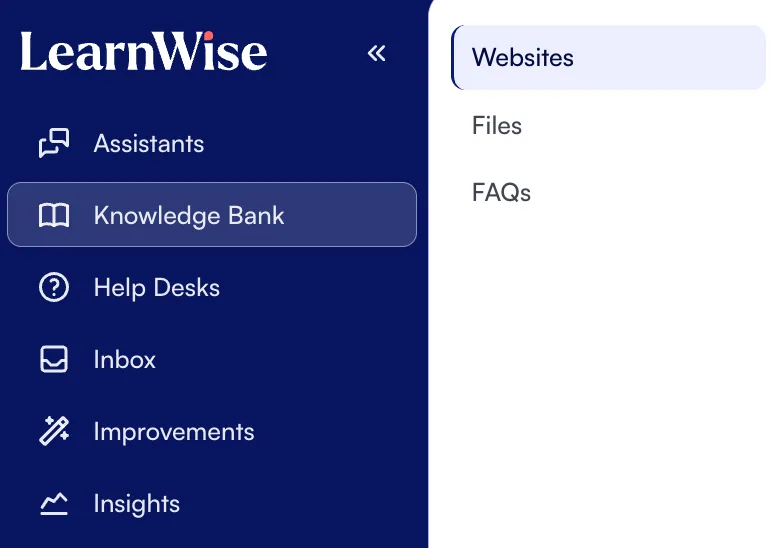
Each tab is a sortable, searchable table. The common columns are:
- Name, with a link out to the source
- Linked assistants & Roles
- Content, for example the number of pages
- Status (Ready, Processing, or Failed), along with the time it was last updated
Each row also has actions to refresh (re-embed), edit, and delete the source.
Reusing a source across multiple assistants #
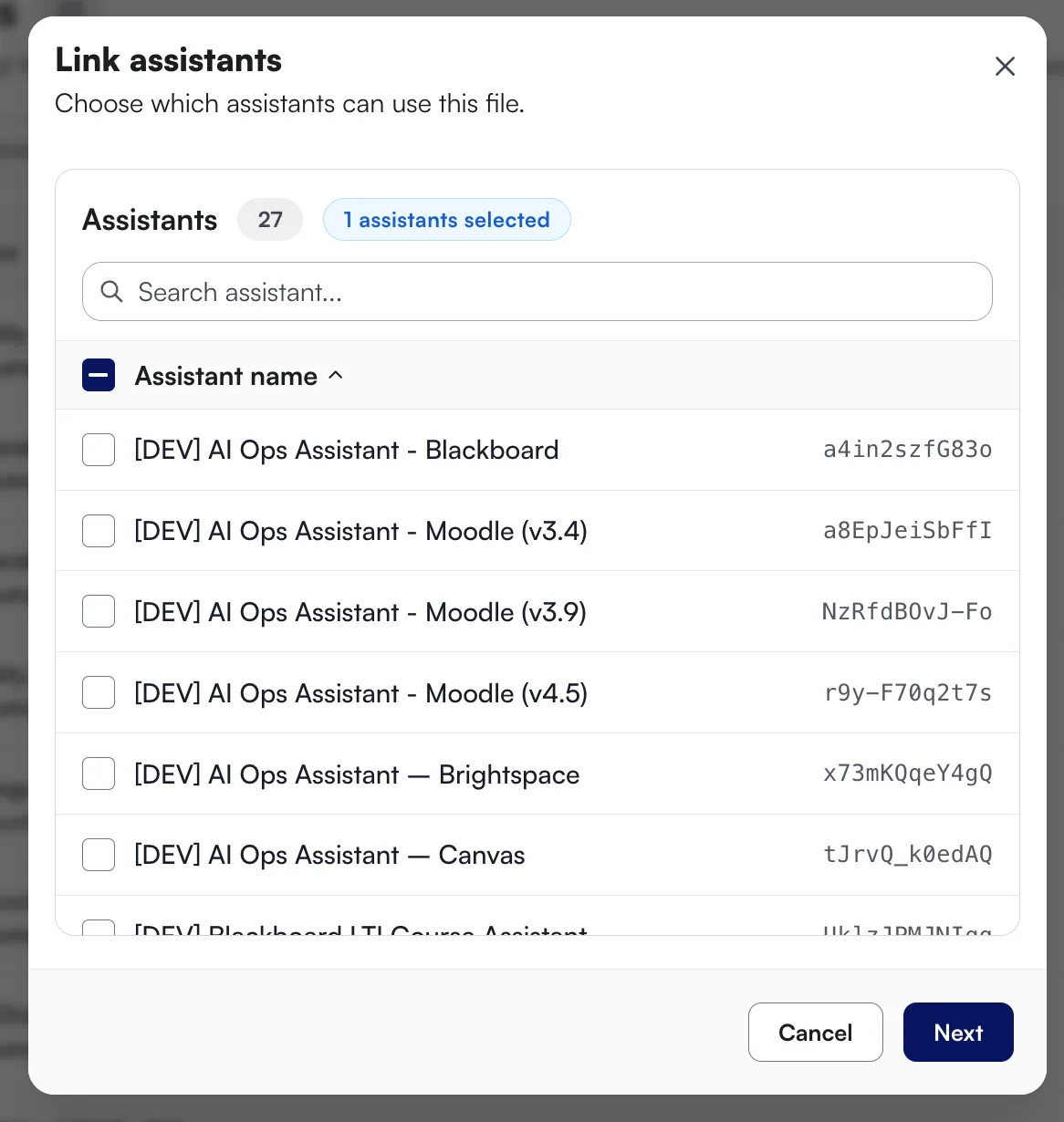
The Linked assistants & Roles column shows every assistant currently using a source (displayed as chips) along with a Manage linked assistants control to attach or detach assistants right there in the row.
There are two places to create these links:
- From an assistant's Knowledge tab, you can link an existing organization source using the Link org source option, rather than only creating new ones.
- From the Knowledge Bank, you can link a source by clicking the link icon.
Filtering by assistant #
Every tab (Websites, Files, and FAQs) has a Filter by assistant popover. It includes its own search box to find assistants by name, individual checkboxes, a select-all and select-none toggle, and a badge showing how many assistants are currently selected.
Picking one or more assistants narrows the table to the sources linked to them. Clearing the filter shows all organization sources again. Your selection is kept as you move between tabs, so you can review the same assistant's Websites, Files, and FAQs without reapplying the filter each time.
Setting roles and direct access #
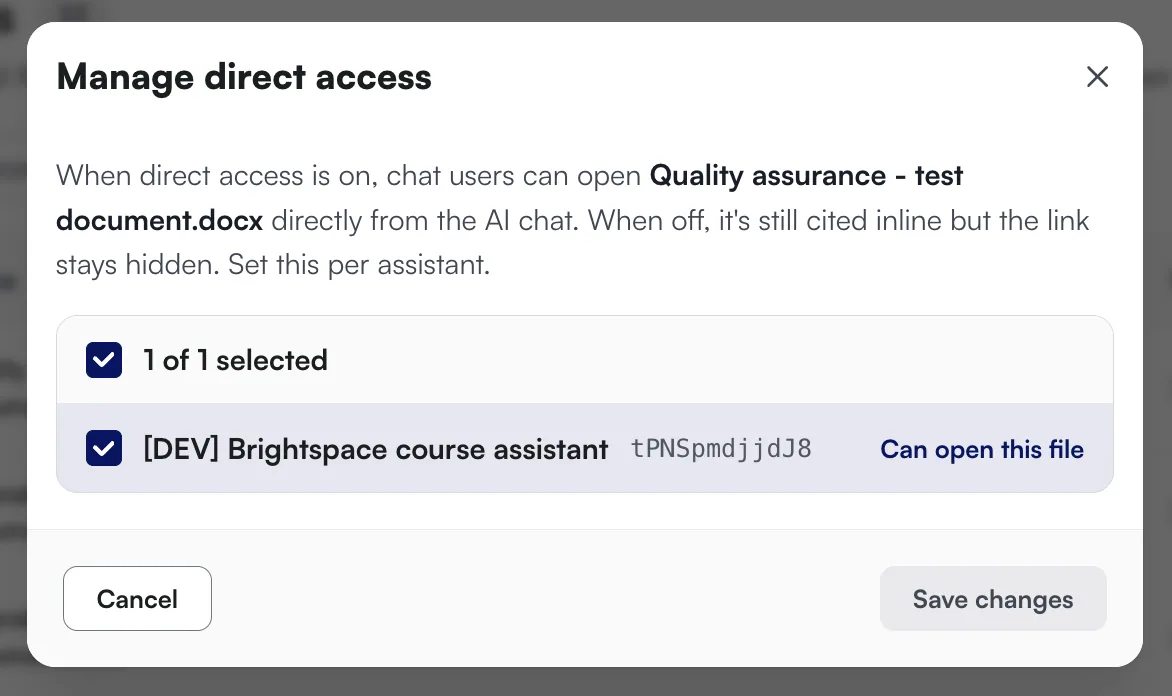
Roles are applied per source, per assistant, so the same source can have different visibility depending on which assistant it's linked to. You manage them through the roles options on both the Knowledge Bank and the assistant page.
On the Files tab only, there's also a Direct access column and toggle, which controls whether a file can be retrieved directly.
Working with FAQs #
The FAQs tab includes a few extra tools:
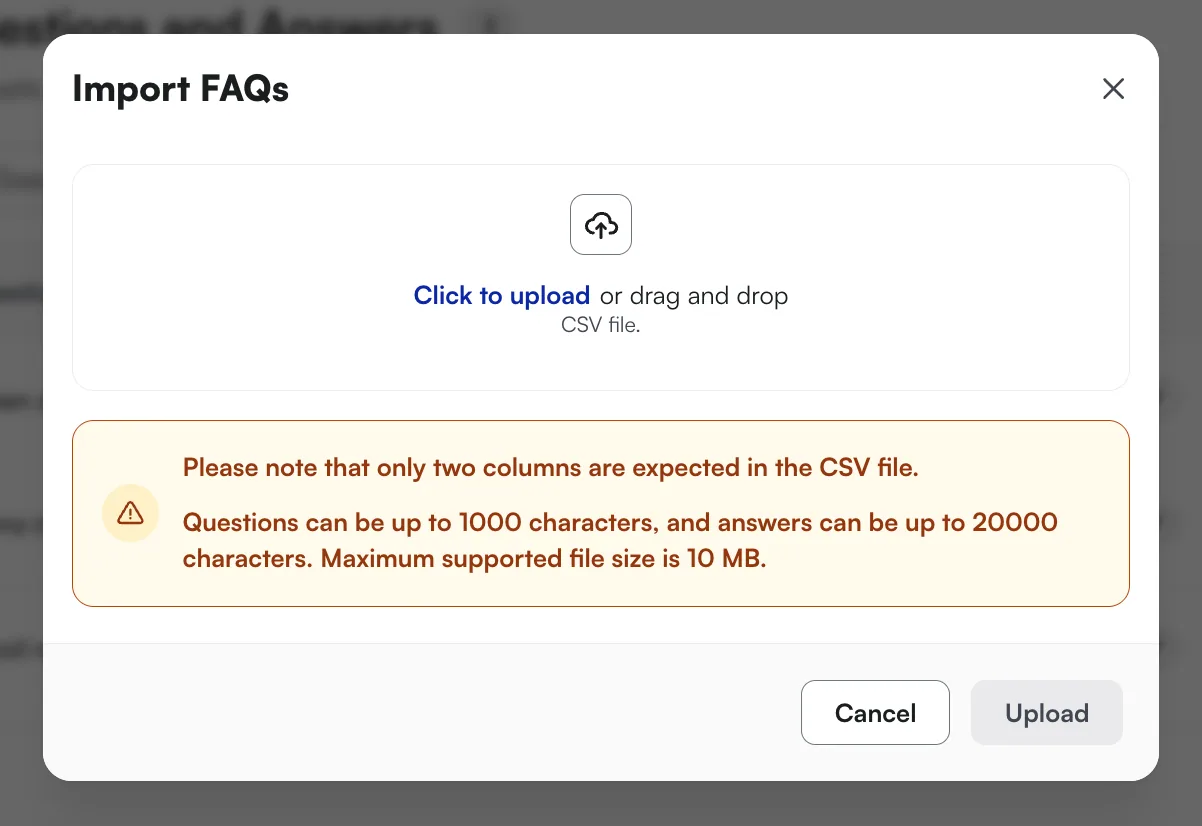
- Export downloads your organization's FAQs as a spreadsheet (CSV).
- Import is a guided flow (upload, then map your columns, then review) that creates FAQs in bulk, including a step to set which assistants can access them.
- Search on this tab matches both the question and the answer text, so you can find an entry by wording that only appears in the answer. (The FAQ picker dropdowns used in the link and add flows search questions only.)
Editing a shared source #
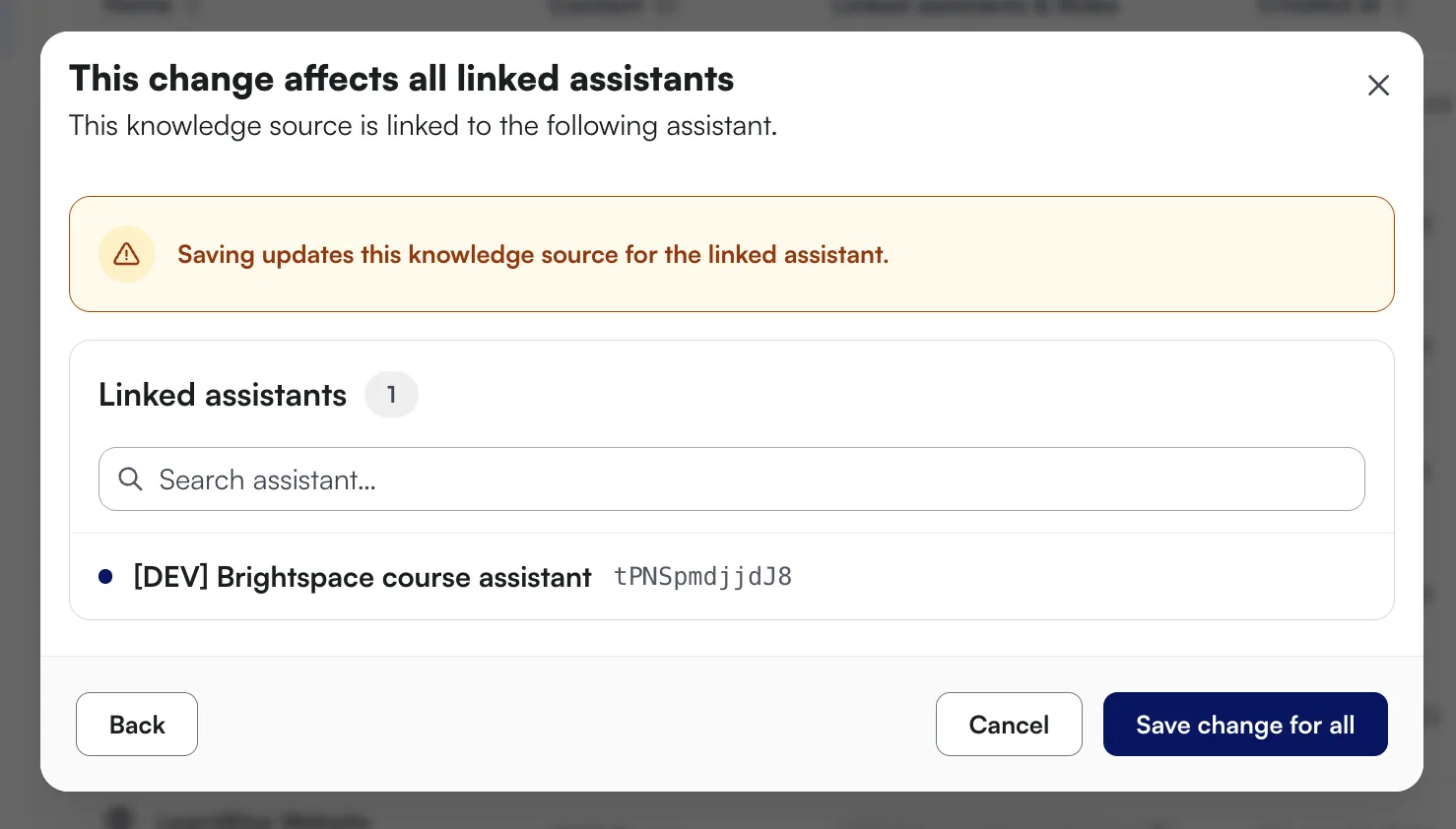
Because a source is shared, editing it (its name, crawl filters, authentication, or re-embedding it) affects every assistant it's linked to. Before you save, the edit flow shows the organization-wide scope of your change and lists which assistants will be affected.
Checking source status and retrying failures #
Every row shows a Status badge. If a source fails to update, it shows Failed (or Unknown) with an inline Retry action you can use to run the processing again.
Helpful Tips #
- Editing a source from an assistant edits the shared Knowledge Bank source, so the change affects every other assistant linked to it. The same "affects linked assistants" warning applies here.
- Unlink only detaches a source from the assistant you're working in. It does not delete the Knowledge Bank source.
- To delete a source entirely, use the Knowledge Bank.
- Integration-backed sources (such as SharePoint sites and ticketing systems) aren't part of this yet. The tabs available now are Websites, Files, and FAQs.
Still stuck?
Ask the LearnWise assistant. It answers from these guides.
Related guides
- How are automated improvements generated?Knowledge Management: Improvements
- How can I link/unlink improvements?Knowledge Management: Improvements
- How can I manually generate an improvement?Knowledge Management: Improvements
- How do I attach a file to my LearnWise chat?Knowledge Management: Improvements
- What are improvements?Knowledge Management: Improvements