

What permissions are required to authorize the LearnWise app in Brightspace?
The access and permissions LearnWise needs in Brightspace, and where to grant them.
2 min readUpdated
You authorize the LearnWise app in Brightspace using a Brightspace account. LearnWise uses this account to read your course content, which is what powers the tutor, chat, feedback, and its other Brightspace features.
The account must have administrator access across your entire organization. Its permissions are set on its role: in Brightspace, go to Admin Tools > Roles and Permissions, open the role assigned to this account, and select the All column for each permission below so it applies organization-wide.
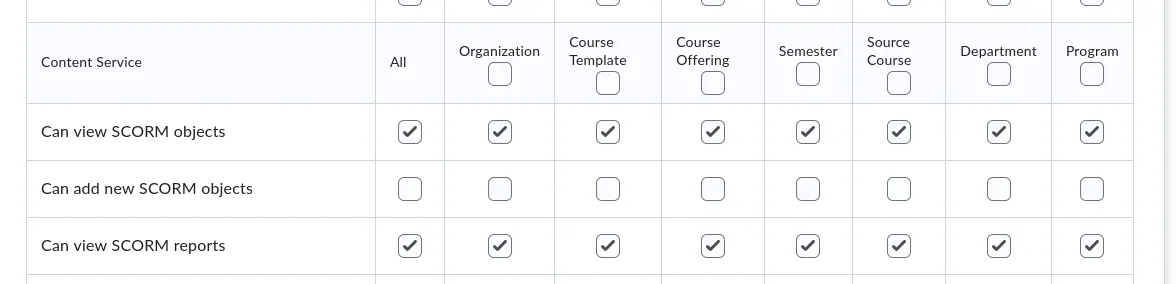
Required permissions #
- See Announcements
- Attach/Remove Release Conditions on Announcements
- See and Submit Files to Assignment Submission Folders
- See and Manage Assignment Submission Folders
- Give Feedback
- View Feedback
- View Submitted Files
- Publish All Feedback on Assignments
- See Checklists
- View Course Content
- Search Content
- View Content that is Not Released
- Attach/Remove Release Conditions on Modules and Topics
- Can view SCORM objects
- Can view SCORM reports
- See Course Info
- View Discussions
- Create and Add Release Conditions on Forums and Topics
- Access Email
- Launch External Learning Tool Links
- Create Quicklinks from available External Learning Tools links
- Create LTI Links from available Tools
- See the FAQ
- Access the Glossary
- View Grade Schemes (API Only)
- See user grade values (API Only)
- Retrieve Grade Values for Course Offering Descendants (API Only)
- See Groups
- See Sections
- See Links
- Search the LOR
- Retrieve Objects from the LOR
- Create Links to Objects in the LOR
- View Objects in the LOR
- Open and View an Object's Files in the LOR
- See All Hidden Objects in the LOR
- View Metadata
- See the File Listing
- View Other Users Alerts (API Only)
- View Quick Eval
- View Quizzes
- View Quiz Setup
- Attach/Remove Release Conditions on Quizzes
- See Rubrics
- See SCORM Reporting
- See the Self Assessment Tool
- View Self Assessment Setup
- Attach/Remove Release Conditions on Surveys
- Manage Own Profile
- View Other Users' Profiles
- View the Users' Email Address
- View Users' Org Defined IDs
- View User Enrollments
- See User Preferred Locales
- Get User Attribute Values (API Only)
Was this page helpful?
Still stuck?
Ask the LearnWise assistant. It answers from these guides.