

How do I enable SCORM content ingestion in Brightspace?
Learn what SCORM is, why connecting it to LearnWise matters, and how to enable it for your Brightspace integration.
2 min readUpdated
On this page
What is SCORM? #
SCORM (Sharable Content Object Reference Model) is the standard format used by most LMS platforms to package and deliver course content. When an instructor uploads a course as a SCORM package, it bundles everything including slides, quizzes, videos, and more into a single .zip file.
Note on Articulate Rise: If your courses were built using Articulate Rise, no extra setup is needed. LearnWise automatically detects and processes Rise-format SCORM packages during the standard course sync.
Why integrate SCORM with LearnWise? #
By enabling SCORM access, LearnWise can read the contents of those packages and add them to your assistant's knowledge base. This means learners can ask questions about course material and get targeted help, all powered by the actual content that lives in your LMS.
This affects:
- Chat – learners can ask general questions about course content
- Study Mode – content from SCORM packages can be used to generate study material
Enabling SCORM Access in LearnWise #
Enabling SCORM requires two steps, one in LearnWise and one in Brightspace. Both are required. If only the toggle is enabled, SCORM content will not be ingested and no error will be shown.
Note: If you are setting up a new Brightspace integration, the LearnWise toggle is enabled automatically. You still need to complete the Brightspace step below.
Configuring SCORM in LearnWise #
- Log in at admin.learnwise.ai
- Select your assistant
- Navigate to Knowledge → Courses
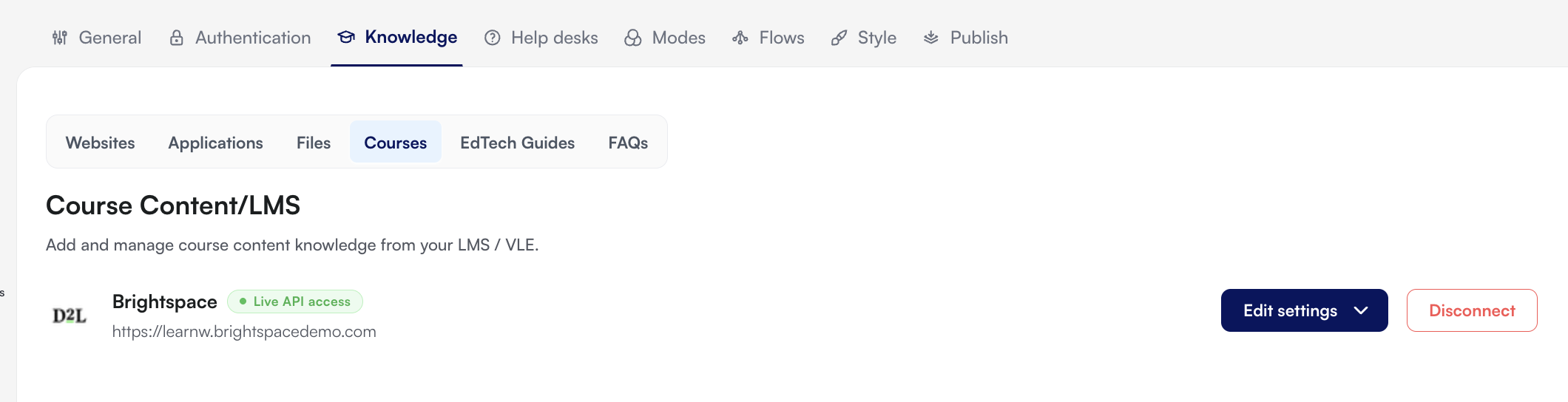
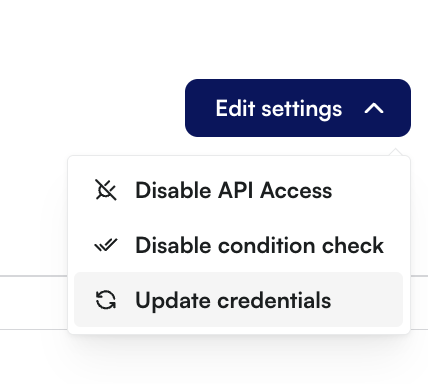
- Under the Edit Settings dropdown, click on Update Credentials
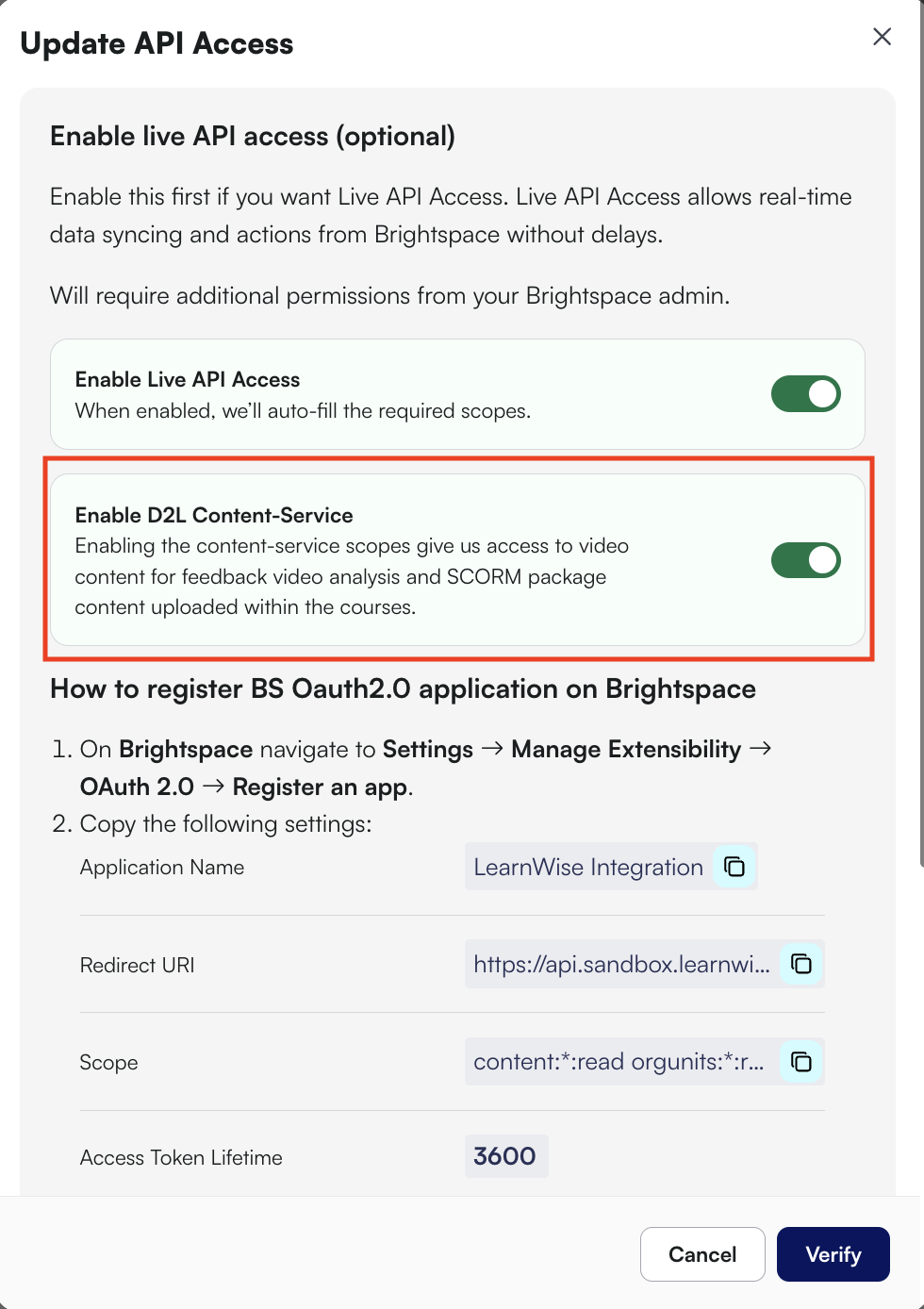
- In the popup, make sure the Enable D2L Content-Service toggle is switched on
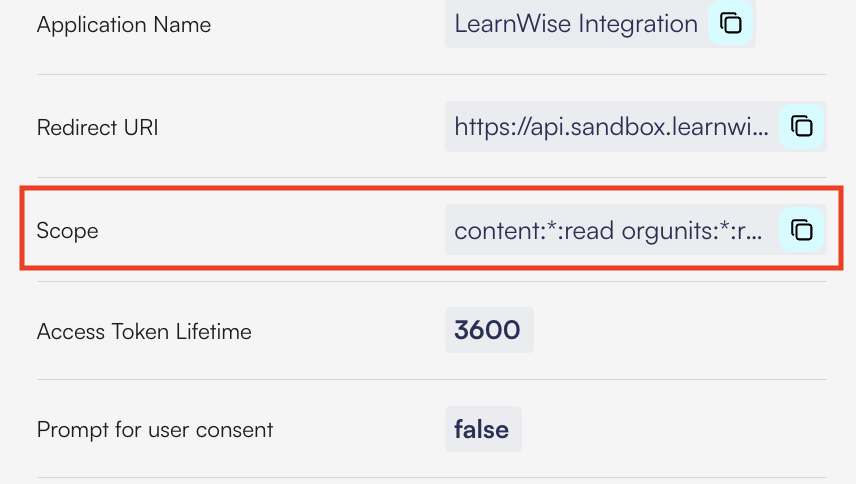
- Copy the Scope value shown in the popup
- Click Verify
Configuring SCORM in Brightspace #
- Log in to your Brightspace instance as an administrator
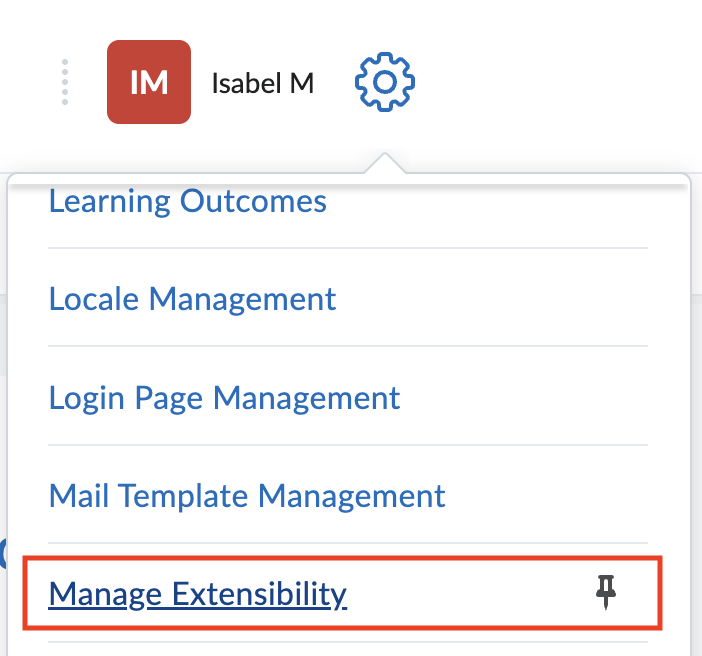
- Navigate to Settings → Manage Extensibility → OAuth 2.0
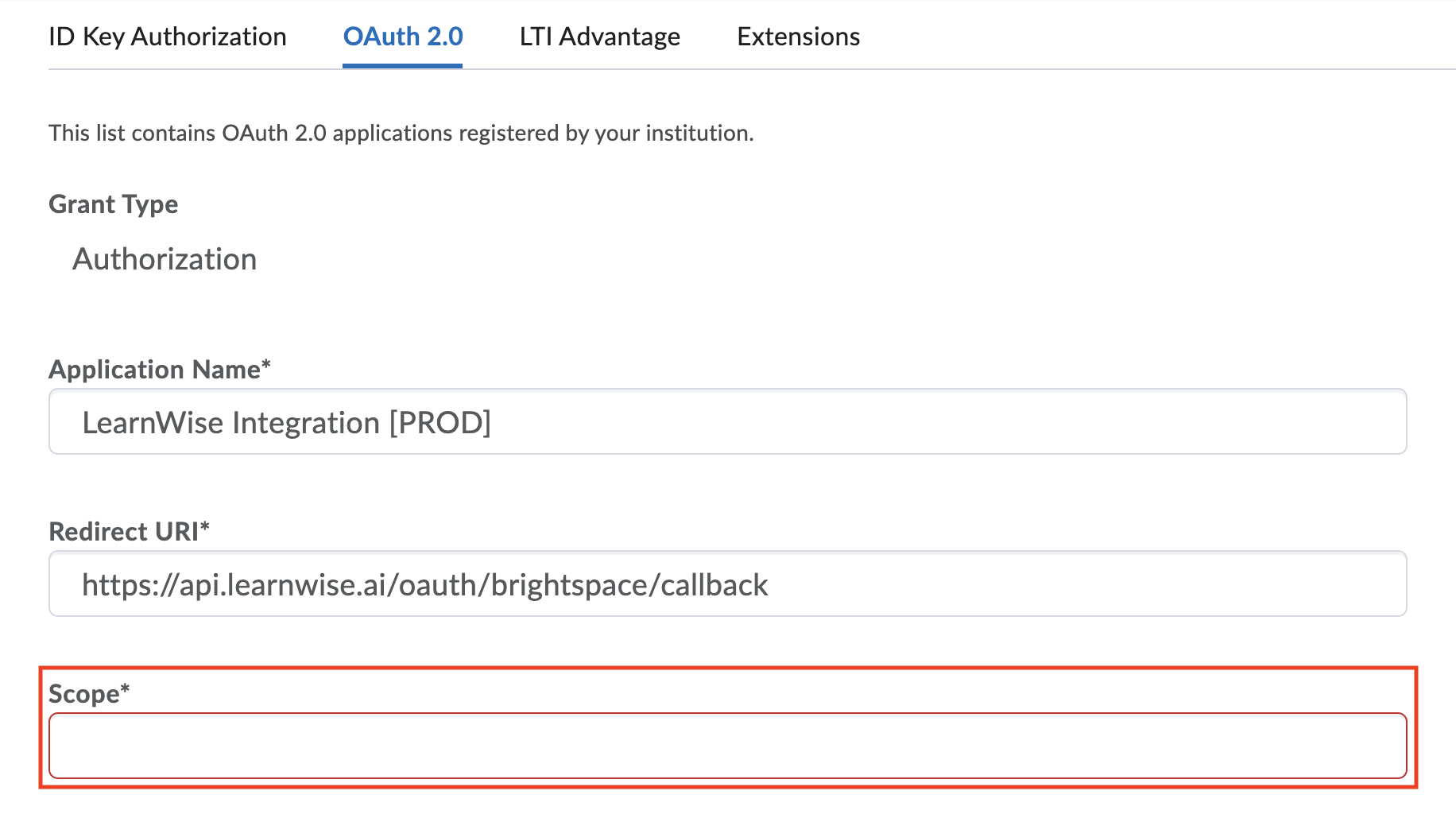
- Find and click on your LearnWise application, then click Edit

- Replace the existing value in the Scope field with the value you copied earlier from LearnWise
- Save your changes
Once both steps are complete, LearnWise will automatically begin ingesting SCORM content and make it available to your assistant.
Note: SCORM content will be ingested as part of our weekly, rolling updates. If you'd like to trigger an immediate sync, go to your assistant in the LearnWise dashboard, navigate to Knowledge → Courses, and click the refresh icon next to the relevant course.
Still stuck?
Ask the LearnWise assistant. It answers from these guides.
Related guides
- Developer Guide: Signed Context InjectionIntegrations
- How do I enable Context Injection in LearnWise?Integrations
- How do I Install Google Analytics 4 Event Tracking?Integrations
- How do I integrate LearnWise with Freshdesk (Native)?Integrations
- How do I integrate LearnWise with Merge ticketing integrations?Integrations