

How do I attach a file to my LearnWise chat?
Attach a document to your chat so you can ask the assistant about it directly, without copying or pasting any text.
4 min readUpdated
On this page
You can attach a file to your message and ask the assistant questions about it. Just add the file, then ask things like "summarize this," "explain section 3," or "what does this document say about X". The assistant will read it and answer based on what's inside.
Steps to attach a file #
- Open the chat window where you'd like to ask about your file.
- Add your file. Click the paperclip icon in the chat window, or drag your file straight in.

- Give it a moment. Your file appears as a card above the text box while it's getting ready. Added the wrong one? Click the X on the card to remove it before you send your message.
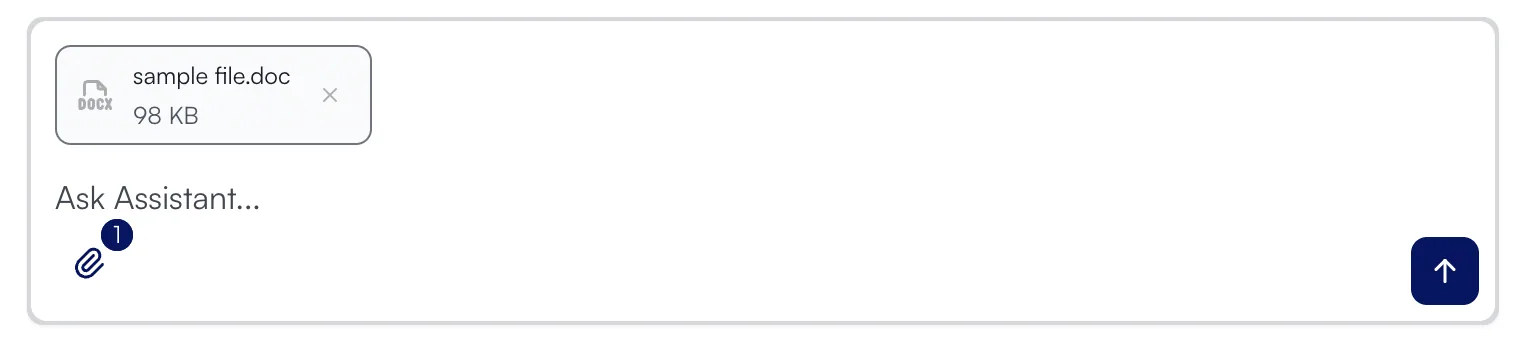
- Ask your question and send. Typing a question is optional. Once you send your message, the assistant will read the file and answer based on it.
You can attach more than one file to the same message if you need to.
Supported file types #
You can attach the following file types in chat. Each file needs to be 5 MB or smaller.
- Documents: PDF, Word (DOC, DOCX), PowerPoint (PPTX), OpenDocument Text (ODT), LaTeX* (TEX)
- Spreadsheets and data: Excel (XLS, XLSX), CSV
- Text and markup: TXT, Markdown (MD), HTML
Working with course material (AI Ops Assistant) #
If you work with AI Ops Assistant, this is a handy way to bring in course material that lives outside the LMS. Instructors can attach a syllabus, a course outline, or a template from Google Docs or your computer (just export it as PDF, DOCX, or TXT first), and ask the assistant to work from it.
For example, you can ask the assistant to:
- Structure a new course from that outline
- Create pages or modules based on it
- Adapt an existing course to follow the same template
The assistant reads the document and uses it as the basis for the changes it makes in the LMS. There's no need to upload the material into the LMS first, or paste it into the chat yourself.
Good to know #
- Images aren't read, but the rest of the file still is. If a document contains images, the assistant skips the images. It still reads all the text in the file as normal. The assistant knows an image was there, but can't see what's in it. The same applies to scanned pages with no text layer: any text elsewhere in the file is still read.
- Very long documents are read in stages, not cut off. The assistant reads the first part of a document right away. If your question needs information from further in, it can search and read further sections too. Being long doesn't stop the assistant from reaching the rest of the document.
- Files stay in the conversation and can be revisited. Once you send a message with a file attached, it becomes part of that conversation and can't be removed afterwards. You can still remove a file before you send it, while it's shown as a card. The file remains part of your conversation history, and you can download its content again at any time
- Downloads give you the text, not the original file. If you click a file card in a message you've already sent, you'll download a plain-text version of what the assistant read (for example,
report.pdfbecomesreport.pdf.txt). Your original file itself isn't stored for download, so if you'd like to keep a copy, hold onto your own version. The chat isn't a file storage tool. If no text could be pulled from your file, the download will let you know instead of arriving empty. - Yes, study mode works with your files. If you start study mode in a conversation with a file attached, the questions and activities the assistant generates are based on that file.
For administrators #
Don't see this option? Please reach out to your LearnWise contact or support@learnwise.ai if you would like this feature activated for your organization.
Once activated, file attachments are off by default and are enabled per assistant. To enable:
- Go to Settings → General → Configuration.
- Switch on File uploads.

Files sent by learners appear in the Attachments section of the conversation panel in the inbox. You can download them one at a time or all together. As with the chat, what you'll get is the extracted text as a .txt file, not the original file for security purposes.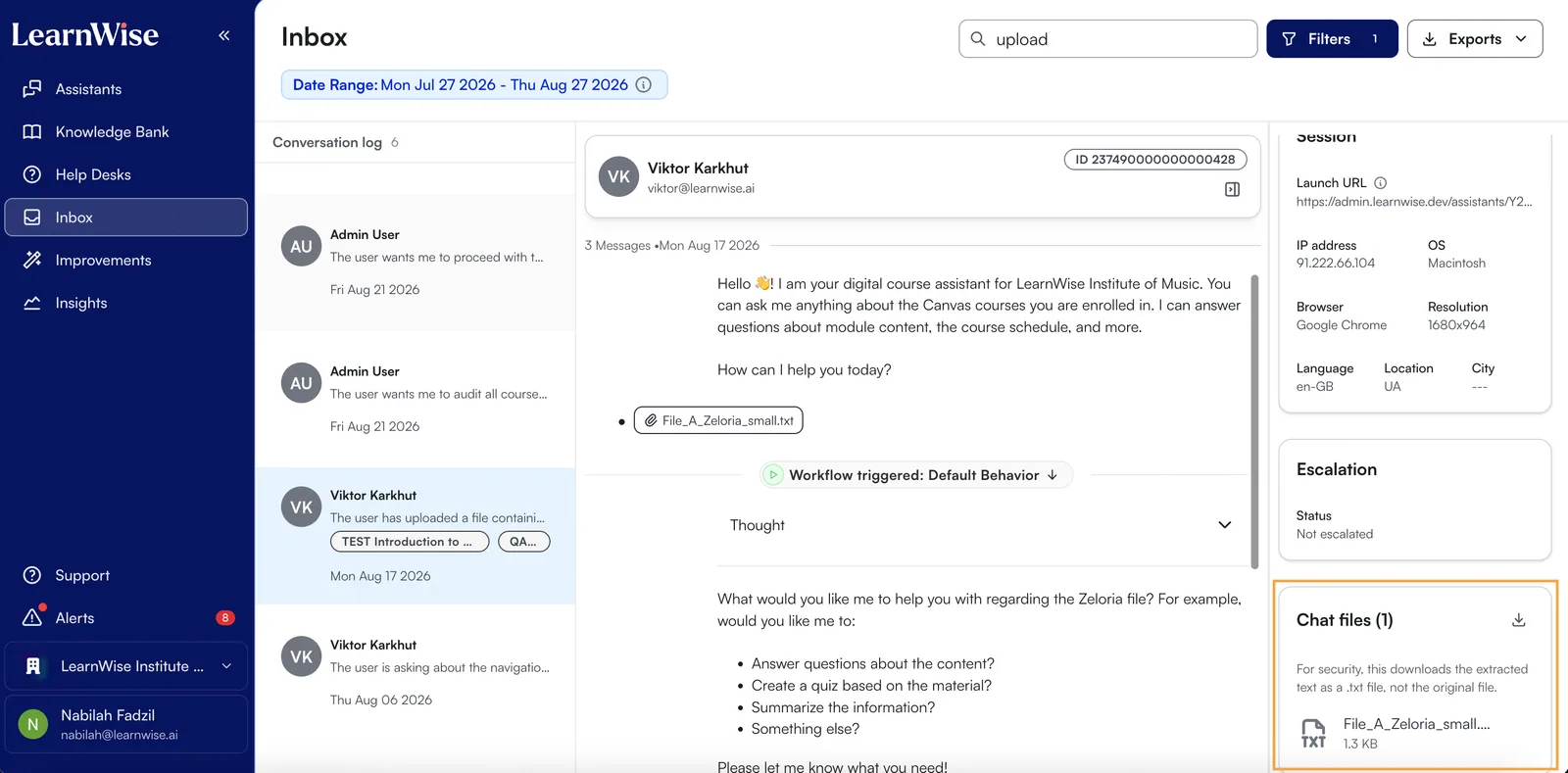
Still stuck?
Ask the LearnWise assistant. It answers from these guides.
Related guides
- How are automated improvements generated?Knowledge Management: Improvements
- How can I link/unlink improvements?Knowledge Management: Improvements
- How can I manually generate an improvement?Knowledge Management: Improvements
- What are improvements?Knowledge Management: Improvements
- What is the Knowledge Bank and how does it work?Knowledge Management: Improvements