

How should instructors use AI Feedback & Grader?
This guide walks instructors through the process of using LearnWise AI Feedback & Grader in their day-to-day grading workflow, including best practices for getting the most out of the tool.
6 min readUpdated
On this page
Note: For a general overview of what the tool does and how it works, see "What is AI Feedback & Grader?"
Before you start: understand what inputs Feedback & Grader uses #
LearnWise AI Feedback & Grader analyses several inputs to generate feedback for each student:
- Student submission – the actual work submitted
- Assignment rubric – your grading criteria and descriptions
- Course context – course materials, learning outcomes, and assignment instructions
- Your input – any notes, annotations, or draft comments you provide
LearnWise AI is an assistant, not an autopilot. The AI drafts feedback based on your rubric and preferences but you review, edit, and approve everything before it reaches the student. The more context and notes you provide, the more the output will sound like you rather than a generic AI.
Two ways to use AI Feedback & Grader #
Depending on the assignment type, you have different deployment options available.
| Teacher-Led Feedback | Automated Assessment | |
|---|---|---|
| Integration Points | Teacher-facing in the LMS / VLE (Canvas, Brightspace, Moodle) | Behind the scenes operations in Canvas, Brightspace, Moodle |
| Workflow Steps | Instructor opens, adds feedback, generates with AI, reviews, approves | LearnWise monitors LMS / VLE activity and automatically marks assignments |
| Use Cases | High-stakes assignments, final submissions, personalised feedback | Draft versions, journal entries, low-stakes assessments |
| Key Benefit | Help faculty grade and provide feedback at scale | Provide feedback on first drafts and self-paced assessment |
Teacher-Led Feedback (Manual Mode) #
Best for high-stakes assignments, final submissions, and personalized feedback. You open each submission, optionally add notes, generate a draft, review it, and send. This is the most common workflow and is covered in detail in the step-by-step section below.
Automated Assessment #
Best for low-stakes formative assessments, weekly journals, and high-volume assignments. The AI automatically generates and posts feedback when a student submits, without requiring you to manually trigger it for each one. For setup, contact your LearnWise admin.
Step-by-step: Teacher-Led Feedback workflow #
Step 1 – Open your LMS grading tool and launch LearnWise Feedback & Grader #
Go to your usual grading interface: Canvas SpeedGrader, Brightspace Grader, Moodle Grader, etc. and Launch the LearnWise AI Feedback & Grader.
Step 2 – Add your notes first #
Before generating anything, jot down your initial observations as you normally would. You can add notes to:
- The General Comments field for overall impressions
- Individual Rubric Row fields for criteria-specific thoughts
These notes directly shape what the AI generates. Even a short note like "strong thesis but weak evidence in paragraph 3" gives the AI a clear direction and makes the output sound more like you.
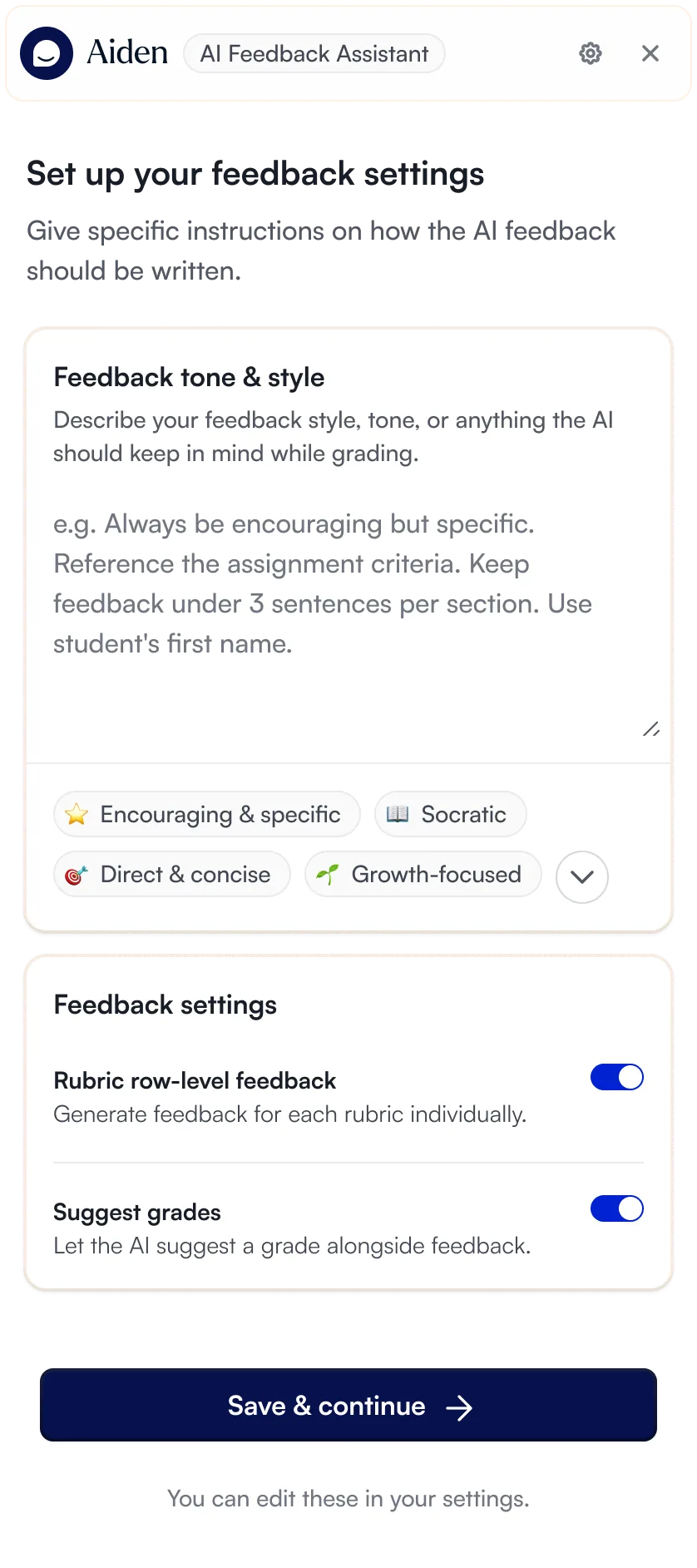
Step 3 (optional) – Set your Feedback Profile preferences #
If you have not already set up a Feedback Profile, you can define your preferences here. For example:
- "Keep feedback under 3 sentences per rubric row"
- "Always use an encouraging tone"
- "Reference the assignment prompt when citing shortcomings"
These preferences are saved and apply automatically to future sessions so you do not have to repeat yourself. You can update them at any time in Settings.
Step 4 – Click Generate and wait #
Click the Generate AI Feedback button. Because LearnWise pre-generates drafts in the background while you review other submissions, a draft is often already prepared or nearly ready by the time you click. In most cases you will see results in around 10-30 seconds.
Note: If your admin has turned on Require grade before generating feedback (in the assistant's Feedback settings, under For Teachers), you must enter a grade before you can generate AI feedback. If you try to generate without one, you'll see a pop-up explaining that a grade is needed first.
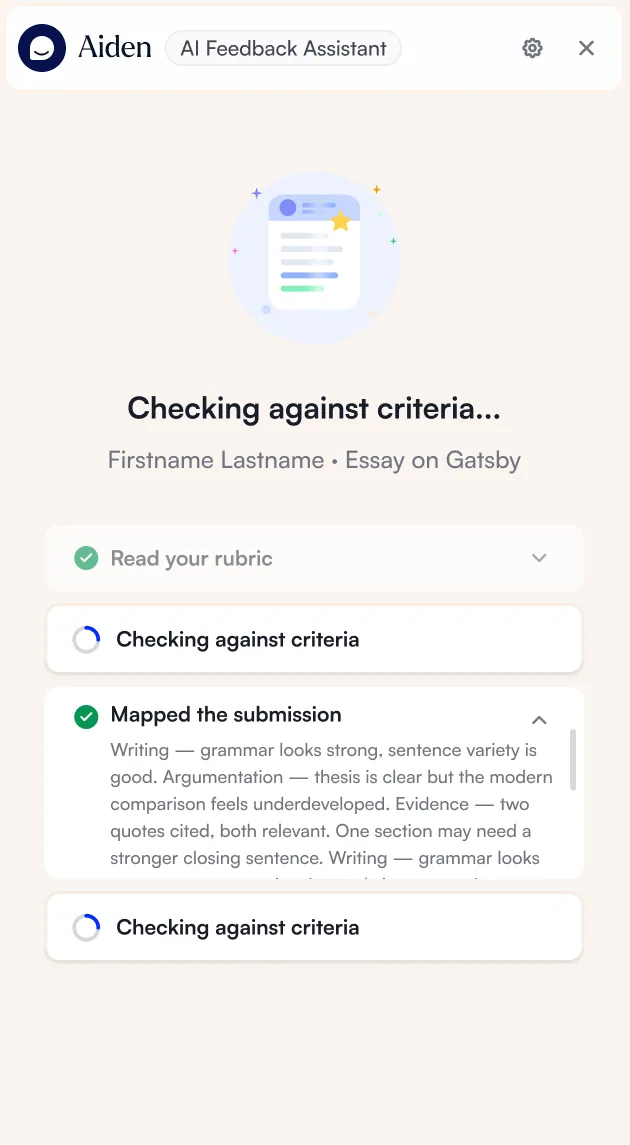
While the AI works, you will see a list of reasoning steps on screen, for example "Mapped the submission," "Checked against criteria," and "Applied course standards." These show you exactly what the AI is doing and give you a preview of how it approached the work before you see the output.
Step 5 – Review, edit, and adjust #
Once the draft is ready:
- Review the feedback for each rubric row and the general comments
- Edit any text, grades, or scores directly — everything is editable
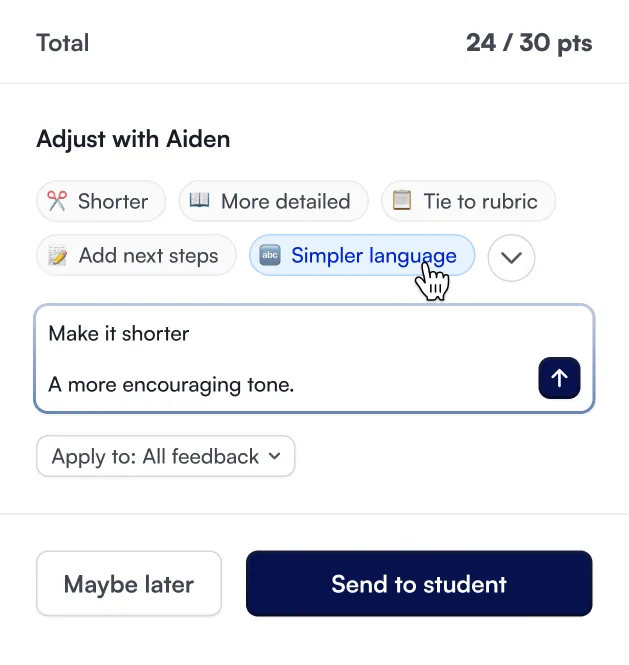
- Use the "Adjust with Aiden" chat field to make bigger changes in plain language, for example: "make this more concise," "add rubric-specific language," or "make the tone more encouraging." The AI applies your instruction instantly without reprocessing the whole submission.
Step 6 – Submit to the student #
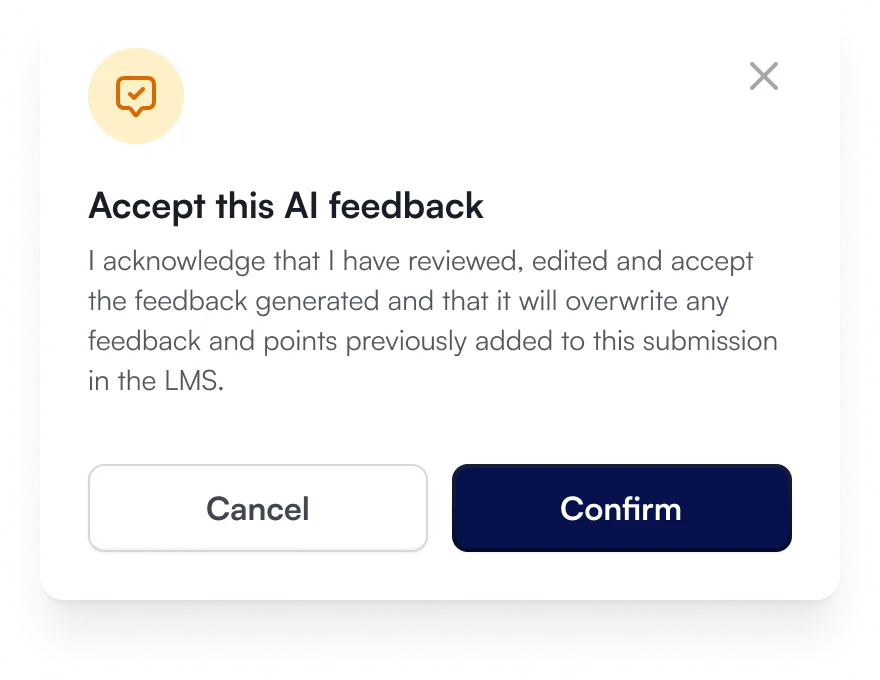
When you are happy with the feedback, click Confirm. You will see a confirmation prompt asking you to confirm that you, a real person, are taking ownership of this feedback. Once confirmed:
- Grades are written directly into your LMS gradebook
- Feedback appears exactly where students normally find it in your LMS
- No new interfaces for students – everything stays familiar
Note: If your institution uses automated feedback, automated feedback has its own independent Submit as draft setting that is separate from the manual feedback setting. Check with your admin if you are unsure whether automated drafts are submitted immediately or held for your review.
Step 7 – Move to the next submission without closing the sidebar #
This is the key workflow tip: do not close the LearnWise sidebar. Instead, use the navigation in your LMS (for example the "Next" arrow in SpeedGrader) to move to the next student. The sidebar stays open and loads the next submission automatically.
Keeping the sidebar open also allows LearnWise to pre-generate the next student's draft in the background while you are reviewing the current one, which is why wait times stay short across your entire grading session.
Best practices and tips for better results #
Write descriptive rubric criteria #
The AI relies heavily on your rubric to produce specific, actionable feedback. Vague criteria lead to vague feedback. For example, instead of "Good analysis," try "Student demonstrates critical analysis by comparing at least two theoretical perspectives with evidence from the text." Make sure each performance level has distinct written descriptions, not just point values.
Use "Adjust with Aiden" for refinements, not for grade changes #
The Adjust feature works well for changes like making feedback more concise, adding rubric-specific language, or adjusting tone. If you want the AI to suggest points and grades, make sure the "Suggest points and grades" setting is turned on in your Feedback Profile or check with your admin.
Grade in batches #
Grading multiple submissions in one sitting helps you stay calibrated and makes the pre-generation feature more effective, since the AI can queue upcoming drafts while you are working through the queue.
Dashboard and exports #
Automated feedback label #
When feedback is generated automatically, the teacher name in the dashboard and in data exports will show as "Automated." This is expected — it is not attributed to an individual staff member.
Thumbs ratings in exports #
If you use the thumbs up or thumbs down buttons to rate AI-generated feedback, those ratings are now included in data exports (both JSON and CSV). This is useful if your institution tracks feedback quality over time.
Original, Generated & Final Views #
All three versions of feedback — the student's original submission, the AI-generated draft, and the final published feedback — are retained in the Feedback Dashboard. Your institution can revisit any submission later to see the full lifecycle and how the published feedback differed from the initial AI draft.
Still stuck?
Ask the LearnWise assistant. It answers from these guides.
Related guides
- Best Practices for Building Rubrics in BrightspaceAI Feedback & Grader
- Best Practices: Writing Rubrics and Instructions for AI Feedback & GraderAI Feedback & Grader
- How can I add AI Feedback & Grader within Brightspace?AI Feedback & Grader
- How can I add the AI Feedback tool within Canvas?AI Feedback & Grader
- How can I add the AI feedback tool within Moodle?AI Feedback & Grader