

What is the workflow to manage an improvement once it has been created?
A guide to managing LearnWise improvement tasks from creation to completion, including editing details, reviewing linked messages and sources, tracking status and ownership, and closing or deleting improvements.
2 min readUpdated
Manage Your Improvements:
- Navigate to the Improvements tab to access the improvements. Newly created improvements populate the ‘To Do’ section
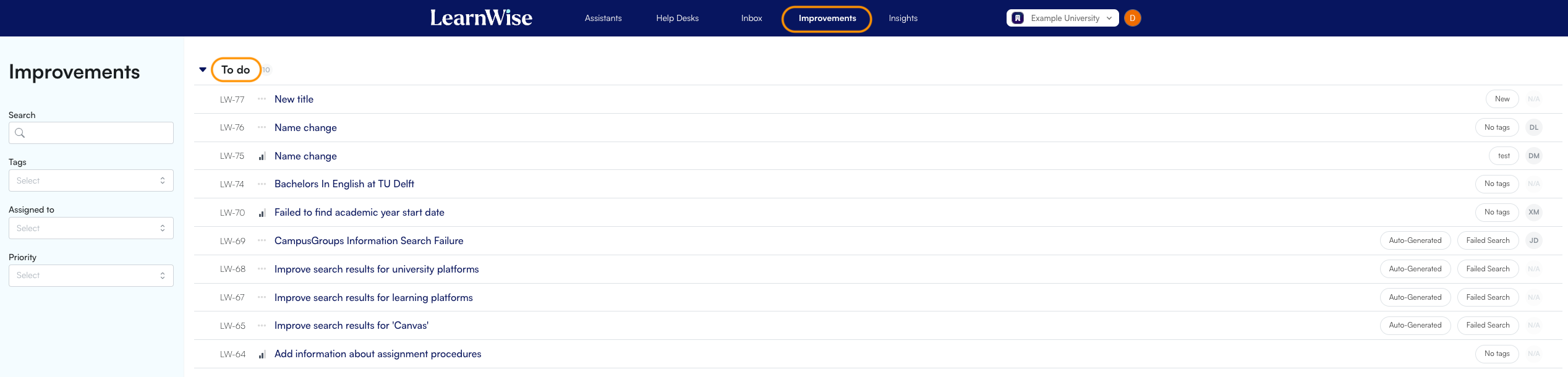
Edit the Improvement Details:
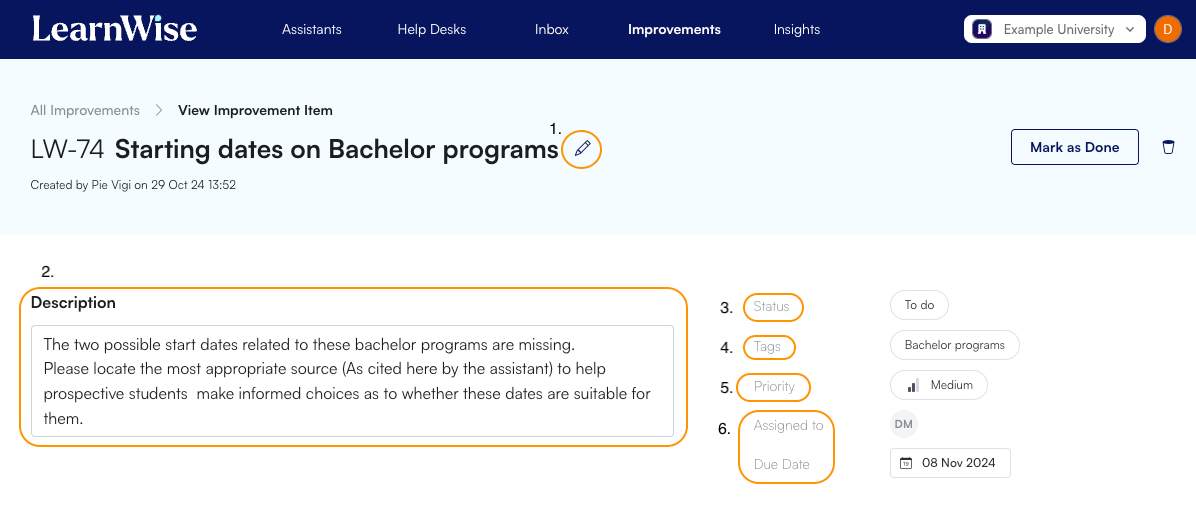
Click on the improvement task that you would like to manage. You can make the following changes:
- Title: You can choose to change the title of your improvement
- Description: Add a detailed description for the improvement to guide the individual who will be executing the task.
- Status: Track the progress by changing the status:
- Options include: To-Do, In Progress, Review, Done, or Archived.
- Priority: Set the task priority to High, Medium, Low, or leave it as No Priority based on its urgency and importance.
- Assign and Set Due Date: Assign the task to a specific team member and set a deadline to ensure timely resolution. (Note: only members with access to Learnwise can be assigned to an improvement task)
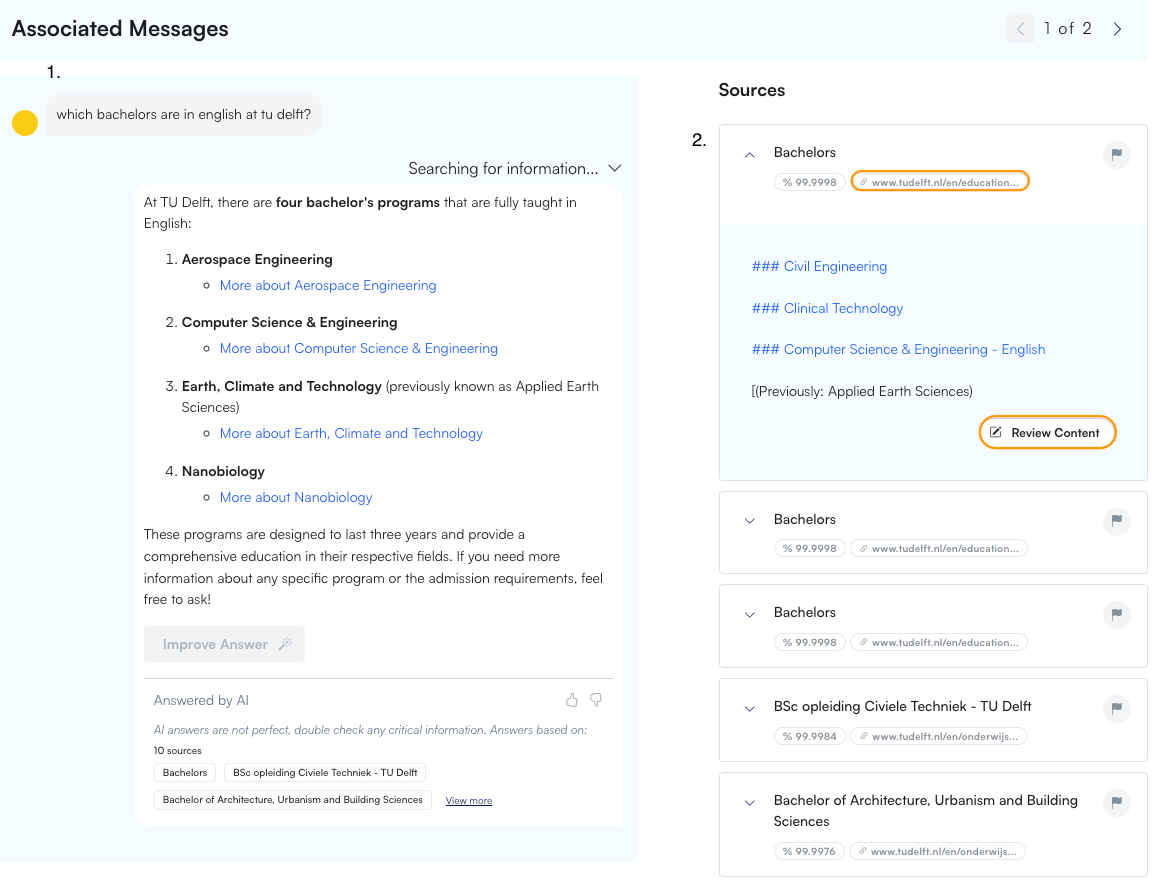
Associated Message and sources:
- The associated messages are listed in the Improvement task to provide context
- The sources (when applicable) used by the assistant are also listed to help determine where the update should be made. Clicking on review content will redirect you to the knowledge area of the admin panel, alternatively you can visit the source directly from here too.
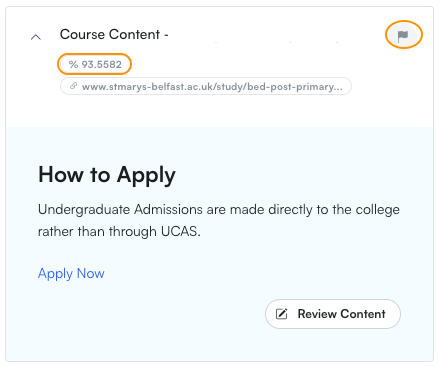
- A relevancy score is assigned to the sources and when you can flag a particular source to indicate an update is required
-
The message ID link is also available. Clicking on the link will result in a redirect to the entire conversation should more context be required.
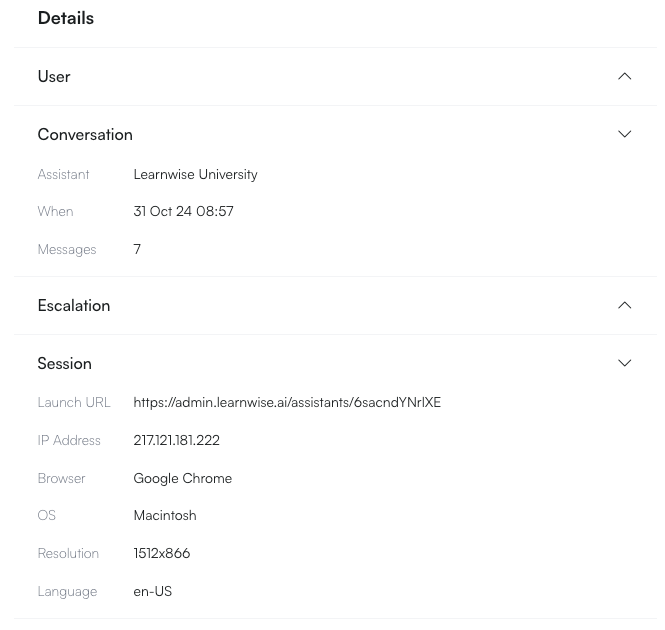
Metadata is also available and includes:
- User Information: Provides details about the user who initiated the conversation (if available)
- Conversation Information: Provides details on which assistant was used, when and how many messages were exchanged
- Escalation information: Informs whether the issue was escalated to a help desk, which one and via which option
- Session Information: Includes any relevant session details and indicates if escalation occurred.
-
Complete or Delete the Improvement Task:
- Mark as Done: Once the task is completed, mark it as done. This can be completed by changing the status or using the shortcut button
- Delete: If the improvement is no longer needed, delete the task using the bin icon.

Was this page helpful?
Still stuck?
Ask the LearnWise assistant. It answers from these guides.
Related guides
- How are automated improvements generated?Knowledge Management: Improvements
- How can I link/unlink improvements?Knowledge Management: Improvements
- How can I manually generate an improvement?Knowledge Management: Improvements
- What are improvements?Knowledge Management: Improvements
- How do I attach a file to my LearnWise chat?Knowledge Management: Improvements