

How do I integrate LearnWise with Merge ticketing integrations?
A short guide to connecting LearnWise with Merge-powered ticketing tools, then wiring those integrations into help desk escalation options with the right mapped form fields.
2 min readUpdated
On this page
🧩 Setting Up Merge Ticketing Integration #
Follow these steps to create and connect a ticketing integration in your application.
⚙️ 1. Open the Help Desk Settings #
- In the Admin Panel, go to the Help Desks tab.
- Create a new help desk or open an existing one.
🔗 2. Choose and Connect an Integration #
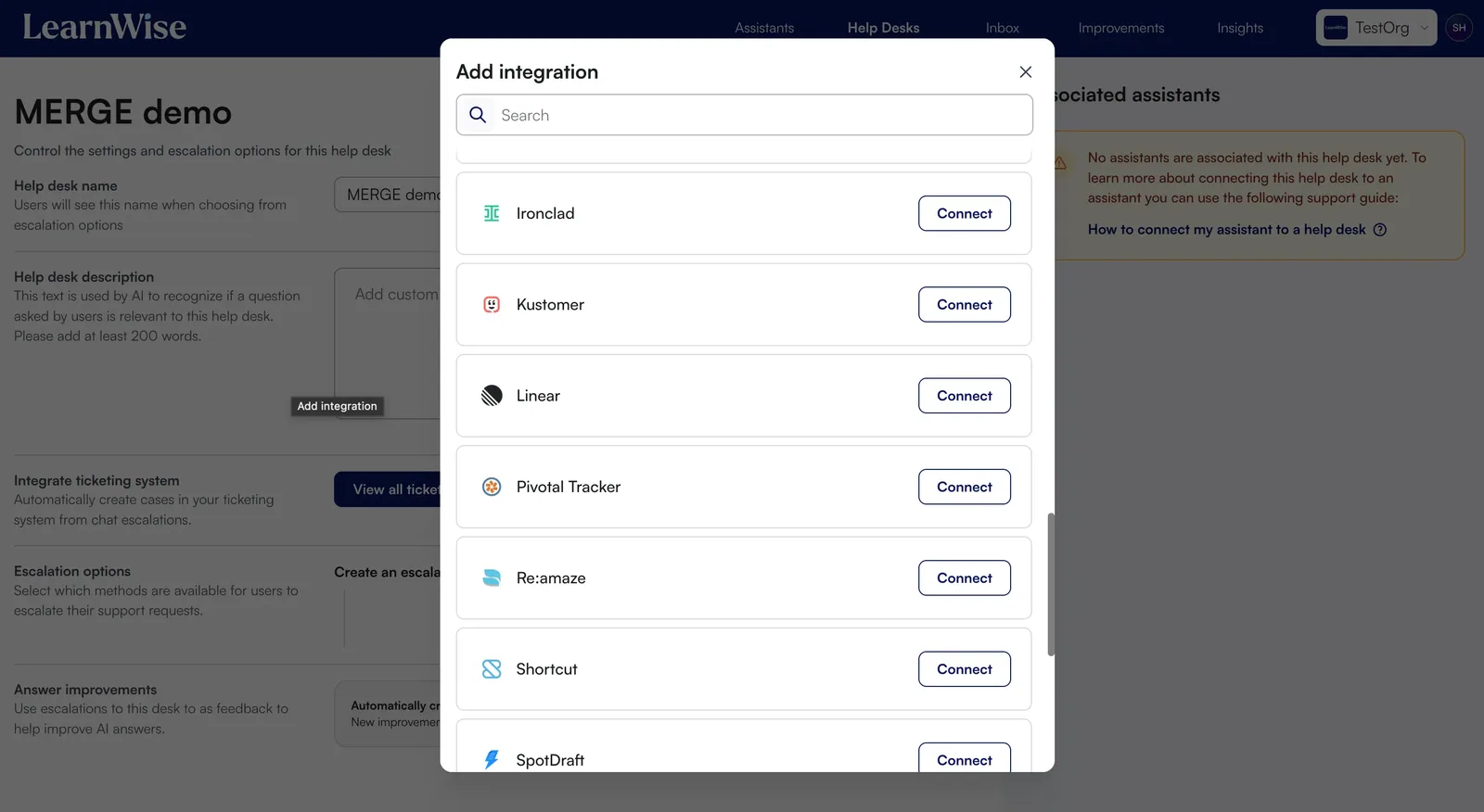
- Click View all ticketing integrations.
- From the list of available applications, select the one you need.
- Click Connect and follow the on-screen authorization steps.
Note: Freshdesk now has a dedicated native integration ("Freshdesk (Native)") that supports custom field mapping. For new setups, we recommend using it.
If you encounter any issues during authorization, please contact our Support Team for assistance.
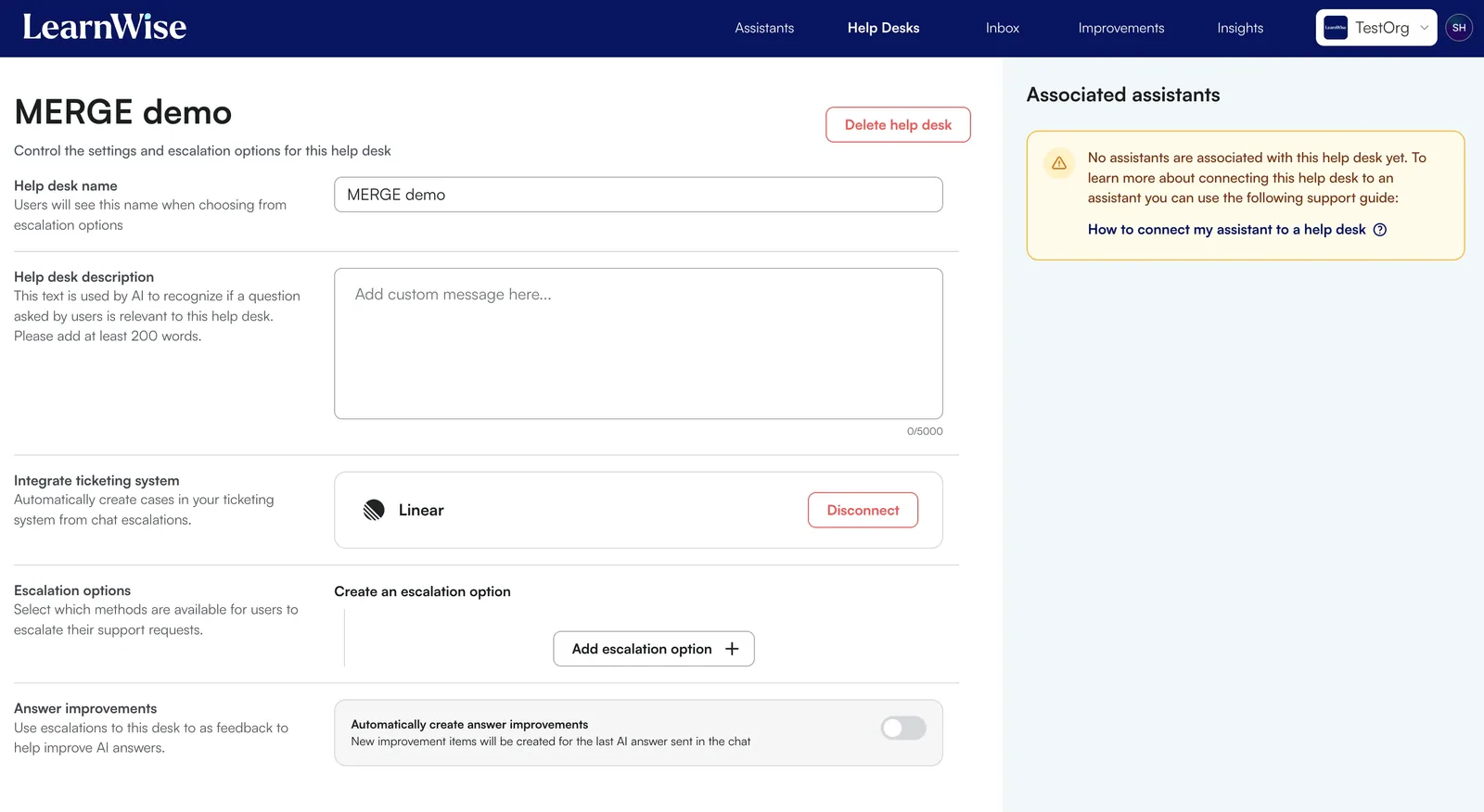
✅ After a successful connection, your integrated application will appear under Help Desk Settings.
🚨 3. Create an Escalation Option #
- Click Add escalation option +.
- Select an existing escalation type.
- In the escalation settings, locate the field Connect to Ticketing Integration.
🕒 If you just created the integration, you might see a Syncing status.

This means data synchronization is still in progress — it can take several minutes depending on the data size.
You can safely leave and return later to continue configuration.
✅ Once the Syncing status disappears, you’ll be able to attach the integration to your escalation option.

🧱 4. Configure Required Fields #
Most integrations include mandatory fields that must be set up before you can proceed.
⚠️ If required fields are missing, you’ll see a warning message listing all fields that need to be created.
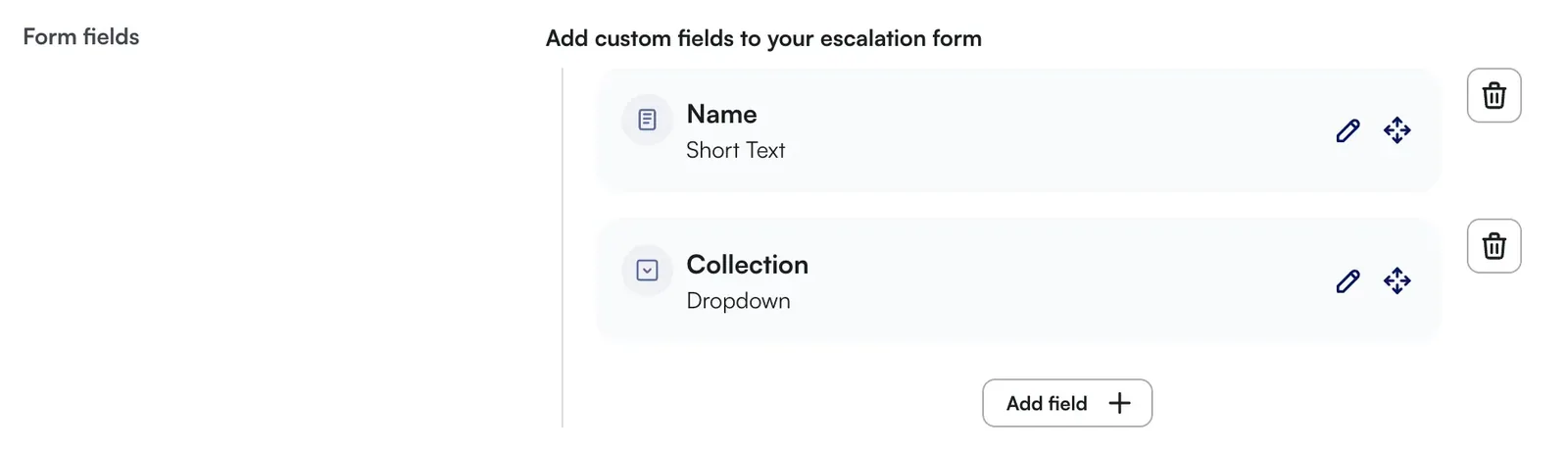
In the Form fields section, you can:
- ➕ Create new form fields
- 🔁 Map them to corresponding fields in your integrated application
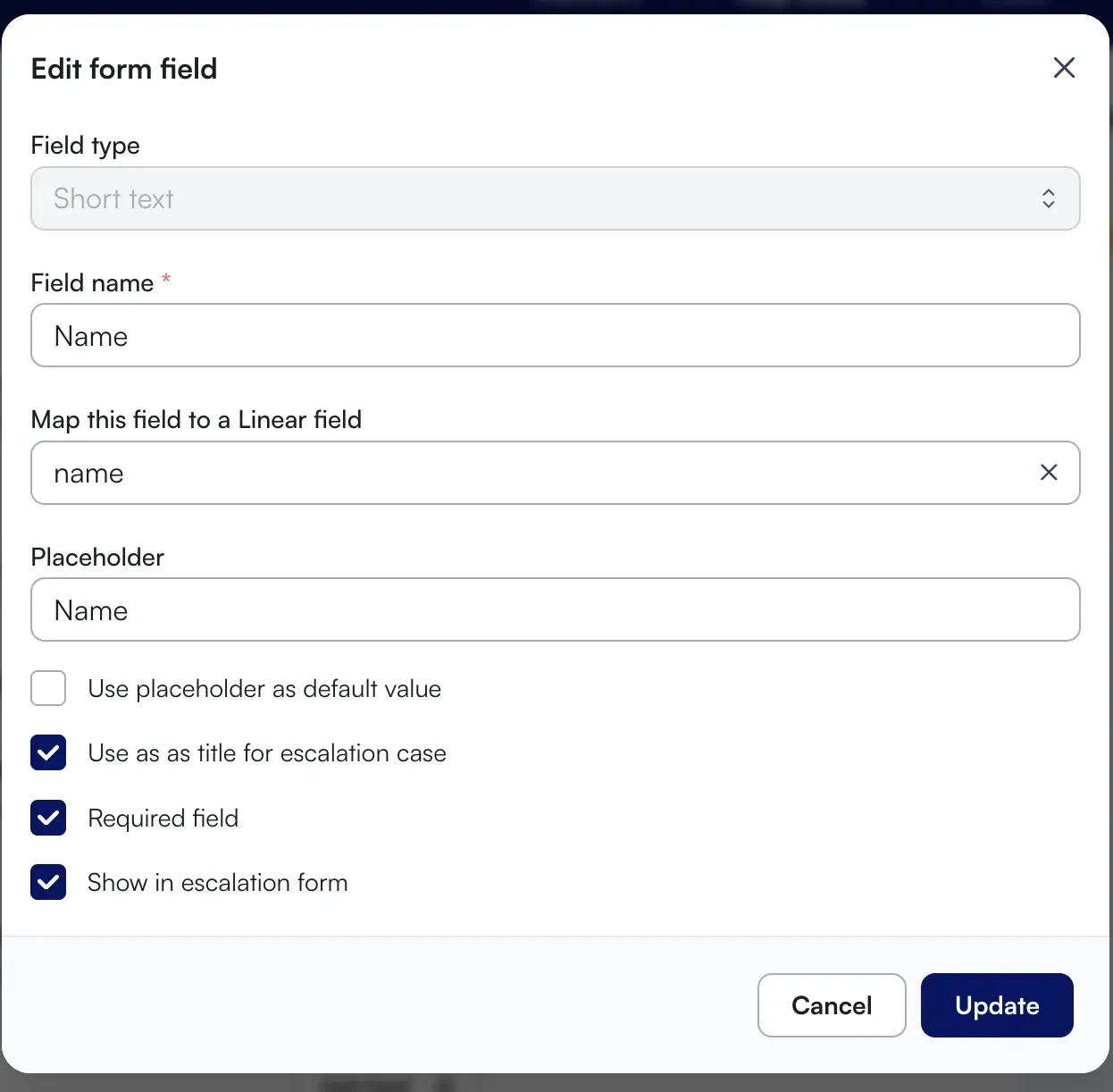
✅ Once all required fields are added and mapped, the warning will disappear.
🎉 Done! #
Your ticketing integration is now active and ready to use.
If you need additional assistance, don’t hesitate to reach out to our Support Team.
Still stuck?
Ask the LearnWise assistant. It answers from these guides.
Related guides
- How do I integrate LearnWise with Microsoft Entra to enforce Authentication?Integrations
- How do I Integrate LearnWise with Sharepoint and set up permissions ?Integrations
- Developer Guide: Signed Context InjectionIntegrations
- How do I enable Context Injection in LearnWise?Integrations
- How do I enable SCORM content ingestion in Brightspace?Integrations