

How to navigate the LearnWise admin portal?
LearnWise’s intuitive interface offers admins a comprehensive suite of tools to manage their educational institution's AI-driven support system. Here's a guide to what you can find and do within the main tabs of the LearnWise platform:
2 min readUpdated
On this page
Assistants Tab #
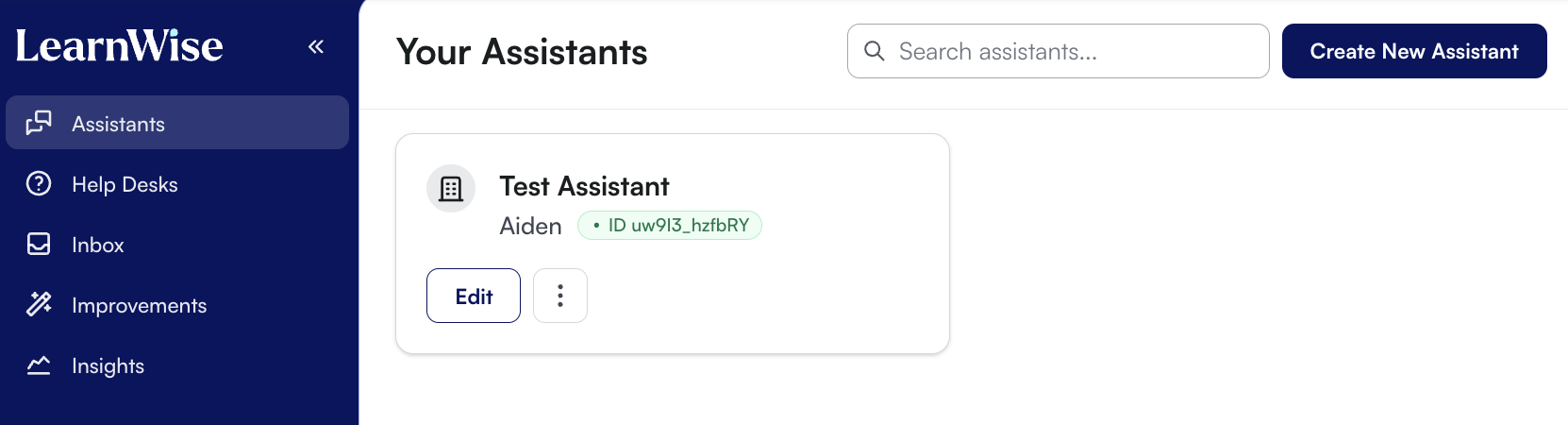
The Assistant tab is the landing page within your LearnWise dashboard.
Create and Edit Assistants: Set up new AI assistants or modify existing ones, tailoring them to your institution’s specific needs.
Activation Status: Manage whether an assistant is active or inactive, allowing for control over which assistants are available for user interaction.
Help Desks Tab #
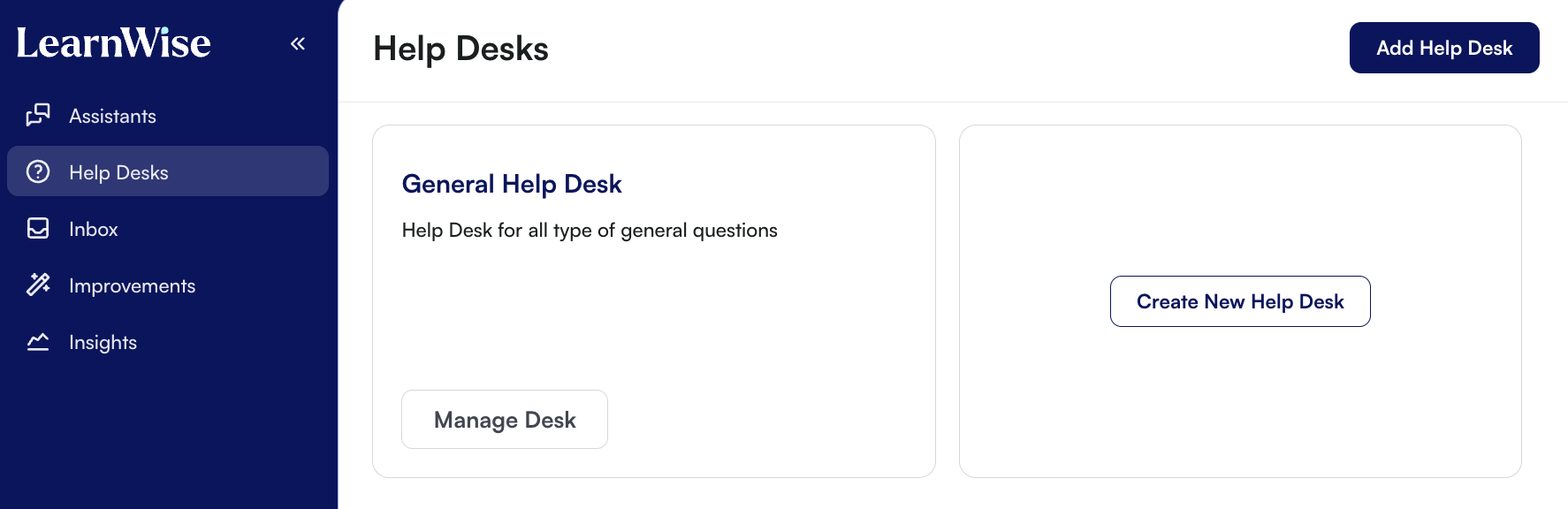
The Help Desks tab is where you set up the channels (like email or chat) through which customers contact your support team.
Support Ticket Management: Oversee the support ticketing system, track ongoing issues, and ensure they are being resolved in a timely manner.
Integration Settings: Configure integrations with other platforms to streamline the support process across various systems.
Insights Tab #
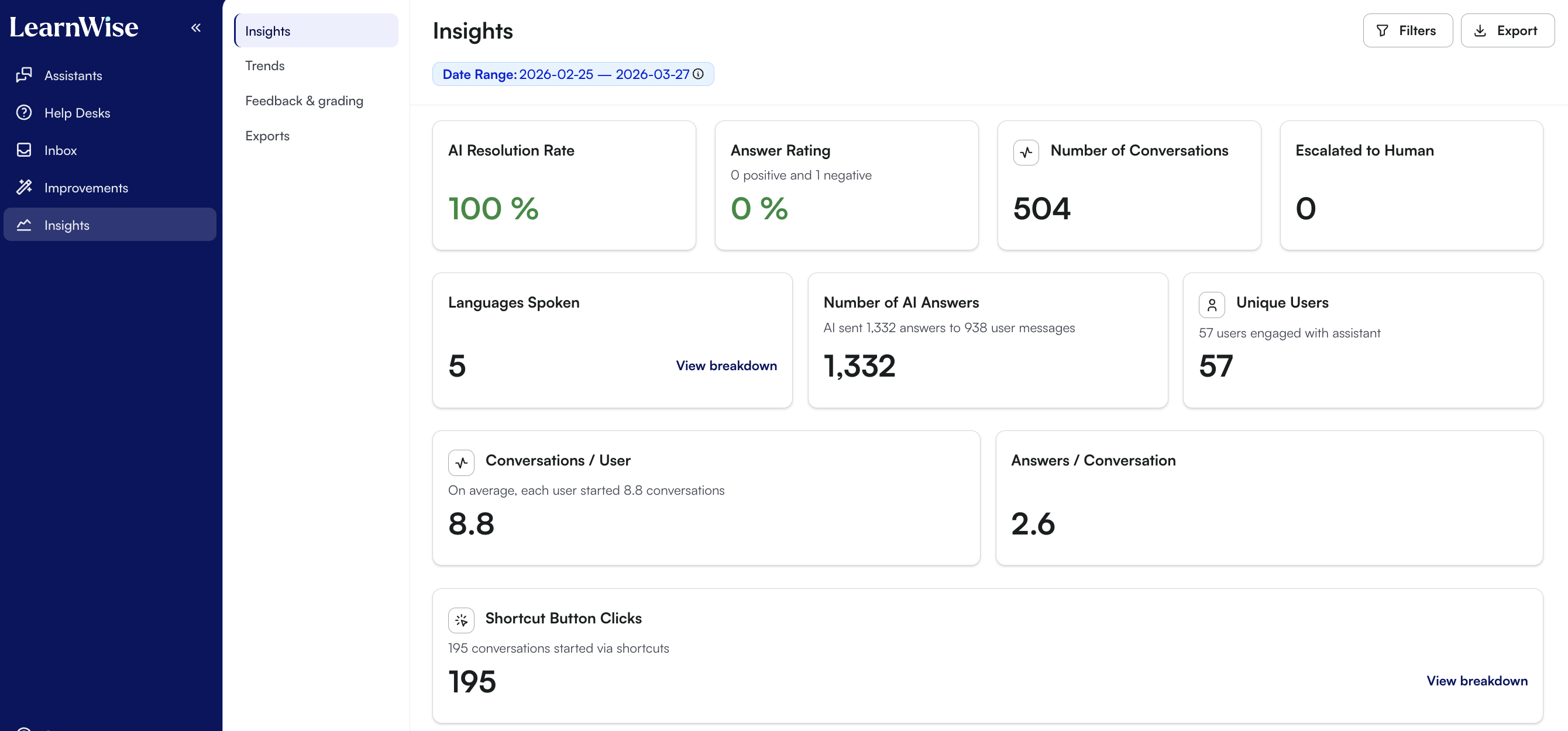
The Insights tab is a hub for data-driven decision-making and includes several subpages:
General Insights: Get an overview of usage statistics and general performance metrics of the AI assistants.
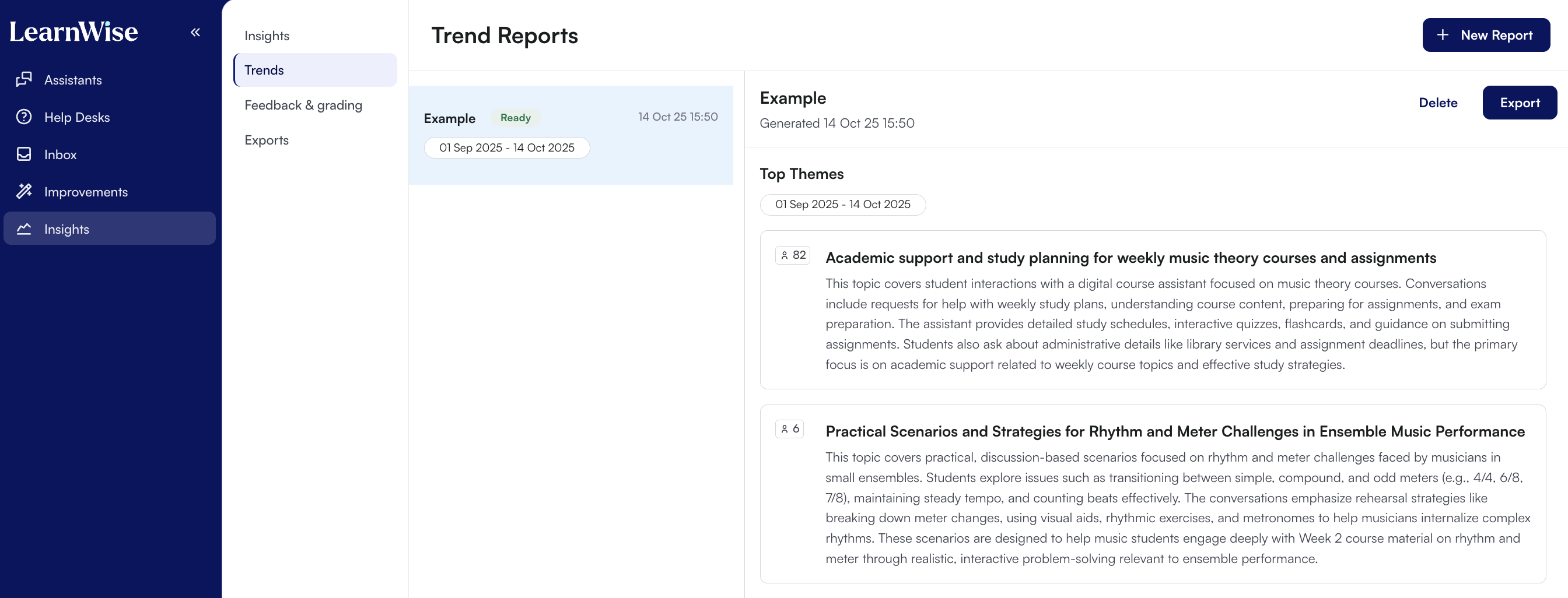
Support Trends: Identify common queries and issues, and monitor the impact of any changes to the AI's knowledge base.
Inbox tab #
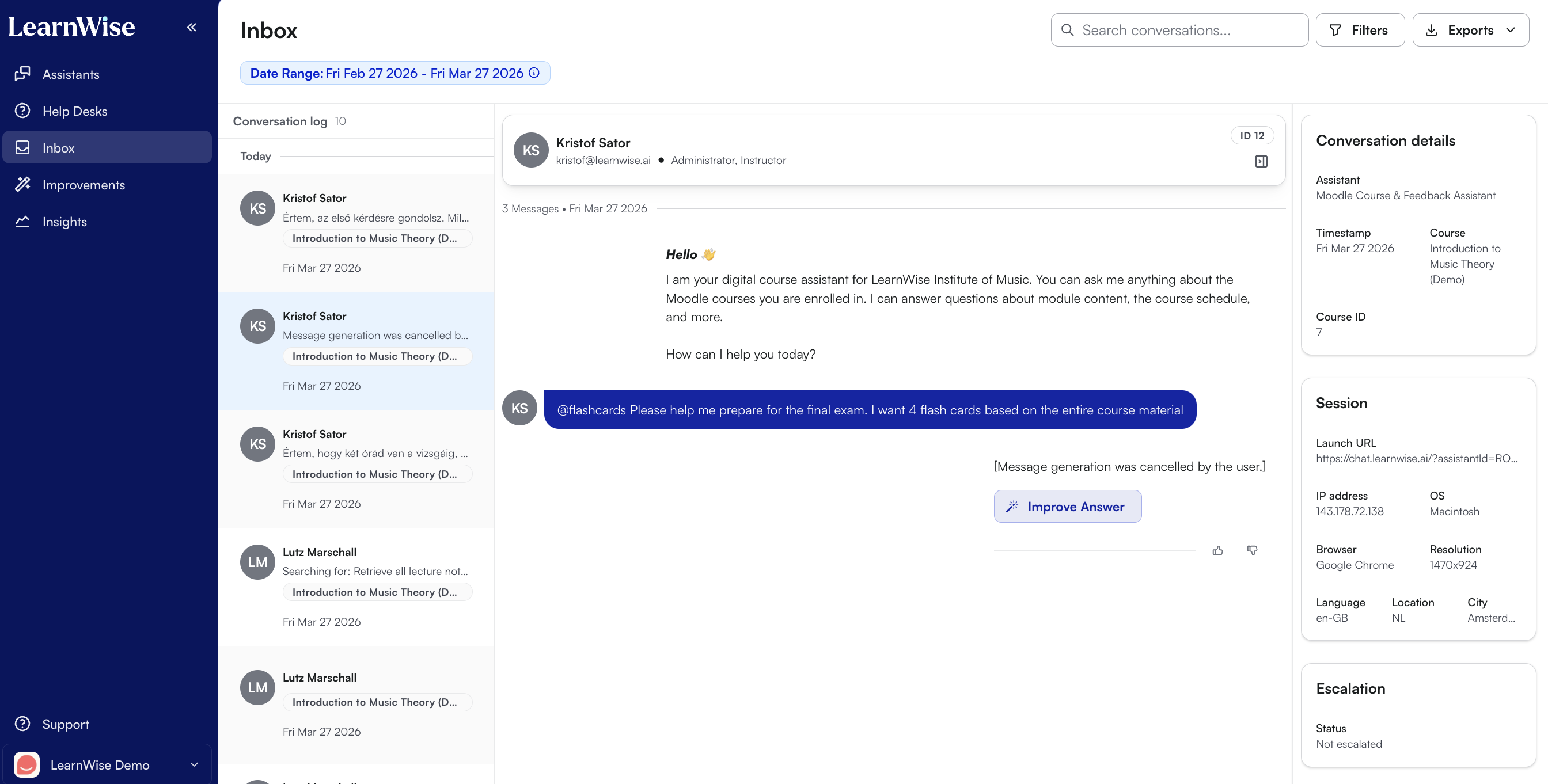
The Inbox tab allows you to look into individual conversations users have with the AI assistant. You can:
Filter based on: date, assistants, feedback, escalations, channels and helpdesks
Access meta-data including; User details (name, role, email), conversation details (assistant, when, messages), whether it was escalated, and session information
Generate a manual improvement from here
Improvements tab #
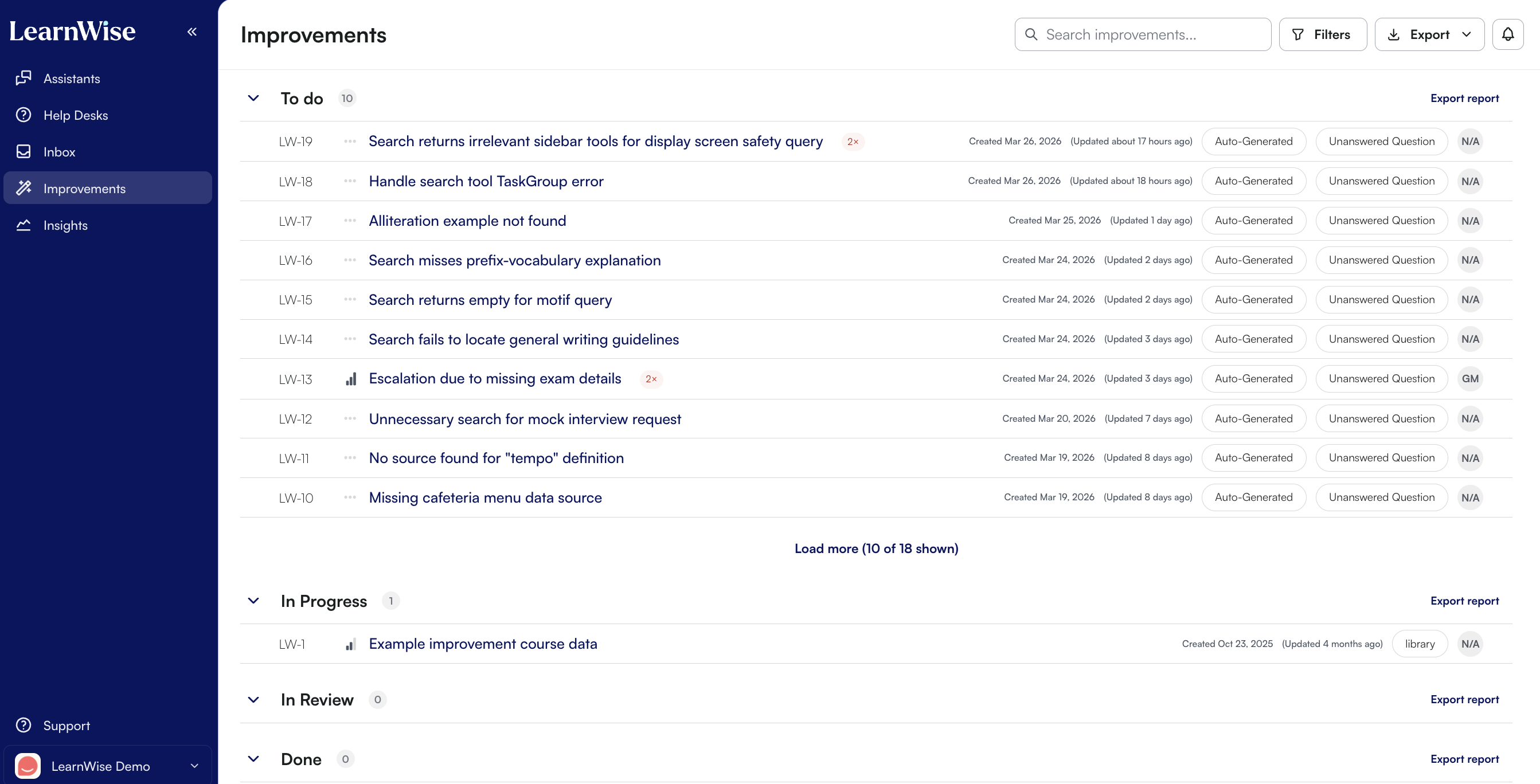
The Improvements tab allows you to keep track of any knowledge gaps that may exist within your organization. Improvements can be auto-generated or manually created. You can:
Edit the title and description, add a status and tags, assign a priority, a person and a due date to improvements.
Investigate the source that may be providing misinformation and flag it for correction.
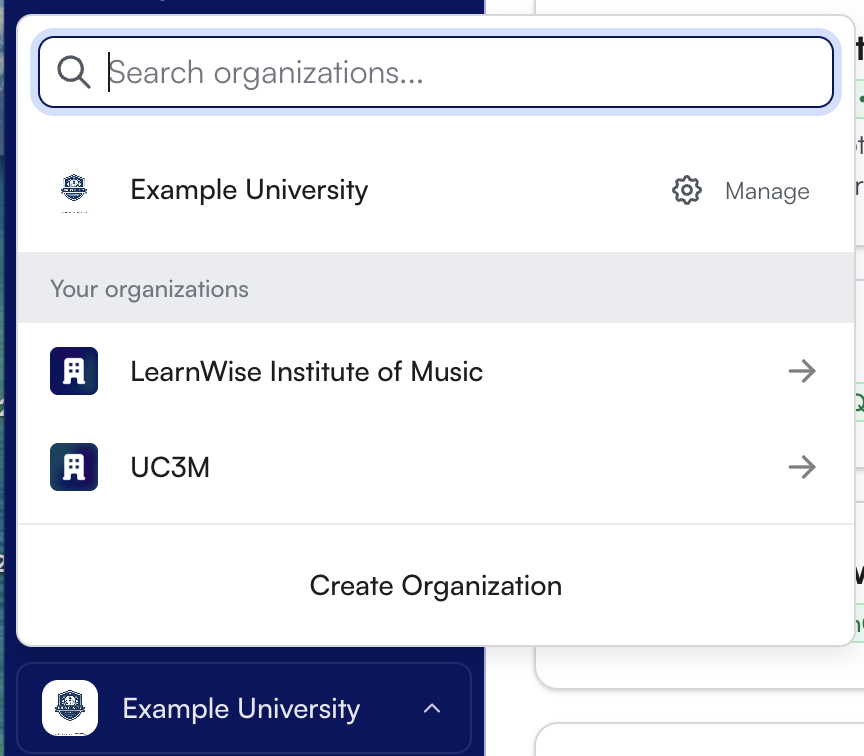
Managing your Organization settings, Personal settings, and security settings is also executed from the dashboard.
As an admin on LearnWise, you have the power to manage your team, customize AI assistants, gain insights from data analytics, and ensure the smooth operation of your institution's support ecosystem, all from within these LearnWise pages.
Still stuck?
Ask the LearnWise assistant. It answers from these guides.