

How do I add external user data to an assistant?
Bring information about each user — like their program, year of study, or advisor — into the conversation so your assistant can give more personal, relevant answers.
4 min readUpdated
On this page
What is external user data? #
External user data is any information about the person chatting that doesn't come from the conversation itself. Think of it as the background context the assistant gets handed about a student before they say a word: which program they're in, which faculty, whether they're an international student, who their academic advisor is, and so on.
Once that data is in place, the assistant can use it in three ways:
- In the conversation context — so answers are tailored to the user (for example, electives are filtered to their actual program without them having to say it).
- As inbox metadata — so the data shows up alongside conversations in the inbox and in exports, which is useful for reporting and analysis.
- Inside Flows — so you can conditionally trigger flows for specific users (for example, students in a particular program or enrollment status) and reference the same attributes inside search instructions, custom messages, notifications, and email actions.
Steps to add external user data #
- Go to your assistant's Authentication step. Log into the LearnWise admin panel at admin.learnwise.ai, open the assistant you want to enrich, and click Authentication.
- Open the User Data tab. From here you can either upload a file (for example a CSV) or add data from an integration (such as Microsoft Entra).
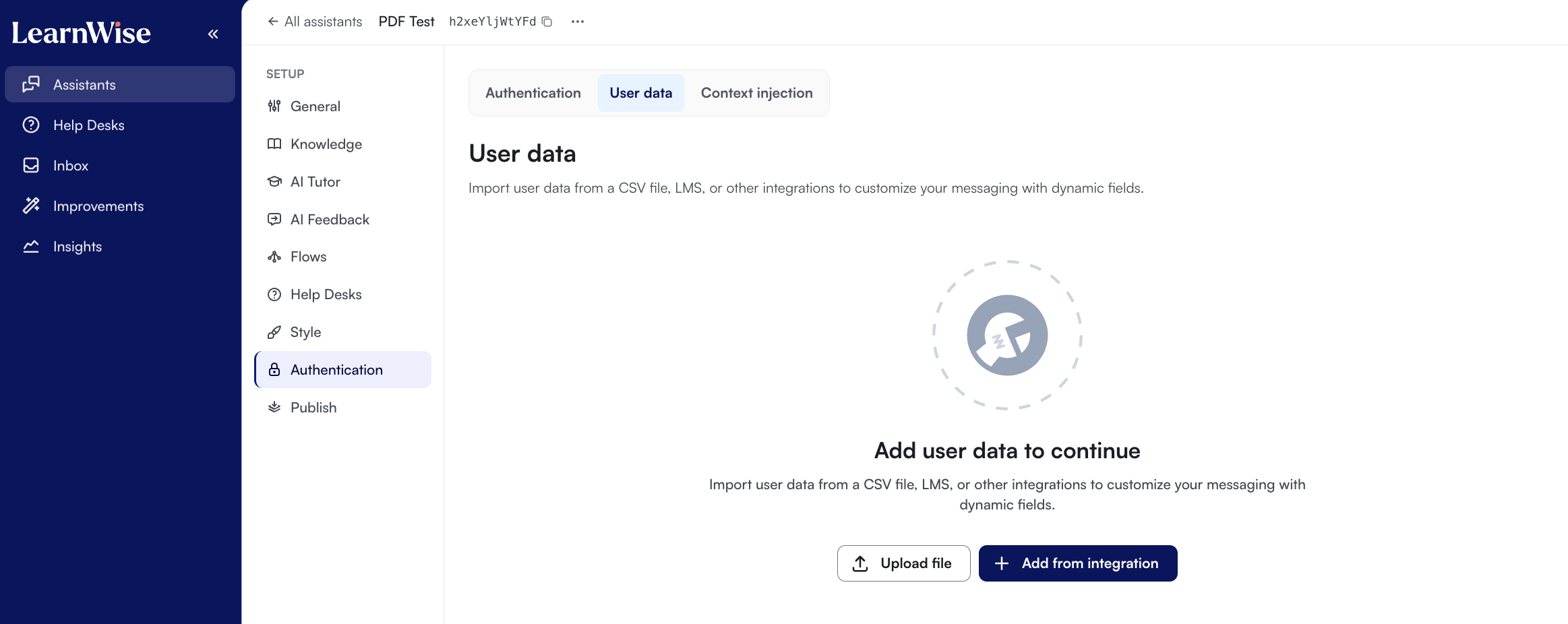
- Next, map the user identity fields.
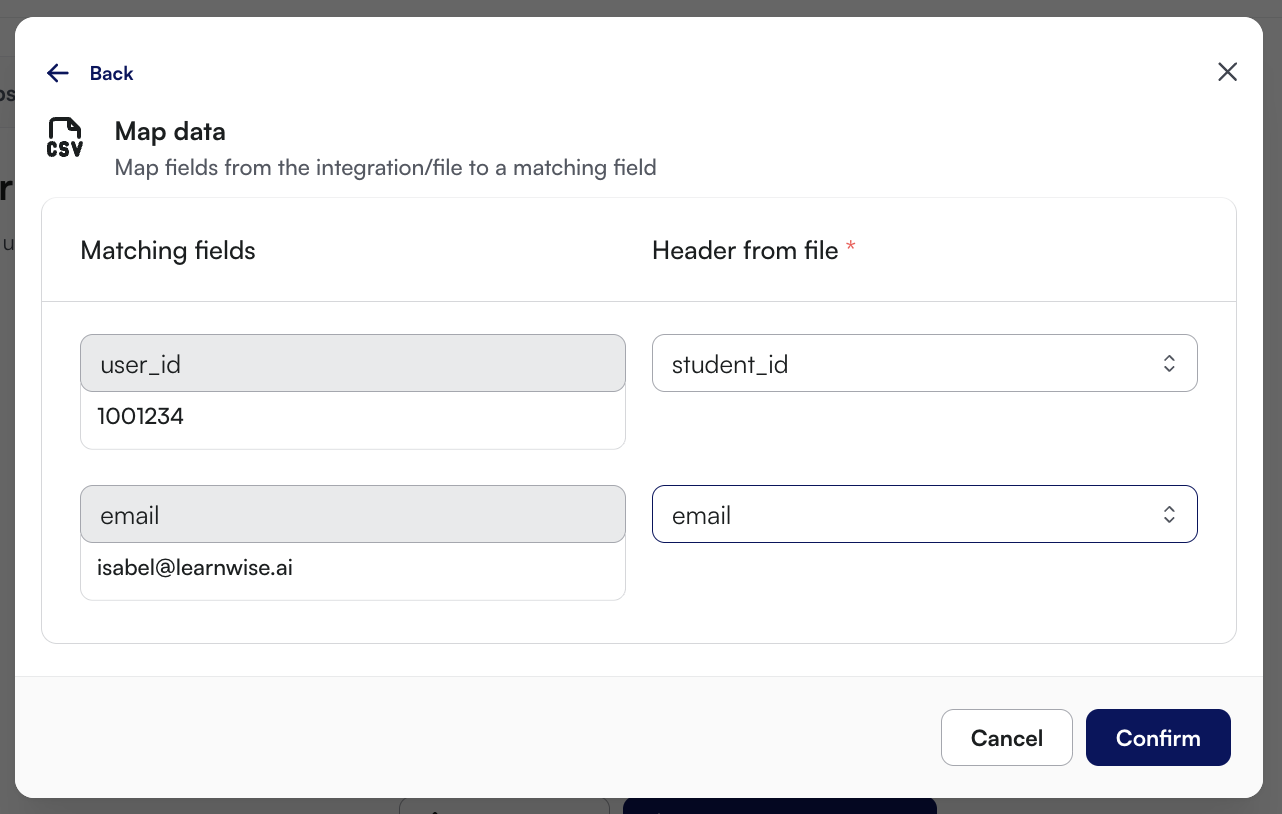
- Map User ID field → the column in your CSV or data source that holds the user's institutional ID (for example,
student_id). - Email field → the column that holds the user's email address. These two fields are what link CSV rows to authenticated users, so they must be present and accurate.
- Map User ID field → the column in your CSV or data source that holds the user's institutional ID (for example,
- Select the columns you want to use. After confirming the mapping, you'll see all columns from your CSV. Tick the ones you want to make available to the assistant.
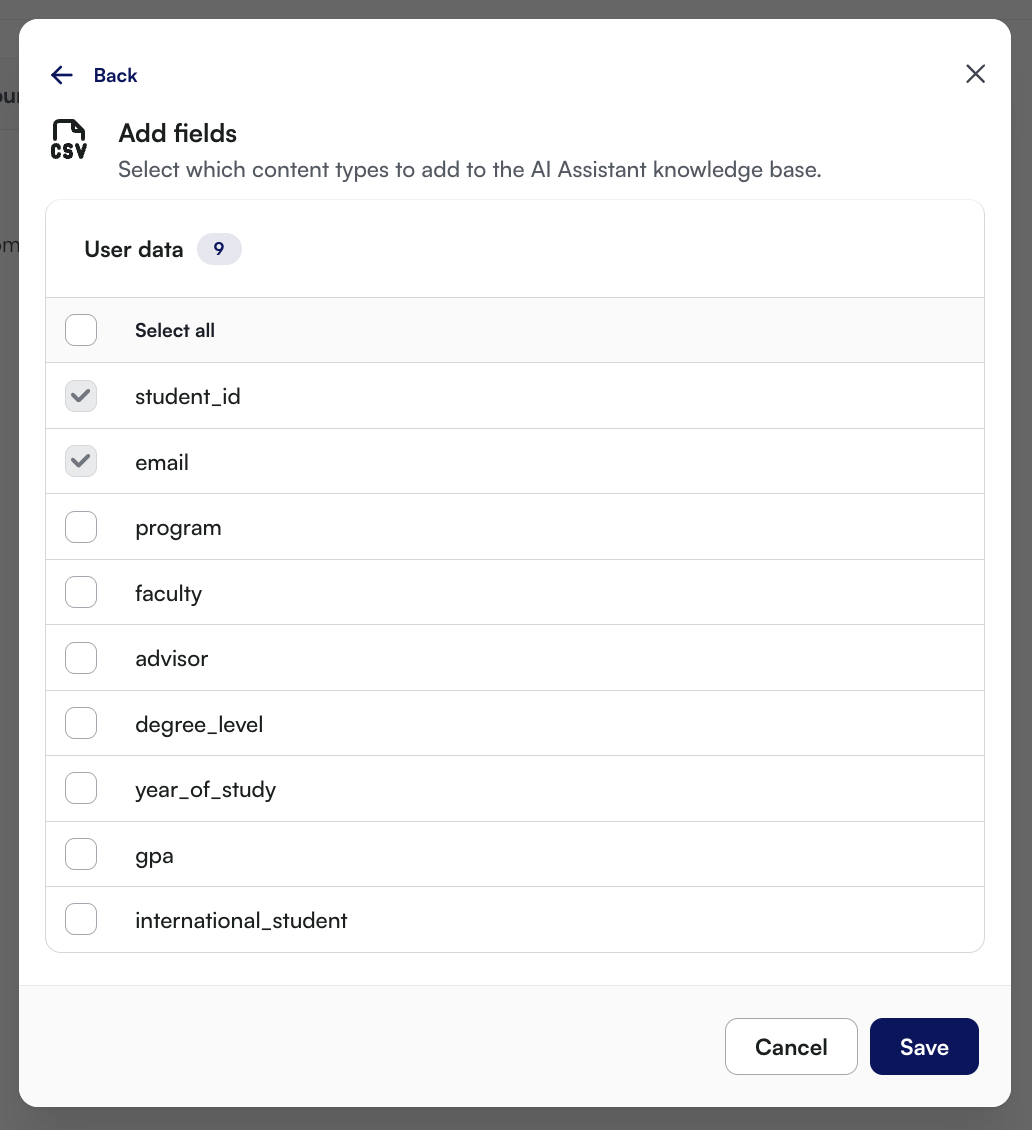
- Annotate each field. For every column, add a short description explaining what the value means (for example: "This is the program the user is enrolled in" or "This is the year of study, where 1 = first year"). These annotations help the model interpret the data correctly, so the more clearly you describe each field, the better the assistant will use it.
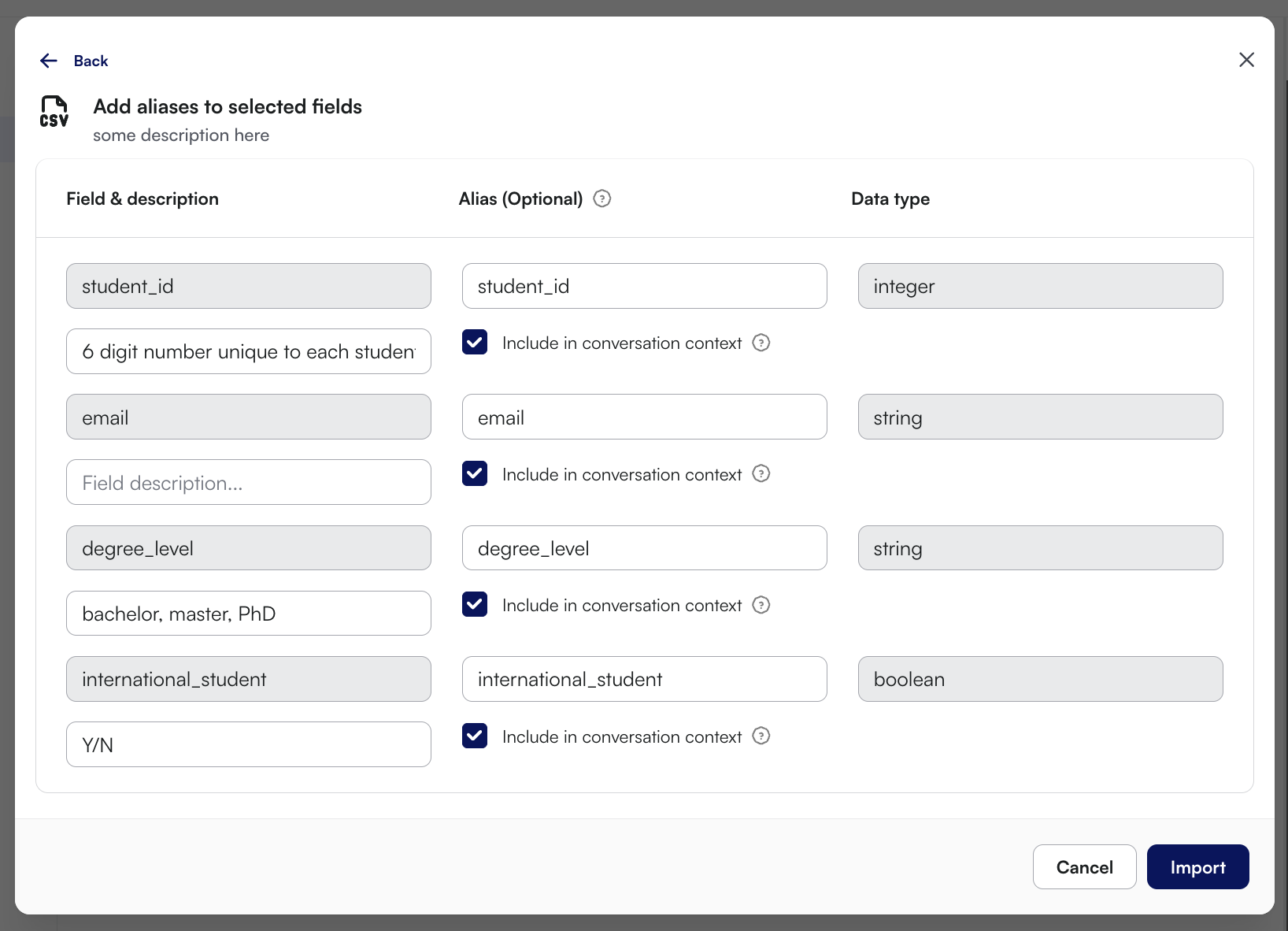
- Choose where each field is used. For each field, decide whether it should be added to the conversation context. Some fields (like student ID and email) usually aren't relevant to what the user might ask, so you can leave them out of the conversation context and they will still appear as metadata in the inbox. Others (like program or advisor) are exactly the kind of information you want the assistant to use when answering.
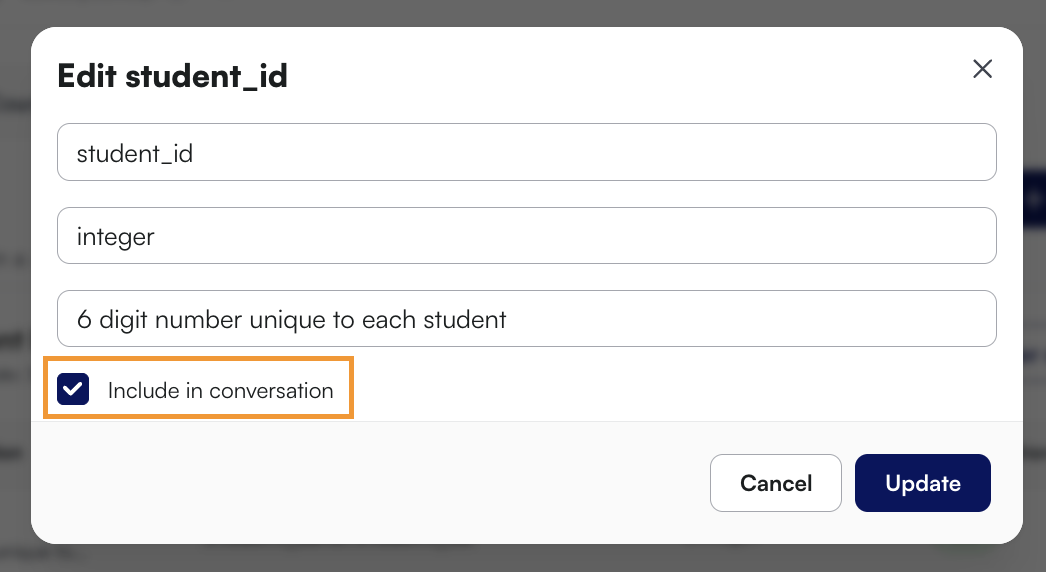
- Save. Once saved, the data becomes available the next time the user signs in and starts a conversation.
How external user data shows up #
- In conversations. Fields you've toggled on for the conversation context are passed to the assistant invisibly. The user doesn't see the fields directly, but the assistant uses them. For example, if a student asks "What electives can I take during my master's?", the assistant already knows their program and faculty and will narrow the answer accordingly — no follow-up questions needed.
- In the inbox. Each conversation shows the external user data attached to it as metadata. This metadata is also included in exports, which makes deeper analysis possible (for instance, comparing engagement across faculties or year groups).
- In Flows. External data fields can drive flow logic in two complementary ways:
- As conditions. Use a field to decide whether a flow runs at all. For example, only fire an orientation flow for users where
enrollment_status = new, or route a thesis question to the right desk based onprogram. The user never sees the value being checked — the flow just runs (or doesn't) silently. - As values inside actions. Reference fields with placeholder syntax like
{program}or{advisor}inside Custom Messages, Notifications, Search Knowledge instructions, Email actions, and API Request payloads. The assistant substitutes the user's actual values at runtime, so responses, search behavior, and outbound emails all become personalized to that user without you needing to write a separate flow for every cohort.
- As conditions. Use a field to decide whether a flow runs at all. For example, only fire an orientation flow for users where
Privacy and what to upload #
External user data is powerful precisely because the assistant can reason over it — but that means it can also be surfaced if a user asks a direct question. If the assistant has the user's GPA in conversation context and the user asks "What's my GPA?", it will tell them. That's fine for some attributes and not for others.
The key distinction is how each field is used:
- Fields toggled on for the conversation context are visible in their effect — the assistant will use them in answers and can be asked about them directly. Keep these to general categorizations: program, faculty, year of study, degree level, international status.
- Fields used only as flow conditions are never seen by the user. The assistant uses them to decide what to do but the value itself never appears in chat. This is the right place for anything sensitive that you still want to drive behavior — risk indicators, retention flags, learning condition labels.
- Fields surfaced through email flow actions reach staff (e.g. an academic counsellor) without being shown to the student. Use this when you want to escalate context internally.
Still stuck?
Ask the LearnWise assistant. It answers from these guides.
Related guides
- Can I be selective around which website content I add to LearnWise?Build your assistant
- How are the multiple different knowledge sources prioritized?Build your assistant
- How can I add AI Student Tutor within Blackboard?Build your assistant
- How can I add an FAQ to my knowledge?Build your assistant
- How can I integrate a ticketing system?Build your assistant