

How can I use regex and URL filters to control web scraping in LearnWise?
Learn how to build precise positive and negative regex filters so your assistant only scrapes the most relevant pages into its knowledge base.
2 min readUpdated
On this page
Learn how to use regular expressions (regex) to create effective search filters for web scraping in LearnWise. #
Understanding regex and search filters is crucial for efficient web scraping in LearnWise. These tools allow you to precisely control which content is imported into your AI assistant's knowledge base. By mastering regex, you can:
- Ensure your AI only learns from relevant pages, improving its accuracy and performance
- Exclude outdated or irrelevant content, maintaining the quality of your assistant's knowledge
- Navigate complex website structures to capture exactly the information you need
- Save time and resources by automating the content selection process
- Customize your AI's knowledge base to better serve your specific use case or industry
This guide explains the basics of regex and how to apply it to positive and negative search filters, empowering you to create a more focused and effective AI assistan
Step By Step #
- Understand the basics of regex
- Learn common regex patterns like
^(start of string),$(end of string),.*(any characters), and\\d(digits)
- Learn common regex patterns like
- Create positive search filters
- Use regex to define which URLs to include in the scraping process
- Example:
^https://www\\.example\\.com/product/.*$to include all product pages
- Create negative search filters
- Use regex to define which URLs to exclude from the scraping process
- Example:
^https://www\\.example\\.com/blog/2023/.*$to exclude blog posts from 2023
- Test your regex patterns
- Use online regex testers to verify your patterns work as intended
- Refine your filters as needed for more precise results
- Apply filters in LearnWise
-
Enter your positive and negative search filters in the appropriate fields by clicking on ‘Add Website” and then expanding the “Advanced Settings” accordion.
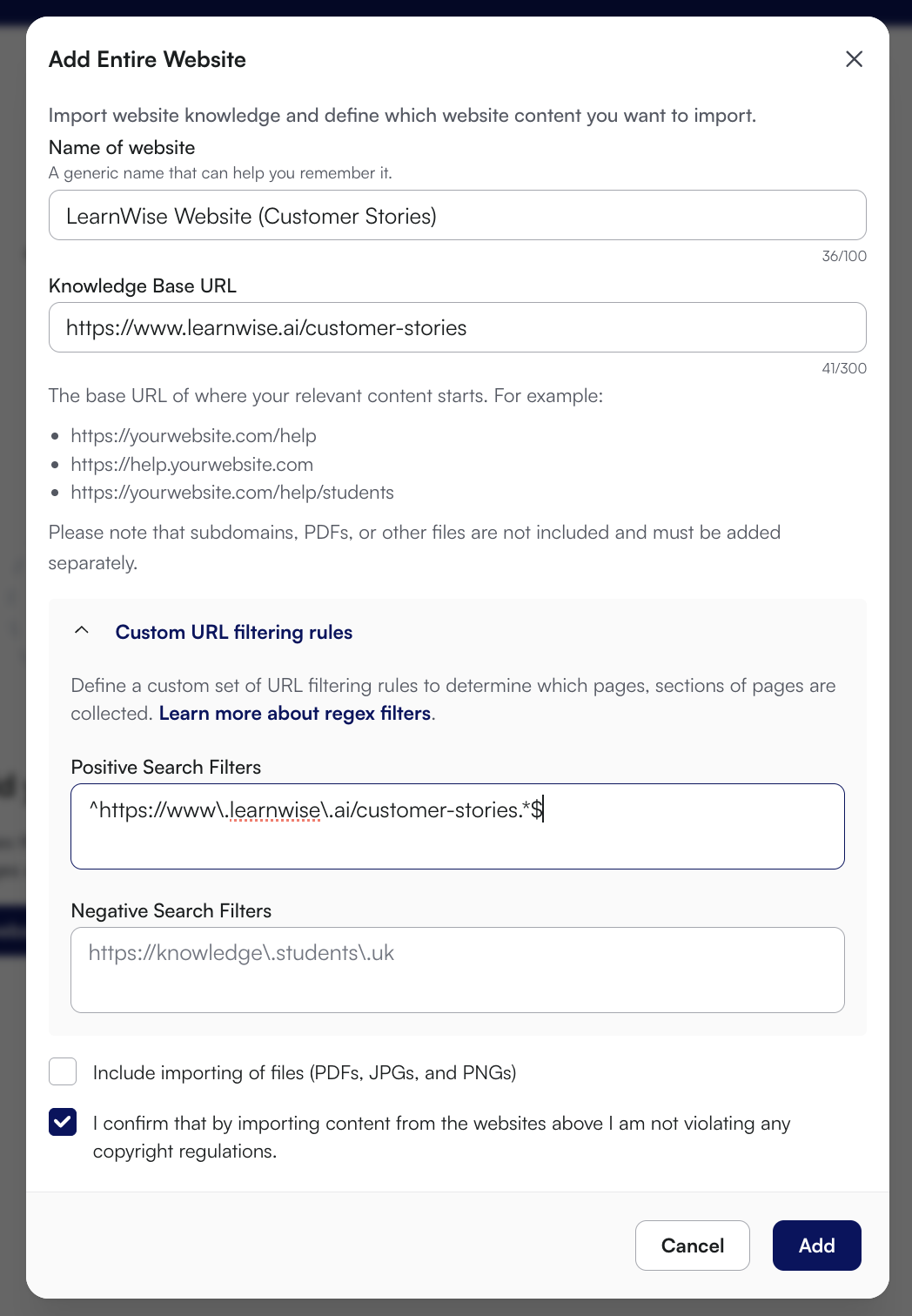
Screenshot of the “Add Website” modal within the LearnWise admin panel.
-
By mastering regex for search filters, you can efficiently control which content is imported into your LearnWise knowledge base, ensuring your AI assistant has access to the most relevant information.
Still stuck?
Ask the LearnWise assistant. It answers from these guides.
Related guides
- Can I be selective around which website content I add to LearnWise?Build your assistant
- How to add a website as a knowledge source?Build your assistant
- How are the multiple different knowledge sources prioritized?Build your assistant
- How can I add an FAQ to my knowledge?Build your assistant
- How do I add knowledge content that is hosted on external platforms?Build your assistant