

How can I escalate my conversation to a human?
Learn how to seamlessly escalate complex queries from the LearnWise AI assistant to the right human support team.
2 min readUpdated
On this page
When You Need Human Assistance #
There are times when our AI assistant alone may not suffice for complex or specific queries. In such cases, LearnWise enables a seamless escalation process to a human support agent. You can escalate to help desks managed by departments like IT, enrollment, finance, student services and more.
Step-by-Step Guide to Escalating a Conversation #
1. Access the Contact Support Option #
- Find the ‘Contact Support’ Button within the chat interface. It generally appears after you have asked a question to the assistant. This button initiates the escalation process.
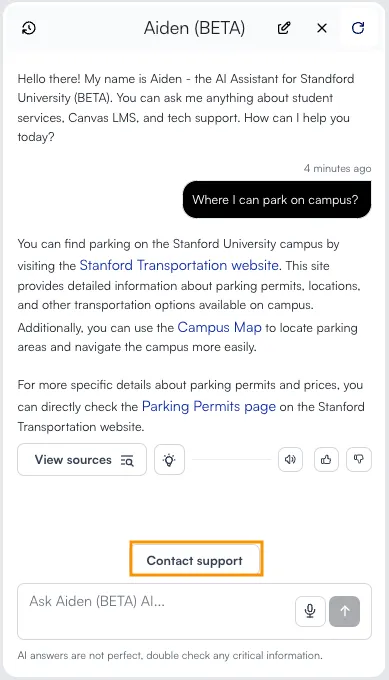
2. Choose the Appropriate Help Desk #
- Help Desk Selection: Select the department that best matches your query. Options may include IT, finance, enrollment, or general student support. Picking the right desk ensures your inquiry reaches the relevant team quickly.
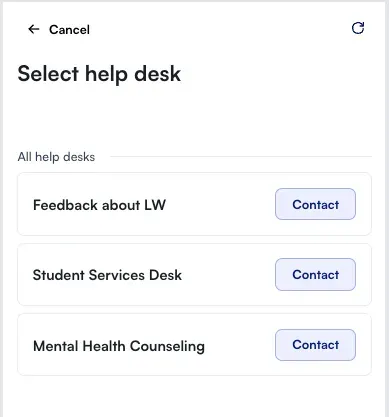
3. Select Your Preferred Method of Communication #
-
Available Communication Options
Depending on your institution’s setup, you will see one or more of the following options:
- Phone - For direct verbal assistance. A contact number will be available.
- Email - Sends your inquiry directly to the appropriate support team.
- Live Chat - Initiates a real-time conversation with a live agent.
- Schedule a Zoom - Allows you to arrange a video call. You will be provided with a link to join the chat or video call depending on availability.
If a specific method is inactive, it might not be available at the current time. Choose another option or try again later.
4. Complete the Escalation Form (if required) #
- Provide Brief Details: For some escalations, a short form may appear. Summarize your issue in this form and click Submit. This step ensures the support team has essential information before they reach out, making the support process faster and more efficient.
Tips for Effective Escalation #
Form Customization for Better Support #
Institutions can tailor the escalation forms to capture additional details. This customization allows support teams to receive user information such as contact details, specific query descriptions, and related files, aiding quicker, more accurate resolutions.
Scheduling and Availability #
Some help desk options, like Live Chat or Phone, may be limited to certain hours. Look for availability settings when choosing an escalation option, as these are configured to match support team working hours, managing expectations for users.
Integrated Ticketing #
If your institution uses a ticketing system (e.g., ServiceNow, TOPdesk), your LearnWise assistant may escalate the conversation directly to this system. Ticket creation helps support agents track and manage queries effectively within their usual workflow.
This guide ensures that students, faculty, and staff using LearnWise can easily access human support when required, streamlining the escalation experience and enhancing overall support efficiency.
Still stuck?
Ask the LearnWise assistant. It answers from these guides.