

How do I activate and use voice mode in the assistant?
Make your assistant more accessible and hands-free by enabling voice interactions for spoken questions and audio responses.
2 min readUpdated
On this page
Enabling and Using Voice Mode in LearnWise #
Voice Mode in LearnWise allows users to interact with AI assistants by speaking their questions aloud. This feature enhances accessibility and ease of use, enabling hands-free communication. Below is a step-by-step guide to enable and use Voice Mode effectively.
Note: Voice Mode supports multilingual dictation and audio playback. Users can speak questions and receive responses in their preferred language. It also provides accessibility benefits for users with mobility impairments or those who prefer audio interaction.
1. Enable Voice Mode #
To begin using Voice Mode:
-
Navigate to Settings:
- Log into your LearnWise admin account at admin.learnwise.ai.
-
Access the Assistant Tab:
- Navigate to the general settings under the Assistant tab.
-
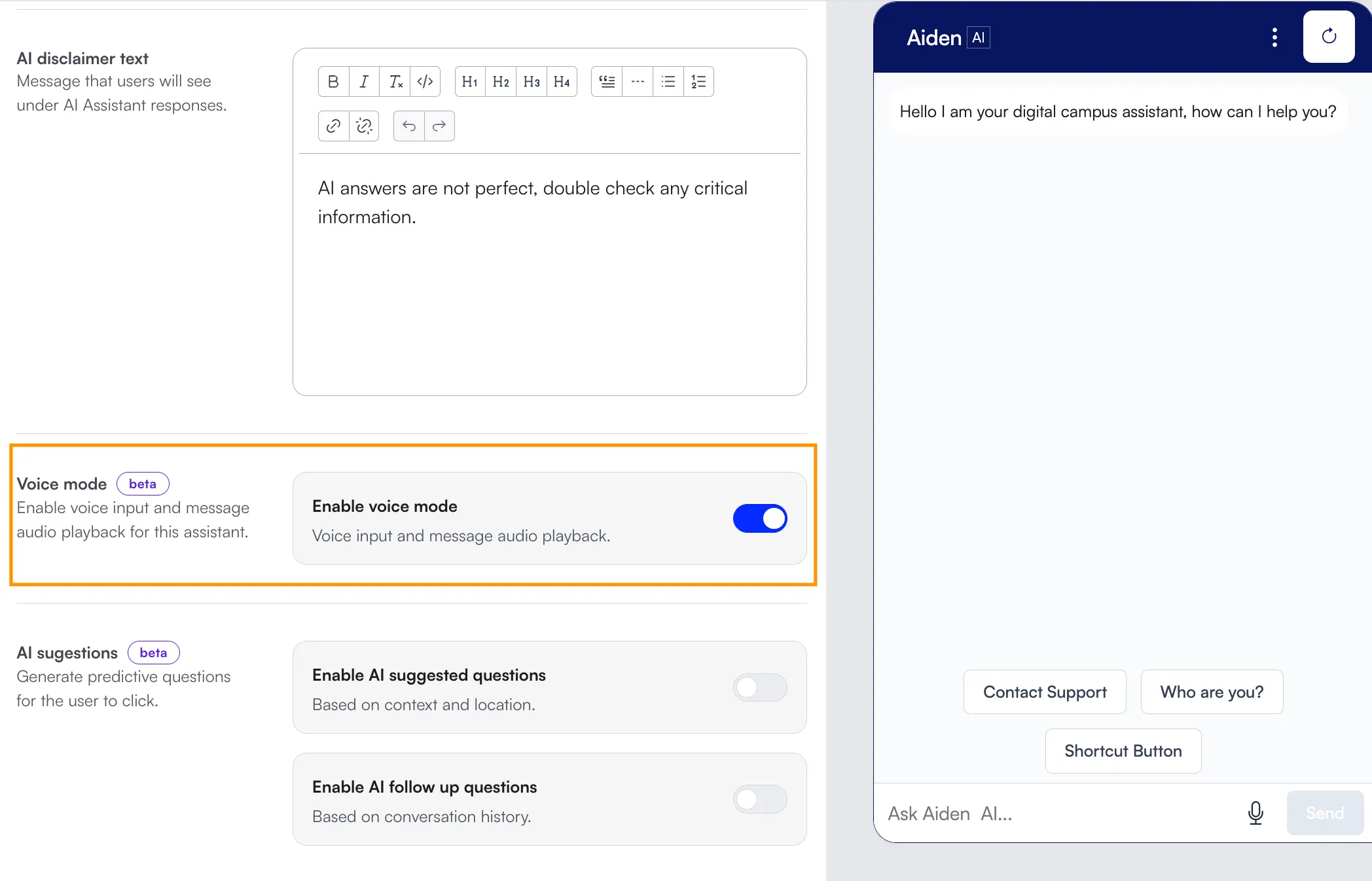
Enable Voice Mode:
- Select the enable voice Mode option on the general settings page. You will likely be prompted to allow the assistant access to your microphone.
2. Activating Voice Mode During Use #
Once Voice Mode is enabled, you can initiate voice interactions:
-
Start a Conversation:
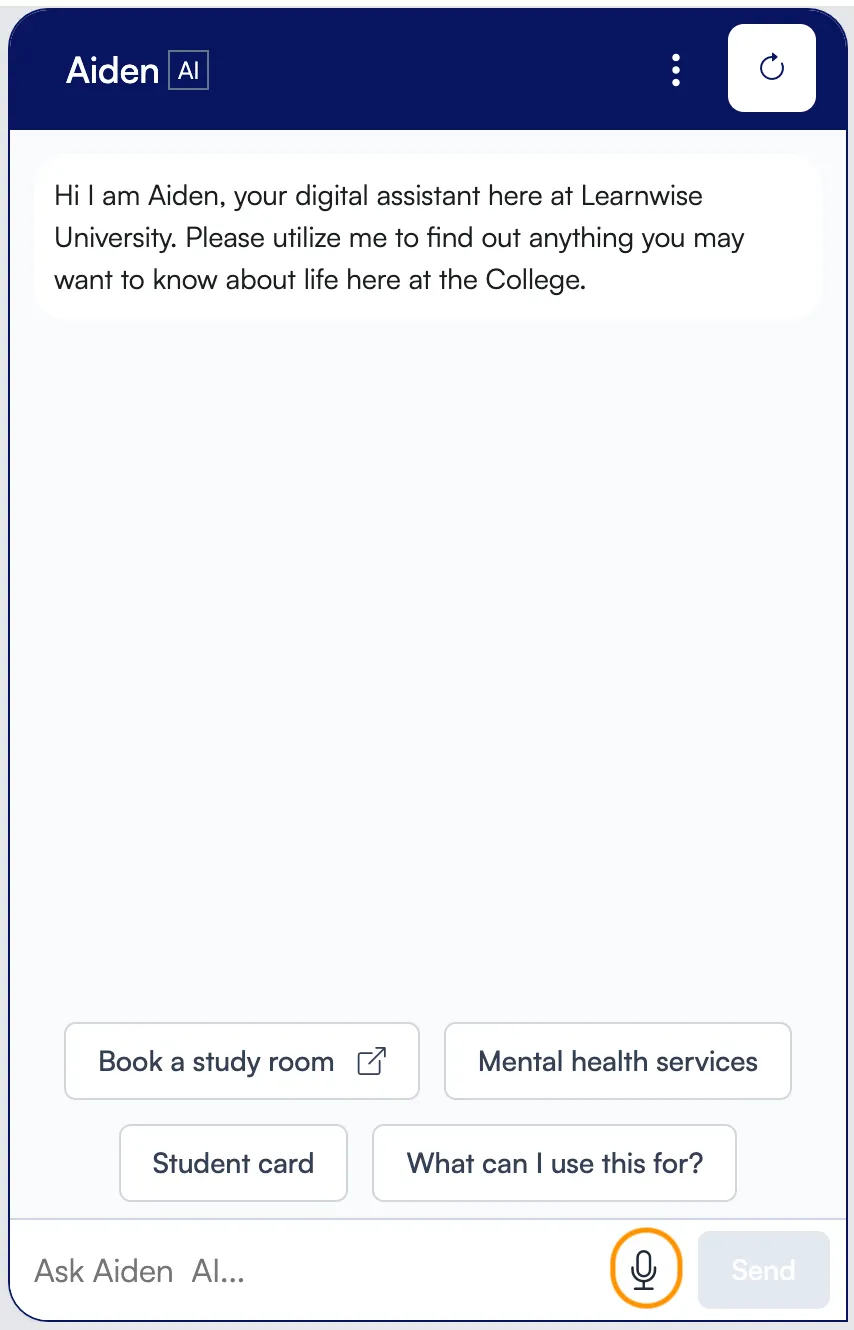
- Open the assistant chat interface. You will now see a microphone icon in the input bar where you usually type questions.
-
Activate the Microphone:
- Click on the microphone icon. This activates Voice Mode, allowing you to ask your question verbally.
-
Speak Your Question:
- Clearly state your question aloud. Voice Mode will capture and process your spoken input.
-
End the Recording:
-
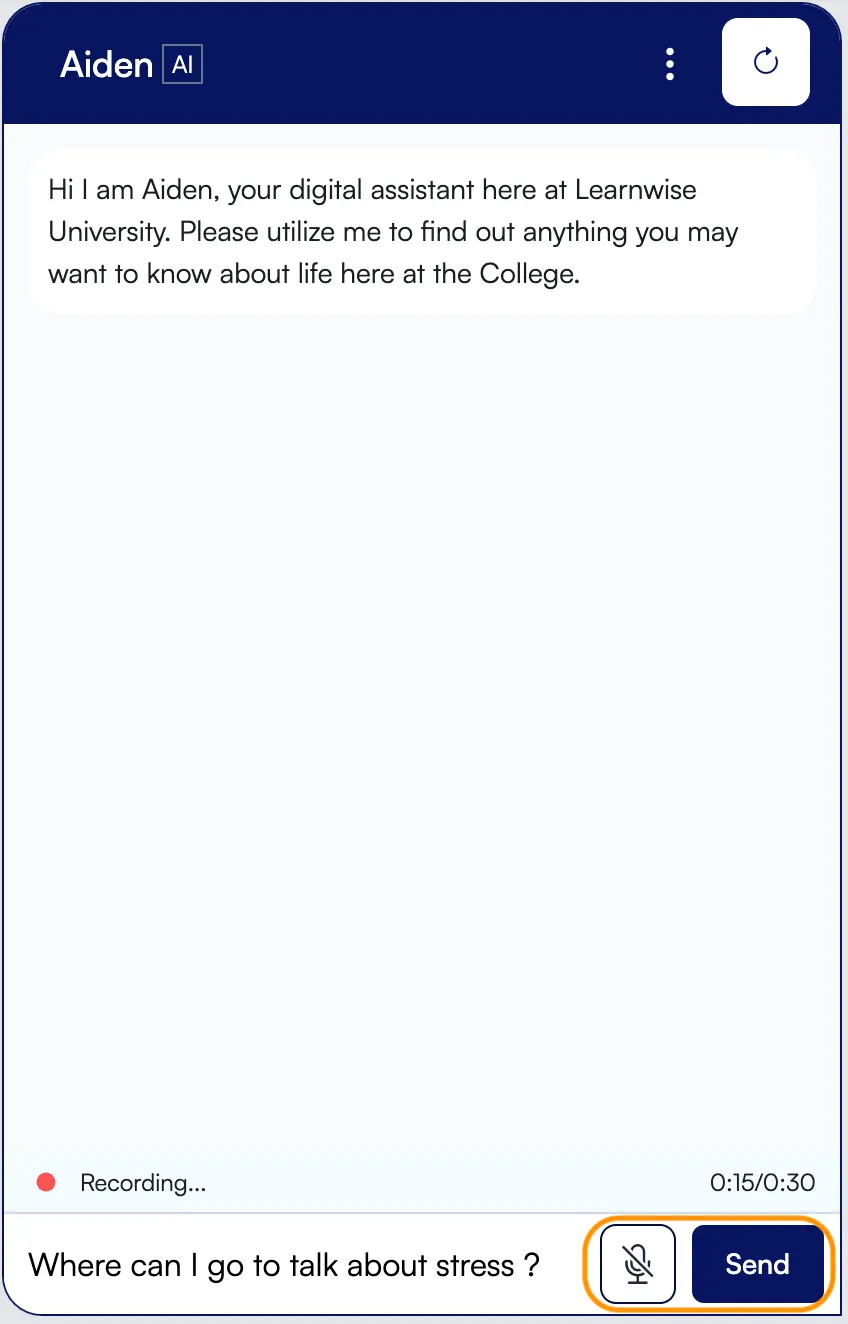
There are two ways to stop recording:
- Manual Stop: Click the microphone icon again to end recording.
- Automatic Stop: Click on the ‘send’ button **** This will automatically end recording but might continue if not explicitly sent by the user.
-
3. Reviewing and Listening to Responses #
After the assistant processes your question:
- Text Display of Answer:
- The response will appear as text in the chat interface, making it easy to read and verify.
- Use the Play Button for Audio Responses:
- If you prefer to listen to the response, click the Play button below the text answer. The assistant will read the response aloud, enabling a fully auditory interaction.
Additional Tips #
- Device Permissions: Ensure your browser or device has given microphone access to the LearnWise application.
- Environment: For best results, use Voice Mode in a quiet environment where the assistant can accurately capture your question.
- Browser Issues: If voice input doesn't work, check microphone permissions and try refreshing the page
- LMS Integration: Voice Mode may need extra permissions in some LMS environments - try the floating button version if LTI doesn't work
- Screen Reader Users: Voice controls include proper accessibility labels and keyboard navigation support
Enabling and using Voice Mode in LearnWise creates a versatile and accessible interaction experience, perfect for hands-free usage and supporting users who prefer or require auditory assistance.
Privacy: Voice recordings are processed securely, converted to text, then discarded following GDPR standards.
Still stuck?
Ask the LearnWise assistant. It answers from these guides.
Related guides
- How do AI suggested questions work?Build your assistant
- How do I change the brand color of your assistant?Build your assistant
- How do I change the nickname of the assistant?Build your assistant
- How do I set the global answering style for my assistant?Build your assistant
- How do I change the launch/close button of the assistant?Build your assistant