

Organization, Team, and Personal Account Settings
LearnWise provides admins with a suite of settings to manage their organization, team, and personal account details. These settings ensure that admins can maintain control over various aspects of their LearnWise environment.
1 min readUpdated
On this page
Organization Settings #
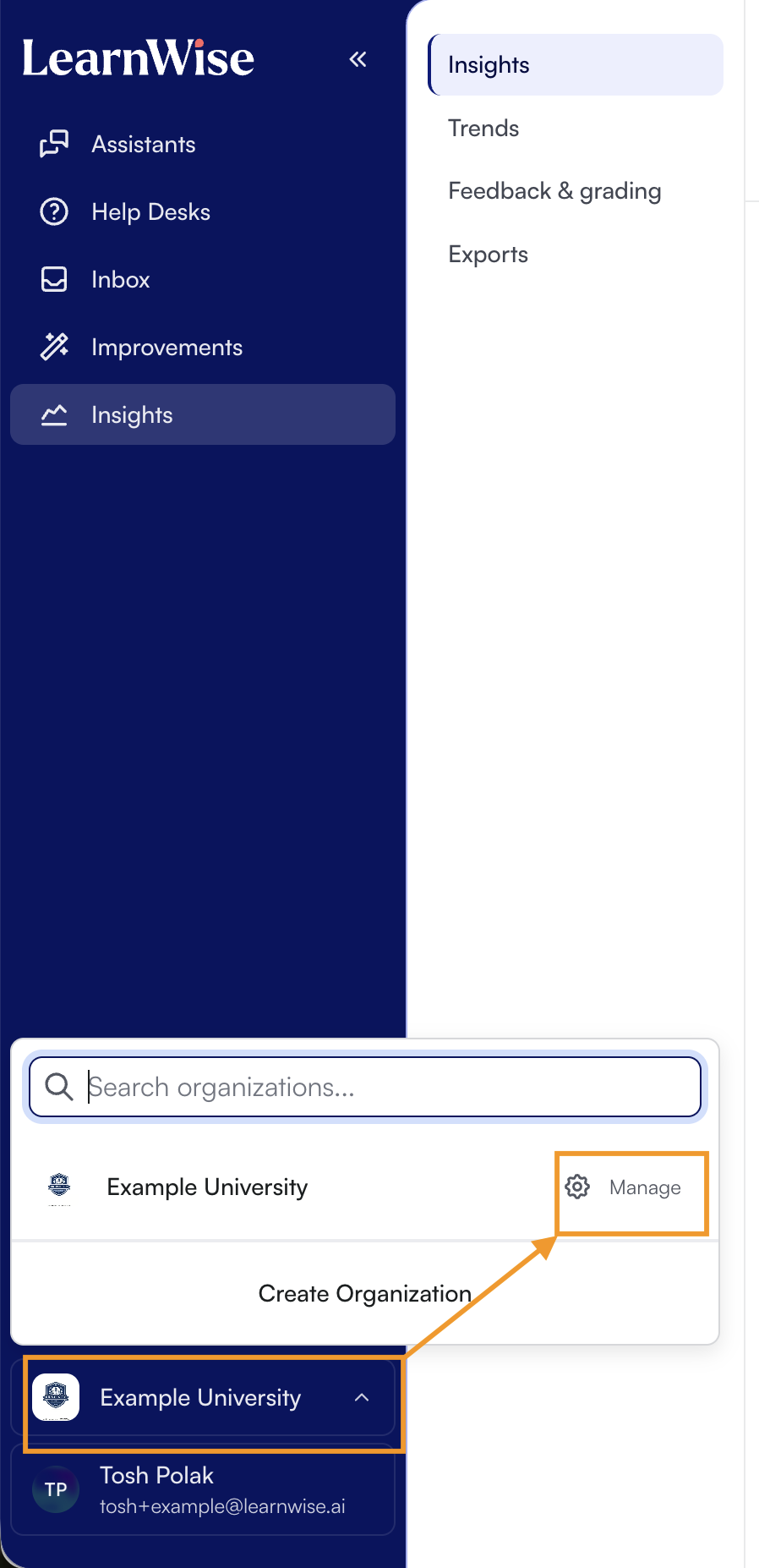
Access Organization Settings: Click on the organization name in the bottom-left corner of the admin panel and select 'Manage' to access the settings dashboard.
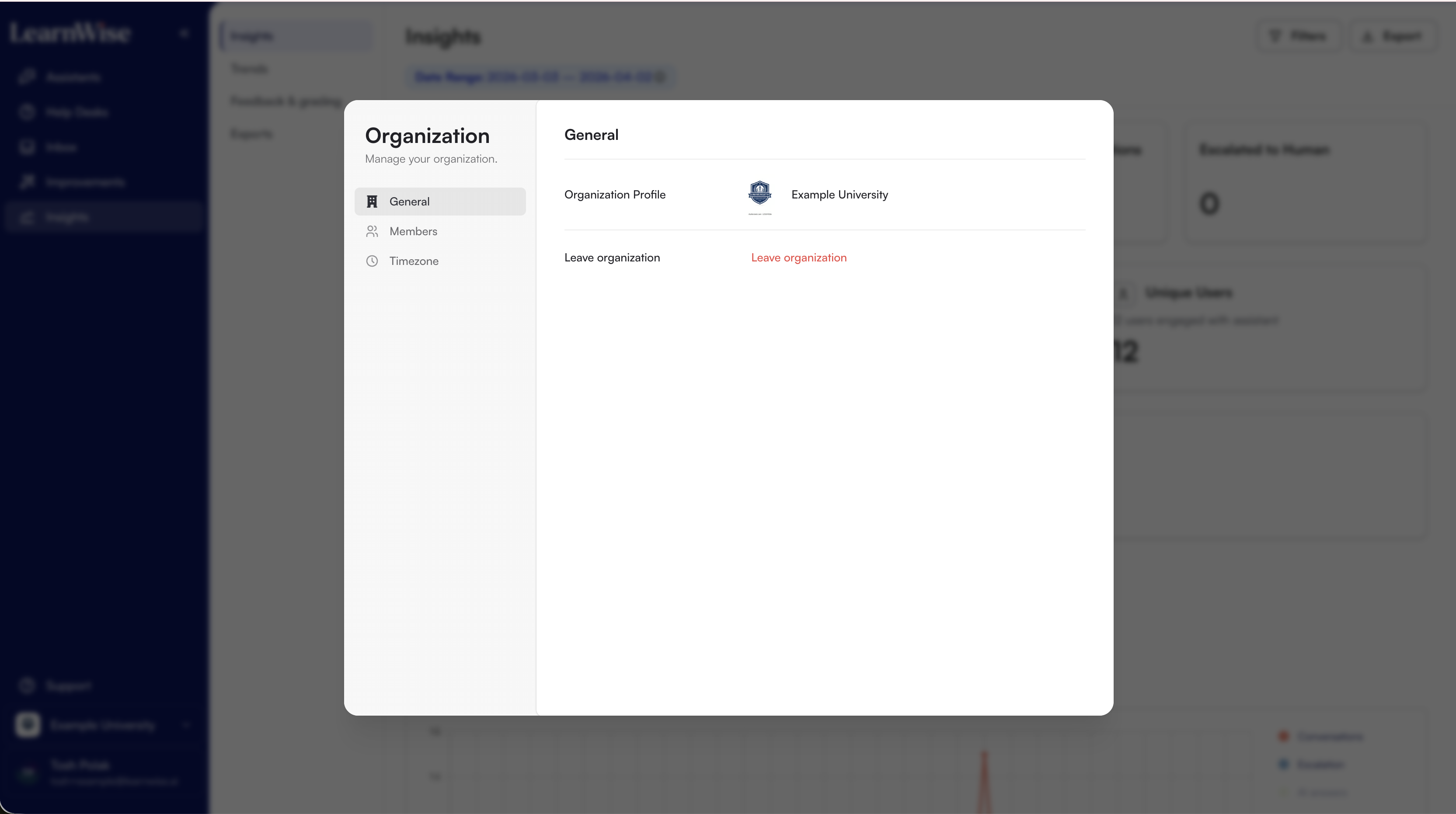
- Manage Organization Profile: Update the organization's name and profile image to maintain a current and professional appearance.
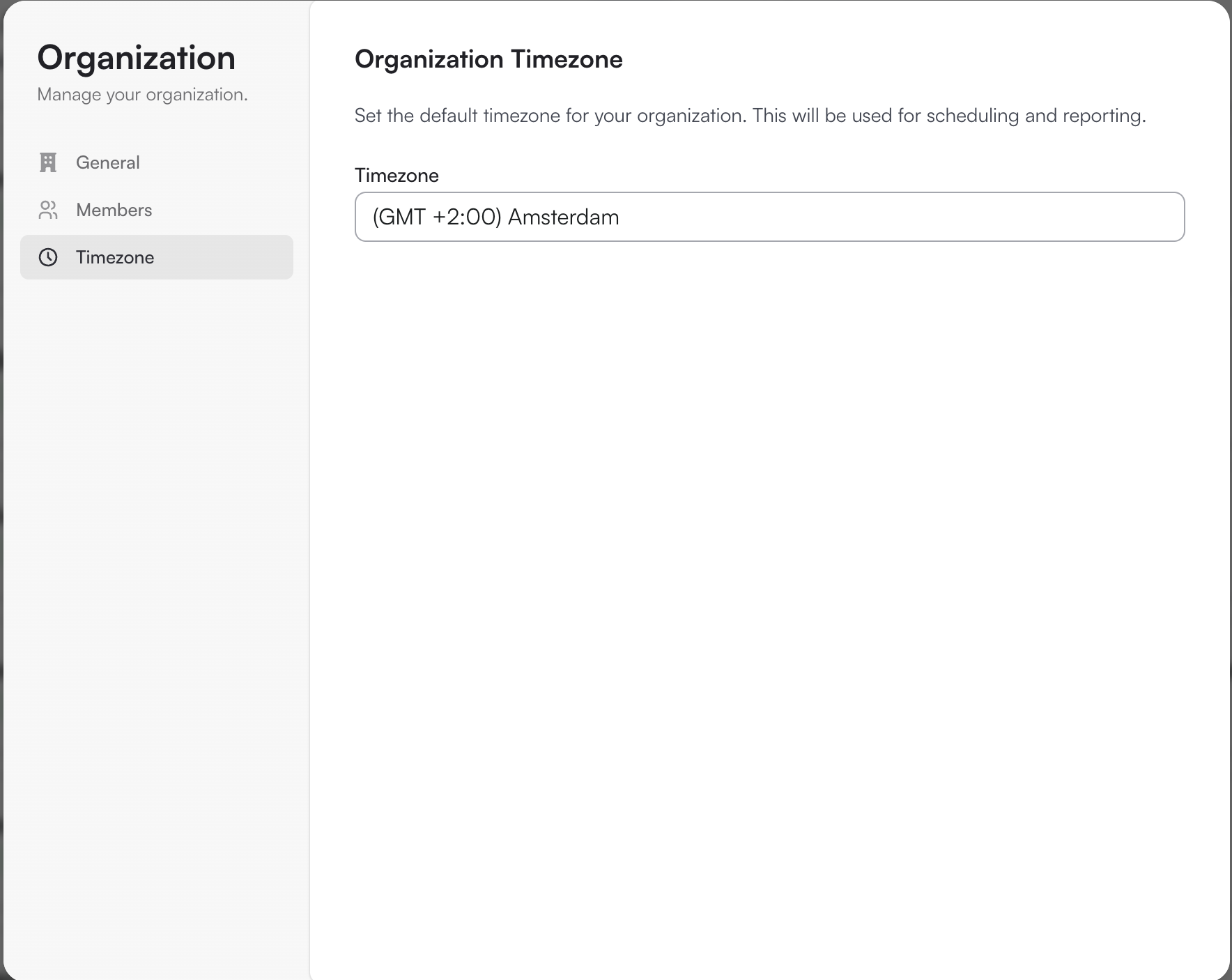
- Set Timezone: All timestamps in Insights, Inbox, Feedback, Exports, and Notifications will reflect the selected timezone. New organisations are prompted to select a timezone during onboarding; existing organisations default to UTC.
Team Settings #
- View and Manage Members: Keep track of team members, assign roles, and update permissions as needed.
- Send Invitations: Invite new members to join the organization with specified roles.
- Leave Organization: Admins have the ability to leave an organization if they are no longer affiliated with it.
Personal Account Settings #
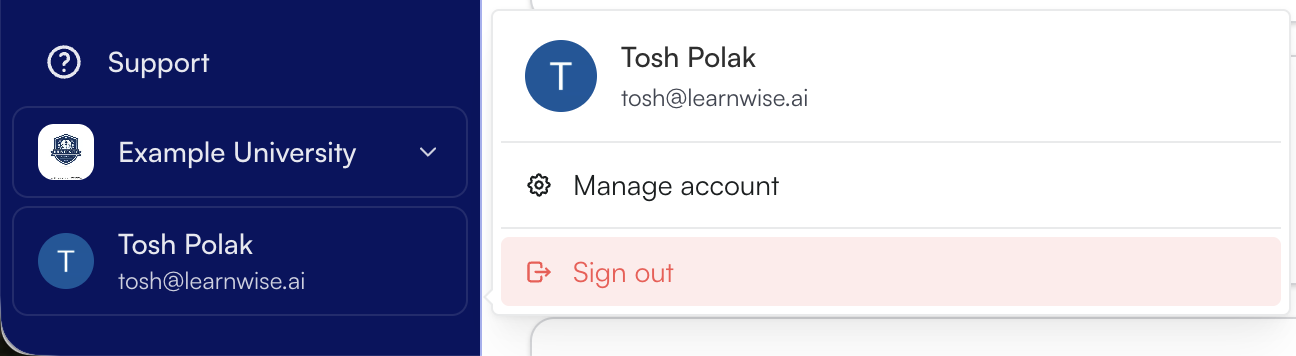
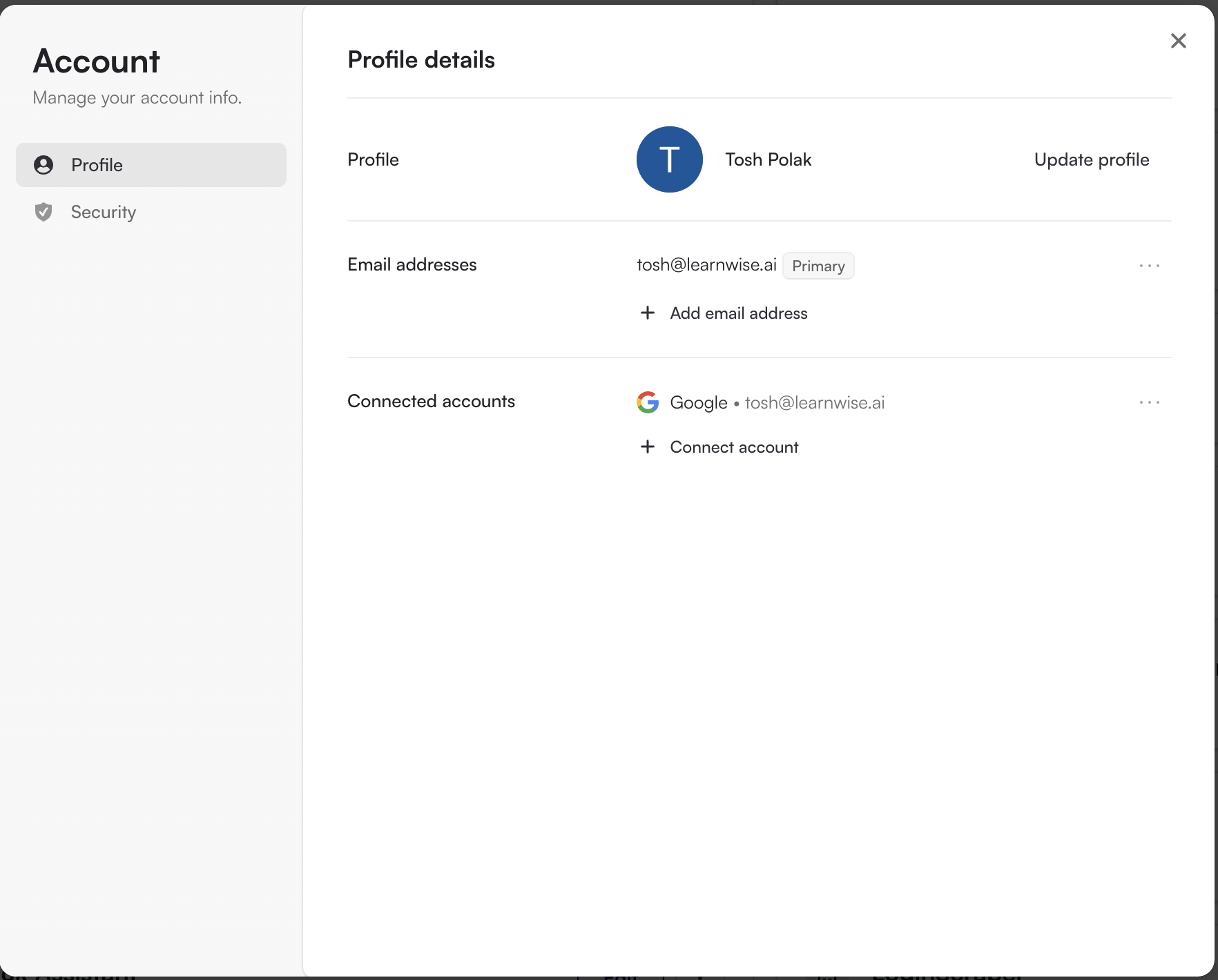
- Access Personal Account Settings: Click on the avatar/profile picture in the bottom-left corner, and select 'Manage Account' to access the settings dashboard.
- Account Information: Update personal details such as name and email address.
- Security Preferences: Manage password settings and other security-related preferences to protect access to the account.
Security Settings #
Adjust your personal security settings, like password changes, to keep your account secure.
By navigating to these areas, LearnWise admins can ensure their organization's information is up to date, manage team member roles effectively, and maintain the security of their personal accounts.
Was this page helpful?
Still stuck?
Ask the LearnWise assistant. It answers from these guides.