

How do I integrate LearnWise with Microsoft Entra to enforce Authentication?
A step‑by‑step guide to integrating Microsoft Entra (Azure AD) with LearnWise so users must sign in with institutional accounts and the assistant can provide secure, identity‑aware, role‑based responses.
3 min readUpdated
On this page
Integrating Microsoft Entra (formerly Azure Active Directory) with LearnWise allows institutions to require users to authenticate before accessing the LearnWise assistant. This ensures data governance, enables user-level personalization, and aligns with institutional security policies.
Once enabled, users must sign in using their institutional Microsoft credentials. This enables the assistant to understand who they are — whether they’re a student, faculty member, or staff — and tailor responses accordingly.
🎯 Why Enable Authentication? #
🔒 Data Governance #
Requiring sign-in ensures:
- Only authorized users can interact with the assistant.
- Interactions are auditable and tied to institutional identities.
- Security and privacy compliance is maintained.
- Users can be greeted by thier name, making them aware that the assistant knows who they are
🔧 How to Set Up Microsoft Entra Authentication #
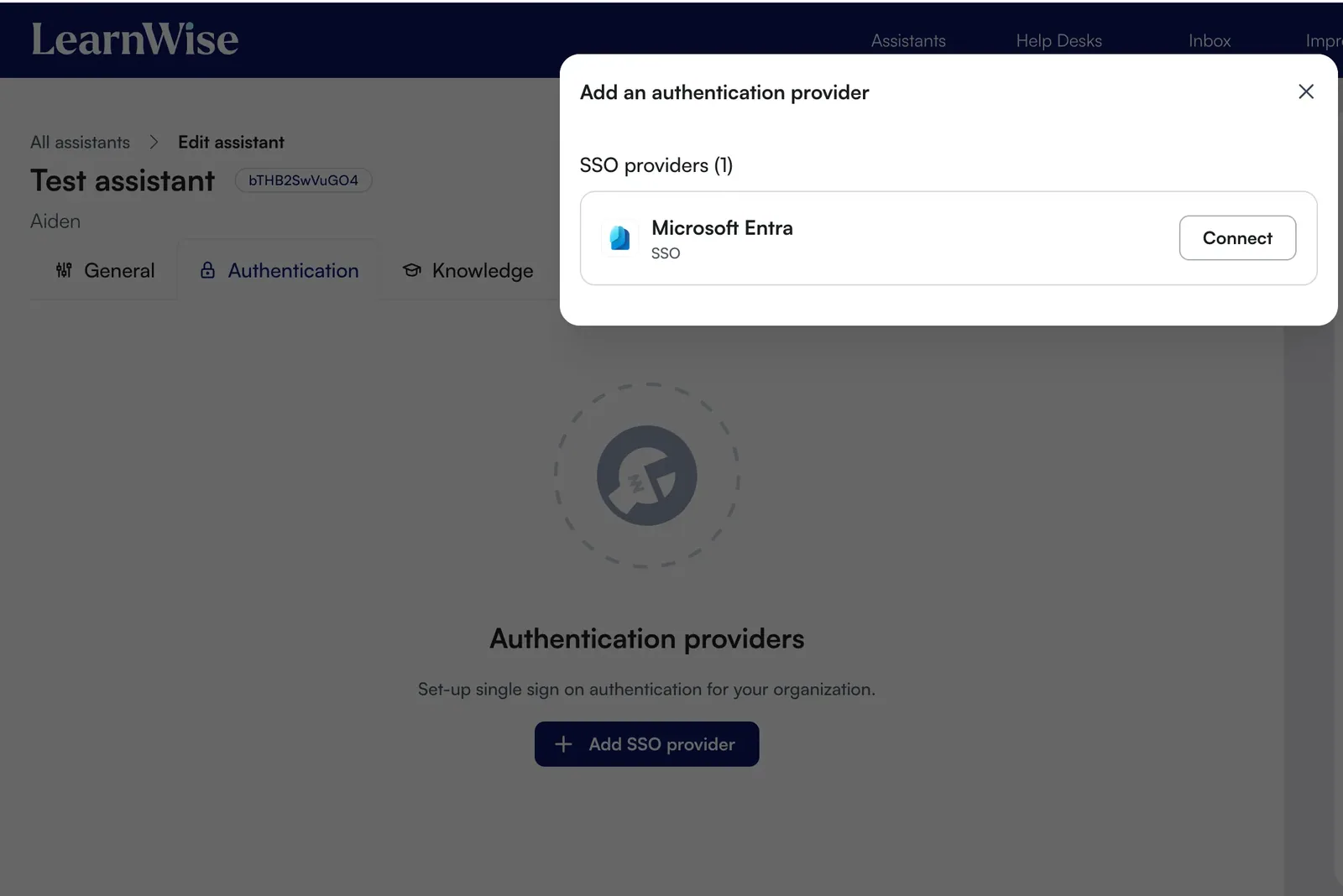
Step 1: Go to the “Authentication” Tab in LearnWise #
- Login at https://admin.learnwise.ai
- Select the assistant you want to configure.
- Navigate to the Authentication tab.
- Choose Microsoft Entra ID (Azure AD) as your provider.
- Click on Connect for further instructions
Step 2: Register a New App in Microsoft Entra #
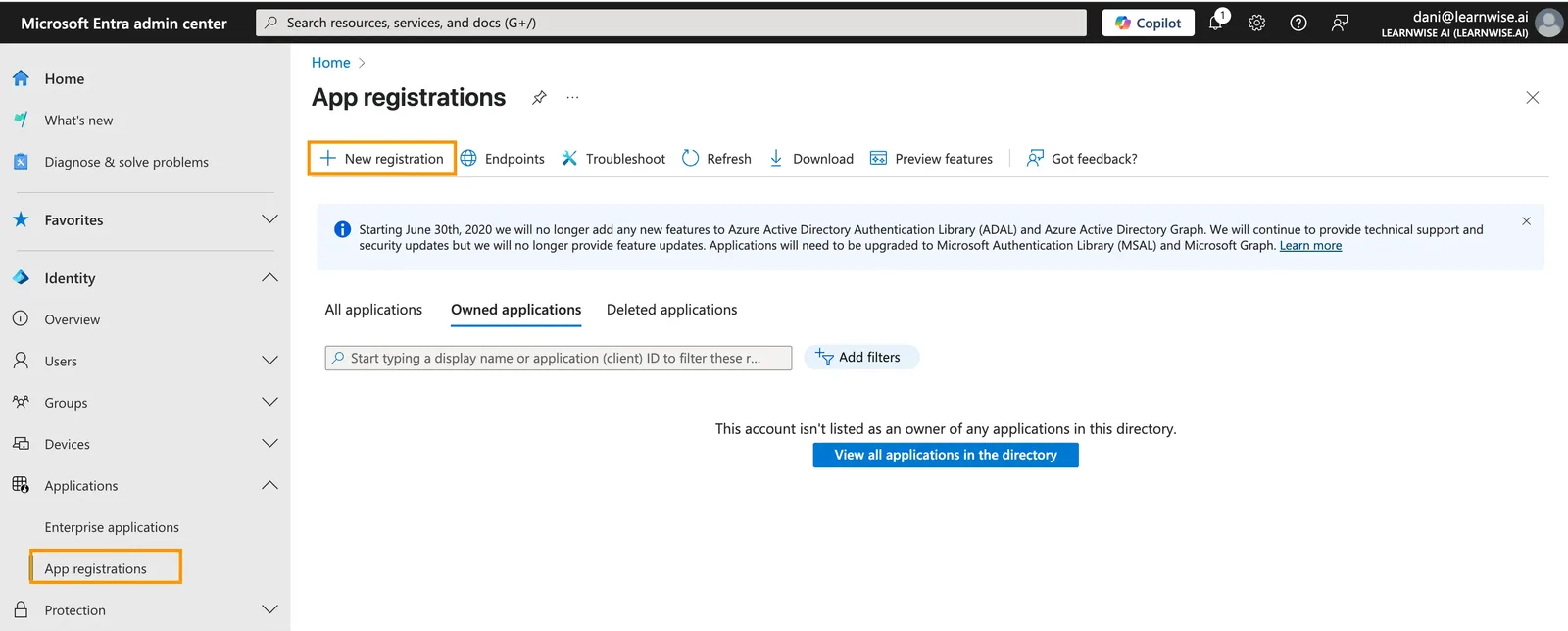
- Open https://entra.microsoft.com
- Navigate to App registrations.
- Click New registration.
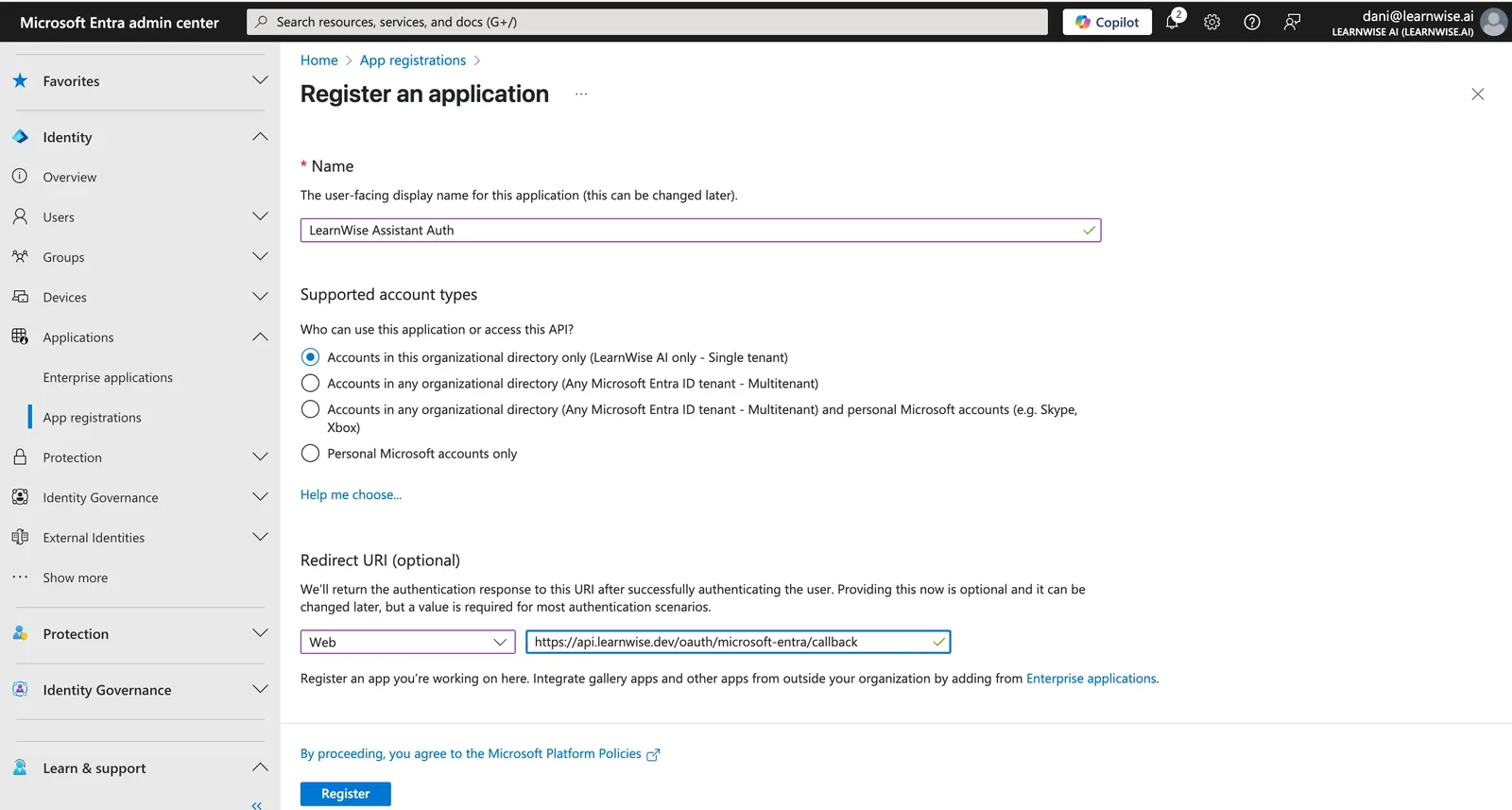
Fill in the form: #
-
Name: Enter a recognizable name (e.g.,
LearnWise Assistant Auth) -
Supported account types: Leave as default (Accounts in this organizational directory only)
-
Redirect URI:
Set type to
Weband input:<https://api.learnwise.ai/oauth/microsoft-entra/callback> -
Click Register
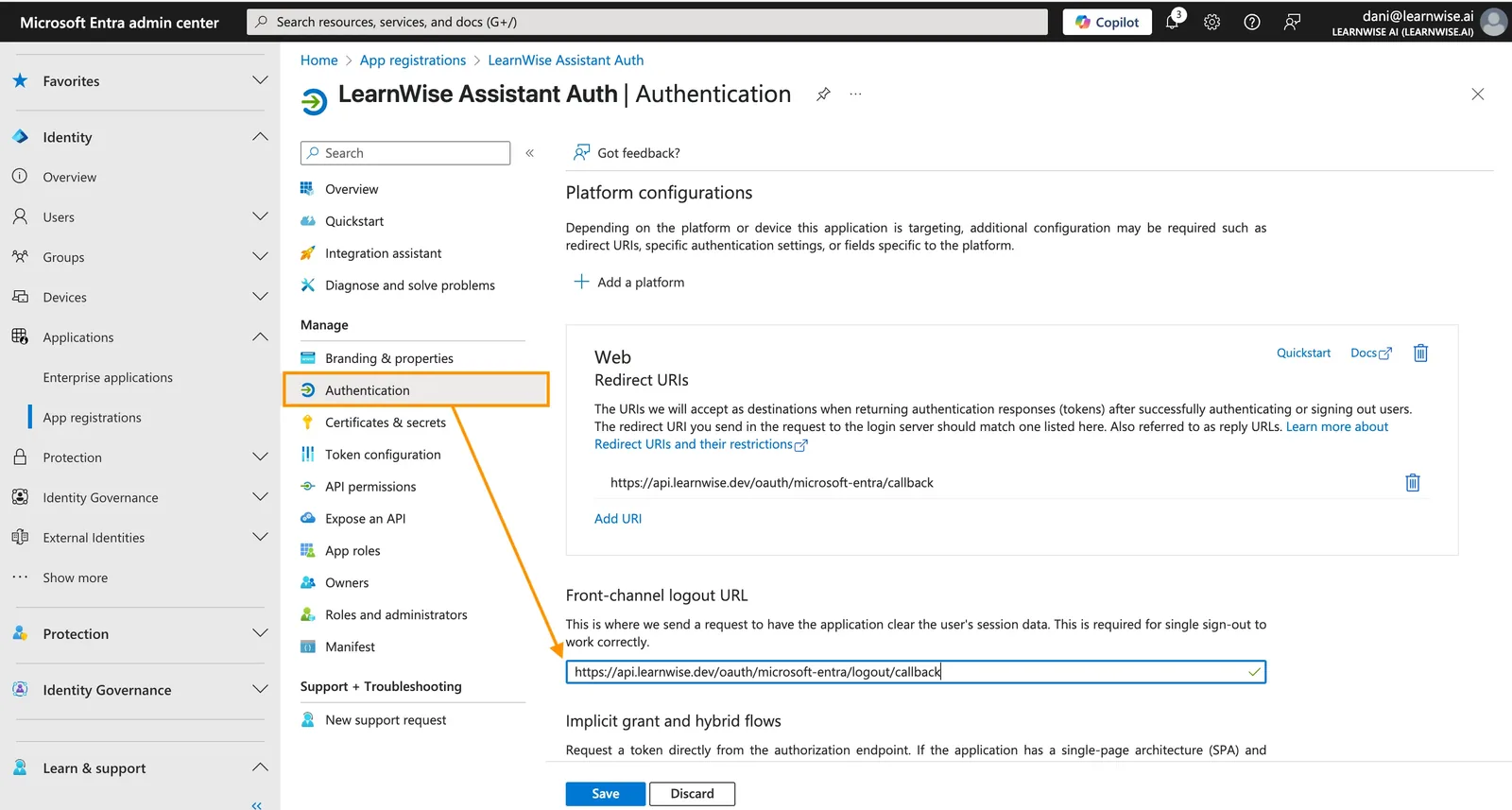
- Navigate to Authentication and input the following Front-channel logout URL
[<https://api.learnwise.ai/oauth/microsoft-entra/logout/callback>](<https://api.learnwise.dev/oauth/microsoft-entra/logout/callback>)
- Click Save
Step 3: Save the Application Credentials #
After registration:
- Copy the following values somewhere safe:
- Application (client) ID
- Directory (tenant) ID
You will paste these into LearnWise later.
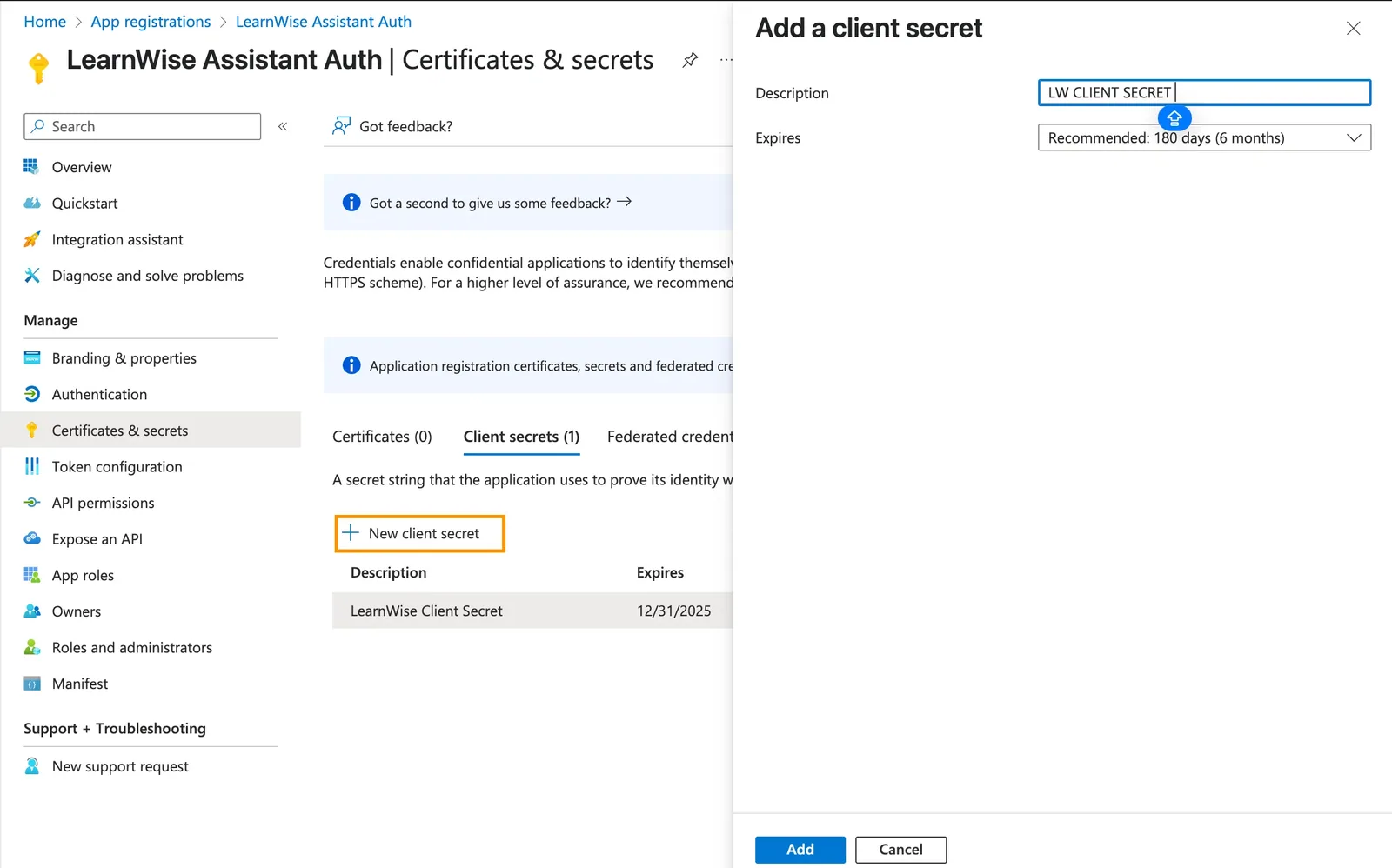
Step 4: Generate a Client Secret #
- In your registered application, go to Certificates & secrets
- Click New client secret
- Add a description and select an expiration period
- Click Add
- Copy the secret value immediately – you will not be able to view it again
Step 5: Add Required API Permissions #
- Go to the API permissions tab
- Click Add a permission
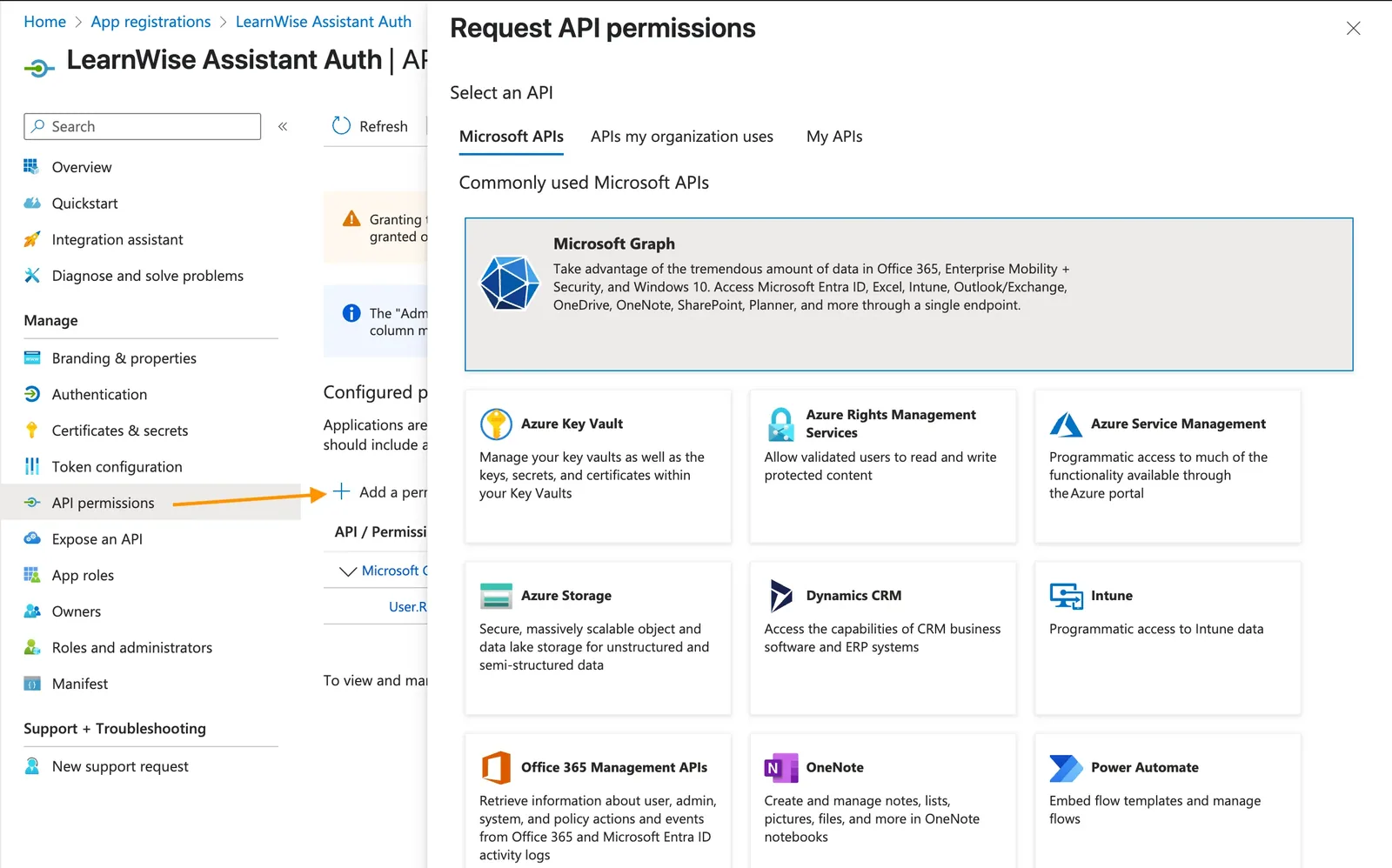
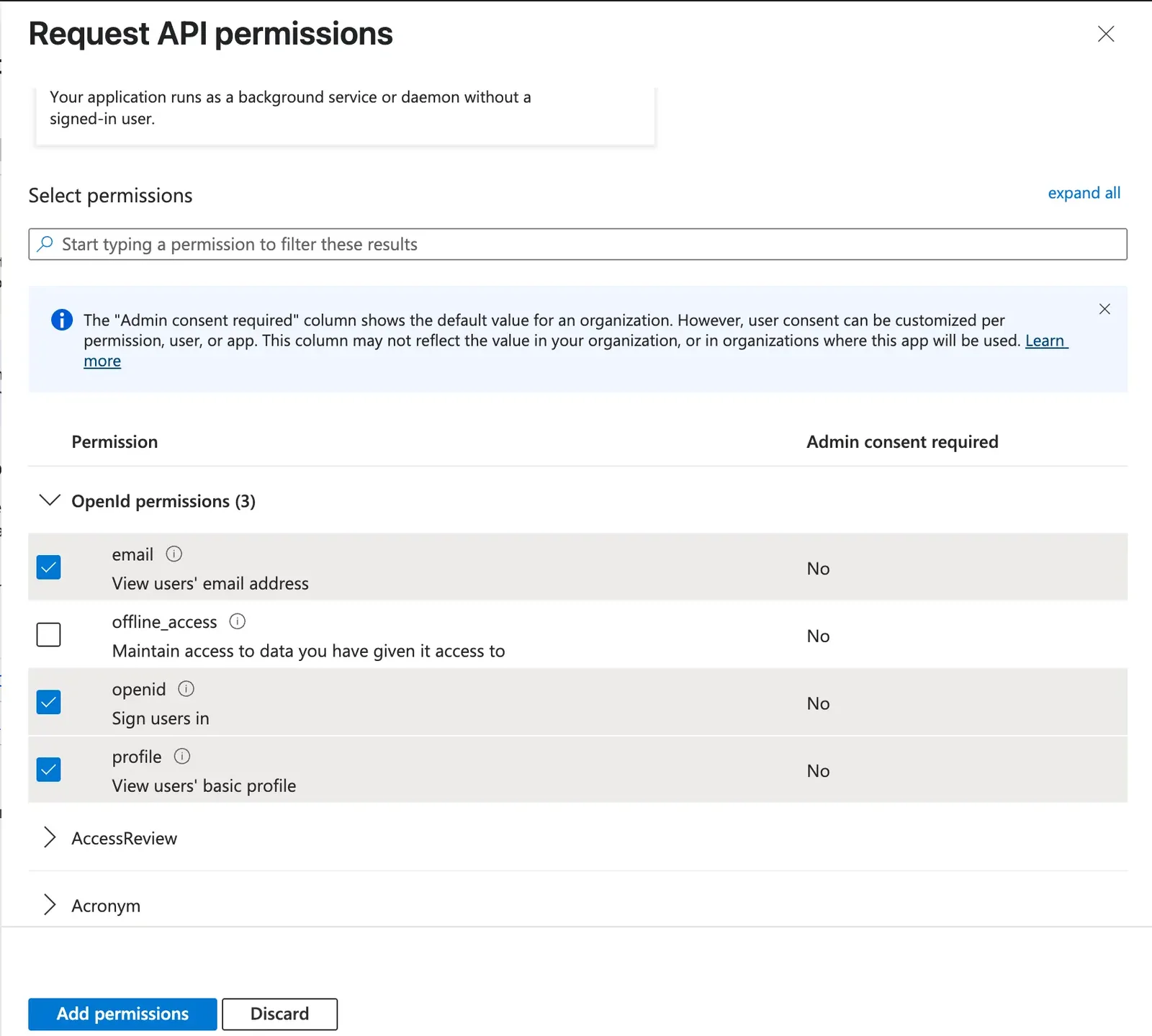
- Choose Microsoft Graph > Delegated permissions
- Add the following:
emailopenidprofile
- (Optional) If you want to use Entra roles to restrict knowledge access or to see student roles in the inbox, you should add the following permissions:
-
Group.Read.All(Application) -
GroupMember.Read.All(Application) -
User.Read.All(Application)
-
- (Optional) If you want to use external data, you should add the following permission:
Directory.Read.All(Application)
- Click Grant admin consent to apply them
Step 6: Complete Setup in LearnWise #
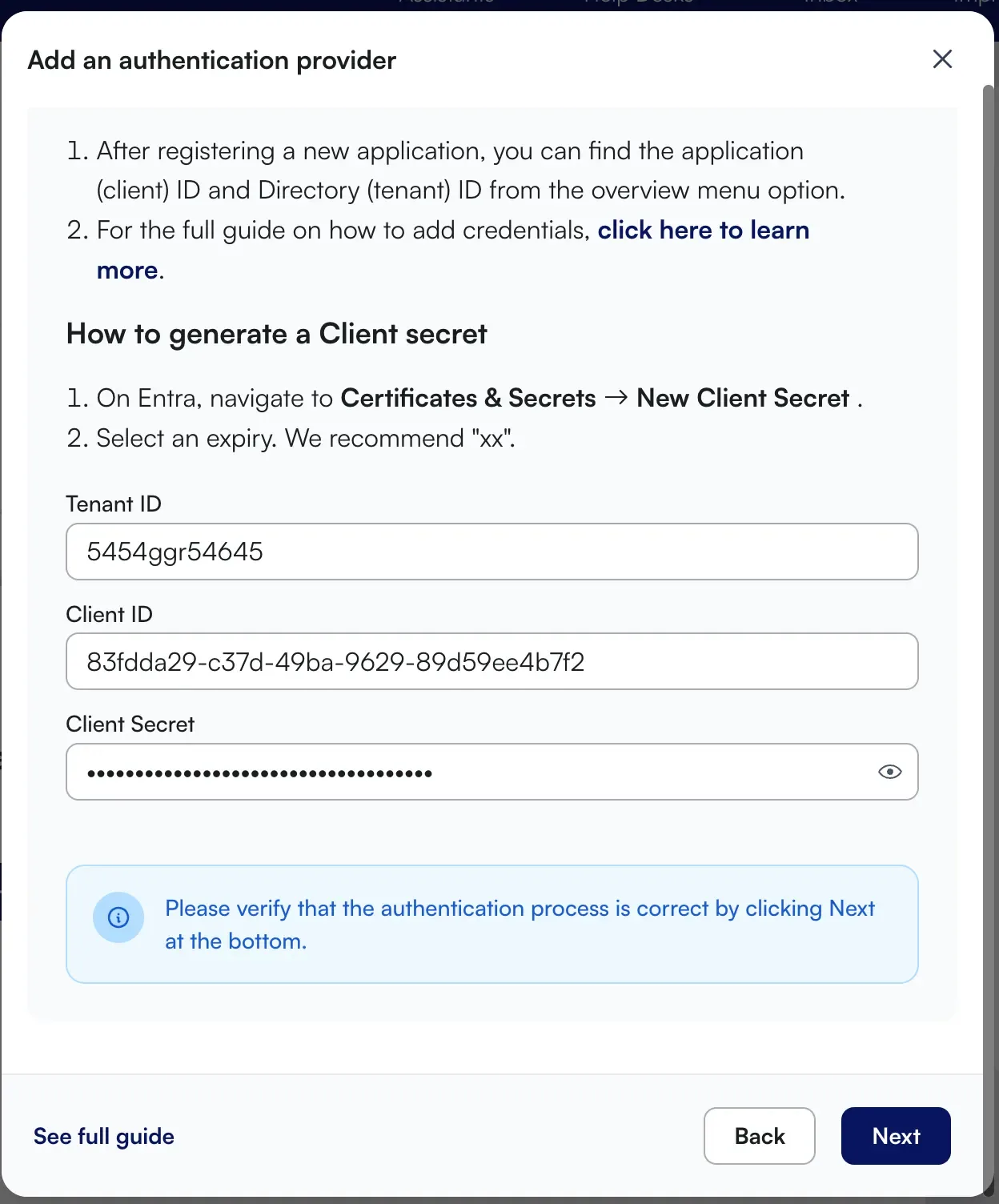
Return to the LearnWise admin panel:
- Paste the following into the authentication configuration fields:
- Client ID
- Tenant ID
- Client Secret
- Click Next
You’ll see a success message once the connection is validated.
Step 7: Test the Authentication #
- Open the assistant as a user.
- You should be prompted to sign in via your Microsoft institution account.
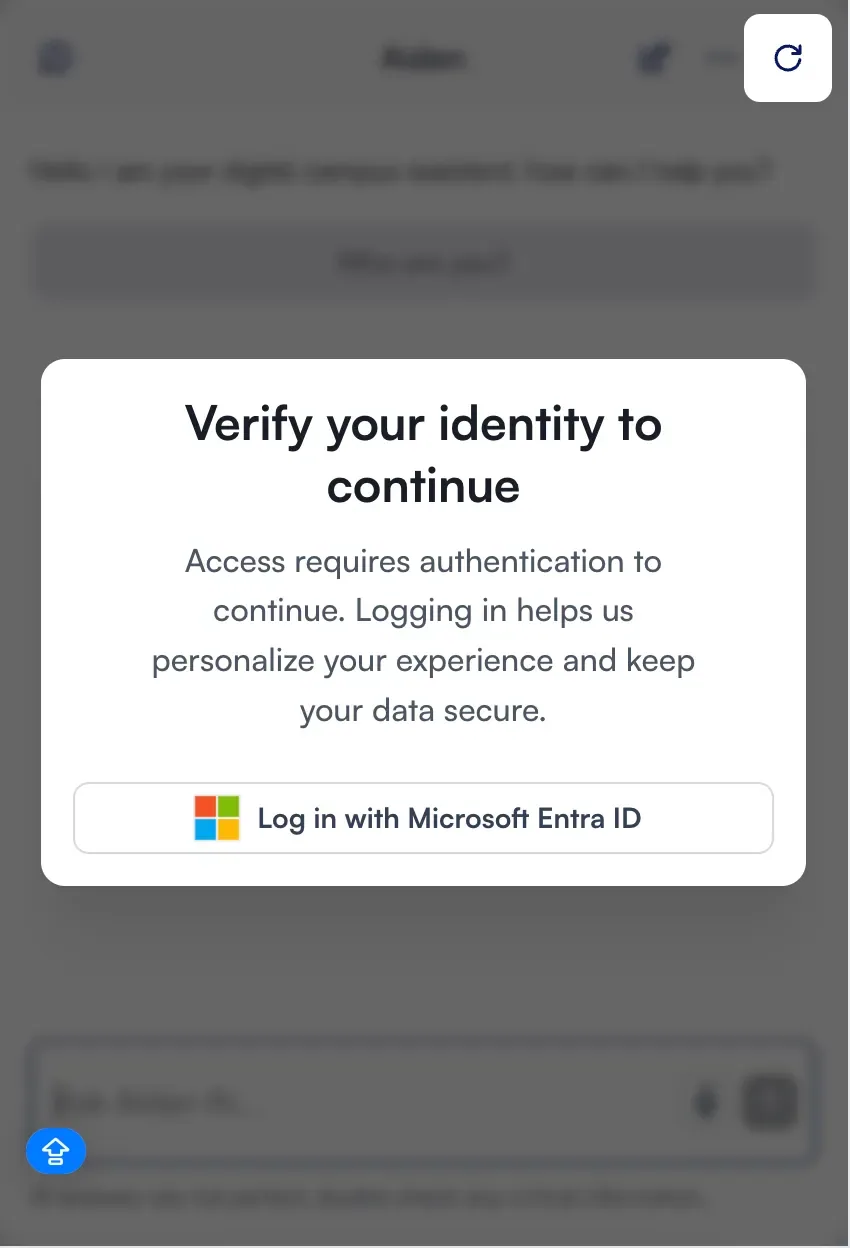
- Upon successful login, the assistant will greet the user and begin the session.
🛠️ Troubleshooting #
| Issue | Fix |
|---|---|
| Redirect URI mismatch | Ensure it exactly matches https://api.learnwise.ai/oauth/microsoft-entra/callback |
| Secret expired | Generate a new secret and update the LearnWise configuration |
| Permissions not applying | Ensure “admin consent” was granted for all delegated permissions |
| Invalid client ID or tenant ID | Double-check and paste the correct values from your Entra portal |
✅ Summary #
Enforcing Microsoft Entra authentication ensures secure access and enables contextual, identity-aware conversations with your LearnWise assistant. This is a critical step for institutions looking to combine AI with accountability, personalization, and control.
Still stuck?
Ask the LearnWise assistant. It answers from these guides.
Related guides
- How do I Integrate LearnWise with Sharepoint and set up permissions ?Integrations
- How do I integrate LearnWise with Merge ticketing integrations?Integrations
- Developer Guide: Signed Context InjectionIntegrations
- How do I enable Context Injection in LearnWise?Integrations
- How do I enable SCORM content ingestion in Brightspace?Integrations