

How do I install the AI Ops Assistant in Moodle?
A step-by-step guide to integrating your Moodle LMS with the LearnWise AI Ops Assistant so it can access your course content and provide accurate, context-aware support.
3 min readUpdated
On this page
💡 Please note that you will need Admin permissions within both your LearnWise admin panel and your Moodle instance to complete this setup.
Step 1: Create the AI Ops Assistant in LearnWise #
- Log in to your LearnWise admin panel.
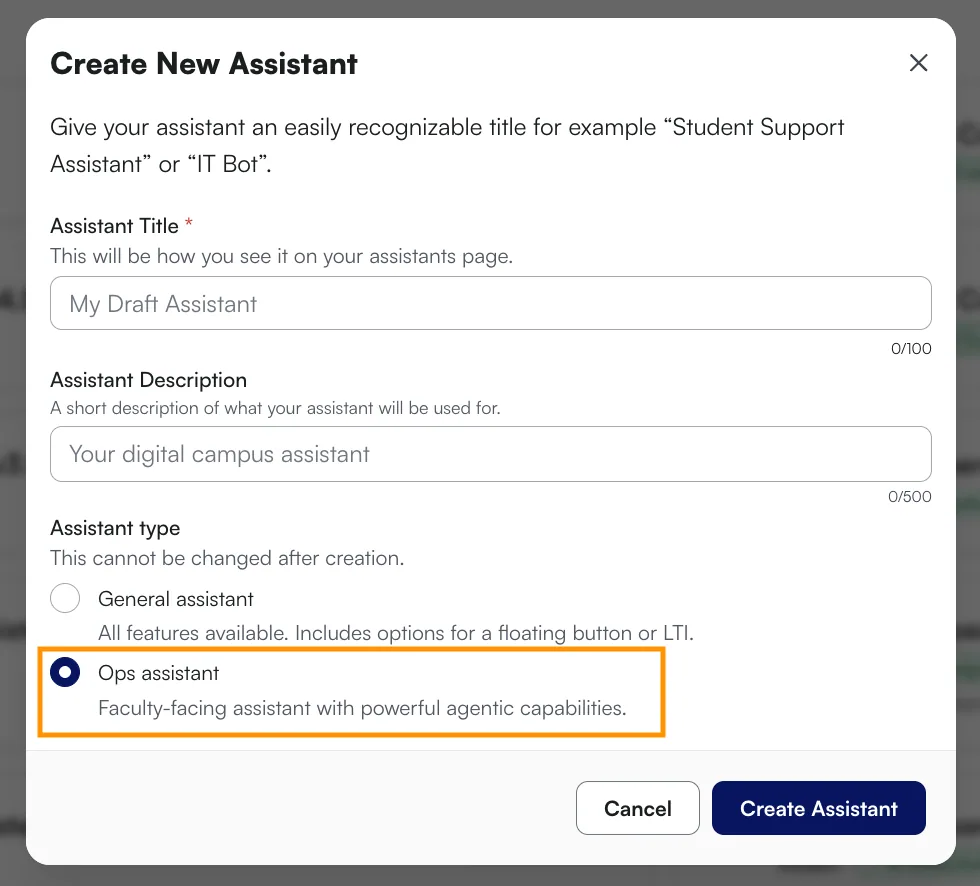
- In the top right corner, click Create New Assistant.
- Fill in the following fields:
- Assistant Title (required) — Give your assistant a clear, recognisable name, such as
LearnWise AI Ops Assistant. This is how it will appear in your admin panel. - Assistant Description — Add a short note describing what the assistant will be used for (e.g.
Faculty-facing assistant for course operations support). - Assistant Type — Select Ops Assistant. This is the faculty-facing assistant with agentic capabilities. Note: this cannot be changed after the assistant has been created, so make sure to select this option before proceeding.
- Assistant Title (required) — Give your assistant a clear, recognisable name, such as
- Click Create Assistant.
Step 2: Add the Moodle Integration in LearnWise #
- From your assistants list, select the assistant you just created and click Edit.
- Navigate to Courses → Knowledge.
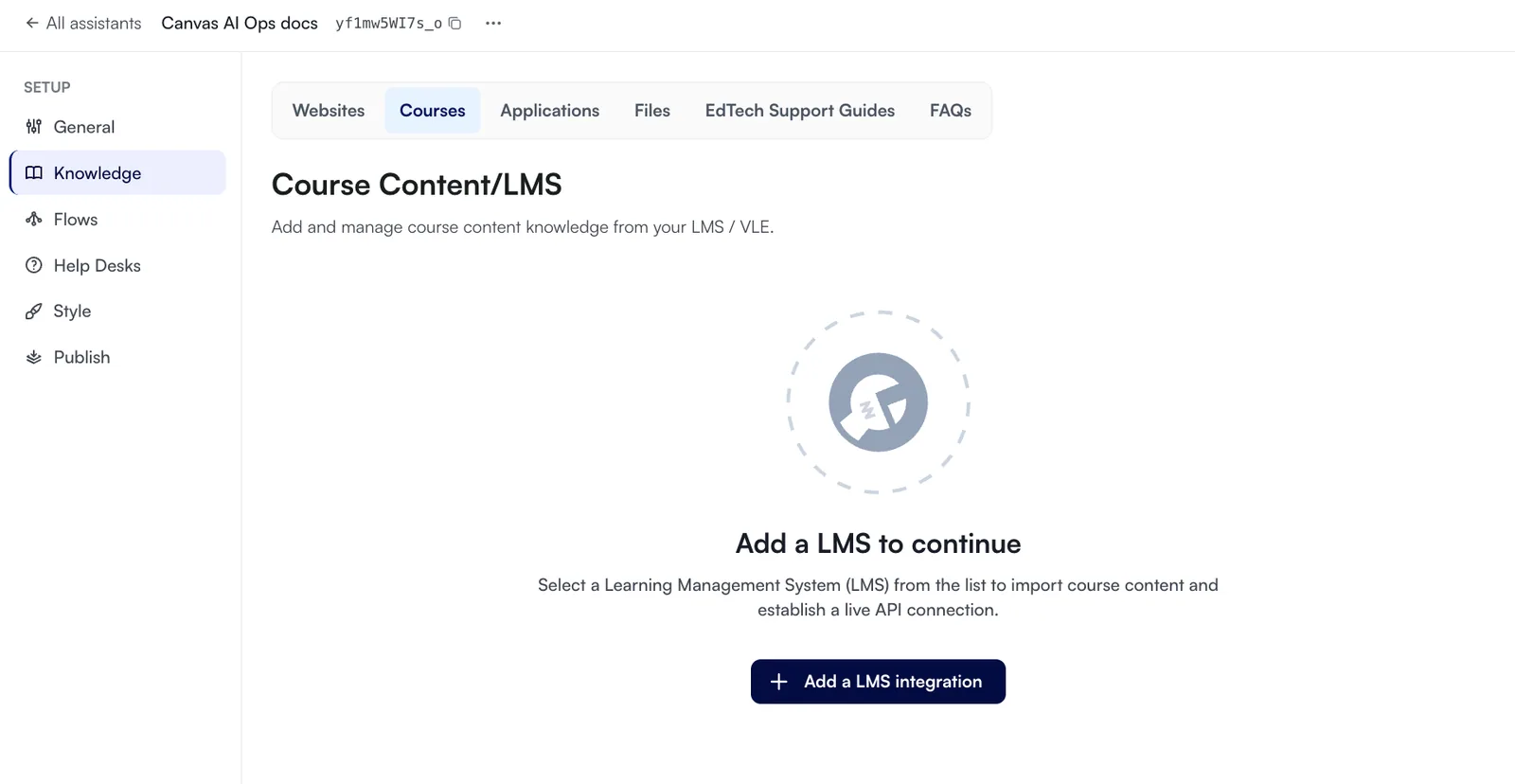
- Click Add an LMS Integration and select Moodle.
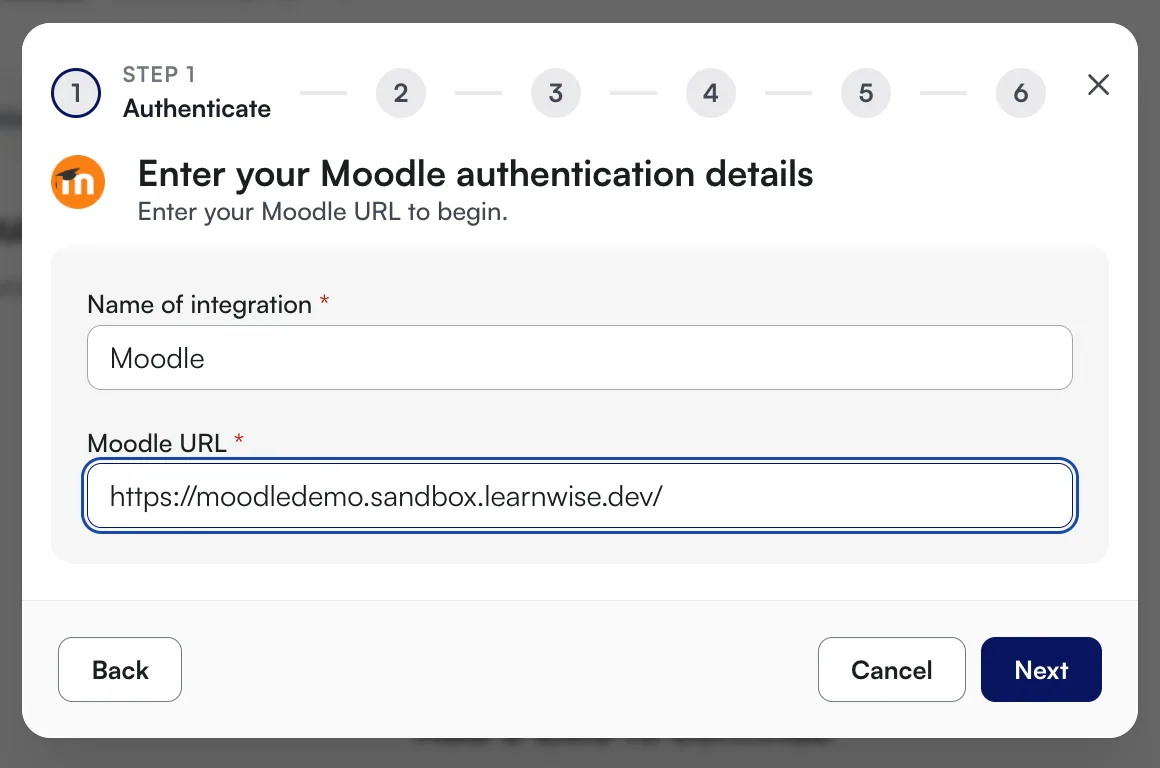
- Paste in your Moodle instance URL and click Next.
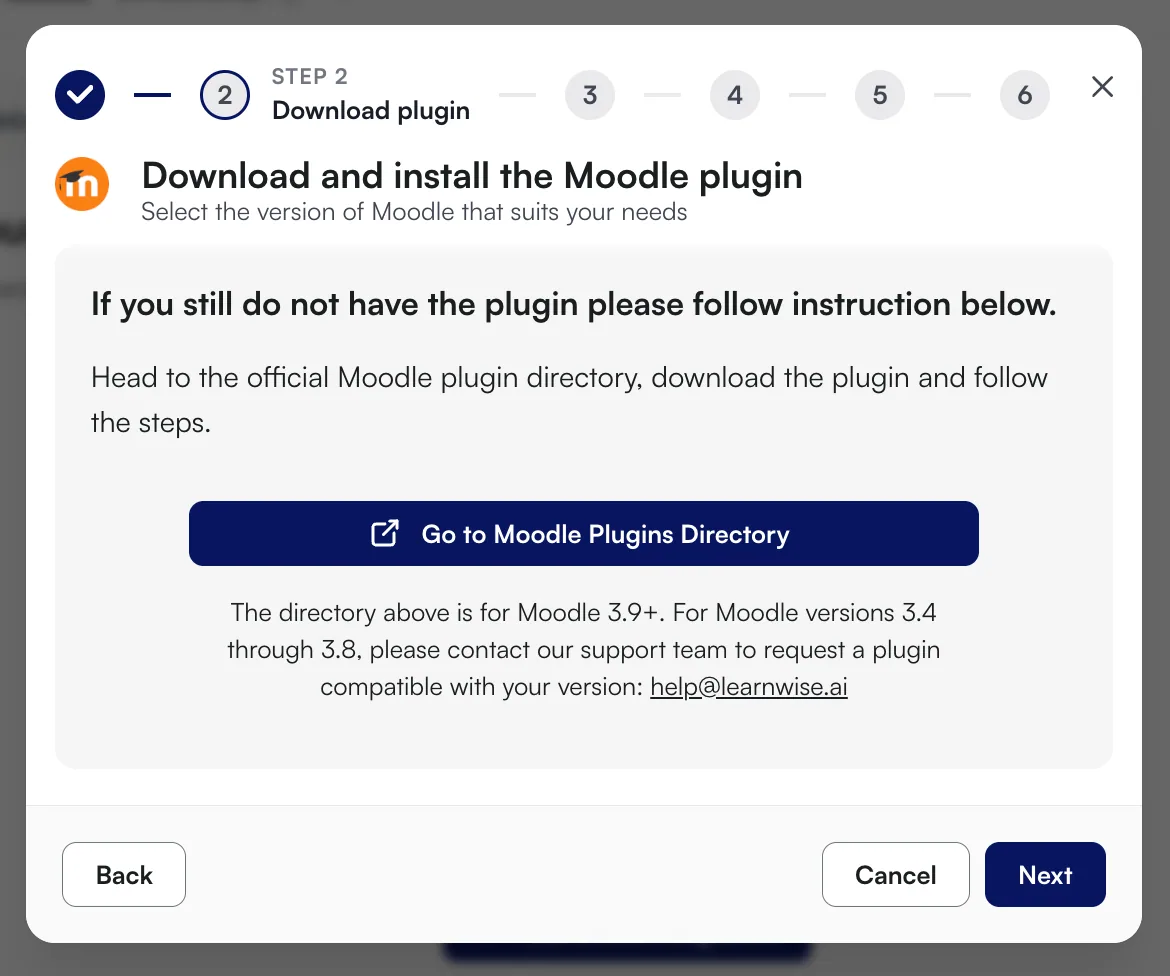
- Download and install the LearnWise plugin from the Moodle Plugins Directory.
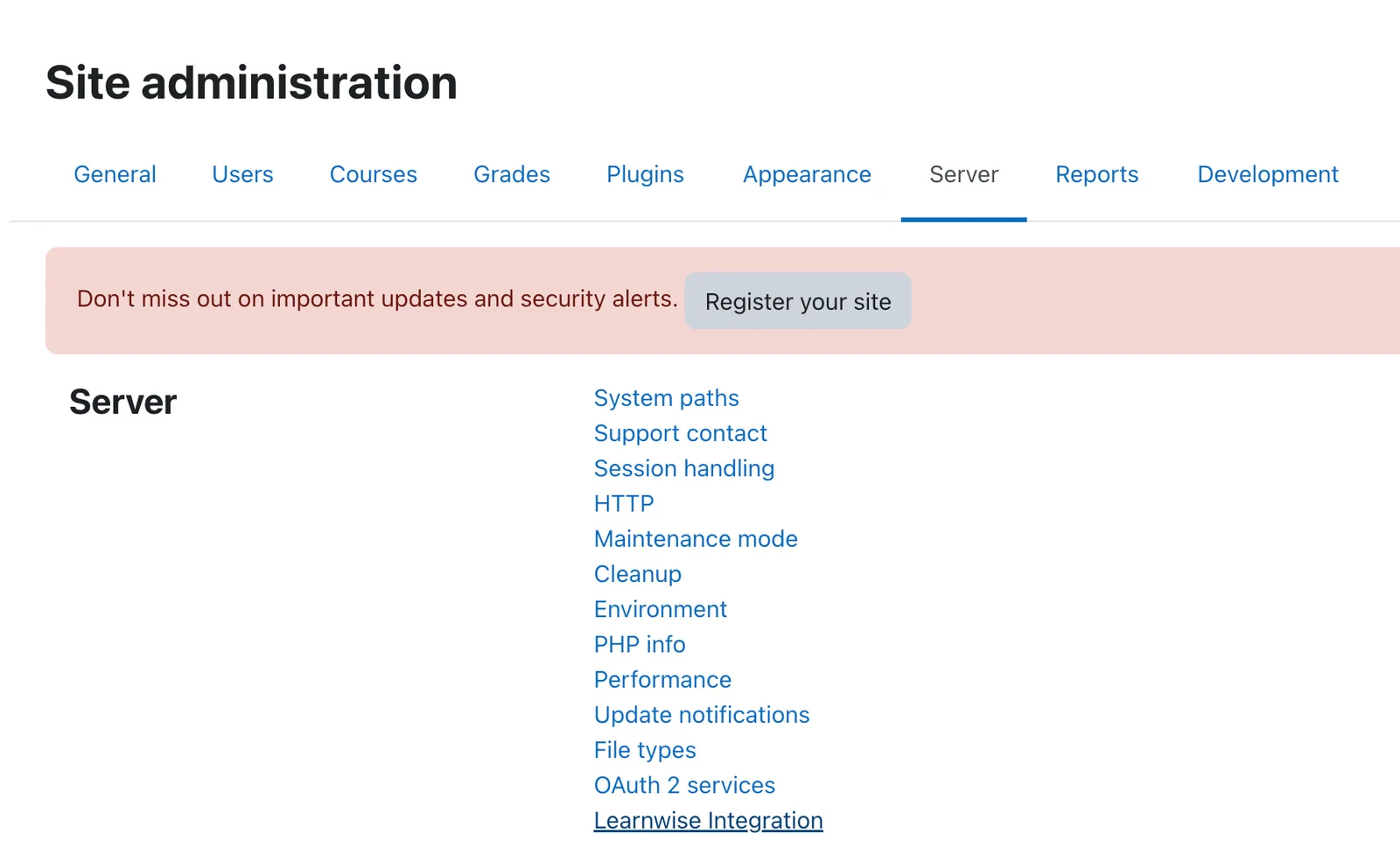
- Go to Site Administration > Server > LearnWise Integration.
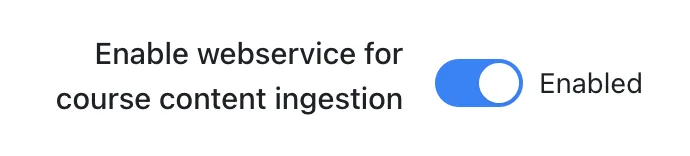
- Find and enable Webservice for course content ingestion.
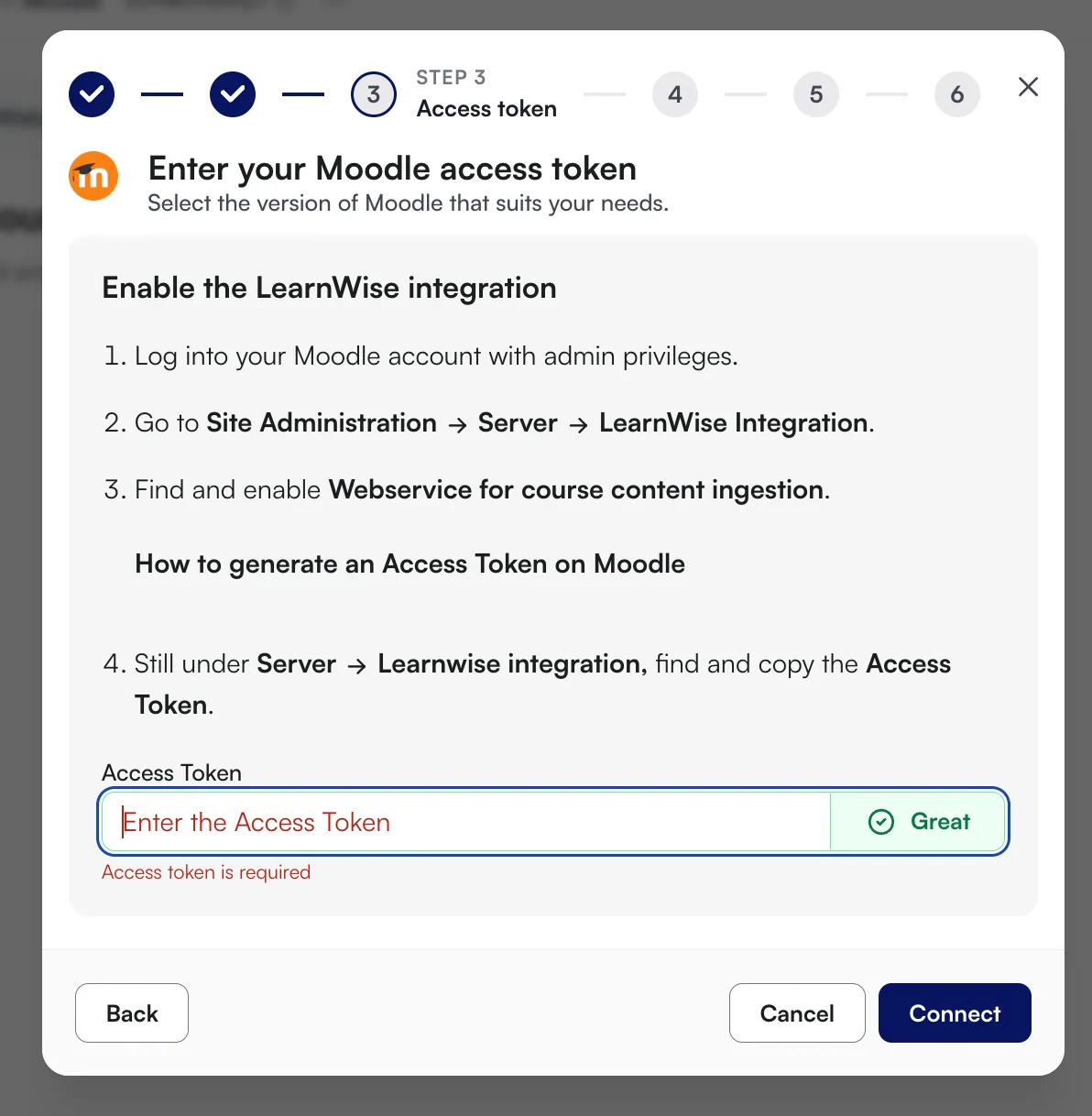
- Still under Server > Learnwise integration, find and copy the Access Token.

- Paste the Access Token into the LearnWise wizard and click Connect.
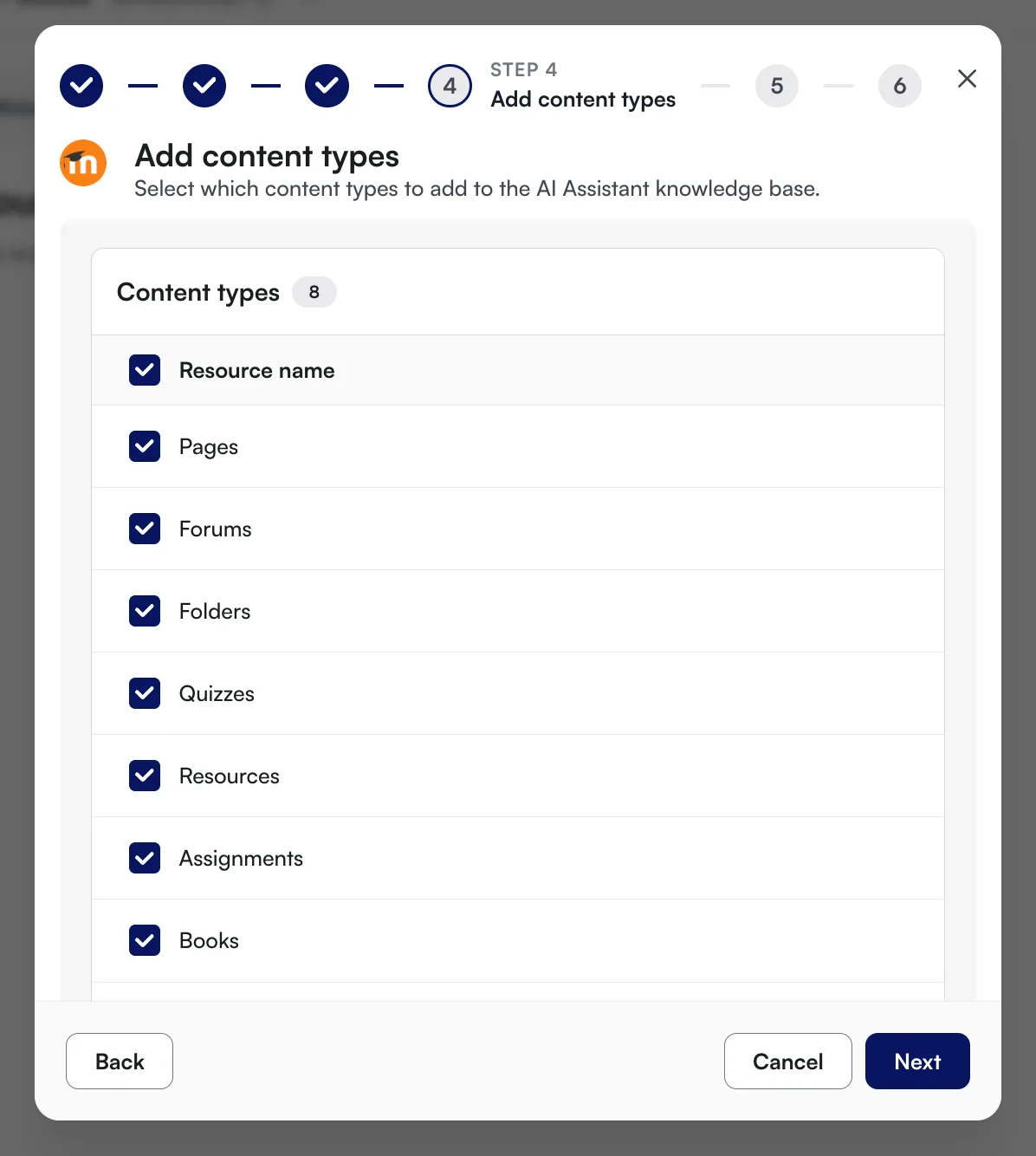
- Select which content types to add to the AI Ops Assistant knowledge base.
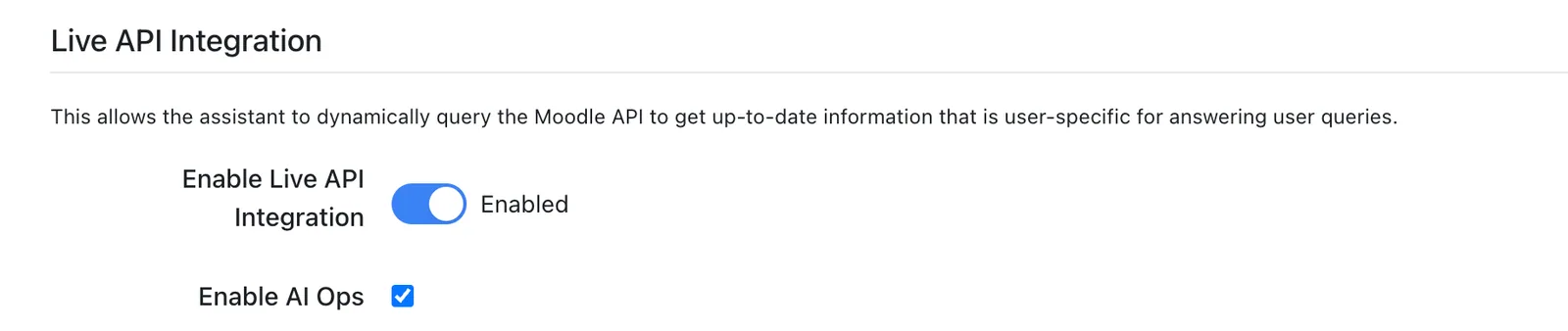
- Still under Server > Learnwise integration, enable Live API Integration and AI Ops.
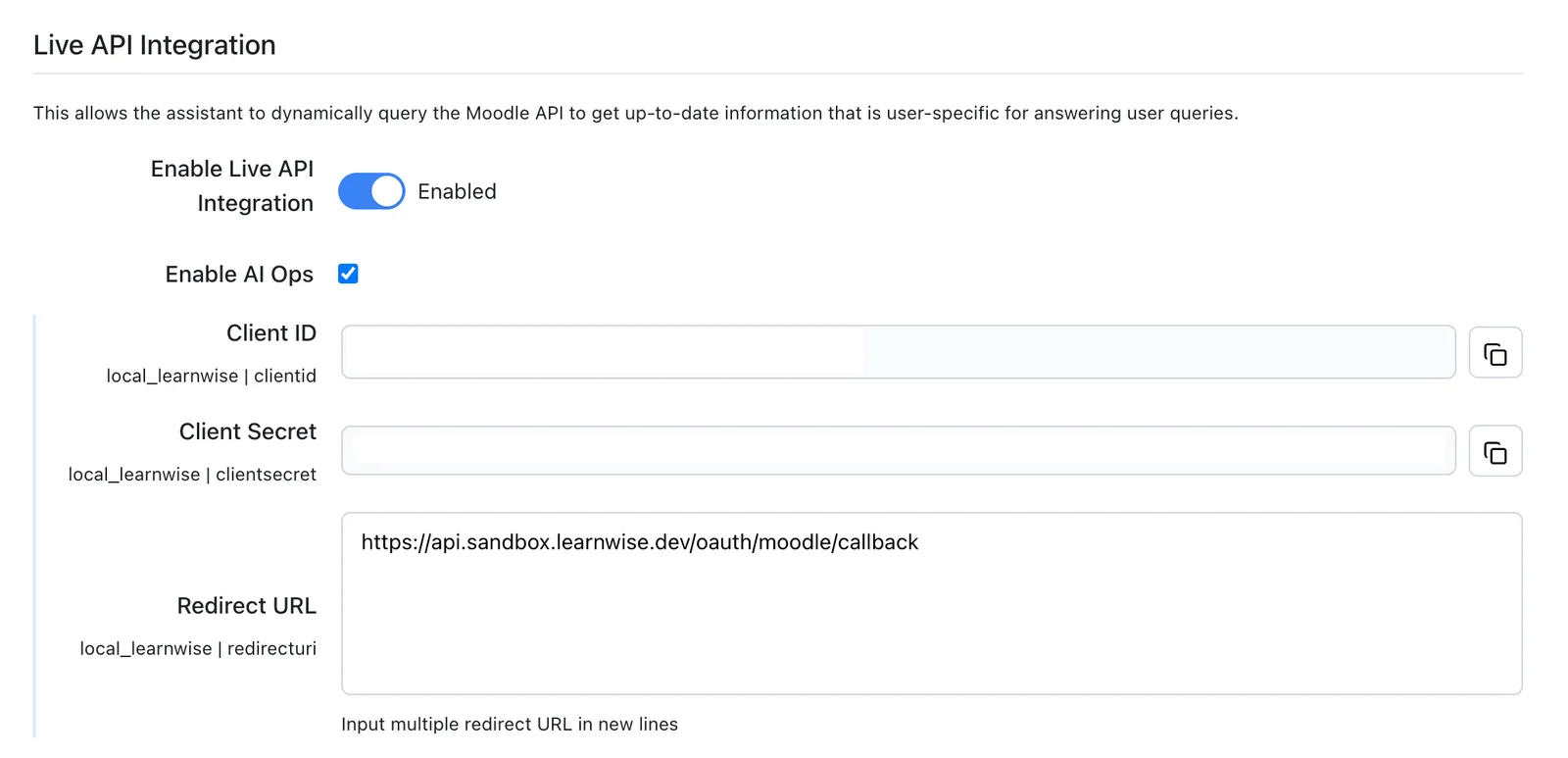
- On the same section, copy the Client ID and Client Secret.
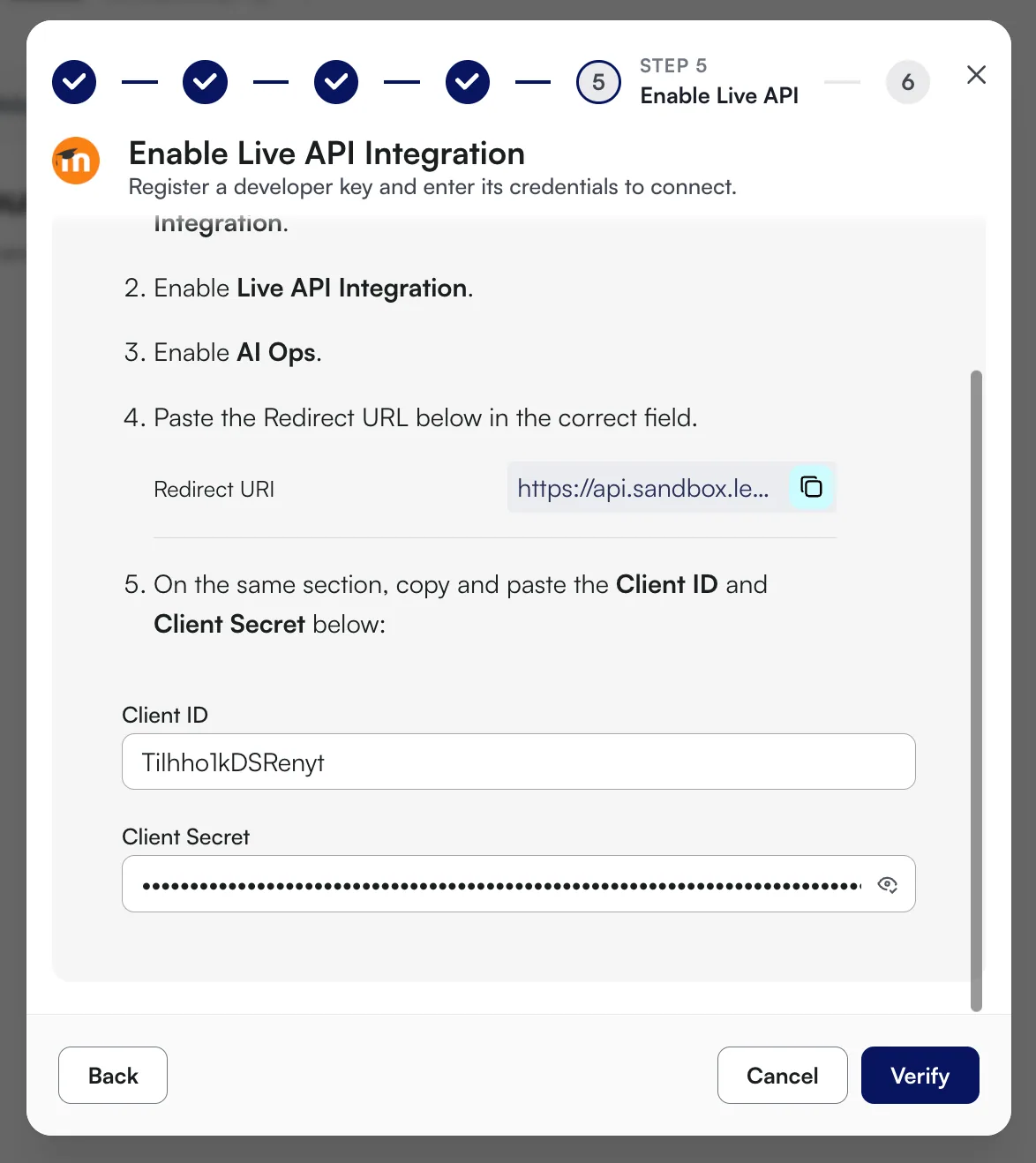
- Paste the Client ID and Client Secret into the LearnWise wizard and click Verify.
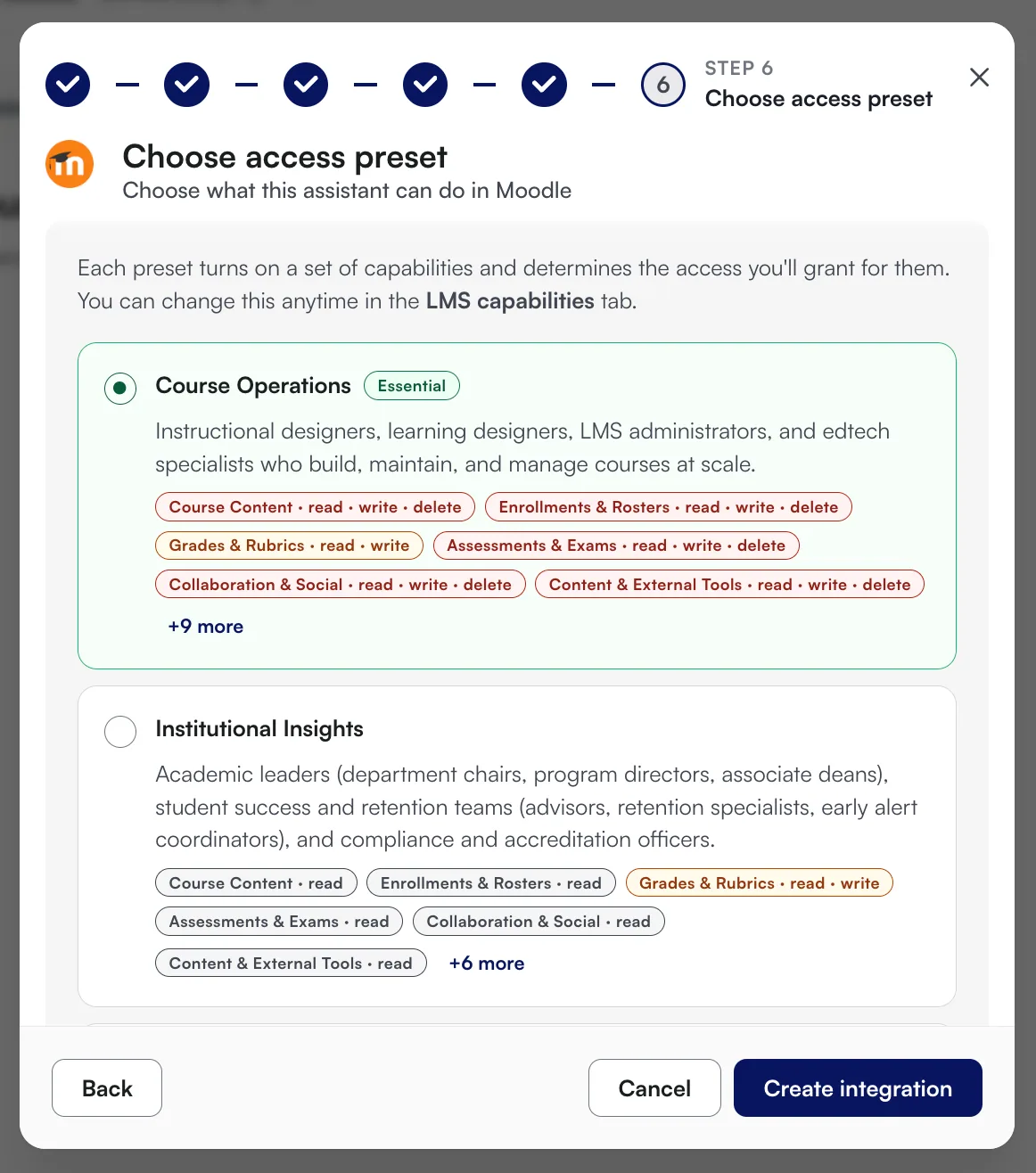
- Choose a preset to determine what actions your assistant can take within the LMS. You can change these settings later in the LMS Capabilities tab of the integration, under Knowledge > Courses.
- Click Create integration.
Congratulations! Your Ops Assistant is now connected in Moodle. For more information on how to publish and place your Assistant, click here.
How do approvals work? #
Before the AI Ops Assistant takes an action in your LMS, LearnWise checks the action's approval level. The level decides whether the action runs straight away or needs someone to confirm it first.
|
Approval level |
What happens in the chat |
|---|---|
|
No approval needed |
The action runs straight away. |
|
Low risk approval |
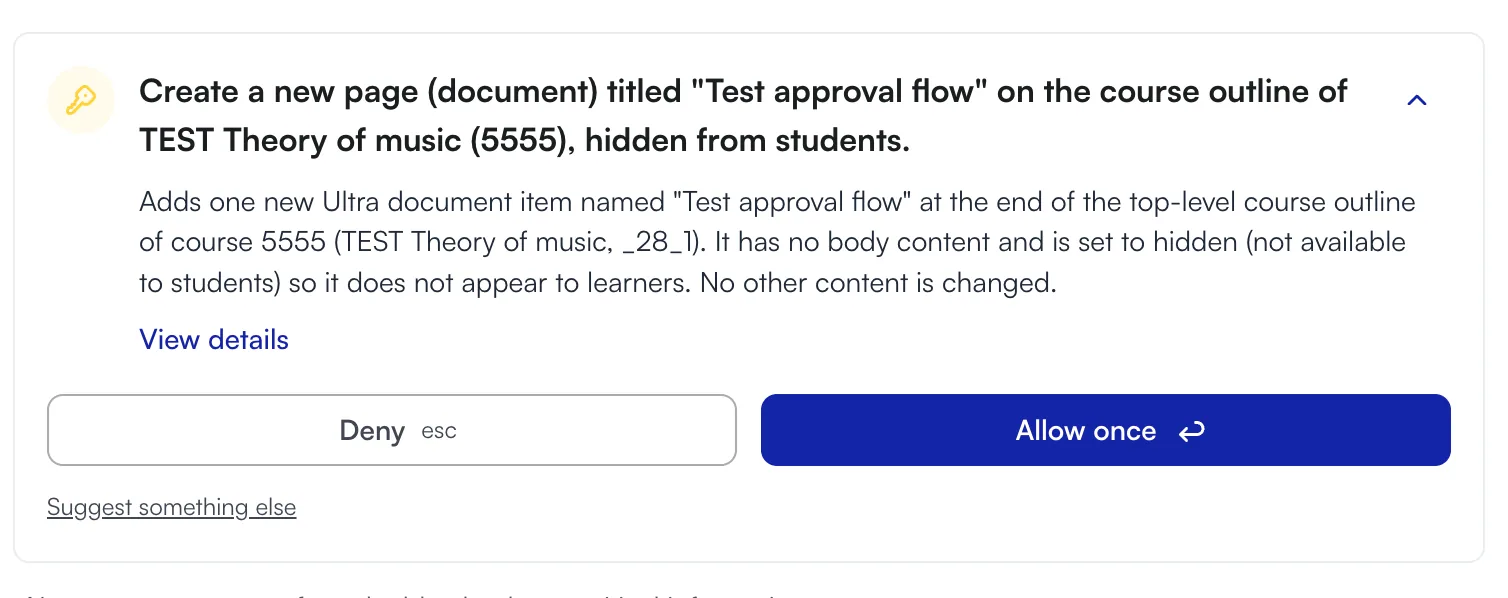
The user sees an approval card and must click Allow once. |
|
High risk approval |
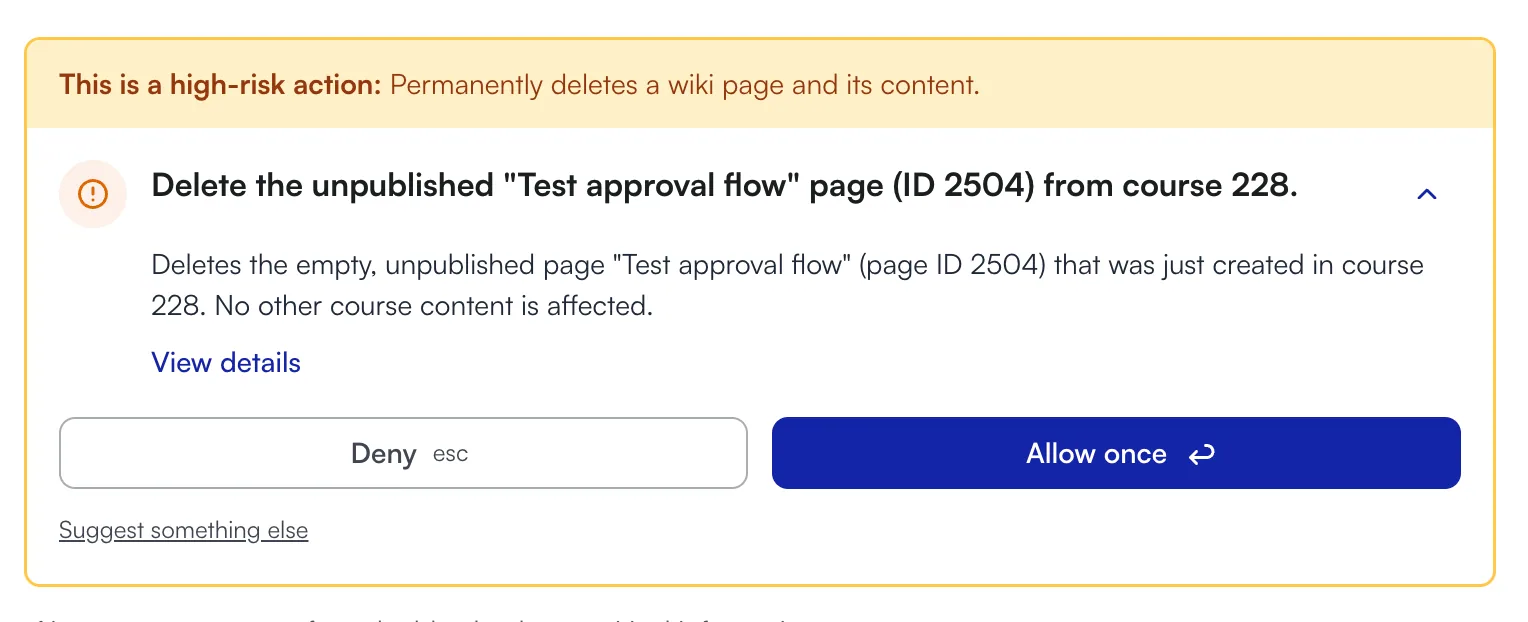
The user sees a warning that explains the risk, such as deleting a course or its data. Allow once stays locked until they have read it. |
Every action has a default level. Your existing setup doesn't change unless an admin raises a level.
How do I raise an approval level? #
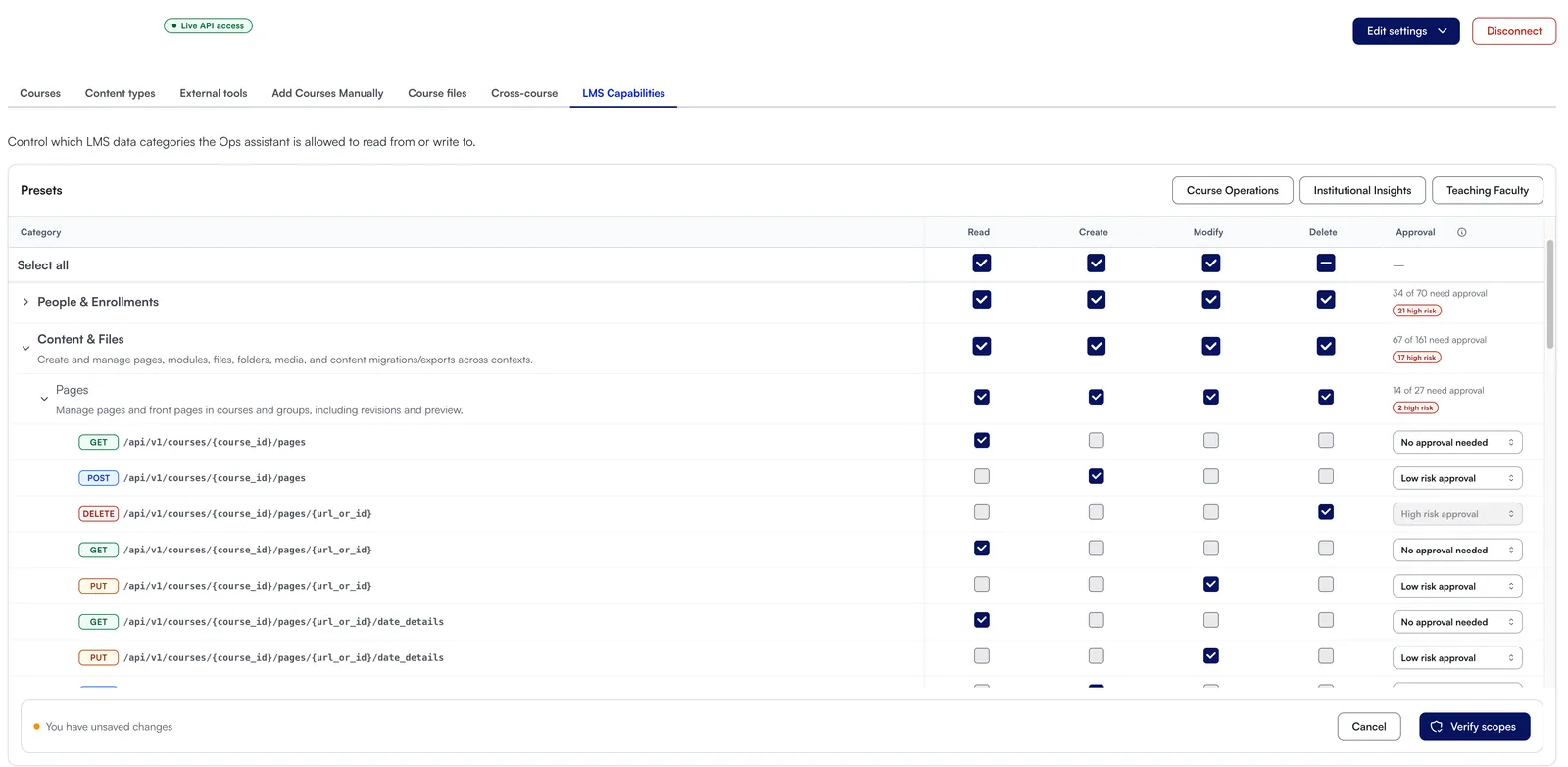
- Open your integration.In your AI Ops Assistant, go to Knowledge > Courses and open your LMS integration.
- Go to LMS Capabilities. Select the LMS Capabilities tab.
- Find the endpoint. Expand a category to see its endpoints. Each category shows how many of its endpoints need approval and how many are high risk.
- Choose a higher level. In the Approval column, select Low risk approval or High risk approval.
- Save your changes. Click Verify scopes.
Note: You can only raise a level, never lower it below its default. Endpoints that are high risk by default are locked. You can also require approval for endpoints that only read data. Once a user approves a read, the assistant can page through all the results without asking again.
What do users see in the chat? #
The approval card describes what the assistant wants to do. Users can click View details to see the exact request, including its path, parameters and request body. They then click Allow once to let the assistant go ahead, Deny to stop it, or Suggest something else.
Still stuck?
Ask the LearnWise assistant. It answers from these guides.