

How can I view my past conversations?
LearnWise saves a record of past conversations, enabling users to revisit previous interactions for reference, follow-ups, or clarification. This guide details the steps to view past conversations through the chat interface.
1 min readUpdated
Steps to Access Your Conversation History #
-
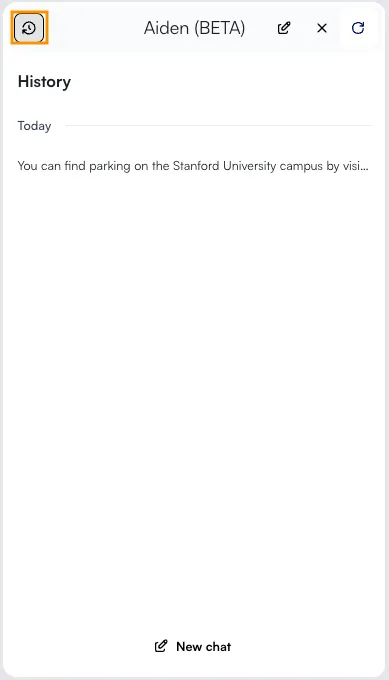
Open the Chat Menu:
- Locate the menu icon on the left corner of your chat window.
- Click this icon to open launch your chat history.
- This opens a list of past chats, providing a timeline of interactions.
-
Identify Escalated Conversations:
- You’ll see any chats that were passed to human support listed in the conversation history.
- This feature allows easy follow-up on inquiries needing additional support.
-
- For new inquiries, click the "New Conversation" button to initiate a fresh conversation with the AI assistant.
Start a New Conversation:
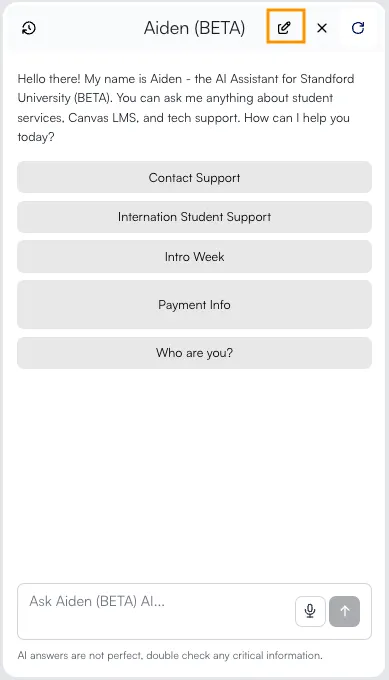
- For new inquiries, click the "New Conversation" button to initiate a fresh conversation with the AI assistant.
By following these steps, you can easily access previous conversations, track escalated inquiries, and continue conversations with your LearnWise Assistant.
Was this page helpful?
Still stuck?
Ask the LearnWise assistant. It answers from these guides.