

How can I add Kaltura video transcripts as a knowledge source in AI Student Tutor?
This guide walks you through the process of integrating Kaltura as an external tool when you have a course content assistant implemented in LearnWise. This integration means that the transcripts of Kaltura videos that are embedded into your courses will be included as knowledge for the assistant, resulting in more holistic answers for students.
3 min readUpdated
On this page
You can connect Kaltura using either of two authentication methods: an Administration Secret (full admin access) or an Application Token (a more restricted way to connect, without ever sharing your Administration Secret). You'll choose between them directly within the Kaltura configuration screen in LearnWise, covered in Step 1 below. #
Prerequisites #
Before starting the integration process, ensure you have:
- Access to Kaltura KMC (Kaltura Management Console) - You need login credentials and appropriate permissions
- Admin level access to LearnWise - Required to configure external tool integrations
Step 1: Open the Kaltura configuration screen and choose your authentication method #
- Log into your LearnWise admin panel
- Click on the Knowledge tab
- Navigate to Applications
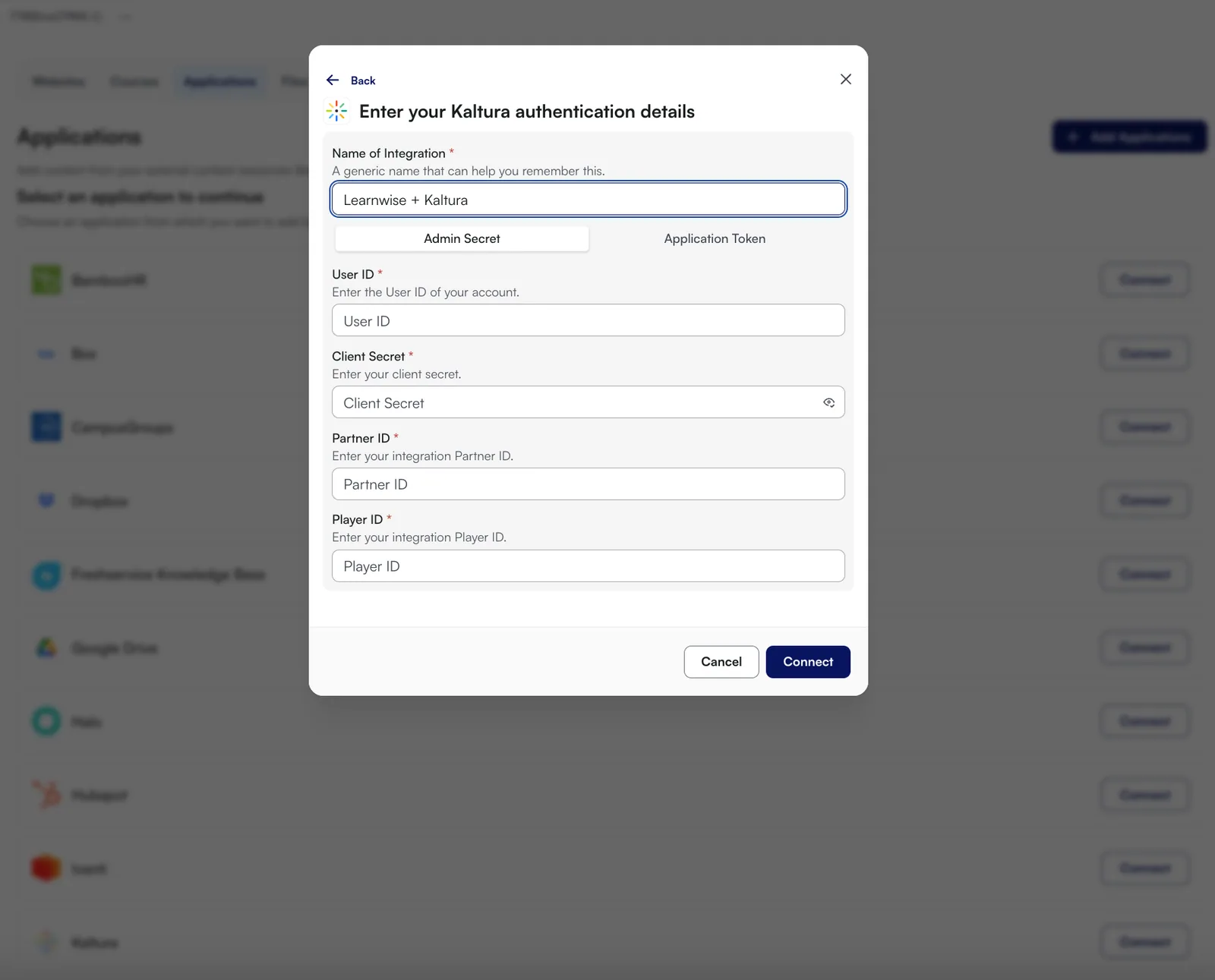
- Click Connect next to Kaltura - This opens the Kaltura configuration interface

- Enter a Name of Integration - A generic name to help you remember this connection
- Choose your authentication method by clicking either Admin Secret or Application Token at the top of the form
Step 2: Retrieve Partner ID and Player ID from Kaltura KMC #
These two values are needed regardless of which authentication method you chose in Step 1.
- Open your Kaltura KMC (Kaltura Management Console)
- Navigate to Settings > Integration
- Locate your Partner ID
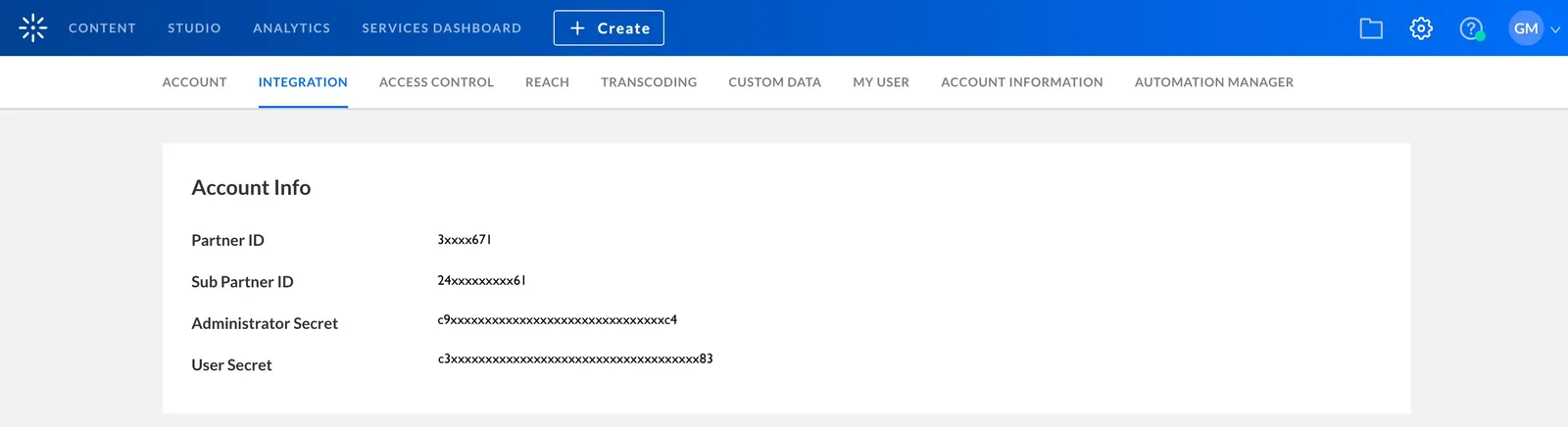
- Copy the Partner ID and paste it into the Partner ID field in LearnWise

- Navigate to Studio > Player Studio
- Choose the ID of the playlist you would like to add
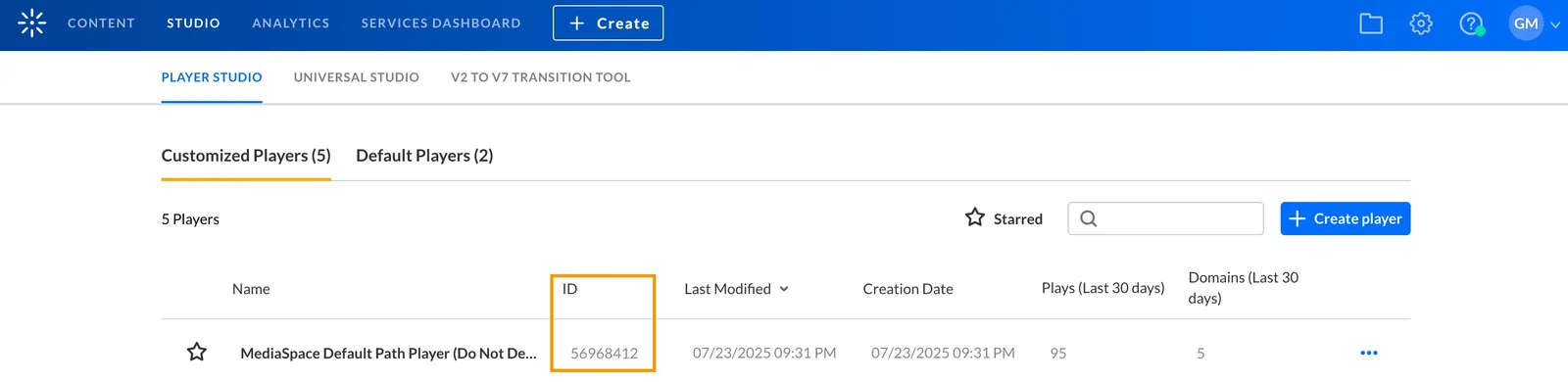
- Copy this and paste it into the Player ID field in LearnWise

Step 3: Enter your authentication credentials #
Follow the instructions below for whichever authentication method you selected in Step 1.
If you chose Admin Secret:
- In your Kaltura KMC, navigate to Settings > My User
- Locate your User ID (typically your username or email address)
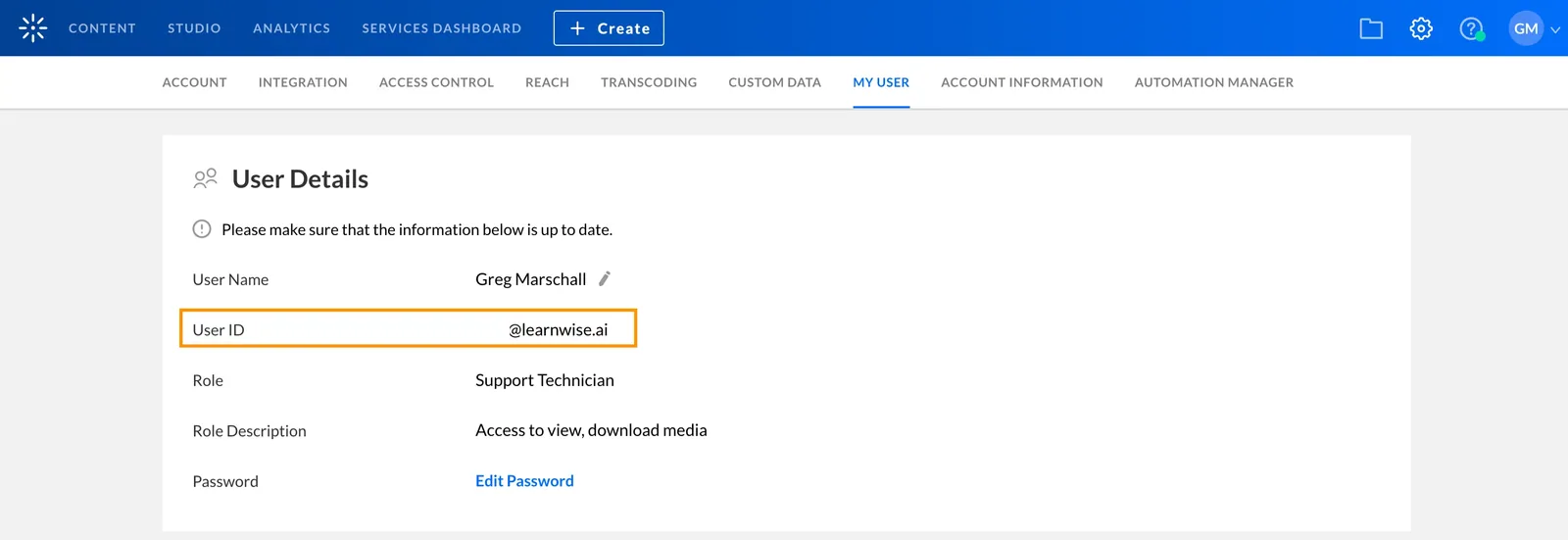
- Copy this and paste it into the User ID field in LearnWise

- Staying within the Kaltura KMC Settings > Integration, locate the Administration Secret
- Copy this and paste it into the Client Secret field in LearnWise

If you chose Application Token:
#
- Generate the Application Token:
- Ask your Kaltura account representative to generate it for you,
OR
- Generate it yourself, if your team is comfortable working with APIs, by following Kaltura's guide: How to create an AppToken authentication via API. This walks you through Kaltura's API console step by step to create the token and retrieve its ID and secret.
- Ask your Kaltura account representative to generate it for you,
- Once generated, you'll have an Application Token ID and a Token. The Token is a hashed value and is only shown once, so make sure it's saved somewhere secure
- Paste the Application Token ID into the Application Token ID field in LearnWise

- Paste the Application Token value into the Application Token field in LearnWise

- Under Hash type, select the hash algorithm that was configured for this Application Token in KMC (for example, SHA256)

Step 4: Connect #
Once all required fields are filled in, click Connect to complete the integration.
Configuration Summary #
Once completed, you should have the following information entered into the Kaltura configuration screen in LearnWise:
- ✅ Partner ID (from KMC Integration tab) - required for both authentication methods
- ✅ Player ID (from KMC Studio tab) - required for both authentication methods
- ✅ User ID and Client Secret (if using Admin Secret) or Application Token ID, Application Token, and Hash type (if using Application Token)
💡 Tip: Keep your Kaltura KMC and LearnWise admin panels open in separate browser tabs to easily copy and paste the required credentials.
⚠️ Important: Ensure all credentials are copied exactly as they appear in the KMC to avoid authentication issues.
Still stuck?
Ask the LearnWise assistant. It answers from these guides.
Related guides
- How can courses be structured in Canvas to maximize LearnWise?AI Student Tutor
- How can courses be structured in Moodle to maximize LearnWise?AI Student Tutor
- How can I add AI Student Tutor to Brightspace?AI Student Tutor
- How can I add AI Student Tutor within Canvas?AI Student Tutor
- How can I control which course content LearnWise ingests, including external integrations?AI Student Tutor