

How can I add the AI Feedback tool within Canvas?
The LearnWise AI Feedback tool enhances grading and feedback in Canvas by integrating AI-powered feedback directly into the SpeedGrader. This guide outlines the steps to install the tool, the APIs it utilizes, the OAuth2 authentication flow, and additional configuration options.
4 min readUpdated
On this page
Installation #
Installation of the LearnWise Feedback tool can be done at both a global level and at the course level.
To install it at the global level:
-
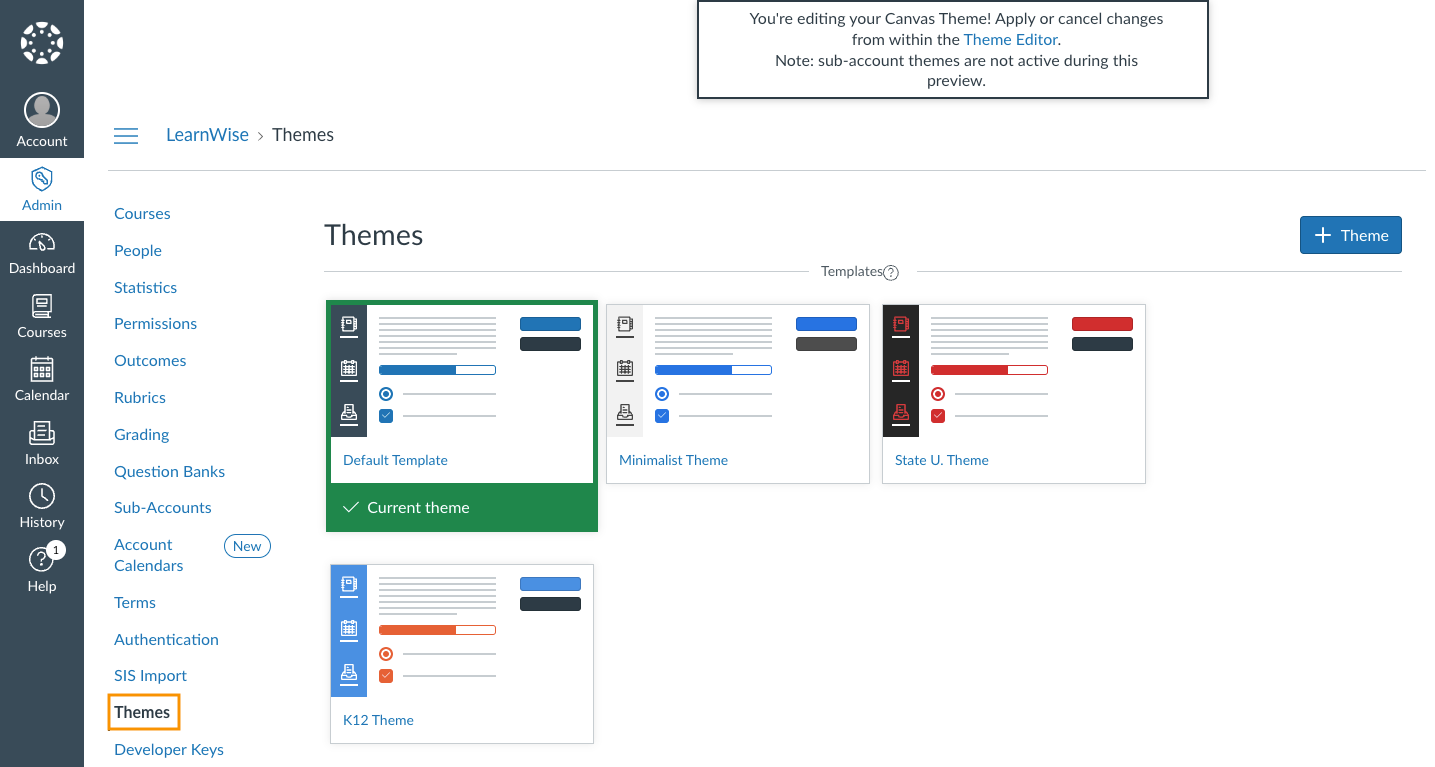
Access the Canvas Theme Editor:
- Log in to your Canvas Admin account.
- Navigate to Admin > Themes.
- Select the theme you want to modify or create a new theme.
-
Insert the JavaScript Code:
- Click on Upload and Select JavaScript file
- Save the following script as a file, replacing
{value_provided_by_learnwise}with your unique assistant ID and region with your specific region (e.g., 'us'):
window.learnWiseFeedbacksetup = {
    host: 'https://feedback.learnwise.ai',
    feedbackSrc: 'https://feedback.learnwise.ai',
    assistantId: 'value_provided_by_learnwise',
    region: 'us'
};

var script_fb = document.createElement('script');
script_fb.src = window.learnWiseFeedbacksetup.host + '/launcher/launcher.js';
document.head.appendChild(script_fb);
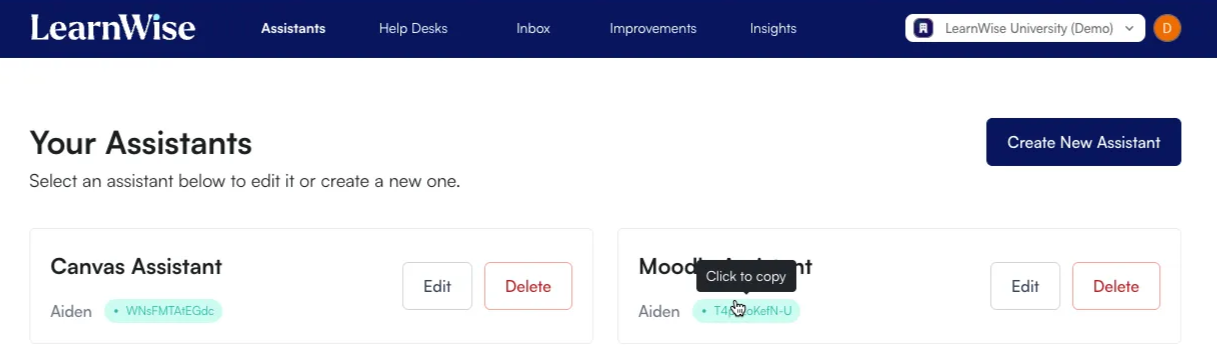
Note: you can find your assistant ID on the landing page of your LearnWise dashboard
To install it at the course level there are 2 options:
Sub-Account Deployment #
- Create a Canvas Sub-Account.
- Move the course that you would like to apply the feedback tool to into this sub-account.
- Apply the LearnWise JavaScript code only within this sub-account theme
Generate an API Key #
In order to authorize the application (OAuth 2.0), an API key is required
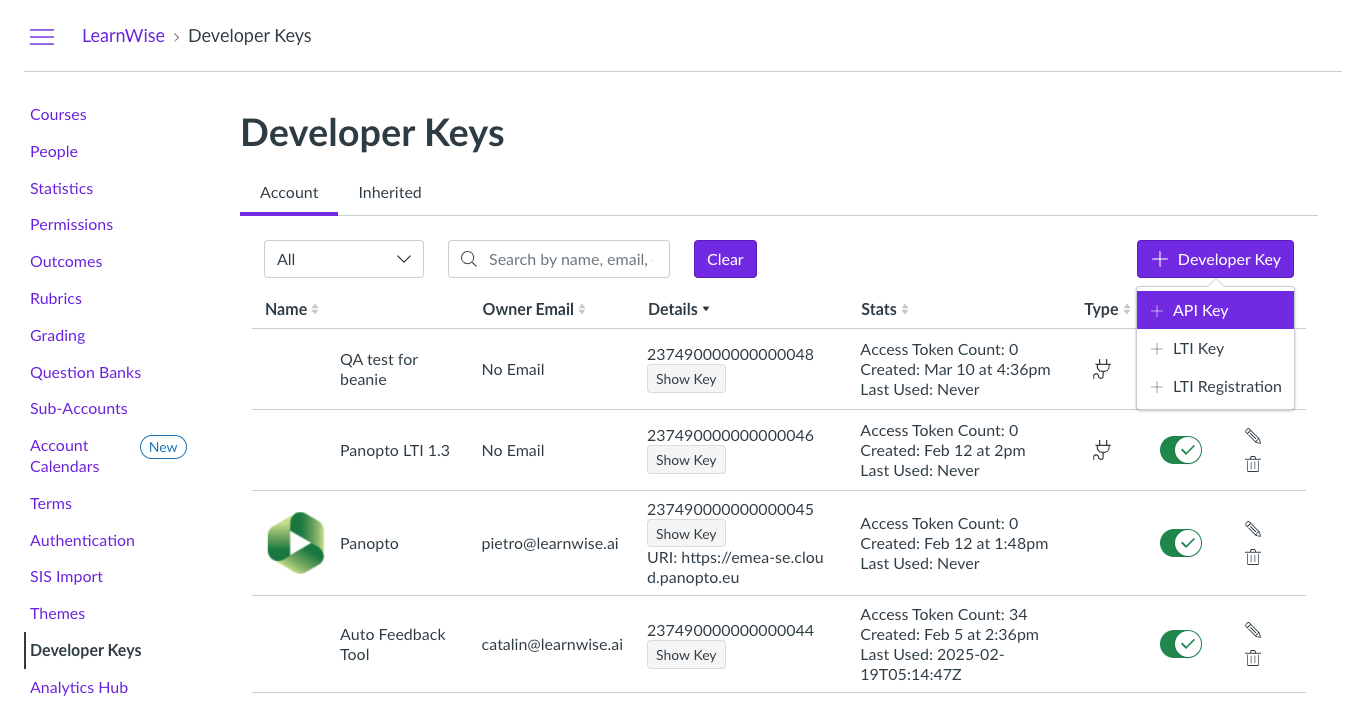
- Navigate to Admin > Developer Keys > + Developer Key > + API Key
- Add a recognizable name to the API Key (e.g LearnWise Feedback API)
- Assign an owner to the key
- Paste the following URI redirect depending on your region:
US based partners:
https://api.learnwise.ai/oauth/canvas/callback?region=us
https://api.oauth.learnwise.ai/oauth/canvas/callback
UK based partners:
https://api.learnwise.ai/oauth/canvas/callback?region=uk
https://api.oauth.learnwise.ai/oauth/canvas/callback
Europe & rest of the world based partners:
https://api.learnwise.ai/oauth/canvas/callback
https://api.oauth.learnwise.ai/oauth/canvas/callback
- Click Save
💡 The tool interacts with Canvas APIs to retrieve and submit grading feedback. These API endpoints are prepended by: https://{instance_name}.instructure.com/api/v1
Key API Endpoints #
| Functionality | Endpoint |
|---|---|
| Fetch user details | users/{} |
| Fetch assignment details | courses/{}/assignments/{} |
| Fetch submission data | courses/{}/assignments/{}/submissions/{} |
| Fetch course information | courses/{} |
| Fetch course files | courses/{}/files |
| Fetch course pages | courses/{}/pages |
| Fetch course page content | courses/{}/pages/{} |
| Submit AI-generated feedback | courses/{}/assignments/{}/submissions/{} |
| Refresh OAuth token | login/oauth2/token |
| Authorize OAuth token | login/oauth2/auth |
Creating the API connection #
- Navigate to the Learnwise admin panel. Click on knowledge courses
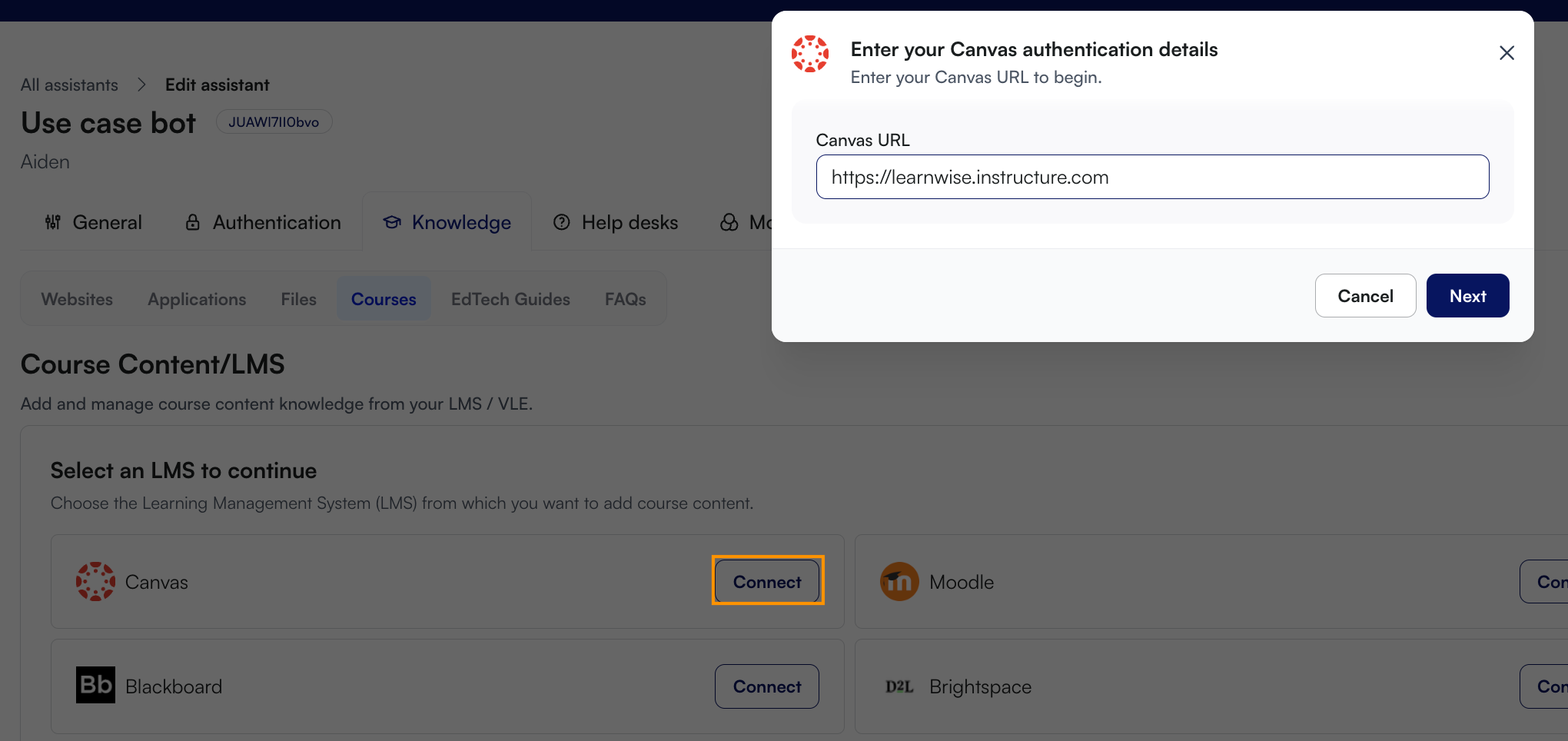
- Click on ‘Connect’ in the Canvas option
- Enter your url (it must be prefixed by https://) & click next
Generate an access token
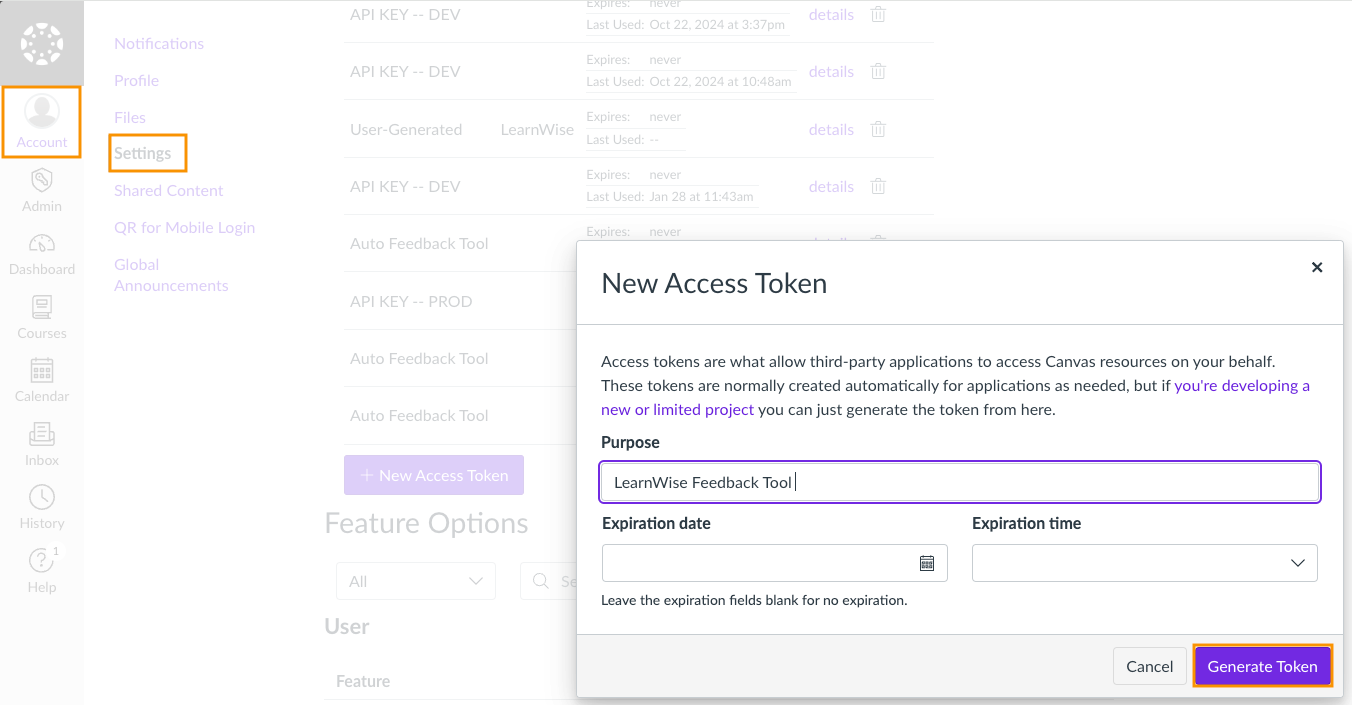
- Navigate to Account > Settings > + New Access Token
- Provide a purpose for the token (e.g. LearnWise Feedback tool)
- Leave the expiration date and time blank
- Click Generate Token. Copy the token number and paste it somewhere safe
-
Enter your access token into the LearnWise dashboard and click verify to create the connection
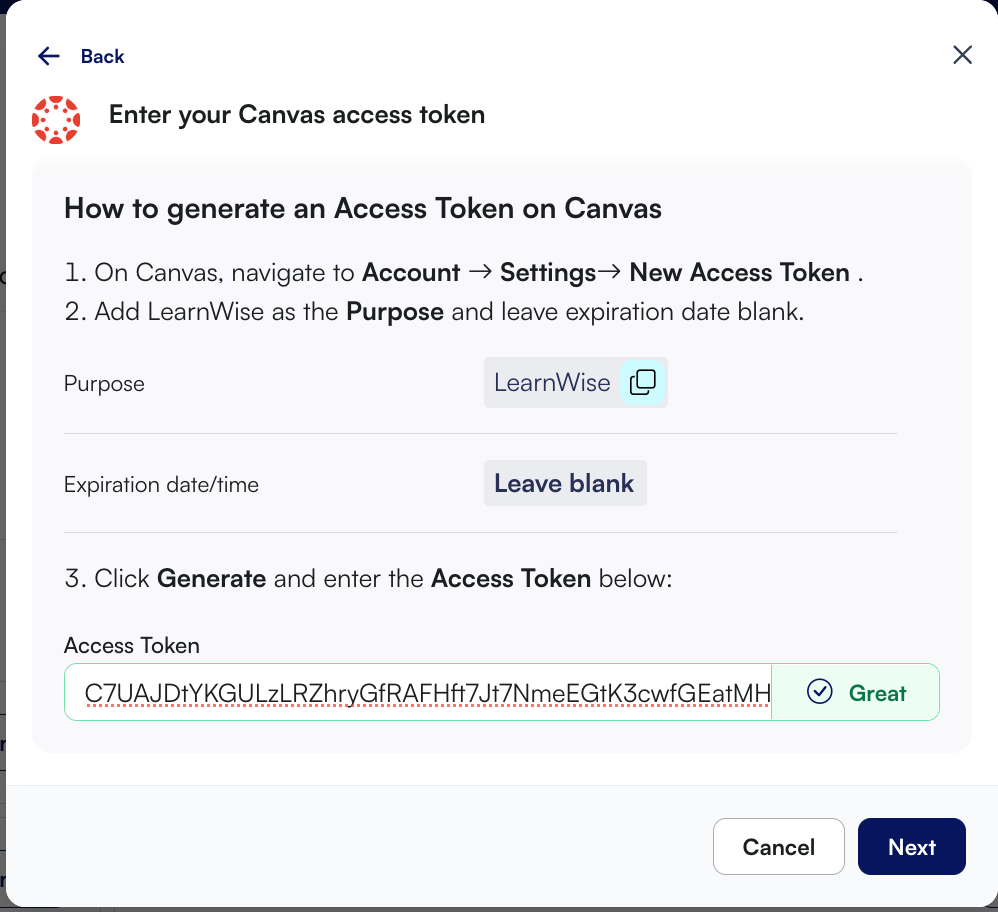
-
Click Next
-
In the Content types section, select all available options
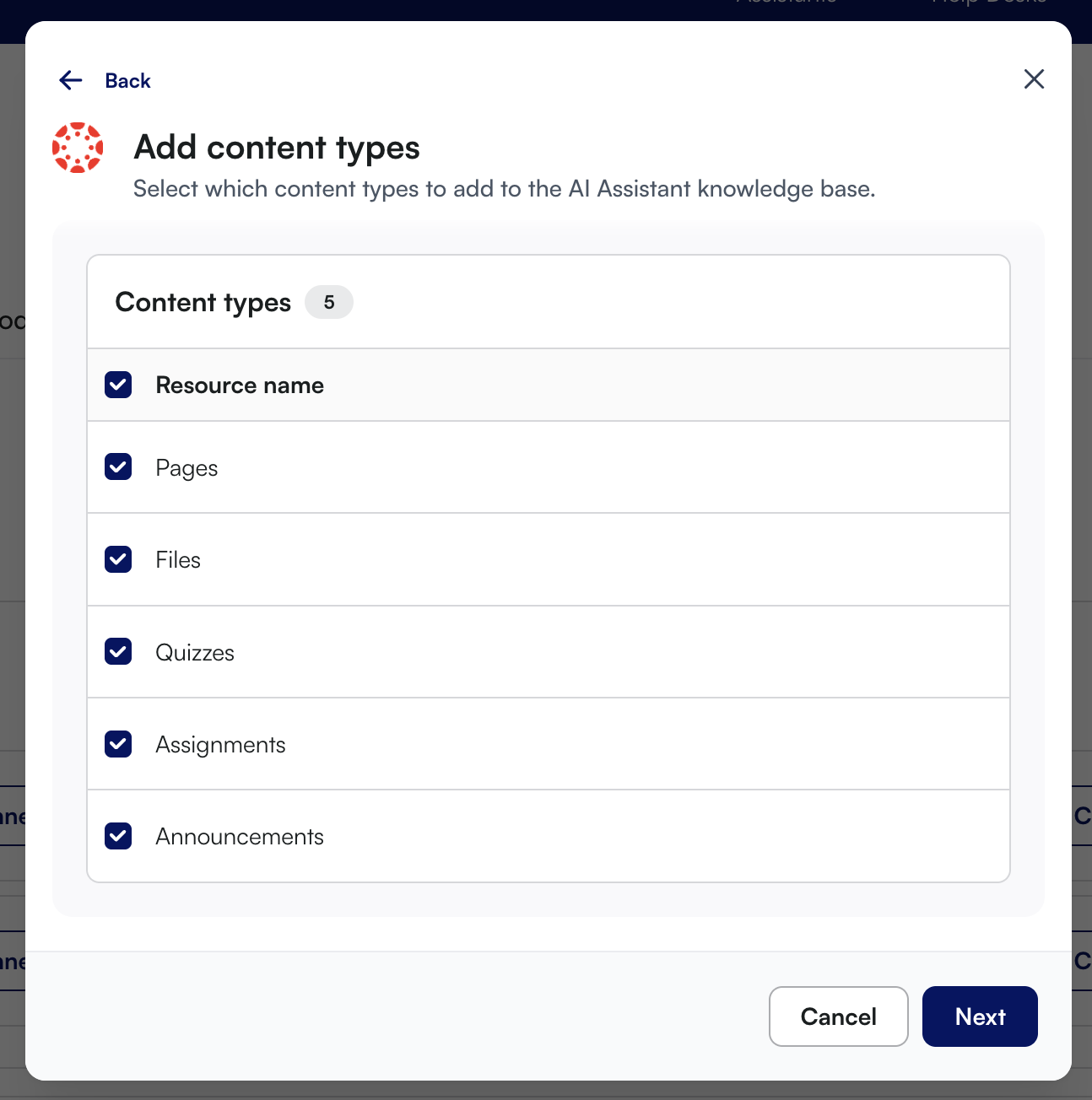
-
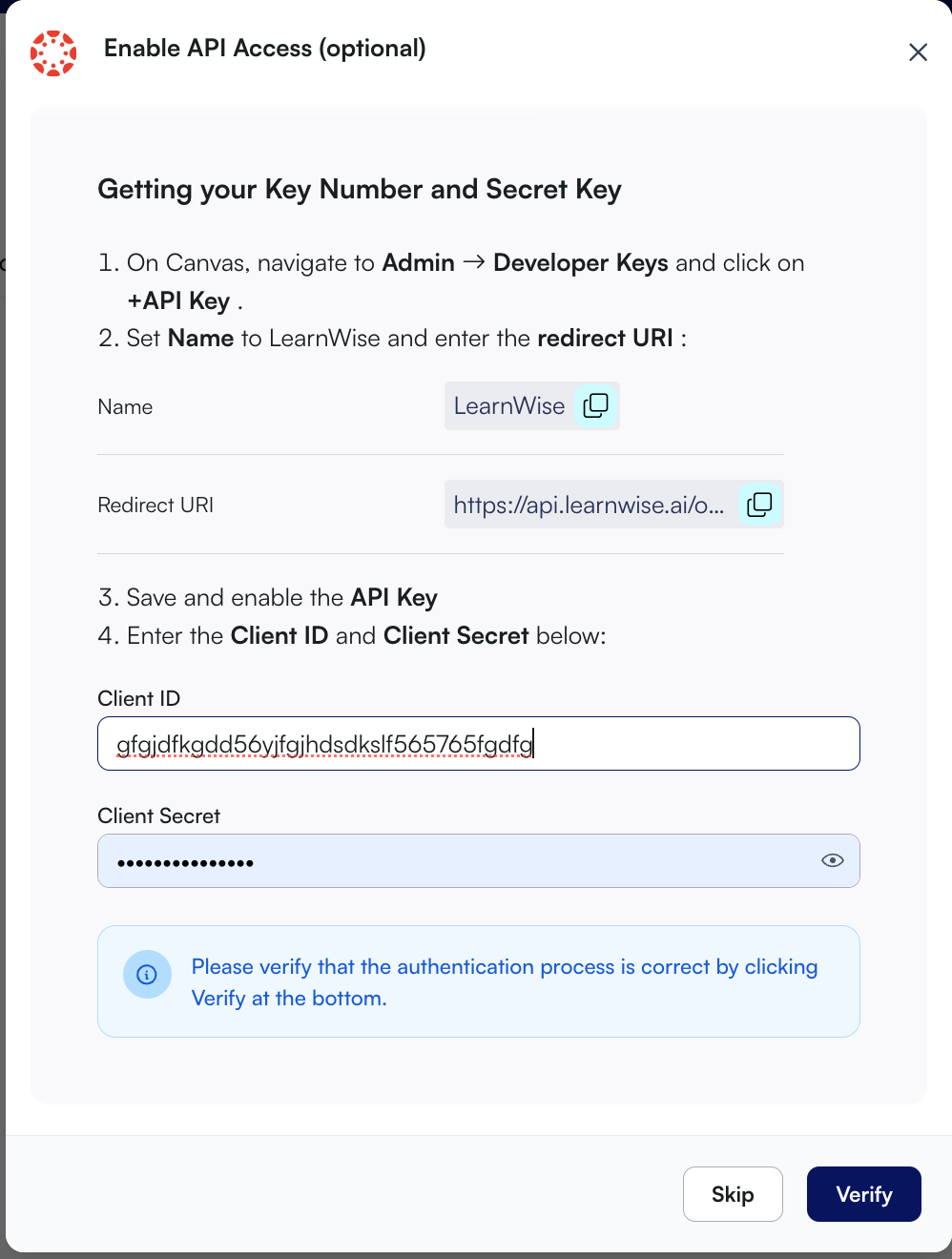
Copy the Client ID and Client Secret of the API Key created in the previous step
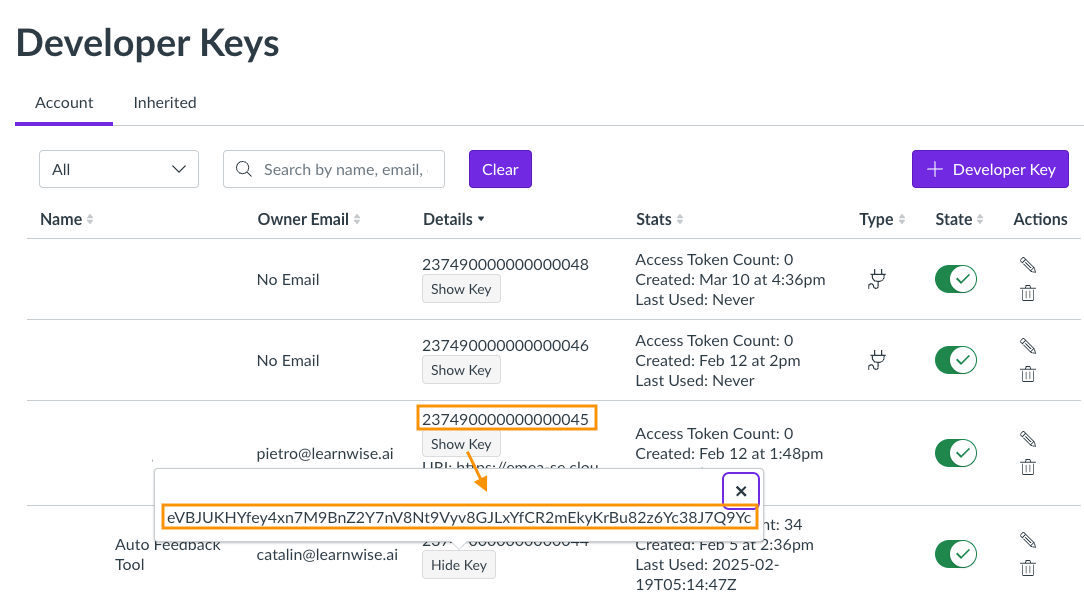
-
Paste into the corresponding fields in the LearnWise admin
📘 How to enable Feedback #
Once the API is connected LearnWise will automatically begin ingesting course-specific material as soon as a course page containing the assistant is opened.
Turning on Teacher Feedback #
- Navigate to LearnWise course assistant and click on AI Feedback > For Teachers
- Toggle Feedback AI on to allow educators to use Feedback in their courses.

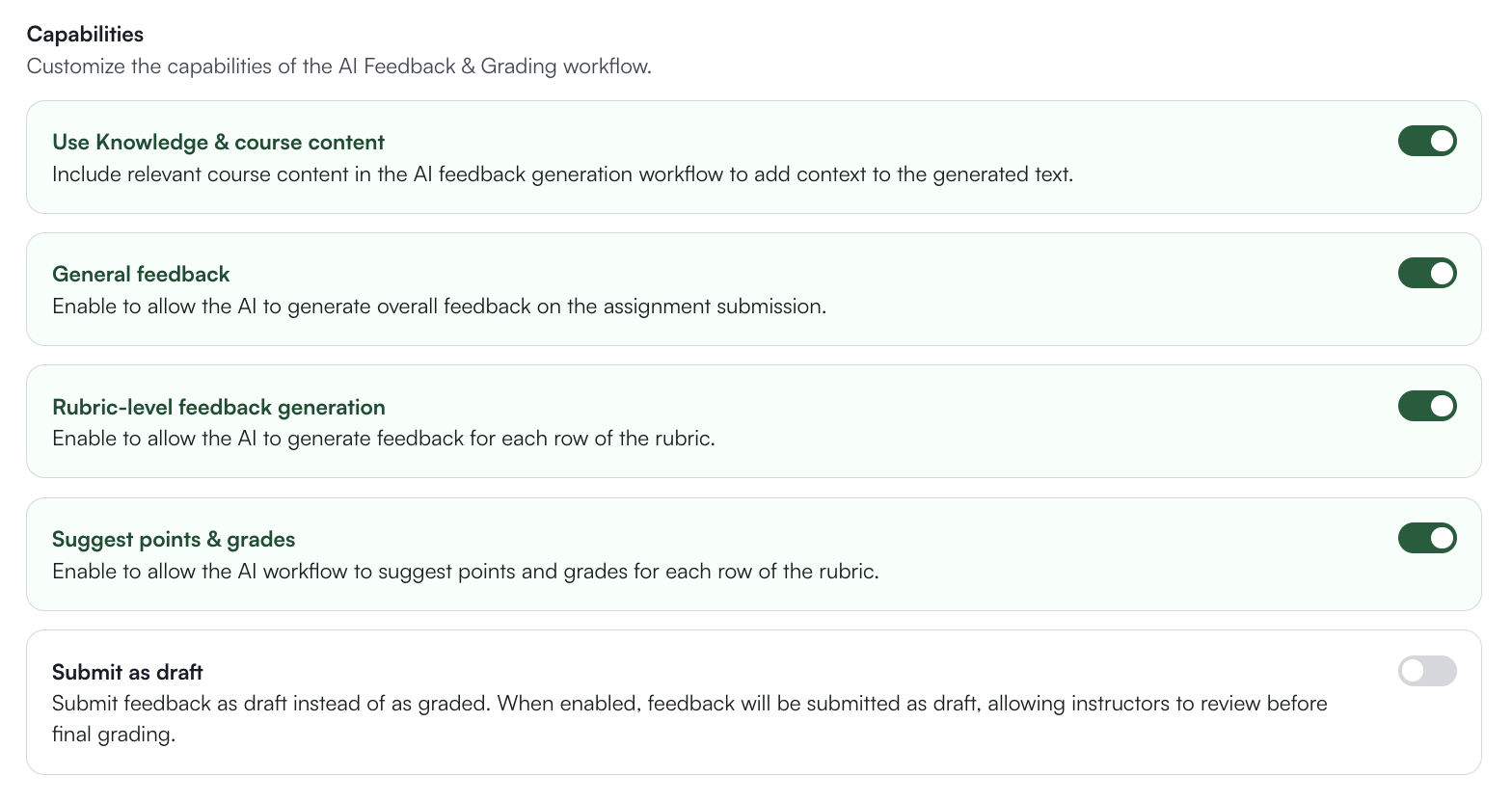
Note: When both the chat assistant and AI Feedback are enabled on the same assistant, they will share a single entry point on the LMS grading interface. - Select which optional capabilities to enable
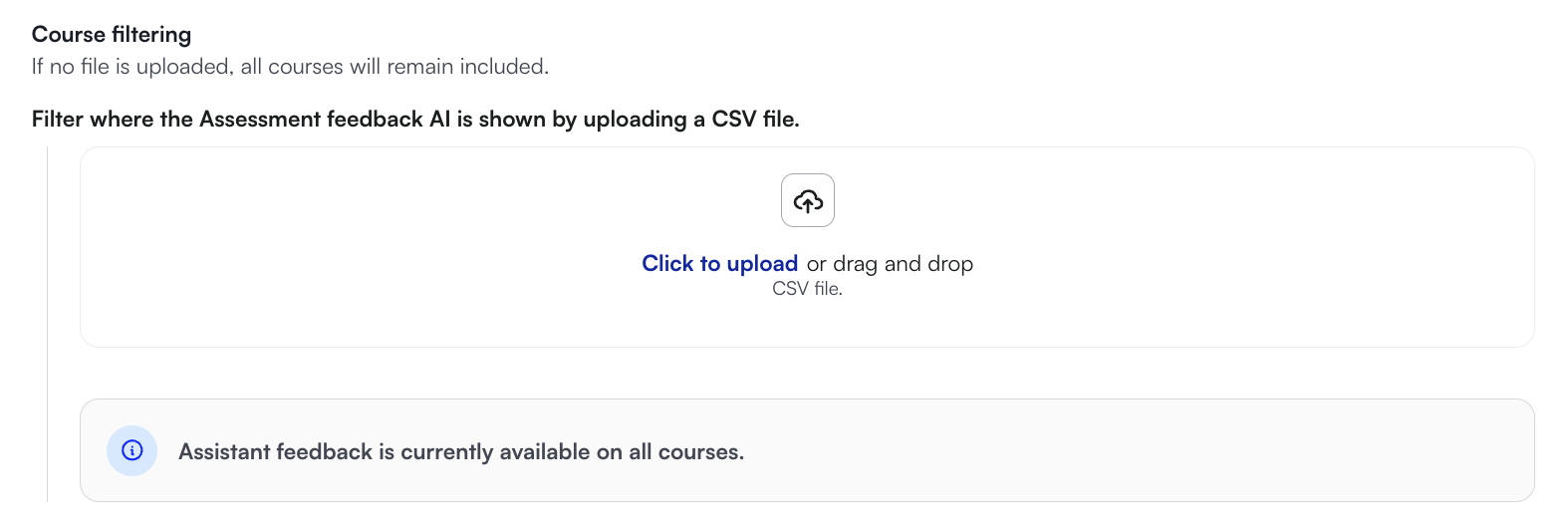
- Upload a CSV to define which courses should have AI Feedback enabled for instructor use.
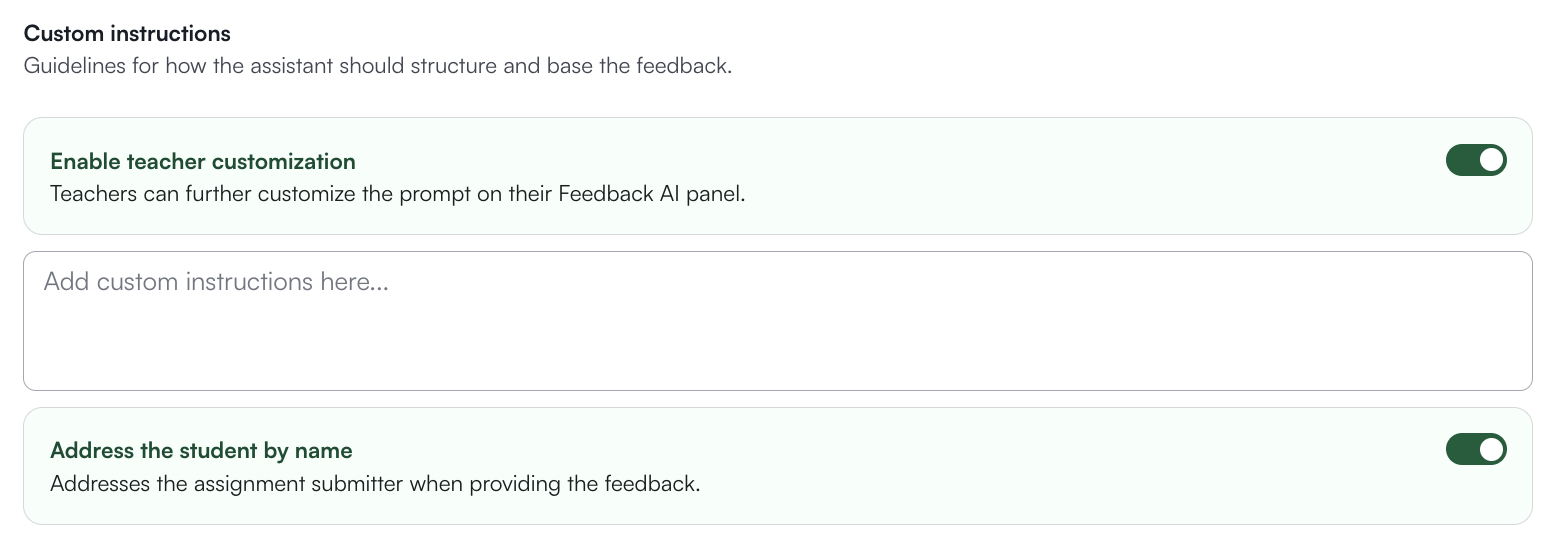
- Use Custom Instructions to further personalize the generated feedback
Now instructors will be able to use AI Feedback as part of their normal grading workflow.
Note: For more information on instructor use cases and best practices, please refer to this article.
Turning on Automated Feedback #
- To allow fully automated feedback and grading on select assignments, navigate to the LearnWise course assistant and click on AI Feedback > Automated Assessment
- Turn on Enable automated AI Feedback & Grading

- Optionally enable or disable Use Knowledge & course content (all other capabilities are required to successfully submit assessments to the LMS)
- Use Custom Instructions to further personalize the generated feedback
-
Required: Compile a CSV file containing the Assignment IDs and related Course IDs that should be automatically assessed. Refer to the template.
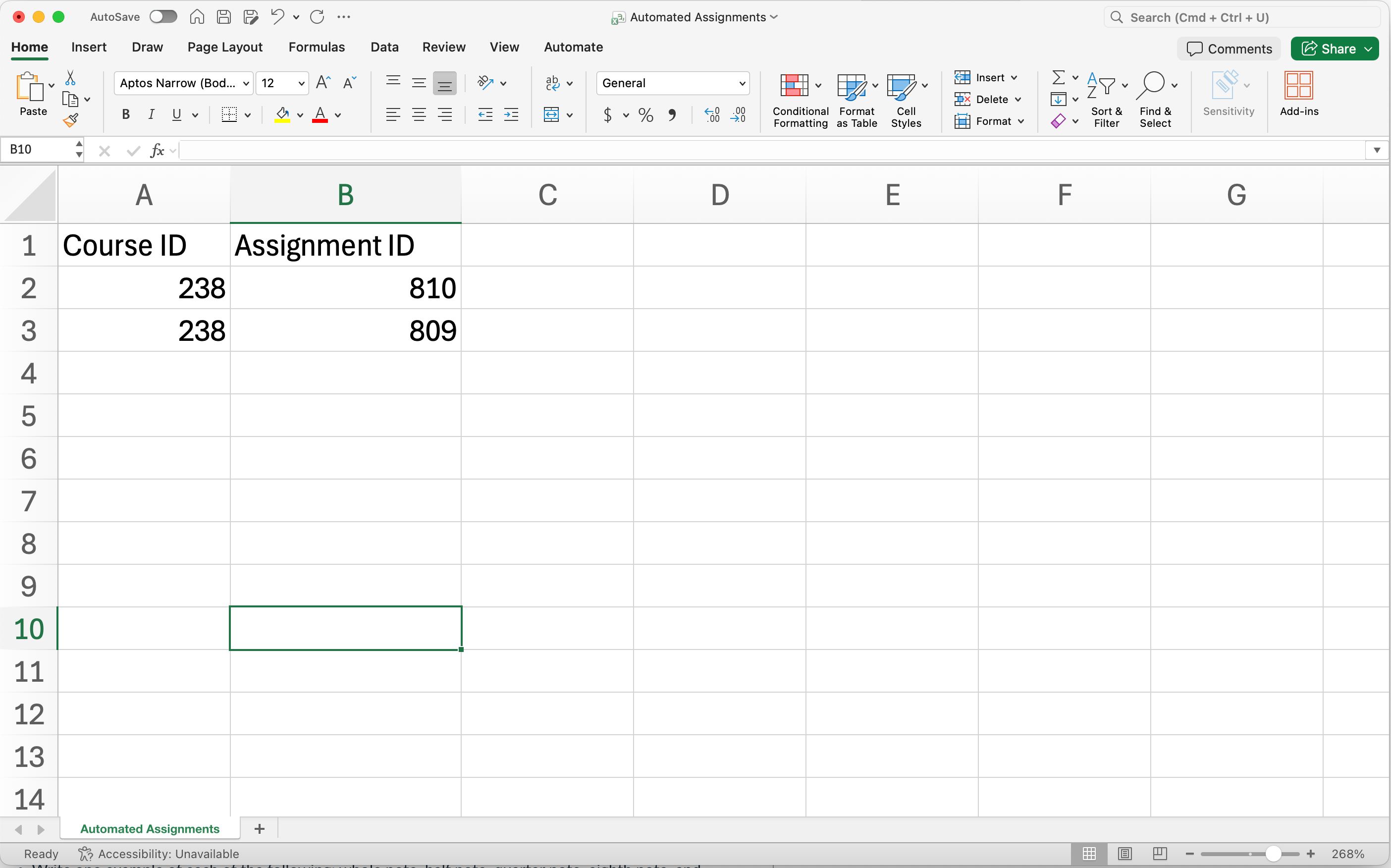
-
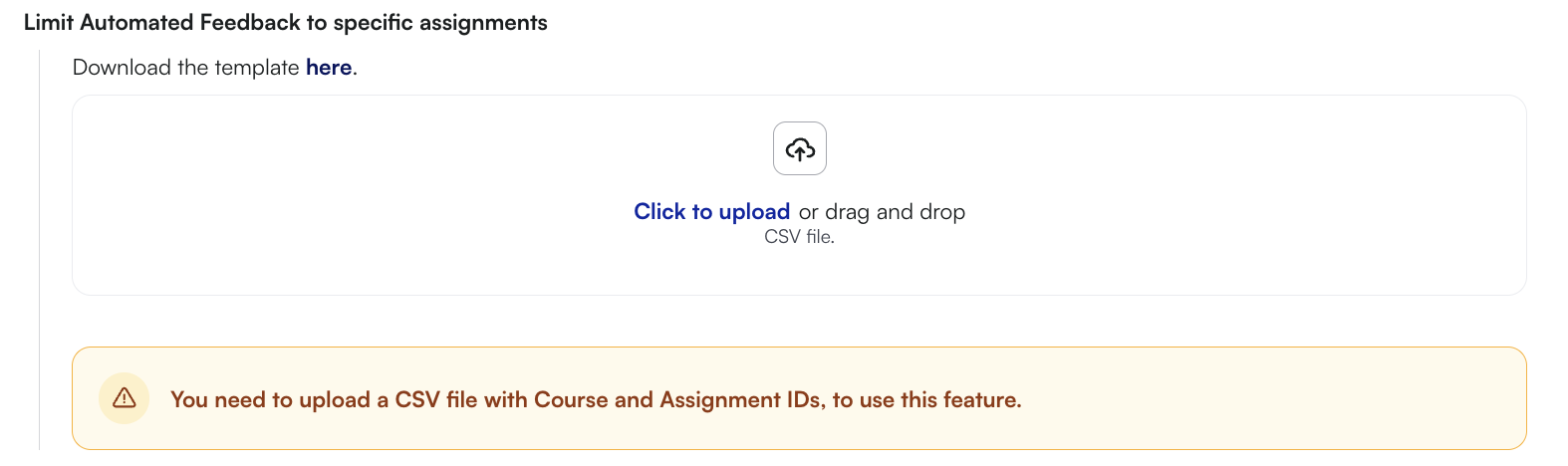
Required: Upload the CSV file in the Choose which assignments get automatic feedback section. Make sure to map the corresponding CSV columns.
Still stuck?
Ask the LearnWise assistant. It answers from these guides.
Related guides
- Best Practices for Building Rubrics in BrightspaceAI Feedback & Grader
- How can I add AI Feedback & Grader within Brightspace?AI Feedback & Grader
- How can I add the AI feedback tool within Moodle?AI Feedback & Grader
- What is Canvas Instant Feedback (PNS) and how does it work?AI Feedback & Grader
- How can I add AI Student Tutor within Canvas?AI Student Tutor