

How do I integrate Panopto video transcripts as part of my course content?
A guide to integrating Panopto with LearnWise so course video transcripts become searchable knowledge for your assistants via an OAuth API client, LMS course mapping, and synchronized folders.
2 min readUpdated
On this page
Prerequisites #
- Panopto site URL, e.g., emea-se.cloud.panopto.eu or yourorg.hosted.panopto.com
- Admin access in Panopto to create an API Client
- LearnWise Admin access to connect integrations
- LMS already connected in LearnWise for course matching (Canvas, Brightspace, Moodle, or Blackboard)
1) Create an OAuth API Client in Panopto #
-
Sign in to your Panopto site as an administrator.
-
Go to System > API Clients.
-
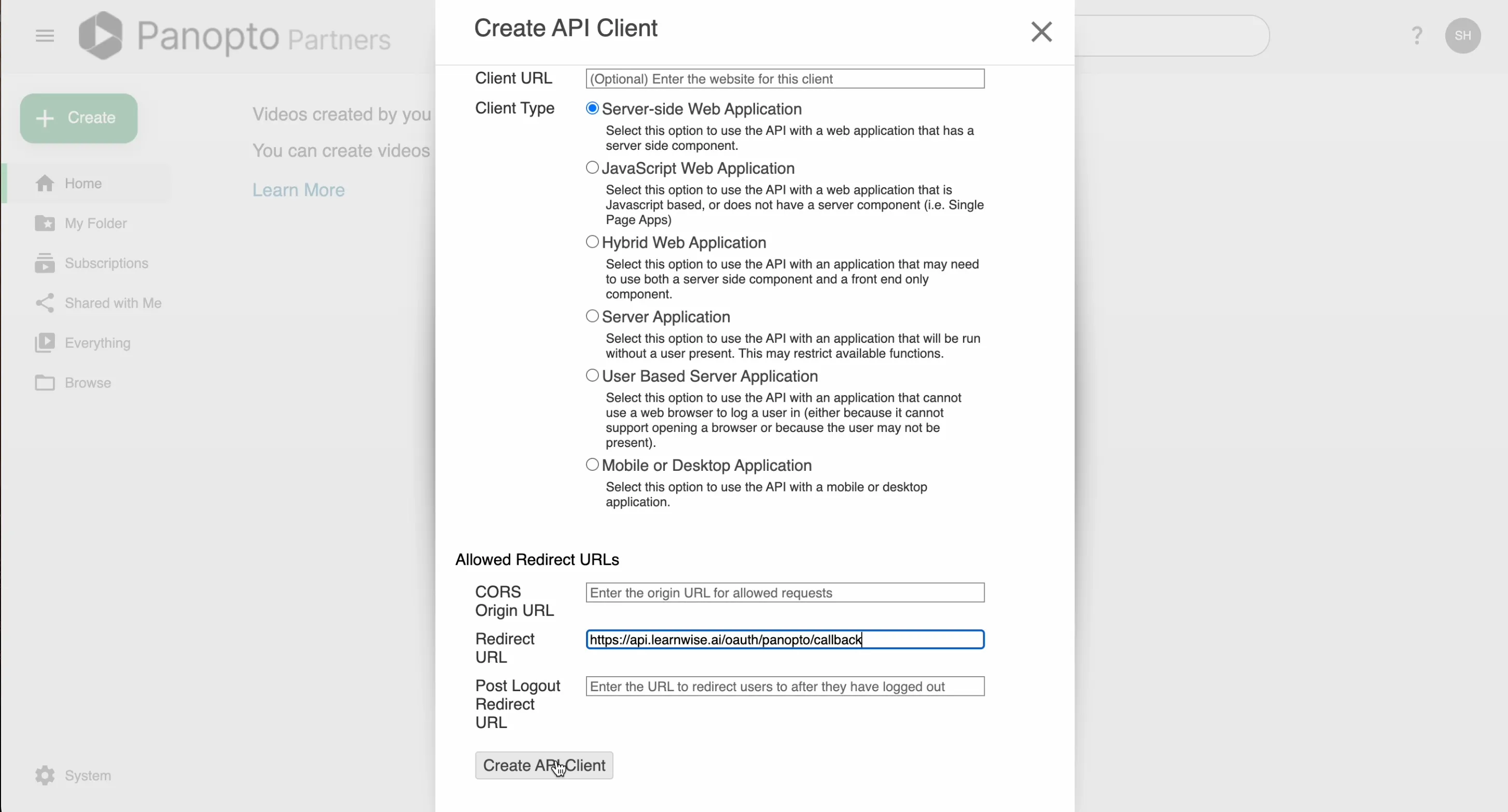
Create new client:
- Application type: Server‑side web application
- Name: "LearnWise Integration"
- Redirect URL: EU: https://api.learnwise.ai/oauth/panapto/callback UK: https://api.learnwise.ai/oauth/panopto/callback?region=uk US: https://api.learnwise.ai/oauth/panopto/callback?region=us
- Leave post‑logout and CORS empty unless specified by LearnWise.
-
Save and copy the Client ID and Client Secret.
2) Connect Panopto in LearnWise Admin #
-
In LearnWise Admin, navigate to Knowledge > Courses > External Tools
-
Click on Add Application and Choose ‘Connect’ next to Panapto
-
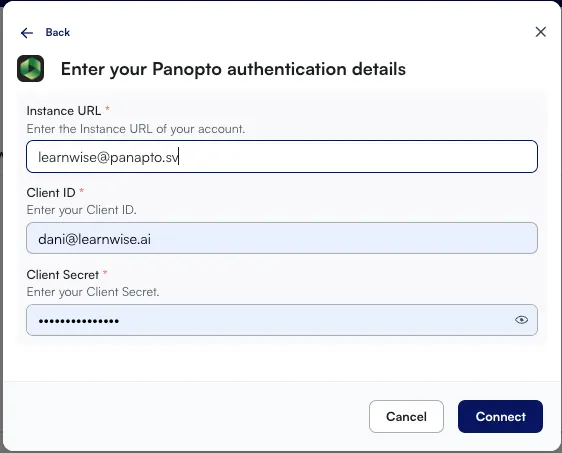
Enter your Panopto site URL exactly as it is without any trailing information
-
Paste the Client ID and Client Secret from Panopto.
-
Click Connect and complete the OAuth consent flow.
- On success, select which folders or courses to sync if prompted. Otherwise proceed to global sync.
3) Ensure course mapping exists #
LearnWise associates transcripts to courses by embedded Panopto links found in course content and by site‑level folder mappings.
- Ensure your LMS content contains embedded Panopto videos or links that include the Panopto site domain.
- If your institution uses LTI embeds without visible panopto domains, please talk reach out to your implementation specialist
4) Run Initial Sync and Verify #
- Trigger a content re‑scrape for a course with Panopto videos.
- In a test course, ask the assistant a question whose answer appears clearly in a Panopto video transcript.
- Open View Sources in the response to confirm a Panopto transcript is cited.
Troubleshooting #
- Connection error after consent
- Likely redirect URL mismatch or incorrect site URL. Confirm exact Panopto site domain and the redirect URL shown in the LearnWise wizard.
- No videos appearing in knowledge
- LMS pages use LTI embeds without panopto in src. Add direct folder mapping in LearnWise Admin or include at least one page with a standard panopto link to seed discovery.
- The selected folders are empty or restricted. Verify folder permissions and content.
- Token expires frequently
- Re‑create the Panopto client ensuring refresh tokens are enabled for the server‑side web app type.
- Wrong course linkage
- Ensure the Panopto video page or embed URL is present in the target course content, or configure explicit folder‑to‑course mappings.
Operational Notes #
- Large libraries index incrementally; allow time for the first pass.
- Changes in Panopto permissions propagate on the next sync.
- For sandbox testing, create a small folder with a few short videos and known transcript phrases.
Still stuck?
Ask the LearnWise assistant. It answers from these guides.
Related guides
- How can courses be structured in Canvas to maximize LearnWise?AI Student Tutor
- How can courses be structured in Moodle to maximize LearnWise?AI Student Tutor
- How can I add AI Student Tutor to Brightspace?AI Student Tutor
- How can I add AI Student Tutor within Canvas?AI Student Tutor
- How can I add Kaltura video transcripts as a knowledge source in AI Student Tutor?AI Student Tutor