

How does Brightspace Instant Feedback (PNS) work?
A guide to setting up instant, automatic grading for Brightspace submissions using Brightspace's Platform Notification Service, so students get feedback the moment they submit.
2 min readUpdated
On this page
Overview #
Brightspace Instant Feedback grades a student's submission the moment they submit it. There's no waiting for a scheduled check, and no need to upload a CSV file to tell the system which assignments to grade. It works by using two Brightspace features together: LTI Asset Processor and the Platform Notification Service (PNS).
Note: Turning on PNS disables the CSV assignment mapper, since assignments are now chosen directly in Brightspace instead. Turning PNS off brings the CSV method back.
Prerequisites #
Before beginning the setup process, you should have:
- Admin access to Brightspace
- Admin access to the LearnWise dashboard
Part 1: Brightspace admin setup (one-time per registration) #
-
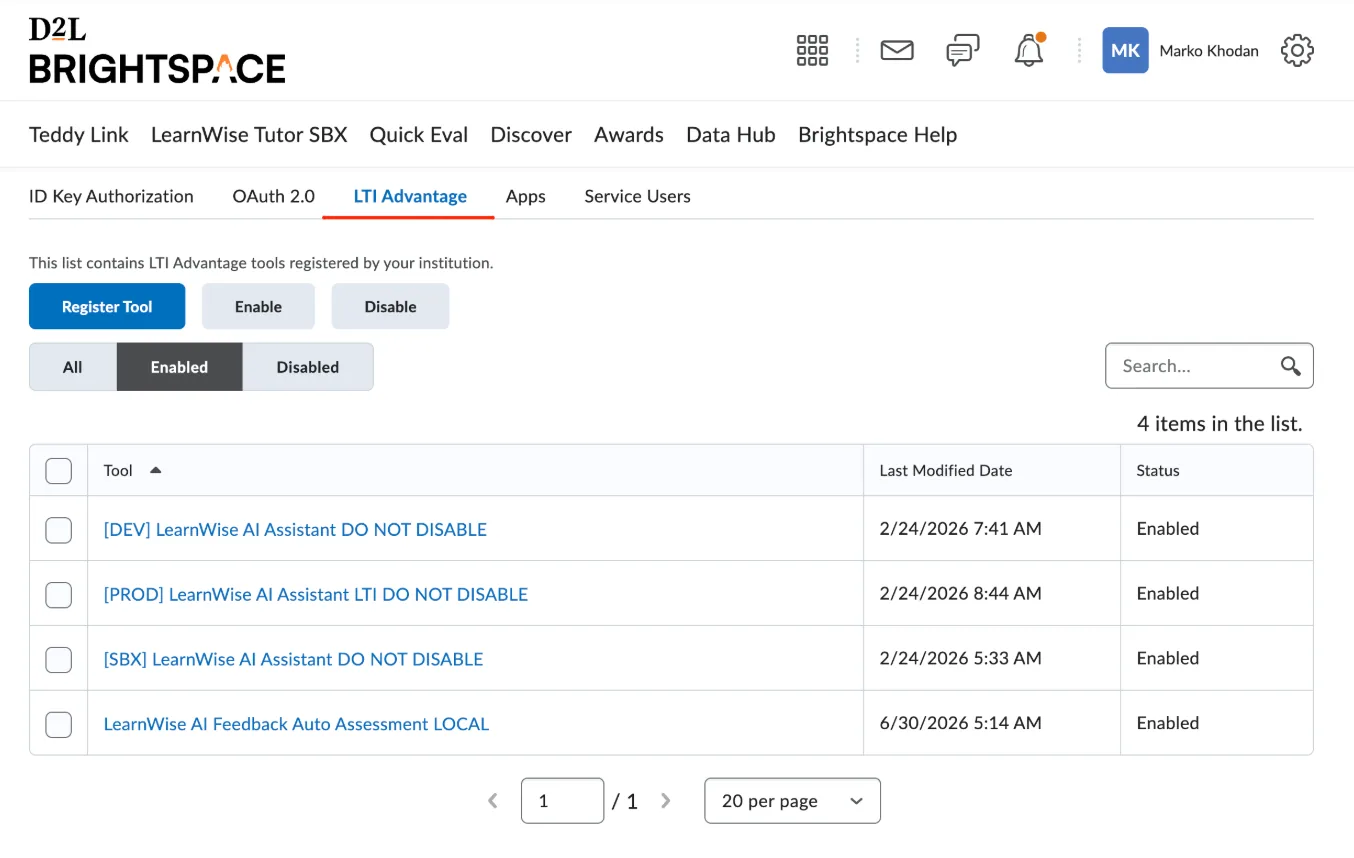
In Brightspace, navigate to Admin > Manage Extensibility > LTI Advantage, then open your existing LearnWise registration. If you don't have one yet, create a new LTI 1.3 registration.
-
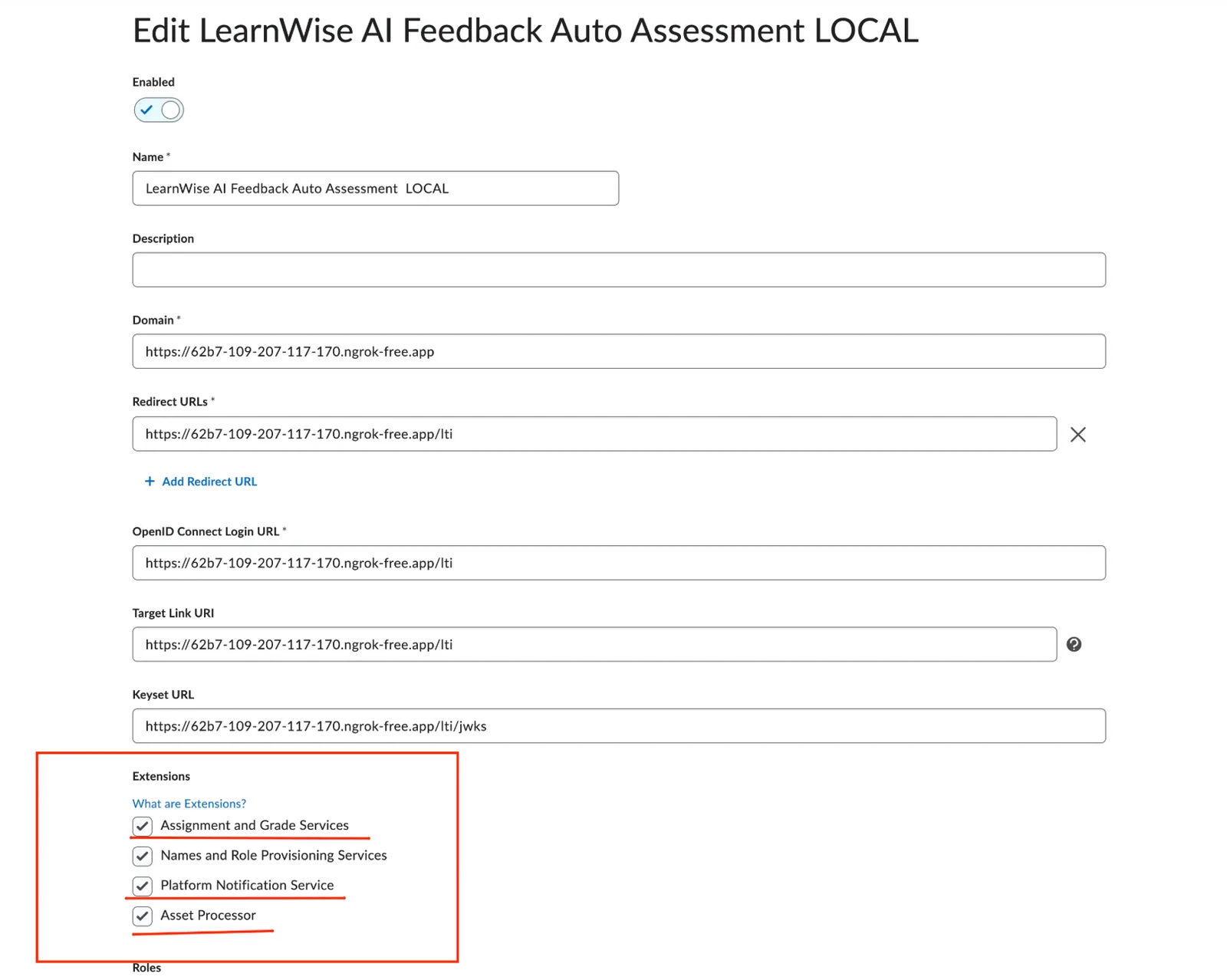
On the registration, turn on these three extensions:
- Assignment & Grade Services
- Platform Notification Service
- Asset Processor
Also add these to the tool deployment. Make sure the deployment is available either for your whole organization, or for the specific courses where you want to use it.
-
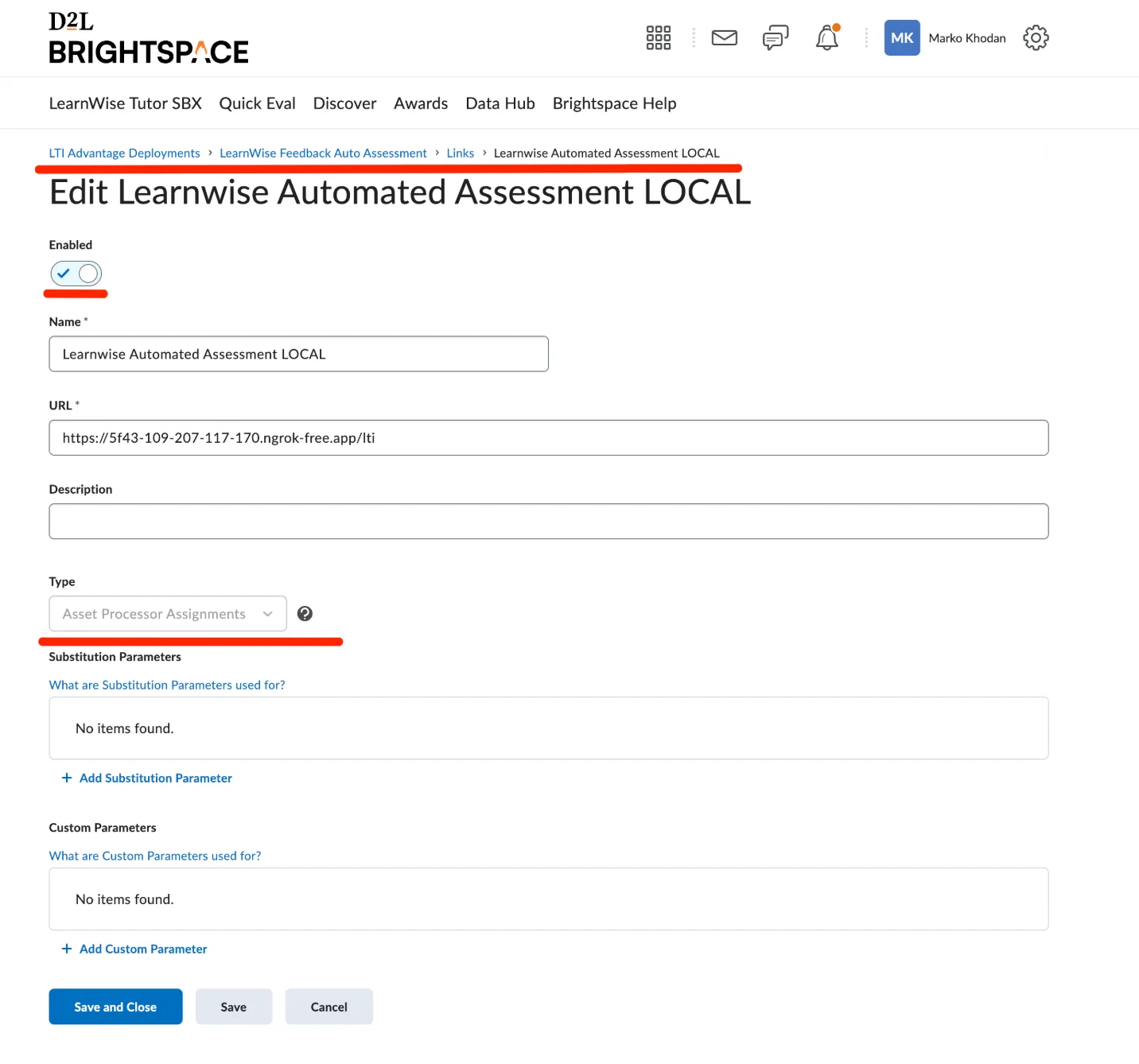
On the deployment, add an Asset Processor Assignments link. Keep the existing launch link in place as well; you don't need to remove it.
Part 2: LearnWise admin setup #
- In the LearnWise admin panel navigate to Assistant > Knowledge > LMS integration, and reconnect the Brightspace feedback integration.
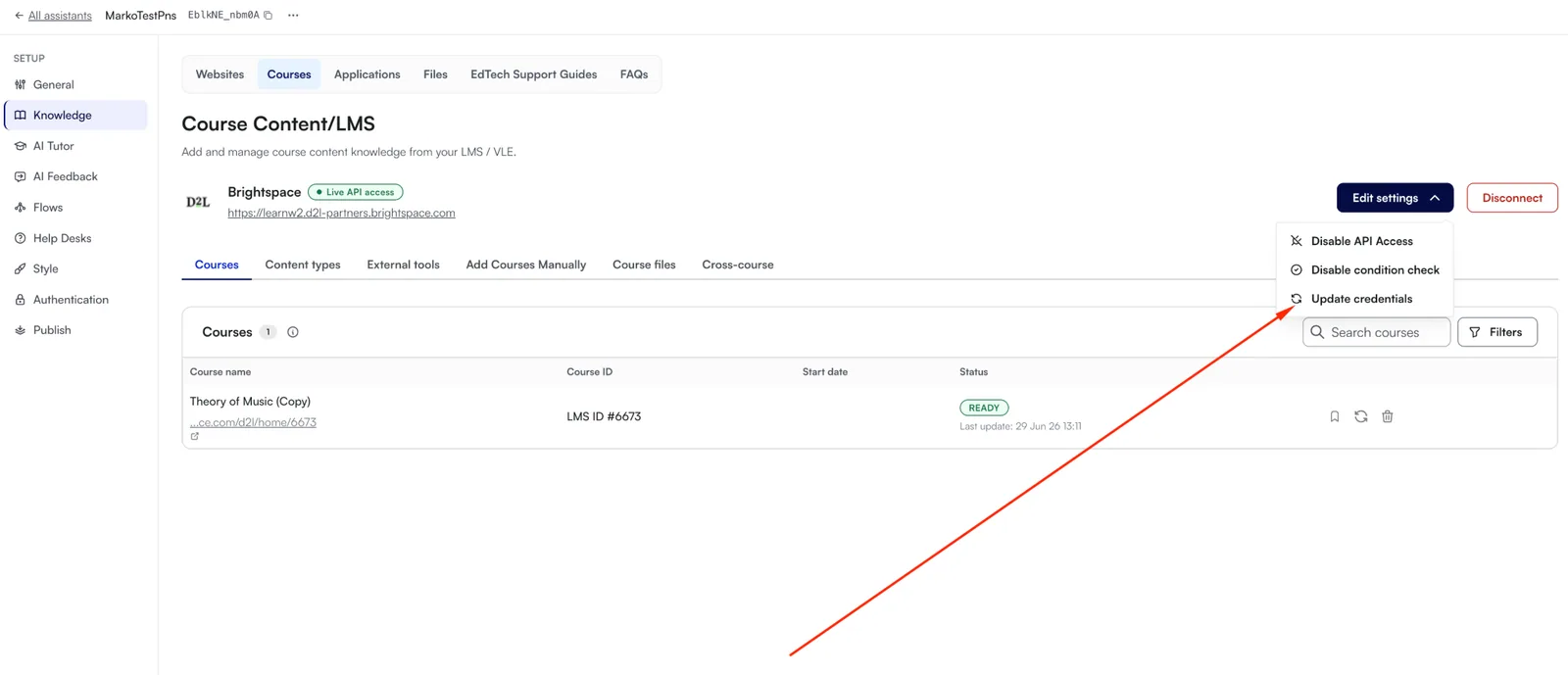
This grants the three Asset Processor scopes needed:-
ltiadvantage:assetprocessors:read
-
ltiadvantage:registrations:read
-
ltiadvantage:links:read
-
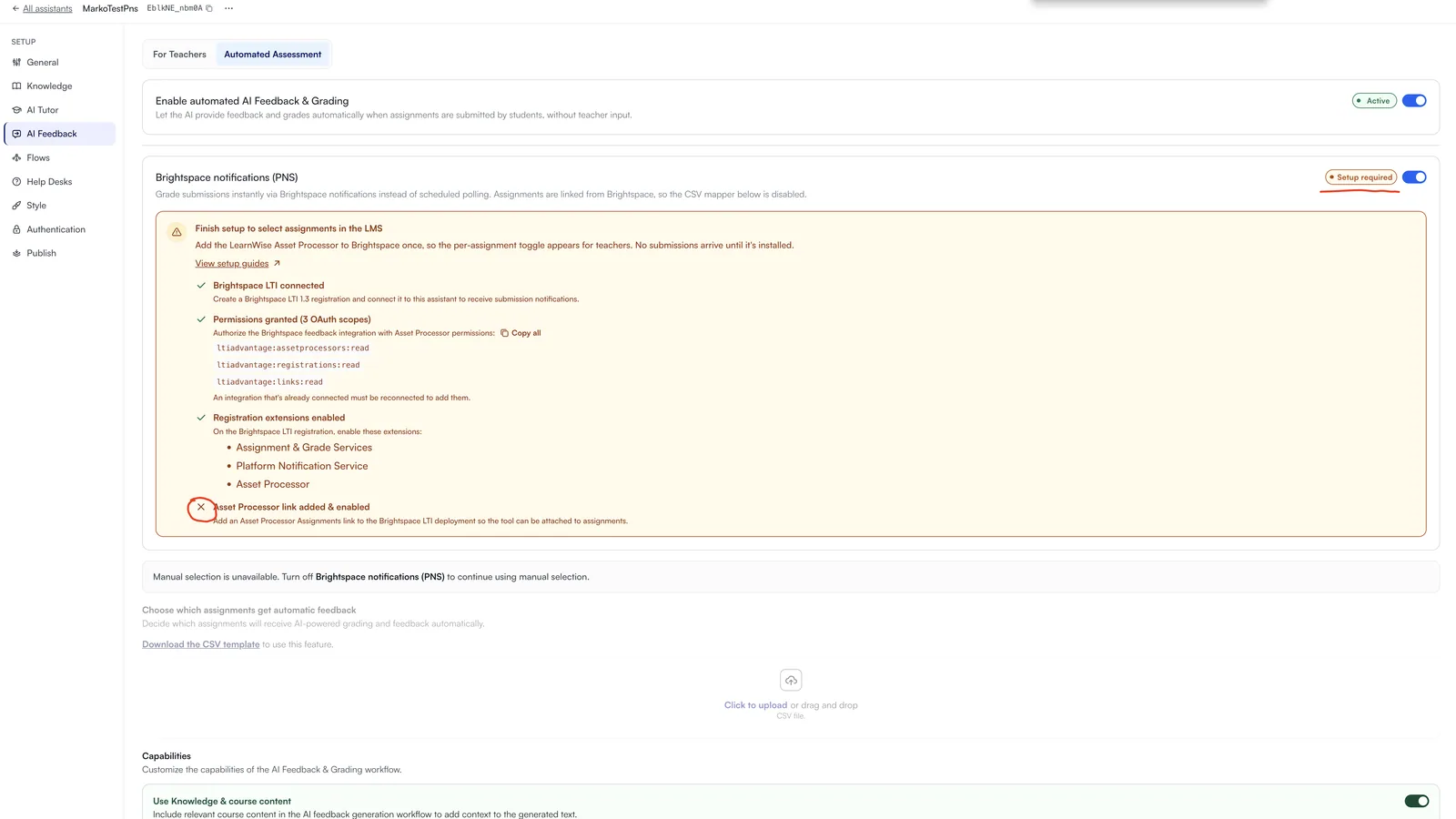
- Go to Assistant > AI Feedback > Automated Assessment, and toggle on "Brightspace notifications (PNS)." A checklist will appear covering the steps above (Brightspace LTI connected, OAuth scopes granted, registration extensions on, Asset Processor Assignments link added). The badge next to the toggle reads "Setup required" until all four items are checked off, then switches to "Active."
Part 3: Teacher setup (per assignment) #
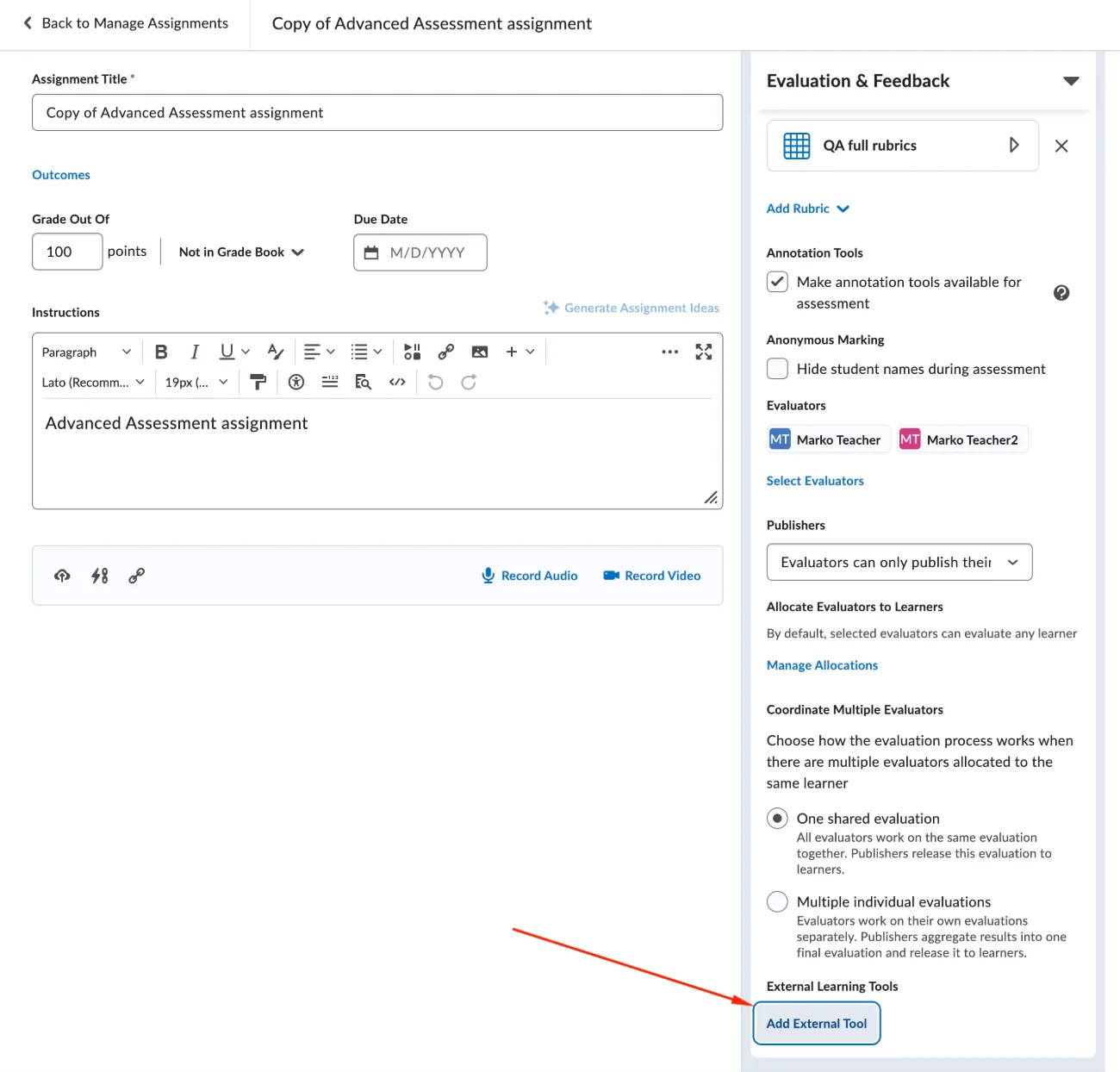
- In Brightspace, open the assignment, go to Evaluation & Feedback, click Add External Tool, and select LearnWise AI Feedback.
- Pick the assistant you want to use, then click Connect. Every submission is then graded automatically.
- To verify (optional), Have a student submit the assignment (or submit a test yourself), then check that feedback and a grade appear in the assignment's evaluation or QuickEval view.
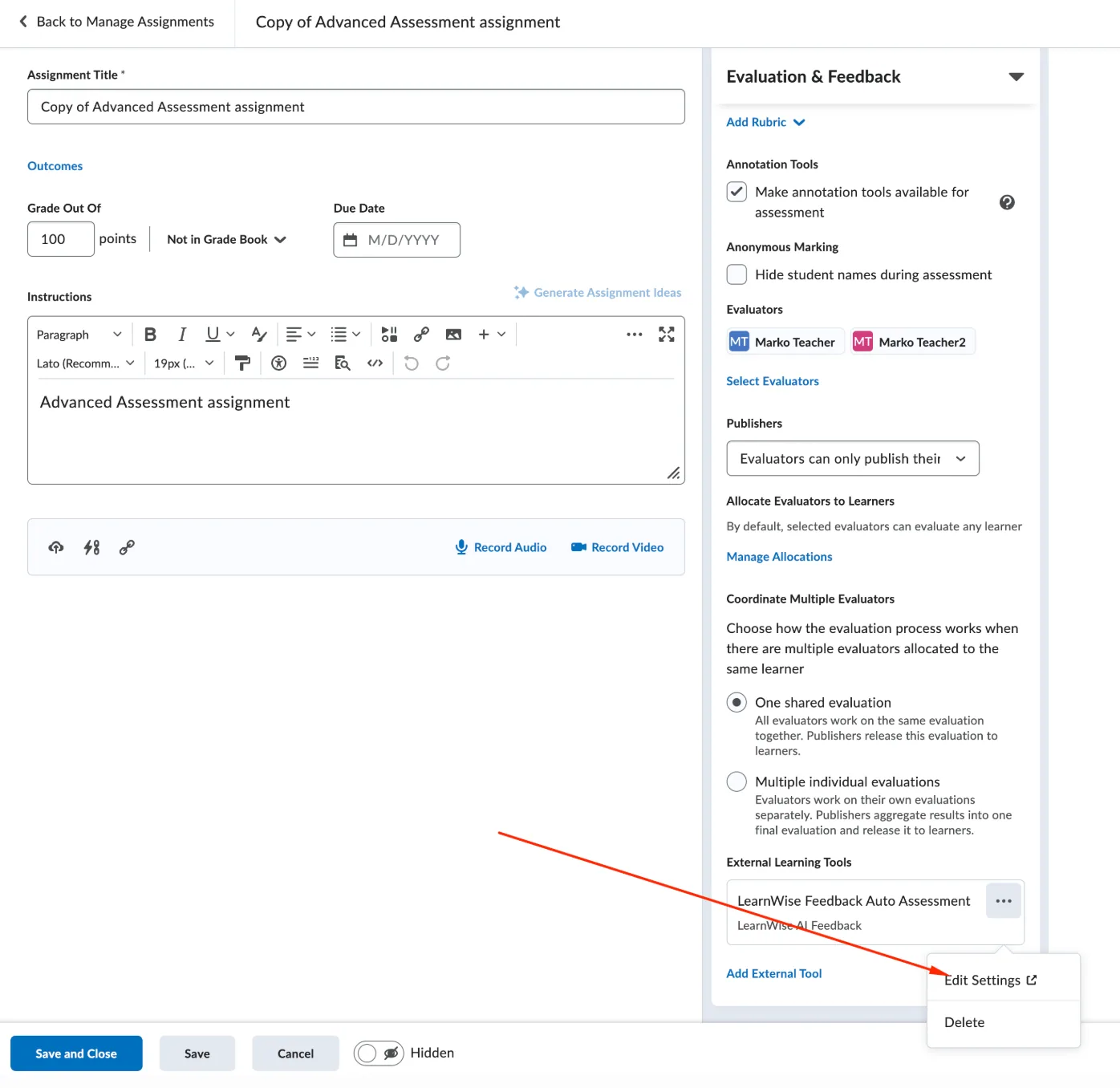
- To change the assistant later (optional), open the tool's Settings (gear icon), choose a different assistant, and click Save.
Helpful Tips #
- Only one tool can be attached per assignment. Reopening the assignment will show "Connected" instead of creating a duplicate.
- The tool can only be removed while the assignment has no submissions.
- You only need to attach the tool once. After that, grading happens automatically with no further action needed.
- Assistants that use the CSV upload rather than PNS will continue working exactly as they did before.
Still stuck?
Ask the LearnWise assistant. It answers from these guides.
Related guides
- Best Practices for Building Rubrics in BrightspaceAI Feedback & Grader
- Best Practices: Writing Rubrics and Instructions for AI Feedback & GraderAI Feedback & Grader
- How can I add AI Feedback & Grader within Brightspace?AI Feedback & Grader
- How can I add the AI Feedback tool within Canvas?AI Feedback & Grader
- How can I add the AI feedback tool within Moodle?AI Feedback & Grader