

How to delete a Trends report?
Keep your Insights Dashboard clean by safely removing outdated or redundant support trend reports.
1 min readUpdated
On this page
How to remove old support trends reports from LearnWise #
Maintaining an organized Insights Dashboard is crucial for efficient analysis. Sometimes, this means removing outdated or redundant reports to keep your focus on the most relevant data.
Step By Step: Deleting a Support Trend Report #
- Log In: Access your LearnWise account by logging in via admin.learnwise.ai
- Navigate to Insights: Click on the "Insights" tab on the top menu to view your dashboard.
- Locate the Report: In the left sidebar, find the report you wish to delete.
- Delete the Report: Click the delete button in the top right corner of the report or hover over the report name to reveal a trashcan icon. Click this icon to remove the report from your dashboard.
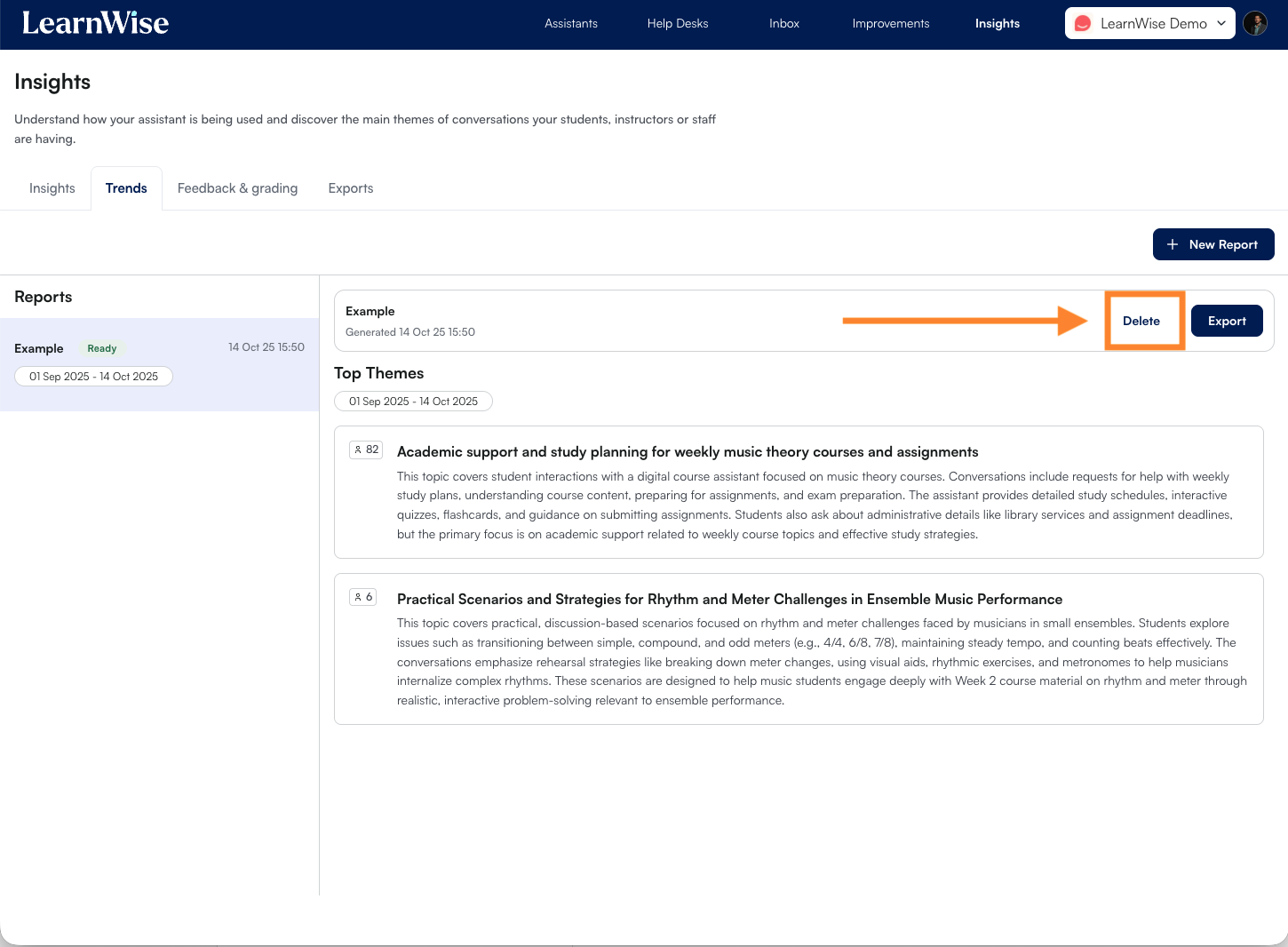
By following these simple steps, you can ensure your Insights Dashboard remains streamlined and relevant to your current analytics needs.
Was this page helpful?
Still stuck?
Ask the LearnWise assistant. It answers from these guides.
Related guides
- How to create a new trends report?Insights & Reports
- What are Trend Insights?Insights & Reports
- What insights are available to instructors?Insights & Reports
- Benchmarking: How much usage should we be expecting and what are the average AI resolution rates?Insights & Reports
- How can I view and understand assistant usage insights?Insights & Reports