

How can I control which course content LearnWise ingests, including external integrations?
Understanding what LearnWise includes (and excludes) from course content is key to interpreting the assistant’s responses. This guide outlines how content is managed, updated, and integrated.
3 min readUpdated
On this page
✅ Overview #
LearnWise is designed to provide accurate, efficient answers using content drawn from your LMS/VLE. Default settings are optimized to support a seamless experience while giving you control over what content is accessed.
🔄 Automatic Course Content Updates #
LearnWise updates course content on use, not on a fixed schedule. When a learner opens the chat (via the floating button or LTI launch), the system checks whether the course content is up to date. If it hasn't been updated in the past 7 days, a refresh is triggered automatically.
Courses that haven't been used recently won't update automatically. There's no need to refresh content that isn't being accessed.
Update frequency options:
- Weekly (default): Content refreshes after 7 days of staleness, triggered on next use
- Daily: Can be enabled by contacting Learnwise. Content will then refresh after 24 hours of staleness, triggered on next use.
📍 Where to View Update Info #
Navigate to:
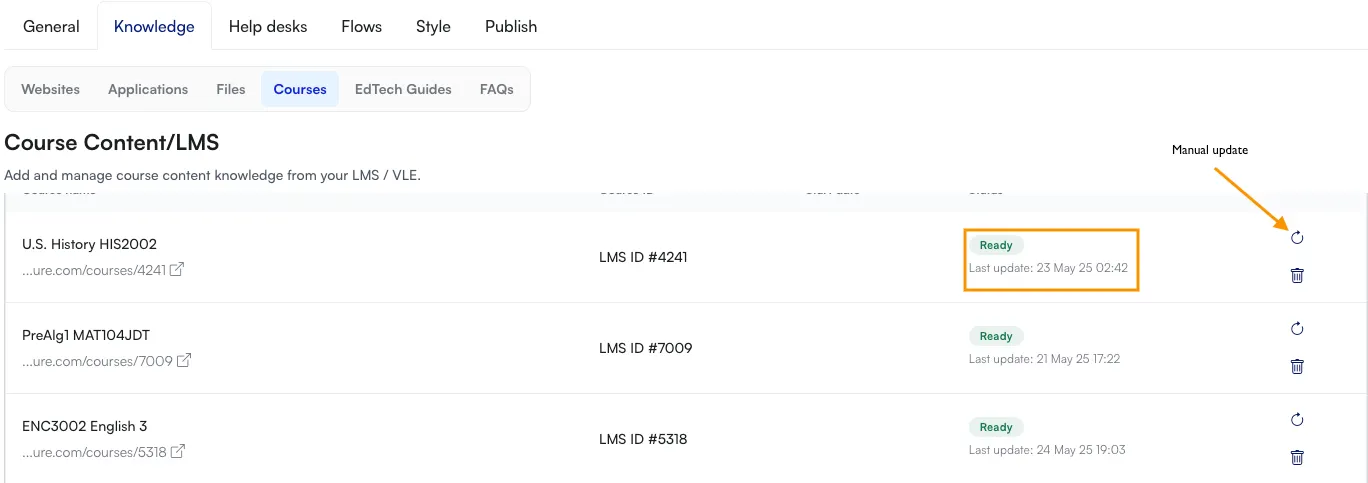
Dashboard → Knowledge → Courses
If you have an admin role, you can:
- Click the refresh arrow to trigger a manual content refresh.
🧩 Control What Content is Pulled #
The content LearnWise interacts with can be configured based on your LMS/VLE.
📌 How to Select Content Types: #
Navigate to:
Courses → Content Type
Check the boxes for content types you want the assistant to learn from. Click 'Save changes' once you are happy with your selection
🎯 Academic Integrity Considerations #
Note about Quizzes & Assignments: While quizzes and assignments can be selected as content types, consider creating custom instructions that align with your institution's academic integrity policy. This helps prevent students from obtaining direct answers to quiz questions or having the assistant write assignments on their behalf.
Best Practice: Use custom instructions to guide the assistant to point students toward learning resources and study strategies rather than providing direct answers to assessments.
⚠️ Important Behavior Around Visibility
- Content that is hidden from students will not be pulled.
- If you hide or show content, the assistant won't reflect these changes until a learner next opens the chat.
🚫 Default Exclusions #
To maintain performance and accuracy, the following are excluded by default:
| ❌ Content Type | 📋 Details |
|---|---|
| External URLs | Not scanned or referenced |
| External LTI tool content | Native integrations only (see below) |
| SCORM packages | Supported for Brightspace and Moodle |
| Multimedia uploads | Not parsed |
| Discussion replies | Excluded |
| Calendar data | ❗ Canvas is the exception |
| Gradebook data | Not pulled |
| Messages/Inboxes | Not included |
| Analytics | Excluded |
| Student submissions | Not accessed |
| Rubrics | Not pulled |
| Embedded external content | Not supported |
🔐 Published vs. Unpublished Files #
✅ Published files—even if not linked to a course—are included in the knowledge base.
❌ To exclude sensitive content, ensure the file is unpublished.
🔌 External Tool Integrations #
LearnWise offers native integrations with select tools to include their content in course references:
- Kaltura
- Google Cloud
- Panopto
🔧 How to Connect Tools #
-
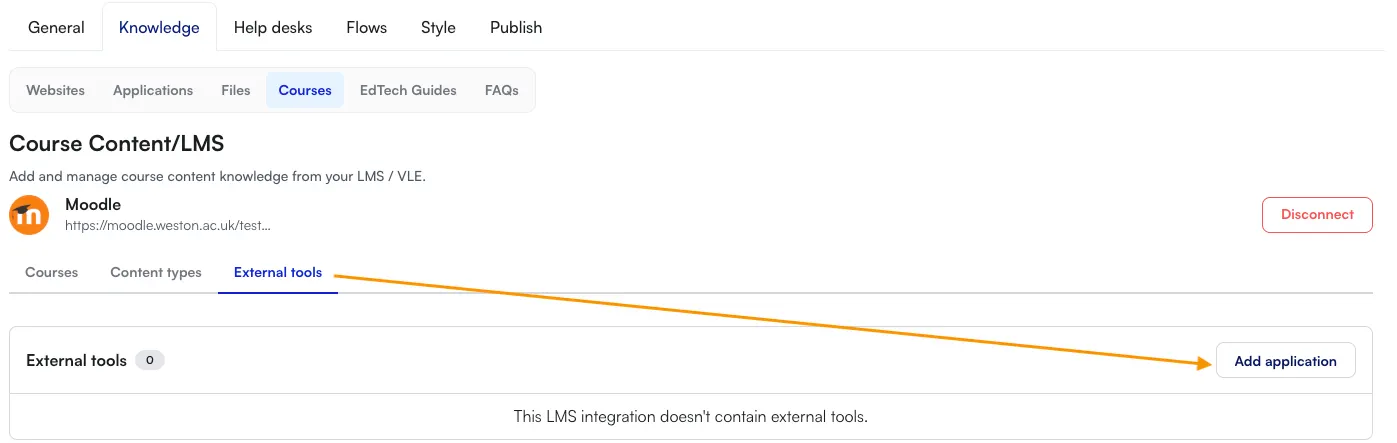
Go to:
Knowledge → Courses → External Tools -
Click “Add Application”
-
Click “Connect” on the app you want to integrate.
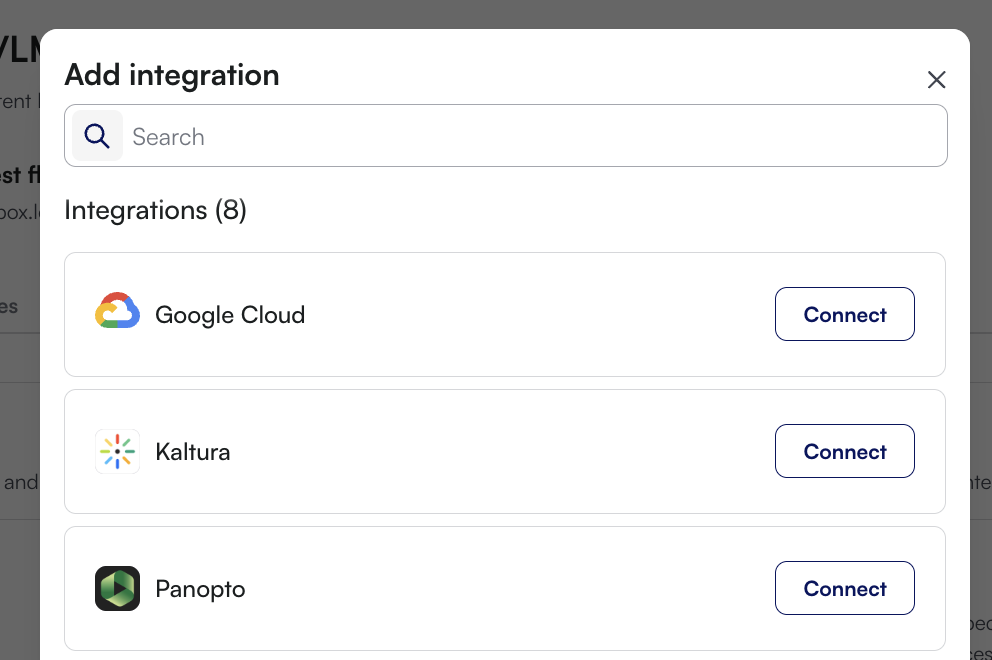
- Complete the form in the pop-up to finish setup.
💬 Want to connect another tool?
📩 Reach out to your Implementation Consultant to confirm compatibility.
✅ Best Practices Summary #
| Action | Recommendation |
|---|---|
| Review pulled content regularly | Use dashboard to confirm accuracy |
| Keep sensitive files unpublished | Prevent unintended inclusion |
| Consider update timing | Use manual refresh if you need changes reflected immediately |
| Use supported integrations | Enable deeper assistant knowledge |
Still stuck?
Ask the LearnWise assistant. It answers from these guides.
Related guides
- How can courses be structured in Canvas to maximize LearnWise?AI Student Tutor
- How can courses be structured in Moodle to maximize LearnWise?AI Student Tutor
- How can I add AI Student Tutor to Brightspace?AI Student Tutor
- How can I add AI Student Tutor within Canvas?AI Student Tutor
- How can I add Kaltura video transcripts as a knowledge source in AI Student Tutor?AI Student Tutor