

How can I train an assistant on institution-specific knowledge?
Train your assistant with institution-specific content so it always answers from verified, cited knowledge.
2 min readUpdated
On this page
Training Your LearnWise Assistant with Custom Knowledge #
To harness the full capabilities of your LearnWise assistant, it's essential to tailor it with specific knowledge pertinent to your institution. This ensures that the assistant provides verified, accurate information, and does not fabricate answers. By training your assistant with custom content, you enable a support system that maintains academic integrity and responds with information that is always cited.
Step By Step #
-
Login and View the Knowledge Step
- Access the LearnWise admin interface at admin.learnwise.ai
- Select the assistant you want to modify or create a new assistant
- Navigate to the second step of the assistant builder called “Knowledge”
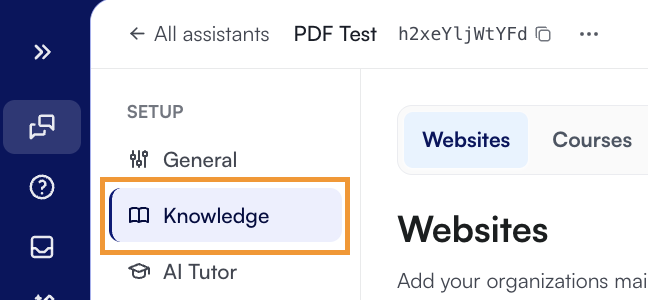
From here, you can choose from a wide range of source types that house information that is specific tour institute. To find out more about how to upload the different knowledge sources, click on the links below.
- EdTech Documentation refers to the out-of-the-box documentation for all major LMS/VLE vendors and other EdTech Applications
- Applications refers to CSMs and other external knowledge sources that can be integrated into LearnWise
- Uploaded files make reference to any files such as PDFs, docx or other text based files that contain relevant information for the assistant to ingest
- Website Knowledge refers to any URL based sources that houses information about your institution
- FAQs allow you to train the assistant with very specific, custom content to FAQs. Question and answer sets will appear as suggested questions when relevant terms are typed, prompting the user to get the exact information they are seeking.
Role-Based Knowledge Restrictions
If your assistant uses authentication, you can control which users have access to specific knowledge sources:
- When adding or editing a knowledge source (website, application, or uploaded file), look for the "Roles" field
- Click to select which user roles should have access to this content (e.g., Admin, Instructor, Student, STAFF, etc.)
- If no roles are selected, the knowledge source is accessible to all users
- When users authenticate with your assistant, they will only receive answers from knowledge sources their role has access to
- This ensures sensitive or role-specific content (like faculty handbooks or administrative policies) is only accessible to appropriate users
Knowledge training time: Once the content is added and the page is saved, the training process begins. This could take anywhere from 30 minutes to an hour for the AI to become proficient with the new knowledge.
The system automatically updates the dynamic content once per week to keep the information current. Remember, training the AI means that all responses are based on factual, cited content, with no fabricated information. Ensure that you have the right to use the content and that it does not infringe on any copyrights.
By integrating these knowledge sources, you are creating a robust, reliable, and efficient AI assistant that reflects your organization's expertise and commitment to quality education support.
Still stuck?
Ask the LearnWise assistant. It answers from these guides.
Related guides
- Can I be selective around which website content I add to LearnWise?Build your assistant
- How are the multiple different knowledge sources prioritized?Build your assistant
- How can I add an FAQ to my knowledge?Build your assistant
- How can I use regex and URL filters to control web scraping in LearnWise?Build your assistant
- How do I add knowledge content that is hosted on external platforms?Build your assistant