

Tips and tricks for students using LearnWise AI Student Tutor
LearnWise’s AI Student Tutor is a powerful tool is designed to help you succeed in your studies by interacting with your course content. Here are some tips and tricks to make the most of it.
6 min readUpdated
On this page
Understand the Scope #
Your AI assistant works exclusively with the content of your course as well as the guides created by Canvas to support you when inside a course. The content within your course that can be leveraged includes:
- Modules, assignments, files, pages & quizzes
- Announcements
- Calendar events
- Transcripts of video lectures (Kaltura & Panapto currently supported)
- Pages, files and quizzes
- Course Syllabus
It will not have knowledge of external content or unrelated topics, so focus your questions and tasks within your course boundaries.
Organize Your Study Sessions #
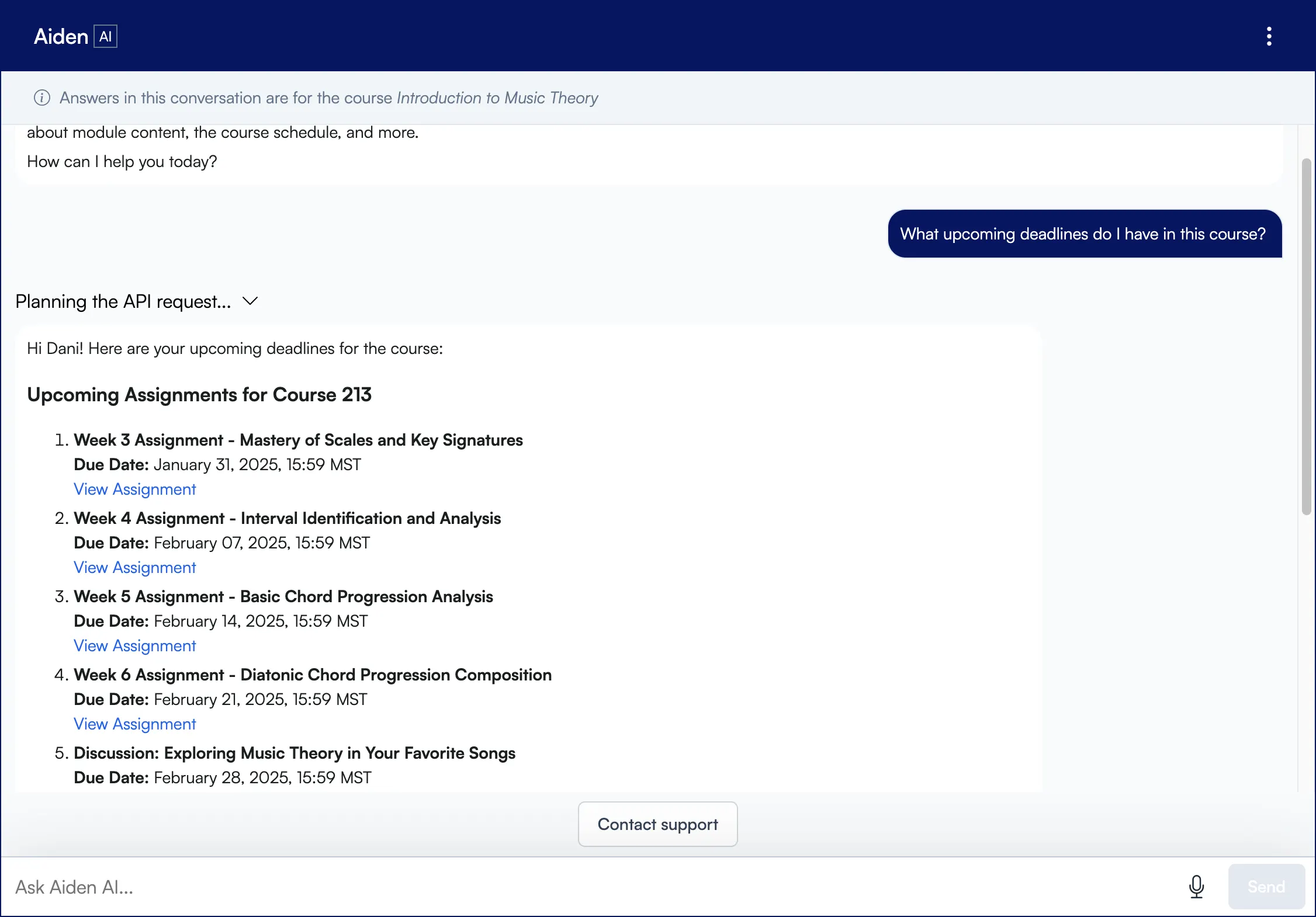
The AI assistant integrates seamlessly with your calendar and assignments:
- Plan Ahead: Ask it to list upcoming deadlines or important events
- Study plan: Ask the assistant to help you best plan out the tasks you need to complete for the coming week or two
Pro Tip: Use the assistant to break down large assignments into manageable steps
Engage in Study Mode #
Using Study Mode for Interactive Learning
What is Study Mode? Study Mode transforms your AI assistant into an interactive learning tool that creates personalized quizzes based on your course content. When activated, the assistant can generate various questions that will help you measure your understanding of the content.
How to Enter Quiz Mode:
Ask questions like "Quiz me on [topic]" or "Test my knowledge of [subject]"
Request "practice questions" on specific course materials
Use prompts such as "Give me 10 practice questions on this week's topics"
Quiz Mode Features:
Gamified experience: Questions are presented one at a time with immediate feedback (if requested by you)
Multiple question types: Multiple choice, fill-in-the-blank etc
Course-specific content: Questions are generated only from your enrolled course materials
How to Exit Quiz Mode: Simply ask an unrelated question or say you want to stop quizzing - the assistant will automatically return to general course support mode.
Pro Tips:
- Use the short-cut buttons at the bottom of the assistant that are prompt study-related activities
- Ask the assistant to quiz you on specific modules or topics.
- Request flashcard generation to help with memorization.
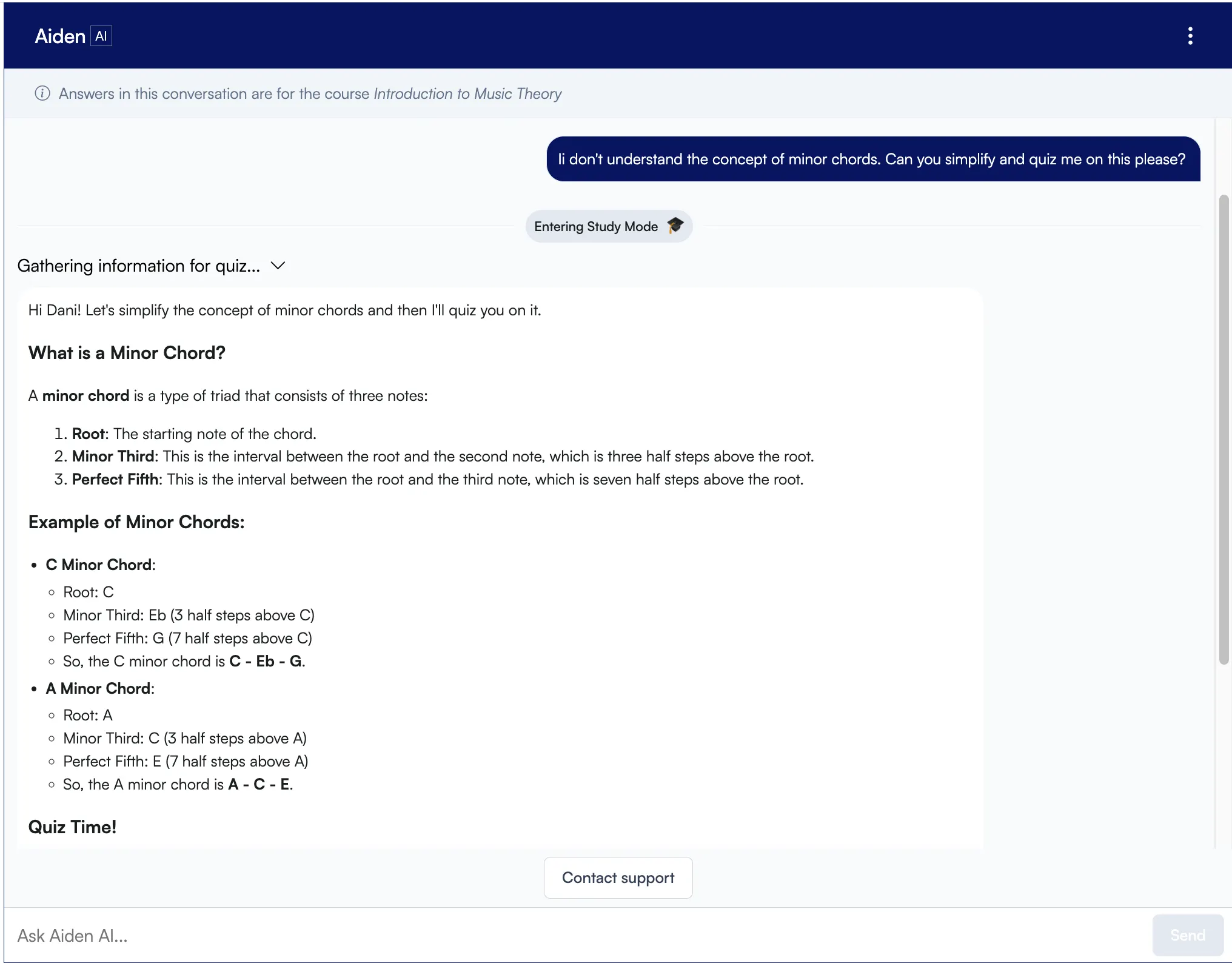
- Ask clarifying questions when you encounter challenging concepts. Study mode can simplify complex concepts for you.
- Test yourself repeatedly: Reinforce learning by quizzing yourself multiple times on the same topic.
- Ask for feedback and where you can improve. Focus your attention on your knowledge gaps & leverage the assistant to identify these for you
- The assistant improves with your input. If something isn’t clear or helpful, try rephrasing your question. If you find certain features especially useful, focus on those during your study sessions.
- Start with broad questions (e.g., "What are the key points of this module?") and narrow down to specifics (e.g., "Explain the difference between X and Y in detail.").
Clarify Course Concepts #
When you encounter something unclear, the assistant can:
- Provide simplified explanations.
- Suggest additional sections of your course to review for better understanding.
- Compare and contrast related concepts to deepen your knowledge.
Pro Tip: Use questions like, "How does [concept] relate to [another concept] in this course?"
Use Contextual Queries #
The assistant can already provide targeted help based on where you are inside Canvas but asking detailed, context-rich questions will help the assistant deliver higher quality, more targeted answers . For instance:
- Instead of: "What is photosynthesis?"
- Try: "What does this course say about photosynthesis in Module 3?"
This ensures you’re leveraging the specific content of your course. Be sure to formulate your enquires as a question rather than a statement for optimal output
Understanding How Your AI Student Tutor Makes Recommendations #
What Factors Does AI Student Tutor Consider?
Your LearnWise AI Student Tutor uses several key criteria when providing academic recommendations and guidance:
1. Course Content Analysis
- Syllabus requirements: Reviews learning objectives, assessment criteria, and course outcomes (if available to the assistant as published content)
- Module progression: Considers the logical sequence of topics and prerequisite knowledge
- Assignment rubrics: Analyzes grading criteria to align recommendations with expectations
- Due dates and timeline: Prioritizes urgent tasks while maintaining long-term learning goals
2. Academic Context
- Course level and difficulty: Adjusts recommendations based on whether it's introductory or advanced content
- Subject matter expertise: Draws from established pedagogical approaches specific to your field
- Learning objectives: Ensures recommendations support the intended course outcomes
- Assessment formats: Tailors study strategies to match upcoming exam or assignment types
3. Your Learning Progress: the more you use it, the better it understands you!
- Topics you've engaged with: Identifies areas where you've asked questions or shown interest
- Knowledge gaps: Recognizes concepts that need reinforcement based on your queries
- Study patterns: Adapts to your preferred learning approach and schedule
- Previous interactions: Builds on your conversation history to provide continuity
4. Pedagogical Best Practices
- Active learning principles: Emphasizes hands-on engagement over passive consumption
- Spaced repetition: Recommends reviewing material at optimal intervals for retention
- Scaffolded learning: Breaks complex topics into manageable, sequential steps
- Retrieval practice: Suggests testing yourself to strengthen memory consolidation
5. Time Management Factors
- Assignment deadlines: Balances immediate needs with long-term learning goals
- Course calendar: Aligns recommendations with exam periods and major milestones (bear in mind it isn’t taking your personal calendar into consideration)
- Workload distribution: Helps prevent cramming by spreading learning over time
How to Get Better Recommendations:
- Be specific about your goals: "I want to improve my essay writing" vs. "Help me with writing"
- Share your constraints: Mention time limitations, upcoming deadlines, or challenging concepts
- Indicate your learning style: Let the tutor know if you prefer practice problems, or conceptual explanations
- Provide context: Explain what you've already studied and what's confusing you
Example Recommendation Process:
When you ask "How should I prepare for my upcoming biology exam?", the AI tutor considers:
- Exam format (multiple choice, essays, lab practical)
- Course material covered since the last exam
- Your engagement with different topics
- Time remaining until the exam
- Your previous questions about challenging concepts
- Study strategies that align with biology learning objectives
This comprehensive approach ensures that recommendations are not just generic study tips, but personalized guidance that fits your specific academic context and learning needs.
Understanding Citations and Sources #
Your AI assistant cites its sources to help you verify information and find original materials.
How Citations Work
- Click "View Sources" to see where information came from
- Sources include course materials, uploaded files, and institutional resources
Using Citations:
- Verify answers: Check original sources for complete context
- Academic integrity: Always cite original sources in your assignments, not the AI
- Find more materials: Use citations to discover relevant course content you might have missed
Pro Tip: If unsure about using AI assistance, check with your instructor about their policies.
Explore Video Transcripts (if integrated: Kaltura or Panapto) #
Leverage the AI to interact with video content transcripts:
- Summarize a lecture.
- Highlight key points or concepts.
- Ask for a deeper explanation of terms or ideas discussed in the video.
By combining these strategies with your AI assistant, you can save time, deepen your understanding, and stay organized throughout your course. Happy studying!
Still stuck?
Ask the LearnWise assistant. It answers from these guides.
Related guides
- How can courses be structured in Canvas to maximize LearnWise?AI Student Tutor
- How can courses be structured in Moodle to maximize LearnWise?AI Student Tutor
- How can I add AI Student Tutor to Brightspace?AI Student Tutor
- How can I add AI Student Tutor within Canvas?AI Student Tutor
- How can I add Kaltura video transcripts as a knowledge source in AI Student Tutor?AI Student Tutor