

How to add a website as a knowledge source?
Incorporating your institution's website as a knowledge source into LearnWise allows your AI assistant to provide information that's tailored to your specific educational environment. This process ensures the assistant can reference the most up-to-date content from your website to assist users effectively.
2 min readUpdated
On this page
Steps to Add Your Website as a Knowledge Source #
- Access the Knowledge Section: Log into the LearnWise admin panel and navigate to 'Assistant' > 'Knowledge' where you can manage content sources.
- Click on the ‘Websites' tab
- Website Selection: Input the required fields above and click 'Add Website’ or, alternatively, click 'Add a list of specific pages’ to input multiple pages at once. (Note: if you have already added websites to your assistant, you will need to click on the + Add Website button to see the options above) You can input the URL of your institutional knowledge base, FAQ page, student portal, internal policy pages, or any other informational webpage that serves your community.
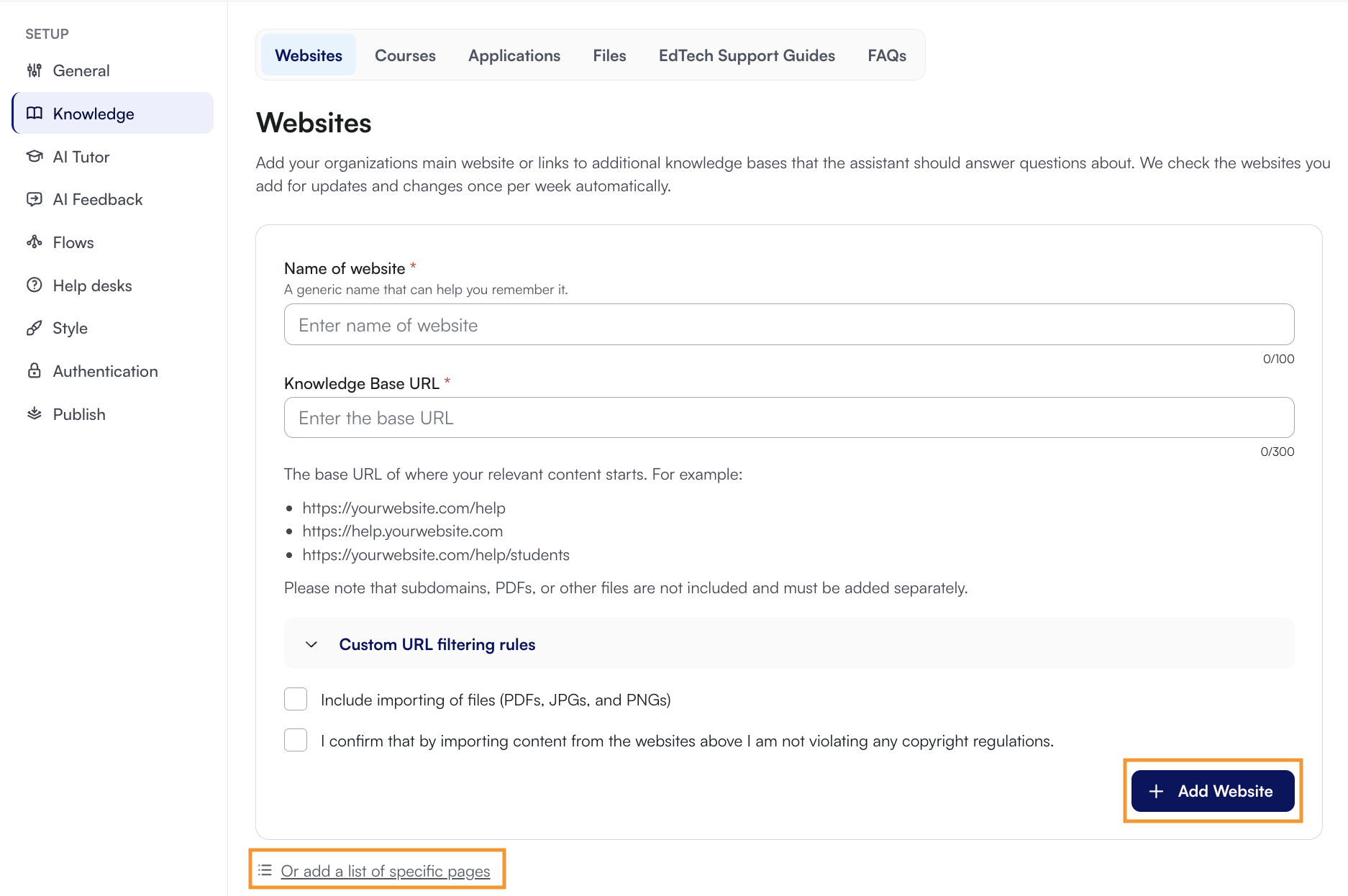
- Confirm Copyright Compliance: Ensure that you have the right to use the website content and check the box to confirm this compliance, adhering to copyright laws.
Things to Keep in Mind #
- Website Types: Common website types include internal knowledge bases, FAQ sections, main institution sites, student portal content, or any official web pages that house necessary information.
- Subdomains: If your website has content located on multiple subdomains (for example; help.example.com example.com and student.example.com) make sure to add each subdomain as an individual website entry.
- Custom Filter on Website Imports Do you want to define a specific rule set so that only certain URLs or URL rules are included in the website import? Please contact LearnWise support at help@learnwise.ai and our team will work with you to create this custom import.
- Weekly Updates: LearnWise automatically checks the websites you've added for updates and changes once per week, keeping the assistant's knowledge current.
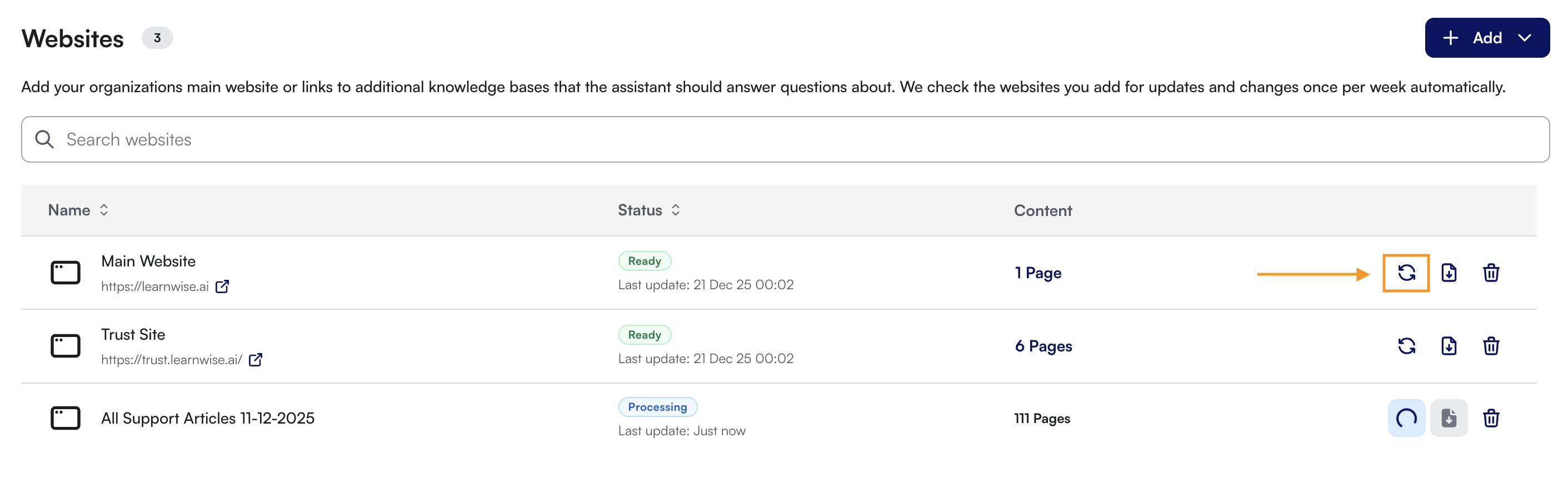
- Training Time: After adding a new website, it typically takes between 30 minutes to an hour for the AI to be fully trained on the new content. A weekly automated update ensures that all your knowledge stays up to date. Additionally, a manual update can also be initiated by clicking on the ‘Update’ button
- Copyright: Always ensure that the content added does not infringe on copyright laws and that you have the authority to use it for this purpose.
By following these steps, you can expand the capabilities of your LearnWise assistant, making it an even more valuable resource for your educational institution.
Was this page helpful?
Still stuck?
Ask the LearnWise assistant. It answers from these guides.
Related guides
- Can I be selective around which website content I add to LearnWise?Build your assistant
- How can I use regex and URL filters to control web scraping in LearnWise?Build your assistant
- How are the multiple different knowledge sources prioritized?Build your assistant
- How can I add an FAQ to my knowledge?Build your assistant
- How do I add knowledge content that is hosted on external platforms?Build your assistant