

How do I configure search and answer behavior?
LearnWise uses Agentic Search to reason through queries, run multiple search passes, and build a response step by step before replying. The Search knowledge action, available in both the default behavior and individual flows, lets you supplement this with custom search and answer guidelines that apply globally by default, or only when a specific flow is triggered.
2 min readUpdated
On this page
Configuring the default behavior #
- Go to your assistant's Flows tab
- Open Default behavior
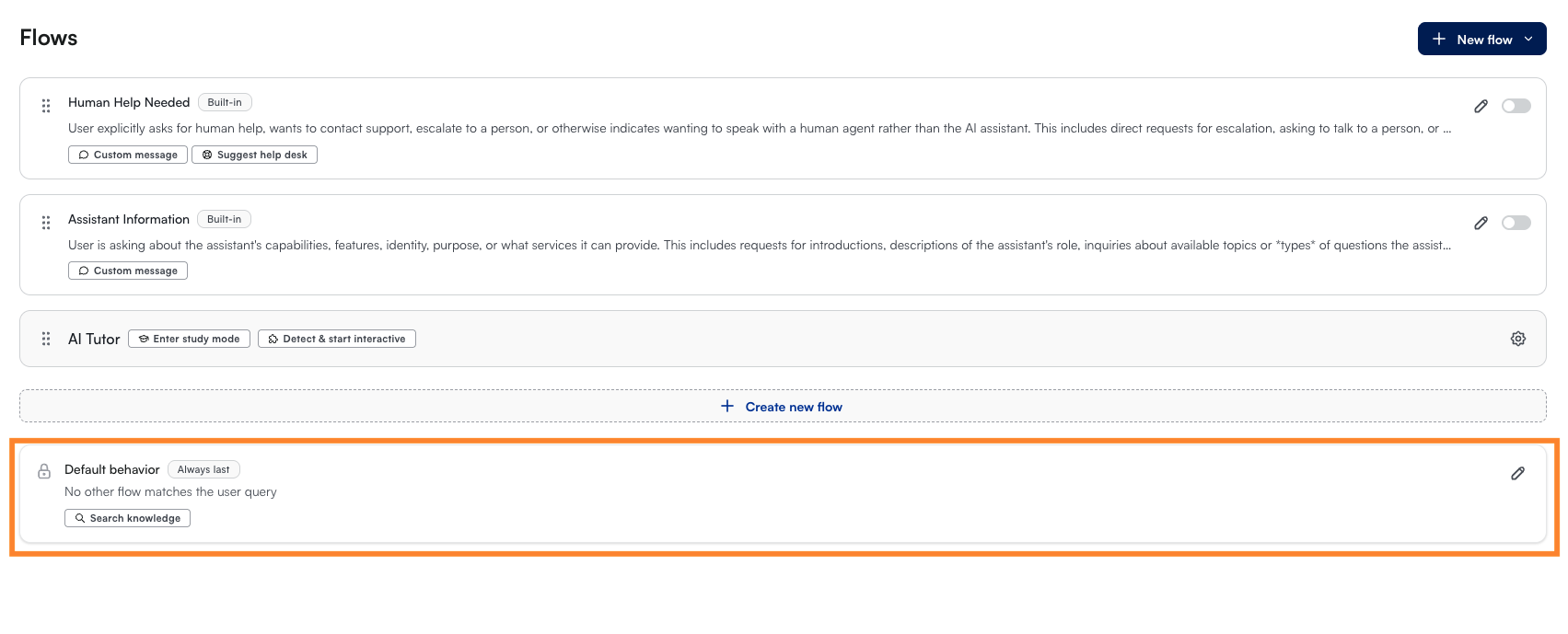
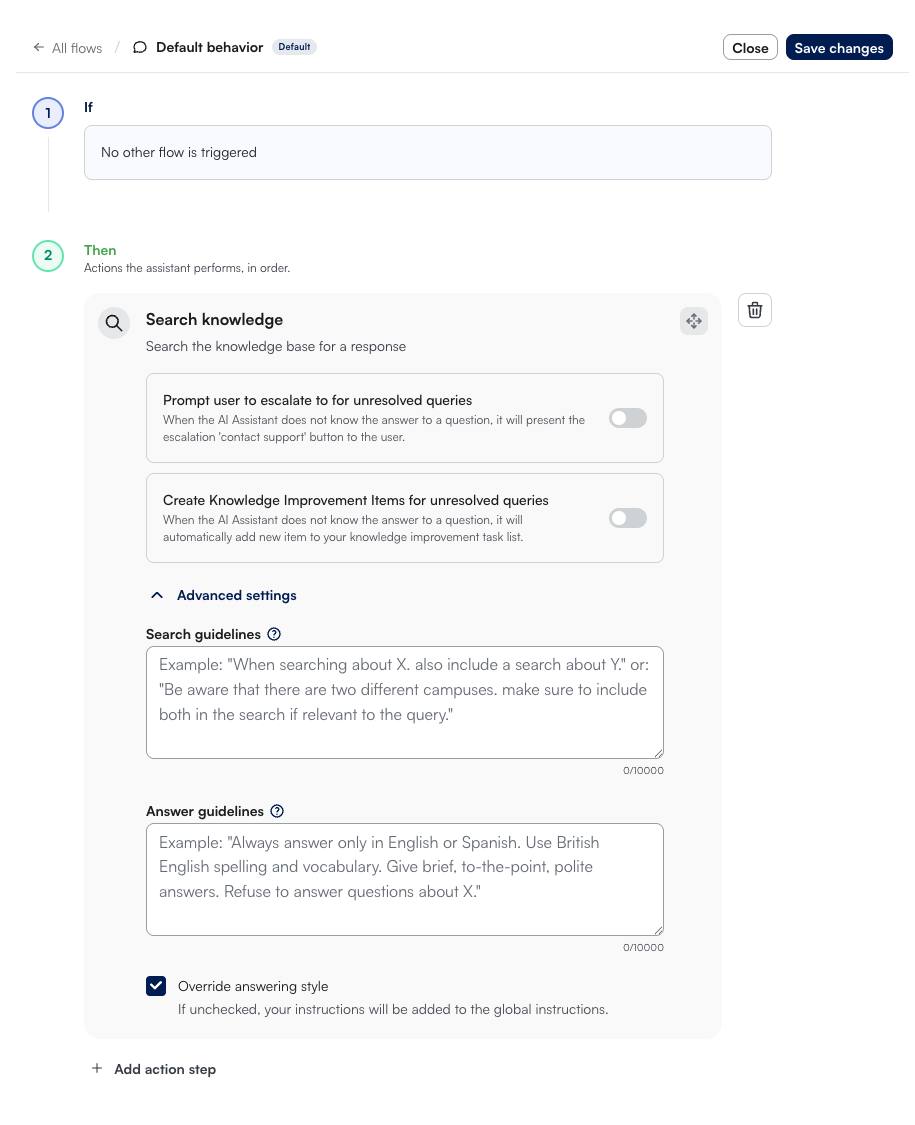
- Open the Search knowledge action
- Click Advanced settings
Configuring a custom flow #
- Go to the Flows tab
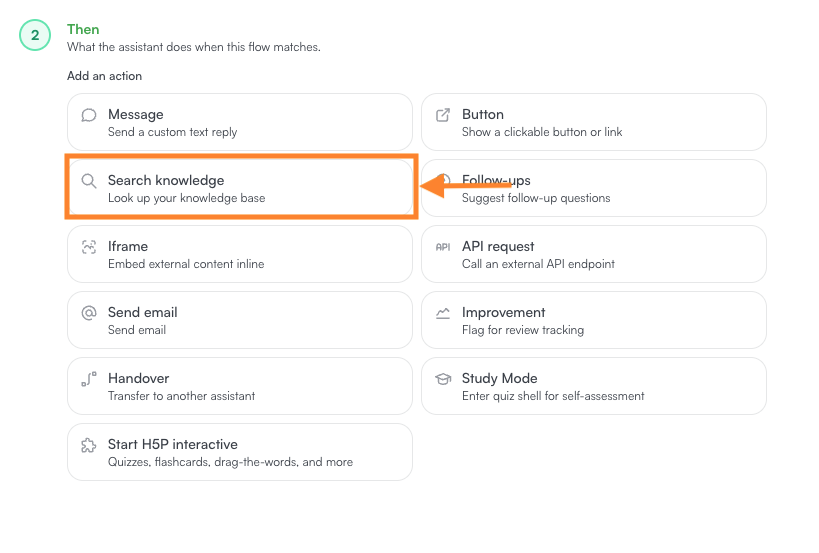
- Open or create a flow
- Select the Search knowledge response action
- Click Advanced settings
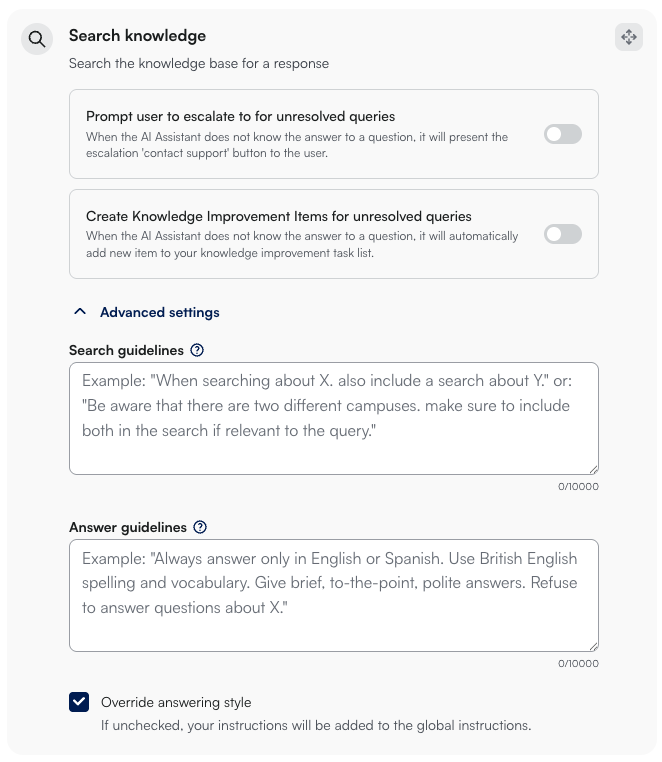
Advanced settings fields #
Controlling what users see during reasoning #
By default, users see the assistant's full step-by-step reasoning as it works through a query. If you would prefer to show a shorter, plain-language summary instead, enable Simplified Thinking under General > Configuration > Simplified Thinking in your assistant settings. Full reasoning logs remain available to admins for auditing purposes regardless of this setting.

Search guidelines #
Guide how the assistant reasons through and executes its search. With Agentic Search, these instructions can affect:
- Search depth — how many passes the assistant makes before generating a response (6 iterations maximum)
- Source selection and priority — which knowledge sources are searched or weighted
- Source interpretation — how retrieved content is read and applied to the answer
Examples:
- "When searching for student ID policies, also check account management guidelines"
- "We have 3 campuses — search across all unless the user specifies one"
- "Broaden queries about Wi-Fi access to also include network troubleshooting guides"
Note: Search guidelines shape how the assistant finds information, not how it writes the answer. To influence response style, use Answer guidelines instead.
Answer guidelines #
Customize how responses are structured to ensure clarity and brevity. Here are some examples below as to how you can personalize how your assistant(s) provide answers to queries.
Answer Length
- Keep responses short and to the point while still being as detailed as possible.
- Provide elaborate, in depth answers
Complexity & Clarity:
- Use simple and clear language suitable for a bachelor’s degree level.
- Keep answers as simple as possible. Avoid using complicated language
Institutional Language & LMS Terminology Alignment:
Ensure your assistant uses the same language and terminology as your institution and Learning Management System (LMS) setup (where applicable) This creates a seamless experience where students and faculty hear consistent language across all platforms. Here are some examples below:
- LMS Terminology Matching: If your LMS is configured to use "modules" instead of "courses", always use "modules" in responses
- Custom Navigation Labels: Match your LMS's custom navigation labels (e.g., if "Content" is renamed to "Materials", use "Materials")
- Institutional Language Preferences: Use "faculty" instead of "professors" to match our staff directory
- Brand-Specific Terminology: Use our institution's specific names for services (e.g., "Student Success Center" not "academic support")
- Multi-Language Institutions: When responding in [Language], use the localized terms from our [Language] LMS interface to maintain consistency with translated course catalogs
Override answering style
- Unchecked (default): Answer guidelines are added on top of the global Answering style
- Checked: Answer guidelines replace the global Answering style entirely for this action
Still stuck?
Ask the LearnWise assistant. It answers from these guides.
Related guides
- How do AI suggested questions work?Build your assistant
- How do I activate and use voice mode in the assistant?Build your assistant
- How do I change the assistant welcome message?Build your assistant
- How do I change the brand color of your assistant?Build your assistant
- How do I change the launch/close button of the assistant?Build your assistant