

How do I create a new Help Desk?
A step‑by‑step guide to creating and configuring a new Help Desk in LearnWise, including escalations, ticketing integrations, and custom form fields.
3 min readUpdated
On this page
How to Create a New Help Desk in LearnWise #
Creating a new help desk within LearnWise allows you to categorize and direct support queries to the appropriate teams, streamlining your institution's support workflow. Follow these steps to set up a new help desk:
Step-by-Step Guide to Creating a New Help Desk #
-
Log In to LearnWise: Begin by signing into your LearnWise admin account at admin.learnwise.ai with your credentials.
-
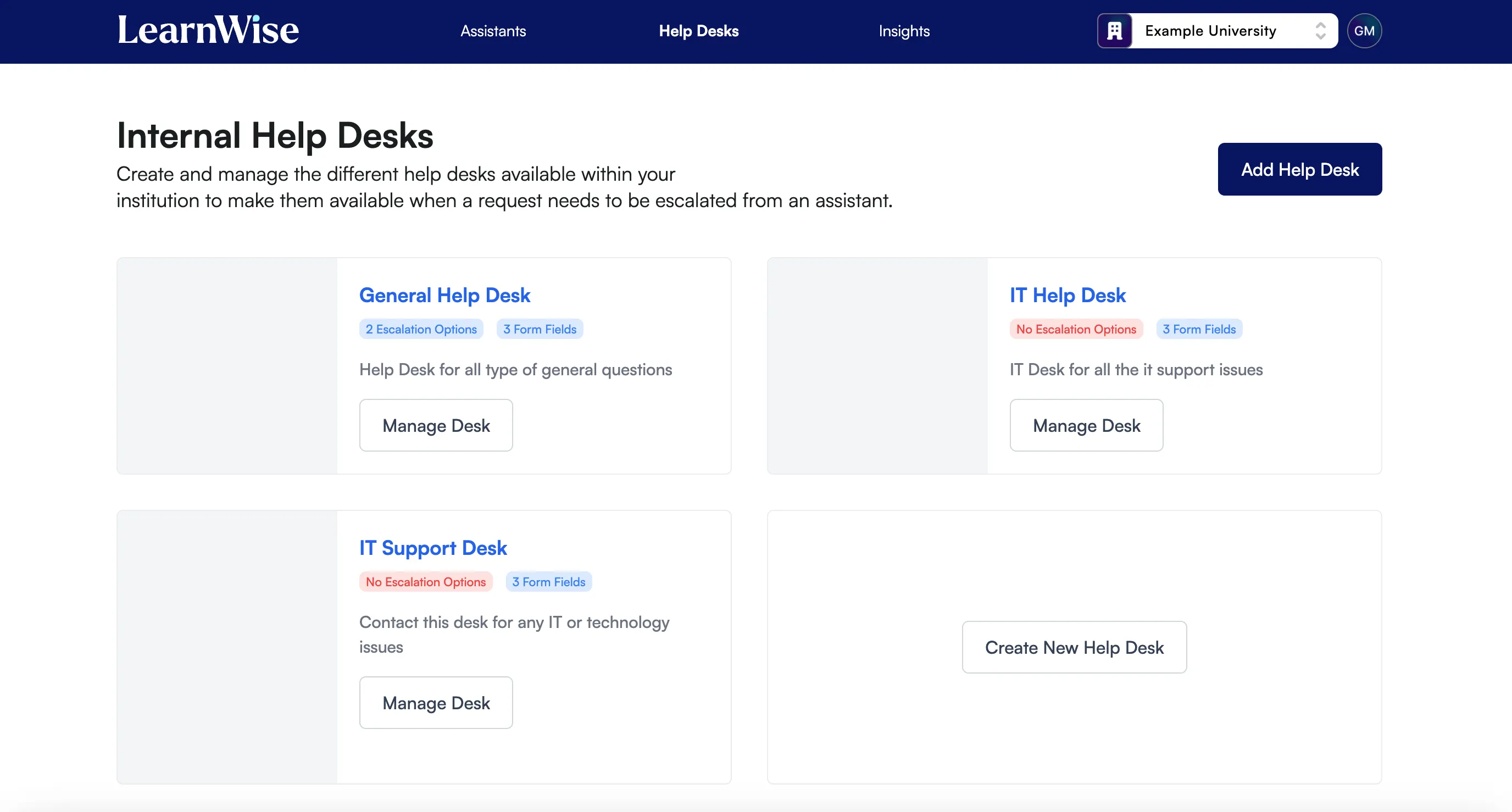
Navigate to the ‘Help Desks’ Section: On the dashboard, locate and select the 'Help Desks' option from the top menu to manage your existing help desks or to create a new one.
-
Initiate New Help Desk Setup: Inside the 'Help Desks' section, click on the 'Add Help Desk' button. This will start the process of creating a new help desk.
-
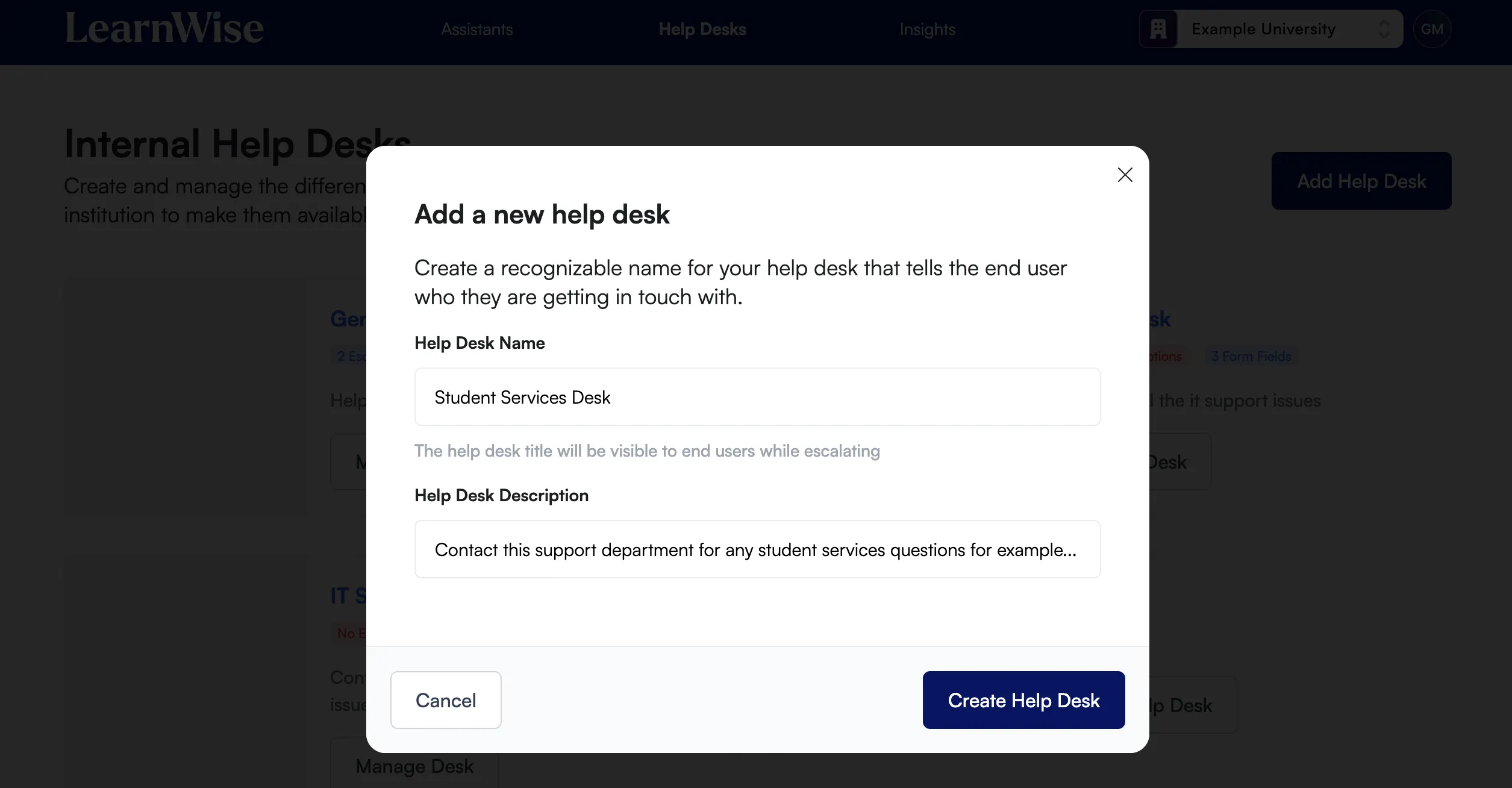
Fill in Help Desk Details: In the provided form, enter the relevant information for your new help desk:
- Help Desk Name: Choose a name that clearly identifies the purpose of the help desk, like "Admissions Queries" or "IT Support."
- Description: Provide a brief description of the help desk’s function. This helps the AI assistant to recommend the most relevant help desk based on the conversation context.
-
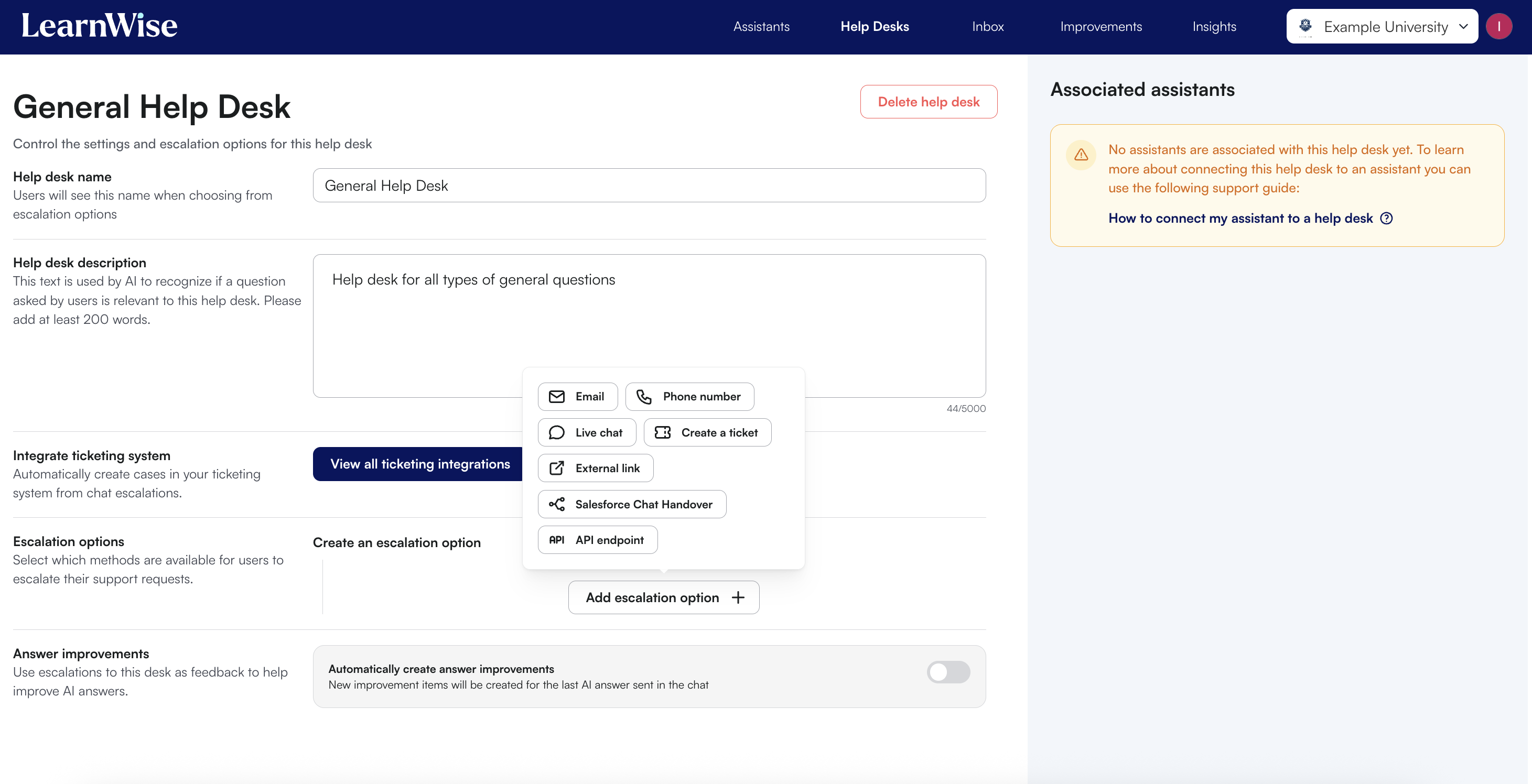
Define escalations The next steps help to define the escalation and contact options as well as support integrations for your help desk.
-
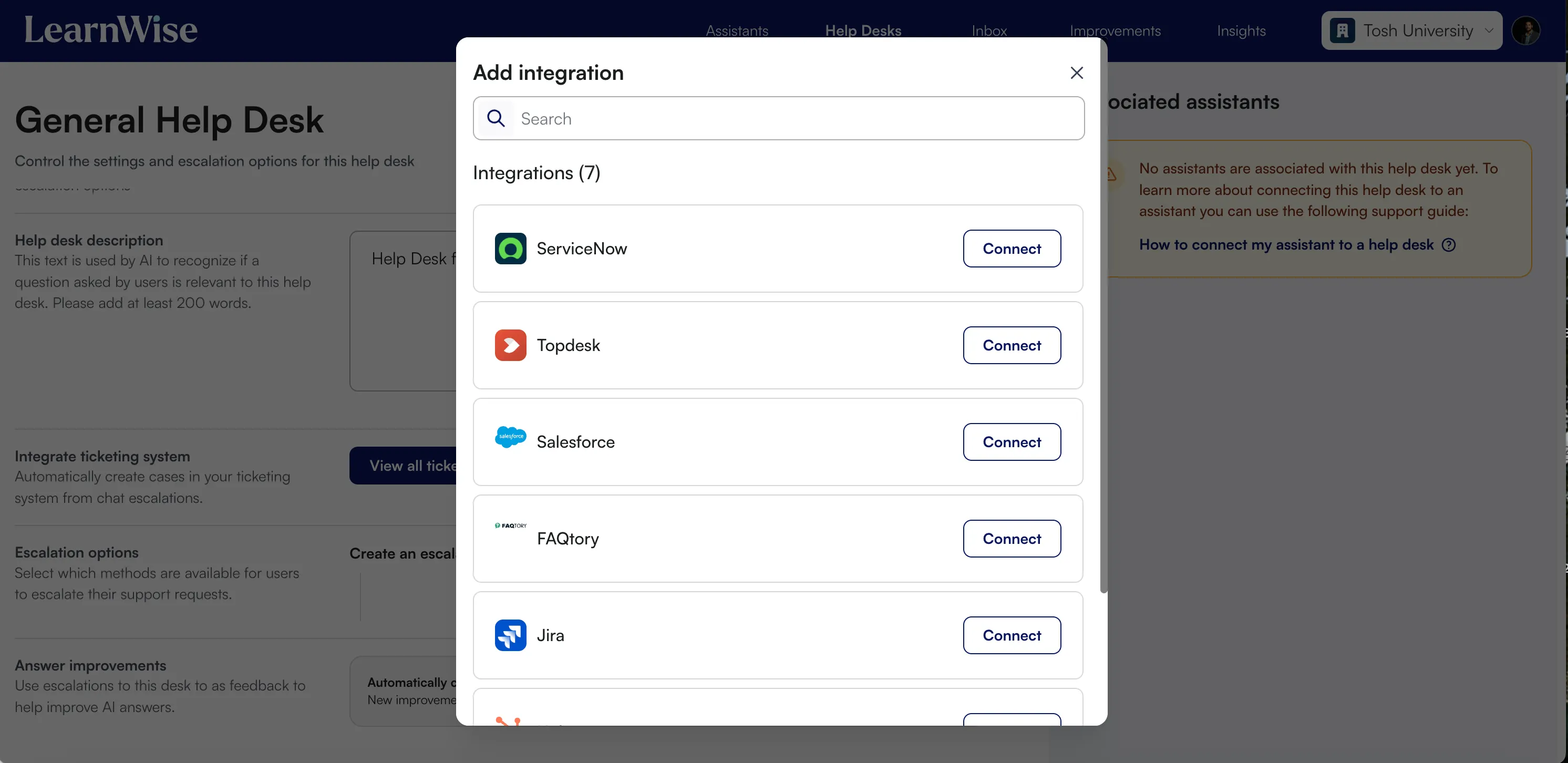
Connect Your Ticketing System
Optionally connect your ticketing system by clicking on the ‘View all ticketing integrations’ button in the Integrate ticketing system section. LearnWise supports a variety of support and ticketing integrations, which can be configured to certain escalation options and settings. Learn more about ticketing integrations here.
-
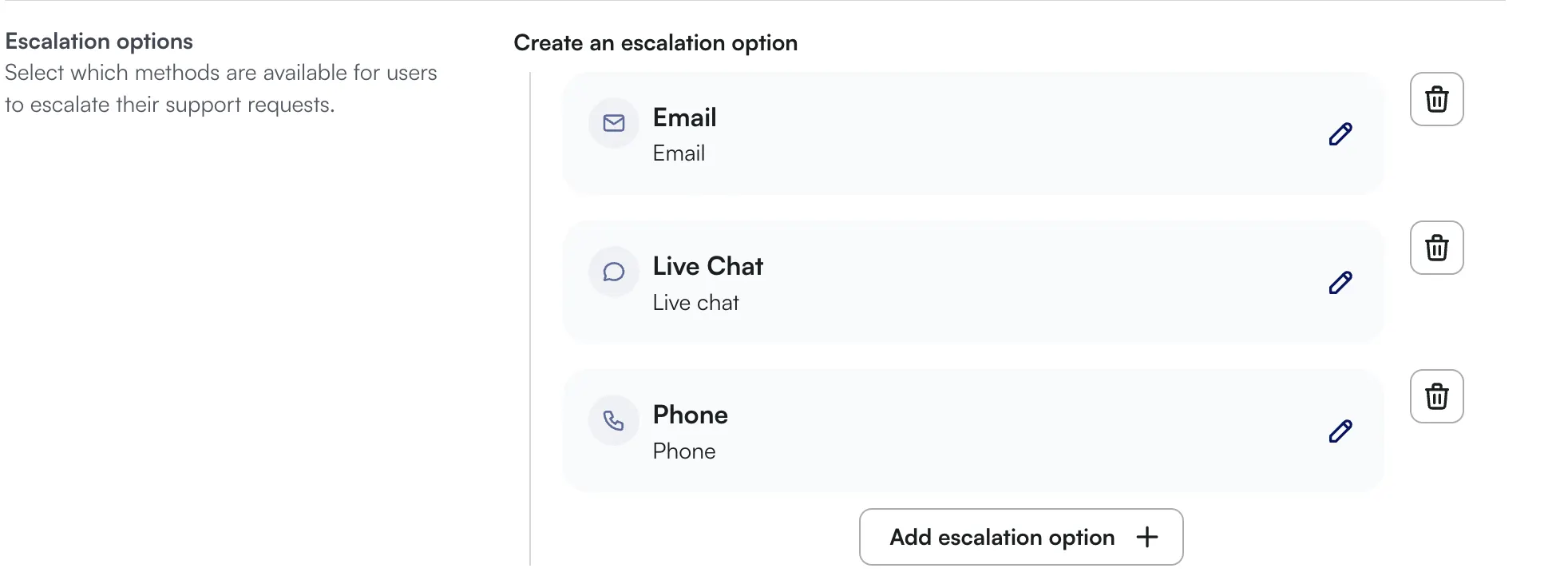
Configure Escalation Options: Decide how queries will be escalated through this help desk. You have multiple different options to choose from like phone call, email, and more! Each option has its own availability settings as well. You can choose from the following escalation options:
-
Email: Provide the support email address to send an email to the relevant desk or individual.
-
Phone: Enter the phone number where users can reach phone support.
-
Live Chat: Add a link to your Live Chat application to let students and faculty escalate directly into a live chat conversation with on of your team members. Please note that LearnWise will not be able to track conversations that occur in an external Live Chat.
-
Create a ticket: Connect LearnWise to your ticketing system and allow users to create tickets directly while ensuring all relevant fields are filled out or automatically populated.
-
External Link: Enter a URL to link users to a new page where they can continue their escalation workflow.
- API Endpoint: Send escalation data to your custom ticketing or case management system via API. Configure authentication (API Key, Bearer token, Basic Auth, or OAuth) and set up the request payload with user information. This is useful for integrating with systems that don't have a pre-built LearnWise integration.
-
-
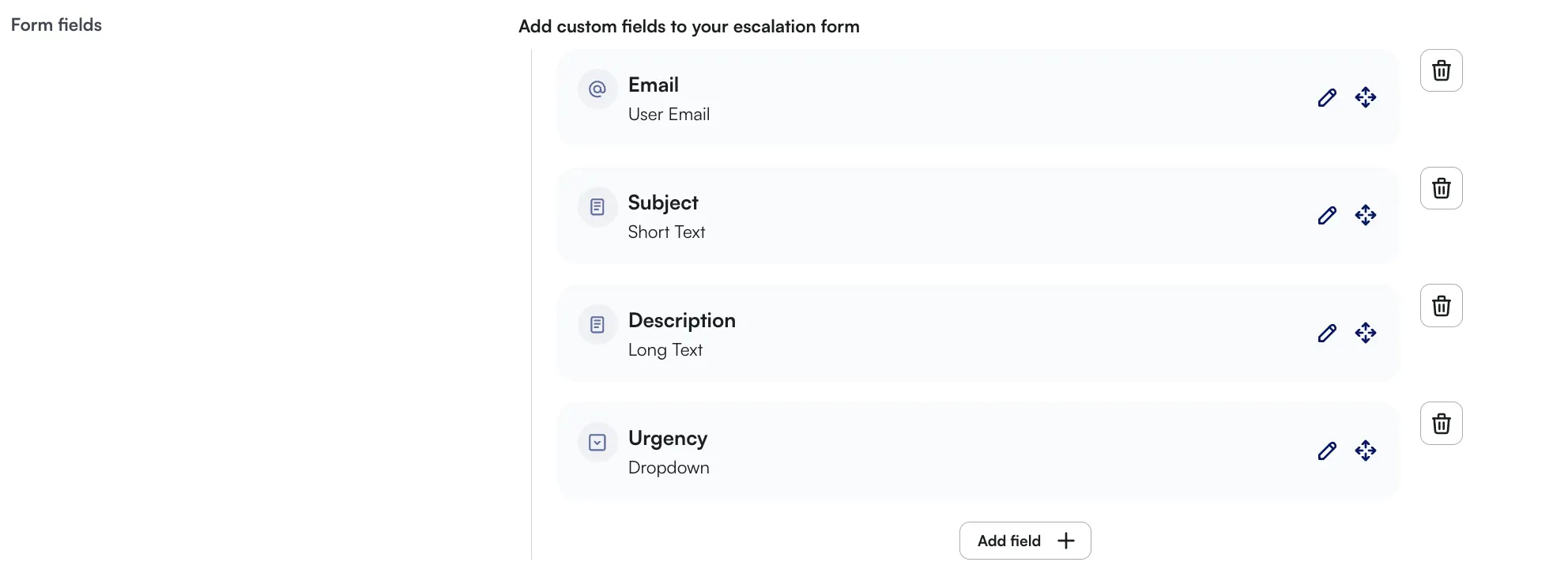
Customize Escalation Form Fields: If you have any particular fields that students or faculty should submit to get in touch with this escalation option you can customize those field types in this section. There are multiple field types available from short text to dropdown fields. You can also map these fields directly to fields in your integrated ticketing system
-
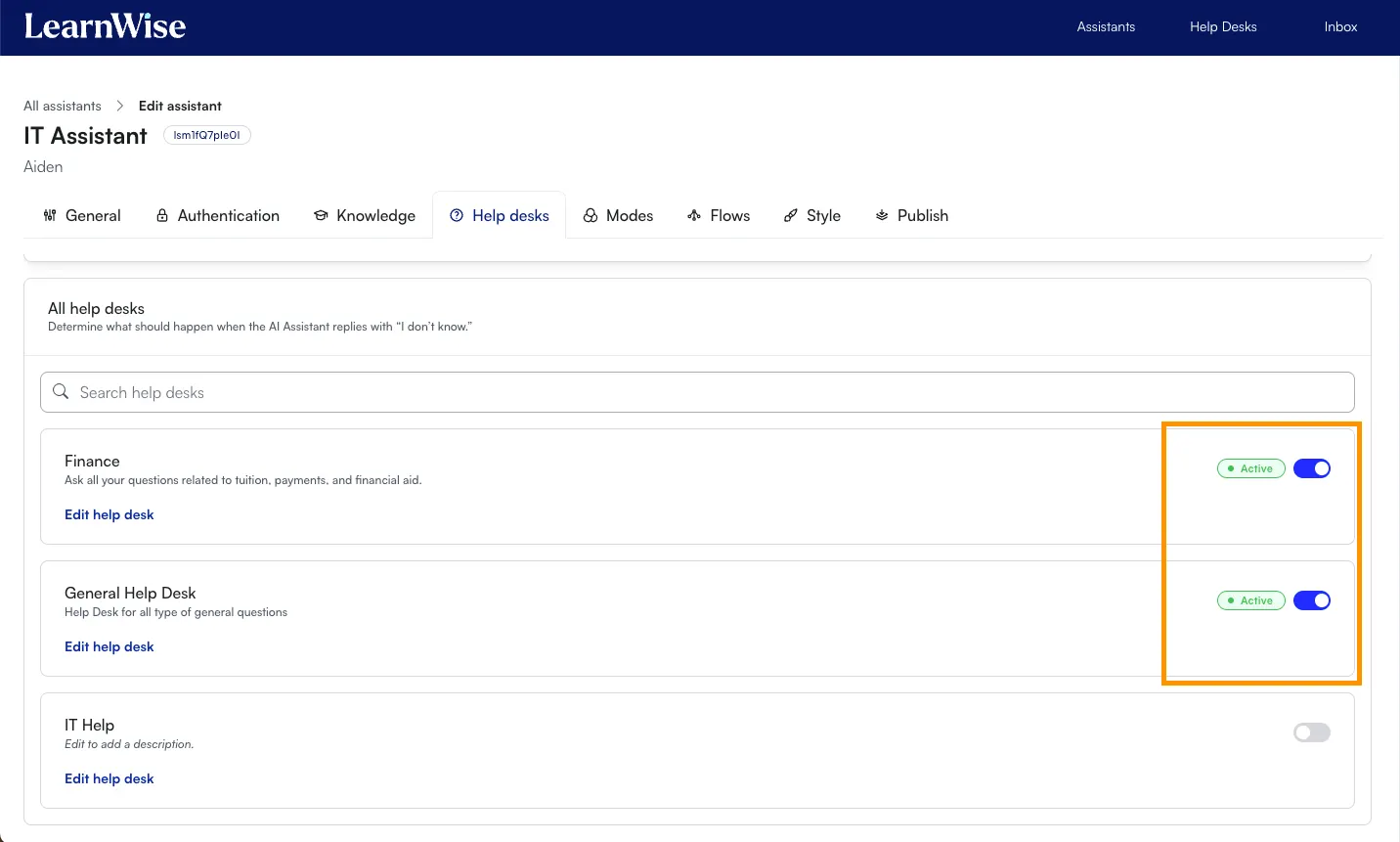
Save and Connect the Help Desk to Assistant: Once all the details are filled in, you can toggle this particular help desk on any assistant that you have created on the ‘escalation’ step of an assistant to associate the options.
Finalizing Your New Help Desk #
After creating your new help desk and connecting it to an assistant, it will be available as an option for escalation when users interact with your LearnWise assistants. Remember to inform your support team about the new help desk so they can prepare to handle incoming queries.
Still stuck?
Ask the LearnWise assistant. It answers from these guides.
Related guides
- How can I integrate a ticketing system?Build your assistant
- How do I customize the form fields for the escalation/help desk?Build your assistant
- How do I integrate Salesforce ticketing system?Build your assistant
- How do I integrate ServiceNow ticketing system?Build your assistant
- How do I integrate with HubSpot ticketing system?Build your assistant