

What is Lifetime Enrollment and how does it work?
Let learners chat across courses they took in the past, not just the ones they're in right now.
2 min readUpdated
On this page
What is Lifetime Enrollment? #
Cross-course chat normally lets learners chat across their current, active courses. Lifetime enrollment extends this so learners can also chat across previous courses, meaning courses they were enrolled in that have since ended.
This is useful when:
- A learner wants to ask a follow up question about a course that just finished
- A learner wants to reference material from a course they took a while back
Key terms #
| Term | Meaning |
|---|---|
| Current course | A course that has started (or starts within about 30 days) and, if it has ended, ended no more than about 14 days ago |
| Previous course | A course that falls outside that window, meaning it ended more than about 14 days ago |
What does the learner see? #
- If previous enrollments are found, the cross-course window shows two tabs, Current and Previous, and the learner can switch between them to chat across new or old courses.
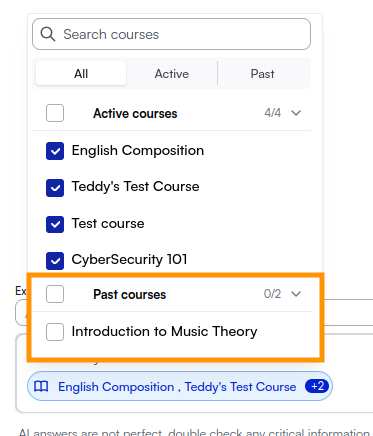
- If no previous enrollments are found, the window looks exactly as it always has: a single list of current courses, no tabs, no change.
Turning on Lifetime Enrollment, step by step #
- Open the assistant in the admin panel and navigate to Knowledge > Courses > Cross-course.
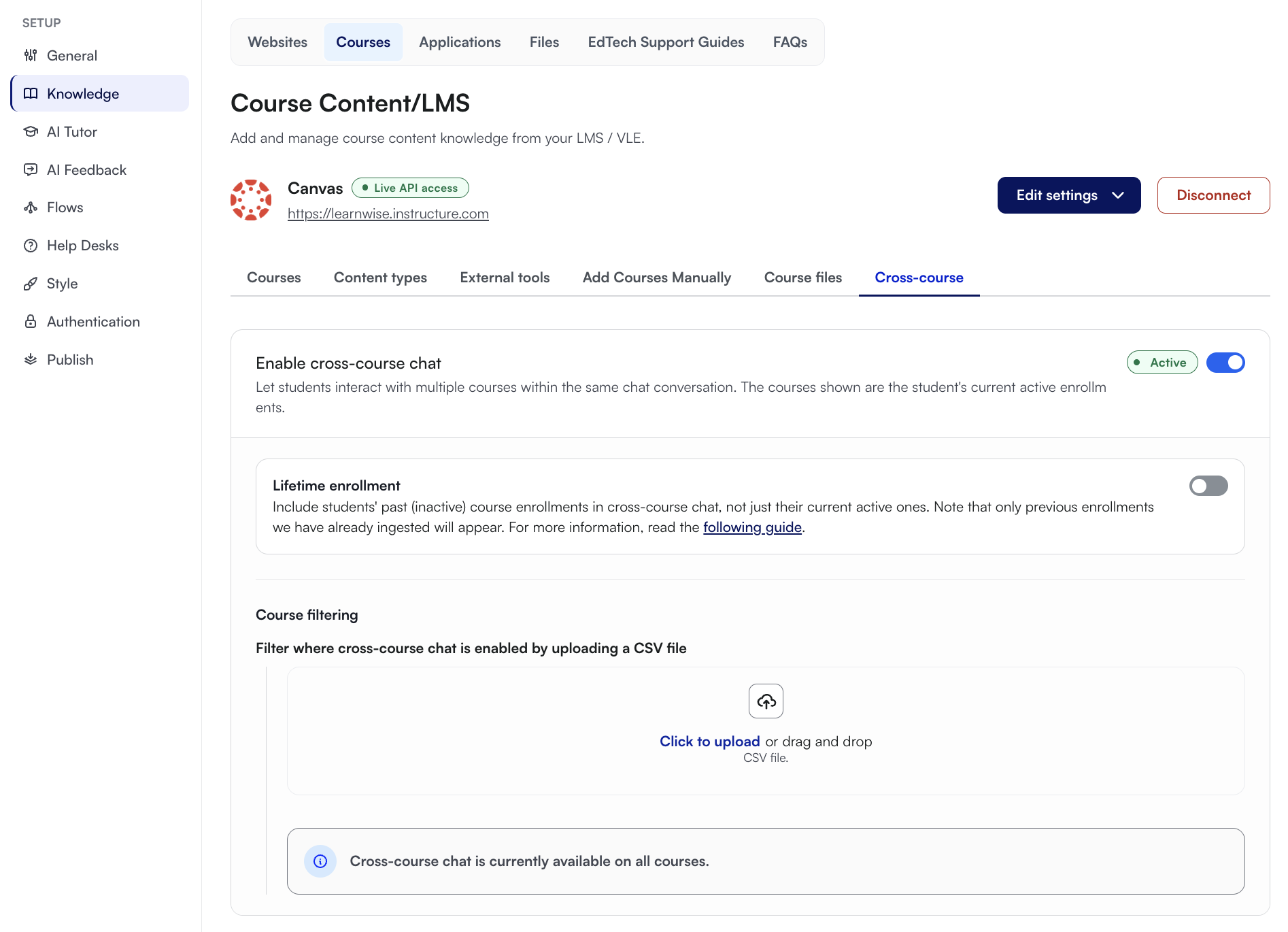
- Make sure cross-course is enabled and your LMS is connected with a live API configuration.
- Switch on the Lifetime enrollment toggle.

How individual LMSs determine "previous"
-
In Blackboard, a course will only appear in Previous if it has ended and is still marked active. A course will not show in the Previous tab if it is marked inactive.
-
For Microsoft Teams, availability is determined using the
termparameter on a course. This parameter is normally only present when School Data Sync has been set up, since School Data Sync is what reads school, class, and roster data from the institution's SIS or management system and syncs it into Microsoft 365.
Things to know
- Only courses already processed will appear. Previous enrollments only show up if the course was already processed in the system at some earlier point and is ready to search. Courses the system never ingested will not appear, since turning the feature on does not go back and process old courses. Tip: if needed, the course can be added manually via the admin panel, and it will appear in the list once processing is done.
- Previous courses don't update. Courses from old enrollments that are no longer active are not considered for course updates. Only current, active courses keep refreshing.
Still stuck?
Ask the LearnWise assistant. It answers from these guides.
Related guides
- How can courses be structured in Canvas to maximize LearnWise?AI Student Tutor
- How can courses be structured in Moodle to maximize LearnWise?AI Student Tutor
- How can I add AI Student Tutor to Brightspace?AI Student Tutor
- How can I add AI Student Tutor within Canvas?AI Student Tutor
- How can I add Kaltura video transcripts as a knowledge source in AI Student Tutor?AI Student Tutor