

How do I set the global answering style for my assistant?
The answering style setting allows you to control how your LearnWise AI assistant responds to queries, ensuring answers align with your institution’s style, terminology, and search priorities. By defining specific answer guidelines within Flows, you can enhance clarity, relevance, and engagement for students and faculty.
1 min readUpdated
On this page
1. Access the Custom Instructions Panel #
- Log in to the LearnWise Admin Panel at admin.learnwise.ai.
- Select the assistant you want to modify.
- Go to the General tab and scroll to the Configuration section
2. Set Answering style #
Enter instructions in the Answering style field. These apply globally to all responses.
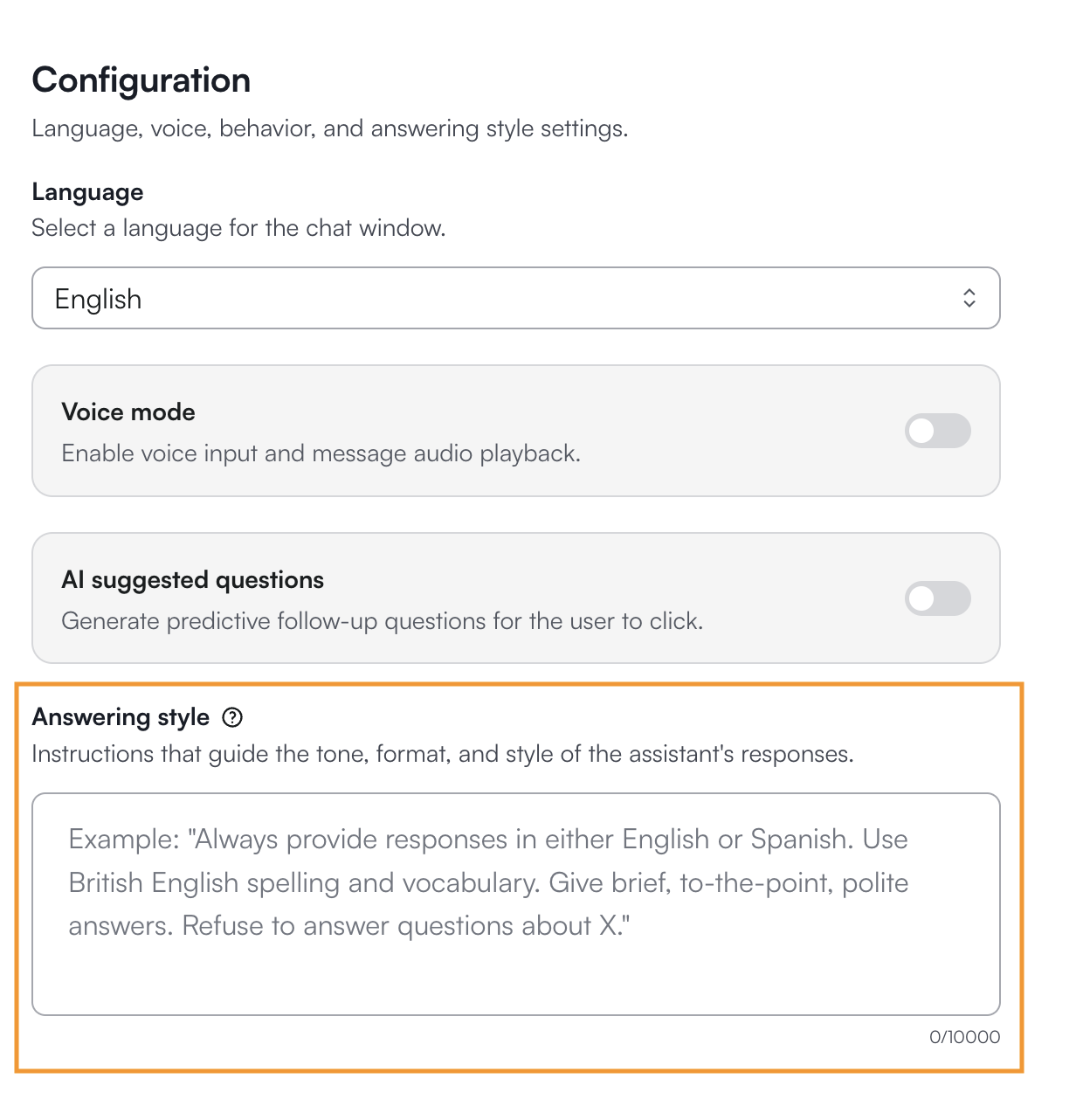
What to include:
- Tone and length — e.g. "Keep responses short and to the point" or "Give detailed, in-depth answers"
- Language and complexity — e.g. "Use simple language suitable for undergraduate level"
- LMS/institutional terminology — e.g. "Use 'modules' not 'courses' to match our LMS" or "Always refer to our service as 'Student Success Centre'"
3. How global answering style interacts with Flows #
Each Search knowledge action in your default behavior and custom Flows has its own Answer guidelines field (under Advanced settings). By default, flow-level guidelines are added to the global answering style. Enable Override answering style on a flow's Search knowledge action to replace the global style entirely for that flow.
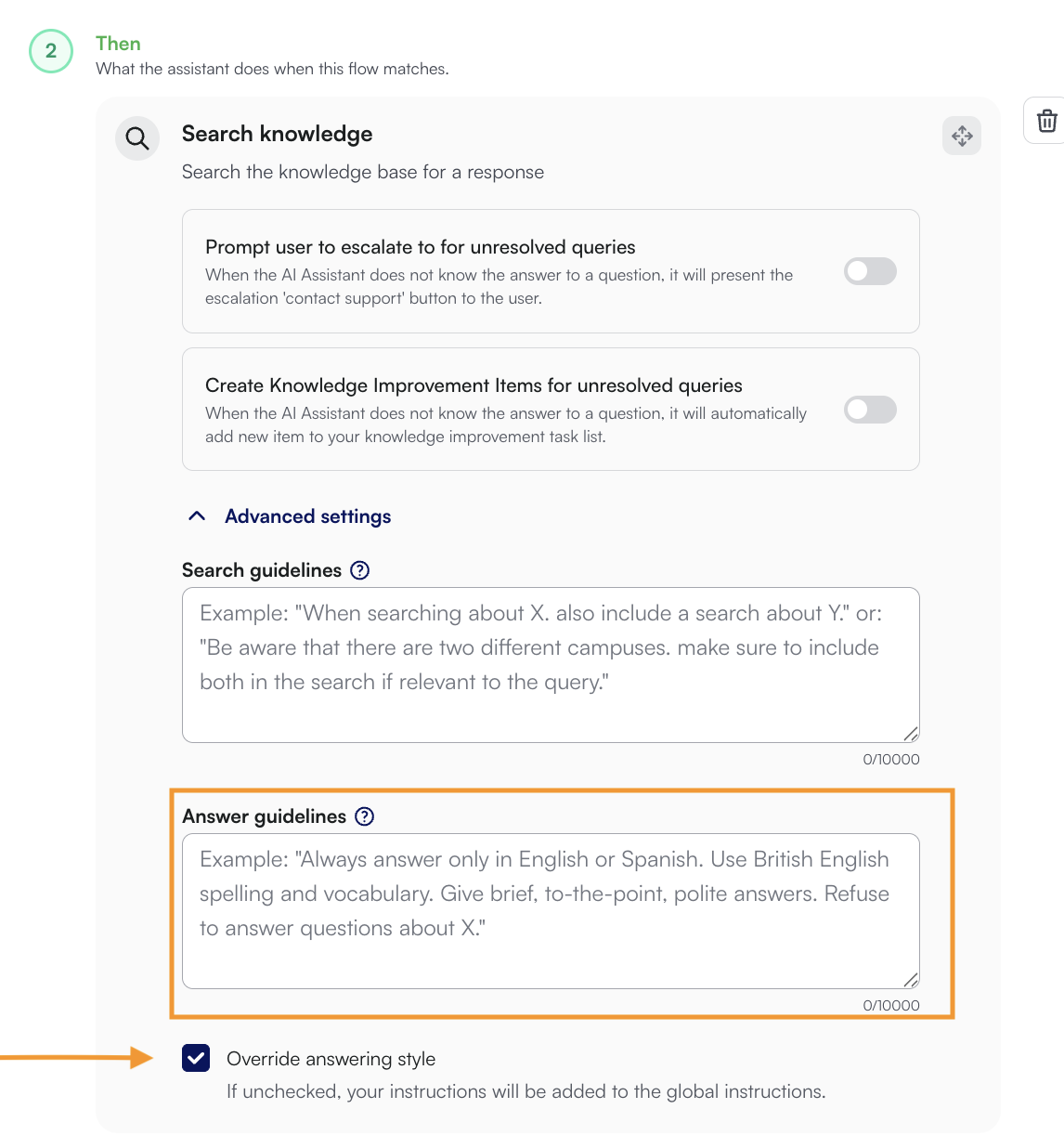
When a user is handed over to a sub-assistant, that sub-assistant's own answering style applies — the parent assistant's style does not carry over.
4. Test Before Full Deployment #
Changes auto-save. Test on a copy of your assistant before rolling out to users.
Recommended Testing Process #
- Review Test Scenarios
- Identify common queries from different user roles (e.g., students, faculty, staff).
- Enable Custom Instructions in a Copy of your assistant
- If available, apply changes to a test assistant before updating the live version.
- Run Sample Queries
- Test a variety of user inputs to confirm expected behavior.
- Look for inconsistencies or unintended changes.
- Refine and Apply Changes
- Adjust instructions based on testing feedback.
- Once satisfied, deploy the changes to the live assistant.
Still stuck?
Ask the LearnWise assistant. It answers from these guides.
Related guides
- How do AI suggested questions work?Build your assistant
- How do I activate and use voice mode in the assistant?Build your assistant
- How do I change the brand color of your assistant?Build your assistant
- How do I change the nickname of the assistant?Build your assistant
- How do I change the launch/close button of the assistant?Build your assistant