

How do I change the brand color of your assistant?
Align your assistant’s colors with your institution’s brand while keeping the chat experience clear and accessible for everyone.
2 min readUpdated
On this page
Tailoring Your AI Assistant's Visual Branding #
Customizing the branding color of your AI assistant aligns its appearance with your institution's visual identity and enhances brand recognition. Selecting an appropriate color that maintains readability and accessibility is crucial, ensuring that all users, including those with visual impairments, can interact comfortably with the assistant.
Step By Step #
- Access the LearnWise Admin Interface
- Sign into your admin account at admin.learnwise.ai.
- Proceed to the 'Assistants' area in your dashboard.
- Enter the Assistant's Edit Mode
- Identify the AI assistant you want to modify and click on the 'Edit' button.
- Adjust Branding Color
- Navigate to the ‘style’ tab
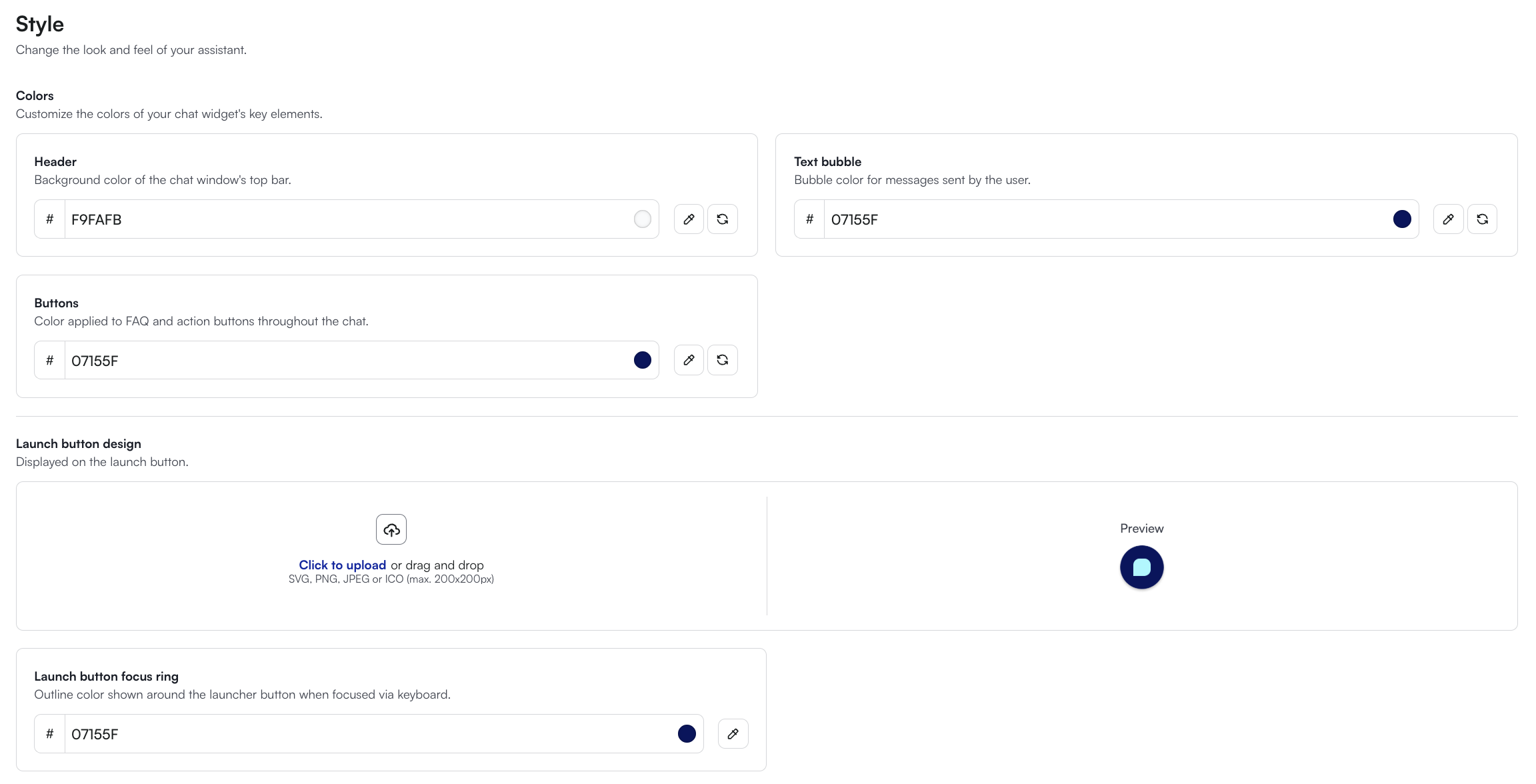
- Navigate to the Style tab. Under the Colors section you will see four fields:
- Header — Enter a HEX code for the background color of the chat window's top bar.
- Text bubble — Enter a HEX code for the bubble color of messages sent by the user inside the chat window.
- Buttons — Enter a HEX code for the color applied to FAQ and action buttons throughout the chat.
- Launch button focus ring — Enter a HEX code for the outline color that appears around the launcher button when a user navigates to it via keyboard. This is an accessibility feature.
- Ensure Accessibility
- Verify that the chosen color meets web accessibility standards, particularly for contrast. The color should stand out clearly against both white and black text to be easily readable by everyone.
- Save Your Changes
- Once you've entered the HEX code and ensured accessibility compliance, click 'Save' to apply the new brand color.
- Review the Changes
- Preview the chat interface to confirm that the new color is reflected and that text remains legible.
Selecting an Accessible Brand Color #
When choosing your brand color, consider the following:
- Match Your Institution's Theme: Use the color that students and faculty associate with your institution, such as the one used in your logo or school uniforms.
- Contrast is Key: When choosing your Brand color, ensure the generated palette will have sufficient contrast against text. Tools like the Web Content Accessibility Guidelines (WCAG) contrast checker can help. For the Header color, contrast is handled automatically.
- Test for Different Conditions: Check how the color looks on different devices and in varying lighting conditions to ensure consistency and readability.
By customizing your AI assistant's branding color, you create a cohesive and accessible experience that resonates with your university's identity.
Was this page helpful?
Still stuck?
Ask the LearnWise assistant. It answers from these guides.
Related guides
- How do AI suggested questions work?Build your assistant
- How do I activate and use voice mode in the assistant?Build your assistant
- How do I change the nickname of the assistant?Build your assistant
- How do I set the global answering style for my assistant?Build your assistant
- How do I change the launch/close button of the assistant?Build your assistant