

How does the AI assistant integrate with course content on Blackboard?
A guide to how the LearnWise AI assistant connects to Blackboard course content via LTI, what content it can use, and how students and faculty benefit from course-aware study and support tools.
3 min readUpdated
On this page
LearnWise has introduced an advanced integration with Blackboard, enabling seamless interactions between its AI assistant and course content hosted on the platform. This integration, implemented as an LTI tool, is designed to enhance the learning and teaching experience for both students and faculty. Below, we explore the scope of the integration, its functionality, and the benefits it offers.
Launching LearnWise in a course #
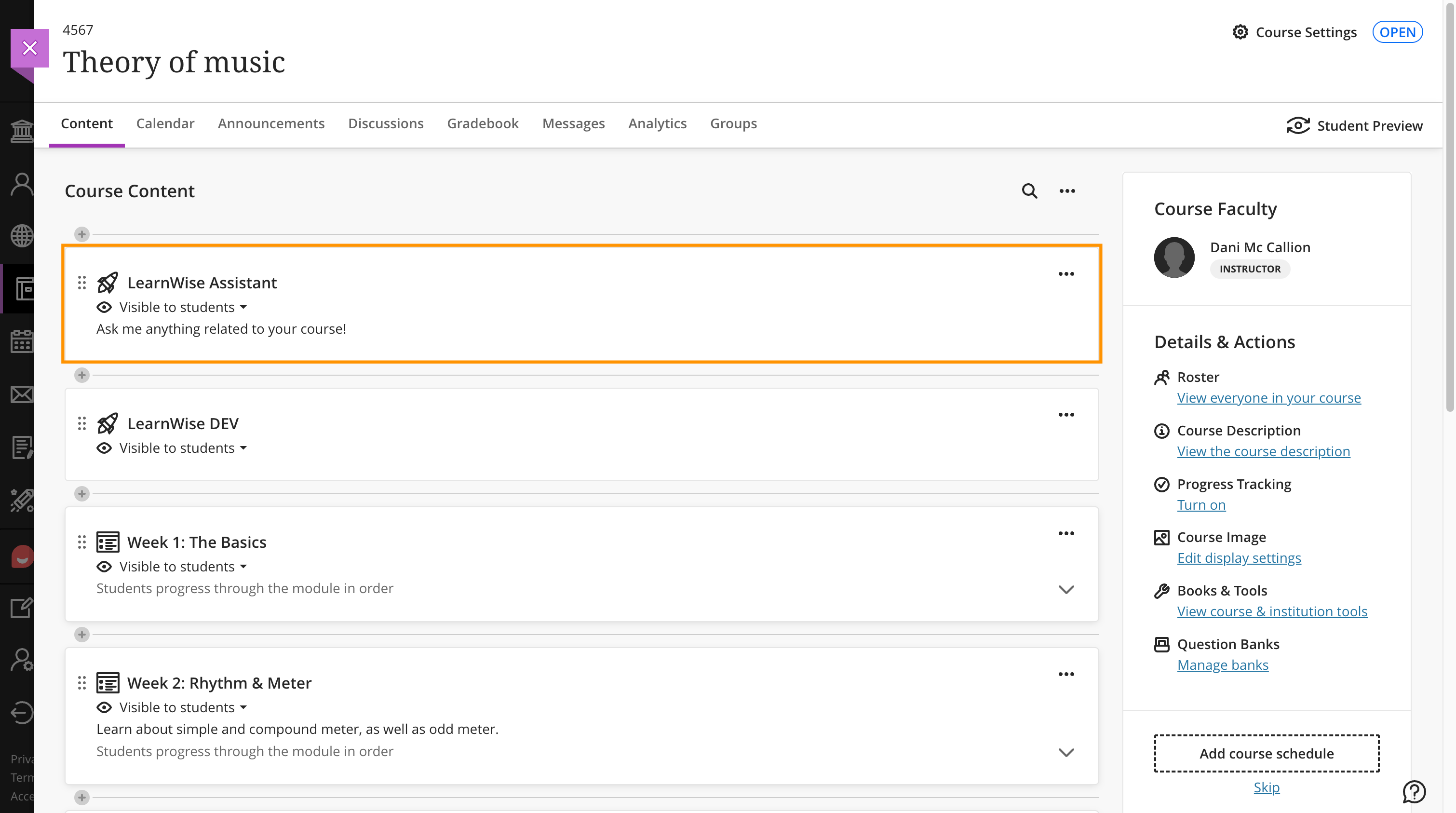
To access this feature, students simply launch the assistant by clicking on the LTI tool within their Blackboard course. This opens a full-page panel where the assistant provides immediate interaction with the listed content areas.
Naming and Description
- Tool Name: Provide a clear concise name; ‘’Your Smart Course Assistant’
- Description: Outline what the assistant can do; "Access your course materials, quizzes, and study resources in one place. This assistant helps you summarize, review, and prepare for exams with personalized learning tools."
Using the Assistant in a course When leveraging LearnWise inside of a course, the assistant is only pulling course content from that particular course. If a user switches courses, they need to start a new conversation before the assistant recognizes the new course content
Integrated Blackboard Content
The LearnWise Assistant can interact with a wide range of Blackboard course content to provide dynamic course support. Here’s a breakdown of the content areas included:
- Learning Modules: Provides context and answers based on module structure and topics.
- Documents: Content, knowledge checks, file uploads, converted files and content added from the Content Collection
- Tests & Assignments: Tests and assignments created on the Blackboard platform
- Syllabus: Summarizes key information that students need to know about the course
- Announcements: Keeps students informed about updates and important notifications.
- Uploaded Files: Supports all machine-readable files such as PDFs and Word documents.
- Grades: Allows students to query their performance and view grade summaries. (coming soon)
- Calendar: Displays course schedules, deadlines, and event timelines. (coming soon)
Exclusions: The assistant does not interact with student-generated content like discussion boards or journals. This ensures that generative responses are not influenced by individual student inputs, maintaining the academic integrity of the assistant's feedback.
B. How Students and Faculty Can Benefit #
For Faculty: #
- Efficient Content Delivery:
- Faculty can ensure students easily access important course materials, such as syllabi, assignments, and key announcements, through the assistant.
- Real-time assistance enhances student engagement with course resources.
- Enhanced Assessments:
- Faculty can encourage students to use the assistant's study tools for self-evaluation, fostering deeper engagement with learning materials.
- Save time
- The AI assistant handles routine questions about the course, freeing faculty up for more meaningful student interactions
- The AI assistant trend reports allow insights into the most frequently asked questions, helping instructors identify common pains in their course design
For Students: #
-
Interactive Study Tools:
- Create topic synopses: Bullet points or paragraph summaries of key themes from learning modules.
- Generate exam evaluations: Practice tests based on uploaded materials and structured topics.
- Summarize notes: Quickly review key ideas with auto-generated synopses and flascards
-
Focused Study Mode:
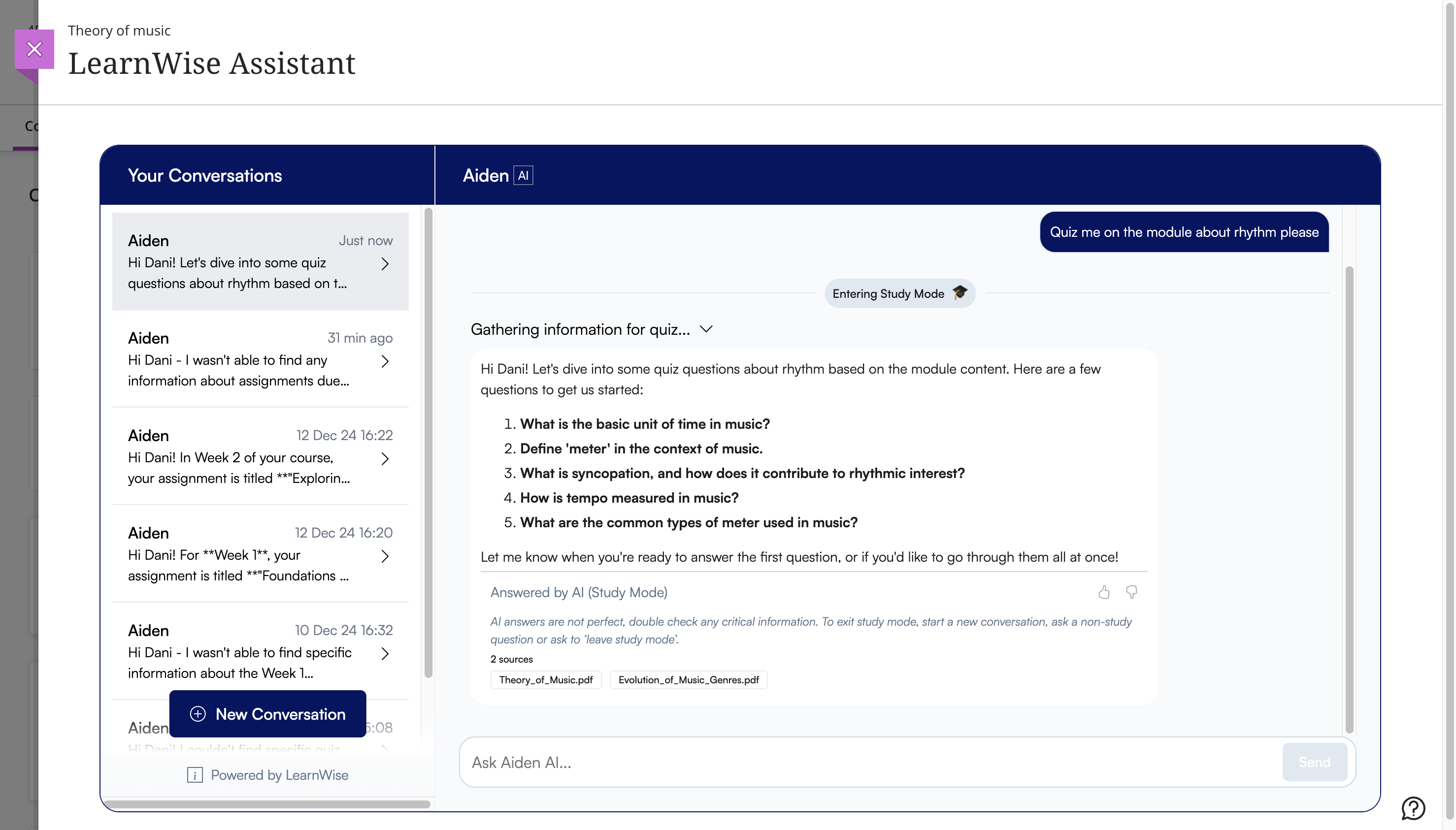
- Enables students to generate customized quizzes with questions based on their specific study needs.
- The tool can suggest consistent prompts via shortcut buttons, ensuring uniformity in user interactions, and streamlined preparation for exams
-
Improved Time Management:
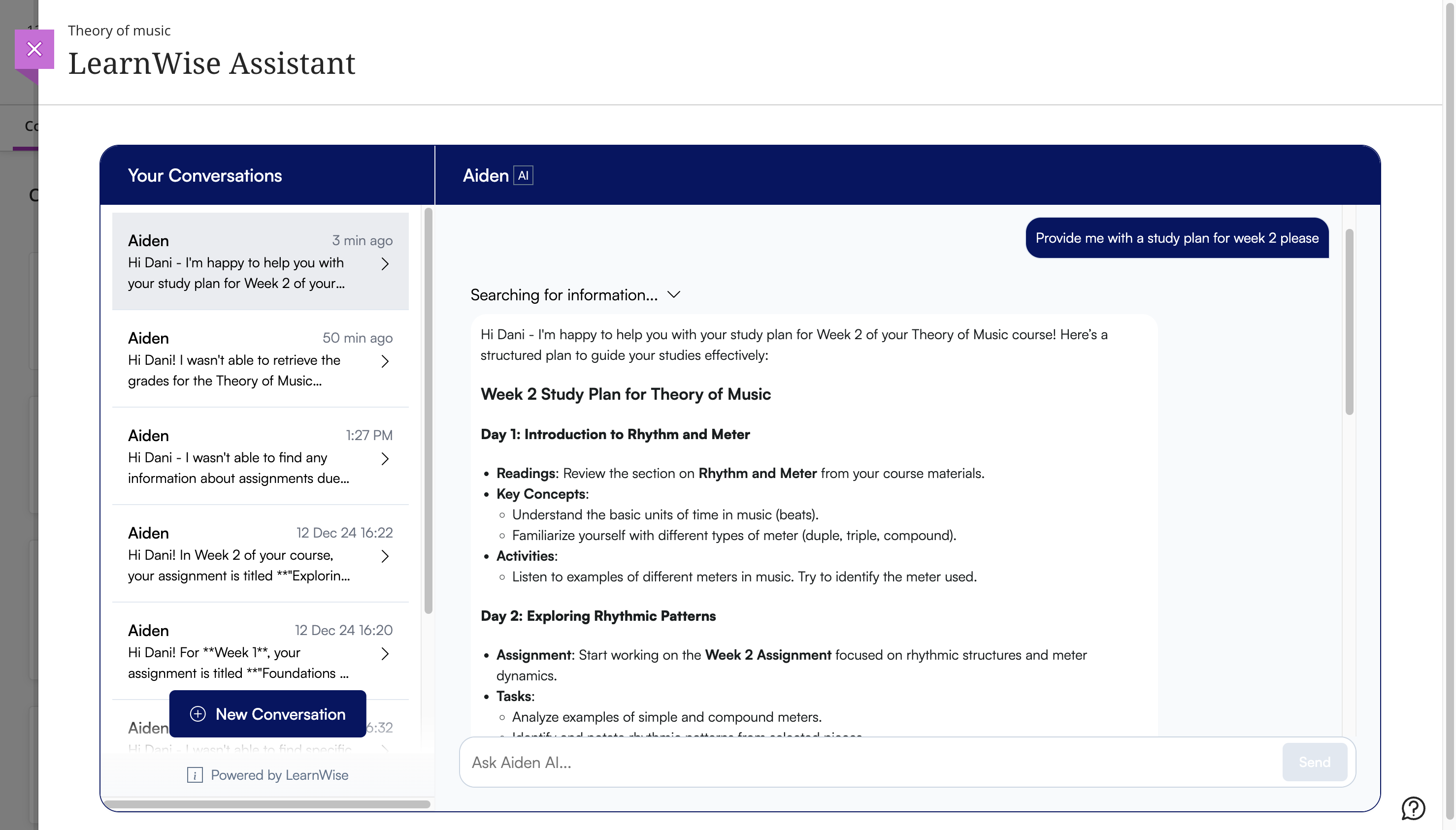
- Students can create a complete study plan for example on a weekly basis or based on the structure of the course
- Navigate the course structure and find specific materials more efficiently
This integration between LearnWise and Blackboard transforms the way students and faculty engage with course content, fostering a collaborative and efficient educational environment. Whether it’s preparing for exams or staying on top of deadlines, the LearnWise Assistant ensures that every student and instructor has the tools they need for success.
Still stuck?
Ask the LearnWise assistant. It answers from these guides.
Related guides
- Which content types does the LearnWise assistant use from Blackboard course?AI Student Tutor
- How can courses be structured in Canvas to maximize LearnWise?AI Student Tutor
- How can courses be structured in Moodle to maximize LearnWise?AI Student Tutor
- How can I add AI Student Tutor to Brightspace?AI Student Tutor
- How can I add AI Student Tutor within Canvas?AI Student Tutor