

How do I install AI Campus Support on the Brightspace Login Page?
A short guide to installing the AI Campus Support assistant on the Brightspace login page by pasting the LearnWise script into the login page message source so users can chat before signing in.
1 min readUpdated
This guide provides step-by-step instructions for installing the AI Campus Support assistant on your Brightspace login page:
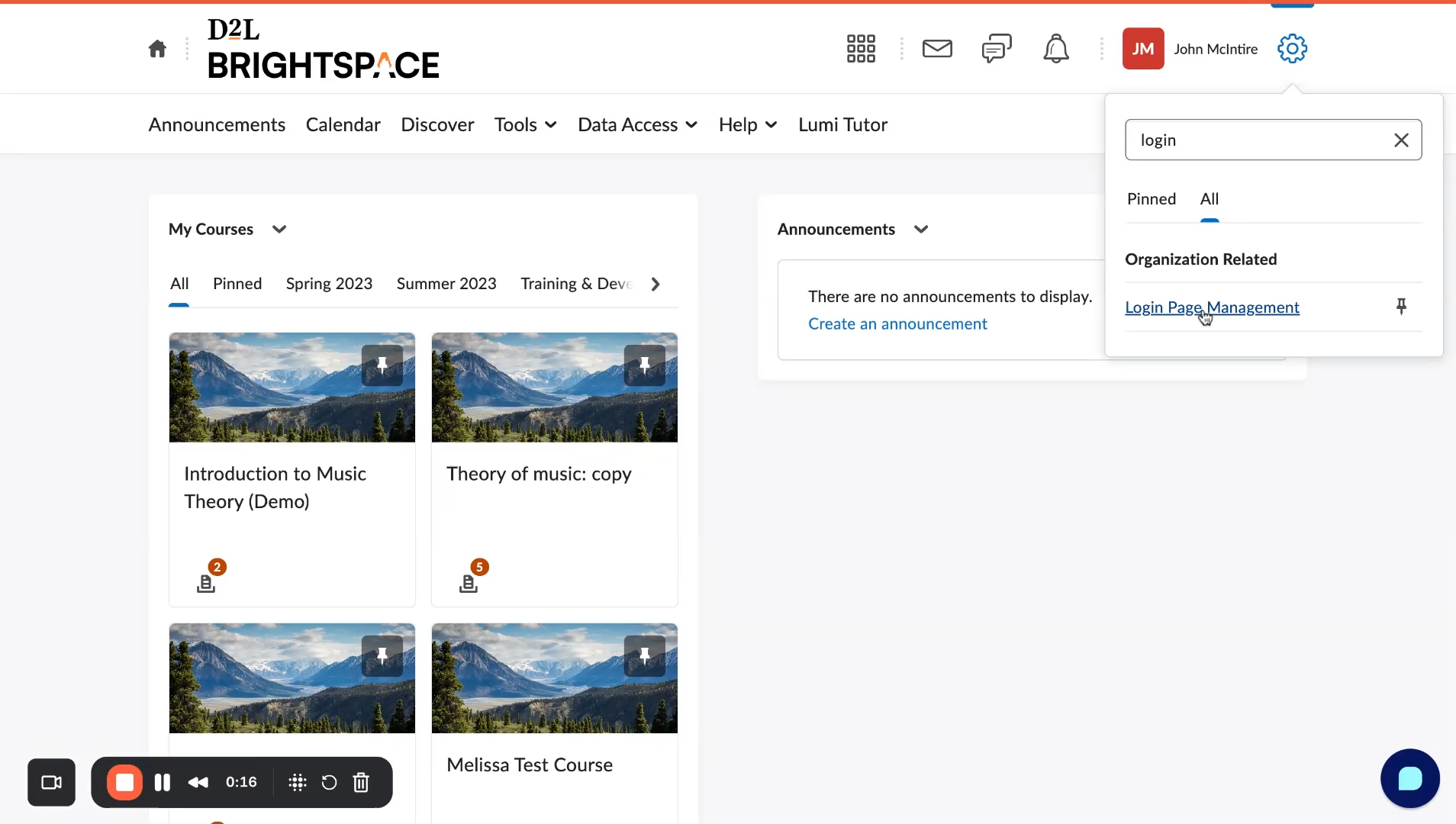
Step 1: Access Login Page Settings
- Go to the settings of your Brightspace login page management.
Step 2: Locate Message Input Field
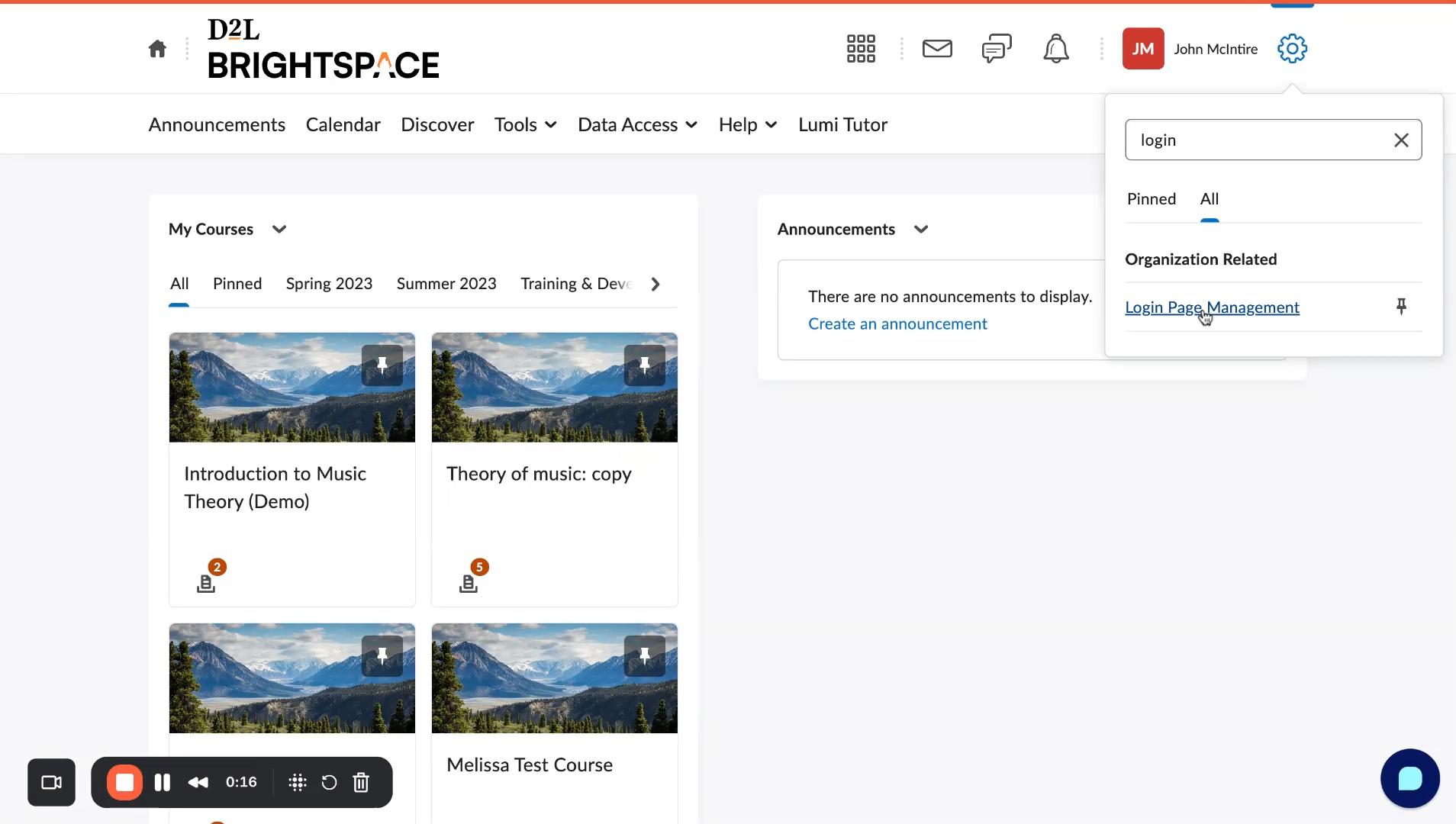
- Find the message input field where you customize messages shown on the login page.
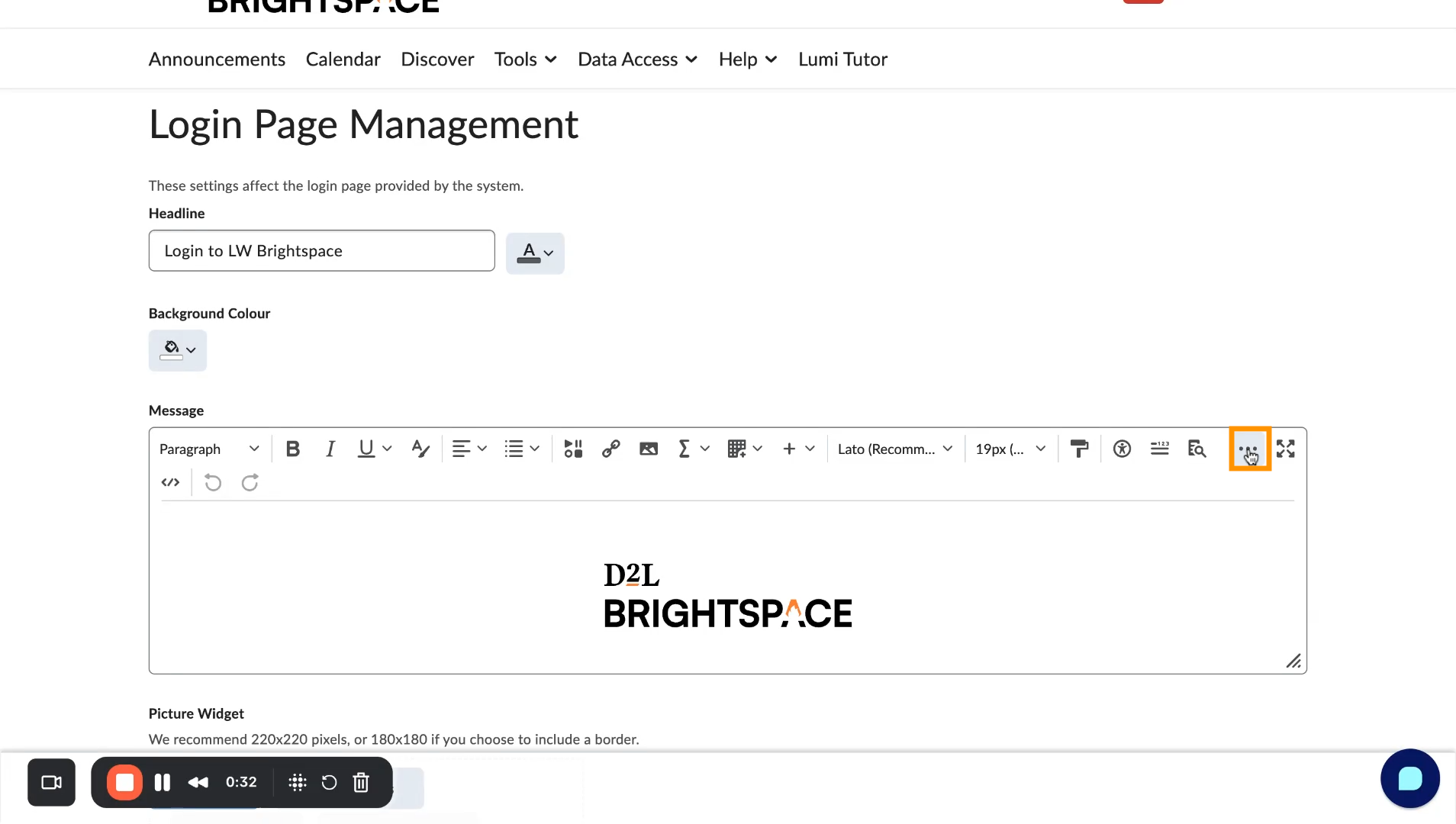
Step 3: Open Source Code Settings
-
Click on the 'more actions' button to display additional settings.
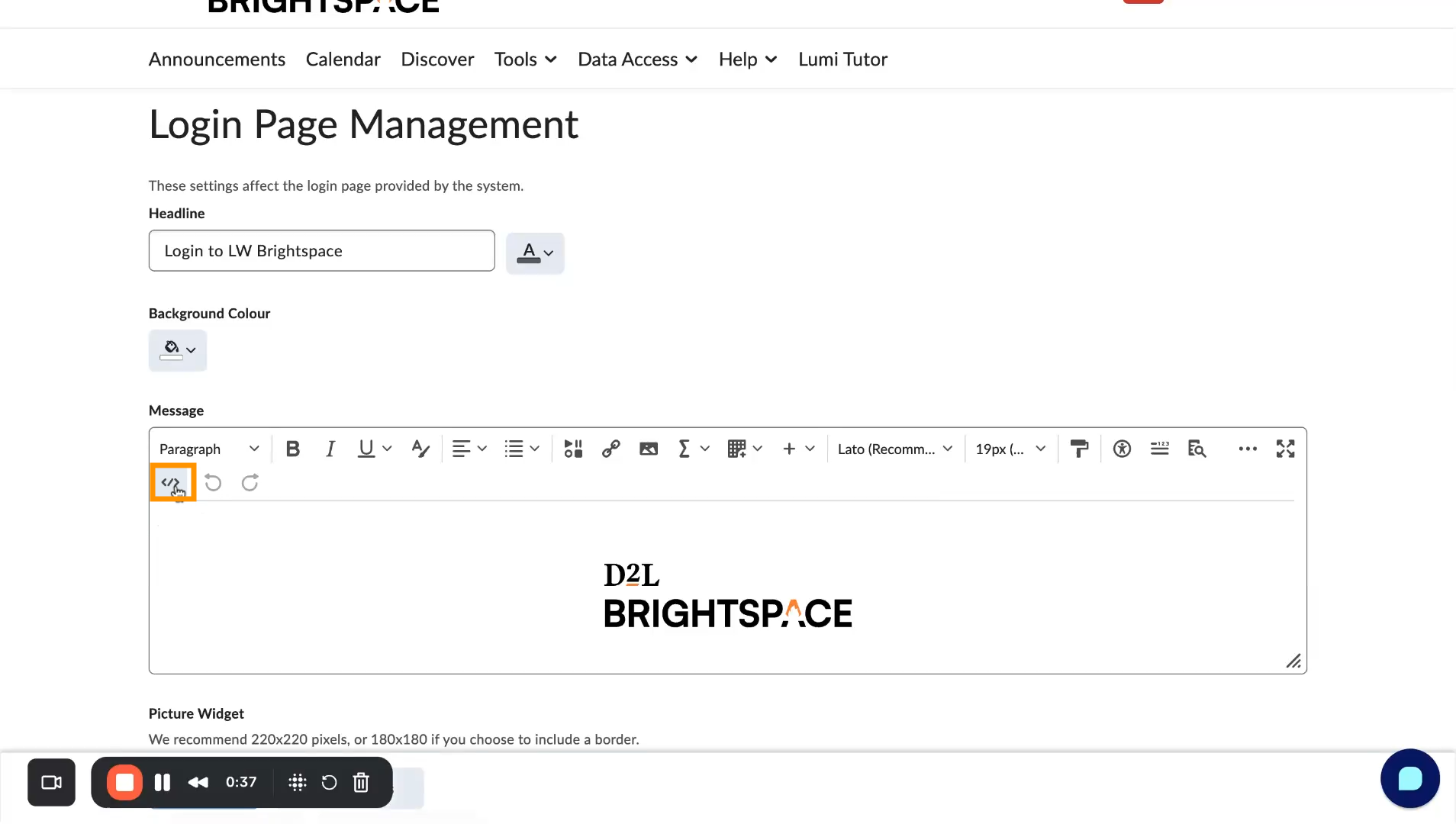
-
Look for the source code icon.
Step 4: Obtain the AI Campus Support Script
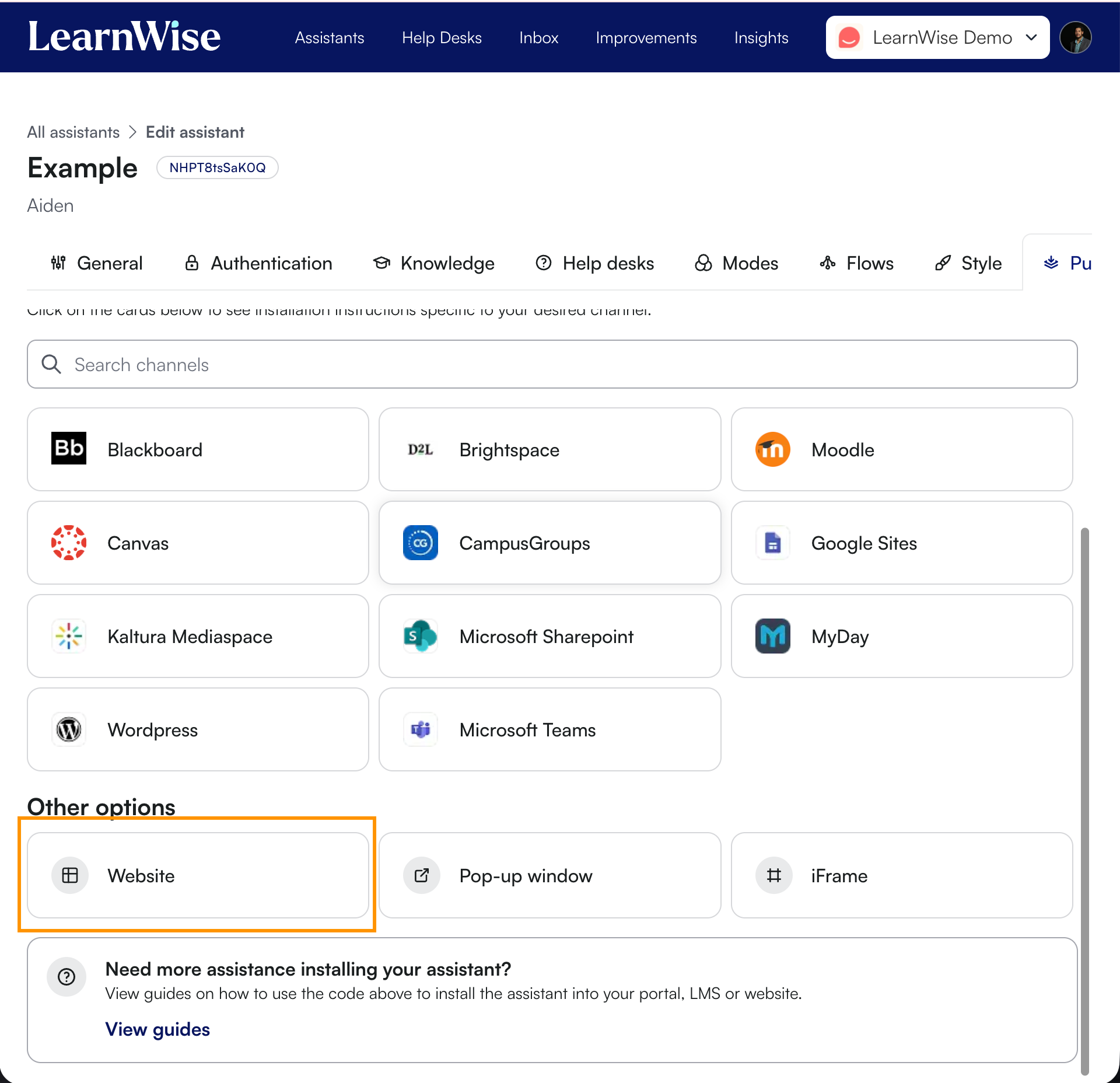
- Go to the publish step in your LearnWise admin dashboard (admin.learnwise.ai).
- Scroll down to 'other options' on the publish step.
- Select the assistant you want to use and click on 'Website' to copy the script.
- Paste the copied script into the source code section.
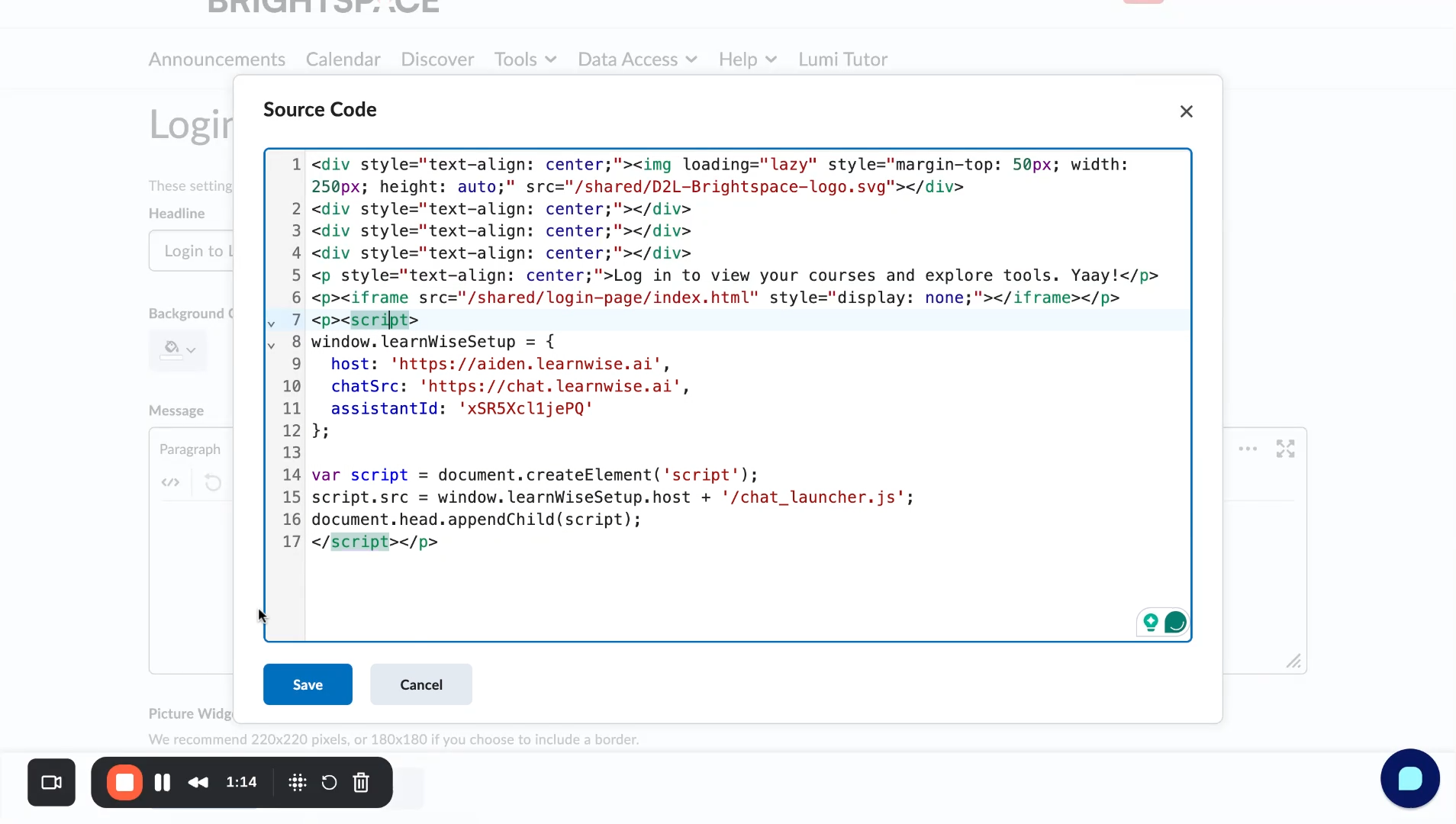
- Press 'Save' to save the changes.
- Press 'Preview' and then 'Publish'.
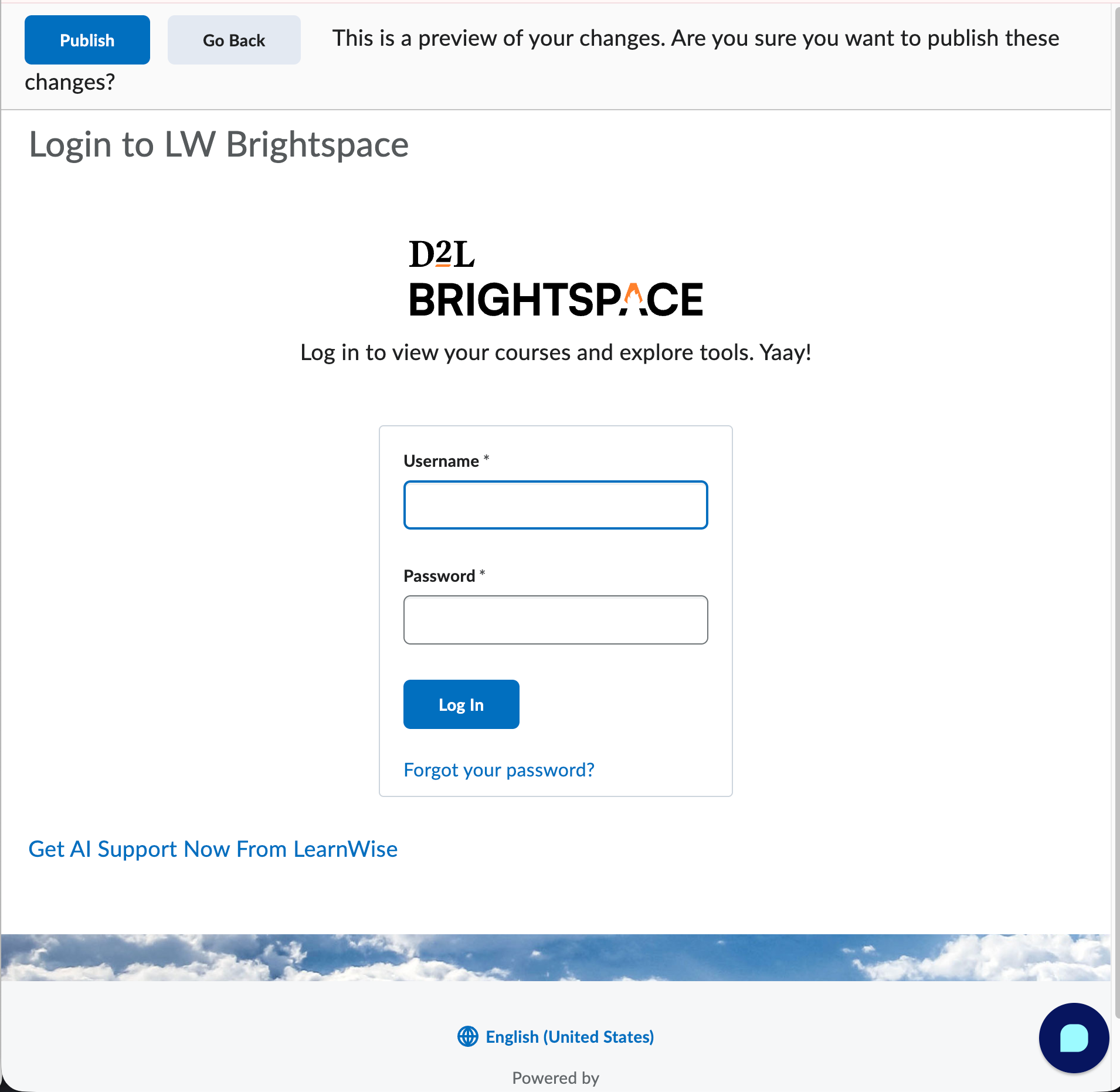
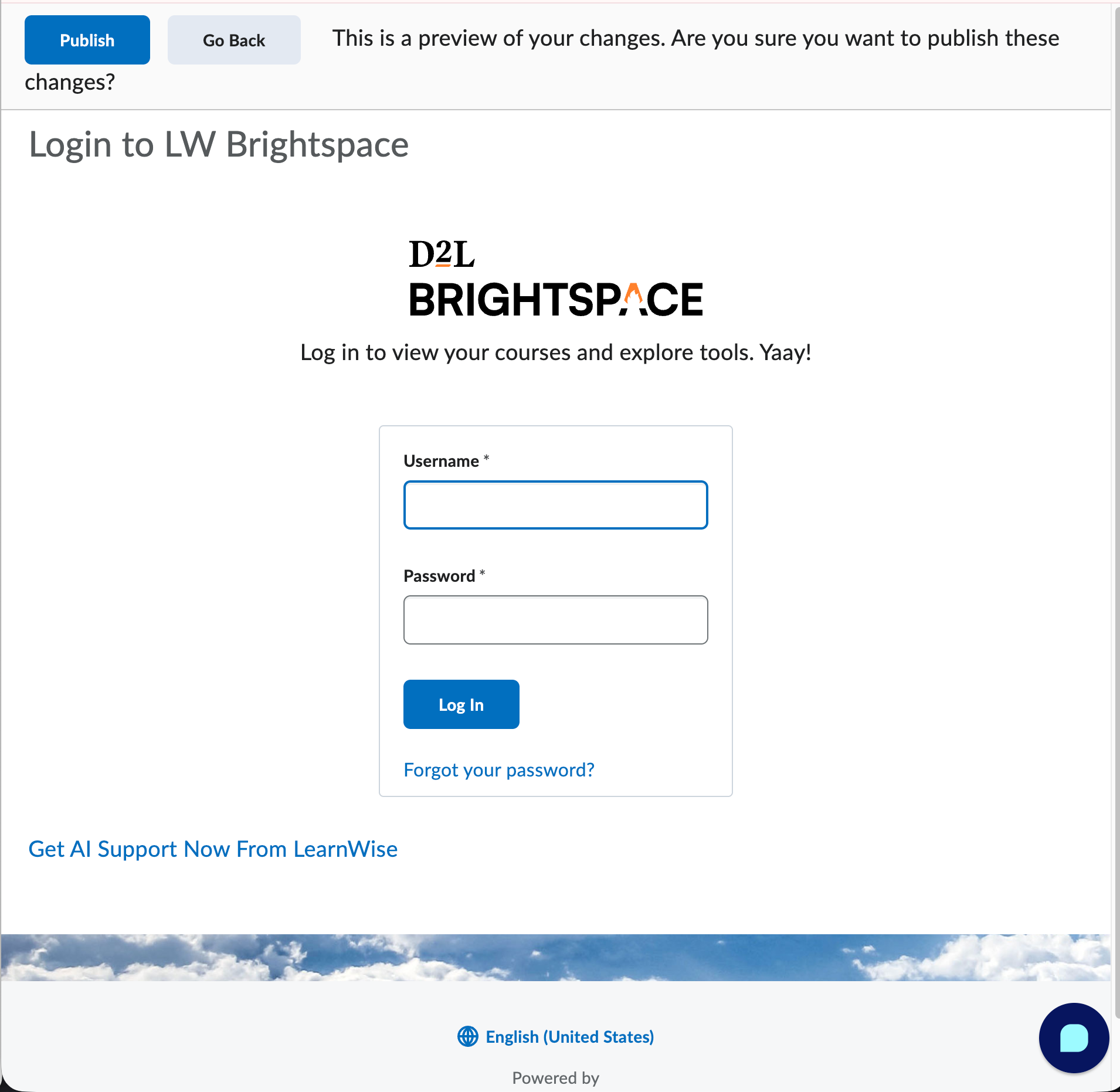
Step 5: Verify Installation
Was this page helpful?
Still stuck?
Ask the LearnWise assistant. It answers from these guides.
Related guides
- How do I publish AI Campus Support into Brightspace?Build your assistant
- How can I add AI Student Tutor within Blackboard?Build your assistant
- How do I publish an assistant in Blackboard via the Ultra Extension Framework (UEF)?Build your assistant
- How do I publish an assistant into Microsoft Sharepoint?Build your assistant
- How do I publish an assistant into Microsoft Teams?Build your assistant