

How do I publish an assistant in Blackboard via the Ultra Extension Framework (UEF)?
This guide details the process to integrate LearnWise as an LTI tool in Blackboard using the Ultra Extension Framework, making your LearnWise assistant accessible both in the Global Ultra navigation panel and within the help icon. Our LTI integration wizard means the integration is both seamless and efficient.
2 min readUpdated
All of the required information that needs to be added to within Blackboard can be found by: |
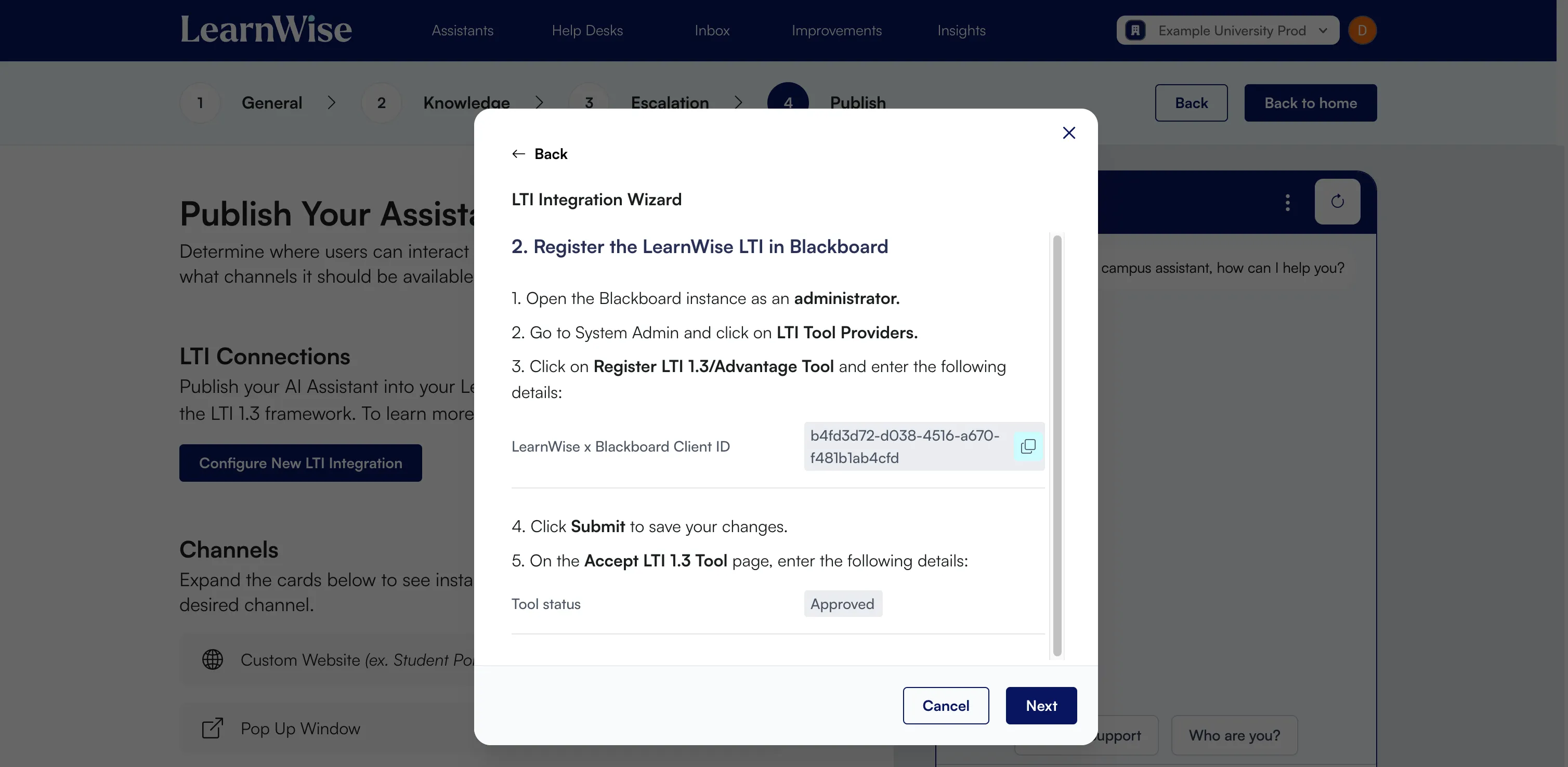
Navigating to Assistant > Publish > Configure New LTI Integration
A pop-up window will appear that outlines all the information you require to register LearnWise as an LTI in Blackboard, therefore it is useful to keep this window open.
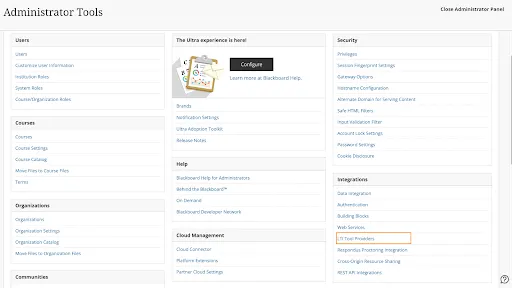
Open Administrator tools in Blackboard
- From the Administrator Panel, navigate to LTI Tool Providers
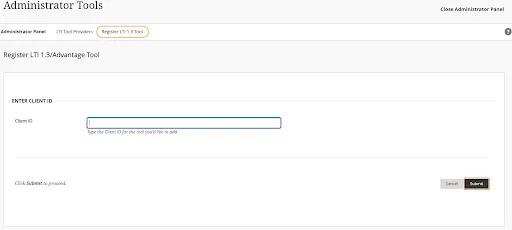
- Register the LTI 1.3/Advantage Tool
- In LTI Tool Providers, select Register LTI 1.3/Advantage Tool
- Enter the Client ID: b4fd3d72-d038-4516-a670-f481b1ab4cfd and submit.
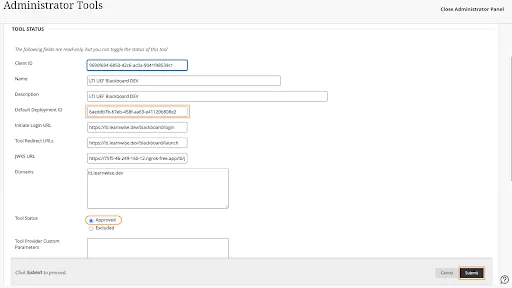
- Approve the tool status
- Set the Tool Status to Approved.
- No additional fields need to be configured on this page.
- Copy and paste the Default Deployment ID somewhere safe
- Click submit in Blackboard
- Click Next in the LearnWise LTI Integration window to move onto the next step.
Follow the steps inside the LTI Integration Wizard, to configure a REST API Integration
- Return to the Administrator Panel and select REST API Integrations
- Click Create Integration
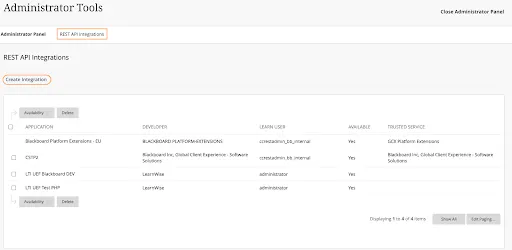
- Paste the Application ID: b4fd3d72-d038-4516-a670-f481b1ab4cfd
- Assign a user, preferably yourself or another administrator, to this integration for managing LearnWise settings.
- Click Submit to finalize the integration.
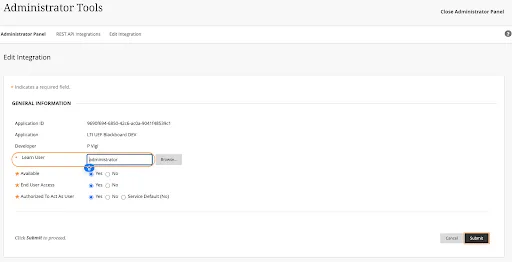
- Completing Setup with LearnWise Support
To make your LearnWise assistant available in Blackboard, click Next in the LTI Integration window and input the correct information into the presented field
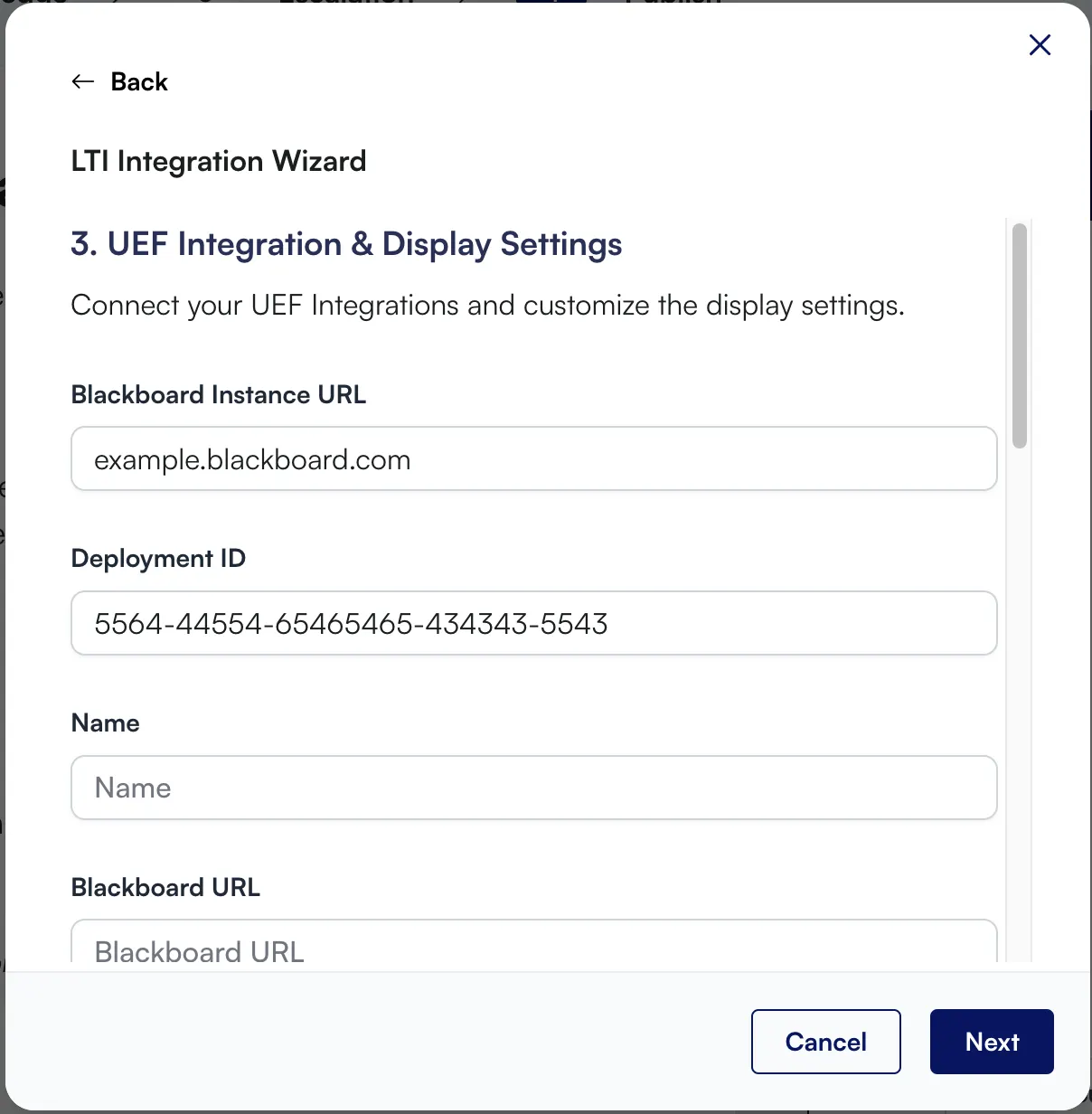
- Your Blackboard URL
- The Default Deployment ID obtained during the LTI setup.
- Choose a name, the URL and the Panel title
- Define how you would like to display your LearnWise assistant inside your Blackboard environment. You can decide between the Global Navigation bar (with a tailored naming convention), or as an option that is launched from within you help bubble. Both can be made available simultaneously
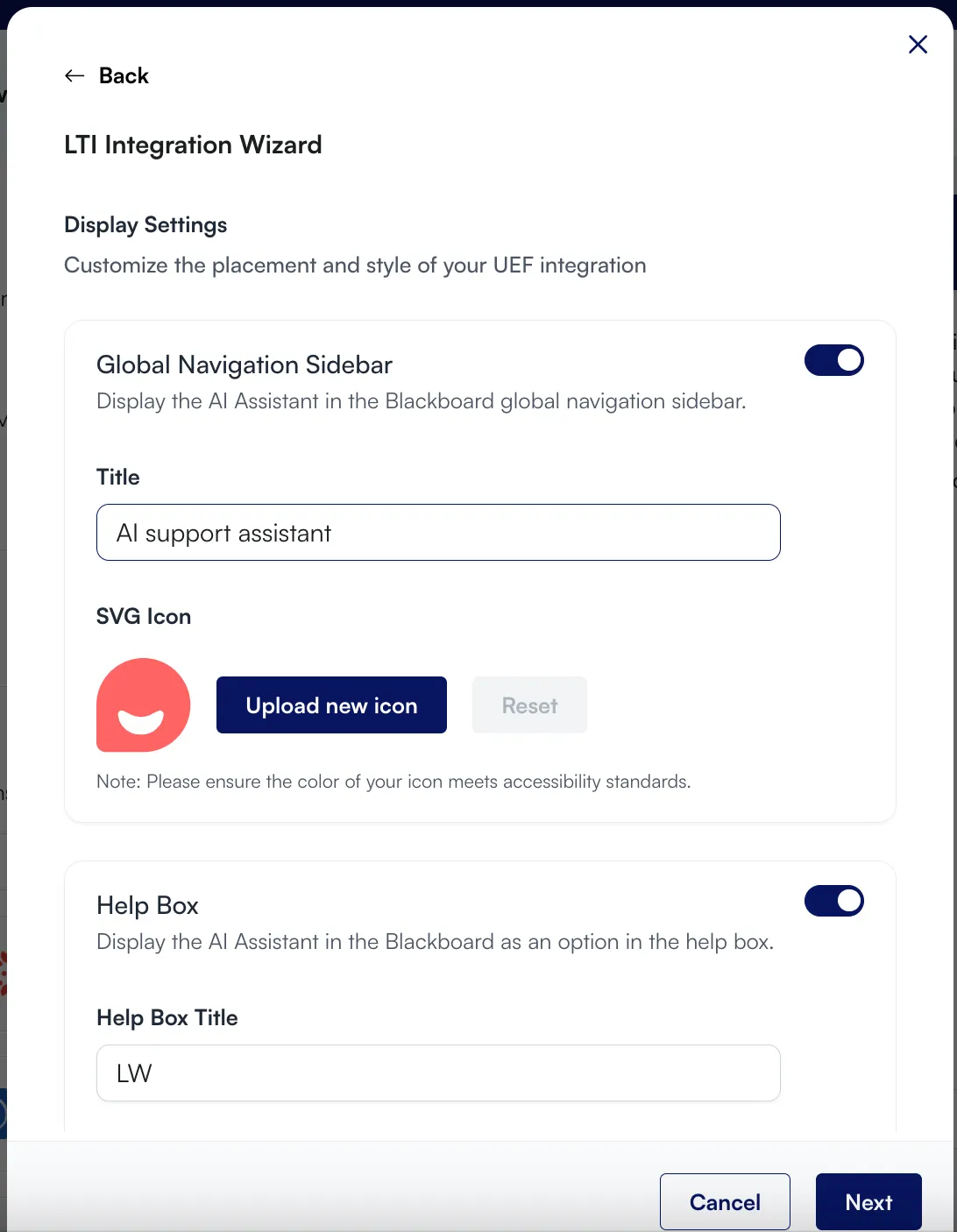
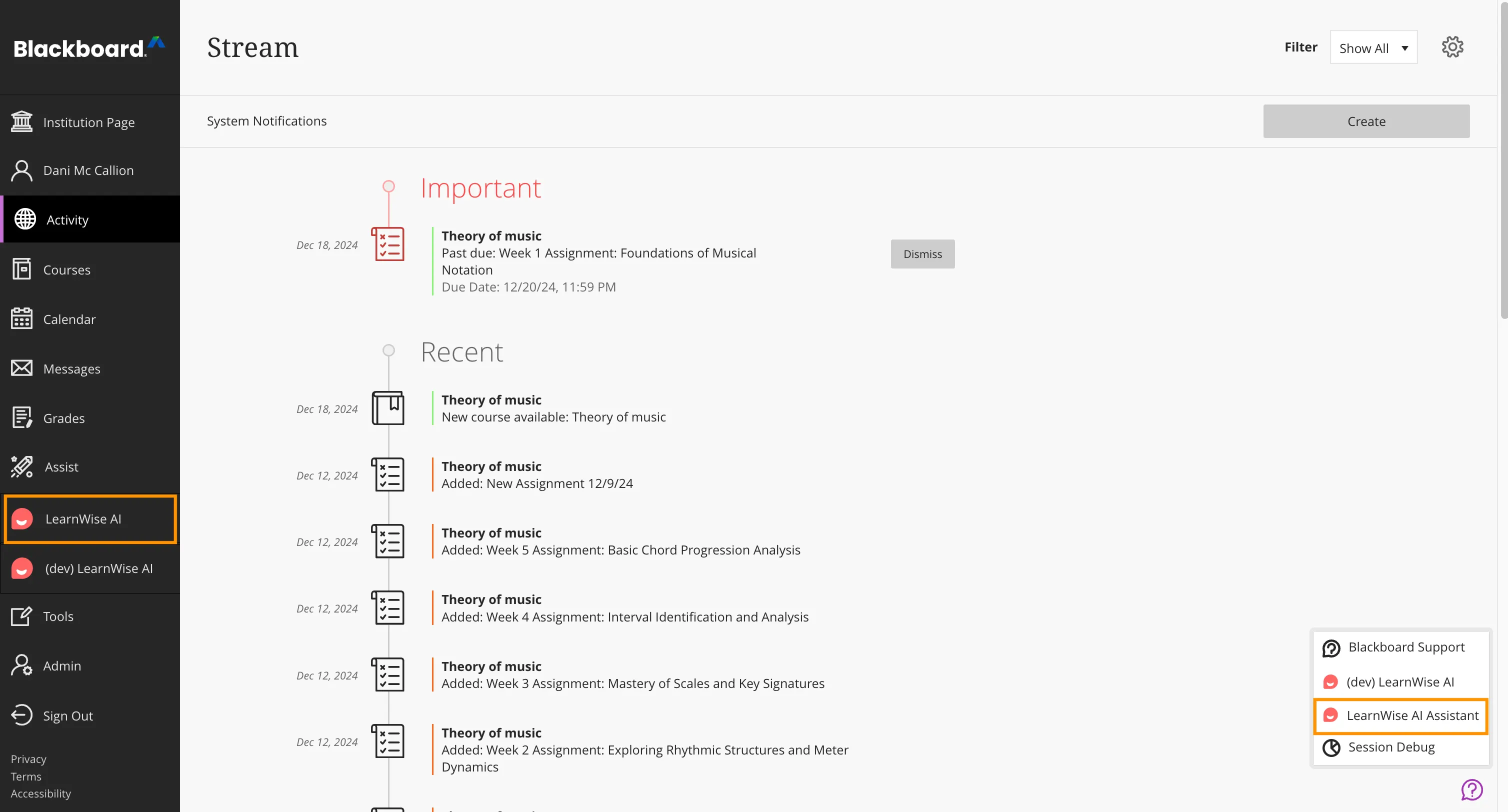
- The icon used can also be changed to better match the look and feel of your institution
The LearnWise assistant is now ready for your users to interact with in your Blackboard environment. The next screen within the LTI Integration explains what to expect from the assistant. Once you are satisfied you understand, click Finish to close the pop-up.
Still stuck?
Ask the LearnWise assistant. It answers from these guides.
Related guides
- How can I add AI Student Tutor within Blackboard?Build your assistant
- How do I install AI Campus Support on the Brightspace Login Page?Build your assistant
- How do I publish an assistant into Microsoft Sharepoint?Build your assistant
- How do I publish an assistant into Microsoft Teams?Build your assistant
- How do I publish an assistant into Shopify?Build your assistant