

How do I create a new AI assistant?
Step-by-step guidance to create, customize, and publish a LearnWise AI assistant with tailored knowledge, human escalation paths, and multi-channel deployment across your campus.
3 min readUpdated
Creating Your LearnWise AI Assistant #
Incorporating an AI assistant into your educational platform can enhance the user experience by providing immediate, automated support and responses to common inquiries. LearnWise AI assistants can be tailored to your institution's needs, ensuring that your students and faculty receive the most relevant information. Follow the steps below to set up your new AI assistant on the LearnWise platform.
-
Navigate to Your Assistants Dashboard
- Log in to the LearnWise admin portal at admin.learnwise.ai
- Select the 'Assistants' tab to view a list of all AI assistants currently available to you or create a new assistant
-
Create a New Assistant
- Click the 'Create New Assistant' button located in the upper right corner of the 'Assistants' dashboard. NOTE: the assistant isn’t live until you choose to publish it
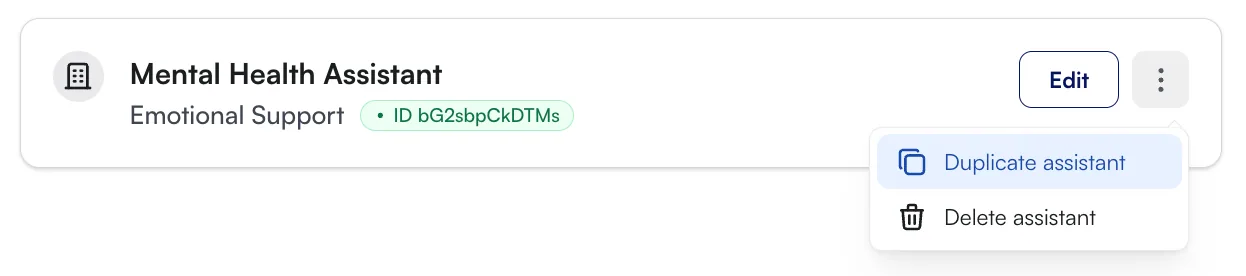
- Alternatively, you can duplicate an existing assistant by selecting 'Duplicate Assistant' from the assistant menu. This creates a copy of the assistant's general settings, styles, flows, and FAQs. Note: knowledge sources and help desks are not copied.
-
Enter Assistant Details
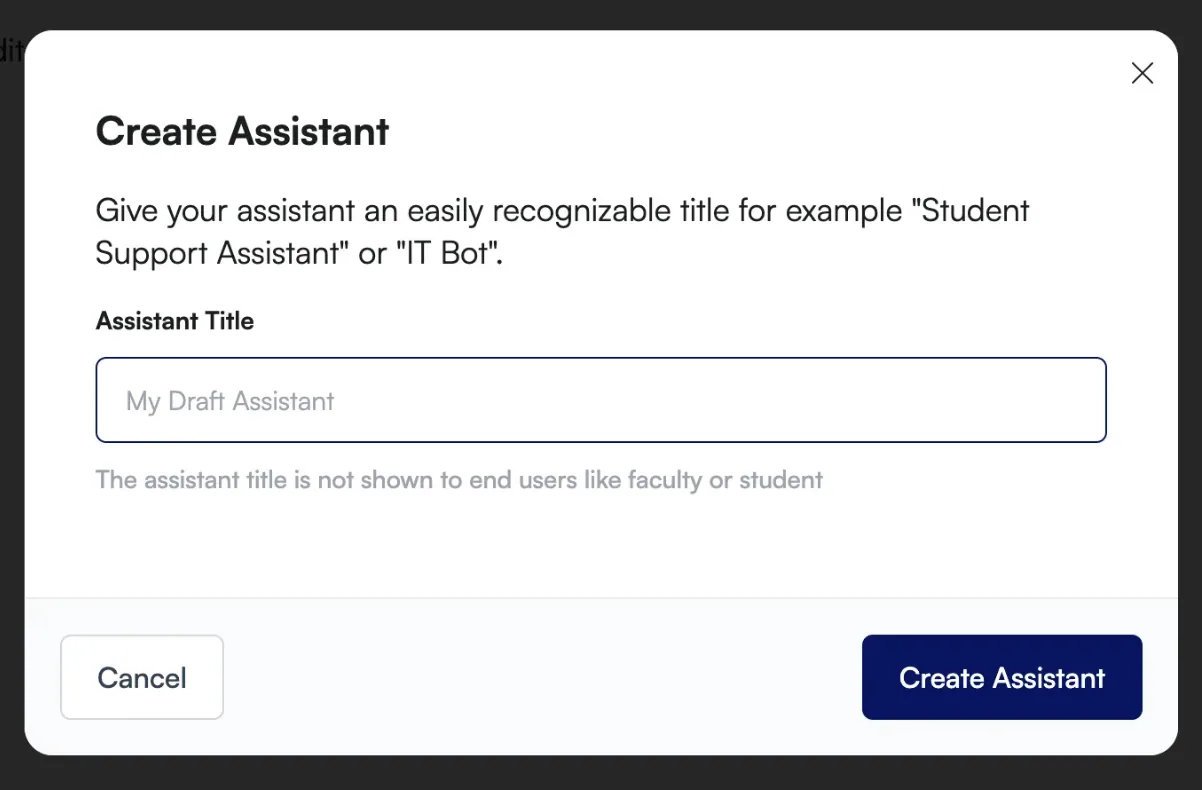
- In the 'Create Assistant' popup, provide a distinctive and recognizable title for your assistant in the 'Assistant Title' field (this name remains internal)
-
Customize General Settings
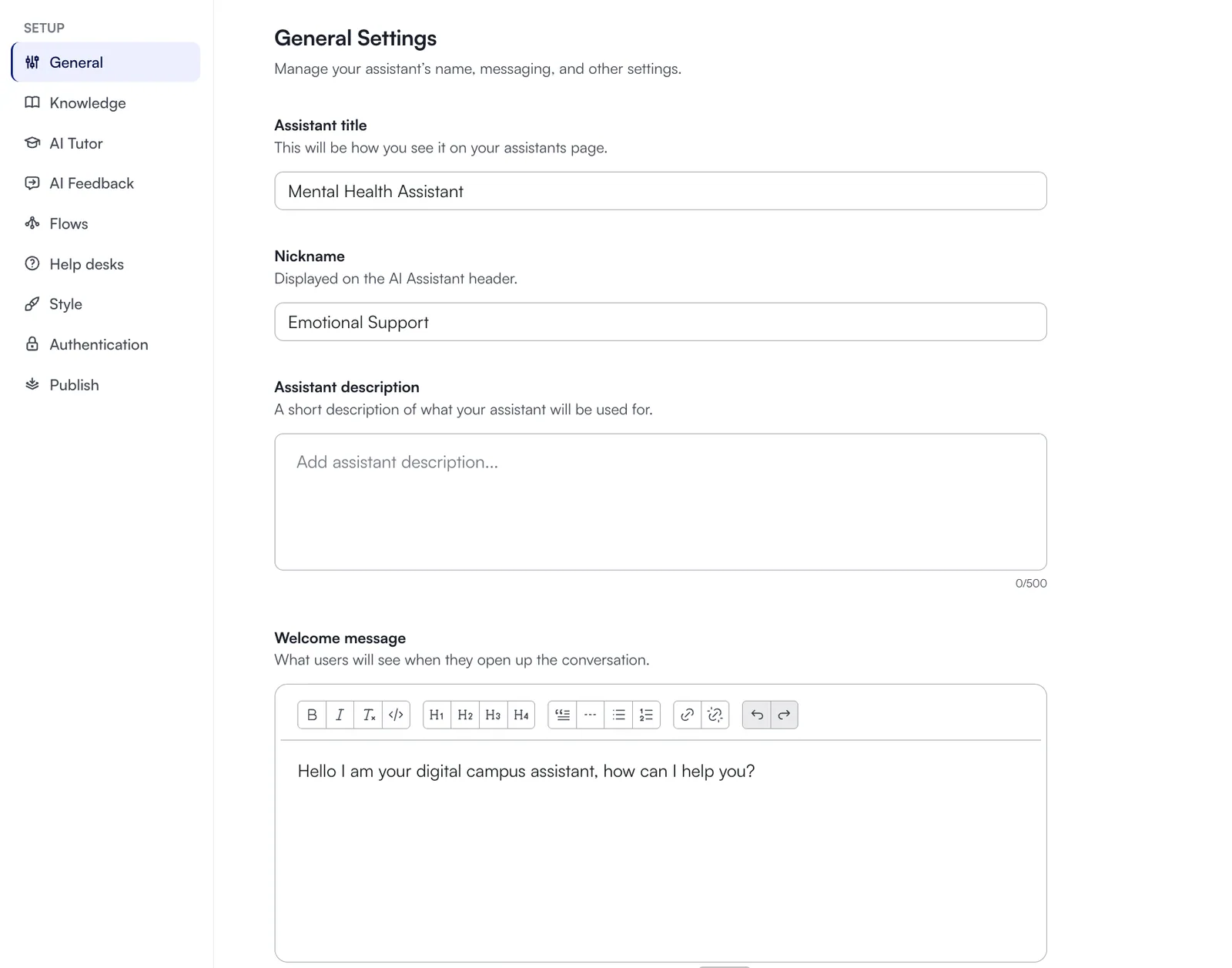
After the assistant is created, you will be directed to the 'General' section where you can:
- Assign a Nickname to your assistant that will be visible to your end-users
- Compose a welcome message that users will see upon initiating a conversation with your assistant.
- Create shortcut buttons that show up when your assistant is launched.
- Add a disclaimer
- Choose to activate voice mode and suggested questions
- Add custom instructions to tailor your assistant to better meet your needs
- Under Configuration, turn on Data processing consent if students must accept a consent text before they can chat
-
Add Knowledge
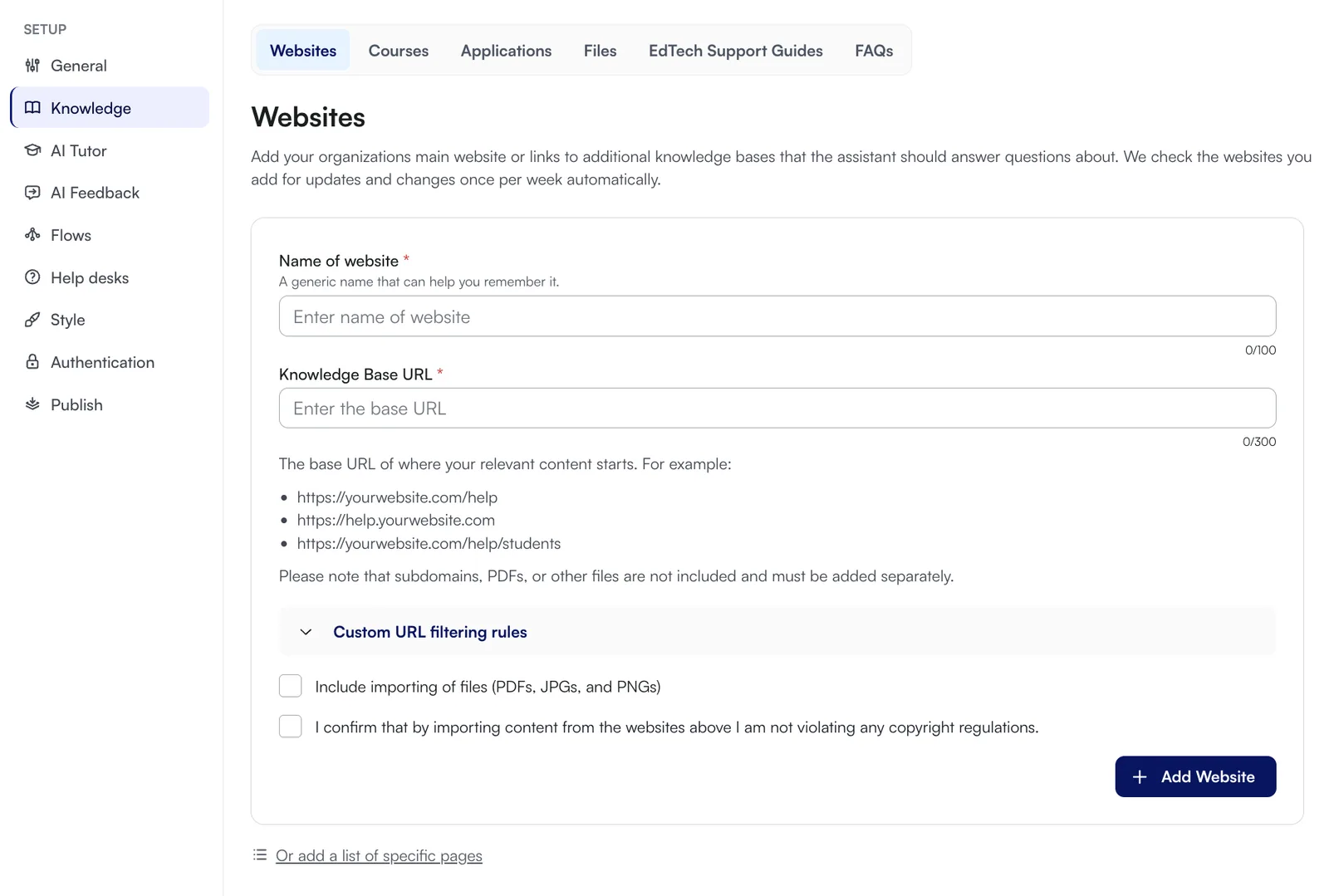
- Navigate to the 'Knowledge' tab
- Out-of-the-box and custom knowledge, including websites, external applications, uploaded files, courses and FAQs that are specific to your institute can be added an managed from the knowledge tab
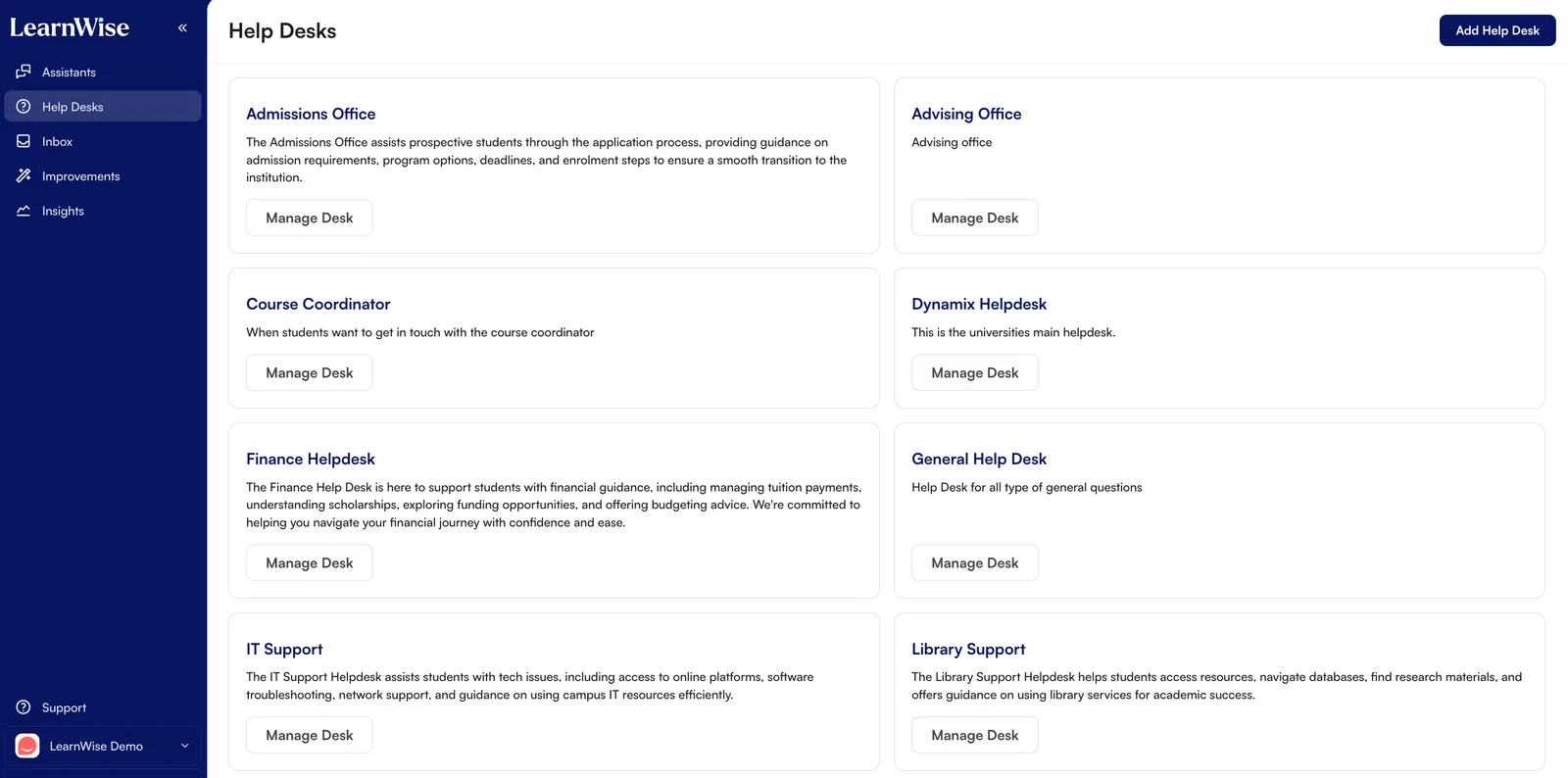
- Add Help Desks
- Help desks allow you to escalate users to the the correct place should they need to speak to a human
- You can connect add and edit help desks globally and enable them per assistant
- Workflows can also be added to ensure escalations are targeted
- Publishing methods
-
- Here you can find all of the instructions to publish your assistant across all the possible channels
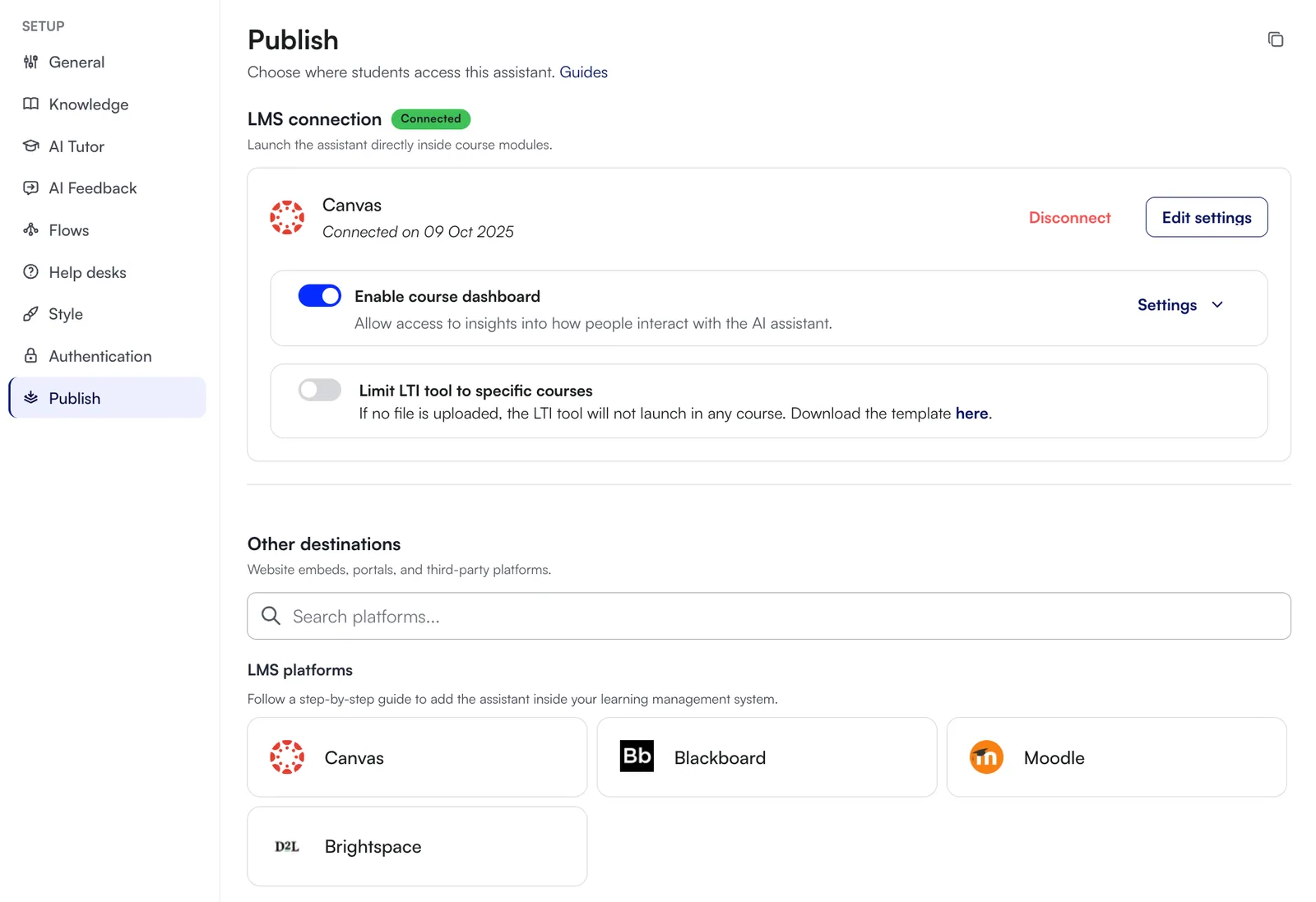
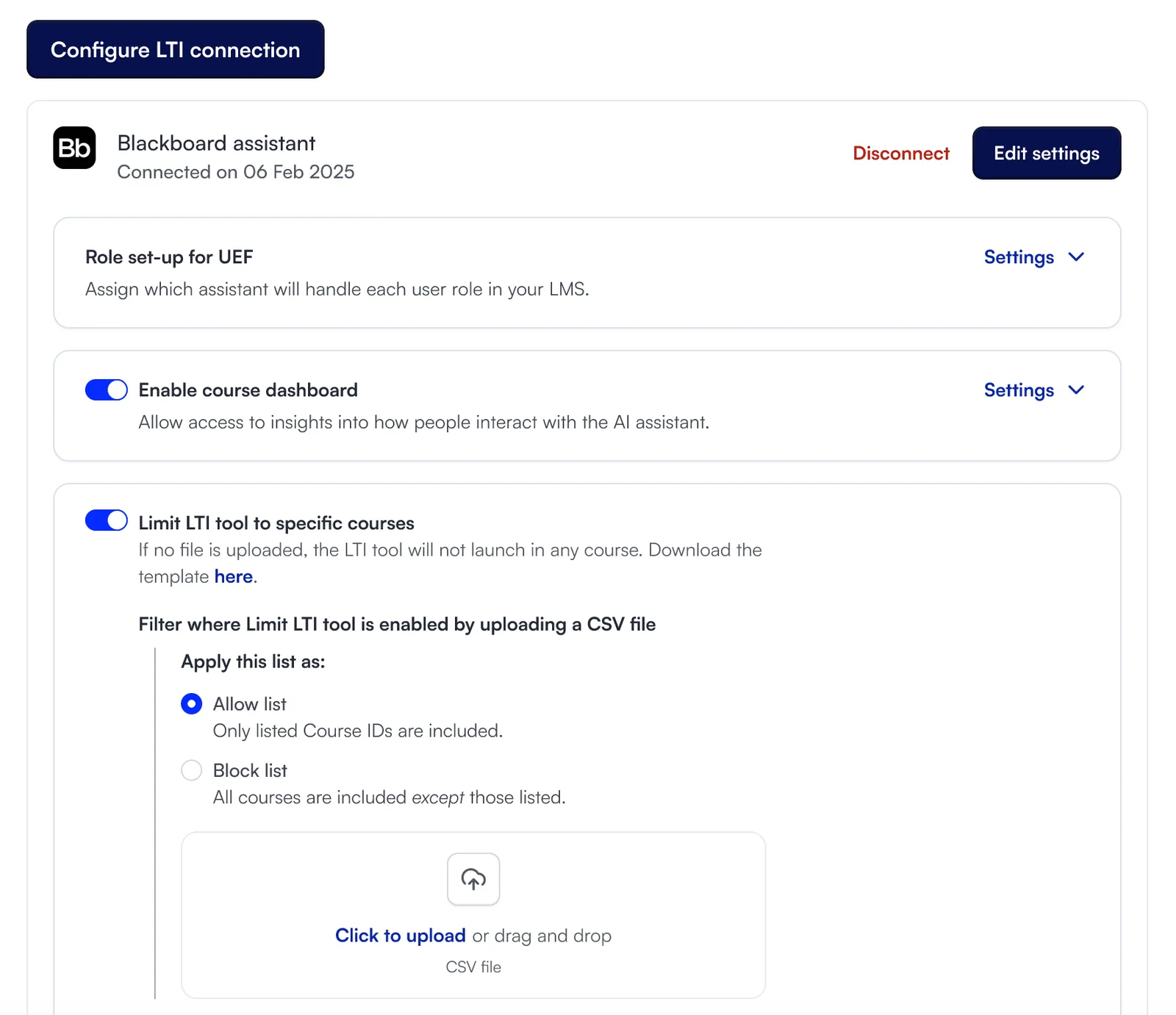
- LTI Course Restrictions: If publishing via LTI (Learning Tools Interoperability), you can control which courses have access to your assistant:
- Toggle on "Enable course dashboard" to allow access to insights dashboards for people enrolled in the course
- Toggle on "Limit LTI tool to specific courses" to restrict access
- Upload a list of allowed or blocked course IDs to enable controlled rollouts to specific courses
- Here you can find all of the instructions to publish your assistant across all the possible channels
The assistant interface displayed within the Assistant tab also allows you to test all of the configurations put in place. Simply ask a question, test shortcut buttons, escalation rules before publishing to ensure the assistant meets all of your institutes needs.
By following these steps, you have now added a new AI assistant to your LearnWise organization, ready to be further configured and deployed to support your campus.
Still stuck?
Ask the LearnWise assistant. It answers from these guides.
Related guides
- How do AI suggested questions work?Build your assistant
- How do I activate and use voice mode in the assistant?Build your assistant
- How do I change the brand color of your assistant?Build your assistant
- How do I change the nickname of the assistant?Build your assistant
- How do I set the global answering style for my assistant?Build your assistant