

How do I publish an assistant into Microsoft Sharepoint?
A short guide to adding the LearnWise AI app to a SharePoint page and configuring it as either an embedded chat or floating support button using your assistant ID.
2 min readUpdated
Provide AI support on any Sharepoint page #
The LearnWise AI assistant can be presented on any Sharepoint page as an embedded iframe or as an overlay which can be accessed via a floating support button. Follow this guide to learn how to publish your assistant on a Sharepoint page.
Video displaying how to install the LearnWise application within Sharepoint
-
Login to the Microsoft 365 admin and open the desired Sharepoint Site.
- Navigate to admin.microsoft.com and log into your account.
- Navigate to the Sharepoint site where you would like to install LearnWise.
- Ensure you are a Sharepoint Admin user with edit permissions.
-
Locate the LearnWise Application in the Sharepoint App Store
- Click on the “Settings” icon ⚙️ in the top right corner of your Sharepoint
- Click on “Add an App”
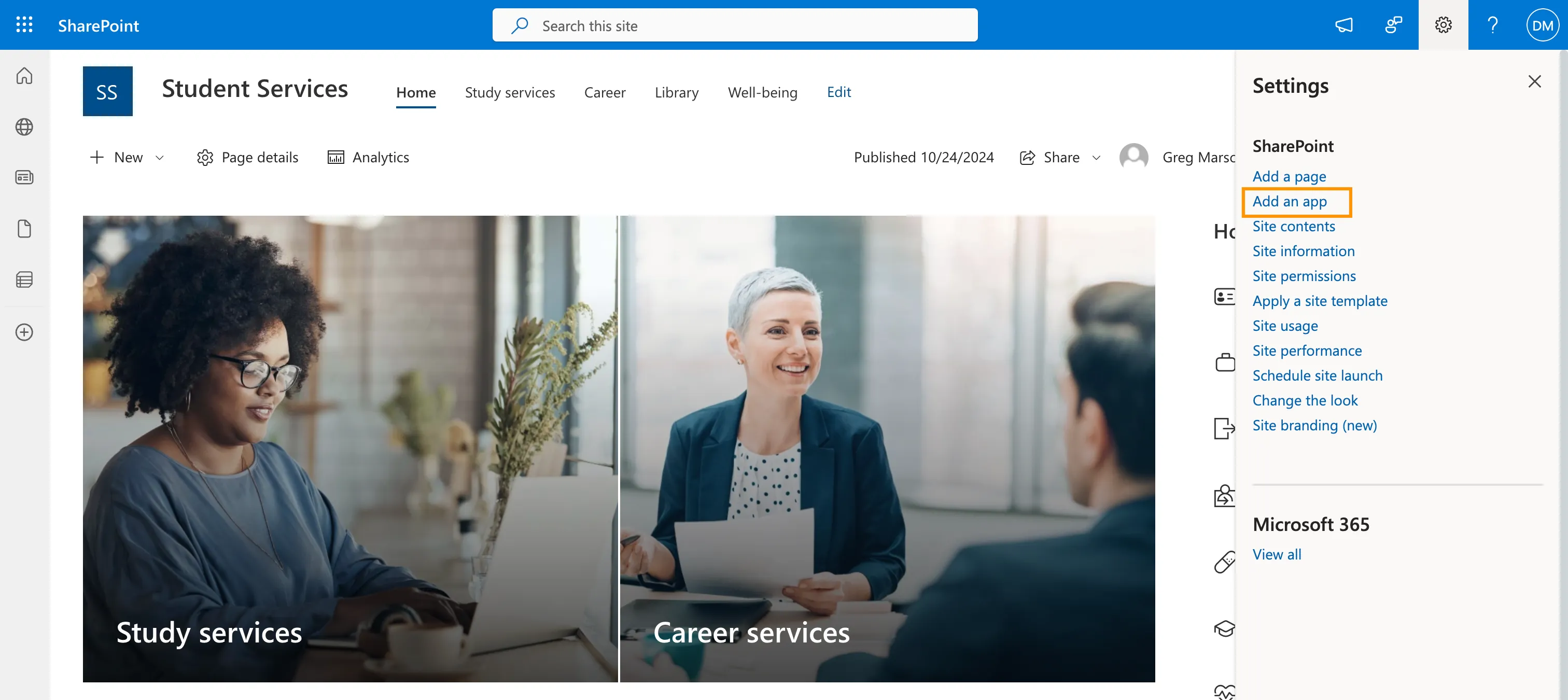
- Search the store for “LearnWise AI” to locate our application page. If you have trouble finding it, you may need to click on “Find more apps in the Sharepoint Store”
- You may also directly locate the app here: LearnWise Chat for Sharepoint
-
Install the LearnWise App
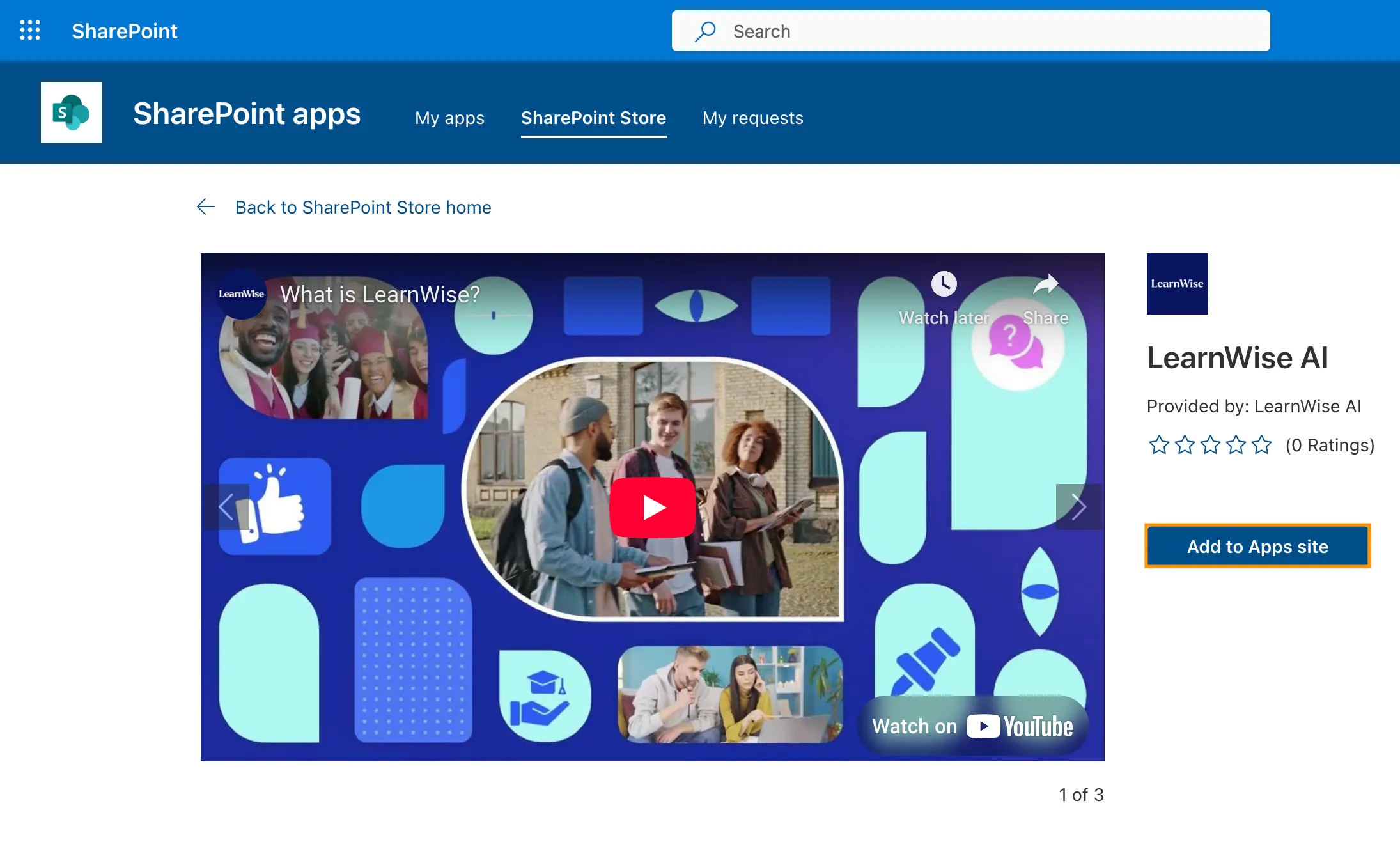
- On the LearnWise app listing page, click the “Add to Apps Site” button
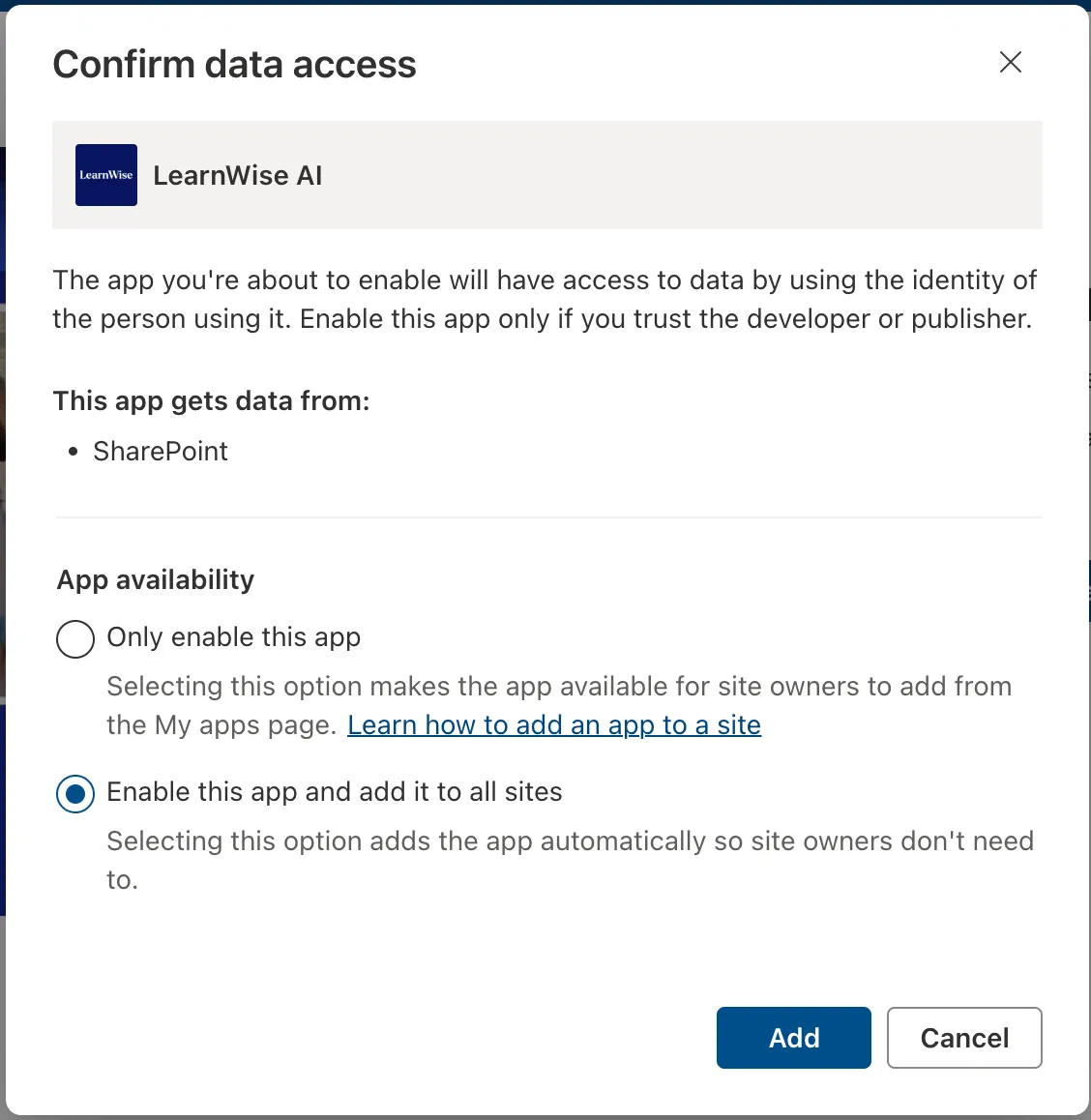
- In the popup modal, select “Enable on all sites” and click “Add”
-
Add the App to the Sharepoint page
- Navigate back to the desired Sharepoint page and click “Edit”.
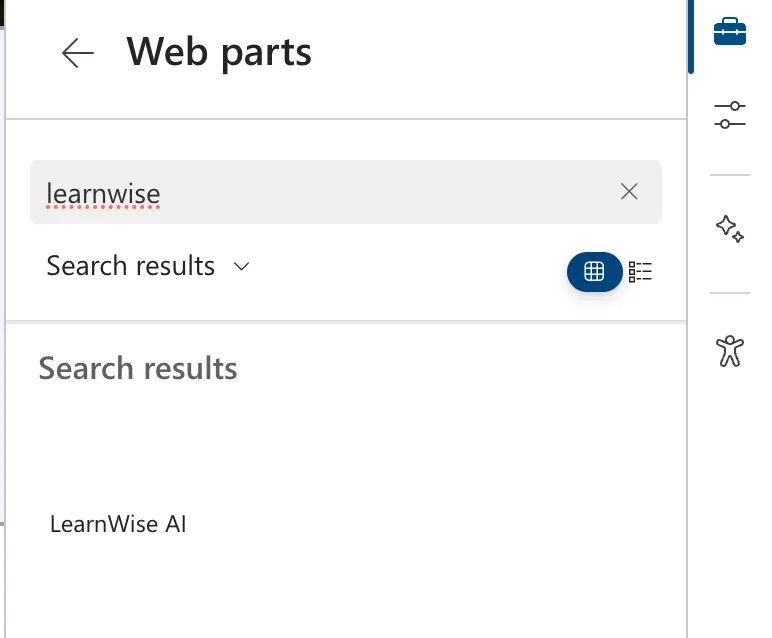
- Add a new web part anywhere on the page.
- In the dropdown, select “LearnWise AI” under the “Advanced” section or search
-
Configure the App
-
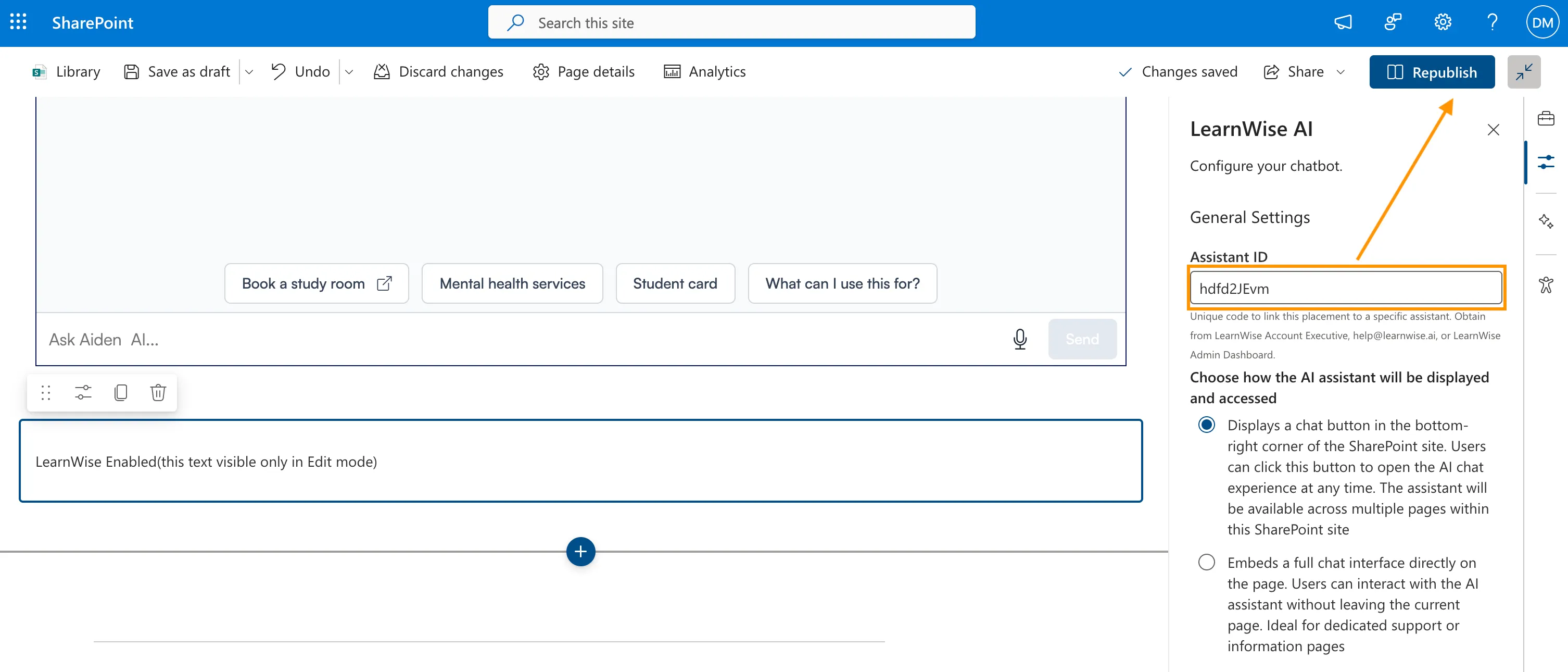
Click the edit button for the newly created web part
-
Enter the relevant Assistant ID which can be found in your LearnWise admin dashboard.
-
Select the desired Type.
- Button: the chat interface is available via a floating support button (the web part is automatically hidden).
- Chat: The chat interface is embedded inside of the web part.
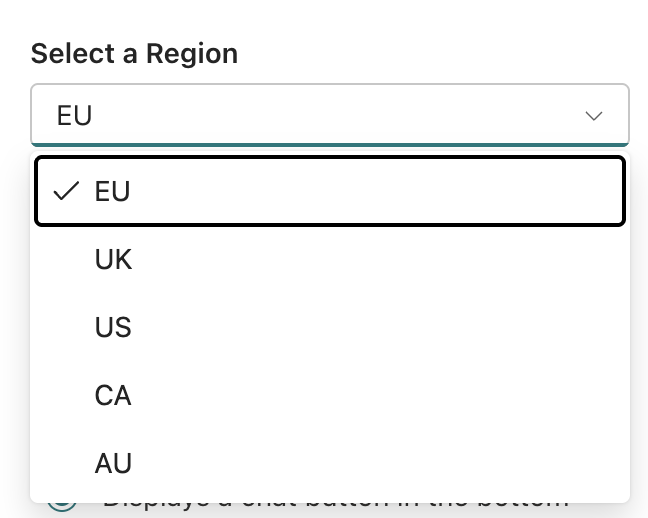
- Select the appropriate region
-
-
Publish the page
-
- Click “(Re)Publish” to apply the changes made.
By following these steps, you are able to publish your LearnWise AI assistant onto any Sharepoint page.
Note: To take advantage of the latest updates, completely remove the LearnWise for Note: To access the latest updates, fully uninstall the LearnWise for SharePoint app from your Microsoft organization and then reinstall it from the Microsoft Marketplace.
Still stuck?
Ask the LearnWise assistant. It answers from these guides.
Related guides
- How do I publish an assistant into Microsoft Teams?Build your assistant
- How can I add AI Student Tutor within Blackboard?Build your assistant
- How do I connect SharePoint to LearnWise AI?Build your assistant
- How do I install AI Campus Support on the Brightspace Login Page?Build your assistant
- How do I publish an assistant in Blackboard via the Ultra Extension Framework (UEF)?Build your assistant